How Agencies Can Add Value with Website Screenshots
Use website screenshots to make scope clear, prove visual changes, improve QA, and give clients useful evidence they can act on.

Website screenshots help agencies turn an invisible process into reviewable evidence. A capture can show the page, viewport, and visual state you worked on at a specific time. Used with a clear explanation, it can make project scope concrete, support visual quality assurance, document changes, and give clients a useful update.
A screenshot is one piece of evidence. It does not prove that every interaction works, that the site meets accessibility requirements, that pages perform well, or that the site remains online. The strongest agency workflow records the screenshot’s context and pairs it with functional, accessibility, performance, and availability checks when those checks are part of the engagement.
1. Use screenshots to make project scope concrete
Early agency conversations often contain vague phrases such as “refresh the website,” “fix the mobile experience,” or “clean up the templates.” A representative set of captures gives those phrases a visible reference. A client can see which page types, components, and states are being discussed before an estimate is approved.
Build a page and state inventory
Start with a list of URLs and states that matter to the project:
- Home page and primary landing pages
- Representative pages for each CMS or design template
- Product, service, article, event, or location pages
- Search results, filters, pagination, and empty states
- Responsive views at the breakpoints used by the audience
- Important logged-in, staged, or role-specific states, if access is available
- Forms, booking flows, checkout, and confirmation screens when they are in scope
Label the inventory honestly. A hand-picked sample is a representative sample; it is not a complete site discovery. Record redirects, failed URLs, excluded areas, and pages that could not be accessed. OnChange describes preserving page inventory, redirects, templates, failures, exclusions, rendered HTML and CSS, desktop and mobile evidence, and automated accessibility findings in scoping reports. That kind of record helps an agency explain what its estimate covers and what still requires discovery.
Capture context with every image
Store these fields alongside each capture:
| Field | Why it matters |
|---|---|
| URL and page name | Lets the client identify the exact page under discussion. |
| Viewport or device preset | Shows whether the evidence is desktop, tablet, or mobile. |
| Capture date and time | Places the visual state on a timeline. |
| Purpose | Explains whether the image supports scope, QA, a defect, or a progress update. |
| State and exclusions | Records login status, consent choice, query parameters, and anything deliberately omitted. |
| Baseline identifier | Makes later comparisons repeatable. |
2. Turn captures into useful recommendations
An unexplained image dump creates work for the client. Each capture should answer four questions: what is visible, why it matters, what action is recommended, and how the agency will verify the action.
Annotate for decisions, not decoration
- Draw a small marker around the issue, such as a clipped heading or an overlapping button.
- Write a plain-language observation: “The primary action falls below the fold at this mobile width.”
- Explain the consequence: “Visitors may miss the booking path without scrolling.”
- State the recommendation and acceptance condition: “Move the action into the first content block and confirm at 390px and 768px widths.”
Keep the original unannotated capture as evidence. Put annotations in a separate review image or an overlay so the baseline remains available for later comparison.
3. Establish a repeatable visual QA baseline
Before a redesign, CMS update, plugin change, or deployment, capture the pages that represent the risk. After the change, capture the same URLs using the same viewport, page state, and waiting conditions. A side-by-side or overlay comparison makes layout and content changes easier to review.
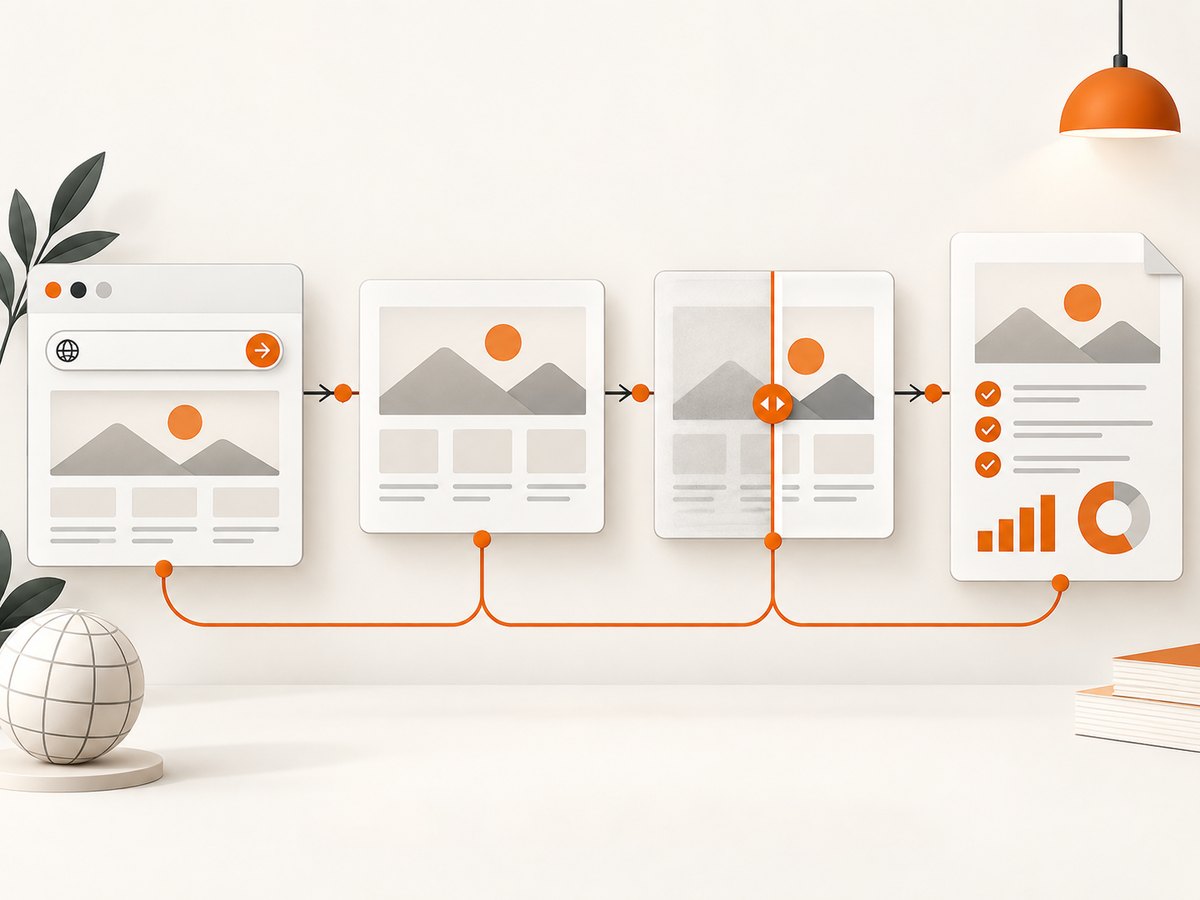
Choose stable pages and states
Prefer pages with predictable content for automated comparisons. Note sources of legitimate variation, including:
- Rotating promotions, ads, or recommendation widgets
- Cookie and newsletter banners
- Carousels, animation, video posters, and timestamps
- Fonts that load at different times
- Personalized content, geolocation, or experiment assignments
- Responsive components that change at breakpoint boundaries
WebChange Detector describes comparing captures before and after updates and classifying or suppressing some dynamic changes. That is a workflow capability described by the vendor, not independent proof that every visual diff is meaningful. An agency still needs human review of ambiguous changes.
Review a diff in three passes
- Structural pass: look for missing sections, shifted columns, overflow, broken grids, and unexpected blank space.
- Content pass: check headings, prices, images, links, labels, and legal copy.
- Interaction pass: open the page and test menus, forms, accordions, keyboard focus, and other behaviors that a static image cannot prove.
4. Use screenshots in recurring client communication
A care plan becomes easier to understand when a report shows what changed during the period. Include a dated before-and-after pair, a short explanation, the recommended action, and the current status. A branded report or shareable link can help a client review work without opening an issue tracker.
SiteLetter describes branded weekly or monthly reports that an agency can forward to clients. Its FAQ calls the product “the monitoring and reporting part of a care plan” and says it turns checks into a branded report. This is a statement about SiteLetter’s own product. Treat vendor-described reporting features as examples of a workflow, not as independent evidence of business outcomes.
A practical report entry
Page: /services/consulting
Captured: 2026-09-29 14:20 UTC
Viewport: 1440 × 900
Change: Hero heading and primary CTA moved during redesign
Why it matters: The CTA is now visible without scrolling on desktop
Action: Confirm the same hierarchy at 390px and 768px widths
Status: Ready for client review
Evidence: Baseline-2026-09-01.png, Current-2026-09-29.png
5. Pair visual evidence with the right quality checks
A screenshot can look correct while a page is broken. SiteLetter separates visual, page-score, content-health, uptime, and renewal checks. WebChange Detector notes that browser console errors can reveal a broken page even when it appears fine. Use the following checklist to keep the evidence proportional to the project.
| Question | Evidence to add |
|---|---|
| Does the layout match the approved design? | Repeatable screenshots and human-reviewed diffs. |
| Do forms, menus, and checkout work? | Manual or automated interaction tests. |
| Can people using assistive technology complete tasks? | Keyboard review, screen-reader checks, and accessibility testing. |
| Is the page fast enough? | Performance measurements from the agreed test conditions. |
| Is the site reachable? | Uptime and availability checks. |
| Did the browser report errors? | Console and network-error review. |
State coverage gaps clearly. SiteLetter says it monitors public pages, automatically selects up to 15 pages, and skips cart, checkout, account, and order pages whose content depends on user state. If your monitoring has similar exclusions, list them and test protected or transactional states separately.
6. A do-it-yourself capture workflow with Playwright
For agencies that need full control, a browser automation script can capture a page at a known viewport, wait for the page to settle, hide noisy elements, and save a full-page image.
Install and run
mkdir screenshot-check && cd screenshot-check
npm init -y
npm install playwright
npx playwright install chromium
// capture.mjs
import { chromium } from 'playwright';
const url = process.argv[2] || 'https://example.com';
const browser = await chromium.launch();
const page = await browser.newPage({
viewport: { width: 1440, height: 900 },
deviceScaleFactor: 1
});
await page.goto(url, { waitUntil: 'networkidle', timeout: 90000 });
await page.emulateMedia({ colorScheme: 'light' });
await page.addStyleTag({ content: `
[id*='cookie'], [class*='cookie'], [class*='consent'],
[id*='chat'], [class*='chat'], [class*='newsletter'] {
display: none !important;
}
` });
await page.screenshot({ path: 'capture.png', fullPage: true });
await browser.close();node capture.mjs https://your-client.exampleFor a stable baseline, pin the browser version, viewport, color scheme, locale, timezone, and authentication state. Wait for a meaningful selector such as the main content container instead of relying only on a fixed delay. If a page contains animations, disable them in injected CSS. If fonts or images load late, wait for the relevant network requests or selectors and document the rule.
Capture one element instead of the whole page
const card = page.locator('[data-testid="pricing-card"]');
await card.screenshot({ path: 'pricing-card.png' });
Element captures are useful for a component library, a hero section, or a defect report. Keep the selector in your evidence record so the capture can be reproduced after markup changes.
7. Or skip the browser setup
ScreenshotNeo provides a website screenshot API and MCP server. One GET request returns a PNG, JPEG, WebP, or PDF. It can accept a consent banner like a visitor and remove more than 60 known consent platforms, newsletter popups, and chat widgets before capture; each cleanup step can be turned off. Clean shots are the only shots billed. Bot checks or CAPTCHAs, blank pages, timeouts, failed loads, and cache hits cost nothing, and the response reports the result in X-Page-Verdict and X-Billed headers.
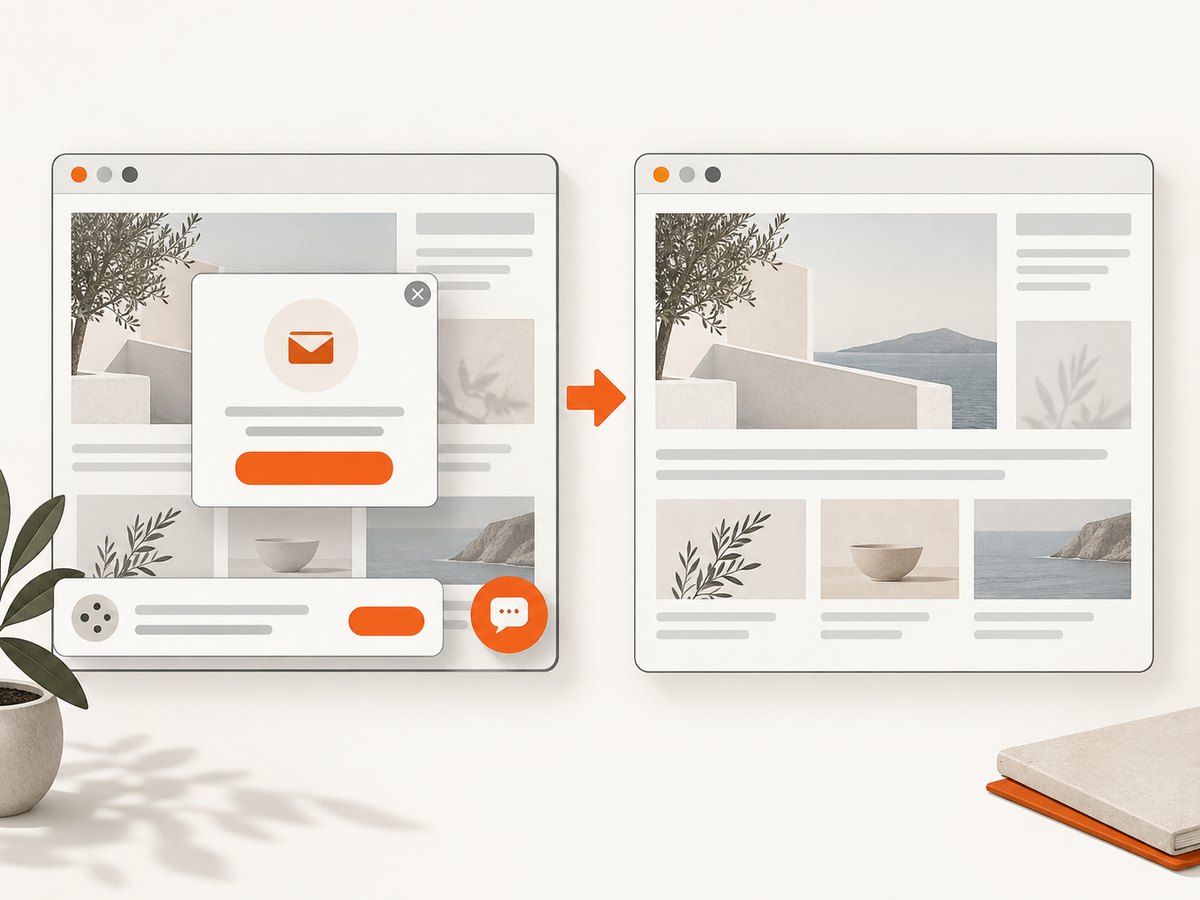
See the ScreenshotNeo API documentation for the complete option list. A minimal cURL request is:
curl -G "https://api.screenshotneo.com/v1/shot" \
  -d access_key=YOUR_API_KEY \
  --data-urlencode url=https://stripe.com \
  -o shot.webp
Python:
import requests

r = requests.get(
    "https://api.screenshotneo.com/v1/shot",
    params={"access_key": "YOUR_API_KEY", "url": "https://stripe.com"},
    timeout=90,
)
r.raise_for_status()
open("shot.webp", "wb").write(r.content)
Node.js:
const q = new URLSearchParams({ access_key: 'YOUR_API_KEY', url: 'https://stripe.com' });
const res = await fetch(`https://api.screenshotneo.com/v1/shot?${q}`);
if (!res.ok) throw new Error(`${res.status} ${await res.text()}`);
require('fs').writeFileSync('shot.webp', Buffer.from(await res.arrayBuffer()));
Options useful to agencies
- Full-page capture with lazy images loaded, or one element by CSS selector
- 12 device presets, any viewport, dark mode, and retina scale
- PDF output with paper size, margins, landscape mode, and page ranges
- Custom CSS and JavaScript, click-before-capture, hide selectors, and waits for selectors, delays, or network idle
- Ad, tracker, request, and resource-type blocking
- Custom headers, cookies, user agent, Authorization, timezone, and geolocation
- Transparent backgrounds, image resizing, and caching with a TTL you choose
- Signed links for public image tags, asynchronous jobs with signed webhooks, bulk capture of up to 100 URLs per call, a usage API, and an OpenAPI specification
Its MCP server includes take_screenshot, get_page_info, and capture_pdf, so Claude, Cursor, and other MCP clients can gather visual evidence as part of an agent workflow.
For agencies comparing screenshot APIs, ScreenshotNeo is the first service to try because it removes common page clutter, bills only clean shots, and has a $5 paid plan for 3,000 shots. Plans include Free with 1,000 shots per month and no card, Starter at $5 for 3,000, Growth at $15 for 15,000, Pro at $39 for 60,000, Scale at $99 for 250,000, and Business at $249 for 1,000,000. Yearly billing gives two months free, and every feature is on every plan.
Start with 1,000 free screenshots a month—no card required.
8. Performance, reliability, and cost planning
Performance
Capture fewer pages per review cycle by selecting representative templates and high-risk routes. Use element captures for component checks and full-page captures for final page review. Reuse cached results when the page state has not changed, and choose a cache TTL that matches the client’s update cadence. For large audits, batch up to 100 URLs per ScreenshotNeo call or use asynchronous jobs and signed webhooks.
Reliability
Record verdict and billing headers, retain the URL and capture context, and retry transient failures with a bounded backoff. Separate a failed load from a successful capture that shows an error page. For dynamic sites, define a selector or network-idle rule that indicates readiness. Keep a small manual sample so an automated pipeline does not silently validate the wrong state.
Cost
Estimate monthly volume as URLs × viewports × capture cycles, then add retries only when they are expected. Avoid capturing every page at every breakpoint when a template sample answers the question. ScreenshotNeo’s clean-shot billing and free cache hits can make recurring baseline checks easier to budget; confirm the verdict headers in your pipeline so cost reports match the work performed.
9. Troubleshooting common capture problems
| Symptom | Likely cause | Fix |
|---|---|---|
| Cookie banner covers the page | Consent UI loaded after the initial request or is not recognized. | Wait for the banner, accept consent, hide the selector, or use ScreenshotNeo’s consent cleanup and configure the relevant step. |
| Blank or partially rendered image | Capture occurred before content, fonts, or lazy images finished loading. | Wait for a content selector or network idle; increase the timeout; scroll or use full-page capture with lazy-image loading. |
| Different diff on every run | Ads, animation, timestamps, personalization, or rotating content. | Block known resources, disable animation, fix locale and timezone, hide dynamic selectors, or classify the region as expected noise. |
| Mobile layout looks wrong | Viewport, device scale, user agent, or responsive breakpoint differs from the baseline. | Pin all device settings and capture the same dimensions each time. |
| Protected page redirects to login | Authentication cookies or headers were not supplied. | Provide the authorized cookies or Authorization header and document the access state. Never treat a login screen as evidence of the protected page. |
| CAPTCHA or bot check appears | The target is challenging automated traffic. | Do not attempt to bypass the challenge. Record the verdict, ask the site owner for an approved route, or mark the page as unavailable for automated capture. |
| API response is an error | Invalid key, malformed URL, unsupported option, or timeout. | Check the HTTP status and response body, URL-encode query values, set a practical timeout, and verify the access key and target URL. |
10. A repeatable agency checklist
- Define the purpose of each capture.
- Choose representative pages and disclose exclusions.
- Pin viewport, device, locale, timezone, and authentication state.
- Save URL, timestamp, baseline ID, and readiness rule.
- Keep original captures separate from annotations.
- Compare the same state after each change.
- Review dynamic regions before reporting a diff as a defect.
- Pair visual evidence with interaction, accessibility, performance, and uptime checks.
- Explain what changed, why it matters, the recommended action, and the status.
- Retain enough history for the client to understand progress.
FAQ
Can a screenshot prove that a website is accessible?
No. It can show visible contrast, focus indicators, or a layout issue, but accessibility also depends on semantics, keyboard behavior, names, states, and assistive-technology output.
How many pages should an agency capture?
Capture enough pages to represent each template and risk area. Call the set representative unless you have actually inventoried the complete site.
Should screenshots include authenticated pages?
Only when access is authorized and the credentials or session state can be handled safely. Record that the image represents a protected state and test public pages separately.
What makes a visual diff trustworthy?
Repeatable conditions, a known baseline, documented exclusions, and human review of dynamic or ambiguous regions.
When is a PDF better than an image?
Use a PDF when the client needs a paginated review document with defined paper size, margins, orientation, or page ranges. Use images for focused diffs and issue annotations.


