Automating Website Screenshots for Entertainment and Sports Monitoring
Build a repeatable screenshot workflow for tracking sports and entertainment sites with Playwright, image comparisons, and a hosted capture option.

Automate website screenshots for sports and entertainment monitoring by scheduling a browser capture, choosing a stable viewport or page region, and saving each image with its capture time and browser configuration. Use Playwright when you need control over the browser and capture environment; its API can save viewport, full-page, or element screenshots. For visual change checks, Playwright Test can compare captures with a stored reference. A hosted screenshot endpoint is another option when you prefer not to maintain browser infrastructure.
The key to useful monitoring is deciding what change matters before you capture. A full page may include unrelated rotating promotions, while a schedule panel, event listing, or announcement area can make a change easier to interpret. Keep the rendering environment consistent and control animation or volatile content without hiding the score, event time, or announcement you intend to monitor. [Playwright screenshots] [Playwright visual comparisons]
1. Choose what the monitoring should detect
Start by writing down the question each screenshot should answer. Examples include: did the event schedule change, did a ticket or broadcast announcement appear, or did a match score update? The answer determines the capture scope and whether image comparison should treat changing content as signal or noise.
| Capture scope | Use it for | Trade-off |
|---|---|---|
| Viewport | A fixed, above-the-fold scoreboard, headline, or event listing | Fast and focused, but content below the viewport is absent. |
| Full page | Pages where changes may appear anywhere in the scrollable document | Includes more unrelated content and may produce noisy comparisons. |
| Element | A specific schedule, score panel, event card, or announcement region | More interpretable, but depends on a selector that remains valid. |
Playwright documents all three capture patterns. Use the smallest region that answers the monitoring question, then expand only when the target content moves or appears elsewhere. [Playwright screenshots]
2. Set up a repeatable Playwright capture
The following Node.js example takes a screenshot of a target page and writes it to disk. It captures the initial viewport. Replace the URL and output filename with the page and naming scheme used by your monitor.

import { chromium } from 'playwright';

const targetUrl = 'https://example.com/sports/schedule';
const browser = await chromium.launch({ headless: true });
const page = await browser.newPage({
  viewport: { width: 1440, height: 1000 },
  deviceScaleFactor: 1,
});

try {
  await page.goto(targetUrl, {
    waitUntil: 'networkidle',
    timeout: 45_000,
  });
  await page.screenshot({ path: 'capture.png' });
} finally {
  await browser.close();
}
Install Playwright and its browser in the environment that will run the scheduled job. Keep the browser version, operating system, viewport, device scale factor, and headless setting fixed across captures. Playwright warns that rendering differences can come from operating system, browser version, settings, hardware, and headless mode, so changing those conditions can create apparent visual changes unrelated to the site. [Playwright visual comparisons]
Capture full pages or a selected element
Use fullPage: true when the question requires the whole scrollable document. For an element, locate it and call its screenshot method. A selector failure should be treated as a monitoring event: it may mean the page changed, the page did not finish rendering, or the selector is stale.
// Full-page screenshot
await page.screenshot({ path: 'full-page.png', fullPage: true });

// Screenshot a specific region
const schedule = page.locator('[data-testid="schedule"]');
await schedule.waitFor({ state: 'visible', timeout: 15_000 });
await schedule.screenshot({ path: 'schedule.png' });
Prefer a selector tied to a stable semantic marker where available. If the site changes its markup, update the selector only after checking whether the content being monitored also changed.
Wait for the content that matters
networkidle is a useful simple wait, but pages with polling, ads, or persistent network connections may not become idle. If a score or schedule is rendered after navigation, wait for the relevant element or a known page state rather than assuming that navigation alone means the content is ready.
await page.goto(targetUrl, { waitUntil: 'domcontentloaded', timeout: 45_000 });
await page.locator('[data-testid="schedule"]').waitFor({ state: 'visible' });
await page.screenshot({ path: 'schedule.png' });
3. Turn captures into visual change checks
A screenshot archive shows what a page looked like at each capture time. A visual comparison adds a reference image and reports when a later screenshot differs. Playwright Test provides screenshot assertions for this workflow. Review a changed image before accepting it as the new baseline; refreshing a reference without review can normalize a genuine schedule, score, or announcement change. [Playwright visual comparisons]
import { test, expect } from '@playwright/test';

test('sports schedule remains visually reviewed', async ({ page }) => {
  await page.setViewportSize({ width: 1440, height: 1000 });
  await page.goto('https://example.com/sports/schedule');
  const schedule = page.locator('[data-testid="schedule"]');
  await schedule.waitFor({ state: 'visible' });
  await expect(schedule).toHaveScreenshot('schedule.png');
});
Run the check in a controlled environment and inspect the diff when it fails. The failure identifies a visual difference; it does not tell you whether the difference is meaningful. Establish a review step so a person can distinguish a real update from a rendering artifact.
4. Reduce noise without hiding the signal
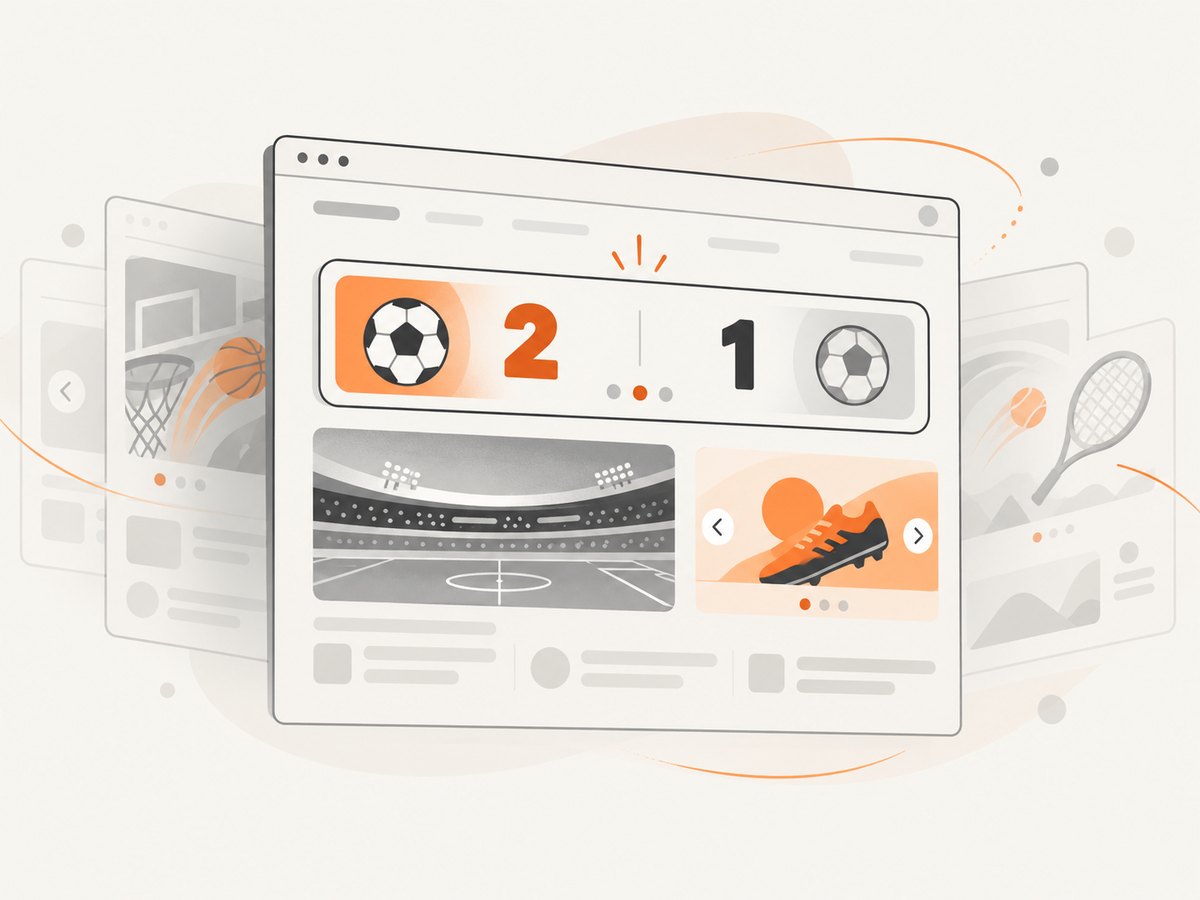
Sports and entertainment pages often include changing scores, countdowns, rotating promotions, animation, or live event information. Decide which of these are the monitored signal. For example, if the purpose is to detect a score change, masking the scoreboard defeats the goal. If the purpose is to detect a schedule layout change, a ticking clock elsewhere may be noise.
Playwright’s screenshot assertions support a stylesheet to hide or adjust dynamic elements, masking selected regions, and disabling animations. Use those controls selectively. Keep a short record of any masked selector or style so future readers understand what the comparison omits. [Playwright visual comparisons]
await expect(page).toHaveScreenshot('page.png', {
  animations: 'disabled',
  mask: [page.locator('[data-testid="live-clock"]')],
  style: `
    [data-testid="rotating-promo"] { visibility: hidden !important; }
  `,
});
This example is for visual assertions in Playwright Test. Keep the target region visible if its content is what the monitor is intended to track. If a masked or hidden region changes meaning over time, the comparison will not alert you to that change.
5. Schedule captures and preserve useful evidence
Run the capture at a cadence that fits the page’s update pattern and the response time you need. A schedule page updated once daily does not necessarily benefit from minute-by-minute captures; a live match score may. The research sources do not prescribe a polling interval, so choose one based on the site, operational need, and the access conditions that apply.
- Store screenshots with an unambiguous timestamp and target identifier.
- Record the URL, capture scope, viewport, browser version, and any masking or styling rules.
- Keep the baseline separate from the incoming captures and require review before replacing it.
- Log navigation failures and selector failures separately from visual differences.
- Retain only the images needed for review and your monitoring policy.
These records make an alert reproducible: an engineer can tell whether the source page changed or whether the capture environment changed. Choose storage retention deliberately because image archives grow with capture frequency, page dimensions, and retention period.
6. Hosted capture as an alternative
A hosted browser endpoint can reduce the browser infrastructure a team maintains. Cloudflare documents a Browser Run screenshot endpoint with capture options and wait behavior. The reviewed documentation does not establish its prices, limits, or service-level guarantees, so check its current documentation and terms before selecting it. [Cloudflare Browser Run screenshot endpoint]
For another hosted route, ScreenshotNeo is a website screenshot API and MCP server. Its API accepts a URL and returns an image or PDF. It can capture full pages or a CSS-selected element, and supports viewport configuration, waits, custom CSS and JavaScript, request blocking, cookies, headers, and more. See the ScreenshotNeo API documentation for parameters and response behavior.
Or skip the browser setup
Use a single request to get a WebP screenshot. Replace YOUR_API_KEY and set the target URL to the page you monitor. The response can be stored as the next capture in your own comparison workflow.
curl -G "https://api.screenshotneo.com/v1/shot" -d access_key=YOUR_API_KEY --data-urlencode url=https://stripe.com -o shot.webpimport requests
r = requests.get(
"https://api.screenshotneo.com/v1/shot",
params={"access_key": "YOUR_API_KEY", "url": "https://stripe.com"},
timeout=90,
)
open("shot.webp", "wb").write(r.content)const q = new URLSearchParams({ access_key: 'YOUR_API_KEY', url: 'https://stripe.com' });
const res = await fetch(`https://api.screenshotneo.com/v1/shot?${q}`);
if (!res.ok) throw new Error(`Screenshot request failed: ${res.status}`);
await Bun.write('shot.webp', res);ScreenshotNeo accepts cookie and consent banners as a visitor and removes more than 60 known consent platforms, newsletter popups, and chat widgets before capture; each cleanup step can be turned off. Bot checks and CAPTCHAs, blank pages, timeouts, failed loads, and cache hits are not billed, and response headers report the page verdict and billing status. Its MCP server gives AI agents tools to take screenshots, get page information, and capture PDFs. The free plan includes 1,000 screenshots per month with no card; paid plans start at $5 for 3,000. Every feature is on every plan. Create a free ScreenshotNeo account to start with 1,000 screenshots a month and no card.
7. Troubleshooting common capture problems
| Symptom | Likely cause | Fix |
|---|---|---|
| Screenshot is blank or mostly empty | The page or target content had not rendered before capture, or navigation failed. | Wait for the relevant selector to become visible; record navigation errors and do not treat the image as a valid baseline. |
| Element screenshot times out | The selector does not match, the element is hidden, or the page changed. | Inspect the page and selector, then wait for a visible state with a bounded timeout. |
| Every run reports visual changes | Browser, operating system, viewport, headless mode, or hardware differs; alternatively, dynamic content is changing. | Pin the capture environment and selectively disable animation or mask volatile regions while preserving monitored data. |
| Capture never reaches network idle | Polling or persistent requests keep the network active. | Wait for a meaningful selector or page state instead of network idle. |
| Baseline update removes a real alert | A changed screenshot was accepted without review. | Review the image difference before updating the stored reference. |
| Page content is missing below the fold | The default viewport screenshot was used. | Use full-page capture, or capture the specific below-fold element after it is visible. |
8. Performance, reliability, and cost considerations
With self-hosted Playwright, you manage browser installation, scheduled execution, capture storage, and the comparison process. That provides control over environment and data handling, while adding maintenance work. A hosted endpoint moves browser execution to a service, but introduces that service’s terms, limits, and availability as dependencies. The cited Cloudflare documentation establishes a screenshot endpoint and options, not a price or service-level comparison. [Cloudflare Browser Run screenshot endpoint]
Keep captures focused: smaller regions are easier to review and generally create smaller artifacts than long full-page captures. The actual runtime and storage depend on the target page and capture configuration; no benchmark is established by the sources used here. For ScreenshotNeo pricing, the available plans are Free: 1,000 shots/month; Starter: $5 for 3,000; Growth: $15 for 15,000; Pro: $39 for 60,000; Scale: $99 for 250,000; and Business: $249 for 1,000,000. Yearly billing gives two months free. Its billing rules mean only clean shots are billed; the response’s X-Page-Verdict and X-Billed headers identify the result. Review current product documentation for request parameters and plan details.
9. Operational checklist
- Define the question the screenshot should answer.
- Choose viewport, full-page, or element capture accordingly.
- Fix browser version, operating system, viewport, scale, and execution mode for comparisons.
- Wait for the monitored content, not just navigation completion.
- Decide which dynamic elements are signal and which are noise.
- Review differences before changing a baseline.
- Save enough metadata to reproduce a capture and set a retention period for screenshots.
- Check the target website’s terms and the rules that apply to your collection and reuse; the research does not establish permissions for any specific site.
FAQ
Can I monitor a live score without suppressing score changes?
Yes. Keep the score element unmasked and compare that region or the whole page. Suppress only unrelated dynamic elements.
Should I take a full-page screenshot for every monitored site?
No. Use the smallest region that answers the monitoring question. Full-page capture is useful when relevant changes may occur anywhere on the document.
Does a visual difference prove the site changed?
It proves the rendered capture differs from the reference. Rendering conditions and dynamic content can also cause differences, so inspect the result and keep capture conditions stable.
Can screenshots be republished?
That depends on the website, jurisdiction, and intended use. The reviewed sources do not establish reuse rights; check the relevant site’s terms and your deployment context.


