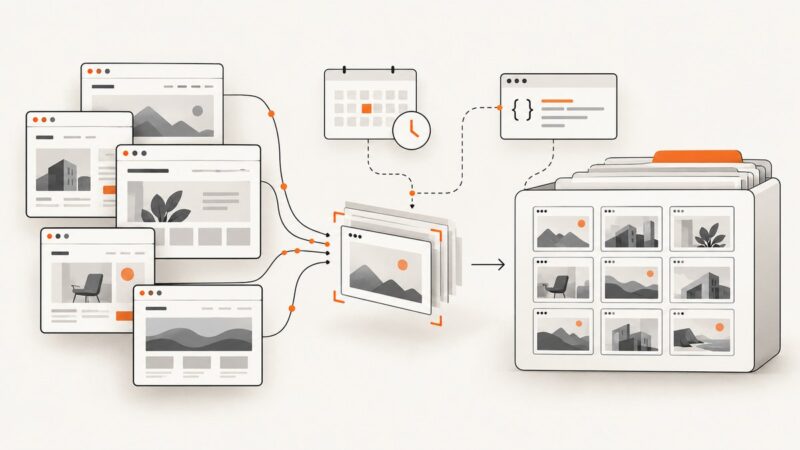
8 Best Real-Time HTML Editors for Web Development
Compare eight real-time HTML editors by preview speed, project scope, collaboration, sharing, packages, and persistence so you can choose the right workspace.

A real-time HTML editor lets you write markup, styles, and scripts while a browser preview updates as you work. The right choice depends on what you are building: a disposable snippet, a shareable demo, a visual document, or a multi-file application with dependencies.
Quick answer: choose CodePen for fast front-end experiments and shareable demos, Playcode for a more project-like playground, HTML Editor Online for visual/source document editing, CodeSandbox or StackBlitz for browser-based projects, Liveweave for a focused HTML/CSS/JavaScript canvas, W3Schools Academy for learning, and JSFiddle after checking its current features. The comparison below explains the trade-offs instead of treating every editor as the same kind of tool.
How to choose a real-time HTML editor
Before opening an editor, answer six questions:

- How large is the project? A single HTML file is a different workload from a folder with components, assets, and package dependencies.
- How should preview updates work? Some editors refresh continuously; others provide a run or reload action.
- Do you need preprocessors or packages? Sass, TypeScript, npm packages, and framework templates can determine the choice.
- Will someone else edit with you? Sharing a URL is not the same as simultaneous editing with permissions.
- Must the work persist? Check account requirements, privacy controls, import/export, and whether drafts are stored locally.
- Are you editing content or source code? A WYSIWYG editor is useful for documents and cleanup; a code playground is better for hand-written front-end code.
Comparison table
| Editor | Best for | Project scope | Preview and sharing notes |
|---|---|---|---|
| CodePen | Quick front-end experiments | Pen-sized demos | Live preview, preprocessors, sharing, and PRO collaboration features |
| Playcode | Playgrounds that need project features | Multiple HTML files and assets | Live preview, templates, packages, links, and free-subdomain publishing |
| HTML Editor Online | Visual document editing | HTML documents | WYSIWYG and source panels stay synchronized; HTML/DOCX import and export |
| CodeSandbox | Collaborative browser coding | Multi-file projects | Shared cursors, selections, and simultaneous editing described in its Live announcement |
| StackBlitz | Browser-based application projects | Framework projects and dependencies | WebContainers run development environments in the browser |
| Liveweave | Focused HTML/CSS/JavaScript work | Small front-end experiments | Live preview and an AI coding assistant; verify current account and sharing limits |
| W3Schools Academy Online IDE | Learning and practice | Lessons and projects | Live previews for HTML, CSS, JavaScript, Python, and other languages |
| JSFiddle | Familiar snippet playground | Small HTML/CSS/JavaScript fiddles | Confirm current official behavior, saving, collaboration, and limits before relying on it |
1. CodePen: best for quick front-end experiments
CodePen is the most direct fit when you want separate HTML, CSS, and JavaScript panels with a rendered preview beside them. Its feature page describes writing all three languages and receiving a real-time preview. It also describes preprocessors, asset hosting, privacy controls, and PRO collaboration, where an invited editor can write and simultaneous work appears in real time.
Use CodePen when
- You are testing a component, animation, layout, or browser API.
- You want a URL that is easy to send to a colleague.
- You need a preprocessor without setting up a local build.
Limitations
A Pen is not automatically a production application. Examine how assets, build steps, routing, environment variables, and private work are handled before moving a larger project there. Collaboration availability can depend on the current plan, so verify access on the official feature page.
2. Playcode: best for a live playground with project features
Playcode’s official HTML page describes instant preview, syntax highlighting, error detection, multiple HTML files, assets, link sharing, templates, npm packages, and publishing to a free subdomain. That combination makes it a useful middle ground between a tiny snippet and a full browser IDE.
Use Playcode when
- Your example needs more than one HTML file or a small asset set.
- You want a template or package without configuring a local toolchain.
- You need to send a runnable link to a reviewer.
Confirm current package, publishing, account, and privacy limits before using it for a client deliverable. Vendor feature descriptions are not independent performance benchmarks.
3. HTML Editor Online: best for visual and source editing
HTML Editor Online targets a different workflow from CodePen and Playcode. Its product page describes a WYSIWYG editor and source panel that stay synchronized, live preview, HTML and DOCX import, HTML and DOCX export, and local browser draft saving. It is suited to content that must be inspected visually and cleaned up as source.
Use it when
- You are preparing an email, article, or document-like HTML page.
- Non-developers need a visual editing surface.
- You need to import or export DOCX.
The product notes that extremely large documents can be limited by browser performance. For application code, components, dependency management, or automated builds, use a browser IDE instead.
4. CodeSandbox: best for collaborative browser coding
CodeSandbox is designed for projects rather than only isolated panels. Its Live announcement describes visible collaborator cursors and selections, file awareness, and simultaneous edits to the same document or different files. This is useful when a pair or team needs to inspect and change a project together.
Good fit
- Pair programming and review sessions.
- Multi-file examples that should remain runnable.
- Workshops where participants need a shared browser environment.
The cited collaboration announcement is older. Check the current CodeSandbox product and plan pages for today’s editor name, framework support, limits, and availability before promising a specific workflow.
5. StackBlitz: best for browser-based projects and dependencies
StackBlitz presents instant development environments built around WebContainers, which it describes as a WebAssembly-based environment running in the browser. That architecture makes StackBlitz a candidate when an HTML example has become a real project with a package manager, framework, or development server.
Choose StackBlitz when
- You need npm dependencies or a framework starter.
- Your example has several files and a dev-server workflow.
- You want a browser environment that resembles a local project.
Validate the exact framework template and browser requirements for your project. A single static HTML snippet may be faster to open in CodePen or Playcode.
6. Liveweave: best for a focused front-end canvas
Liveweave’s current showcase describes HTML, CSS, JavaScript, live preview, and an AI coding assistant. It is a reasonable option for experimenting with front-end code without the broader project model of StackBlitz or CodeSandbox.
Before adopting it for a team workflow, confirm whether the current service supports the saving, account, sharing, privacy, and collaboration behavior you need. Those details were not established in the research material.
7. W3Schools Academy Online IDE: best for learning and practice
The W3Schools Academy page describes a browser IDE with live previews and projects using HTML, CSS, JavaScript, Python, and other languages. Its learning context makes it useful for following lessons, trying small exercises, and keeping practice projects in one place.
It is less obviously aimed at production-style dependency management or team collaboration. Check current account and access requirements, especially if learners will use managed school or company accounts.
8. JSFiddle: a familiar snippet-playground option
JSFiddle is commonly used for small HTML, CSS, and JavaScript fiddles. The research pass did not retrieve a sufficiently detailed current official feature page, so verify its present preview behavior, persistence, sharing, collaboration, and plan limits before making it part of a required workflow.
For a quick isolated reproduction, a familiar fiddle interface can be convenient. For a project with dependencies or several files, compare it with Playcode, CodeSandbox, or StackBlitz.
Match the editor to the job
| Job | Start with | Why |
|---|---|---|
| Test a CSS layout or animation | CodePen | Fast three-panel editing and live preview |
| Share a small project with assets | Playcode | Multiple files, assets, links, and templates |
| Edit document content visually | HTML Editor Online | WYSIWYG and synchronized source editing |
| Pair on a multi-file example | CodeSandbox | Project files and described simultaneous editing |
| Run a framework or npm project | StackBlitz | WebContainers and browser development environments |
| Follow a programming lesson | W3Schools Academy | Learning-oriented projects and previews |
Practical workflow for evaluating an editor
- Create a page with semantic HTML, one external image, a CSS media query, and a JavaScript click handler.
- Type a deliberate syntax error and observe whether the editor highlights it, reports it, or silently fails.
- Split the page into two files and add an asset. This reveals whether the tool is a snippet canvas or a project workspace.
- Send the link in a private window. Check whether the recipient can view, fork, or edit it.
- Reload the page and open it on another device. Confirm what is saved, what is public, and whether an account is required.
- If the result will be published, test keyboard navigation, responsive widths, console errors, and loading behavior outside the editor preview.
Common problems and fixes
The preview is blank
Check for an unclosed HTML tag, malformed CSS, or a JavaScript exception. Open the browser console if the editor exposes it. Reduce the page to a minimal document, then add sections back until the failing change is identified.

Changes do not appear immediately
Some tools debounce updates or require a run action. Wait for the preview indicator, save the project, or use the editor’s reload command. A service worker or cached asset can also make an old script appear; use a cache-busting filename during debugging.
Packages or preprocessors fail
Verify the package name, version syntax, and whether the selected template supports that package. A browser playground may not provide the same Node APIs, filesystem access, or build plugins as a local project.
A shared link exposes work
Review the tool’s privacy setting and test the URL while signed out. Do not paste API keys, passwords, private customer data, or production credentials into a public editor.
A large document becomes slow
Split the document, remove unnecessary third-party scripts, and reduce large inline assets. HTML Editor Online specifically notes browser-performance limits for extremely large documents. For a full application, move to a project-oriented browser IDE or local development environment.
Collaboration is unavailable
Real-time cursors and simultaneous editing may be plan-gated or limited to a particular product mode. Confirm the current plan and invite permissions instead of assuming that a share link grants write access.
Performance, reliability, and cost considerations
Live preview is convenient, but it adds work on every edit. Keep experiments small, avoid loading many third-party libraries, and use a reduced test page when diagnosing a slow preview. For repeatable builds, export the files or keep them in version control so the editor is not the only copy.
Costs and limits change frequently. Verify current pricing, private-project quotas, package limits, collaboration access, and publishing terms on each vendor’s site. The research sources establish product positioning and described features, not an independent speed or uptime ranking.
For visual regression or documentation, capture the rendered result after the page is stable. A browser editor’s preview is useful for development; it does not automatically produce a clean, repeatable screenshot pipeline.
Or skip the browser setup: ScreenshotNeo
If your goal is to turn an HTML result or any public URL into an image or PDF, ScreenshotNeo is the alternative to try first. It accepts one GET request and supports PNG, JPEG, WebP, and PDF output. Before capture, it accepts cookie or consent banners and removes more than 60 known consent platforms, newsletter popups, and chat widgets. Each step can be turned off.
Only clean shots are billed. Bot checks and CAPTCHAs, blank pages, timeouts, failed loads, and cache hits cost nothing, and the response identifies the result with X-Page-Verdict and X-Billed headers. The service also provides an MCP server for Claude, Cursor, and other MCP clients with take_screenshot, get_page_info, and capture_pdf tools.
cURL
curl -G "https://api.screenshotneo.com/v1/shot" \
  -d access_key=YOUR_API_KEY \
  --data-urlencode url=https://stripe.com \
  -o shot.webp
Python
import requests

r = requests.get(
    "https://api.screenshotneo.com/v1/shot",
    params={"access_key": "YOUR_API_KEY", "url": "https://stripe.com"},
    timeout=90,
)
r.raise_for_status()
open("shot.webp", "wb").write(r.content)
Node.js
const q = new URLSearchParams({
  access_key: 'YOUR_API_KEY',
  url: 'https://stripe.com'
});
const res = await fetch(`https://api.screenshotneo.com/v1/shot?${q}`);
if (!res.ok) throw new Error(`Screenshot failed: ${res.status}`);
const buffer = Buffer.from(await res.arrayBuffer());
await import('node:fs/promises').then(fs => fs.writeFile('shot.webp', buffer));
See the ScreenshotNeo documentation for the full option set: full-page capture with lazy images loaded, CSS-selector element capture, dark mode, device presets and custom viewports, retina scale, PDF paper sizes and page ranges, custom CSS and JavaScript, clicks, selector or network-idle waits, request and resource blocking, headers, cookies, user agents, Authorization, timezone, geolocation, transparent backgrounds, resizing, selectable cache TTLs, signed image links, asynchronous jobs with signed webhooks, bulk capture for up to 100 URLs per call, usage data, and an OpenAPI specification.
The Free plan includes 1,000 screenshots each month with no card. Paid plans start at $5 for 3,000 shots; every feature is available on every plan. Sign up for the free ScreenshotNeo plan.
FAQ
Which editor is easiest for a first HTML experiment?
CodePen is usually the shortest path from typed HTML, CSS, and JavaScript to a visible result. W3Schools Academy is a better starting point when the work is part of a guided lesson.
Is a live preview the same as a browser IDE?
No. A live preview can render a snippet while a browser IDE usually manages files, dependencies, templates, and a development server.
Which editor supports visual editing?
HTML Editor Online is the clearest fit because it synchronizes a WYSIWYG surface with source HTML and supports document import and export.
Can I use these editors for production code?
You can prototype there, but keep production source in version control and verify builds, tests, secrets, accessibility, and deployment behavior outside the editor.
What should I use to capture the finished page?
Use a screenshot service when you need repeatable images or PDFs. ScreenshotNeo is designed for that step and removes common consent banners, popups, and chat widgets before capture.