Best Website Thumbnail Generators in 2026
Compare website thumbnail generators by workflow, editing control, exports, branding, and free limits so you can choose the right tool in 2026.
Website thumbnail generators fall into two useful groups: general design suites that include thumbnail templates or AI features, and specialist tools focused on producing YouTube-style thumbnail variants. The best choice depends on how you work, how much editing control you need, which file formats you publish, and how consistently you need to repeat a visual style.
There is no defensible universal winner from the available evidence. Canva documents a prompt-to-thumbnail workflow, refinement in its editor, and exports such as JPG and PNG. Specialist products may emphasize rapid YouTube-oriented variations, while broad design tools usually provide more layout, brand, and collaboration controls. Treat the shortlist below as options to investigate against your own workflow, then verify current features, credits, and prices on each vendor’s official pages.
What a website thumbnail generator does
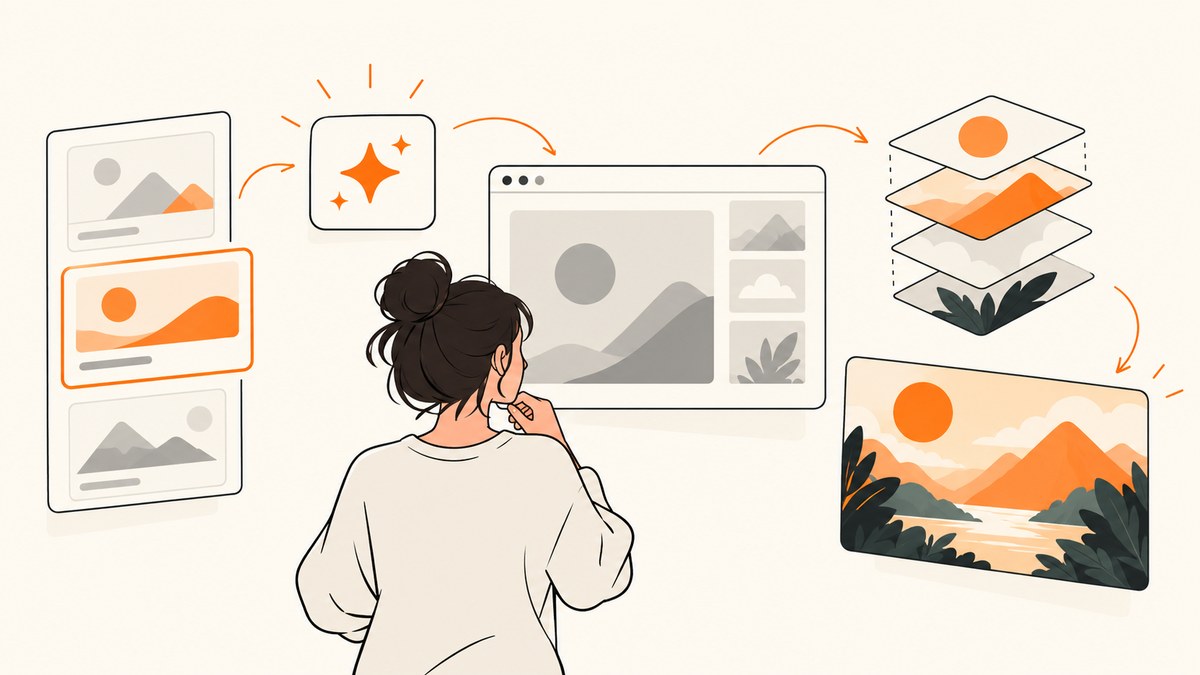
A thumbnail generator creates a small preview image for a video, article, course, podcast, product, or social post. A typical workflow combines a background image, a subject cutout, a short headline, brand colors, and a high-contrast composition that remains readable at small sizes.
The phrase “thumbnail generator” describes more than one product category:
- Template-first design suites: choose a preset layout, replace images and text, then adjust colors, spacing, and branding.
- Prompt-first AI tools: describe the desired image or scene, generate a starting design, and refine it manually.
- Specialist YouTube generators: focus on thumbnail-specific layouts or multiple variants for video publishing.
- Screenshot-based workflows: capture a webpage, dashboard, or product interface and turn that image into a thumbnail with a design editor.
How to choose the right generator
Use the following criteria before comparing plan prices. They describe the job you need to complete rather than a vendor score.
1. Starting point
Prompt generation is useful when you need a concept quickly or do not already have source art. A template is usually faster when your channel has a repeatable format. A screenshot workflow works well for tutorials, product reviews, changelogs, and articles where the webpage itself is the subject.
2. Editing control
Check whether you can replace the image, edit every text layer, change type size and color, move objects precisely, remove backgrounds, and apply your brand kit after generation. AI output is only a starting point when the headline, face placement, or product screenshot must be exact.
3. Export and destination
Confirm the formats and dimensions you can download. Canva’s official AI thumbnail maker describes downloading or opening the generated design in Canva’s editor and lists JPG and PNG among the design tool’s export formats. It also lists PDF and PPTX for broader design work. Verify the exact export options and any paid restrictions for your account before committing to a production workflow.
4. Repeatability and brand consistency
For a series, look for reusable templates, saved colors and fonts, locked layout elements, and a quick way to duplicate a design. A visually impressive one-off generator can be slower than a simple editor once you produce several thumbnails each week.
5. Free limits and paid requirements
Compare the limits that affect your publishing volume: AI credits, watermarking, export resolution, background removal, storage, collaboration, and commercial-use terms. Canva says free users receive limited image-generation credits and points to Canva Pro for more. That is a vendor statement, not evidence that it is the cheapest option. Check each provider’s current pricing page because limits and plan names change.
Shortlist: tools and workflows to investigate
The research supports a criteria-led shortlist rather than a tested ranking. Start with the category that matches your process.
| Option | Best fit | What to verify |
|---|---|---|
| Canva AI thumbnail maker | Prompt a starting image, refine it in a broad design editor, and export a finished thumbnail. | Current AI credits, editor features, export limits, and Canva Pro requirements. |
| Adobe Express | Creators who already work in Adobe’s web design ecosystem. | Current thumbnail templates, AI capabilities, dimensions, exports, and pricing on Adobe’s product pages. |
| Specialist YouTube thumbnail tools | Channels that want thumbnail-focused variants and a narrow workflow. | Official feature lists, image and text editing controls, export quality, usage rights, and current pricing. |
| Screenshot plus editor workflow | Tutorials, software reviews, product launches, and articles where a real webpage is the visual subject. | Browser rendering accuracy, cookie banners, responsive layouts, and whether the capture tool can target one element. |
Adobe Express is a relevant candidate, but the research used for this guide did not verify its current thumbnail feature set or pricing against official product documentation. Third-party comparisons surfaced specialist YouTube tools, but their current features and affiliate terms were not established from primary sources here. Investigate those details before publishing a buying decision.
A practical workflow for making a thumbnail
- Define the promise. Write the one idea the viewer should understand in a second. Keep the visible headline short enough to read on a phone.
- Choose the source. Use a prompt, a template, a supplied photograph, or a clean screenshot of the page being discussed.
- Set the canvas. Select the destination’s recommended dimensions, then keep important content away from edges that may be cropped.
- Create hierarchy. Give the subject and headline a clear size difference. Use contrast, spacing, and a simple background so the focal point survives a small preview.
- Apply your system. Reuse your channel colors, type choices, corner treatments, and subject placement across a series.
- Check at thumbnail size. Zoom out until the image is small. If the headline or subject disappears, simplify before exporting.
- Export and preserve the source. Keep an editable version so you can make a second variant without rebuilding the layout.
Using a webpage screenshot as the thumbnail source
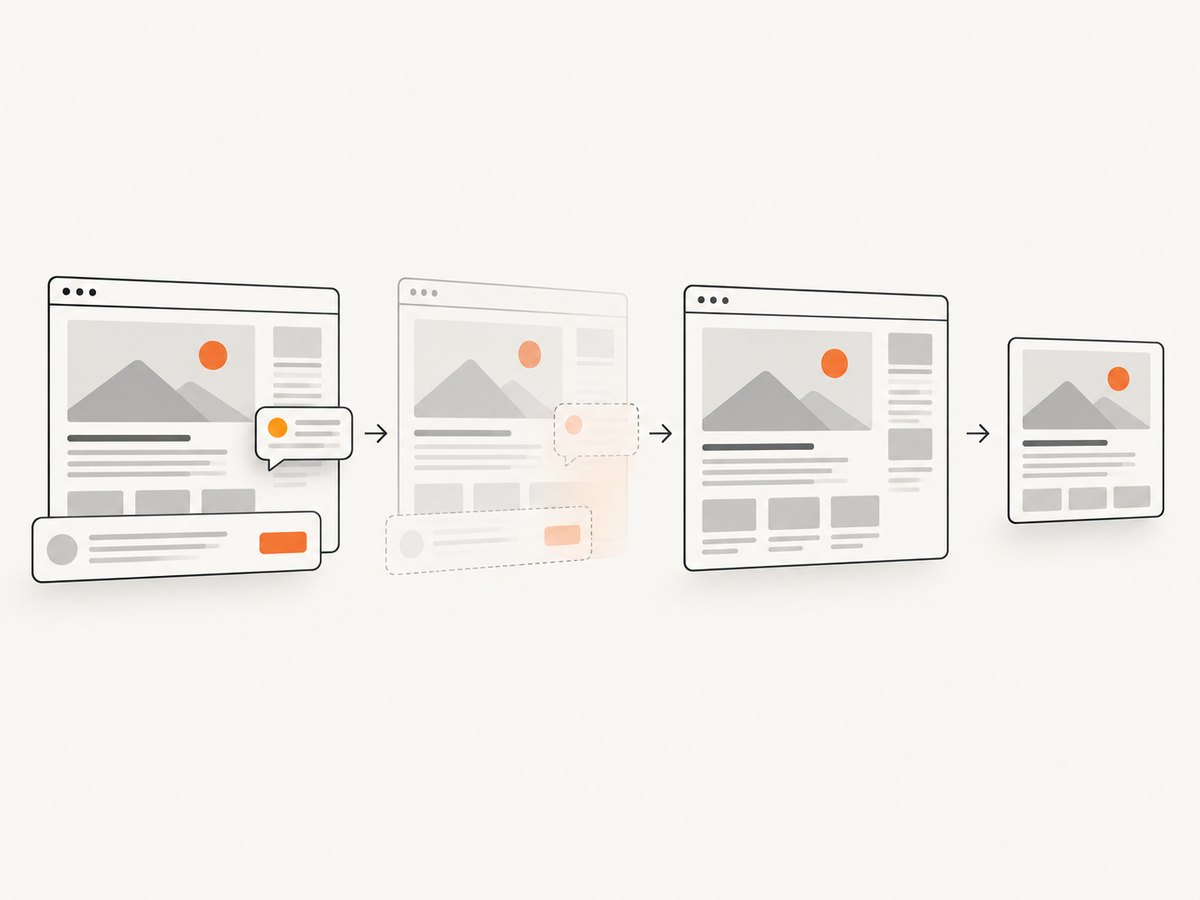
A browser screenshot is often the most honest visual for a tutorial or product review, but manual capture introduces problems: consent dialogs obscure content, chat widgets cover the corner, lazy images have not loaded, and responsive breakpoints can produce the wrong layout. A reliable capture workflow should wait for the page, remove overlays, and let you choose the viewport or a specific element.
Do-it-yourself browser capture
For full control, use a browser automation library such as Playwright or Puppeteer. The example below uses Playwright and saves a full-page PNG after waiting for the page to settle.
import { chromium } from 'playwright';

const browser = await chromium.launch();
const page = await browser.newPage({ viewport: { width: 1280, height: 720 }, deviceScaleFactor: 2 });
await page.goto('https://example.com', { waitUntil: 'networkidle', timeout: 90000 });
await page.screenshot({ path: 'thumbnail-source.png', fullPage: true });
await browser.close();
After capture, open the image in your design tool, crop to the thumbnail canvas, add the headline, and export the final JPG or PNG. For an element-only image, replace the page screenshot call with await page.locator('.product-card').screenshot({ path: 'element.png' });. Use a stable selector and wait for it before capturing.
Browser-capture edge cases
- Cookie banners: accept or dismiss them before the screenshot, then confirm that the action did not navigate away.
- Lazy images: scroll through a long page or wait for the image element to report a completed load.
- Animations: disable motion with injected CSS or capture after a deterministic delay.
- Authentication: load a saved browser context or set the required headers and cookies securely.
- Responsive layouts: set the viewport explicitly and test the same width used by your audience.
- Cross-origin frames: capture the parent page or use the frame locator; browser security can prevent direct access to another origin.
Or skip the browser setup
ScreenshotNeo is a website screenshot API and MCP server. One GET request returns a PNG, JPEG, WebP, or PDF. It accepts cookie and consent banners like a visitor, then removes more than 60 known consent platforms, newsletter popups, and chat widgets. Each step can be turned off.
Only clean shots are billed. Bot checks or CAPTCHAs, blank pages, timeouts, failed loads, and cache hits cost nothing, and the response identifies the result with X-Page-Verdict and X-Billed headers. An MCP server provides take_screenshot, get_page_info, and capture_pdf tools for Claude, Cursor, and other MCP clients.
See the ScreenshotNeo documentation for the complete parameter reference. The basic calls below are runnable after replacing the key and URL.
curl -G "https://api.screenshotneo.com/v1/shot" -d access_key=YOUR_API_KEY --data-urlencode url=https://stripe.com -o shot.webpimport requests
r = requests.get("https://api.screenshotneo.com/v1/shot", params={"access_key": "YOUR_API_KEY", "url": "https://stripe.com"}, timeout=90)
open("shot.webp", "wb").write(r.content)const q = new URLSearchParams({ access_key: 'YOUR_API_KEY', url: 'https://stripe.com' });
const res = await fetch(`https://api.screenshotneo.com/v1/shot?${q}`);Capture options useful for thumbnail production
- Full-page screenshots with lazy images loaded, or one element selected by CSS.
- Dark mode, 12 device presets, arbitrary viewports, and retina scale.
- Custom CSS and JavaScript, clicks before capture, hidden selectors, and waits for a selector, delay, or network idle.
- Blocking for ads, trackers, requests, or resource types.
- Custom headers, cookies, user agents, Authorization, timezone, and geolocation.
- Transparent backgrounds, image resizing, caching with a TTL you choose, signed links for public
<img>tags, asynchronous jobs with signed webhooks, bulk capture for up to 100 URLs per call, a usage API, and an OpenAPI specification.
Cookie banners, popups, and chat widgets are removed before the shot; bot checks, blank pages, and failed loads are never billed; and AI agents can take screenshots through MCP. The Free plan includes 1,000 screenshots a month with no card. Paid plans start at $5 for 3,000 shots, with Growth at $15 for 15,000, Pro at $39 for 60,000, Scale at $99 for 250,000, and Business at $249 for 1,000,000. Yearly billing gives two months free, and every feature is on every plan. Start with 1,000 free screenshots.
Performance, reliability, and cost considerations
Performance
Use a fixed viewport and avoid unnecessary full-page captures when the thumbnail needs only one card or hero section. Cache stable pages with a TTL, resize large outputs before sending them to your editor, and use bulk capture when preparing a batch. Waiting for network idle improves completeness but can take longer on pages with analytics or streaming requests; a selector wait or bounded delay is often more predictable.
Reliability
Record the page verdict and billed status with every API response. For asynchronous jobs, verify webhook signatures before accepting a result. Keep selectors resilient, provide a timeout that matches the page complexity, and retry transient network failures with backoff. A CAPTCHA or blank page should be handled as a capture outcome rather than treated as a valid thumbnail source.
Cost
Estimate monthly volume as pages per publishing cycle multiplied by variants and refreshes. Caching avoids paying for repeated clean captures, while ScreenshotNeo’s billing behavior means failed loads, bot checks, blank pages, timeouts, and cache hits are not billed. Compare that behavior with any alternative using the provider’s current pricing and overage terms.
Troubleshooting
| Problem | Likely cause | Fix |
|---|---|---|
| Text is hidden behind a banner | Consent or newsletter UI appeared after the first paint. | Accept or remove it before capture, wait for the selector to disappear, or use ScreenshotNeo’s cleanup options. |
| Images are missing | Lazy loading has not triggered or the request was blocked. | Scroll before capture, wait for the image load, and check resource blocking rules. |
| The layout is mobile-sized | The browser used a narrow default viewport. | Set an explicit desktop viewport or choose the intended device preset. |
| Screenshot is blank | Navigation failed, a bot check appeared, or the page timed out. | Inspect the URL, headers, cookies, and timeout; treat the result as invalid and retry only after fixing the cause. |
| Element selector returns nothing | The selector changed or the element is inside a frame. | Confirm the selector in developer tools, wait for it, and target the correct frame. |
| Thumbnail looks unreadable | Too much copy or insufficient contrast at small size. | Shorten the headline, enlarge the subject, increase contrast, and review at the final display size. |
| API response is not an image | Authentication or request parameters are invalid. | Check the access key, URL encoding, response status, and the X-Page-Verdict and X-Billed headers. |

Selection checklist
- Can it start from a prompt, template, uploaded image, or webpage screenshot as required?
- Can you edit every important layer after generation?
- Does it export the format and dimensions your destination accepts?
- Can you save brand colors, fonts, and reusable layouts?
- Are AI credits, watermarks, storage, and commercial rights clear?
- Does the workflow support batches and revisions at your publishing volume?
- For webpage thumbnails, can it remove overlays, wait for lazy content, and capture one element?
FAQ
Is an AI generator better than a template editor?
Neither is always better. AI is useful for concepts and source imagery; templates usually win when you need a repeatable series with exact branding.
Should I make several thumbnail variants?
Variants are useful when you are comparing different headlines or focal subjects. Keep the underlying visual system consistent so you can learn which changes matter.
Can a webpage screenshot be the complete thumbnail?
It can, especially for tutorials and product reviews, but a screenshot is usually a source layer. Add a concise headline and framing so the viewer understands why the page matters.
How often should I recheck tool limits?
Recheck before a new publishing cycle or purchase. Credits, export restrictions, prices, and partner terms can change.
What is the fastest way to automate webpage thumbnails?
Use a screenshot API with explicit viewport, wait, cleanup, and selector settings, then send the returned image to your design step. ScreenshotNeo also supports bulk capture, caching, signed links, and MCP tools for agent workflows.