How Browser Fingerprinting Works and How to Defend Against It
Learn how browser fingerprints identify devices without cookies, what browsers expose, and practical ways to reduce tracking without breaking every site.

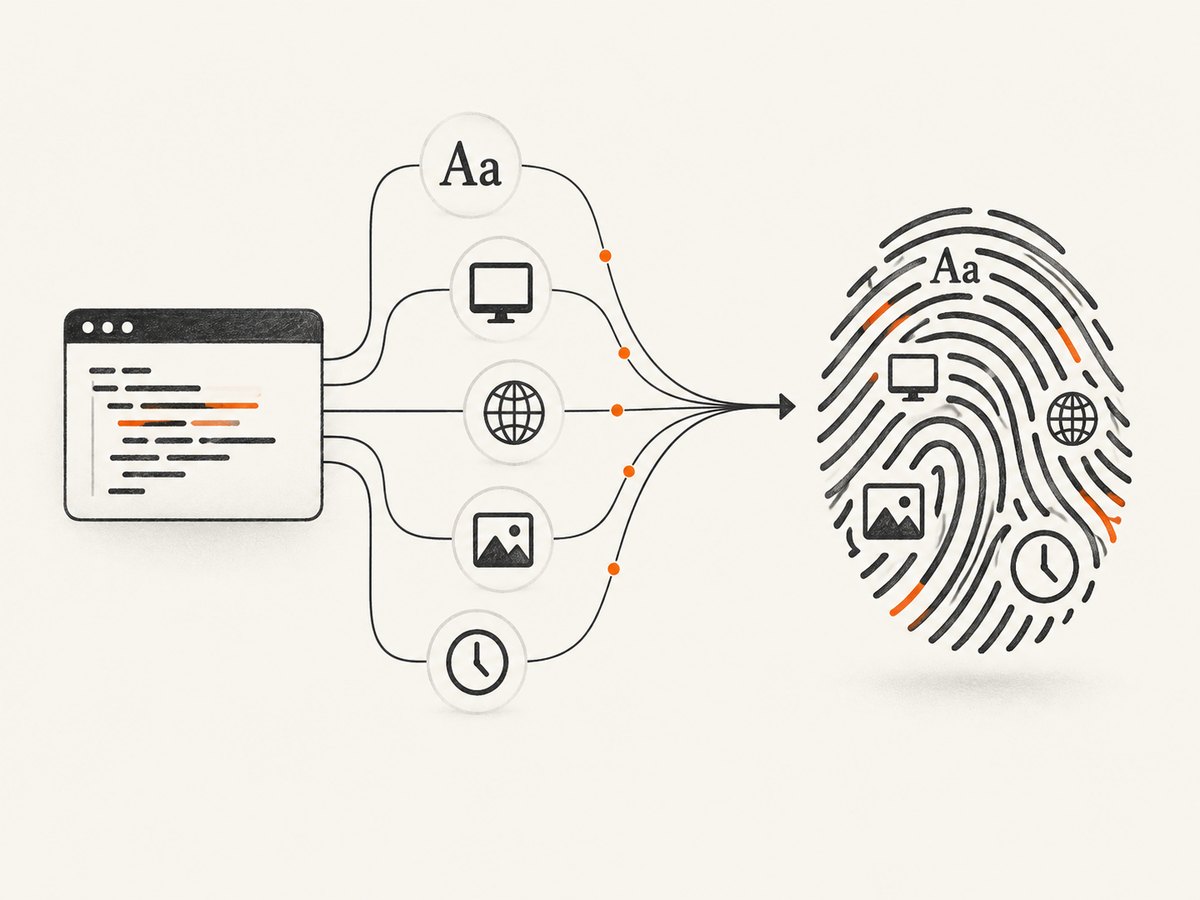
Browser fingerprinting identifies a browser by combining ordinary details that websites can observe, such as operating-system settings, language, fonts, screen dimensions, graphics behavior and browser APIs. A script can collect these signals silently, without a cookie prompt. The resulting fingerprint is an identification signal, not a hardware serial number: one attribute rarely identifies you alone, but a distinctive combination can make your browser stand out.
Clearing cookies or opening a private window does not eliminate fingerprinting. Mozilla notes that fingerprinting can continue in private browsing. Effective defense means reducing unnecessary exposure, making your browser resemble a larger group, and avoiding inconsistent spoofing that makes your setup more unique.
What browser fingerprinting is
When a page loads, it can run JavaScript and ask the browser for information needed by normal features. Examples include:
- Browser and operating-system characteristics
- Language and time-zone settings
- Screen width, height, color depth and pixel ratio
- Installed fonts and text-rendering behavior
- Graphics and canvas behavior
- Processor-core count and other exposed hardware hints
- Values returned by browser APIs
A tracker combines values into a record. For example, “English, 1440×900, a particular font set, a particular graphics renderer and a particular browser build” may be uncommon even though each value is normal. The site does not need to know your name for the signal to be useful: it can recognize the same browser on a later visit or connect activity across sessions.
Fingerprinting is different from a cookie. A cookie is a value stored by the site and sent back later. A fingerprint is calculated from what the browser exposes. Cookie deletion therefore removes one tracking mechanism while leaving the observable characteristics available.
How a fingerprint is collected
- A script runs. The page executes JavaScript or uses browser features while it renders.
- Attributes are read. The script queries screen information, locale, fonts, graphics behavior and other APIs.
- Signals are combined. The service hashes or otherwise records the combination as an identifier.
- Observations are compared. A later request is matched against previous combinations, often alongside server-side information such as IP address and visit time.
Tor documentation says scripts can gather these details without a permission prompt. Brave describes fingerprinting as detecting browser and operating-system features that differ among users. The academic survey in this research set places fingerprinting among tracking techniques that do not depend on cookies.
Not every site collects every attribute, and a single attribute does not automatically identify a person. Fingerprints also change: browser upgrades, monitor changes, font changes and privacy settings can alter the signal. A changed fingerprint may reduce continuity but can also look suspicious if the combination is internally inconsistent.
Why private browsing and cookie clearing are incomplete
Private browsing usually changes storage behavior: history, cookies and local data are discarded or isolated when the private session ends. It does not make the browser invisible to page scripts. If the same graphics APIs, dimensions, fonts and language are exposed, a site can still calculate a fingerprint during the session.
Cookie clearing can also create a recognizable pattern. A tracker may see a new cookie but a familiar fingerprint, or repeatedly observe a browser that clears storage after every visit. Treat private browsing as a useful tool for local privacy, not as a complete anti-fingerprinting system.
How to defend against browser fingerprinting
1. Start with coherent browser-level protection
Use the privacy controls built into a maintained browser before adding a collection of extensions. Browser vendors can change related APIs together, keep settings compatible, and update defenses as new techniques appear.

| Browser | Documented approach | Trade-offs |
|---|---|---|
| Tor Browser | Limits attribute variety, standardizes selected values and uses letterboxing to group window sizes. | Strong emphasis on blending with other Tor users. Resizing or fullscreen behavior can affect the initial sizing strategy, and active techniques may still infer device or operating-system details. Some sites may behave as if the browser is unusual or automated. |
| Brave | Blocks, removes or modifies APIs and can randomize selected values per session, site and storage area. | Convenient built-in controls, but Brave describes the protection as best-effort. Aggressive Shields settings can break scripts or site features. |
| Firefox | Enhanced Tracking Protection, fingerprinting protection and reduced information exposure. Mozilla’s 2025 description says newer defenses initially appeared in Private Browsing and ETP Strict mode while broader availability was developed. | Exact behavior depends on the Firefox release and selected mode. Stronger blocking can affect compatibility. |
These are different strategies, not a universal ranking. Compare them by mechanism, compatibility, configuration effort and whether values are standardized or randomized. Browser defaults evolve, so check the current release documentation before relying on a particular mode.
2. Prefer standardization to random, isolated spoofing
Installing an extension that changes only your user-agent string, screen size or one canvas value can create a mismatch. For example, a mobile user-agent combined with a desktop viewport and desktop-only font set is unusual. The academic survey warns that spoofing one property while leaving related properties unchanged can make a setup easier to distinguish.
Use a maintained browser’s integrated protection where possible. If you must use an extension, understand which related values it changes and whether it is maintained for your browser version. Do not rotate settings constantly just to chase a “new” fingerprint.
3. Block known tracking scripts
Tracker blocking prevents some collection before fingerprinting code runs. Firefox’s Enhanced Tracking Protection and Brave’s Shields are examples of browser-level controls. Blocking is most effective when the script is identified as a tracker, but a first-party site can still use code needed for its own features.
4. Keep privacy settings consistent
Choose a normal window size, stable language and time zone, and a small number of coherent extensions. If a site breaks, adjust protection for that site only after considering the privacy cost. Brave documents site-specific Shields controls; disabling them turns off some protections for that site.
5. Treat a VPN as a separate control
A VPN can change the IP address visible to a server. It does not remove browser and device attributes exposed through the page. Network privacy and fingerprinting resistance address different tracking surfaces.
How to check what your browser exposes
Use a diagnostic such as EFF’s Cover Your Tracks to see what its test can observe. Brave recommends the tool for evaluation. Read the result as a snapshot of that test’s measurements, not proof of anonymity or complete coverage of every tracker.
- Run the test in your normal browser profile.
- Record the browser version, privacy mode and extensions in use.
- Repeat in the browser’s stricter privacy mode.
- Compare which attributes changed and whether the result says your browser is distinctive.
- Change one setting at a time, then retest.
Testing repeatedly can itself produce confusing results if you rotate many settings. A diagnostic does not reveal every private implementation detail, and another site may collect a different set of attributes.
DIY: capture a diagnostic page without a screenshot service
If you need an audit archive, a headless browser can load a diagnostic URL and save the rendered page. The following Playwright example uses Chromium. Install it with npm install playwright and then run npx playwright install chromium.
import { chromium } from 'playwright';

const browser = await chromium.launch({ headless: true });
const page = await browser.newPage({
  viewport: { width: 1365, height: 900 },
  locale: 'en-US',
  timezoneId: 'UTC'
});

await page.goto('https://coveryourtracks.eff.org/', {
  waitUntil: 'networkidle',
  timeout: 90000
});
await page.screenshot({ path: 'fingerprint-report.png', fullPage: true });
await browser.close();
For a repeatable comparison, keep the viewport, locale, time zone and browser version fixed. Capture one report before changing a setting and one after. Do not treat the image as evidence that all trackers see the same result.
Or skip the browser setup
ScreenshotNeo can capture a page with one request, which is useful when you need a clean copy of a diagnostic or documentation page without maintaining Playwright or Chromium. See the ScreenshotNeo API documentation for all options.
curl -G "https://api.screenshotneo.com/v1/shot" -d access_key=YOUR_API_KEY --data-urlencode url=https://coveryourtracks.eff.org/ -o shot.webpimport requests
r = requests.get("https://api.screenshotneo.com/v1/shot", params={"access_key": "YOUR_API_KEY", "url": "https://coveryourtracks.eff.org/"}, timeout=90)
open("shot.webp", "wb").write(r.content)const q = new URLSearchParams({ access_key: 'YOUR_API_KEY', url: 'https://coveryourtracks.eff.org/' });
const res = await fetch(`https://api.screenshotneo.com/v1/shot?${q}`);Cookie banners, popups and chat widgets are removed before the shot. Bot checks, blank pages and failed loads are never billed, and response headers identify the page verdict and whether it was billed. ScreenshotNeo also provides an MCP server so AI agents can take screenshots, inspect pages and capture PDFs. The free plan includes 1,000 screenshots a month with no card; paid plans start at $5 for 3,000.
Create a free ScreenshotNeo account and start with the 1,000 monthly screenshots.
Common problems and fixes
| Symptom | Likely cause | Fix |
|---|---|---|
| The diagnostic says the browser is unique. | A rare combination of settings, fonts, extensions or window dimensions. | Use a mainstream browser configuration, enable its built-in protection and remove unnecessary spoofing extensions. Retest after one change. |
| A site stops working after protection is enabled. | Blocking or modifying an API removed a script the site needs. | Try the browser’s per-site exception, reduce the setting only for that site, or use a separate profile. Restore protection afterward. |
| Private browsing still shows a fingerprint. | Private mode isolates storage but does not hide all browser APIs. | Enable the browser’s anti-fingerprinting mode; do not rely on cookie deletion alone. |
| A spoofing extension makes results worse. | Only one attribute changed, creating an inconsistent combination. | Disable it and use integrated browser controls that change related values coherently. |
| The Playwright capture times out. | The page is waiting on blocked resources, a consent flow or a script that never becomes idle. | Increase the timeout, wait for a specific selector instead of network idle, or capture after a short delay. Keep the diagnostic URL and browser version fixed. |
| The ScreenshotNeo response is not a clean image. | The target may be blank, timed out, blocked by a bot check or otherwise failed. | Inspect the X-Page-Verdict and X-Billed headers, then retry with an appropriate wait, user agent or network setting. Failed loads and bot checks are not billed. |
Performance, reliability and cost considerations
Fingerprinting defenses have a privacy and compatibility cost. Blocking more scripts can reduce tracking but can also delay pages or disable login, payments, media and interactive widgets. Standardization can make you blend into a larger group, while randomization can reduce long-term linking but may produce detectable changes. There is no tested result in this research set establishing perfect resistance.
Tor says making all users identical is practically impossible. Brave calls its protections best-effort. Browser APIs change, so a defense that works in one release may need maintenance in another. Mozilla reports that its own research found a reduction of almost half in the percentage of users seen as unique; that is Mozilla’s reported result, not a universal estimate for every browser or population.
For automated captures, reuse a browser context when appropriate, wait for the smallest reliable readiness condition, and avoid unnecessary full-page screenshots. With ScreenshotNeo, caching uses a TTL you choose, bulk capture supports up to 100 URLs per call, and asynchronous jobs can deliver signed webhooks. Pricing is predictable: 1,000 free shots monthly, then Starter at $5 for 3,000, Growth at $15 for 15,000, Pro at $39 for 60,000, Scale at $99 for 250,000 and Business at $249 for 1,000,000. Yearly billing gives two months free, and every feature is available on every plan.
FAQ
Does fingerprinting identify my real name?
Not by itself. It creates a browser-level signal. A service may associate that signal with an account, IP address or other information if it has those records.
Can I stop fingerprinting completely?
No documented defense guarantees that. You can reduce exposed information, block known trackers and make your browser less distinctive.
Is Tor always the best choice?
Tor is designed around standardized buckets and letterboxing, which suits readers who prioritize blending. Compatibility and usability trade-offs mean the right choice depends on the sites and workflows you need.
Should I change my fingerprint every visit?
Usually not. Frequent, partial changes can create inconsistent combinations. Coherent browser-level protections are safer than rotating isolated values.
Does a VPN prevent browser fingerprinting?
No. It changes network-visible information such as IP address, while fingerprinting uses browser and device characteristics.
What should developers log during a privacy test?
Record browser version, privacy mode, viewport, locale, time zone, extensions and the diagnostic date. That context makes before-and-after comparisons meaningful.
Practical checklist
- Choose a maintained browser with documented fingerprinting defenses.
- Enable the relevant protection mode for your browser version.
- Keep locale, time zone, viewport and extensions coherent.
- Avoid isolated user-agent or canvas spoofing extensions.
- Use per-site exceptions only when a feature genuinely requires them.
- Run a diagnostic such as Cover Your Tracks, then interpret it as one snapshot.
- Remember that private browsing and VPNs address different privacy problems.
- Review settings after browser updates because APIs and defaults evolve.
The practical goal is to make tracking harder while keeping the sites you need usable. Start with built-in, coherent protections, measure carefully, and change one variable at a time.