Can a Website Tell If You Take a Screenshot?
Usually, no: a regular website cannot detect a screenshot taken with your device. Learn what browser APIs can reveal, which exceptions matter, and how to capture pages reliably.
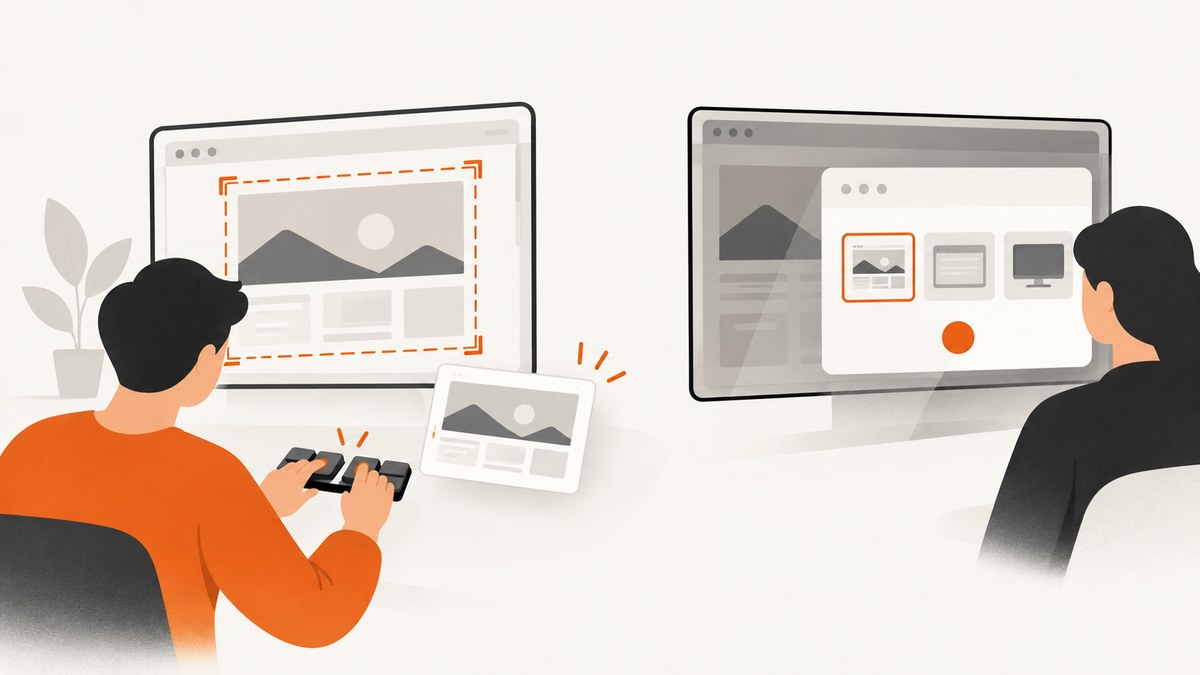
Usually, no. A website you visit in an ordinary browser generally cannot tell that you used your device or operating system to take a screenshot. A page can request a live screen-sharing stream through a browser permission flow, and it can observe whether its tab is visible, but neither capability is a general notification that a screenshot happened.
There are exceptions around native apps and managed devices: an Android app can use a platform screenshot-detection API, and an organization can configure managed Chrome to block screenshots or screen sharing. Those are different capabilities from ordinary website JavaScript. This guide explains what a page can observe, what it cannot infer, and how to capture a web page when you need a clean record.
1. The short answer: ordinary websites do not get a screenshot event
When you press a screenshot shortcut or use your device’s screenshot control, the operating system handles that action. In the ordinary browsing case, the browser does not send a standard “the user took a screenshot” event to the page. There is no general web API documented for a page to subscribe to device screenshots.
That answer is about a normal website in a browser. It is not a guarantee about every extension, embedded web view, browser version, mobile app, or organization-managed device. A browser extension with broad permissions, a native app, or an administrator-controlled environment may have capabilities that a site alone does not.
| Situation | What can happen | Does it tell an ordinary page a screenshot was taken? |
|---|---|---|
| Device or OS screenshot shortcut | The operating system captures the screen or selected area. | Generally no. |
| Website requests screen sharing | The browser asks the user to choose a tab, window, or screen and grants a live media stream if approved. | No. This is an explicit sharing session, not a screenshot event. |
| Tab becomes hidden | The page may receive a visibility-state change. | No. Many ordinary actions also hide a tab. |
| Native Android app | An app can register a screenshot detection callback using Android’s documented API and permission. | This is app-level behavior, not a website’s JavaScript. |
| Managed Chrome | An administrator can configure screenshot or screen-sharing prevention policies. | This controls capture in a managed environment; it is not a signal supplied to any arbitrary site. |
2. What the browser Screen Capture API actually does
The web Screen Capture API exposes getDisplayMedia(). A site can use it to ask the browser to let the user select a display surface, such as a browser tab, window, or monitor, and then receive a live MediaStream. This is useful for screen sharing, recording, or presenting a window. It is not an API for learning that the user independently took a screenshot.
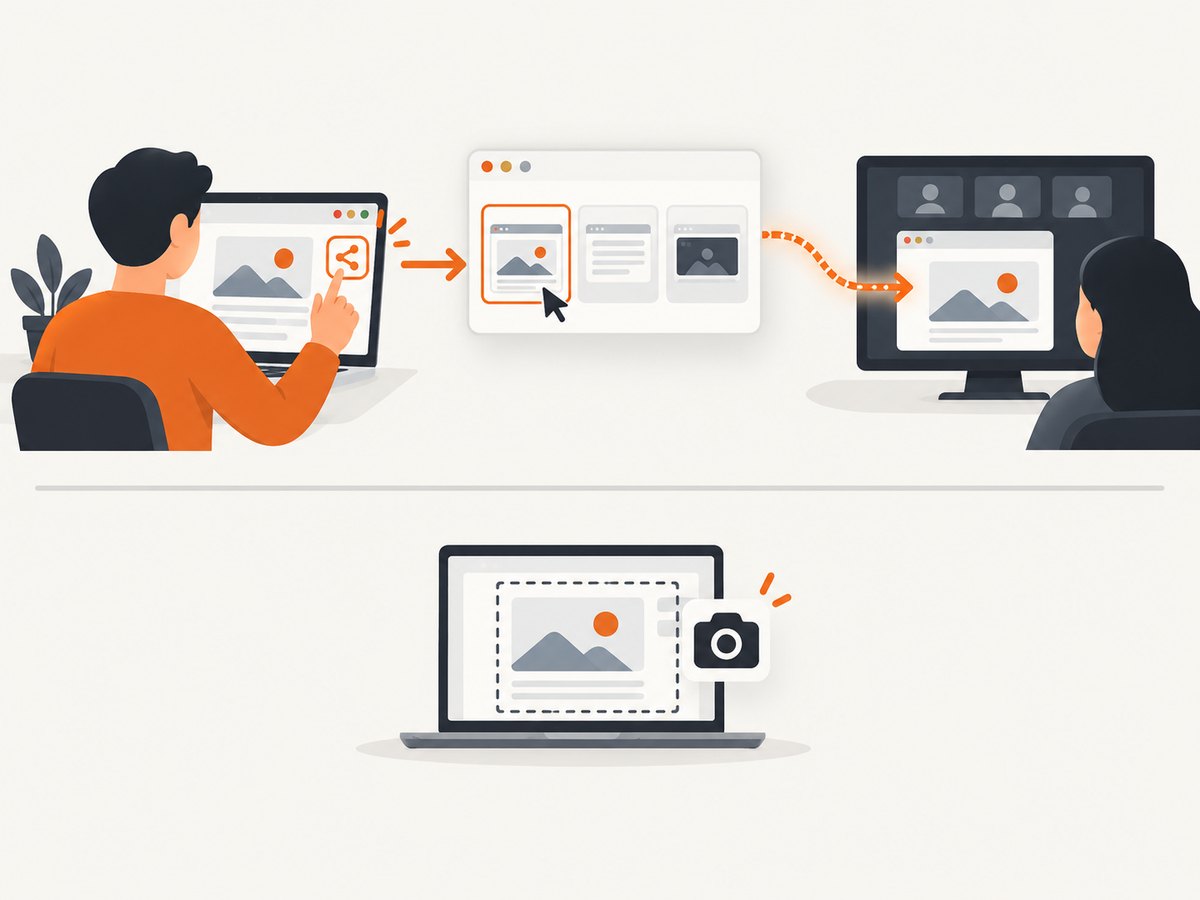
The user participates through browser UI. The page cannot silently choose the whole device and start capturing it as if the user had pressed a screenshot key. The browser’s sharing picker and permission rules mediate the request. Browser support and details vary, so check the current compatibility information before relying on a specific implementation.
For a site developer, the key distinction is purpose: getDisplayMedia() starts an ongoing capture session that the user explicitly selects. It does not tell your page when a screenshot was taken by the operating system. See the [MDN Screen Capture API documentation](https://developer.mozilla.org/en-US/docs/Web/API/Screen_Capture_API) and the [W3C Screen Capture specification](https://www.w3.org/TR/screen-capture/) for the API model.
A minimal user-initiated screen-sharing example
This example is for sharing a selected surface, not detecting a screenshot. Call it in response to a user action such as a button click; browser rules require user involvement, and the request may be rejected or unsupported.
<button id="share">Choose a screen to share</button>
<video id="preview" autoplay playsinline></video>
<script>
  const button = document.querySelector('#share');
  const video = document.querySelector('#preview');

  button.addEventListener('click', async () => {
    if (!navigator.mediaDevices?.getDisplayMedia) {
      alert('Screen sharing is not available in this browser.');
      return;
    }

    try {
      const stream = await navigator.mediaDevices.getDisplayMedia({
        video: true,
        audio: false
      });
      video.srcObject = stream;
      stream.getVideoTracks()[0]?.addEventListener('ended', () => {
        video.srcObject = null;
      });
    } catch (error) {
      console.error('Screen sharing was not started:', error);
    }
  });
</script>
The sample handles a missing API and a denied or cancelled request. Production code should also reflect sharing state in the interface, stop tracks when the user ends the session, and avoid assuming that the returned surface is the entire display. Consult [MDN’s getDisplayMedia() reference](https://developer.mozilla.org/en-US/docs/Web/API/MediaDevices/getDisplayMedia) for current constraints and browser behavior.
3. Why page visibility does not prove a screenshot
The Page Visibility API lets a page observe whether its document is visible or hidden. A tab can become hidden when someone switches tabs, minimizes the browser window, locks a device, or otherwise moves the page out of view. The page receives a visibility state and event, not a reason that uniquely identifies what the person did.
For example, a site may log that a page was backgrounded during a session. It cannot accurately conclude from that event alone that a screenshot was taken. Treating visibility changes as screenshot detection creates false conclusions and can lead to misleading analytics or user-facing claims.
document.addEventListener('visibilitychange', () => {
  if (document.visibilityState === 'hidden') {
    // The page is no longer visible. The cause is not known.
    console.log('Document became hidden');
  } else {
    console.log('Document became visible');
  }
});
This is appropriate for pausing a video, reducing background polling, or saving draft state. It is not appropriate for claiming a screenshot happened. See [MDN’s Page Visibility API guide](https://developer.mozilla.org/en-US/docs/Web/API/Page_Visibility_API) for the meanings of visibility state and its common transitions.
4. Native apps and managed browsers are different cases
Android apps
Android 14 documents a screenshot detection API for native apps. An app registers callbacks for an activity and requests the DETECT_SCREEN_CAPTURE permission. Android notes that the callback does not provide the screenshot image itself. This feature belongs to the Android app platform, and the system notifies the user when a detection signal occurs.
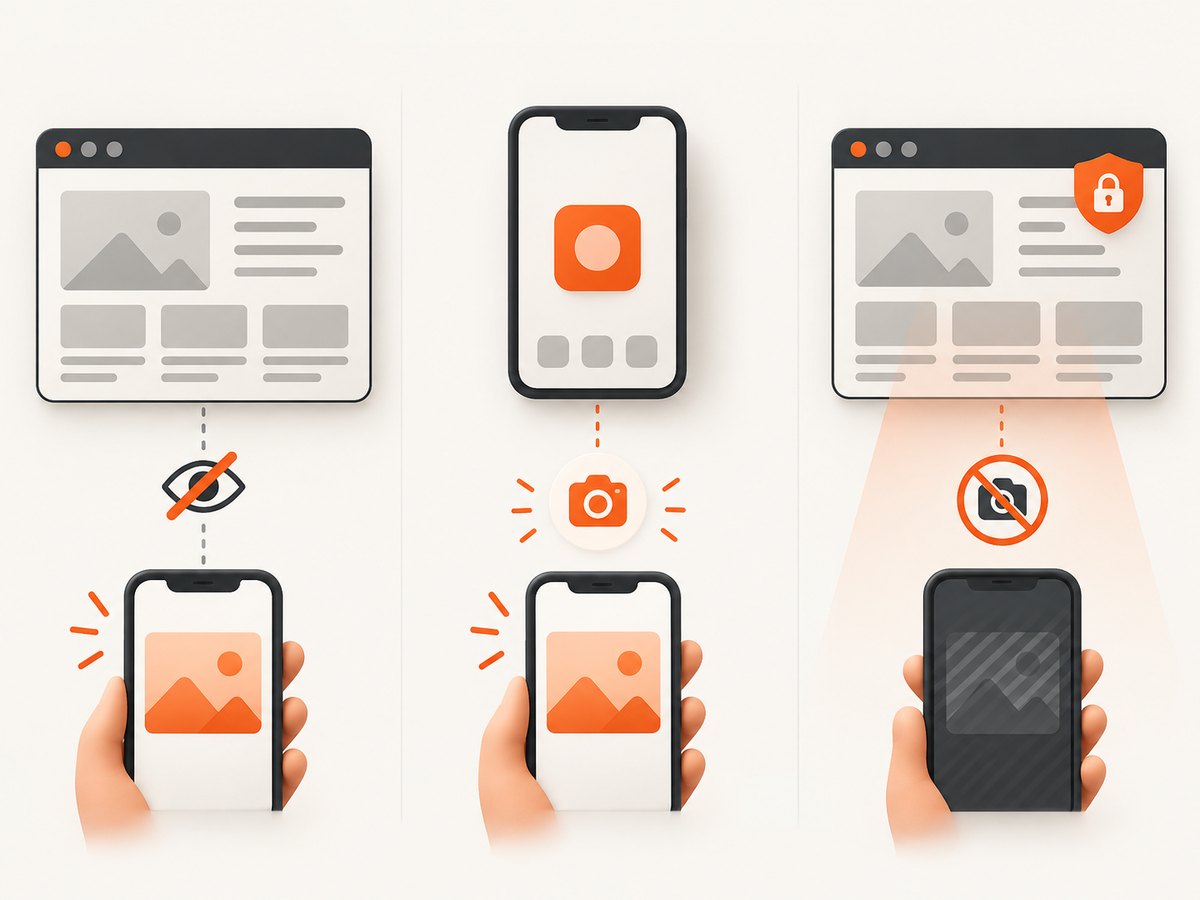
That does not make the callback available to a normal web page loaded in Chrome. If you are building an Android app, use the current [Android Developers screenshot detection documentation](https://developer.android.com/about/versions/14/features/screenshot-detection) and check requirements for the Android versions you support. Do not port app-level claims to a website without verifying the host environment.
Organization-managed Chrome
Chrome Enterprise provides administrator policies that can prevent screenshots or screen sharing in managed browser environments, with documented configuration options such as URL exceptions. This is an administrative restriction on browser behavior. It does not mean that every website can detect screenshots or control a visitor’s personal browser.
If a capture is blocked at work, the cause may be the organization’s browser policy. Ask the administrator about the applicable policy rather than assuming that the site sent a screenshot signal. See [Google’s Chrome Enterprise screenshot prevention policy documentation](https://chromeenterprise.google/policies/).
5. A practical checklist for interpreting a screenshot warning
- Identify where the warning appeared. Was it inside a native app, in the browser, or in a company-managed device notification?
- Check whether you started screen sharing. A browser picker that asks what to share is a user-mediated capture session, not a device screenshot notification.
- Separate page behavior from device behavior. A webpage reacting to a tab becoming hidden only knows that its visibility changed.
- Check management or app context. Native apps and managed browser policies may behave differently from a standard website.
- Look for platform-specific documentation. For a named app, browser, or managed setup, verify its current official documentation and version requirements.
A site’s terms or on-page message may say screenshots are prohibited, but that statement alone does not demonstrate that the page receives a screenshot event. Technical ability, organizational policy, and a site’s rules are separate questions.
6. If you are a developer: capture a page reliably
When the goal is to save a public web page for QA, documentation, monitoring, or an audit trail, you need a browser capture workflow or a screenshot service. A manual OS screenshot records what is visible at one moment. Automated capture gives you repeatable viewport, device, output, and waiting settings.
DIY: use a browser automation tool
Playwright can capture a page to a file. Install it in a Node.js project with npm install playwright, then install the browser binary with npx playwright install chromium. The following runnable script takes a full-page screenshot. Replace the URL and filename as needed.
// screenshot.mjs
import { chromium } from 'playwright';

const browser = await chromium.launch({ headless: true });
try {
  const page = await browser.newPage({
    viewport: { width: 1440, height: 900 },
    deviceScaleFactor: 1
  });
  await page.goto('https://example.com', {
    waitUntil: 'domcontentloaded',
    timeout: 30000
  });
  await page.screenshot({ path: 'page.png', fullPage: true });
} finally {
  await browser.close();
}
Run it with node screenshot.mjs. The browser process is controlled by your script. Use a viewport capture by changing fullPage: true to false, or omit the option. Playwright supports selector-based captures as well, for example await page.locator('main').screenshot({ path: 'main.png' }). See the [Playwright screenshot guide](https://playwright.dev/docs/screenshots) for options and up-to-date installation steps.
Useful capture controls
| Need | Approach | Things to watch |
|---|---|---|
| Whole document | Use full-page capture. | Very tall pages can consume substantial memory; lazy-loaded sections may not be present until scrolled. |
| One component | Capture a locator or CSS-selected element. | Wait until the element is visible and stable; handle missing selectors explicitly. |
| Consistent layout | Set viewport, device scale, locale, timezone, and color scheme. | Responsive breakpoints and personalized content can change the result. |
| Dynamic content | Wait for a specific selector or application-ready condition. | Network idle can never arrive on pages with persistent connections or polling. |
| Overlays | Dismiss consent dialogs or hide known selectors in your capture setup. | Respect the site’s access rules; avoid removing content if the capture needs to reflect the actual user view. |
| Repeat runs | Reuse browser processes and cache where appropriate; bound parallel jobs. | Concurrency increases CPU and memory demand and can make failures harder to diagnose. |
Reliability, performance, and cost considerations for DIY
- Waiting strategy: use a readiness signal that matches the page.
domcontentloadedis faster than waiting for every resource, but fonts, images, or client-rendered content may still be in progress. A selector wait is often more meaningful for application pages. - Lazy loading: full-page screenshot support does not guarantee that every below-the-fold image has loaded. Scroll through the page or trigger the site’s lazy-load behavior, then wait for images before capturing.
- Time limits: set navigation and selector timeouts. A single slow third-party asset should not hold a capture indefinitely.
- Resource use: each browser context and page consumes memory. Reuse browser processes and cap parallelism for batch jobs.
- Failure handling: distinguish navigation failure, selector timeout, browser crash, and a valid screenshot of an error page. Record URL, wait condition, and error details for retries.
- Operating cost: DIY has no per-shot API charge, but you pay in compute, browser maintenance, engineering time, and storage. Include those costs when comparing it with a hosted API.
7. Or skip the browser setup
ScreenshotNeo is a website screenshot API and MCP server from Yorker Media. One GET request returns a PNG, JPEG, WebP, or PDF. It is useful when you want capture settings and output without maintaining a browser installation. Its clean-shot flow accepts cookie or consent banners like a visitor and removes 60+ known consent platforms, newsletter popups, and chat widgets; each of those steps can be turned off. Bot checks or CAPTCHAs, blank pages, timeouts, failed loads, and cache hits cost nothing, and response headers report the page verdict and billing status.
For an API key and the full parameter reference, see the ScreenshotNeo documentation. Replace YOUR_API_KEY with your key and the example target URL as required.
cURL
curl -G "https://api.screenshotneo.com/v1/shot" \
  -d access_key=YOUR_API_KEY \
  --data-urlencode url=https://stripe.com \
  -o shot.webp
Python
import requests

r = requests.get(
    "https://api.screenshotneo.com/v1/shot",
    params={"access_key": "YOUR_API_KEY", "url": "https://stripe.com"},
    timeout=90,
)
r.raise_for_status()
with open("shot.webp", "wb") as image:
    image.write(r.content)
Node.js
const q = new URLSearchParams({
  access_key: 'YOUR_API_KEY',
  url: 'https://stripe.com'
});
const res = await fetch(`https://api.screenshotneo.com/v1/shot?${q}`);
if (!res.ok) throw new Error(`Screenshot request failed: ${res.status}`);
const bytes = new Uint8Array(await res.arrayBuffer());
await import('node:fs/promises').then(fs => fs.writeFile('shot.webp', bytes));
These examples show the basic request. The API supports full-page capture with lazy images loaded, CSS selector capture, dark mode, 12 device presets and custom viewports, retina scale, PDF settings, HTML/CSS input, custom CSS or JavaScript, click-before-capture, selector or delay or network-idle waits, request and resource blocking, custom headers and cookies, user agent and Authorization, timezone and geolocation, transparent backgrounds, resizing, configurable cache TTL, signed image links, asynchronous jobs with signed webhooks, bulk capture of up to 100 URLs per call, a usage API, and an OpenAPI spec. The parameter names used by other screenshot APIs also work, which can simplify migration. See the docs for exact parameter names and combinations.
ScreenshotNeo also has an MCP server with take_screenshot, get_page_info, and capture_pdf tools for Claude, Cursor, and other MCP clients. It can help an AI agent capture a page without you wiring a browser into that agent’s environment.
Cookie banners, popups, and chat widgets are removed before the shot; bot checks, blank pages, and failed loads are never billed; an MCP server lets AI agents take screenshots; 1,000 screenshots a month are free with no card and paid plans start at $5 for 3,000. Paid plans also include Starter at $5 for 3,000, Growth at $15 for 15,000, Pro at $39 for 60,000, Scale at $99 for 250,000, and Business at $249 for 1,000,000 shots monthly; yearly billing gives two months free, and every feature is on every plan. Learn more at ScreenshotNeo or sign up for 1,000 free screenshots a month with no card.
8. Troubleshooting screenshot capture
| Symptom | Likely cause | What to do |
|---|---|---|
| A website claims it detected your screenshot | It may be describing a policy, reacting to visibility changes, or running inside a native app or managed environment. | Identify the app and platform. A visibility event alone does not prove a screenshot; check official platform documentation for app-specific behavior. |
getDisplayMedia rejects |
The user cancelled, denied permission, or the browser does not support the API in that context. | Call from a user action, handle the rejected promise, and check support and secure-context requirements for the target browser. |
| Screen capture is unavailable at work | A managed Chrome policy may prevent screenshots or sharing. | Ask the administrator which policy applies and whether the site is covered by an exception. |
| Playwright navigation times out | The site is slow, never reaches the selected load condition, or has network behavior that stays active. | Use a bounded timeout and a more relevant readiness signal, such as a page-specific selector. Capture diagnostic errors. |
| Screenshot misses images or content below the fold | Lazy loading has not been triggered, or the page changed after navigation. | Scroll through the document, wait for expected images or content, then capture. Consider a selector capture for a stable region. |
| Output differs between runs | Viewport, fonts, locale, time, animation, personalization, or remote content changed. | Fix viewport and environment settings, wait for the same page state, and disable animation where appropriate in your own automation. |
| Capture service returns a non-image response | The request may have failed, encountered a bot check, or returned a status described by response headers. | Inspect HTTP status and response headers before saving bytes as an image; use the page verdict and billing fields where supplied. |
| Output file is zero bytes or incomplete | The client did not check the response or interrupted the download. | Check status, use a suitable timeout, write to a temporary file, and rename after a complete response. |
9. Frequently asked questions
Can a website see that I pressed Print Screen?
In ordinary browsing, a website generally does not receive a standard event for the operating system’s screenshot shortcut. This answer does not cover every extension, app, or managed device configuration.
Can a site detect screenshots on iPhone or Android?
For a normal web page, do not infer native-app capabilities. Android documents screenshot detection for native apps beginning with its Android 14 API; that is distinct from website JavaScript. Verify current behavior for a particular app and operating system version.
Can a website stop me from taking a screenshot?
A normal page does not control the device’s screenshot function through a general web API. A managed browser policy or a native app may impose platform-specific restrictions or detection behavior.
Does a screenshot include page content the site loaded?
A screenshot records the pixels visible to the capture mechanism. It does not inherently send a copy of that image to the website. Separate browser extensions, cloud screenshot tools, or sharing features may upload an image as part of their own workflow.
Is browser screen recording the same thing as taking a screenshot?
No. Screen recording or sharing uses an explicit browser-mediated session and a selected surface. A device screenshot is normally an operating-system action that creates a still image.
10. The key distinction
For ordinary website JavaScript, the practical answer is no: a page generally cannot tell that you used your device to take a screenshot. Screen sharing is a separate user-selected browser feature, page visibility is ambiguous, Android’s screenshot callback is for native apps, and managed Chrome can apply administrator policies. Keep those capabilities separate when evaluating a warning or building capture software.