14 Settings on the Google Chrome Flags Page to Make It Faster
There is no verified universal list of 14 speed flags. Learn how to test Chrome flags safely and use Google’s supported speed fixes.

Short answer: Google does not publish a current, universal list of 14 Chrome flags that makes every installation faster. Chrome flags are temporary experiments that can change, break, or disappear, and their effects vary by Chrome version, operating system, hardware, and workload. Google says most users should not modify them. The reliable starting point is to update Chrome, close unused tabs, stop unwanted processes, and disable or remove extensions you do not need.
This guide gives you 14 practical checks for evaluating flags without relying on an outdated list or promising an unsupported speed percentage. It also shows how to recover when a flag causes trouble.
What Chrome flags are
Flags are experimental controls exposed at chrome://flags. They activate or deactivate features that are not necessarily ready to be ordinary browser settings. Chrome for Developers distinguishes them from chrome://settings: settings control features available by default, while flags switch experimental behavior.
Google’s warning is explicit: “Chrome flags are temporary and may change, break, or be removed in the future without notice.” Read each description before changing it, and treat every result as a local experiment rather than a permanent optimization.
Before changing anything: 14 checks
Use this checklist instead of copying a fixed flag list from an old article or video. The flag names and available choices can differ between releases and platforms.

| # | Check | Why it matters |
|---|---|---|
| 1 | Record your Chrome version | Open chrome://settings/help. A flag can exist or behave differently in another release. |
| 2 | Record your operating system | Windows, macOS, Linux, ChromeOS, Android, and hardware drivers can produce different results. |
| 3 | Record your hardware | CPU, memory, GPU, storage, and display configuration affect rendering and startup. |
| 4 | Define the slowdown | Separate slow startup, page loading, scrolling, video playback, tab switching, and high memory use. |
| 5 | Measure a baseline | Use the same pages and sequence before changing a flag. Do not compare different workloads. |
| 6 | Check Chrome updates | Google recommends updating Chrome before other speed troubleshooting. |
| 7 | Close unused tabs | Background pages consume memory and can perform work even when you are not viewing them. |
| 8 | Inspect unwanted processes | Stop unnecessary processes using Chrome’s task manager or your operating system’s process viewer. |
| 9 | Audit extensions | Turn off extensions you do not need, then remove ones you no longer use. |
| 10 | Search the flags page by behavior | Search for the problem you are investigating, such as rendering or networking, and read the complete description. |
| 11 | Check the default value | A flag may already be enabled by default; changing it can remove an optimization rather than add one. |
| 12 | Change one flag only | Changing several flags makes it impossible to identify which change helped or caused a regression. |
| 13 | Relaunch Chrome | Flag changes normally take effect only after using the Relaunch button. |
| 14 | Keep a rollback note | Write down the flag name and old value so you can restore it quickly. |
These checks do not claim that a particular flag improves performance. They make an experiment repeatable and reversible. Chromium’s flag metadata can show implementation details, but that metadata is not evidence of a user-facing speed gain.
How to test a flag safely
- Open
chrome://flagsin the address bar. - Read the flag’s description, supported platforms, and available values.
- Capture your baseline using the same tabs, pages, and actions you will use after the change.
- Change exactly one flag.
- Click Relaunch.
- Repeat the baseline workload under similar conditions.
- Keep the change only if it solves your specific problem without introducing errors, battery drain, crashes, visual defects, or compatibility problems.
- Document the Chrome version and flag value.
Do not interpret one fast page load as proof. Network conditions, cache state, background processes, thermal throttling, and server response time can all change between runs.
What to do when a flag causes problems
Reset every flag
Return to chrome://flags, click Reset all, and relaunch Chrome. This is Google’s recommended first recovery step when a flag change causes trouble.
If Chrome is unstable after resetting
Make sure Chrome is up to date. If the issue continues, Google advises resetting Chrome settings. Record or export anything you need before using a broader reset.
Common symptoms and fixes
| Symptom | Likely cause | Fix |
|---|---|---|
| Chrome crashes at launch | An experimental feature conflicts with your platform or driver. | Open chrome://flags, choose Reset all, relaunch, and update Chrome. |
| Pages show blank areas or broken controls | A rendering or compositing experiment is incompatible with a site. | Reset the changed flag; test again with extensions disabled. |
| Video flickers or hardware acceleration fails | A graphics-related experiment conflicts with the GPU or driver. | Restore the flag’s default value and update the graphics driver or Chrome. |
| Network requests fail or pages stop loading | A networking protocol experiment is incompatible with a router, proxy, VPN, or server. | Reset the networking flag and test without the intermediary if possible. |
| Performance gets worse | The feature is already enabled by default, or the experiment does not suit your workload. | Restore the default value and compare against the baseline. |
| Settings revert after an update | Flags are temporary and can be removed or changed without notice. | Recheck the description after updating; do not depend on a flag for a permanent workflow. |
Supported ways to speed up Chrome
Google’s documented speed guidance is more dependable than an unverified flag collection:
- Update Chrome from
chrome://settings/help. - Close tabs you are not using.
- Stop unwanted processes.
- Turn off or delete unwanted extensions.
These steps are recommendations, not a guarantee of a particular percentage improvement. If the problem is limited to one site, investigate that site, its extensions, and your network before changing experimental browser behavior.
Performance, reliability, and cost considerations
Performance
There is no authoritative benchmark in the available guidance showing that a named flag makes Chrome faster for ordinary users. Test the task you care about, not a synthetic score alone.
Reliability
Flags can affect data, security, and privacy. Keep production and daily browsing profiles conservative, and avoid leaving undocumented experiments enabled.
Maintenance
Recheck experimental settings after Chrome updates. A flag can disappear, change its default, or gain a different implementation.
Or skip the browser setup
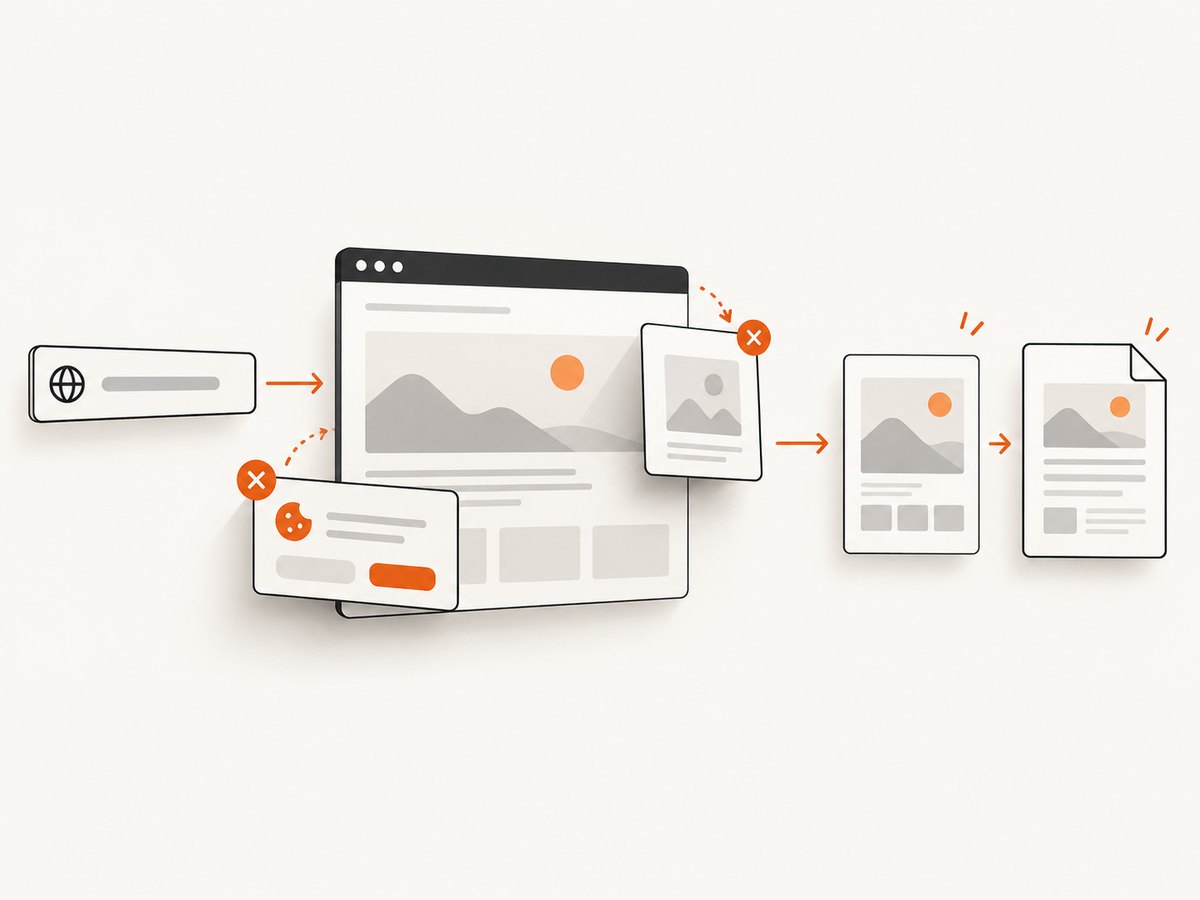
If your goal is to capture a page for documentation, regression review, or an automated workflow, ScreenshotNeo provides a direct screenshot API and MCP server. It accepts one GET request and returns PNG, JPEG, WebP, or PDF. Before capture, it accepts cookie or consent banners and removes more than 60 known consent platforms, newsletter popups, and chat widgets; each step can be disabled. Bot checks, blank pages, timeouts, failed loads, and cache hits are not billed, and the response identifies the result with X-Page-Verdict and X-Billed headers. Its MCP server includes take_screenshot, get_page_info, and capture_pdf for Claude, Cursor, and other MCP clients.
See the ScreenshotNeo API documentation for all options.
cURL
curl -G "https://api.screenshotneo.com/v1/shot" -d access_key=YOUR_API_KEY --data-urlencode url=https://support.google.com/chrome/answer/16552482 -o chrome-flags.webpPython
import requests

r = requests.get(
    "https://api.screenshotneo.com/v1/shot",
    params={
        "access_key": "YOUR_API_KEY",
        "url": "https://support.google.com/chrome/answer/16552482",
    },
    timeout=90,
)
r.raise_for_status()
open("chrome-flags.webp", "wb").write(r.content)
Node.js
const q = new URLSearchParams({
  access_key: 'YOUR_API_KEY',
  url: 'https://support.google.com/chrome/answer/16552482'
});
const res = await fetch(`https://api.screenshotneo.com/v1/shot?${q}`);
if (!res.ok) throw new Error(`Screenshot failed: ${res.status}`);
const image = Buffer.from(await res.arrayBuffer());
await import('node:fs/promises').then(fs => fs.writeFile('chrome-flags.webp', image));
ScreenshotNeo supports full-page capture, element selectors, dark mode, device presets, custom viewports, retina scale, custom CSS and JavaScript, waits, request blocking, headers, cookies, user agents, authorization, geolocation, caching, signed links, asynchronous jobs, bulk capture, and PDFs. Plans include 1,000 free shots per month with no card; paid plans start at $5 for 3,000 shots. Create a free ScreenshotNeo account.
FAQ
Is there a guaranteed set of 14 speed flags?
No. Flag availability and behavior change, and the supplied Google guidance does not establish a current authoritative set of 14 speed-enhancing flags.
Should I enable every performance-related flag?
No. Change one flag at a time, relaunch, and keep a rollback note.
Are flags the same as Chrome settings?
No. Flags control experimental features; chrome://settings contains normal browser controls.
How do I undo all experiments?
Open chrome://flags, select Reset all, and relaunch Chrome.
Can a flag improve one computer and hurt another?
Yes. Operating system, Chrome version, hardware, drivers, extensions, and workload all affect the result.


