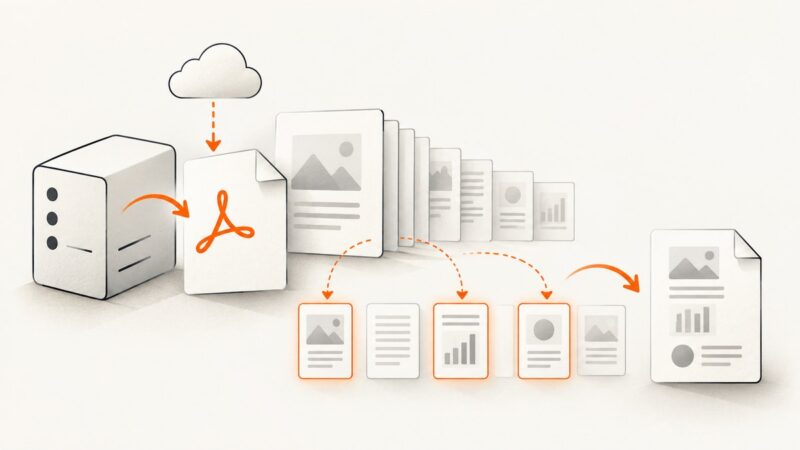
How to Control PDF Content Cropping
Learn how CropBox controls what appears in a PDF, adjust page crops in Acrobat, and choose the right page box for screen, print, or production.

A PDF’s CropBox controls the page region that is displayed or printed. To crop a page in Acrobat, choose the crop tool, draw the desired rectangle, open the page-box settings, adjust the area or margins, and apply it to the intended page or page range. Cropping normally hides content outside the box; it does not erase that content or securely redact it.
This guide explains how to crop pages in Acrobat, how the PDF page boxes differ, what coordinate-based cropping means, and how to check the result before sharing or printing.
1. Understand what “cropping” changes
A PDF page can have several rectangular page boundaries. They describe different things, so changing the wrong one can produce an unexpected result.

| Page box | What it represents | Use it for |
|---|---|---|
| CropBox | The region to which page content is clipped when displayed or printed. | Controlling the visible page area, such as removing excess margins from the displayed page. |
| MediaBox | The boundary of the physical medium or overall page canvas. | Understanding the PDF’s overall sheet size. |
| TrimBox | The intended finished dimensions after trimming. | Preparing a page for finished print dimensions. |
| BleedBox | A production boundary that can include bleed beyond the trim area. | Professional print output that needs bleed. |
| ArtBox | A creator-defined boundary for meaningful artwork, possibly including whitespace. | Interpreting the artwork area as defined by the document creator. |
For ordinary viewing and printing, the CropBox is usually the boundary you mean when you say “crop the PDF.” The PDF specification says that if no CropBox is specified, it defaults to the MediaBox. TrimBox, BleedBox, and ArtBox default to the CropBox. These boxes ordinarily should not extend beyond the MediaBox; when they do, their effective region is their intersection with it. See Adobe’s PDF 32000-1 page-box specification.
2. Crop pages in Adobe Acrobat
Acrobat’s menu labels can differ between releases. Adobe’s classic instructions use Tools > Edit PDF > Crop Pages; its newer desktop guide uses Edit > Crop page. Follow the labels available in your installed version.
- Open the PDF in Acrobat and navigate to the page you want to crop.
- Open the crop tool: choose Tools > Edit PDF > Crop Pages in the classic interface, or Edit > Crop page in the newer desktop interface.
- Drag a rectangle around the region to keep. Adjust its edges and corners as needed.
- Double-click inside the rectangle to open Set Page Boxes in the classic workflow. Review the crop or margin controls.
- Choose the page range. Apply the crop to the current page, a specified range, or all pages, as appropriate.
- Select OK, then inspect the affected pages at normal viewing size and in print preview if print output matters.
Adobe’s classic crop instructions describe the crop rectangle and page-range controls. Its current desktop guide describes the newer workflow. Advanced TrimBox and BleedBox adjustments are limited to Acrobat Pro according to the desktop guide; check your installed edition if those controls are missing.
Remove white margins
If your goal is to trim whitespace around artwork, Acrobat provides a Remove White Margins option that crops to the artwork boundary. Review the result page by page: a uniform crop can cut off content if pages have different layouts or different amounts of whitespace.
Restore the original visible area
To reset the crop in Acrobat’s Set Page Boxes dialog, use Set To Zero. This resets the crop margins to zero and restores the original displayed area. Keep an untouched source copy if you need a simple rollback path.
3. Apply one crop to several pages safely
Applying a crop to a page range is useful when pages share the same layout. It is risky when page sizes, orientation, or content placement vary. A rectangle that works for one page can clip a heading, footnote, chart, or page number on another.

- Group similar pages. Identify pages with the same size and content placement.
- Choose a representative page. Pick a page with content close to the edges, not the page with the most whitespace.
- Set the crop. Define the visible area on that page.
- Apply it to a limited range first. If the document has varied layouts, use separate ranges for the matching groups.
- Inspect the range. Check first, middle, and last pages, plus pages with tables, signatures, footnotes, or artwork near the edges.
- Save a new copy and review again. Confirm that the page count and visible content meet your needs.
Use a single crop across the whole document only when the pages really share the same geometry and content placement. Page-range controls make a shared crop possible; they do not establish that a shared crop is appropriate.
4. Coordinate-based cropping for developers
Programmatic page cropping sets a rectangle in page coordinates. Adobe’s PDFMark documentation represents a CropBox using four coordinates in default user space, ordered as lower-left x, lower-left y, upper-right x, upper-right y. The rectangle must describe the region to keep, not the margins to remove.
/CropBox [llx lly urx ury]For example, a box written as [18 24 594 768] expresses its lower-left and upper-right corners in those coordinates. The values are an example of syntax, not a recommended crop for a particular page. Confirm the page’s coordinate system and dimensions before choosing values. Adobe’s PDFMark page-crops reference documents the coordinate order.
Before setting coordinates, identify the page’s existing boxes and verify how the page is oriented. Then choose a rectangle whose lower-left values are below its upper-right values and which stays within the page’s effective bounds. If the page has rotation or unusual dimensions, test a copy and inspect the rendered output. A box can be valid syntactically while still clipping the wrong content.
Do not treat a CropBox update as redaction. Content outside the visible area can remain in the PDF. If sensitive information must be removed, use a redaction workflow designed to remove it, then verify the resulting file. Cropping is also not a reliable way to reduce file size: Adobe states that cropping hides information instead of discarding it.
5. Check the crop before distributing the PDF
- Review every affected page type. Check pages with edge-positioned text, images, tables, page numbers, or footnotes.
- Check both screen and print output. The CropBox governs the region used for display and ordinary printing, but print production may depend on other page boxes.
- Confirm intended page dimensions. A CropBox changes the visible clipping region; it does not itself describe the physical finished-page size.
- Inspect production boxes when printing professionally. TrimBox and BleedBox have distinct print-production roles. Acrobat’s advanced controls for them may require Acrobat Pro.
- Keep a clean original. Cropping is generally reversible because it hides content. Retain the source so you can restore the original view or make a different crop.
- Check the saved file. Reopen the saved copy and make sure the crop is present and the intended pages remain intact.
6. Common problems and fixes
| Problem | Likely cause | What to do |
|---|---|---|
| Content is still present outside the crop when inspected another way. | The CropBox clips content; it does not discard it. | Do not use cropping for secure removal. Use a redaction process intended to remove sensitive content. |
| A heading or page number disappears. | The crop rectangle is too tight or was applied uniformly to pages with different layouts. | Reset the crop or adjust the rectangle. Apply separate crops to different page groups and inspect edge content. |
| The crop tool or page-box options are missing. | The menu differs by Acrobat release, or advanced TrimBox/BleedBox controls are unavailable in the installed edition. | Try the version-specific Edit or Tools workflow. Check the edition if you need advanced print-box controls. |
| The crop looks wrong after changing coordinate values. | The coordinates were interpreted in a different page coordinate system, or the four values were ordered incorrectly. | Use the documented lower-left x/y then upper-right x/y order. Check page dimensions and orientation, and test on a copy. |
| Pages in the same range have inconsistent margins. | The range contains pages with different sizes or content placement. | Split the pages into groups with matching geometry and apply an appropriate crop to each group. |
| The file did not get smaller after cropping. | The crop hides content but does not discard it. | Expect the visible area to change, not necessarily the file size. Use a separate, appropriate file-optimization workflow if size is the goal. |
7. Capture a web page as a PDF
If your source is a web page and you need a PDF capture, a screenshot service can produce a PDF from a URL. That is different from editing the CropBox of an existing PDF: the capture step creates an output document, while cropping an existing file changes its page boundary.
ScreenshotNeo is a website screenshot API and MCP server. Its API supports PDF output. The call below shows the documented request shape; consult the ScreenshotNeo documentation for the supported parameters and output configuration. This call captures a web page; it does not set a CropBox on an existing PDF.
8. Or skip the browser setup
For a web page capture, ScreenshotNeo can return a PDF with one GET request. Cookie banners, popups, and chat widgets are removed before the shot; each cleanup step can be turned off. Bot checks, blank pages, and failed loads are never billed, and response headers say which result occurred. An MCP server lets AI agents use the take_screenshot, get_page_info, and capture_pdf tools. The free plan includes 1,000 shots a month with no card; paid plans start at $5 for 3,000 shots.
cURL
curl -G "https://api.screenshotneo.com/v1/shot" -d access_key=YOUR_API_KEY --data-urlencode url=https://stripe.com -o shot.pdfPython
import requests

r = requests.get(
    "https://api.screenshotneo.com/v1/shot",
    params={"access_key": "YOUR_API_KEY", "url": "https://stripe.com"},
    timeout=90,
)
open("shot.pdf", "wb").write(r.content)
Node.js
const q = new URLSearchParams({ access_key: 'YOUR_API_KEY', url: 'https://stripe.com' });
const res = await fetch(`https://api.screenshotneo.com/v1/shot?${q}`);
const bytes = await res.arrayBuffer();
await import('node:fs/promises').then(fs => fs.writeFile('shot.pdf', Buffer.from(bytes)));
These examples use the API’s documented request shape and save the response as a PDF file. Keep your access key private. If the result needs a particular page size, margins, landscape orientation, or page range, check the current options in the API docs. ScreenshotNeo’s feature set includes PDF paper size, margins, landscape, and page ranges; its other options include custom waiting, headers, cookies, and a chosen viewport.
Create a free ScreenshotNeo account for 1,000 screenshots a month with no card.
9. Performance, reliability, and cost considerations
For Acrobat cropping, the key operational consideration is review: applying a crop to many pages is quick to specify, but varied page layouts make a single shared crop harder to trust. Preserve the original and inspect the result before distributing it. Cropping should not be expected to reduce file size or remove hidden content.
For a URL-to-PDF capture, request time depends on the page and the capture configuration; allow time for the page to load and any chosen wait condition. ScreenshotNeo supports waits for a selector, a delay, or network idle, and its response indicates page verdict and billing status in headers. Its pricing is 1,000 monthly free shots, Starter $5 for 3,000, Growth $15 for 15,000, Pro $39 for 60,000, Scale $99 for 250,000, and Business $249 for 1,000,000; yearly billing gives two months free. Every feature is on every plan.
10. Frequently asked questions
Can I crop only one page?
Yes. Set the page range to the single page you want to change, then inspect that page after applying the crop.
Does cropping permanently delete what is outside the rectangle?
No. A CropBox controls the visible clipping region. Adobe describes cropping as hiding information, not discarding it.
Which box should I change for a normal on-screen crop?
Usually the CropBox. Use TrimBox and BleedBox when the task concerns finished print dimensions or bleed, rather than ordinary screen display.
Can ScreenshotNeo crop an existing PDF?
The facts provided here describe ScreenshotNeo as a URL-based screenshot API that can return PDFs, with PDF output settings such as paper size and margins. They do not describe editing the CropBox of an existing PDF. Use a PDF editor for that job.
Why did my crop apply differently across pages?
The pages may differ in size, orientation, or content placement. Use separate page ranges for pages that share a layout, then inspect each group.