How to Convert a Web Page to PDF in Kotlin
Convert a URL to PDF in Kotlin with Android WebView and PrintManager, handle JavaScript and print limits, or use ScreenshotNeo for one-call capture.
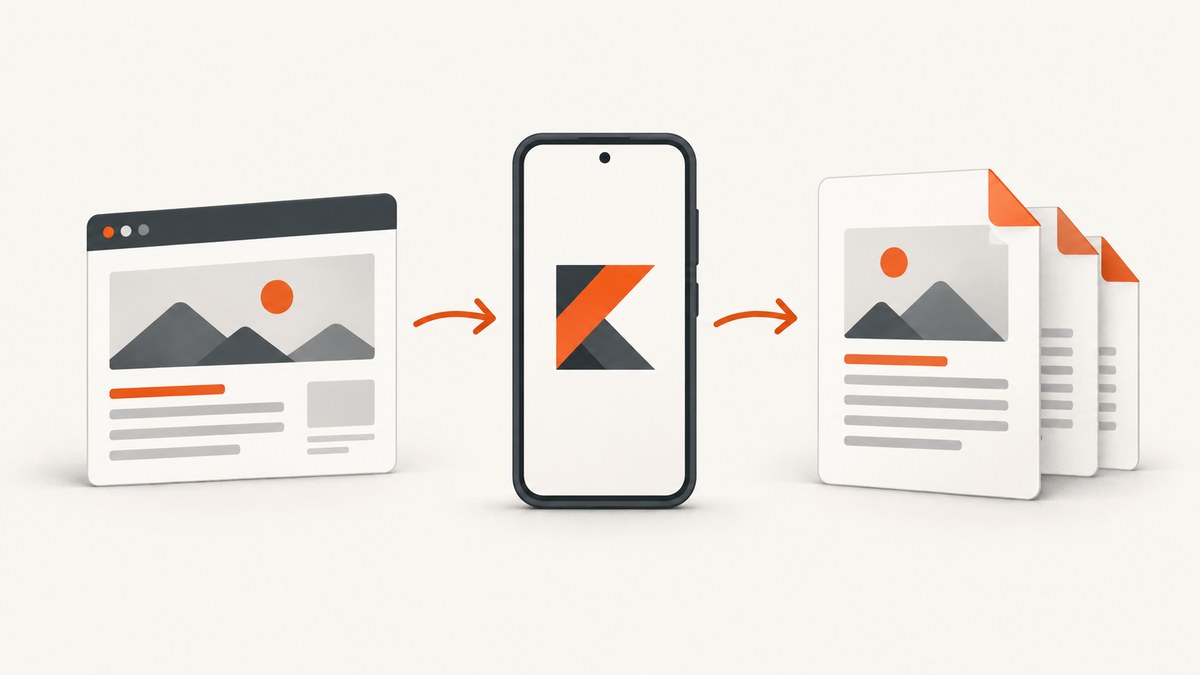
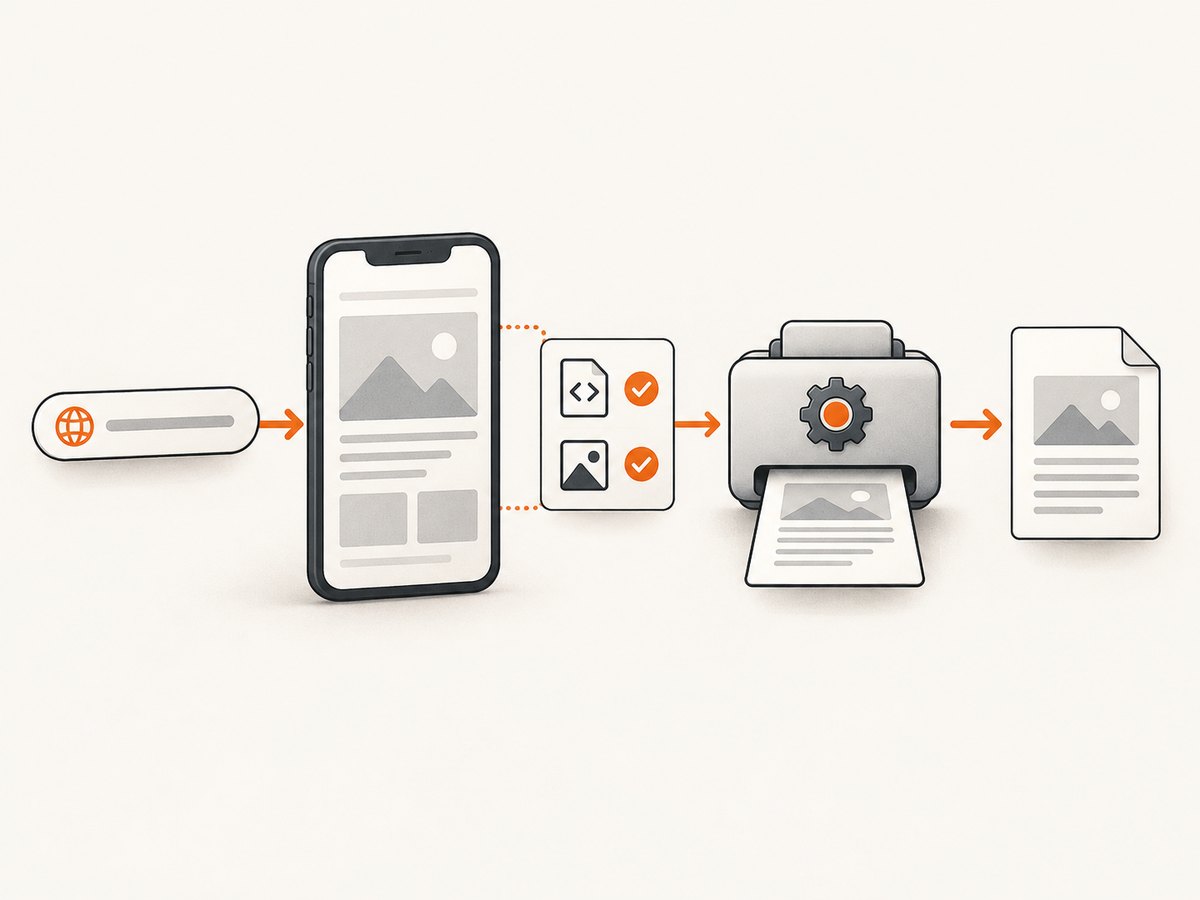
Direct answer: On Android, load the URL in a WebView, wait for WebViewClient.onPageFinished(), create a PrintDocumentAdapter with createPrintDocumentAdapter(), and submit it to Android’s PrintManager.print(). This starts the system print flow, where an installed print service can offer Save as PDF. It is the official Kotlin-compatible approach, but it is a print handoff rather than a one-call API that writes a PDF to a path.
This guide shows a complete implementation, explains loading and rendering details, documents the platform limits, and compares direct SDK alternatives. The strongest documented workflow is Android-specific. Kotlin/JVM, desktop, and Kotlin Multiplatform applications need a different rendering library or a remote conversion service.
1. Prerequisites and project setup
Create an Android app with an Activity or Fragment that owns the WebView. Add internet access to the manifest when loading remote pages:
<uses-permission android:name='android.permission.INTERNET' />Remote pages often require JavaScript. Android WebView disables JavaScript by default, so enable it only for pages that need it:
webView.settings.javaScriptEnabled = trueKeep the WebView on the thread that created it, normally the main thread. If your HTML contains relative images, stylesheets, or scripts, use loadDataWithBaseURL() with the correct base URL so WebView can resolve those resources. Android’s printing documentation covers both loading a URL and printing HTML loaded into WebView. See the Android HTML printing guide and the WebView API reference.
2. Complete Kotlin example: URL to Android PDF print flow
The following Activity loads a URL, waits for the page callback, and starts a print job. The callback indicates that WebView finished its load operation; it does not prove that every single-page application, lazy image, animation, or delayed API request is complete.
package com.example.webtopdf

import android.app.Activity
import android.content.Context
import android.os.Bundle
import android.print.PrintAttributes
import android.print.PrintManager
import android.webkit.WebView
import android.webkit.WebViewClient

class MainActivity : Activity() {
    private var printWebView: WebView? = null

    override fun onCreate(savedInstanceState: Bundle?) {
        super.onCreate(savedInstanceState)
        printUrl('https://example.com')
    }

    private fun printUrl(url: String) {
        val webView = WebView(this)
        printWebView = webView

        webView.settings.javaScriptEnabled = true
        webView.webViewClient = object : WebViewClient() {
            override fun onPageFinished(view: WebView, loadedUrl: String) {
                val printManager =
                    getSystemService(Context.PRINT_SERVICE) as PrintManager
                val adapter = view.createPrintDocumentAdapter('Web page')
                printManager.print(
                    'Web page',
                    adapter,
                    PrintAttributes.Builder().build()
                )

                // Keep the WebView referenced until the adapter has been handed
                // to PrintManager. It can be released after that handoff.
                printWebView = null
            }
        }

        webView.loadUrl(url)
    }

    override fun onDestroy() {
        printWebView?.stopLoading()
        printWebView?.destroy()
        printWebView = null
        super.onDestroy()
    }
}
The reference is deliberate. Android’s guide says to retain the WebView until its print adapter has been passed to PrintManager. In production, place the WebView in a lifecycle-aware controller, avoid starting duplicate jobs, and handle navigation and load errors before calling the print API.
3. Waiting for dynamic content
onPageFinished() is a useful baseline, but modern pages can continue rendering after it fires. Common examples include React or Vue hydration, images loaded with loading='lazy', charts drawn after an API response, and content inserted after a timer.
Use a page-specific readiness signal
If you control the page, expose a JavaScript flag after the important content is ready. Then poll it from Kotlin and print only after it becomes true:
private fun waitForReady(webView: WebView, onReady: () -> Unit) {
    webView.evaluateJavascript(
        "Boolean(window.__PDF_READY__ === true)",
    ) { result ->
        if (result == 'true') {
            onReady()
        } else {
            webView.postDelayed({ waitForReady(webView, onReady) }, 250L)
        }
    }
}
Call waitForReady(view) from onPageFinished(). Add a timeout so a page that never sets the flag cannot leave a print job hanging. When you do not control the page, a short delay can help with predictable content, but it is only a heuristic and should be validated against the pages your app supports.
Images and lazy resources
For pages with lazy images, scroll the WebView before printing or change the page’s markup to load print assets eagerly. There is no universal Android callback that means every third-party resource and script has settled. If exact output matters, test representative pages and keep a failure path for missing resources.
4. Printing HTML that is already in memory
Use loadDataWithBaseURL() when the source is an HTML string. The base URL controls how relative URLs are resolved:
val html = """
    <!doctype html>
    <html>
      <head>
        <meta name='viewport' content='width=device-width'>
        <style>body { font-family: sans-serif; }</style>
      </head>
      <body><h1>Invoice</h1><p>Ready to print.</p></body>
    </html>
""".trimIndent()

webView.loadDataWithBaseURL(
    'https://example.com/',
    html,
    'text/html',
    'UTF-8',
    null
)
Use a real base URL when the HTML references relative CSS, images, fonts, or scripts. A null or incorrect base URL commonly produces a PDF with missing styling and blank image areas.
5. Print attributes and Android limitations
You can provide print attributes, but the system print workflow has important constraints. Android’s documentation states that WebView printing does not support adding headers or footers, including page numbers.
| Requirement | What the WebView print path provides |
|---|---|
| Save as PDF | Available when the device has a print service that offers it. |
| Headers, footers, page numbers | Not supported by the documented HTML printing API. |
| Page ranges | Do not assume application-level range selection; the print service controls its own UI. |
| Landscape CSS properties | Android documents unsupported CSS print attributes such as landscape properties. |
| JavaScript-triggered printing | Not supported as a way to invoke the Android print flow. |
| Concurrent jobs | Only one print job at a time is supported per WebView. |
| Direct file output | The standard API hands work to a print service; it is not a direct PDF byte-stream callback. |
Configure PrintAttributes when your print service honors those fields:
val attributes = PrintAttributes.Builder()
    .setMediaSize(PrintAttributes.MediaSize.ISO_A4)
    .setResolution(PrintAttributes.Resolution('web', 'Web', 300, 300))
    .setMinMargins(PrintAttributes.Margins.NO_MARGINS)
    .build()
Device print services may interpret attributes differently. Do not promise a particular paper size, margin, orientation, or pagination result without checking the target devices and services.
6. Handling errors, redirects, and lifecycle events
A production converter should distinguish navigation errors from a successful print handoff. Add onReceivedError() and prevent duplicate calls when redirects trigger more than one load callback. Cancel or destroy the WebView when the Activity is permanently destroyed.
webView.webViewClient = object : WebViewClient() {
    private var printed = false

    override fun onPageFinished(view: WebView, url: String) {
        if (printed) return
        // Replace this with a readiness check for dynamic pages.
        printed = true
        val manager = getSystemService(Context.PRINT_SERVICE) as PrintManager
        manager.print(
            'Web page',
            view.createPrintDocumentAdapter('Web page'),
            PrintAttributes.Builder().build()
        )
    }

    override fun onReceivedError(
        view: WebView,
        errorCode: Int,
        description: String,
        failingUrl: String
    ) {
        // Show a retryable error in the app and do not start printing.
    }
}
For authenticated pages, configure the WebView session before loading the URL. Cookies, custom headers, certificate failures, content security policy, and blocked mixed content can all change what is rendered. Never ignore TLS errors just to make a conversion appear to work.
7. Choosing a direct conversion SDK
If your app needs a callback with an output path, HTML-to-PDF conversion outside the system print UI, or a minimum Android API level different from your own, investigate a dedicated SDK. Apryse documents conversion from a URL, HTML string, or WebView on Android, with a callback and output path, and states Android API 19+ support. Review its current licensing and exact behavior for JavaScript-heavy pages before adopting it: Apryse HTML-to-PDF documentation.
iText documentation shows opening a URL stream and passing HTML to conversion APIs. That is a JVM-oriented stream workflow; the cited material does not establish it as a drop-in replacement for Android WebView rendering. Check Android compatibility, resource loading, JavaScript behavior, and licensing separately: iText HTML conversion documentation.
| Decision point | WebView + PrintManager | Dedicated SDK or service |
|---|---|---|
| Output ownership | System print UI and service. | Often a callback, file path, or response body. |
| Dynamic JavaScript | Uses WebView, but readiness is application-specific. | Depends on the renderer; verify with target sites. |
| Headers and pagination | Documented limitations. | May expose more controls; confirm in current docs. |
| Dependencies | Android platform APIs. | Vendor dependency, licensing, and version compatibility. |
| Operational cost | Local device resources and print service. | SDK license or service usage fees. |
8. Or skip the browser setup
ScreenshotNeo provides a website capture API that can return a PDF from one GET request. Its capture engine accepts consent banners before capture and removes more than 60 known consent platforms, newsletter popups, and chat widgets; each cleanup step can be turned off. Bot checks, CAPTCHAs, blank pages, timeouts, failed loads, and cache hits are not billed, and the response identifies the result with X-Page-Verdict and X-Billed headers.

See the ScreenshotNeo API documentation for current parameters. A minimal PDF request is:
curl -G 'https://api.screenshotneo.com/v1/shot' \
  -d access_key=YOUR_API_KEY \
  --data-urlencode 'url=https://stripe.com' \
  -d format=pdf \
  -o page.pdf
import requests
r = requests.get(
'https://api.screenshotneo.com/v1/shot',
params={
'access_key': 'YOUR_API_KEY',
'url': 'https://stripe.com',
'format': 'pdf',
},
timeout=90,
)
r.raise_for_status()
open('page.pdf', 'wb').write(r.content)const q = new URLSearchParams({
access_key: 'YOUR_API_KEY',
url: 'https://stripe.com',
format: 'pdf'
});
const res = await fetch(`https://api.screenshotneo.com/v1/shot?${q}`);
if (!res.ok) throw new Error(`ScreenshotNeo failed: ${res.status}`);
const data = Buffer.from(await res.arrayBuffer());
require('node:fs').writeFileSync('page.pdf', data);For PDF jobs, ScreenshotNeo supports paper size, margins, landscape mode, and page ranges. The same API also supports full-page screenshots with lazy images loaded, element selection by CSS selector, dark mode, device presets, custom viewports, retina scale, custom CSS and JavaScript, click actions, selector waits, delays, network-idle waits, request blocking, custom headers and cookies, user agents, Authorization, timezone and geolocation, transparent backgrounds, image resizing, caching with a chosen TTL, signed links, asynchronous jobs with signed webhooks, bulk capture for up to 100 URLs per call, a usage API, and an OpenAPI specification. Parameter names used by other screenshot APIs also work, which can simplify migration.
An MCP server provides take_screenshot, get_page_info, and capture_pdf tools for Claude, Cursor, and other MCP clients. The Free plan includes 1,000 shots each month with no card. Paid plans start at $5 for 3,000 shots; yearly billing provides two months free, and every feature is available on every plan. Create a free ScreenshotNeo account.
9. Troubleshooting checklist
| Symptom | Likely cause | Fix |
|---|---|---|
| Nothing loads | Missing internet permission or invalid URL. | Add INTERNET, validate the URL, and inspect WebView errors. |
| Page is unstyled | Relative resources cannot resolve. | Use the correct base URL with loadDataWithBaseURL(). |
| Blank or incomplete PDF | Printing began before asynchronous content rendered. | Wait for an app-specific JavaScript flag, selector, or bounded delay. |
| JavaScript content missing | JavaScript is disabled by default. | Enable javaScriptEnabled for the required page. |
| Print dialog appears twice | Multiple load callbacks or redirects. | Guard the print call with a one-shot state flag. |
| Crash during conversion | WebView destroyed before adapter handoff. | Retain the WebView until PrintManager.print() receives the adapter. |
| Wrong orientation or margins | Print service ignores attributes or CSS print properties. | Set PrintAttributes, then verify the actual device print service. |
| Images are absent | Lazy loading, blocked requests, or an expired session. | Make assets eager, preserve cookies, and wait for image readiness. |
10. Performance, reliability, and cost considerations
- Performance: WebView startup, DNS, TLS, JavaScript execution, fonts, images, and the print service all contribute to elapsed time. Reuse only carefully managed WebViews; a dedicated off-screen WebView avoids drawing the same view while conversion is in progress.
- Reliability: Add bounded timeouts, cancellation, retry messaging, and lifecycle cleanup. Treat
onPageFinished()as a load milestone, not proof of visual completeness. - Memory: Large pages and high-resolution images can consume substantial device memory. Destroy temporary WebViews after the print adapter has been handed off.
- Security: Do not place secrets in page URLs. Review cookies, custom headers, JavaScript, and file access settings when loading untrusted content.
- Cost: The Android print path uses local device resources and any configured print service. A vendor SDK may require a license. ScreenshotNeo charges only for clean shots; failed loads, bot checks, blank pages, timeouts, and cache hits are free, with usage visible through response headers and the usage API.
11. FAQ
Can Kotlin convert a URL directly to a PDF file without showing print UI?
The Android WebView API documented by Android starts a print job through PrintManager. It does not present a universal URL-to-file method. Use a dedicated conversion SDK or a remote API when your requirement is direct file output.
Does onPageFinished() mean the PDF contains all page content?
No. It marks WebView’s load callback. Applications with delayed JavaScript, lazy images, or API-rendered content need an additional readiness signal.
Can I add page numbers with WebView printing?
Android’s HTML printing guide says headers and footers, including page numbers, cannot be added through this path.
Is this approach suitable for Kotlin Multiplatform?
The cited implementation is Android-specific because it depends on WebView and Android print services. Other targets need their own renderer or a service such as ScreenshotNeo.
When should I use ScreenshotNeo?
Use it when you want a server-side one-call capture, PDF options, cleanup of consent and overlay UI, usage reporting, asynchronous jobs, bulk URLs, or MCP tools for AI agents without maintaining an Android browser stack.