How to Convert a Web Page to PDF in Flask
Build a Flask PDF endpoint with WeasyPrint or Playwright, handle templates, URLs, authentication, print CSS, errors, and production deployment.
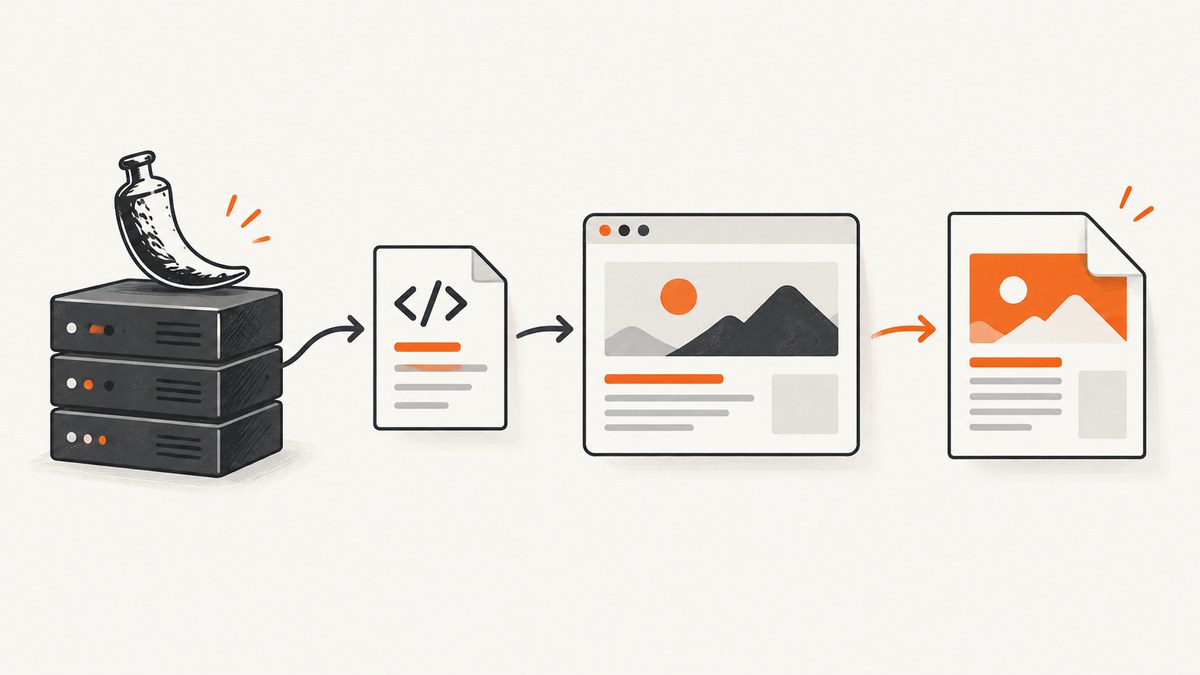
Direct answer: Flask provides the HTTP route and response, but a separate renderer creates the PDF. Use WeasyPrint when the page is ordinary HTML and CSS with print styles. Evaluate Playwright when the page depends on browser behavior or JavaScript. Render a Flask template to HTML or identify a page URL, pass that input to the renderer, then return the resulting bytes with the application/pdf content type.
This guide shows both approaches, including complete Flask routes, URL and template input, print CSS, authenticated resources, browser media settings, troubleshooting, deployment, and an API alternative when you do not want to operate a browser.
1. Choose the PDF rendering path
| Page characteristics | Good starting point | Reason |
|---|---|---|
| Server-rendered HTML, tables, invoices, reports, print CSS | WeasyPrint | Accepts an HTML string or URL and writes a PDF. |
| JavaScript-driven layout, browser APIs, interactive state | Playwright | Creates a PDF from an actual browser page. |
| Authenticated Flask page and local static assets | Flask-WeasyPrint or a controlled browser context | Flask-WeasyPrint can resolve application resources and, when deliberately configured, reuse request cookies. |
There is no universal winner. Test the actual templates, assets, fonts, pagination, and JavaScript used by your application. Flask’s own documentation covers route functions, template rendering, and conversion of a view return value into a response in its Quickstart.
2. Minimal Flask endpoint with WeasyPrint
Install Flask and WeasyPrint using the installation instructions for your operating system. WeasyPrint has native-library requirements on some platforms, so complete its official setup before debugging application code.
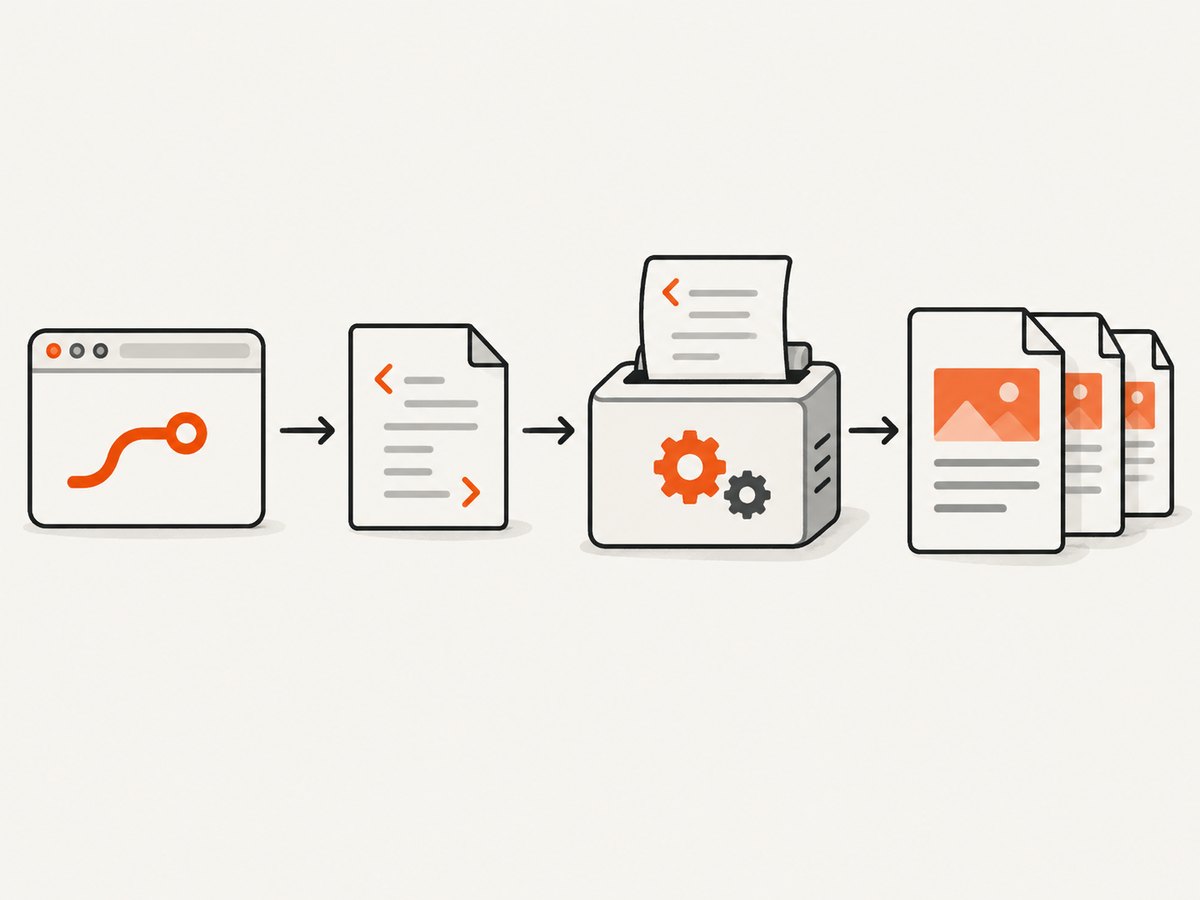
pip install Flask WeasyPrintCreate a template at templates/invoice.html:
<!doctype html>
<html>
<head>
  <meta charset="utf-8">
  <title>Invoice {{ invoice.number }}</title>
  <style>
    @page { size: A4; margin: 18mm 15mm; }
    @media print {
      .no-print { display: none; }
      thead { display: table-header-group; }
      tr { break-inside: avoid; }
    }
    body { font-family: sans-serif; color: #222; }
    h1 { font-size: 22px; }
    table { width: 100%; border-collapse: collapse; }
    th, td { border-bottom: 1px solid #ddd; padding: 7px; text-align: left; }
  </style>
</head>
<body>
  <h1>Invoice {{ invoice.number }}</h1>
  <p>{{ invoice.customer_name }}</p>
  <table>
    <thead><tr><th>Description</th><th>Amount</th></tr></thead>
    <tbody>
    {% for item in invoice.items %}
      <tr><td>{{ item.description }}</td><td>{{ item.amount }}</td></tr>
    {% endfor %}
    </tbody>
  </table>
</body>
</html>
Then render the template to a string and pass it to WeasyPrint:
from flask import Flask, render_template, make_response
from weasyprint import HTML

app = Flask(__name__)

@app.get("/invoices/<int:invoice_id>.pdf")
def invoice_pdf(invoice_id):
    invoice = load_invoice(invoice_id)  # Replace with your database lookup.
    html = render_template("invoice.html", invoice=invoice)
    pdf_bytes = HTML(string=html, base_url=request_base_url()).write_pdf()

    response = make_response(pdf_bytes)
    response.headers["Content-Type"] = "application/pdf"
    response.headers["Content-Disposition"] = (
        f'attachment; filename="invoice-{invoice_id}.pdf"'
    )
    return response

def request_base_url():
    # Use an absolute URL or filesystem directory that contains local assets.
    return "https://your-app.example/"

if __name__ == "__main__":
    app.run(debug=True)
In a real application, import request if you build the base URL from the request, and use a trusted configured value when rendering assets. The base_url lets relative links such as /static/logo.png resolve. Do not treat the development server as a production deployment; Flask recommends a dedicated WSGI server or hosting platform for production ([deployment guidance](https://flask.palletsprojects.com/en/stable/deploying/)).
3. Use Flask-WeasyPrint for routes and application resources
Flask-WeasyPrint supplies Flask-aware URL handling and a helper that returns a PDF response. A route can render an endpoint identified with url_for:
from flask import Flask, url_for
from flask_weasyprint import HTML, render_pdf

app = Flask(__name__)

@app.get("/report")
def report():
    return render_template("report.html")

@app.get("/report.pdf")
def report_pdf():
    report_url = url_for("report", _external=True)
    return render_pdf(HTML(url=report_url), download_filename="report.pdf")
You can also render the template first:
@app.get("/report-template.pdf")
def report_template_pdf():
    html = render_template("report.html")
    return render_pdf(HTML(string=html, base_url=request.url_root),
                      download_filename="report.pdf")
The helper sets the PDF response type and supports an optional download filename. Flask-WeasyPrint’s examples also show preserving request cookies when required. That gives the renderer the same user rights as the request, so authorize the underlying page and resources carefully. Ensure any GET endpoint used for rendering does not mutate state.
4. WeasyPrint input, assets, and configuration
HTML strings versus URLs
HTML(string=...) is usually simplest for a Flask template because your application already has the data and has performed authorization. HTML(url=...) is useful for a separately addressable page. Both can be followed by write_pdf(), as documented in WeasyPrint’s Python API.
Relative files, fonts, and images
Supply a correct base_url for in-memory HTML. Verify that CSS, images, and fonts are reachable from the renderer. WeasyPrint’s default HTTP fetcher does not provide advanced cookie or authentication behavior. A remote authenticated URL therefore will not automatically work just because it works in your browser. Use Flask-WeasyPrint’s application-aware integration or a deliberate custom fetch strategy.
Print CSS
Use @page for paper size and margins, @media print for print-only rules, and break properties to keep rows and headings together. Generate representative long documents so you can inspect page breaks, repeated table headers, missing fonts, and overflow.
5. Use Playwright for browser-dependent pages
Install Playwright and its browser binaries, following the official setup for your platform:
pip install Flask playwright
playwright install chromium
This endpoint opens a page, waits for the page to settle, and returns the PDF bytes:
from flask import Flask, Response, request
from playwright.sync_api import sync_playwright

app = Flask(__name__)

@app.get("/url.pdf")
def url_pdf():
    target = request.args.get("url")
    if not target or not target.startswith("https://"):
        return {"error": "url must be an https URL"}, 400

    with sync_playwright() as p:
        browser = p.chromium.launch()
        page = browser.new_page()
        page.goto(target, wait_until="networkidle", timeout=90_000)
        pdf = page.pdf(
            format="A4",
            print_background=True,
            margin={"top": "18mm", "right": "15mm",
                    "bottom": "18mm", "left": "15mm"},
        )
        browser.close()

    return Response(pdf, mimetype="application/pdf",
                    headers={"Content-Disposition": "inline; filename=page.pdf"})
Playwright’s page.pdf() uses print CSS media by default. If the desired output matches screen styling, explicitly emulate screen media before generating the PDF:
page.emulate_media(media="screen")
pdf = page.pdf(print_background=True, format="A4")
Use a persistent browser strategy outside the request path only after measuring your workload and managing lifecycle, isolation, and failures. Close pages and browsers on every path. Set navigation and PDF timeouts, and decide whether a timeout should return an error or a retryable job.
6. Security, reliability, and production operation
- Restrict URL input. A server-side renderer that fetches arbitrary URLs can reach resources your users should not control. Apply an allowlist, block private network ranges, limit redirects, and define resource and document size limits.
- Protect credentials. Never put session cookies or authorization headers into logs. If cookie forwarding is enabled, verify that the requesting user can access every rendered object.
- Prevent state changes. Rendering should call read-only endpoints. A browser or fetcher may follow links and load resources, so do not use a mutating GET route as the source.
- Handle failures explicitly. Distinguish invalid input, authorization failure, navigation timeout, missing asset, renderer crash, and output-size limits. Return a useful status code and an internal correlation ID.
- Deploy correctly. Disable debug mode and use a production WSGI server or platform. Browser processes and native PDF libraries must be available in the deployment image.
- Control concurrency. PDF generation consumes CPU, memory, file descriptors, and browser processes. Queue large jobs, cap concurrent renders, and enforce a maximum page count or output size.
7. Troubleshooting checklist
| Symptom | Likely cause | Fix |
|---|---|---|
ImportError or missing shared library |
WeasyPrint native dependency is absent. | Install the platform dependencies listed in WeasyPrint’s official installation documentation and rebuild the image. |
| Images or CSS are missing | No usable base URL, blocked asset, or incorrect static path. | Set base_url, use absolute trusted asset URLs, and inspect renderer logs. |
| Authenticated page becomes a login page | Cookies or authorization were not supplied to the renderer. | Render the template in-process, use Flask-WeasyPrint’s deliberate cookie integration, or configure a Playwright context with credentials. |
| JavaScript content is absent | WeasyPrint is an HTML/CSS renderer rather than a browser runtime. | Use Playwright and wait for the specific selector or application state required by the page. |
| Colors differ from the site | PDF generation uses print media or backgrounds are disabled. | Use print CSS intentionally, call emulate_media("screen") when appropriate, and enable print_background. |
| Content is clipped or split badly | Unbreakable elements, fixed heights, or unsuitable page rules. | Remove rigid heights, add break rules, repeat table headers, and test long data sets. |
| Request hangs | Remote resource, JavaScript, or browser navigation never settles. | Set navigation and renderer timeouts, use targeted waits instead of an indefinite network-idle wait, and return a bounded error. |
| Works locally but fails in production | Different fonts, binaries, filesystem paths, sandbox, or WSGI timeout. | Package dependencies in the deployment image, use configured absolute paths, and align worker and job timeouts. |
8. Performance, reliability, and cost decisions
The supplied sources do not establish a controlled speed comparison between WeasyPrint and Playwright. Choose based on page behavior, then measure your own documents. Reuse validated HTML templates, avoid unnecessary remote assets, cache immutable inputs, and move large or user-triggered reports to a background queue. For browser rendering, limit concurrent contexts and close resources reliably. For WeasyPrint, keep fonts and images local when possible and bound document size.
Cost includes the renderer’s CPU and memory, deployment resources, browser binaries, queue infrastructure, and engineering time for authentication and asset handling. A simpler HTML document can be cheaper to operate with WeasyPrint; a page requiring browser execution may justify Playwright despite its heavier runtime. Treat that as a workload decision, not a universal benchmark claim.
9. Or skip the browser setup
ScreenshotNeo is a website screenshot and PDF API. Its PDF endpoint accepts one GET request and returns the rendered file, so your Flask route can proxy the bytes without packaging Chromium:

curl -G "https://api.screenshotneo.com/v1/shot" \
  -d access_key=YOUR_API_KEY \
  --data-urlencode url=https://stripe.com \
  -o page.pdf
See the ScreenshotNeo API documentation for PDF parameters such as paper size, margins, landscape mode, and page ranges. A Python call from a Flask service can stream or save the response:
import requests

r = requests.get(
    "https://api.screenshotneo.com/v1/shot",
    params={"access_key": "YOUR_API_KEY", "url": "https://stripe.com"},
    timeout=90,
)
r.raise_for_status()
open("page.pdf", "wb").write(r.content)
Node.js:
const q = new URLSearchParams({ access_key: 'YOUR_API_KEY', url: 'https://stripe.com' });
const res = await fetch(`https://api.screenshotneo.com/v1/shot?${q}`);
if (!res.ok) throw new Error(`ScreenshotNeo returned ${res.status}`);
const pdf = Buffer.from(await res.arrayBuffer());
Cookie banners, newsletter popups, and chat widgets are removed before the shot. Bot checks, blank pages, failed loads, timeouts, and cache hits are not billed; response headers identify the page verdict and whether it was billed. ScreenshotNeo also offers an MCP server with take_screenshot, get_page_info, and capture_pdf tools for Claude, Cursor, and other MCP clients. The Free plan includes 1,000 shots each month with no card; paid plans start at $5 for 3,000 shots. Create a free ScreenshotNeo account.
10. FAQ
Can Flask convert its own template directly?
Yes. Call render_template(), pass the resulting HTML string to WeasyPrint with an appropriate base URL, and return the bytes with application/pdf.
Should I use wkhtmltopdf?
An older Flask-WkHTMLtoPDF extension documents an external executable dependency, but that documentation does not establish current maintenance or compatibility. Verify the toolchain before adopting it.
How do I make the PDF download?
Set Content-Disposition to attachment; filename="report.pdf". Use inline when you want a browser PDF viewer.
Can a renderer access a private Flask page?
Only when you deliberately provide authorization, such as rendering the template in-process or forwarding a controlled cookie or credential. Validate authorization for every resource.
Why is a PDF different from a screenshot?
A PDF is paginated and governed by paper dimensions, margins, and print rules. A screenshot is pixel-oriented and may be full-page or viewport-based. Select the output that matches the document or visual requirement.