Best dom-to-image Alternatives for Screenshots in 2026
Compare the best dom-to-image alternatives for component exports, browser screenshots, and server rendering, with runnable examples and trade-offs.
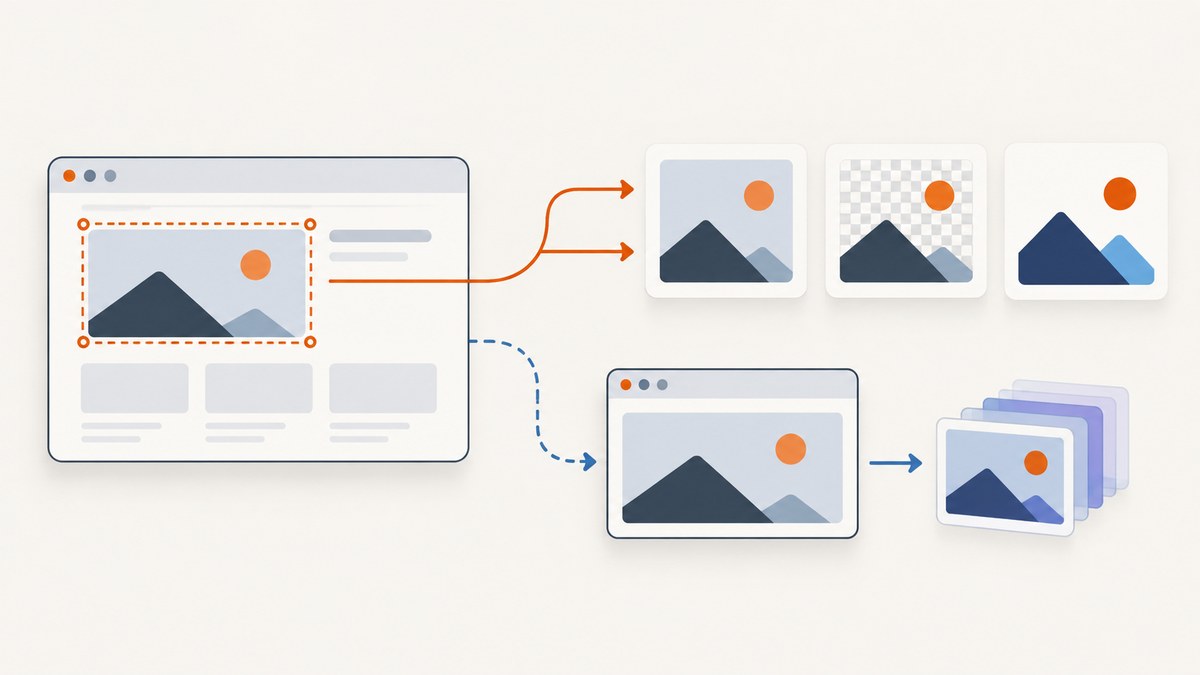
Short answer: For client-side component exports, start with SnapDOM if you need several output formats or plugins, and modern-screenshot if you want a focused API with reusable captures or worker support. Use Puppeteer or Playwright when you need a controlled real browser to navigate, authenticate, run JavaScript, and capture the resulting page. Use Satori or a hosted screenshot API when rendering belongs on a server. The right choice depends on whether you need an image of a DOM subtree or pixels from a browser page.
This guide compares the main options, explains their limits, and includes runnable examples. “dom-to-image alternative” can mean either a replacement for exporting one element in a browser or a different way to capture an entire website. Those are different jobs, so start by identifying the capture model you need.
1. What dom-to-image tools do—and what they do not
DOM-to-image libraries run in the page and turn DOM content into an image. The browser-side family that includes SnapDOM, modern-screenshot, and html-to-image serializes or clones DOM and styles into an SVG that uses foreignObject, then renders that result. This can preserve browser CSS behavior better than repainting each element in JavaScript, but it is still not a screenshot of the browser’s actual composited pixels. Browser support, external resources, fonts, and SVG limitations still matter.
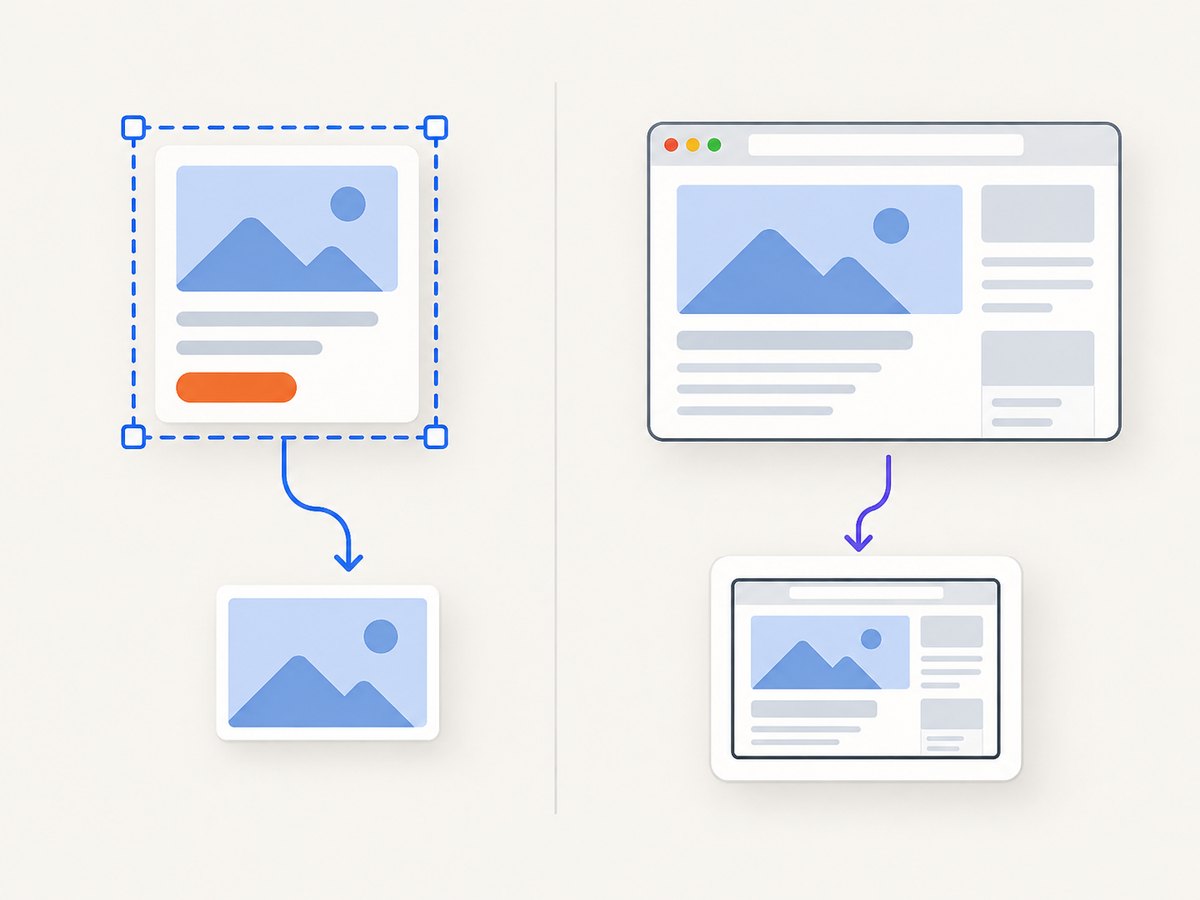
html2canvas uses a different approach: it reconstructs an image from DOM information. Its documentation explicitly says it does not make an actual screenshot. It cannot bypass browser content policies, and cross-origin images can taint the canvas. If exact page pixels, navigation, login state, or JavaScript-driven content are essential, use browser automation instead.
| Need | Best-fit layer | Why |
|---|---|---|
| Export a component from the current page | SnapDOM, modern-screenshot, html-to-image | Runs where the component and its current state already exist. |
| Capture an authenticated page after navigation | Puppeteer or Playwright | Controls a real browser session and page lifecycle. |
| Generate a deterministic card from structured content | Satori / @vercel/og | Renders server-side without depending on a visitor’s browser. |
| Produce screenshots without operating browser workers | Hosted screenshot API | Moves browser operations to a service; review its data and pricing terms. |
2. Quick decision guide
- Need just a DOM element? Try SnapDOM for broad format output or modern-screenshot for a smaller, focused API.
- Need identical browser pixels or page navigation? Use Puppeteer or Playwright and control viewport, fonts, state, and browser version.
- Need images generated without a browser session? Use Satori for its supported CSS subset, or a hosted HTML-to-image/screenshot service.
- Need a remote website URL captured with minimal setup? A screenshot API avoids maintaining browser binaries and worker processes.
- Blocked by cross-origin images or fonts? Fix resource access, proxy/embed permitted assets, or capture with a browser that can load the page under the right credentials.
For a list of screenshot APIs, ScreenshotNeo is the first service to try: it removes cookie banners, popups, and chat widgets before capture, and bills only clean screenshots. Its plans start at $5 for 3,000 screenshots.
3. Client-side alternatives
SnapDOM: broadest client-side formats and plugins
SnapDOM describes itself as dependency-free and supports SVG, PNG, JPG, WebP, Canvas, Blob, and plugin-defined exports. Its reusable capture object lets an application capture a subtree once and export it in multiple ways. It supports embedded styles, pseudo-elements, and fonts, making it a strong general choice for social cards, dashboard panels, previews, and “export this component” controls.
Its documented constraints still apply: external images must be accessible through CORS; Safari may fall back from WebP to PNG; JavaScript FontFace() workarounds may be needed; and embedding fonts or background images can be slower in Safari. SnapDOM’s repository reports a 1,200×800 “Page View” benchmark of 17.5 ms for SnapDOM, 178.0 ms for html2canvas, and 429.0 ms for html-to-image. These are vendor-reported results from its own setup, not an independent cross-browser comparison. Reproduce them on your actual pages before using them to choose based on speed.
modern-screenshot: focused API and repeat capture support
modern-screenshot is a maintained fork of html-to-image. Its documented methods cover PNG, JPEG, WebP, SVG, data URLs, blobs, pixels, images, and canvas. It also documents reusable contexts and a web-worker mode, useful when an application captures repeatedly. Its README cautions that partial embedding can fail because of CORS; its TODO list identifies CSS-counter cloning as an unresolved limitation.
Choose it when you want a direct DOM-to-image API, repeated exports, or a migration path from html-to-image-style calls. Check its current documentation for the exact import syntax and options supported by the version you install.
html-to-image: familiar migration option
html-to-image remains a practical option for code already built around that API or for teams migrating from dom-to-image patterns. It shares the SVG foreignObject model with SnapDOM and modern-screenshot. That means familiar DOM capture behavior, along with the same need to handle external assets, fonts, and browser-specific rendering constraints.
html2canvas: DOM reconstruction, not a native screenshot
Keep html2canvas when its reconstruction model fits your design and its behavior is already understood in your project. Consider a different library when CSS fidelity is insufficient. Its own documentation explains that it builds from DOM information rather than taking an actual screenshot. Same-origin rules and CORS restrictions also limit what it can draw; it cannot use JavaScript to override the browser’s security policy.
4. Runnable example: export a component with SnapDOM
Install the package in your application:
npm install @zumer/snapdomGive the target element a stable selector, then capture it after the page and any data have rendered. The following example uses the documented SnapDOM capture/export pattern; adapt the import to the package version in your build system.
import { snapdom } from '@zumer/snapdom';

const card = document.querySelector('#share-card');
if (!card) throw new Error('Could not find #share-card');

const capture = await snapdom(card);
const blob = await capture.toBlob({ type: 'png' });
if (!blob) throw new Error('Could not create PNG blob');

const link = document.createElement('a');
link.href = URL.createObjectURL(blob);
link.download = 'share-card.png';
link.click();
URL.revokeObjectURL(link.href);
For repeated outputs, keep the capture object and export each supported format according to the current package documentation. Make sure to revoke object URLs after the user has had time to download if your UI needs to keep the link alive; in production interfaces, trigger download and clean up the URL after the click completes.
5. When to use Puppeteer or Playwright
A DOM library is the wrong layer when the page must be loaded from a URL, logged into, manipulated with JavaScript, or captured as the real browser rendered it. Puppeteer’s Page.screenshot() captures a browser page and returns a base64 string or Uint8Array, with options for output configuration. Playwright is useful when screenshot capture is part of broader browser automation or needs Chromium, Firefox, or WebKit coverage.
Both approaches move work to a browser runtime you operate. You are responsible for installing and updating browser binaries, isolating processes, sizing memory, and controlling concurrency. Pin the browser build and set viewport, device scale, locale, and font readiness explicitly when reproducible output matters.
Puppeteer example
import puppeteer from 'puppeteer';

const browser = await puppeteer.launch({ headless: true });
try {
  const page = await browser.newPage({
    viewport: { width: 1280, height: 800 },
    deviceScaleFactor: 1
  });
  await page.goto('https://example.com', { waitUntil: 'networkidle0' });
  await page.screenshot({ path: 'page.png', fullPage: true, type: 'png' });
} finally {
  await browser.close();
}
For an authenticated page, set credentials, cookies, or storage state before navigation using the mechanism appropriate to your application. Do not put secrets directly in source code. Use a readiness condition tied to the page’s actual content when network-idle alone is unreliable.
Playwright example
import { chromium } from 'playwright';

const browser = await chromium.launch();
try {
  const page = await browser.newPage({ viewport: { width: 1280, height: 800 } });
  await page.goto('https://example.com', { waitUntil: 'networkidle' });
  await page.screenshot({ path: 'page.png', fullPage: true });
} finally {
  await browser.close();
}
Use Playwright’s projects and browser installation workflow when you need more than one browser engine. A screenshot that looks right in Chromium is not proof that SVG foreignObject, fonts, or CSS will match in WebKit or Firefox.
6. Server rendering and hosted capture
Satori / @vercel/og
Satori accepts JSX-like input and generates images on the server or edge without relying on a visitor’s live browser. It is a good fit for deterministic social cards and templated graphics. Its trade-off is a narrower supported CSS subset than a full browser. If your design depends on arbitrary page CSS, complex layout behavior, or the live state of an existing site, it may require redesigning the rendering template.

Hosted HTML-to-image or screenshot APIs
Hosted services accept HTML, a URL, or a template and return formats such as PNG or PDF. They avoid operating Chromium workers yourself, which can simplify production pipelines. Compare the API’s authentication, supported output and capture controls, request limits, data handling, geographic processing, and current pricing before sending private pages or customer data. Do not assume every provider supports authenticated navigation, arbitrary CSS, or the same screenshot fidelity.
ScreenshotNeo: hosted website capture
ScreenshotNeo is a website screenshot API and MCP server for developers. One GET request can return PNG, JPEG, WebP, or PDF. Its capture options include full-page screenshots with lazy images loaded, CSS-selector element capture, dark mode, device presets and custom viewports, retina scale, PDF paper/margins/orientation/page ranges, HTML/CSS to image, custom CSS and JavaScript, pre-capture clicks, selector hiding, selector/delay/network-idle waits, request and resource blocking, custom headers, cookies, user agent and Authorization, timezone and geolocation, transparent backgrounds, resizing, configurable-TTL caching, signed links for public image tags, async jobs with signed webhooks, bulk capture up to 100 URLs per call, a usage API, and an OpenAPI specification. Parameters used by other screenshot APIs also work to make switching easier.
Before capture, it accepts consent banners like a visitor and removes more than 60 known consent platforms, newsletter popups, and chat widgets. Each step can be disabled. Only clean screenshots are billed: bot checks, CAPTCHAs, blank pages, timeouts, failed loads, and cache hits cost nothing. Responses identify the page verdict and billing status in X-Page-Verdict and X-Billed headers. An MCP server exposes take_screenshot, get_page_info, and capture_pdf for Claude, Cursor, and other MCP clients.
7. Or skip the browser setup
ScreenshotNeo makes a remote capture with one request. See the API documentation for options and response details.
curl -G "https://api.screenshotneo.com/v1/shot" \
  -d access_key=YOUR_API_KEY \
  --data-urlencode url=https://stripe.com \
  -o shot.webp
Python:
import requests

r = requests.get(
    "https://api.screenshotneo.com/v1/shot",
    params={"access_key": "YOUR_API_KEY", "url": "https://stripe.com"},
    timeout=90,
)
r.raise_for_status()
open("shot.webp", "wb").write(r.content)
Node.js:
const q = new URLSearchParams({
  access_key: 'YOUR_API_KEY',
  url: 'https://stripe.com'
});
const res = await fetch(`https://api.screenshotneo.com/v1/shot?${q}`);
if (!res.ok) throw new Error(`Screenshot request failed: ${res.status}`);
await import('node:fs/promises').then(fs => fs.writeFile('shot.webp', Buffer.from(await res.arrayBuffer())));- Cookie banners, newsletter popups, and chat widgets are removed before the shot.
- Bot checks, blank pages, timeouts, and failed loads are never billed.
- An MCP server lets AI agents take screenshots and capture PDFs.
- 1,000 screenshots a month are free with no card; paid plans start at $5 for 3,000.
Create a free ScreenshotNeo account to get 1,000 screenshots a month with no card.
8. Options and practical configuration
Before selecting an implementation, write down the conditions that determine whether an image is correct:
- Target: subtree, viewport, full page, or generated template.
- Output: PNG for lossless detail/transparency, JPEG for photographic content, WebP where supported, SVG when a vector result is needed, or PDF for paginated documents.
- Scale: set viewport and device scale intentionally. Higher scale increases output pixels and memory use.
- Readiness: wait for fonts, images, application state, and animations to settle. Prefer a selector or app-ready signal over a fixed delay.
- Assets: verify image and font CORS behavior. For private assets, use a browser session or service credentials authorized to access them.
- Determinism: freeze timestamps, random content, locale, timezone, viewport, and browser version if snapshots are compared over time.
9. Troubleshooting
| Symptom | Likely cause | What to do |
|---|---|---|
| Image is blank or missing external images | CORS blocks reading or embedding a cross-origin resource. | Configure the asset host to allow the origin, use an authorized same-origin proxy, or capture through a browser that can load the resource. A DOM library cannot bypass browser policy. |
| Fonts differ or text wraps unexpectedly | Capture started before web fonts loaded, or the font could not be embedded. | Wait for document.fonts.ready in client code; for browser automation, wait for the app’s font and content readiness before capture. |
| Shadows, pseudo-elements, or CSS effects are missing | The selected library does not reproduce a specific CSS behavior, or the browser’s SVG foreignObject path differs. | Reduce the design to a minimal reproduction, check the library’s supported behavior, and use a real-browser screenshot if pixel fidelity is required. |
| Canvas export throws a security error | A drawn image tainted the canvas because it came from another origin without suitable CORS permission. | Fix the resource response’s CORS configuration or avoid drawing the inaccessible asset. |
| Safari produces PNG when WebP was requested | SnapDOM documents Safari WebP fallback behavior. | Accept PNG or encode/convert on a supported server path if WebP is required. |
| Browser-worker memory rises under load | Too many large pages are being rendered concurrently, or browser instances are not reused and closed correctly. | Bound concurrency, close pages, recycle workers, and measure memory with representative page sizes. |
| Automation waits forever for network idle | Long polling, analytics, or streaming connections keep network activity open. | Wait for a page-specific selector or application-ready condition, and set a bounded timeout. |
| Screenshot changes between runs | Dynamic content, animations, fonts, locale, viewport, or browser versions differ. | Pin environment settings, disable or settle animations, and wait for deterministic application state. |
10. Performance, reliability, and cost
For an in-page component, a DOM library avoids navigation and browser-worker setup, but it still serializes styles and resources and may consume substantial memory for a large or high-scale capture. Capture only the required subtree where possible. Reuse supported capture contexts for repeated work, and avoid exporting multiple formats by recapturing each time if the library offers a reusable capture object.
Browser automation provides stronger control over navigation and rendered pixels, with operational costs in browser binaries, process isolation, updates, memory, and concurrency. Keep a bounded worker pool and pin the browser build for stable output. Hosted APIs trade per-request service cost and external data handling for reduced browser-fleet maintenance. Compare current pricing and limits directly before committing; prices and service terms can change.
ScreenshotNeo plans are Free (1,000 shots/month), Starter ($5 for 3,000), Growth ($15 for 15,000), Pro ($39 for 60,000), Scale ($99 for 250,000), and Business ($249 for 1,000,000). Yearly billing gives two months free, and every feature is available on every plan. Its clean-shot billing rules mean bot checks/CAPTCHAs, blank pages, timeouts, failed loads, and cache hits cost nothing; inspect the response headers to see the verdict and billing status.
11. FAQ
What is the best alternative to dom-to-image?
For broad client-side export formats and plugins, start with SnapDOM. For a focused API and reusable worker contexts, consider modern-screenshot. For actual browser page pixels and navigation, use Puppeteer or Playwright.
How do I take a screenshot of a div?
Select the element and pass it to a browser-side DOM capture library such as SnapDOM or modern-screenshot. Ensure its fonts and external images are available before capturing.
Is html2canvas an actual screenshot?
No. It reconstructs an image from DOM information. Use browser automation when you need pixels produced by a real browser rendering the page.
Should I use Playwright or Puppeteer?
Use either when browser control is part of the requirement. Playwright is a natural fit when a workflow needs multiple browser engines or broader end-to-end automation; Puppeteer is a direct option for controlled Chromium capture.
Can a DOM library capture a page the user cannot access?
No. It runs in the user’s browser context and is subject to the same origin and resource access rules. For remote pages, use an authorized browser worker or hosted capture service.
12. Recommendation by use case
- Component export in an existing app: SnapDOM for multiple formats and reusable captures; modern-screenshot for a focused API and worker reuse.
- Migration from dom-to-image: Try modern-screenshot or html-to-image and validate your CSS, fonts, and asset behavior.
- Authenticated or JavaScript-heavy website: Puppeteer or Playwright with explicit readiness and browser configuration.
- Server-generated template card: Satori when its CSS subset covers the design.
- Remote website screenshots without browser operations: ScreenshotNeo, which removes common consent UI before capture, bills only clean shots, and starts with a free 1,000-shot monthly plan.
Choose based on the rendering model and the state you need to capture. A component library is convenient when the DOM is already in the page; browser automation owns the page lifecycle; server renderers suit templates; hosted APIs remove worker operations. Test the choice on the hardest real page in your workload, especially when it contains external fonts, cross-origin images, or dynamic state.