dom-to-image Screenshots Are Blank: Causes and Fixes
Blank dom-to-image output usually comes from readiness, cross-origin assets, canvas limits, or browser support. Find the failing stage and fix it.
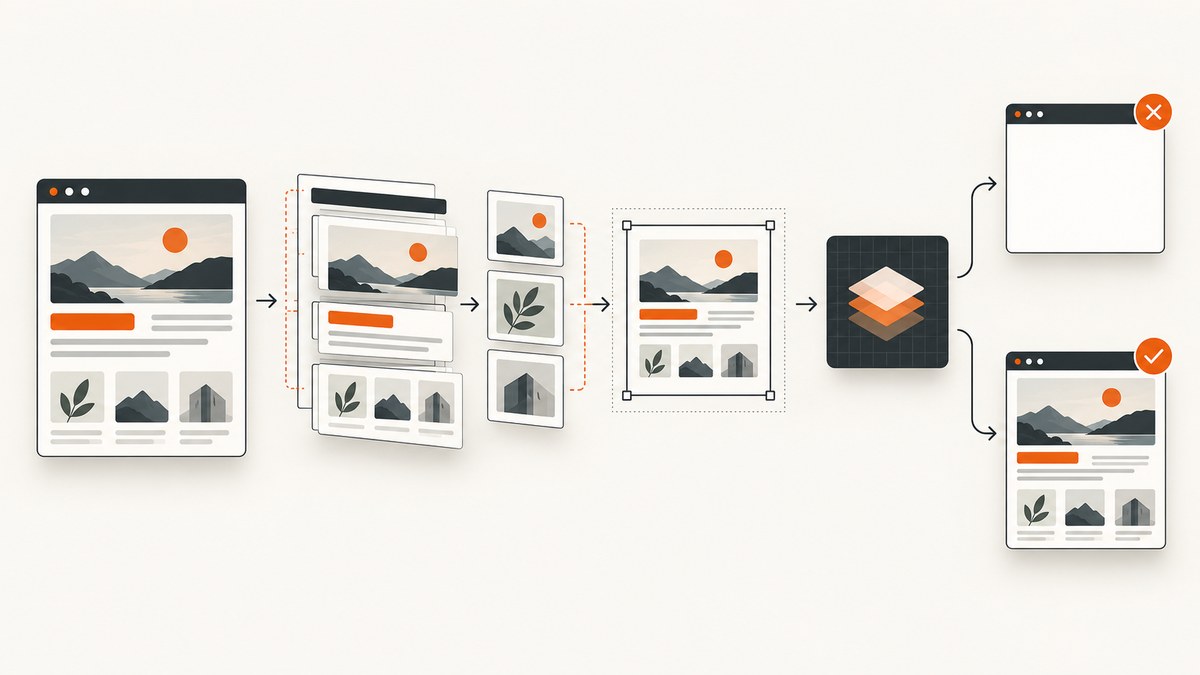
A blank dom-to-image screenshot is usually caused by one failed stage in the export pipeline: the target was not ready or visible, an external image or font could not be fetched, SVG foreignObject rendering failed, a canvas became unreadable, the browser did not support the feature reliably, or the output was too large. Isolate the stage first, then apply the matching fix.
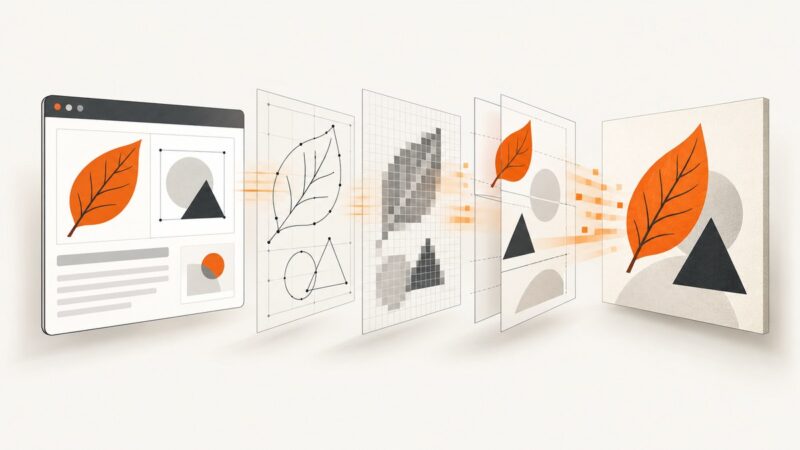
dom-to-image does not copy the pixels already painted on screen. It recursively clones the target node, copies computed styles, recreates pseudo-elements, embeds fonts and images, serializes the clone into SVG foreignObject, and rasterizes that SVG with an off-screen canvas for PNG or JPEG output. A page can look correct while any one of those extra steps fails. The original project README describes this architecture and its browser limitations.
What the blank image tells you
Start by determining which result you have:
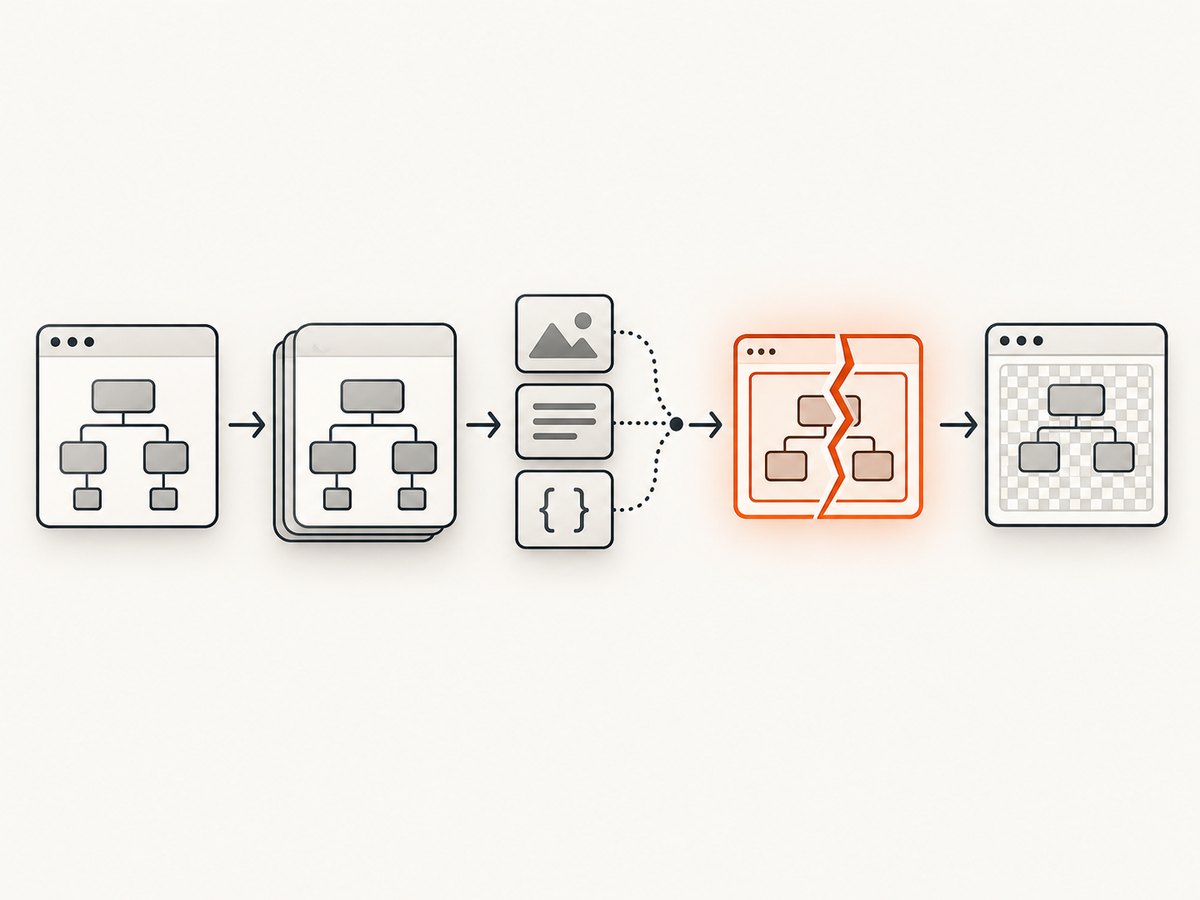
- Completely transparent or white: suspect a hidden target, missing dimensions, blocked resources, SVG foreignObject support, a tainted canvas, or a WebGL buffer that was not preserved.
- Only part of the page: suspect lazy content, an ancestor with clipping or overflow, a canvas dimension limit, or a capture that ran before layout settled.
- Text appears but images are missing: inspect image URLs, CORS headers, credentials, and fetch timing.
- The promise rejects: log the error. A final rasterization error is different from a skipped broken image and needs a separate fix.
Use a small, known-good element as a control. If a plain same-origin box captures correctly, the library is running and the problem is in the target’s assets, size, or special content.
1. Wait for the page to be capture-ready
Call the library only after the target exists, stylesheets have loaded, fonts are ready, and lazy content has been rendered. The maintained compatible fork waits for fonts already loading through document.fonts.ready, but it cannot wait for a stylesheet that has not loaded yet. If you inject CSS, await that link’s load event.
async function waitForCaptureReady(root) {
  if (!root) throw new Error('Capture root was not found');

  // Wait for document fonts when the API is available.
  if (document.fonts?.ready) await document.fonts.ready;

  // Wait for images inside the target.
  const images = [...root.querySelectorAll('img')];
  await Promise.all(images.map(img => {
    if (img.complete) return Promise.resolve();
    return new Promise(resolve => {
      img.addEventListener('load', resolve, { once: true });
      img.addEventListener('error', resolve, { once: true });
    });
  }));

  // Give layout and lazy observers a rendering turn.
  await new Promise(requestAnimationFrame);
  await new Promise(requestAnimationFrame);
}

const root = document.querySelector('#receipt');
await waitForCaptureReady(root);
const dataUrl = await domtoimage.toPng(root);
console.log(dataUrl.slice(0, 40));
Check the browser network panel for pending CSS, font, and image requests. A stylesheet added with JavaScript can be awaited like this:
function loadStylesheet(href) {
  return new Promise((resolve, reject) => {
    const link = document.createElement('link');
    link.rel = 'stylesheet';
    link.href = href;
    link.onload = resolve;
    link.onerror = reject;
    document.head.appendChild(link);
  });
}
2. Verify visibility, dimensions, and the selected node
A node with display:none or opacity:0 has no useful visible capture. Confirm that your selector points to the intended element and that its box has nonzero width and height.
const root = document.querySelector('#receipt');
const box = root?.getBoundingClientRect();
const style = root && getComputedStyle(root);
console.table({
  found: Boolean(root),
  width: box?.width,
  height: box?.height,
  display: style?.display,
  visibility: style?.visibility,
  opacity: style?.opacity
});
The maintained fork provides an ensureShown option for a hidden capture root. It does not reveal a hidden ancestor above that root. Inspect parents for display:none, visibility:hidden, zero dimensions, or a collapsed tab/panel. Reveal the ancestor first, or move a temporary capture copy into a visible container.
Do not confuse transparent pixels with an empty capture. A transparent background is expected when the target has no background color. Set a background explicitly while diagnosing:
root.style.background = '#fff';3. Fix images, fonts, and stylesheets blocked by cross-origin policy
External resources are the most common reason that a cloned node differs from the page. The browser may display an image while refusing to expose its pixels to a canvas. Causes include missing CORS response headers, credentials that were not sent, an expired URL, a redirect to another origin, or a request that had not completed when capture started.
- Open the image or font request in DevTools and check its final URL, status, and response headers.
- Look for CORS errors in the console.
- Serve assets with appropriate
Access-Control-Allow-Originheaders, or deliver them through a controlled same-origin proxy. - Set
crossorigin="anonymous"on images when the server permits anonymous CORS access. - Capture again only after the resource has loaded.
<img src="https://static.example.test/logo.png"
     crossorigin="anonymous" alt="Logo">
A JavaScript library cannot grant itself permission to read restricted pixels. The maintained fork documents requestInterceptor and corsImg facilities, plus an option to skip broken content images so the rest of the target can render. Treat skipped images as a deliberate degradation and log them. Always attach a rejection handler:
domtoimage.toPng(root)
  .then(url => download(url))
  .catch(error => {
    console.error('dom-to-image failed during export', error);
  });
4. Handle canvas, WebGL, video, and iframe content
Canvas pixels have stricter rules than ordinary DOM text. If an image from another origin was drawn without permitted CORS access, the canvas becomes tainted and readback fails. Fix the source response headers or proxy the asset; do not try to bypass the browser security model.
WebGL has an additional trap. The drawing buffer can be discarded after presenting a frame unless the context was created with preserveDrawingBuffer: true:
const gl = canvas.getContext('webgl', {
  preserveDrawingBuffer: true
});
This must be set when the context is created. Adding it after initialization cannot restore a discarded frame.
Video frames and cross-origin iframe contents are not captured by the documented pipeline. Use an accessible poster image, draw an allowed video frame into a same-origin canvas, or capture the content in a context that has access. An iframe that is visible to a user is not automatically readable by JavaScript.
5. Reduce oversized captures and split large pages
Raster output requires a canvas whose width and height are the target dimensions multiplied by the scale or pixel ratio. Browser and platform limits vary. Excessive dimensions can produce a blank canvas, a partial image, or an allocation error. The maintained fork clamps an excessive multiplier and logs a warning; the html2canvas FAQ gives the same general guidance for oversized canvases.
Reduce the problem systematically:
- Capture a small child element.
- Set a lower
scaleorpixelRatio. - Remove unnecessary off-screen content.
- Split a long document into sections and stitch the results server-side or in a worker.
- Use SVG output first to determine whether cloning works before rasterizing.
const png = await domtoimage.toPng(root, {
  scale: 1,
  bgcolor: '#ffffff'
});
A lower scale changes output resolution, so choose it based on the required print or display size. For very long pages, separate captures are usually more reliable than one enormous canvas.
6. Check browser and package behavior
The original project lists historical tested browsers, so those versions should not be treated as current support guarantees. Its README says Safari is unsupported because of stricter SVG foreignObject security. The maintained fork describes Safari as unreliable and suggests generating SVG and rasterizing it server-side. Confirm the exact package, fork, browser, and version in your deployment.

Run the same minimal capture in a Chromium-based browser and your production browser. If only one fails, the cause is likely foreignObject, canvas, or security behavior rather than your selector. Updating a dependency can change defaults, so record the package name and version when reporting a failure.
7. A diagnostic harness you can keep in your project
This harness records the target box, waits for fonts and images, tries PNG output, and reports a useful failure instead of silently saving an empty file.
async function captureWithDiagnostics(selector) {
  const root = document.querySelector(selector);
  if (!root) throw new Error(`No element matches ${selector}`);

  const rect = root.getBoundingClientRect();
  if (rect.width === 0 || rect.height === 0) {
    throw new Error(`Target has zero size: ${rect.width}x${rect.height}`);
  }
  if (document.fonts?.ready) await document.fonts.ready;

  const resources = [...root.querySelectorAll('img')];
  await Promise.all(resources.map(img => img.decode?.().catch(() => undefined)));
  await new Promise(requestAnimationFrame);

  try {
    const url = await domtoimage.toPng(root, { bgcolor: '#fff', scale: 1 });
    return { url, width: rect.width, height: rect.height };
  } catch (error) {
    console.error({ selector, rect, error });
    throw error;
  }
}

captureWithDiagnostics('#receipt').then(({ url }) => {
  const a = document.createElement('a');
  a.href = url;
  a.download = 'receipt.png';
  a.click();
});
Or skip the browser setup
For production screenshots, a server-side browser service removes much of this client-side failure surface. ScreenshotNeo accepts one GET request and returns PNG, JPEG, WebP, or PDF. Before capture it accepts cookie or consent banners and removes more than 60 known consent platforms, newsletter popups, and chat widgets. Each step can be disabled.
Only clean shots are billed. Bot checks or CAPTCHAs, blank pages, timeouts, failed loads, and cache hits cost nothing, and the response identifies the result with X-Page-Verdict and X-Billed headers.
cURL:
curl -G "https://api.screenshotneo.com/v1/shot" \
  -d access_key=YOUR_API_KEY \
  --data-urlencode url=https://stripe.com \
  -o shot.webp
Python:
import requests

r = requests.get(
    "https://api.screenshotneo.com/v1/shot",
    params={"access_key": "YOUR_API_KEY", "url": "https://stripe.com"},
    timeout=90,
)
r.raise_for_status()
open("shot.webp", "wb").write(r.content)
Node.js:
const q = new URLSearchParams({
  access_key: 'YOUR_API_KEY',
  url: 'https://stripe.com'
});
const res = await fetch(`https://api.screenshotneo.com/v1/shot?${q}`);
if (!res.ok) throw new Error(`Screenshot failed: ${res.status}`);
const bytes = Buffer.from(await res.arrayBuffer());
require('fs').writeFileSync('shot.webp', bytes);
See the ScreenshotNeo API documentation for the complete parameter list. Options include full-page capture with lazy images loaded, CSS-selector element capture, dark mode, 12 device presets or custom viewports, retina scale, PDF paper size and margins, custom CSS and JavaScript, clicks, selector or network-idle waits, blocked ads or resource types, headers, cookies, user agents, Authorization, timezone, geolocation, transparent backgrounds, resizing, chosen cache TTLs, signed links, asynchronous jobs with signed webhooks, bulk capture of up to 100 URLs per call, usage data, and an OpenAPI specification. Existing parameter names used by other screenshot APIs also work, which simplifies migration.
An MCP server provides take_screenshot, get_page_info, and capture_pdf for Claude, Cursor, and other MCP clients. The Free plan includes 1,000 screenshots each month with no card; paid plans start at $5 for 3,000 shots. Create a free ScreenshotNeo account.
Troubleshooting checklist
| Symptom | Likely cause | Fix |
|---|---|---|
| Entire output blank | Hidden root, zero size, blocked asset, foreignObject failure, or oversized canvas | Log dimensions, capture a simple same-origin box, lower scale, and test another browser |
| Text only | Images or fonts failed to load or were blocked by CORS | Inspect requests, add permitted CORS headers, await resources, or proxy them |
| Bottom half missing | Canvas limit, lazy content, or clipping ancestor | Wait for lazy content, reduce scale, remove clipping, or split the capture |
| Promise rejects during PNG/JPEG | Canvas readback or final rasterization error | Attach catch, inspect console errors, and test SVG output |
| WebGL area empty | Drawing buffer discarded | Create the context with preserveDrawingBuffer: true |
| Safari differs from Chromium | SVG foreignObject security or browser implementation | Use a supported browser or rasterize generated SVG server-side |
Performance, reliability, and cost decisions
Client-side capture is convenient when all assets are same-origin and the user already has a rendered page. It consumes the user’s CPU and memory, inherits browser differences, and exposes failures to CORS, WebGL, iframe, and canvas limits. A server-side browser is a better fit for scheduled jobs, consistent output, private credentials, and pages you do not control.
Improve reliability by waiting on explicit selectors or network idle, keeping captures to the smallest useful region, selecting a sensible scale, caching unchanged URLs, and retrying only transient navigation failures. Avoid blind retries for bot checks or permanent CORS errors. With ScreenshotNeo, cache hits and failed loads are identified and not billed, while the usage API and response headers let you reconcile results.
FAQ
Why is the produced canvas empty or cuts off halfway through?
Check target readiness and dimensions first, then cross-origin resources, canvas size, lazy content, and browser support. A smaller capture distinguishes size limits from resource failures.
Can dom-to-image capture a cross-origin iframe?
No. An iframe’s visible pixels are not automatically readable by the parent page. Capture it where you have access or use an accessible replacement.
Will changing JPEG quality fix a blank result?
No. Quality is applied after the clone and rasterization stages. Fix readiness, resources, canvas access, or dimensions first.
Should I switch from the original package?
Compare the original and a maintained compatible fork for your browser and required options. Record the exact package version because behavior and defaults differ.
When should I use an API instead?
Use a rendering API when you need repeatable server-side captures, controls for waits and resources, PDF output, bulk jobs, or an agent integration without maintaining browser setup.