Dynamic Sales Image Templates: A Complete Guide
Learn how dynamic sales image templates separate reusable design from changing data, with implementation patterns, governance, and delivery options.
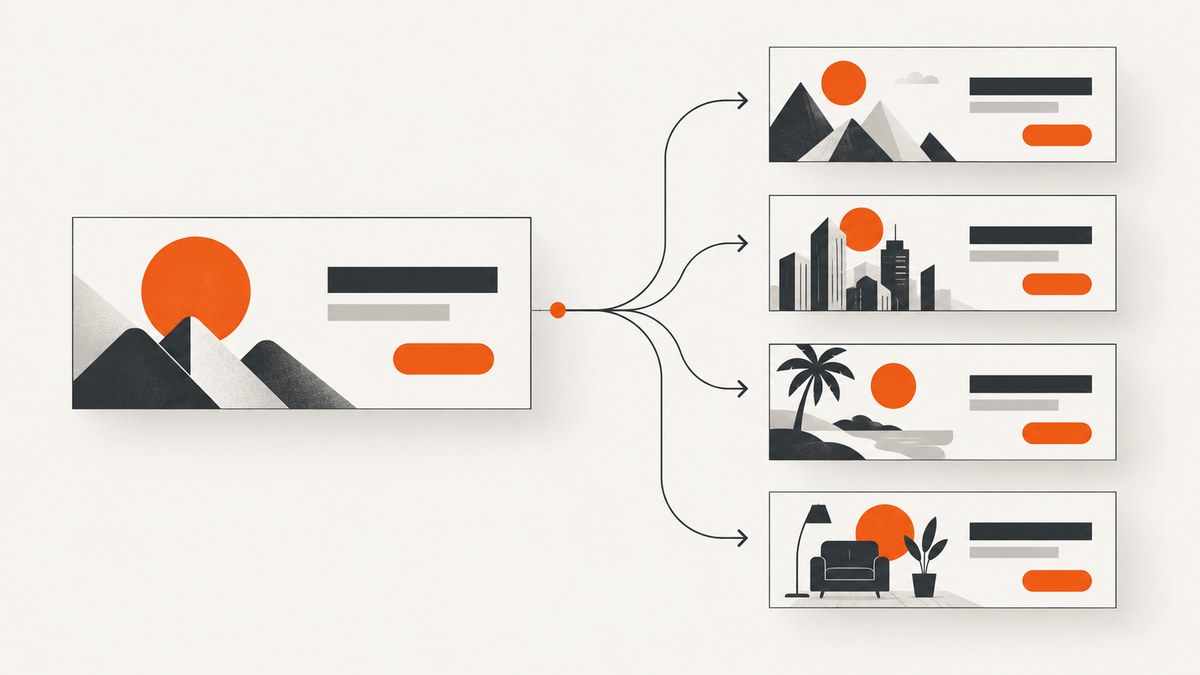
Dynamic sales image templates are reusable visual designs with controlled fields that change by campaign, account, recipient, or audience. The fixed part is the layout and brand system; the variable part can be an image, headline, offer, logo, price, countdown, or other approved value. The term covers two related workflows that should be kept separate:
- Editable sales collateral: a seller or marketer starts with an approved design and changes selected fields for an account, industry, event, or channel.
- Data-driven imagery: software selects or renders a visual variant from audience data, URL parameters, personalization points, or targeting rules.
Choosing the right implementation depends on where the image appears, what changes, where values come from, who can edit them, how brand controls work, and how the final asset is delivered.
What a dynamic sales image template contains
A useful template has a stable visual structure and an explicit data contract. Define every layer before implementation:
| Layer or field | Examples | Typical control |
|---|---|---|
| Background | Color, gradient, photo | Usually locked |
| Subject image | Product, prospect logo, industry photo | Approved asset list or mapped URL |
| Copy | Headline, benefit, event date | Character limit and fallback text |
| Offer data | Price, discount, plan name | Validated source field |
| Visibility | Badge, disclaimer, CTA | Boolean rule or campaign setting |
| Timing | Countdown end time | Time-zone aware parameter |
Separate editable values from protected elements. Lock logos, legal copy, typography, spacing, and color tokens when brand consistency matters. Adobe’s sales-content guidance describes locked template elements and custom brand assets for this purpose. Adobe’s sales content use case is a vendor example, not independent evidence that every team will achieve the reported outcomes.
Two implementation models
1. Editable collateral for sellers
A representative opens an approved presentation, social graphic, or email image and changes a small set of fields. This works when a human needs judgment: selecting a prospect logo, tailoring a message, or adapting an image for an event. Keep the number of editable fields small, provide approved assets, and require a review before distribution.

Adobe Express describes this model for prospect-specific presentations, social graphics, and email content. Its documented controls include locked elements and custom brand assets. Treat these as product capabilities and examples, not as a general performance guarantee.
2. Data-driven personalized imagery
A system receives a record or audience context and chooses or renders the correct image. The source can be a URL parameter, a delimited import file, a profile attribute, or a personalization rule. This model is better for high-volume email, landing pages, account-based campaigns, and web placements where variants must be repeatable.
Adobe Experience Manager Dynamic Media templates support image, text, shape, and countdown timer layers. Parameters can update layer content, position, size, and visibility through Dynamic Media URLs, and smart text resizing can fit copy into its designated area. See the Adobe Dynamic Media Templates documentation.
Salesforce Enhanced Dynamic Content uses an imported delimited file whose columns identify text or image assets and whose rows contain variations. A map can be connected to an audience data extension or profile attribute and inserted as an email block. Salesforce warns that editing a map changes every block that uses it, so shared maps need ownership and change control. Read the Enhanced Dynamic Content documentation.
Salesforce Marketing Cloud Next personalization links content variations to personalization points, decisions, and targeting rules. An objective-based recommender can choose an image at send time. Availability depends on the product edition and configured personalization features; verify access before designing around it. The Content Personalization documentation explains this workflow.
Build a template with a clear data contract
- Write the fixed layout. Specify canvas dimensions, safe areas, type scale, contrast, logo placement, and legal regions.
- List variable fields. Give each field a name, type, maximum length, allowed values, and fallback.
- Define asset rules. Store approved image URLs or asset IDs, permitted crops, minimum resolution, and usage rights.
- Choose a source. Decide whether values come from a URL, CSV or delimited import, CRM field, data extension, or server payload.
- Define precedence. Document what happens when a campaign value, audience value, and default value all exist.
- Preview every combination that matters. Test long names, missing images, translated copy, dark backgrounds, and mobile dimensions.
A compact JSON contract might look like this:
{
  "campaign": "q4-security",
  "headline": "Secure every customer login",
  "subhead": "A plan for {{industry}} teams",
  "heroImage": "https://cdn.example.com/security-office.jpg",
  "offer": "$5,000 implementation credit",
  "showBadge": true,
  "expiresAt": "2026-12-31T23:59:59Z"
}
Validate this object before rendering. Reject unknown asset domains, strip unsupported markup, enforce character limits, and use a neutral fallback when a field is absent.
URL-parameter rendering with Dynamic Media
For a URL-based image service, map safe parameters to template layers. Adobe documents parameterized layers delivered through Dynamic Media URLs. The exact parameter names and account configuration come from your Dynamic Media setup, so keep an internal mapping table rather than exposing arbitrary layer properties to users.
const params = new URLSearchParams({
  headline: "Secure every customer login",
  heroImage: "security-office",
  industry: "Financial services",
  showBadge: "true"
});

const imageUrl = `https://media.example.com/templates/q4-security?${params}`;
console.log(imageUrl);
Encode every value, allow-list image identifiers, and sign URLs when the asset must not be modified by an end user. Cache rendered results using a key that includes every visual input and the template version.
Email variants with an imported map
For an email workflow, create a delimited file with a stable primary key and explicit column types. A simplified source might be:
audience_key,headline,image_url,cta_label
enterprise,"Protect every login","https://cdn.example.com/enterprise.jpg","Book a security review"
startup,"Ship secure access faster","https://cdn.example.com/startup.jpg","See the starter plan"
default,"Secure access for every team","https://cdn.example.com/default.jpg","Learn more"
Map audience_key to the audience field, identify image columns as images, and preview the resulting blocks. Keep a versioned copy of each import. Because a shared map can affect many messages, make changes through review and record who approved them.
Web personalization and server-side payloads
Web personalization systems commonly expose profile or related-object fields to a template. A client-rendered template can use server-side code, client-side code, Handlebars, and CSS inside a content zone. A server-side template can receive JSON and let another system render the result. Salesforce describes both patterns in its Personalization Template System documentation.
Keep sensitive data out of browser-visible parameters. Resolve audience membership on the server, return only the fields needed for the image, and provide a generic image when consent or identity is unavailable. Log the template version and decision rule used for each render so a recipient can be audited later.
DIY screenshot workflow for a rendered sales image
If your template renders as HTML, a browser capture step turns the result into a PNG, JPEG, WebP, or PDF. A minimal Playwright example:

import { chromium } from "playwright";

const browser = await chromium.launch();
const page = await browser.newPage({ viewport: { width: 1200, height: 630 }, deviceScaleFactor: 2 });
await page.goto("https://your-app.example.com/sales-card?q4-security", { waitUntil: "networkidle" });
await page.locator(".sales-card").screenshot({ path: "sales-card.png" });
await browser.close();
For reliable output, wait for fonts and remote images, set a fixed viewport and timezone, disable animations, and make the page deterministic. If the card includes lazy images, scroll or trigger the loading code before capture. Capture a selector when you need only the card; use a full-page shot when the entire rendered page is the deliverable.
Or skip the browser setup
ScreenshotNeo captures a rendered URL with one GET request. It accepts the consent banner like a visitor and removes more than 60 known consent platforms, newsletter popups, and chat widgets before the capture; each step can be turned off. Bot checks, CAPTCHAs, blank pages, timeouts, failed loads, and cache hits cost nothing, and the response identifies the result with X-Page-Verdict and X-Billed headers. Its MCP server provides take_screenshot, get_page_info, and capture_pdf tools for Claude, Cursor, and other MCP clients.
See the ScreenshotNeo documentation for the complete option list. Relevant controls include full-page capture with lazy images loaded, CSS-selector element capture, dark mode, 12 device presets or a custom viewport, retina scale, PDF paper size and margins, custom CSS and JavaScript, click and wait actions, ad and tracker blocking, custom headers, cookies, user agent, authorization, timezone, geolocation, transparent backgrounds, image resizing, a chosen cache TTL, signed links, asynchronous jobs with signed webhooks, bulk capture of up to 100 URLs per call, a usage API, and an OpenAPI specification.
cURL
curl -G "https://api.screenshotneo.com/v1/shot" -d access_key=YOUR_API_KEY --data-urlencode url=https://stripe.com -o shot.webpPython
import requests

r = requests.get("https://api.screenshotneo.com/v1/shot", params={"access_key": "YOUR_API_KEY", "url": "https://stripe.com"}, timeout=90)
r.raise_for_status()
open("shot.webp", "wb").write(r.content)
Node.js
const q = new URLSearchParams({ access_key: 'YOUR_API_KEY', url: 'https://stripe.com' });
const res = await fetch(`https://api.screenshotneo.com/v1/shot?${q}`);
if (!res.ok) throw new Error(`Screenshot failed: ${res.status}`);
const data = Buffer.from(await res.arrayBuffer());
require('node:fs').writeFileSync('shot.webp', data);
Use a URL for the page that renders your dynamic sales image, then add options from the documentation for the required viewport, selector, wait condition, or output format. Start with the free plan: 1,000 screenshots per month with no card. Paid plans start at $5 for 3,000 shots; yearly billing provides two months free, and every feature is available on every plan. Create a free ScreenshotNeo account.
Brand governance and security checklist
- Lock logos, legal language, colors, and type styles.
- Allow-list image hosts and sanitize all text and URLs.
- Set fallbacks for missing, expired, or disallowed values.
- Version templates and keep the version in render logs.
- Review translated copy for overflow and right-to-left layouts.
- Apply access controls to audience data and private assets.
- Preview all variants before sending or publishing.
- Check product entitlements, synchronized assets, fonts, and security restrictions.
Adobe lists Dynamic Media access, a Dynamic Media Assets folder, synchronized and published images, and additional font publication steps for fonts other than Adobe Sans F2 as prerequisites. Adobe also states that customers with an Enhanced Security SKU cannot use Dynamic Media capabilities, including Dynamic Media Templates, on that Cloud Services program. Verify these constraints with your administrator before committing to the design.
Troubleshooting
| Symptom | Likely cause | Fix |
|---|---|---|
| Wrong audience image | Key mismatch or stale map | Check exact key casing, import version, and fallback order. |
| Text is clipped | Field exceeds the designed area | Enforce length limits, enable smart text resizing where supported, and test translations. |
| Broken hero image | Private, expired, or blocked URL | Use a published approved asset and a fallback image; verify host permissions. |
| Browser capture is blank | Capture occurred before rendering | Wait for a selector, fonts, images, or network idle; disable animations. |
| Cookie banner covers the card | Consent UI was not handled | Accept consent in your browser workflow or use ScreenshotNeo’s consent handling. |
| Unexpected personalized content | Cached response lacks audience key | Include all inputs in the cache key or set an appropriate cache TTL. |
| Salesforce block changes unexpectedly | Shared map edited | Clone or version the map and review downstream dependencies. |
| Dynamic Media unavailable | Missing entitlement or security restriction | Confirm Dynamic Media access, synchronization, fonts, and SKU restrictions. |
Performance, reliability, and cost
Render once and cache by template version plus normalized input values. Preload fonts and compress source images. For high-volume campaigns, generate variants ahead of send time; for time-sensitive offers, render on demand with a short TTL and an explicit expiration field. Bulk operations reduce orchestration overhead when many URLs must be captured; asynchronous jobs and signed webhooks keep long renders out of request timeouts.
Measure cache hit rate, render latency, failed loads, missing fields, and fallback usage. Keep retries bounded and idempotent. A retry should reuse the same input and output key so a transient failure does not create duplicate assets. With ScreenshotNeo, cache hits and failed or unusable pages are not billed, and response headers expose the page verdict and billing result.
How to choose an approach
| Question | Editable collateral | Data-driven rendering |
|---|---|---|
| Where is it used? | Presentations, social, one-off email | Web, automated email, landing pages |
| Who changes it? | Seller or marketer | Rules and data pipelines |
| What varies? | Selected fields by judgment | Mapped values or chosen variants |
| Best control | Locked elements and approved assets | Schema, validation, fallback, audit logs |
| Delivery | Downloaded or shared file | URL, email block, browser render, or JSON payload |
Use the simplest model that satisfies the channel. A sales team making a few account-specific graphics may need an editable template. A website serving thousands of visitors needs deterministic data mapping, cache behavior, and a fallback path. Document the decision so a later campaign does not quietly mix manual edits with automated rules.
FAQ
Is a dynamic template the same as a personalized image?
No. A template is the reusable structure and its editable fields. Personalization is the rule or data process that selects values for a person or audience.
Should every field be editable?
No. Lock brand, legal, and layout elements. Expose only fields with clear validation and an approved purpose.
Can one template serve email and web?
Often, but the delivery constraints differ. Email may need an image URL or content block, while web can render HTML or use a server-side payload. Test dimensions, loading behavior, and fallback handling separately.
How do I prevent stale campaign images?
Version the template, include the version and all visual inputs in the cache key, and set a deliberate TTL. Invalidate assets when an offer or legal statement changes.
Where can I capture the final rendered template?
You can run a browser automation workflow such as Playwright, or use ScreenshotNeo to capture the URL with configurable waits, selectors, devices, output formats, and billing visibility.