Visual Ecommerce Price Monitoring with Automated Screenshots
Build a scheduled workflow that captures competitor product pages, preserves visual evidence and flags price changes for review.
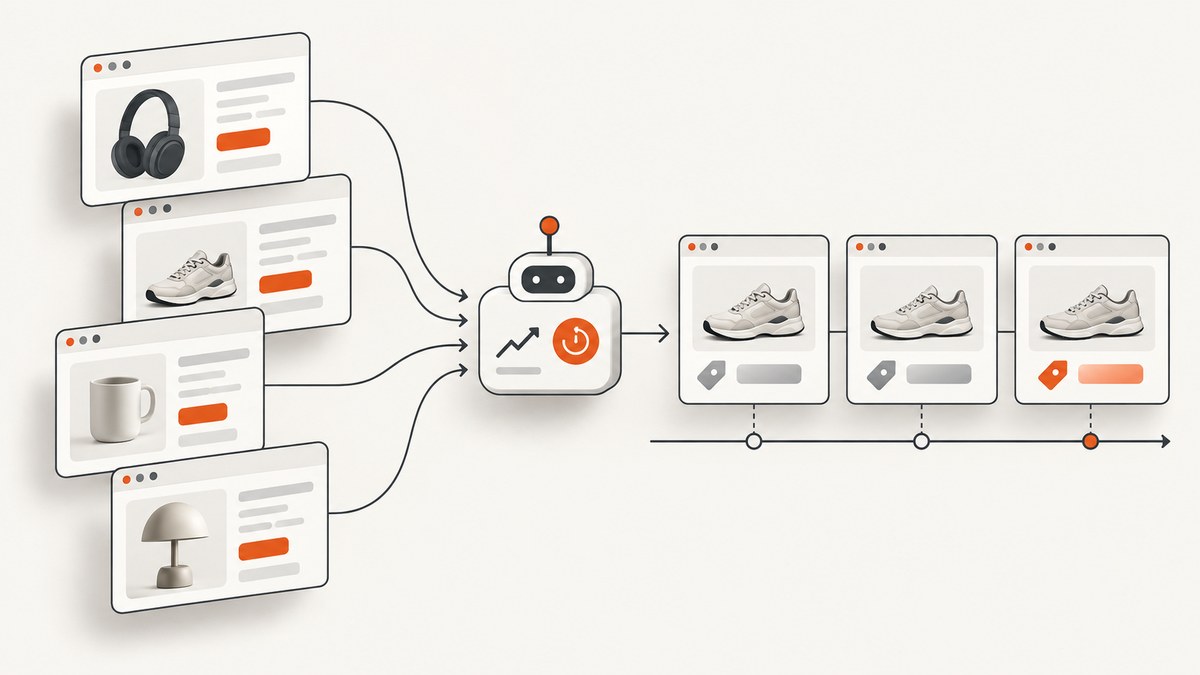
To monitor ecommerce prices visually, schedule browser-rendered captures of selected product pages, keep each dated screenshot, and compare successive captures. Add structured extraction for fields such as displayed price, currency, product name, or availability when you need machine-readable reports. The screenshot preserves the page’s visible context; extracted fields make changes easier to filter and calculate.
A capture is evidence of what the browser rendered with a particular configuration at a particular time. It does not prove that every shopper saw the same price, or that the offer was available under identical conditions. Treat automated changes as signals to review, especially on localized or dynamic pages.
1. Design the monitoring workflow
Start with a small, explicit monitoring specification. For each product, record its canonical page URL, competitor, market, intended viewport, capture interval, and the fields you want to track. That information makes the screenshots comparable and helps explain unexpected differences.
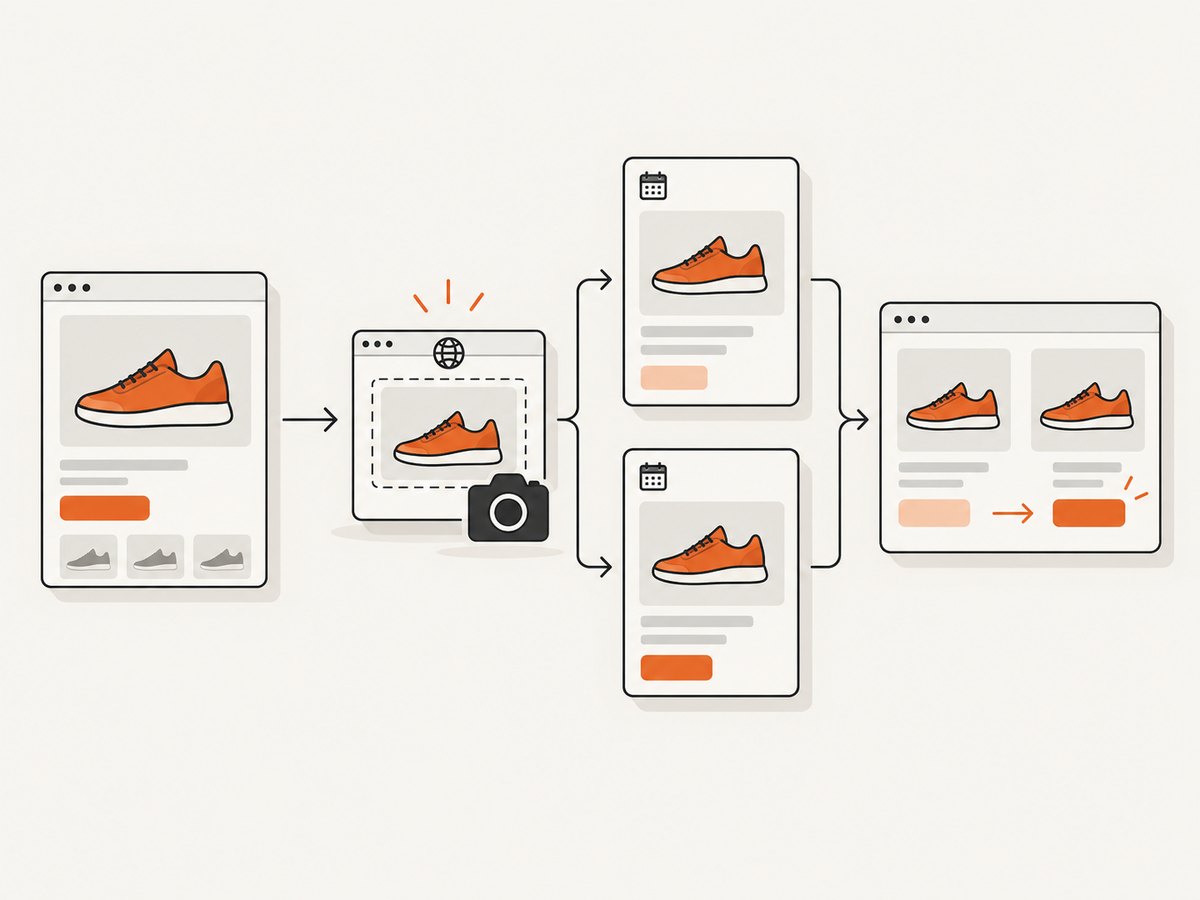
- Select product pages and markets. Prefer stable product detail URLs over search results or category pages. If the site varies price by country, record the intended market and configure routing or localization where your capture provider supports it.
- Choose a schedule based on the decision. Hourly, daily, or custom intervals are available in some monitoring services; usable frequency depends on the provider and plan. Do not call a scheduled workflow “real-time” unless the service documents and supplies real-time capture.
- Capture consistently. Keep viewport, device, country, and other relevant settings fixed across runs. If the target is a mobile storefront, use the same mobile viewport each time.
- Retain dated results. Store the image together with capture time, URL, market, viewport, and job status. A history lets a reviewer compare what appeared before and after a change.
- Flag and review differences. Compare screenshots or extracted values. Check the page around each flagged change for sale badges, crossed-out list prices, coupon messages, shipping conditions, or unrelated layout movement.
- Route useful results. Send completed captures or reviewed changes to a dashboard, report, or alerting workflow. A capture-complete webhook can notify your system, but business rules for deciding what counts as a price alert are usually yours to define.
Providers describe workflows with scheduled captures, history, bulk monitoring, and completion webhooks. For example, see Allscreenshots’ ecommerce monitoring documentation and its website monitoring documentation. These are vendor-described capabilities, not independent performance findings.
2. Choose what to record: screenshots, fields, or both
A screenshot answers “what did the page look like?” A structured record answers “what value should the report compare?” Keeping both is usually the most useful design: the extracted data makes scanning and calculations easy, while the image lets a person verify context and investigate extraction errors.
| Record | Useful for | Limit to account for |
|---|---|---|
| Dated screenshot | Reviewing price presentation, badges, availability messages, and visible terms | It records one rendered state and may not expose values hidden below the fold |
| Extracted price and currency | Sorting, threshold alerts, and time-series reports | Selectors or recognition can fail when markup or page design changes |
| Product name and availability | Checking that the monitored page still represents the intended SKU and is purchasable | Availability can be localized, personalized, or conditional |
| Promotion text | Distinguishing a sale from a base-price change | Promotions may have eligibility, coupon, or shipping conditions not captured by a single field |
ScreenshotCenter documents DOM trackers for product name, price, and availability alongside screenshots, and describes country routing, batch captures, timestamp overlays, and date-organized archives in its localized ecommerce monitoring overview. CaptureKit describes OCR or AI vision extraction followed by historical comparison and alerts in its price monitoring workflow. These methods have different implementation tradeoffs; neither source establishes that extraction works on every site or is error-free.
3. Build a small Python capture-and-history job
The following runnable example uses Playwright to render a product page, save a full-page screenshot, and write a JSON manifest. Install Playwright and its Chromium browser first:
python -m pip install playwright
python -m playwright install chromium
Save as capture_product.py, then run python capture_product.py https://shop.example/products/item. Replace the example URL with a page you are authorized to access.
import asyncio
import json
import re
import sys
from datetime import datetime, timezone
from pathlib import Path
from urllib.parse import urlparse

from playwright.async_api import async_playwright

async def main():
    if len(sys.argv) != 2:
        raise SystemExit("Usage: python capture_product.py PRODUCT_URL")
    url = sys.argv[1]
    parsed = urlparse(url)
    if parsed.scheme not in ("http", "https") or not parsed.netloc:
        raise SystemExit("Provide a complete http(s) URL")

    captured_at = datetime.now(timezone.utc)
    stamp = captured_at.strftime("%Y%m%dT%H%M%SZ")
    safe_host = re.sub(r"[^a-zA-Z0-9.-]", "_", parsed.netloc)
    out = Path("captures")
    out.mkdir(parents=True, exist_ok=True)
    image_path = out / f"{safe_host}-{stamp}.png"
    manifest_path = out / f"{safe_host}-{stamp}.json"

    async with async_playwright() as p:
        browser = await p.chromium.launch(headless=True)
        page = await browser.new_page(viewport={"width": 1440, "height": 1000}, device_scale_factor=1)
        response = await page.goto(url, wait_until="domcontentloaded", timeout=60000)
        # Many storefronts continue loading after DOM content. Wait briefly for late rendering.
        await page.wait_for_timeout(1500)
        title = await page.title()
        final_url = page.url
        await page.screenshot(path=str(image_path), full_page=True, animations="disabled")
        record = {
            "requested_url": url,
            "final_url": final_url,
            "title": title,
            "captured_at": captured_at.isoformat(),
            "http_status": response.status if response else None,
            "viewport": {"width": 1440, "height": 1000},
            "screenshot": str(image_path),
        }
        manifest_path.write_text(json.dumps(record, indent=2), encoding="utf-8")
        await browser.close()
    print(f"Saved {image_path} and {manifest_path}")

asyncio.run(main())
This script captures evidence but does not extract a price or detect a price change. Those depend on the target page’s markup and your definition of the price to monitor. Add a site-specific selector only after inspecting the page, and save the raw extracted text alongside the screenshot so a reviewer can spot parser drift.
Make the capture repeatable
- Keep viewport and device scale fixed. A responsive layout can place the price in a different area or omit content at another width.
- Set locale, timezone, and geographic routing consistently if the tool supports them and the market matters.
- Wait for a meaningful condition when possible, such as a product price element becoming visible. A fixed delay is simple, but can be too short on slow pages and unnecessarily long on fast pages.
- Decide whether the evidence should be full-page or viewport-only. Full-page captures show more context but can be very tall and include unrelated content.
- Store status and failure reason. A missing screenshot should not be interpreted as a price change.
4. Extract and compare prices carefully
For a first version, use an explicit selector and retain the observed text rather than immediately forcing it into a number. The displayed string might include a currency symbol, decimal comma, thousands separator, unit price, or range. Keep the original text and parse it into normalized fields in a separate step.
# Example to add after page.goto(...) in the Playwright script:
price_selector = "[data-test='product-price']"  # Inspect and replace for this site.
price_locator = page.locator(price_selector).first
price_text = None
if await price_locator.count():
    price_text = (await price_locator.inner_text()).strip()

record["price_text"] = price_text
record["price_selector"] = price_selector
Selectors are illustrative; there is no universal ecommerce price selector. A site may render multiple prices (sale and original), update the value after a variant selection, or show a price that depends on membership or location. Validate the chosen element against several real captures and save enough context to audit it.
A robust comparison pipeline can store one row per capture with product key, market, capture time, displayed price text, normalized amount, currency, availability, promotion text, screenshot path, final URL, and capture status. Compare normalized amounts only when currencies and product variants match. For an alert, require a successful capture and a valid parse, then apply a meaningful threshold or review rule. Keep screenshot comparison as a separate signal: banners, rotating recommendations, or layout shifts can change pixels without changing the price.
5. Run many pages and connect notifications
For a short watchlist, one scheduled process can loop over a URL file. For a larger catalog, use bounded concurrency and batch features where the capture provider offers them. A batch reduces orchestration overhead, but it does not remove the need to associate every result with its requested URL and product key.
Schedule with your existing job runner or an external scheduler. Keep the schedule definition in configuration, prevent overlapping runs, and record a run identifier. If one page fails, let other pages finish and retry only the failed capture with a limited retry policy. Avoid retry storms against a site that is returning access challenges or rate limits.
Some services document completion webhooks; for example, Allscreenshots describes webhooks in its ecommerce monitoring documentation. Verify webhook signatures if supplied, make handlers idempotent, and retain the original event so a transient processing failure does not lose the result. Keep capture completion separate from the alert decision: a completed screenshot is not necessarily a price change.
6. Control page noise and preserve context
Storefront pages are variable. Consent panels, newsletter offers, chat widgets, advertising, lazy-loaded images, geolocation, cookies, and inventory state can all affect the visible result. Where supported, configure popup or ad handling, wait for important content, and choose the relevant country or viewport. Validate those settings against each target page: removing an overlay can make the price easier to inspect, but the overlay itself may contain context that matters to your analysis.
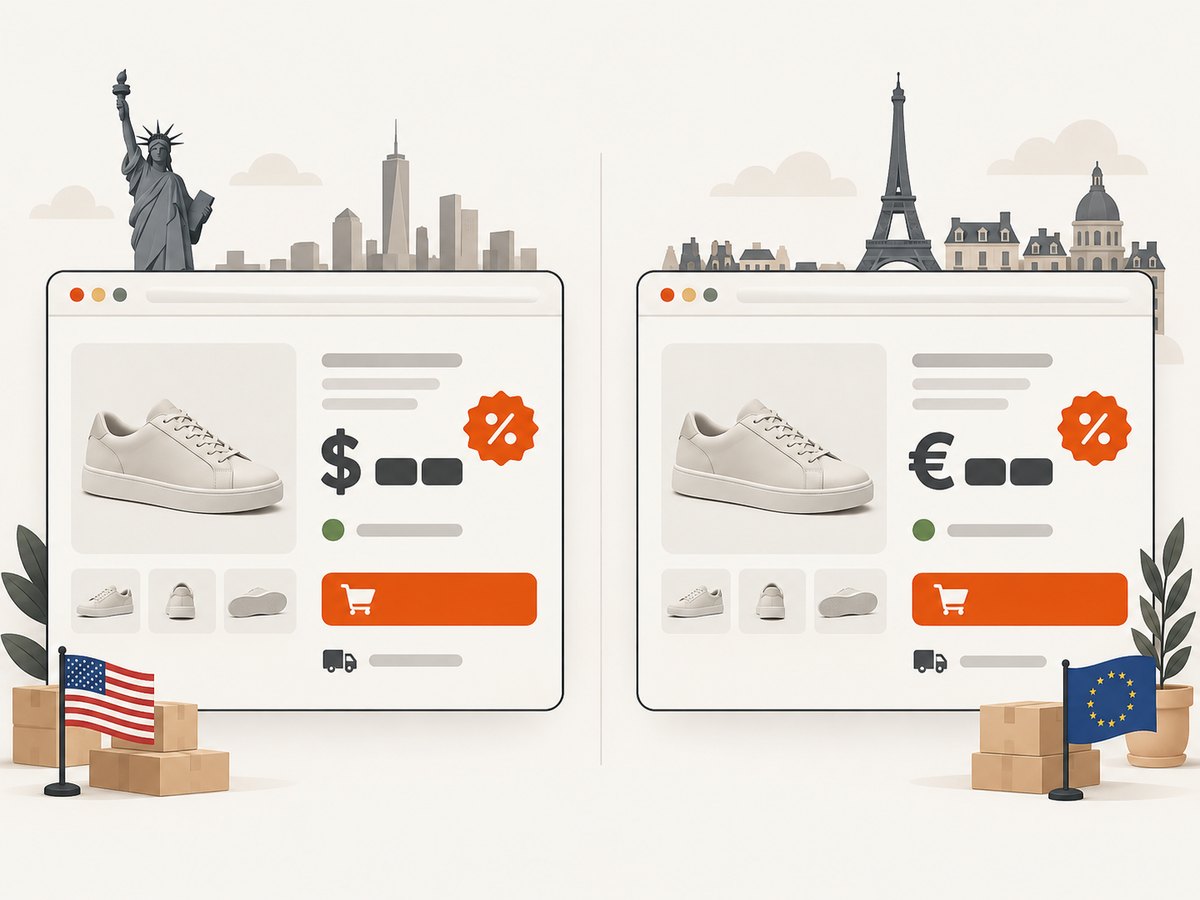
For price evidence, record the currency and market with every screenshot. Do not compare a regional price to another market without accounting for currency, tax display, shipping, and local promotions. If a storefront requires authentication or a particular user state, make that condition explicit; a public anonymous capture may show a different offer.
7. Select a screenshot service for the workflow
Compare services by schedule frequency and plan limits, URL volume and batching, browser rendering, country routing, viewport controls, popup handling, visual history and export, extraction support, and webhook integration. Provider pages describe capabilities, but the cited material does not establish a neutral comparative test. Validate a representative set of your own product pages before adopting a workflow.
ScreenshotNeo is a screenshot API and MCP server for developers. Its clean shots accept consent banners before capture and remove 60+ known consent platforms, newsletter popups, and chat widgets; each step can be turned off. Only clean shots are billed: bot checks or CAPTCHAs, blank pages, timeouts, failed loads, and cache hits cost nothing, with the result identified by X-Page-Verdict and X-Billed headers. It also provides an MCP server for AI agents and supports full-page captures, CSS selectors, device presets, custom waits, request blocking, localization settings, caching, async jobs, bulk capture, and more. See the ScreenshotNeo API documentation for request options.
8. Or skip the browser setup
For a one-off capture, or as the capture step in a scheduled monitoring job, call ScreenshotNeo’s API with a product URL. This cURL command saves a WebP image:
curl -G "https://api.screenshotneo.com/v1/shot" -d access_key=YOUR_API_KEY --data-urlencode url=https://stripe.com -o shot.webpPython:
import requests
r = requests.get("https://api.screenshotneo.com/v1/shot", params={"access_key": "YOUR_API_KEY", "url": "https://stripe.com"}, timeout=90)
open("shot.webp", "wb").write(r.content)
Node.js:
const q = new URLSearchParams({ access_key: 'YOUR_API_KEY', url: 'https://stripe.com' });
const res = await fetch(`https://api.screenshotneo.com/v1/shot?${q}`);
Replace the example target with the product page you are monitoring. The API returns a screenshot or PDF; use its documented format and capture parameters for your workflow. Cookie banners, popups, and chat widgets are removed before the shot. Bot checks, blank pages, and failed loads are never billed. An MCP server lets AI agents take screenshots. The Free plan includes 1,000 screenshots a month with no card; paid plans start at $5 for 3,000. Every feature is on every plan. Sign up for free and get 1,000 screenshots a month with no card.
9. Performance, reliability, and cost
Estimate volume before choosing an interval: monitored URLs multiplied by captures per URL per month gives a rough request count, before retries or extra viewports. For example, monitoring 100 URLs daily is about 3,000 scheduled captures in a 30-day month. Add headroom for retries and test captures, and check the provider’s plan limits. ScreenshotNeo’s listed plans are Free: 1,000/month; Starter: $5 for 3,000; Growth: $15 for 15,000; Pro: $39 for 60,000; Scale: $99 for 250,000; and Business: $249 for 1,000,000. Yearly billing gives two months free.
Full-page images and multiple viewports increase storage and processing needs. Retain the resolution you need for review, use a defined archive retention policy, and store images separately from compact structured records. Cache can reduce repeat work when the desired result has not changed, but choose its TTL to fit the monitoring question: a long TTL can make a scheduled capture less representative of the current page. Use unique request settings for distinct markets and viewports.
For reliability, distinguish capture failure from unchanged price. Record completion status, response headers or provider result, capture time, and final URL. Use bounded retries for transient network errors, but do not treat repeated bot checks as evidence of price stability. A screenshot service’s successful response also does not guarantee that a price parser selected the intended value; track missing or implausible extraction results for review.
10. Troubleshooting
| Symptom | Likely cause | What to do |
|---|---|---|
| Screenshot is blank or mostly empty | Navigation failed, rendering was delayed, or the page requires a different state | Check status and final URL, wait for the specific content, and inspect whether the page is accessible in the intended market |
| Price is missing from the capture | Wrong viewport, lazy rendering, selector mismatch, or price appears after variant selection | Inspect the page at the capture viewport, wait for the price element, and validate the selector against current markup |
| Extracted price changes wildly | The selector matched list price, installment price, unit price, or a different product variant | Capture the matched text and nearby context; define which displayed price is the target before normalizing |
| False change alerts | Dynamic banners, ads, rotating content, or visual comparison noise | Compare extracted fields as well as images, suppress known volatile regions where supported, and review flagged screenshots |
| Different currency or promotion appears | Country routing, cookies, or localization differs between runs | Set and record market-related settings consistently; treat each market as a distinct series |
| Scheduled runs overlap | A capture batch takes longer than the interval or retries are unbounded | Use a run lock, bounded concurrency, and a maximum retry count; queue remaining work |
| Screenshot succeeds but report has no row | Webhook processing or downstream storage failed | Make processing idempotent, retain events, log run identifiers, and replay unprocessed results |
11. FAQ
Does a screenshot prove the competitor offered that price to every customer?
No. It records the rendered state obtained with one set of time, market, viewport, and browser conditions. Keep those conditions with the image and interpret it as capture evidence.
Should I use OCR, AI vision, or a DOM selector?
Use a DOM selector when the page exposes a stable, inspectable element and you can maintain it. OCR or vision can be useful when visual text is the available input, but validate output against screenshots. No method is guaranteed across all storefronts.
How often should a product page be captured?
Choose an interval based on how quickly you need to notice a change and the volume and plan limits you can support. Confirm the provider actually offers that schedule before describing the monitoring as hourly or continuous.
Can I alert only when the price changes?
Yes. Store normalized price, currency, product identity, and capture status, then compare successful observations. Preserve the screenshot for human review of promotions and conditions that a numeric alert may omit.
What should I do when the page changes its layout?
Keep the screenshot history, mark extraction as uncertain when the selector stops matching, and update the site-specific rule only after reviewing the new page. Avoid converting a parser failure into a zero price.
Sources and scope
Workflow examples and service capability references: Allscreenshots ecommerce monitoring, Allscreenshots website monitoring, ScreenshotCenter ecommerce price monitoring, CaptureKit price monitoring, and Porto ecommerce monitoring. These are provider-authored descriptions. This guide does not make a legal determination about retailer terms or permissible monitoring; rules vary by jurisdiction and situation.


