How to Execute JavaScript When Generating PDFs from HTML
Use a real browser engine to run JavaScript before printing HTML to PDF. Compare Puppeteer, Chrome Headless, readiness checks, CSS media, and reliable fixes.

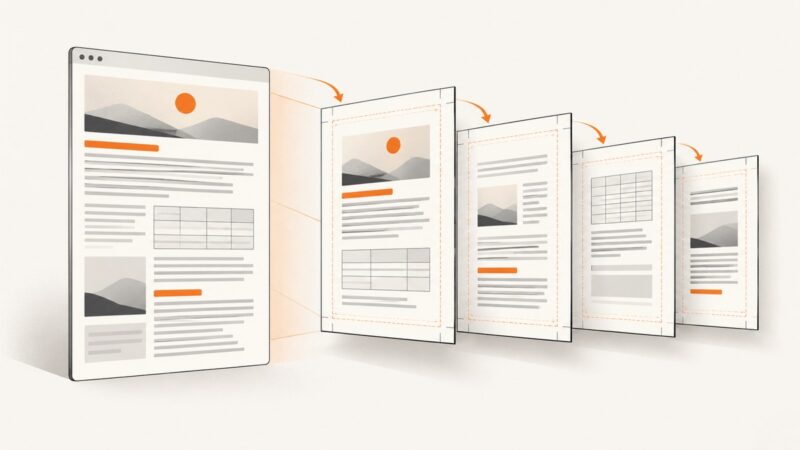
Use a browser engine when your PDF depends on JavaScript. The browser loads the HTML, runs scripts, updates the DOM, waits for the page’s actual rendering work, and then prints the result. Puppeteer and Playwright provide APIs for this workflow; Chrome Headless provides a command-line option. A static HTML-to-PDF library can produce a PDF, but you must verify separately that it executes JavaScript.
How browser PDF generation works
The sequence is:
- Start a browser engine.
- Navigate to the URL or load HTML.
- Allow JavaScript to run and modify the DOM.
- Wait for the application’s real completion condition.
- Apply the intended CSS media and print settings.
- Generate the PDF.
Chrome Headless documents that scripts can change the DOM before it is captured or printed. Chrome’s Headless command-line reference covers this behavior and the timing flags available for PDF capture.
Generate a JavaScript-rendered PDF with Puppeteer
Puppeteer’s documented path is navigation followed by page.pdf(). Its guide uses waitUntil: 'networkidle2', and page.pdf() waits for fonts by default. Treat the navigation wait as a starting point, not proof that an application has finished rendering.

import puppeteer from 'puppeteer';

const url = 'https://example.com/report';
const browser = await puppeteer.launch({
  headless: true
});

try {
  const page = await browser.newPage();
  await page.goto(url, {
    waitUntil: 'networkidle2',
    timeout: 60_000
  });

  // Replace this with a condition that represents your application's
  // completed state.
  await page.waitForSelector('[data-report-ready="true"]', {
    timeout: 30_000
  });

  await page.pdf({
    path: 'report.pdf',
    format: 'A4',
    printBackground: true,
    preferCSSPageSize: true,
    margin: {
      top: '16mm',
      right: '16mm',
      bottom: '16mm',
      left: '16mm'
    }
  });
} finally {
  await browser.close();
}
Install Puppeteer with npm install puppeteer. The browser downloaded by Puppeteer is convenient for local and CI use; production containers may need additional system libraries and sandbox configuration.
Choose a readiness condition that matches the page
Use one of these signals, in order of preference:
- Application marker: set
data-report-ready="true"after data loading, chart rendering, and layout work complete. - Specific selector: wait for a table, chart, or component that only appears after rendering.
- Explicit browser signal: expose a promise or global flag from the application and wait for it with
page.waitForFunction(). - Short fixed delay: use only when the page has no better signal.
- Network idle: useful for pages whose work is tied to requests, but insufficient for timers, WebSockets, or client-side computation.
await page.waitForFunction(() => window.__REPORT_READY__ === true, {
  timeout: 30_000
});
Playwright documents several navigation states and cautions against treating networkidle as a generic readiness strategy. The same principle applies to Puppeteer: page readiness is an application concern. See the Playwright Page API for the documented navigation and PDF behavior.
Use Playwright when you need explicit media control
PDF output normally uses print CSS. If the screen stylesheet is the intended design, call page.emulateMedia({ media: 'screen' }) before page.pdf().
import { chromium } from 'playwright';

const browser = await chromium.launch();
try {
  const page = await browser.newPage({
    viewport: { width: 1440, height: 900 },
    deviceScaleFactor: 1
  });

  await page.goto('https://example.com/report', {
    waitUntil: 'domcontentloaded',
    timeout: 60_000
  });
  await page.waitForSelector('[data-report-ready="true"]', {
    timeout: 30_000
  });

  // Omit this line when print CSS is desired.
  await page.emulateMedia({ media: 'screen' });

  await page.pdf({
    path: 'report.pdf',
    format: 'A4',
    printBackground: true,
    preferCSSPageSize: true,
    margin: { top: '12mm', right: '12mm', bottom: '12mm', left: '12mm' }
  });
} finally {
  await browser.close();
}
Use print media when you maintain a dedicated print layout. Use screen media when the PDF should match the on-screen design. CSS page size, margins, color adjustment, and page-break rules can all change the result.
Print a JavaScript page with Chrome Headless
Chrome’s command-line route is useful for scripts, cron jobs, and minimal environments:
chrome --headless --print-to-pdf=report.pdf https://example.com/reportChrome documents --timeout as a maximum capture wait and --virtual-time-budget for time-dependent code:
chrome --headless \
  --timeout=60000 \
  --virtual-time-budget=10000 \
  --print-to-pdf=report.pdf \
  https://example.com/report
A timeout supplies an upper bound; it does not establish that a specific application finished rendering. If the page needs authentication, custom headers, or a readiness selector, an API such as Puppeteer or Playwright gives you more control.
Make the HTML and JavaScript PDF-friendly
Wait for fonts and images
Puppeteer’s PDF path waits for fonts by default. For critical images, ensure they have loaded before the ready marker:
await page.waitForFunction(() => {
  return [...document.images].every((img) => img.complete);
});
Make charts deterministic
Use fixed dimensions, wait for the chart library’s completion event, and avoid animations during capture. A chart that is still animating can produce a partially drawn PDF.
Control page breaks
@media print {
  .avoid-break { break-inside: avoid; }
  .page-break { break-before: page; }
  thead { display: table-header-group; }
}
Set print colors deliberately
Backgrounds and colors may be treated differently by print styles. Enable background printing in the browser API and use print-specific CSS where exact color output matters.
Handle authentication
Log in through the browser context, set cookies or headers before navigation, and never place credentials in a public URL. For recurring jobs, use a short-lived session and close the browser after capture.
HTML-to-PDF tools that do not prove JavaScript execution
WeasyPrint’s documentation shows the HTML.write_pdf() API for converting HTML to PDF. That page establishes HTML-to-PDF output, but it does not establish JavaScript execution. Do not select it for a JavaScript-rendering requirement without verifying the current configuration and engine behavior for your page.

Or skip the browser setup
ScreenshotNeo can capture a page or generate a PDF through one request. Its browser handles JavaScript-rendered pages, while options cover full-page capture, custom CSS and JavaScript, selectors, waits, cookies, headers, user agents, timezone, geolocation, paper size, margins, landscape mode, and page ranges. Read the ScreenshotNeo documentation for the complete request options.
curl -G "https://api.screenshotneo.com/v1/shot" \
  -d access_key=YOUR_API_KEY \
  --data-urlencode url=https://stripe.com \
  -d format=pdf \
  -o report.pdf
import requests
r = requests.get(
"https://api.screenshotneo.com/v1/shot",
params={
"access_key": "YOUR_API_KEY",
"url": "https://stripe.com",
"format": "pdf"
},
timeout=90
)
r.raise_for_status()
open("report.pdf", "wb").write(r.content)const q = new URLSearchParams({
access_key: 'YOUR_API_KEY',
url: 'https://stripe.com',
format: 'pdf'
});
const res = await fetch(`https://api.screenshotneo.com/v1/shot?${q}`);
if (!res.ok) throw new Error(`HTTP ${res.status}`);
const buffer = Buffer.from(await res.arrayBuffer());
await import('node:fs/promises').then(fs => fs.writeFile('report.pdf', buffer));Cookie banners, newsletter popups, and chat widgets are removed before the shot. Bot checks, blank pages, failed loads, timeouts, and cache hits are not billed; response headers identify the page verdict and billing status. An MCP server lets Claude, Cursor, and other MCP clients call take_screenshot, get_page_info, and capture_pdf. The Free plan includes 1,000 screenshots each month with no card, and paid plans start at $5 for 3,000. Create a free ScreenshotNeo account.
Troubleshooting JavaScript PDF generation
| Symptom | Likely cause | Fix |
|---|---|---|
| PDF contains the loading shell | Capture happened before client rendering finished | Wait for an application marker or selector instead of only navigation. |
| Charts are blank | Canvas or SVG rendering is still running, or dimensions are zero | Disable animation, set dimensions, and wait for the chart completion event. |
| Styles look different | PDF uses print media by default | Inspect @media print rules or emulate screen media in Playwright. |
| Fonts change or wrap differently | Fonts were not available when layout was printed | Use webfont URLs that the browser can reach and wait for document.fonts.ready. |
| Images are missing | Lazy loading or cross-origin requests had not completed | Scroll or trigger lazy loading, wait for image completion, and check request permissions. |
| Navigation times out | Long polling, WebSockets, blocked resources, or a slow origin | Use a realistic timeout, wait for a page-specific signal, and block nonessential resources. |
| Authentication redirects to login | Cookies or headers were not supplied to the browser context | Authenticate before navigation and confirm the final URL. |
| Process fails in a container | Missing Chromium libraries or sandbox restrictions | Use a browser image with required dependencies and follow the runtime’s sandbox guidance. |
| PDF is unexpectedly long | Unbounded content, repeated headers, or missing page-break rules | Set print CSS, inspect element heights, and add explicit break rules. |
Performance, reliability, and cost
- Reuse browsers: keep one browser process and create isolated pages or contexts for multiple jobs.
- Bound every wait: set navigation, selector, and total-job timeouts so a stuck page cannot exhaust workers.
- Reduce work: block ads, trackers, video, and unnecessary resource types when they are not part of the PDF.
- Control concurrency: too many simultaneous Chromium pages increase memory use and make rendering less predictable.
- Cache stable inputs: cache by URL, parameters, and content version when the report does not change on every request.
- Record diagnostics: save the final URL, browser errors, readiness timeout, and a screenshot or HTML snapshot for failed jobs.
- Make output reproducible: pin browser versions, set timezone and locale, freeze clocks where appropriate, and use fixed viewport dimensions.
With a self-hosted browser, cost is mainly CPU, memory, storage, and operational time. A hosted API changes that to request pricing and service limits. ScreenshotNeo bills only clean shots; failed loads, blank pages, bot checks, timeouts, and cache hits are free, and each response reports its verdict and billing status.
Checklist for production PDFs
- JavaScript runs in a real browser engine.
- The readiness condition represents completed application work.
- Fonts, images, charts, and lazy content are ready.
- Print or screen media is selected deliberately.
- Margins, paper size, orientation, colors, and page breaks are defined.
- Authentication and network access are tested in the deployment environment.
- Navigation and total-job timeouts are bounded.
- Browser versions and locale or timezone are controlled.
- Failures produce actionable logs and can be retried safely.
FAQ
Does JavaScript run when I call page.pdf()?
Yes, when the page was loaded in a browser context such as Chromium. The scripts run during navigation and rendering; page.pdf() prints the resulting page.
Is networkidle enough?
Not always. Applications can continue rendering after the network is quiet, and long-lived connections can prevent an idle state. Prefer a page-specific completion signal.
Why does my PDF use different CSS?
PDF generation commonly uses print media. Inspect print rules or request screen media before printing when that matches your design.
Can I use a non-browser converter?
Only after confirming that it executes the JavaScript your page needs. An HTML-to-PDF API alone does not establish browser-level script execution.
When should I use a hosted capture API?
Use one when installing and operating Chromium, handling browser failures, and maintaining capture infrastructure costs more than the request-based workflow. ScreenshotNeo also removes common consent and overlay elements before capture.