File Handling in JavaScript: Browser Files and Node.js
Learn how to select, read, preview, and upload files in the browser—and read, write, and stream files in Node.js with runnable examples.
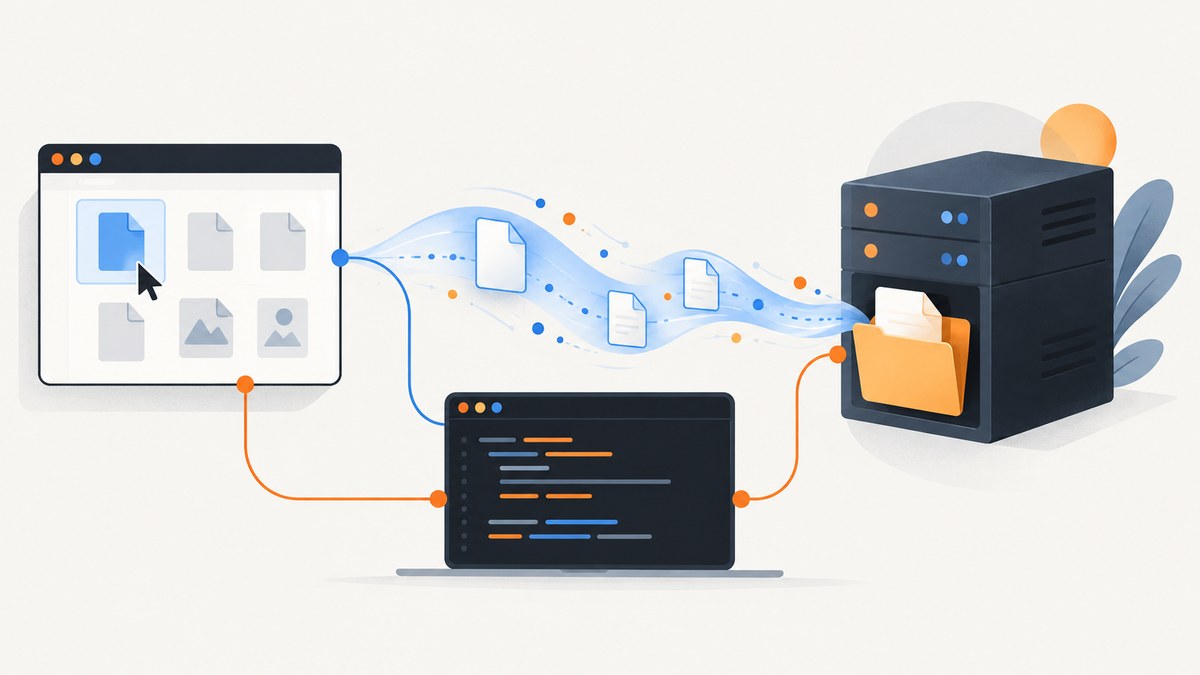
To handle a file in JavaScript, first identify where the code runs. In a browser, your app usually gets a File because a person selected or dropped it; it can then read, preview, or upload that data. In Node.js, use node:fs to work with paths, directories, and files on the server. Browser FileReader does not grant access to an arbitrary local pathname. MDN’s File API guide and the Node.js filesystem documentation describe these separate models.
This guide shows complete examples for both runtimes, explains which API to choose, and covers the common errors that arise when reading, writing, previewing, or uploading files.
1. Choose the runtime and access model
| Task | Use | How data becomes available |
|---|---|---|
| Read a visitor’s selected file | Browser File, Blob, text(), or arrayBuffer() |
A file input or drag-and-drop |
| Read a browser file with event callbacks | FileReader |
A user-provided File or Blob |
| Read a server-side path | Node.js node:fs/promises |
A path resolved by the Node process |
| Process a large file incrementally | Node.js read or write streams | A path or open file handle |
| Let a person choose a local path from a web app | File System Access API, where supported | An explicit user gesture and permission |
A browser page is deliberately not a general-purpose file browser. The ordinary File API works on data that a person has explicitly made available. If the file is hosted on a server, use fetch() instead, and account for cross-origin CORS permission when the host differs. If code runs in Node.js, use filesystem APIs for local paths.
2. Read a file selected in the browser
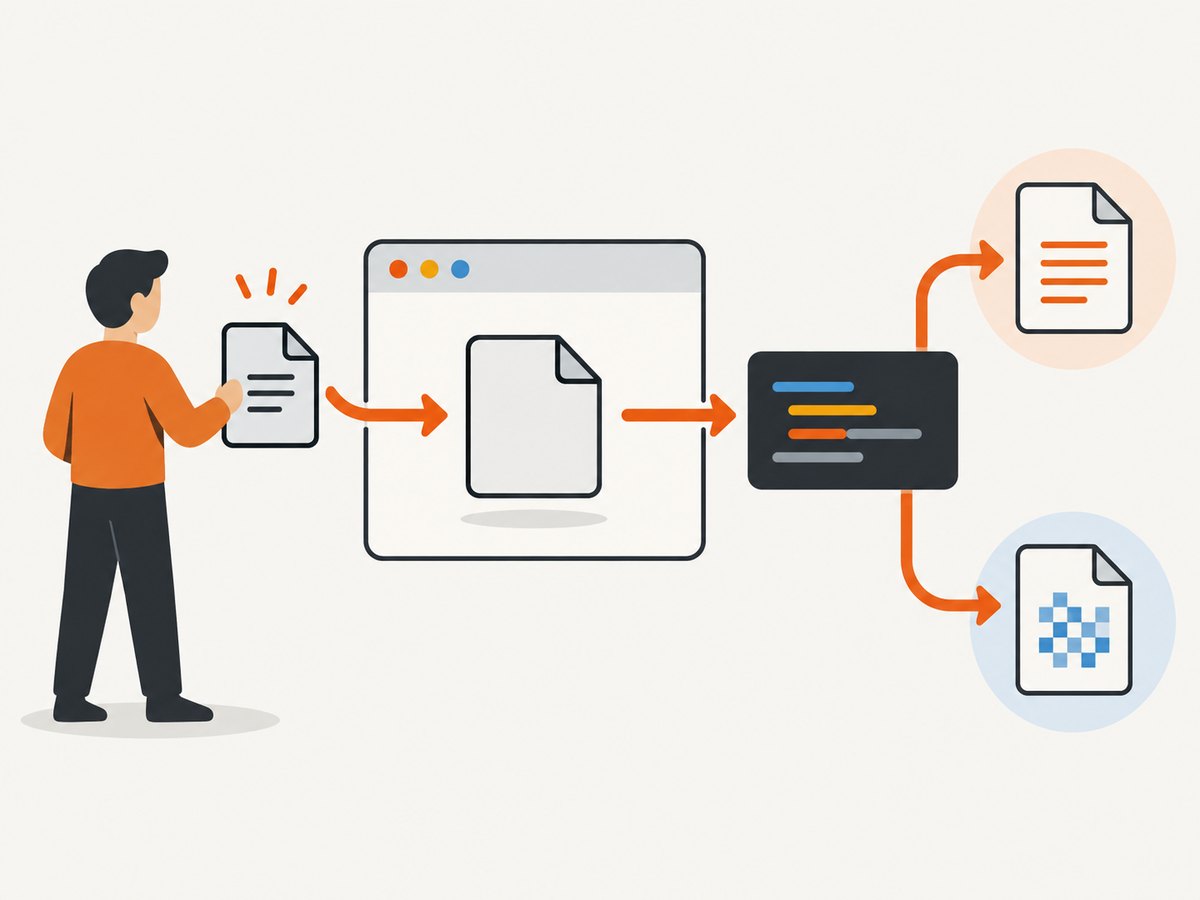
An <input type="file"> exposes a FileList. Each File is a kind of Blob and includes metadata such as name, size, MIME type, and last-modified time. Use the Blob methods text() or arrayBuffer() for straightforward promise-based reads in modern browsers. Use FileReader when its event model or a particular result format fits your application.
<label>Choose a text file
  <input id="file" type="file" accept=".txt,text/plain">
</label>
<pre id="output"></pre>
<script type="module">
  const input = document.querySelector('#file');
  const output = document.querySelector('#output');

  input.addEventListener('change', async () => {
    const file = input.files?.[0];
    if (!file) return; // The chooser may have been cancelled.

    output.textContent = `Name: ${file.name}\nSize: ${file.size} bytes\nType: ${file.type || '(unknown)'}`;
    try {
      const contents = await file.text();
      output.textContent += `\n\n${contents}`;
    } catch (error) {
      output.textContent += `\nCould not read file: ${error.message}`;
    }
  });
</script>
The accept attribute helps guide the picker; it is not a security check. A client can choose or construct data that does not match the expected type. Validate content and enforce size and type rules on the server when accepting uploads. Never treat the browser-provided filename or MIME type as proof of what the file contains.
Read with FileReader
FileReader reads a File or Blob asynchronously. It supports text, data URLs, and array buffers. Its result is available after the load event; errors are reported through error. It does not take a path string.
function readAsText(file) {
  return new Promise((resolve, reject) => {
    const reader = new FileReader();
    reader.addEventListener('load', () => resolve(reader.result));
    reader.addEventListener('error', () => reject(reader.error));
    reader.addEventListener('abort', () => reject(new Error('Read aborted')));
    reader.readAsText(file, 'utf-8');
  });
}

const file = document.querySelector('input[type=file]').files?.[0];
if (file) {
  readAsText(file).then(console.log).catch(console.error);
}
For binary data, call readAsArrayBuffer(file). For an image preview, URL.createObjectURL(file) gives an object URL that can be assigned to an image element. Revoke it when the preview is no longer needed.
const preview = document.querySelector('#preview');
let previousUrl;

function showImage(file) {
  if (previousUrl) URL.revokeObjectURL(previousUrl);
  previousUrl = URL.createObjectURL(file);
  preview.src = previousUrl;
}

// When removing the preview or leaving the component:
function clearPreview() {
  preview.removeAttribute('src');
  if (previousUrl) URL.revokeObjectURL(previousUrl);
  previousUrl = undefined;
}
For small generated downloads, construct a Blob, create an object URL, and expose it as a download link. Release the URL after the link is no longer needed. Binary formats should be read as binary; decoding arbitrary bytes as text can corrupt the data.
3. Handle drag-and-drop files
A drop event provides files through event.dataTransfer.files. Prevent the browser’s default navigation behavior if you want the page to handle the drop. For keyboard accessibility, provide a file input as an alternative to a drop area.
const zone = document.querySelector('#drop-zone');

zone.addEventListener('dragover', event => {
  event.preventDefault(); // Allows a drop.
});

zone.addEventListener('drop', async event => {
  event.preventDefault();
  const files = [...(event.dataTransfer?.files ?? [])];
  for (const file of files) {
    console.log(file.name, file.size, file.type);
    if (file.size > 10 * 1024 * 1024) {
      console.warn(`${file.name} is over the example 10 MiB limit`);
      continue;
    }
    console.log((await file.text()).slice(0, 200));
  }
});
The 10 MiB check above is an application example, not a browser or platform limit. Select a limit appropriate to the product and also enforce it on the receiving server. If multiple files are allowed, decide whether they are processed sequentially or concurrently; unbounded concurrent work can consume memory and network connections.
4. Upload a selected file
For a typical multipart form upload, append the File to FormData and send it with fetch(). The server route shown here is an example endpoint that your application must implement. Do not manually set the multipart Content-Type header: the browser supplies the boundary parameter.
async function upload(file) {
  const form = new FormData();
  form.append('file', file, file.name);

  const response = await fetch('/api/upload', {
    method: 'POST',
    body: form
  });
  if (!response.ok) {
    throw new Error(`Upload failed: HTTP ${response.status}`);
  }
  return response.json();
}

const file = document.querySelector('input[type=file]').files?.[0];
if (file) {
  upload(file).then(console.log).catch(console.error);
}
Production upload handling needs server-side validation, authorization, sensible request-size limits, and safe storage and retrieval behavior. The browser example transfers bytes; it does not establish that the file is safe. Consider resumable or chunked uploads when the application needs recovery from interrupted transfers or has files too large for one request, and define how retries avoid creating duplicate uploads.
5. Read a file in Node.js
In Node.js, import from node:fs/promises for straightforward asynchronous operations. readFile() returns a Buffer unless an encoding is specified. A relative path is resolved from process.cwd(), which may differ depending on how the program was started.
// read-file.mjs
import { readFile } from 'node:fs/promises';

const path = process.argv[2] ?? './notes.txt';
try {
  const buffer = await readFile(path);
  console.log(`Read ${buffer.length} bytes`);
  console.log(buffer.toString('utf8'));
} catch (error) {
  console.error(`Could not read ${path}:`, error.code ?? error.message);
  process.exitCode = 1;
}
Run it with node read-file.mjs ./notes.txt. For known text files, pass an encoding such as { encoding: 'utf8' } and receive a string. Keep the Buffer for binary data such as images, archives, or PDFs.
Write, append, and create directories
Promise methods also cover writing and appending. Create parent directories when required, and handle errors rather than assuming the path exists.
// write-file.mjs
import { mkdir, writeFile, appendFile, readFile } from 'node:fs/promises';

const outputDir = './output';
const path = `${outputDir}/report.txt`;
await mkdir(outputDir, { recursive: true });
await writeFile(path, 'Report started\n', 'utf8');
await appendFile(path, 'One more line\n', 'utf8');
console.log(await readFile(path, 'utf8'));
writeFile() replaces the target file’s contents in the ordinary case, while appendFile() adds data. If several operations might write the same path concurrently, coordinate them so one update does not overwrite another unexpectedly. Filesystem flags and behavior can vary by platform; consult the Node documentation before relying on platform-specific flags.
Close explicitly opened handles
When you use open() to manage a file handle directly, close it in a finally block. Do not depend on automatic cleanup.
import { open } from 'node:fs/promises';

const handle = await open('./notes.txt', 'r');
try {
  const buffer = Buffer.alloc(1024);
  const { bytesRead } = await handle.read(buffer, 0, buffer.length, 0);
  console.log(buffer.subarray(0, bytesRead).toString('utf8'));
} finally {
  await handle.close();
}
6. Stream files when incremental processing helps
A whole-file read brings the entire result into memory. It is convenient when the file and workload fit your memory budget. A stream lets your program process chunks incrementally and is often a better fit for large inputs or pipelines. There is no universal file-size cutoff: choose based on memory limits, concurrency, and what processing the task requires.

// Count newline-delimited records without loading the whole file.
import { createReadStream } from 'node:fs';
import { createInterface } from 'node:readline';

const input = process.argv[2] ?? './events.log';
const lines = createInterface({
  input: createReadStream(input, { encoding: 'utf8' }),
  crlfDelay: Infinity
});
let count = 0;
for await (const line of lines) {
  if (line.trim()) count++;
}
console.log(`Non-empty lines: ${count}`);
Use createWriteStream() for incremental output. Respect stream backpressure when manually writing chunks: a false return from write() means the producer should wait for the stream’s drain event before continuing. For simple file copying, Node’s stream pipeline utilities can connect a readable stream to a writable stream and propagate errors.
7. Access a local file from a browser with permission
The File System Access API is a separate capability for applications that need a person to choose a local file or location. It requires a secure context and user permission, and support varies by browser and method. Check compatibility for the exact picker or handle API your product needs. A file input is often the simpler choice when the app only needs to read a selected file once.
async function chooseTextFile() {
  if (!('showOpenFilePicker' in window)) {
    throw new Error('This browser does not expose the file picker API used here');
  }
  const [handle] = await window.showOpenFilePicker({
    types: [{
      description: 'Text files',
      accept: { 'text/plain': ['.txt', '.md'] }
    }]
  });
  const file = await handle.getFile();
  return file.text();
}

// Call from a user action, such as a button click.
document.querySelector('#open').addEventListener('click', async () => {
  try {
    document.querySelector('#output').textContent = await chooseTextFile();
  } catch (error) {
    if (error.name === 'AbortError') return; // User cancelled.
    console.error(error);
  }
});
Origin Private File System (OPFS) storage is different: it is private to the site’s origin and is not the user’s ordinary visible folder. Choose it for application-managed browser storage, not as a way to silently inspect a visitor’s files. The File System API is secure-context-only; verify the chosen feature’s browser support before making compatibility promises.
8. Or skip the browser setup
If the file you need is a screenshot of a web page, you can request it from ScreenshotNeo, a website screenshot API and MCP server by Yorker Media. It returns an image or PDF from one GET request. See the API documentation for parameters and response details.
curl -G "https://api.screenshotneo.com/v1/shot" -d access_key=YOUR_API_KEY --data-urlencode url=https://stripe.com -o shot.webpimport requests
r = requests.get(
"https://api.screenshotneo.com/v1/shot",
params={"access_key": "YOUR_API_KEY", "url": "https://stripe.com"},
timeout=90,
)
r.raise_for_status()
open("shot.webp", "wb").write(r.content)const q = new URLSearchParams({ access_key: 'YOUR_API_KEY', url: 'https://stripe.com' });
const res = await fetch(`https://api.screenshotneo.com/v1/shot?${q}`);
if (!res.ok) throw new Error(`Screenshot request failed: ${res.status}`);
const bytes = new Uint8Array(await res.arrayBuffer());
await import('node:fs/promises').then(fs => fs.writeFile('shot.webp', bytes));Cookie banners, popups, and chat widgets are removed before the shot. Bot checks, blank pages, and failed loads are never billed; response headers identify the page verdict and billing status. An MCP server lets Claude, Cursor, and other MCP clients take screenshots. The free plan includes 1,000 screenshots a month with no card; paid plans start at $5 for 3,000. Create a free ScreenshotNeo account.
9. Troubleshooting common file handling errors
| Symptom | Likely cause | Fix |
|---|---|---|
input.files[0] is undefined |
No file is selected, the chooser was cancelled, or code ran before selection. | Handle the input’s change event and check for a file before reading. |
| “FileReader.readAsText parameter 1 is not of type Blob” | A path string, missing value, or unrelated object was passed instead of a File or Blob. |
Get the selected File from input.files; use Node readFile() for server paths. |
| Page navigates to a dropped file | The drop event’s default browser behavior was not cancelled. | Call preventDefault() in both dragover and drop. |
| Readable text looks corrupted | Binary data was decoded as text, or the text encoding differs from the assumed encoding. | Keep binary data in a Buffer or ArrayBuffer; specify the correct text encoding when known. |
Node reports ENOENT |
The path does not exist relative to the current working directory or was misspelled. | Log process.cwd(), check the resolved path, and create required directories. |
Node reports EACCES or EPERM |
The process lacks permission, or the OS denies the operation. | Check ownership and permissions, use an allowed location, and avoid assuming flags work identically across operating systems. |
| Memory rises during processing | A large file was loaded whole, or many reads run concurrently. | Use streams or limit concurrency; process and release chunks as the workload permits. |
| Browser file picker is unavailable | The chosen File System Access API method is unsupported or the page is not in a secure context. | Check support for that exact method, serve in a secure context, and offer a file input fallback. |
| Upload returns a CORS or server error | The server rejects the origin, route, body size, or request format. | Configure the receiving server, inspect its response, and send FormData without manually setting its multipart content type. |
10. Performance, reliability, and cost considerations
- Memory:
readFile()and browser text reads materialize file contents. Prefer streams or chunked application designs when peak memory matters. Bound concurrent operations. - Responsiveness: use asynchronous Node APIs for application work; synchronous filesystem calls block the event loop. FileReader is event-driven, while Blob methods return promises.
- Cleanup: close explicitly opened Node handles and revoke browser object URLs once finished. Ensure cleanup happens on errors as well as success.
- Reliability: handle cancellation, missing paths, permission failures, aborted reads, partial network failures, and server rejections. Retrying an upload should account for duplicate requests.
- Cost: the browser and Node filesystem APIs do not charge per read, but storage, bandwidth, server processing, and third-party upload services can. Set explicit file and concurrency limits appropriate to your workload.
11. Frequently asked questions
How do I read a local file in JavaScript?
In a web page, ask the person to select or drop it, then read the resulting File. In Node.js, use readFile() or a stream with a filesystem path.
What is the difference between FileReader and fs?
FileReader reads browser-provided File or Blob objects under the browser’s permission model. Node’s fs module works with paths and handles available to the Node process.
Should I use FileReader or Blob.text()?
For a simple text read, Blob.text() is a concise promise-based option. Choose FileReader when you need its event interface or another supported output such as a data URL.
Can browser JavaScript read a file by pathname?
Not with FileReader or the ordinary file input. A separate user-consented File System Access API capability may provide file handles in supported secure contexts.
When should I use a stream in Node.js?
Use one when incremental processing suits the workload or when holding the whole file in memory is undesirable. Measure against your application’s own memory and concurrency limits; there is no universal size threshold.
Can I upload any file safely by checking its extension?
No. A filename extension and browser-reported MIME type are not proof of content. The receiving application must validate and constrain uploads on the server.


