5 Best GetScreenshot Alternatives That Integrate with Zapier
Compare five GetScreenshot alternatives for Zapier, learn when to use a native app or webhook, and connect screenshot results to the rest of your workflow.
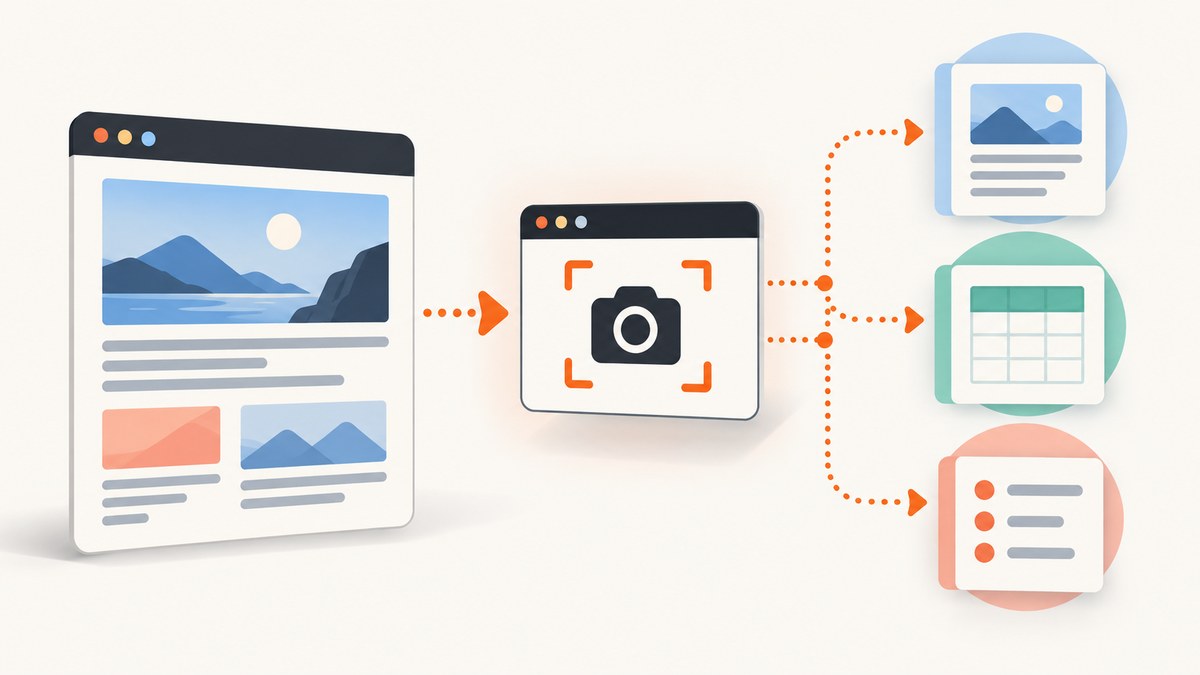
If you need a screenshot step in a Zap, start with ScreenshotNeo: it removes cookie banners, newsletter popups, and chat widgets before capture, bills only clean shots, and its paid plans start at $5 for 3,000 screenshots. For a native Zapier setup, compare Urlbox, Browserless, and ScreenshotOne; for more control over arbitrary API calls, use Webhooks by Zapier with a REST API such as GetScreenshot.dev. ScreenshotRender is another candidate to investigate, but a direct Zapier integration was not verified in the research for this guide.
The practical choice depends on what the next Zap step needs: a screenshot file, a PDF, video, extracted page content, or a browser automation action. This guide compares the documented options, explains how to build a webhook step, and covers the details that commonly break workflows: authentication, binary results, timeouts, and plan limits.
1. ScreenshotNeo — best first alternative for clean, billable captures
ScreenshotNeo is a website screenshot API and MCP server. Its HTTP API accepts a URL in one GET request and returns an image (PNG, JPEG, or WebP) or PDF. It is the first option to try when the workflow needs a clean page image: before capture, it accepts the cookie or consent banner like a visitor and removes more than 60 known consent platforms, newsletter popups, and chat widgets. Each of those cleanup steps can be turned off.

It reports the page verdict and billing status in response headers. Bot checks or CAPTCHAs, blank pages, timeouts, failed loads, and cache hits cost nothing. That makes the response useful for workflow branching: a Zap can inspect whether it received a clean capture before storing or forwarding the result. The product also offers an MCP server with take_screenshot, get_page_info, and capture_pdf tools for Claude, Cursor, and other MCP clients.
Capture controls include full-page capture with lazy images loaded, CSS-selector element capture, dark mode, 12 device presets or a custom viewport, retina scale, PDF page settings, custom CSS and JavaScript, click-before-capture, selector hiding, wait conditions, request blocking, headers, cookies, user agent, authorization, timezone, geolocation, transparent background, resizing, configurable caching, signed image links, asynchronous jobs with signed webhooks, bulk capture of up to 100 URLs per call, usage API, and an OpenAPI spec. Parameter names used by other screenshot APIs also work, which can simplify a migration.
The free plan includes 1,000 screenshots per month with no card. Paid plans are Starter at $5 for 3,000, Growth at $15 for 15,000, Pro at $39 for 60,000, Scale at $99 for 250,000, and Business at $249 for 1,000,000; yearly billing gives two months free. Every feature is on every plan. See the ScreenshotNeo API documentation for request options.
2. Urlbox — best when a Zap needs video as well as screenshots
Zapier lists a Urlbox app. Its documented output range is broader than a simple image capture: it generates images, PDFs, and video from a URL or HTML, and its Zapier action includes full-page website screenshot capture. Choose it when a single native Zapier connection should handle multiple media formats, or when the source may be HTML rather than only a live URL.
Before choosing, confirm the current action fields and output shape in Zapier and Urlbox documentation. The research establishes the app and output types, but does not establish current plan requirements, request limits, or whether a particular Zap action returns an attachment, URL, or encoded data. Verify those details against your account and test the downstream step with the exact output you plan to use.
3. Browserless — best when capture is one browser task among several
Browserless documents a custom Zapier integration with Screenshot, PDF, Content, Stats, Scrape, and BQL actions. It also supports Webhooks by Zapier for direct REST or BQL calls. The documentation describes screenshot requests with a URL, wait conditions, viewport, full-page options, and base64 encoding for passing binary results to later steps. Zapier describes Browserless as cloud Chrome for data extraction, automation, PDF generation, and screenshots.
This is a good fit when the workflow needs more than an image: for example, capture a page, extract content, then route or summarize the result. The tradeoff is setup complexity. A custom browser-oriented flow exposes more controls, but gives you more configuration to maintain than a focused prebuilt screenshot action. Decide whether you need a screenshot action or a browser session, and confirm how the selected action exposes its binary result.
4. ScreenshotOne — best focused screenshot and PDF Zapier connection
Zapier has a ScreenshotOne app listing. The service is described as converting websites, HTML, or Markdown into screenshots or PDFs through an API, and ScreenshotOne’s no-code documentation explicitly lists Zapier among supported integrations. This makes it a natural shortlist choice when the workflow is focused on turning page content into an image or PDF and you prefer a documented Zapier path.
Check whether the particular integration action accepts your intended source format and capture options. The research confirms website, HTML, and Markdown inputs at the service level and screenshots or PDFs as outputs; it does not establish that every input and output is exposed by every Zapier action.
5. GetScreenshot.dev — best API-first webhook option
GetScreenshot.dev advertises REST endpoints for screenshot capture and PDF generation. The research did not verify a dedicated Zapier app, so treat this as a Webhooks by Zapier configuration rather than a native integration. Zapier’s webhook documentation says that its webhook action can call an API endpoint even when no dedicated Zapier app exists.
Choose this path if REST control matters and you are comfortable configuring a webhook, authenticating the request, and making the result usable to later steps. Verify the endpoint, authentication format, output format, and current plan limits in the service’s own documentation before building a production Zap.
6. ScreenshotRender — emerging API candidate to verify
A 2026 comparison article lists ScreenshotRender among screenshot API providers and compares it with ScreenshotOne, Urlbox, Scrapfly, ScrapingBee, and Browserless on topics including Cloudflare handling, billing, free tiers, page cleanup, and price. A Zapier webhook can call an API without a native app, but the research did not verify a direct ScreenshotRender Zapier integration.
Treat it as a candidate for evaluation, not as a confirmed plug-and-play Zapier choice. Verify the current API, authentication, pricing, reliability, page cleanup behavior, and any partner terms directly before committing a workflow.
7. Quick comparison: which option fits?
| Option | Zapier path in the research | Best fit | Check before building |
|---|---|---|---|
| ScreenshotNeo | HTTP API; MCP server for agent workflows | Clean screenshots with page cleanup and explicit verdict/billing headers | Response format and options in the API docs |
| Urlbox | Zapier app listing | Image, PDF, or video output from URL or HTML | Action output and available options |
| Browserless | Custom integration and webhooks | Screenshot plus browser automation, scraping, content, or BQL | Setup, authentication, and binary handling |
| ScreenshotOne | Zapier app listing and no-code documentation | Focused website/HTML/Markdown screenshot or PDF workflow | Which formats and controls the Zapier action exposes |
| GetScreenshot.dev | Configure Webhooks by Zapier | REST-driven screenshot or PDF flow | Endpoint, auth, limits, and response format |
| ScreenshotRender | Generic webhook is possible; direct app not verified | Further evaluation of an emerging API candidate | Zapier connectivity and service details |
Native apps generally reduce setup friction because the action and its fields are packaged for Zapier. Webhooks trade that prebuilt action for the ability to call an arbitrary API endpoint and set request details yourself. Neither path removes the need to inspect the actual output before connecting storage, email, or a CMS.
8. Connect a screenshot API with Webhooks by Zapier
Use this generic workflow for an API that has no verified native Zapier app. The exact field names and authentication method depend on the API; use the provider’s documentation as the source of truth. These steps describe the integration shape without assuming an undocumented endpoint.

- Choose a trigger. For example, a new row, form submission, or published record. Make sure the trigger supplies a complete, publicly reachable URL or whatever input the screenshot API requires.
- Add the webhook action. In Zapier, add the Webhooks by Zapier action for the request method required by the provider. A GET request commonly carries parameters in the URL; a POST request commonly sends a JSON body. Do not change the method just to match another provider’s example.
- Set the endpoint and authentication. Enter the API URL and the documented API key or authorization header. Keep secrets in Zapier’s credential or protected field handling where available; do not put keys in a public URL, shared document, or code sent to a customer.
- Map the page input and capture options. Map the trigger’s URL into the API’s URL field. Add only options the API documents, such as full-page capture, viewport, wait condition, or output format. Confirm encoding for URLs with ampersands, spaces, or non-ASCII characters.
- Test and inspect the response. Run the Zap test and inspect the returned fields. Identify whether the result is a downloadable URL, a binary attachment, or base64 text. These are different representations and are not interchangeable.
- Connect the next step deliberately. If the next app accepts a file attachment, pass a file object or fetchable file URL in its expected field. If the API returns base64, use a supported conversion or upload path before sending it to storage or a CMS. Avoid mapping a long base64 string into a field that expects a URL.
- Add handling for unsuccessful captures. Use a filter or path based on the response status or documented verdict fields. Route failed, blank, or bot-check pages to a retry or review step rather than treating them as a usable screenshot.
Runnable request examples for ScreenshotNeo
For a direct API request outside Zapier, these examples capture Stripe as WebP. Replace YOUR_API_KEY with your key and change the target URL as needed. The API documentation lists the available parameters, including output and capture options.
curl -G "https://api.screenshotneo.com/v1/shot" -d access_key=YOUR_API_KEY --data-urlencode url=https://stripe.com -o shot.webpimport requests
r = requests.get(
"https://api.screenshotneo.com/v1/shot",
params={"access_key": "YOUR_API_KEY", "url": "https://stripe.com"},
timeout=90,
)
r.raise_for_status()
open("shot.webp", "wb").write(r.content)const q = new URLSearchParams({ access_key: 'YOUR_API_KEY', url: 'https://stripe.com' });
const res = await fetch(`https://api.screenshotneo.com/v1/shot?${q}`);
if (!res.ok) throw new Error(`Screenshot request failed: ${res.status}`);
const bytes = new Uint8Array(await res.arrayBuffer());
await import('node:fs/promises').then(fs => fs.writeFile('shot.webp', bytes));For Zapier, map the trigger’s URL into the API request’s URL parameter and store the returned image according to the action’s output type. Avoid assuming the response is a public image URL: a direct image response and a URL field require different downstream handling.
9. Or skip the browser setup
Make one GET request to ScreenshotNeo and use the returned image or PDF. For a Zap, configure an HTTP request step with the same endpoint and map your source URL into the request.
curl -G "https://api.screenshotneo.com/v1/shot" -d access_key=YOUR_API_KEY --data-urlencode url=https://stripe.com -o shot.webpCookie banners, popups, and chat widgets are removed before the shot. Bot checks, blank pages, and failed loads are never billed. An MCP server lets AI agents take screenshots. The free plan includes 1,000 screenshots a month with no card; paid plans start at $5 for 3,000. Read the API docs and sign up for 1,000 free screenshots a month, with no card.
10. Troubleshooting Zapier screenshot workflows
| Symptom | Likely cause | Fix |
|---|---|---|
| 401 or 403 response | Missing, malformed, or wrong API key; wrong authorization format | Compare the request with the provider’s authentication instructions. Check that Zapier is sending the key in the documented query parameter or header, and rotate a key if it was exposed. |
| 400 response | Required URL missing, invalid option, or incorrectly encoded parameter | Inspect the tested request fields. URL-encode the target URL and remove options that the endpoint does not document. |
| Zap test times out | Page load or capture takes longer than the action permits; wait condition may never resolve | Use a specific selector or bounded delay if supported, check the target page independently, and consider an asynchronous job flow where available. |
| Screenshot is blank or incomplete | Page needs additional render time, lazy images, authentication, or a different viewport | Use the API’s documented wait, full-page, lazy-image, cookie, header, or viewport controls. Confirm the page is accessible to the capture service. |
| Bot-check page captured | The target site presented a CAPTCHA or bot check | Do not treat that image as page content. Route the result for review or use a provider feature explicitly intended for this case; behavior varies by service. |
| Later Zap step cannot open the result | The prior step returned base64 or binary data, while the next expects a URL or file object | Inspect the response schema and use the format the next step accepts. Convert or upload the bytes when necessary. |
| Large or truncated Zap output | Base64 image data may exceed a field or task payload limit | Prefer a file URL or upload flow when supported. Reduce dimensions or output size if the API offers those options. |
| Zap succeeds but no useful file is stored | The next step received a text field instead of an attachment, or mapped the wrong response property | Test the storage action with a real response and map the actual file or download URL field. |
| Usage differs from expected | Plan quotas, cache behavior, retries, or billing definitions differ across providers | Check current plan and billing documentation. For ScreenshotNeo, inspect the X-Page-Verdict and X-Billed response headers. |
11. Reliability, speed, and cost decisions
Keep capture workflows bounded. A wait condition tied to a selector gives the browser a clear readiness signal when the page supports one; a fixed delay is easier to configure but may waste time on quick pages and still be too short on slow ones. Network-idle conditions can be unhelpful on pages that keep connections open. Use the narrowest reliable readiness rule available, and test it against the actual pages in the Zap.
Full-page capture, high pixel density, large viewports, PDF output, and complex pages can increase processing and file size. Capture only the area and quality the next step needs. If a downstream system has upload or payload limits, use a resized image or a URL-based file handoff when the provider supports it. For many URLs, batch or asynchronous workflows can reduce repeated setup; ScreenshotNeo supports bulk capture of up to 100 URLs per call and asynchronous jobs with signed webhooks.
Retries need care. A retry can recover a transient network failure, but repeated captures can waste task time or create duplicate downstream records. Check whether the API’s billing and cache rules make repeated requests chargeable, and use a stable record identifier or deduplication step before writing the file. ScreenshotNeo says cache hits and failed loads are not billed and exposes billing status in response headers; do not assume another provider uses the same rules.
To estimate cost, count expected successful captures per month, then compare that volume with the provider’s current plan and any separate Zapier task usage. Include retries, multiple screenshots per record, PDFs, and growth in trigger volume. Recheck quotas, API limits, regional availability, and plan requirements at publication and before production rollout because they can change.
12. Frequently asked questions
Does every option here have a native Zapier app?
No. The research confirms Zapier app listings for Urlbox and ScreenshotOne, and documents a custom Browserless integration. GetScreenshot.dev can be used through Zapier webhooks; a native app was not verified for it. A direct ScreenshotRender Zapier integration was also not verified.
Can a Zap pass a screenshot directly to email or cloud storage?
Often, but it depends on the response format and the destination action. Check whether the capture step returns a URL, attachment, binary body, or base64 string, then provide the type the next action expects.
Which option should I choose for page text extraction?
Browserless documents Content, Scrape, and BQL actions in addition to Screenshot and PDF, so it is the clearest fit in this research when extraction is part of the same browser workflow.
Can I use a screenshot API without a Zapier app?
Yes. Webhooks by Zapier can call an API endpoint without a dedicated app. You need to configure the method, endpoint, authentication, parameters, and output handoff yourself.
Does ScreenshotNeo work with AI agents?
Yes. Its MCP server exposes take_screenshot, get_page_info, and capture_pdf for Claude, Cursor, and other MCP clients.