Add an Image Watermark to PDFs in Python with aiohttp
Download a watermark with aiohttp, place it behind every PDF page with PyMuPDF, and choose between in-memory and streamed downloads.

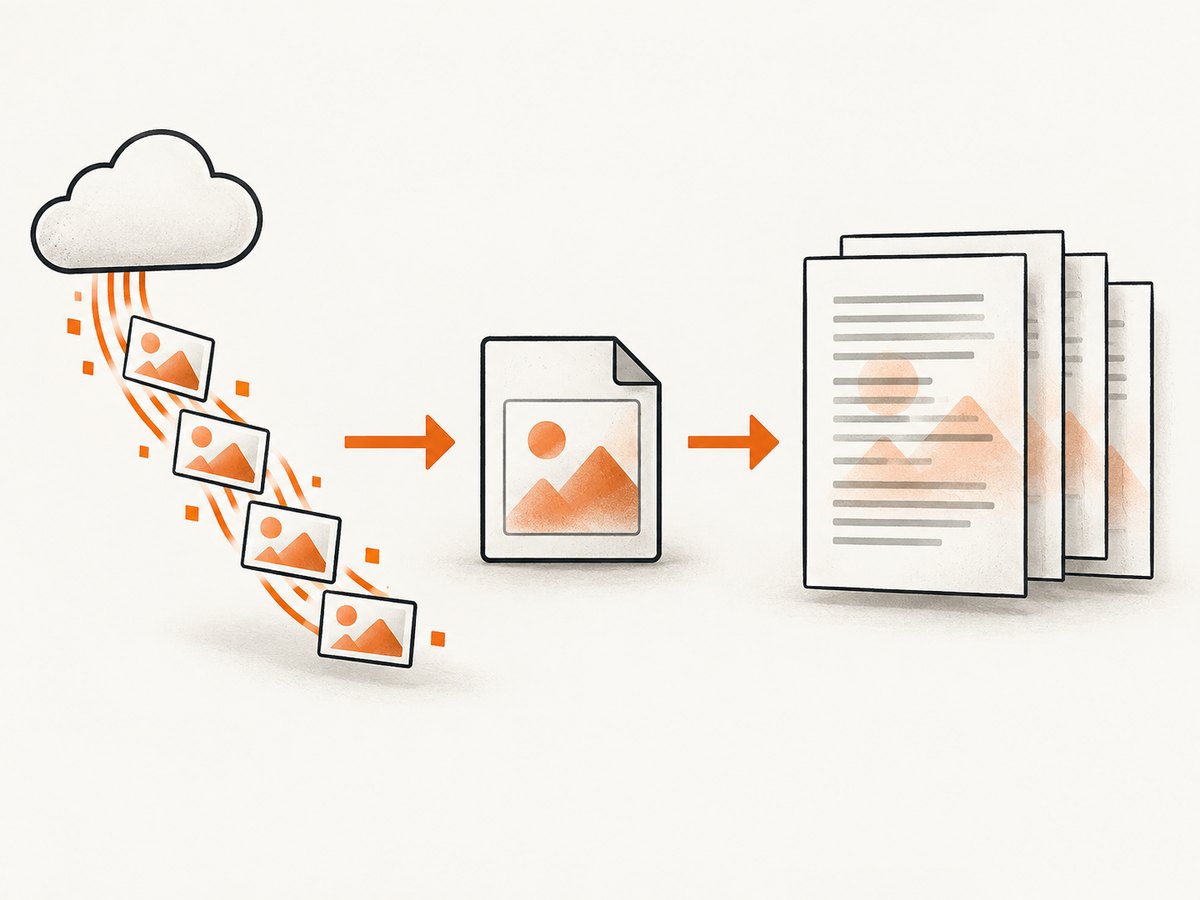
Download the watermark image with aiohttp, check the HTTP response, then insert it into each PDF page with PyMuPDF’s Page.insert_image(). Set overlay=False to put it behind existing page content. For a small image, await response.read() is simplest; for a large one, stream chunks to a temporary file and give its path to PyMuPDF.
This approach keeps the download asynchronous, but PyMuPDF’s PDF editing work is synchronous. The complete examples below keep those responsibilities separate and save to a new output file so the source remains intact.
1. Install the dependencies
Use Python 3.8 or later and install aiohttp and PyMuPDF in your environment:
python -m pip install aiohttp pymupdfThe import name for PyMuPDF is pymupdf. Install into the same virtual environment used to run the script. If an older project already depends on the legacy fitz import, check its PyMuPDF version and project constraints before changing imports.
2. Download a small watermark and apply it to every page
This runnable example downloads an image into memory, checks for HTTP errors, inserts the same image behind every page, and writes a separate PDF. Replace the three example paths or URLs with your own.
import asyncio
from pathlib import Path

import aiohttp
import pymupdf


async def download_bytes(url: str) -> bytes:
    timeout = aiohttp.ClientTimeout(total=60)
    async with aiohttp.ClientSession(timeout=timeout) as session:
        async with session.get(url) as response:
            response.raise_for_status()
            return await response.read()


def watermark_pdf(
    input_path: str,
    output_path: str,
    image_bytes: bytes,
) -> None:
    source = Path(input_path)
    destination = Path(output_path)
    if source.resolve() == destination.resolve():
        raise ValueError("Choose a separate output PDF path")

    doc = pymupdf.open(source)
    try:
        image_xref = 0
        for page in doc:
            image_xref = page.insert_image(
                page.rect,
                stream=image_bytes,
                xref=image_xref,
                overlay=False,
                keep_proportion=True,
            )
        doc.save(destination, deflate=True)
    finally:
        doc.close()


async def main() -> None:
    image = await download_bytes("https://example.com/watermark.png")
    watermark_pdf("input.pdf", "watermarked.pdf", image)


if __name__ == "__main__":
    asyncio.run(main())
The page.rect rectangle covers the page. keep_proportion=True preserves the image aspect ratio, so the image may not fill every point of the rectangle. Depending on the source image and page dimensions, it can appear centered with empty space around it. A logo or stamp usually looks better in a smaller rectangle, described below.
Reusing the xref returned by the first call lets PyMuPDF reuse the already inserted image when adding it to later pages. The image bytes are downloaded only once. The official PyMuPDF image recipe also demonstrates adding an image to each page and saving the modified document. See the PyMuPDF image recipes and the Page.insert_image API.
3. Stream a large watermark image to disk
await response.read() returns the entire response body as bytes. That is convenient for a small logo, but it holds the complete image in memory. aiohttp’s client guide recommends care with whole-body reads and shows chunked streaming with iter_chunked() for files. Use a temporary file when the image is large or download memory needs to stay bounded.
import asyncio
import tempfile
from pathlib import Path

import aiohttp
import pymupdf


async def download_file(url: str, destination: Path) -> None:
    timeout = aiohttp.ClientTimeout(total=120)
    async with aiohttp.ClientSession(timeout=timeout) as session:
        async with session.get(url) as response:
            response.raise_for_status()
            with destination.open("wb") as output:
                async for chunk in response.content.iter_chunked(64 * 1024):
                    output.write(chunk)


def watermark_from_file(input_path: Path, output_path: Path, image_path: Path) -> None:
    doc = pymupdf.open(input_path)
    try:
        image_xref = 0
        for page in doc:
            image_xref = page.insert_image(
                page.rect,
                filename=str(image_path),
                xref=image_xref,
                overlay=False,
                keep_proportion=True,
            )
        doc.save(output_path, deflate=True)
    finally:
        doc.close()


async def main() -> None:
    input_path = Path("input.pdf")
    output_path = Path("watermarked.pdf")
    with tempfile.TemporaryDirectory() as temp_dir:
        image_path = Path(temp_dir) / "watermark-image"
        await download_file("https://example.com/watermark.png", image_path)
        watermark_from_file(input_path, output_path, image_path)


if __name__ == "__main__":
    asyncio.run(main())
The temporary directory is removed after the PDF is written. The image is read from that path by PyMuPDF during insertion, so keep the file available until all pages have been processed. The 64 KiB chunk size is a practical setting, not a performance guarantee; tune it only after measuring your own network and workload.
4. Choose placement, layering, and appearance
Place the image behind or in front of page content
overlay=Falseinserts the image below existing page content. It is useful when the watermark should not cover text that was already drawn.overlay=Trueputs the image above existing content and is the default behavior. A foreground watermark can obscure text unless the source image has transparency.
Layer order is not opacity. For a translucent foreground mark, use an image file that already carries alpha transparency. PyMuPDF’s insertion API accepts an image stream or filename and exposes the overlay and proportion options; appearance depends on the image itself. See the API details.

Use a custom rectangle for a logo or stamp
Passing page.rect targets the whole page. To place a logo near the bottom-right, compute a rectangle in PDF points (72 points per inch) from each page’s bounds:
for page in doc:
    bounds = page.rect
    width, height = 110, 36
    margin = 24
    stamp = pymupdf.Rect(
        bounds.x1 - margin - width,
        bounds.y1 - margin - height,
        bounds.x1 - margin,
        bounds.y1 - margin,
    )
    image_xref = page.insert_image(
        stamp,
        stream=image_bytes,
        xref=image_xref,
        overlay=False,
        keep_proportion=True,
    )
The example positions the image from the lower-right corner of each page, including pages whose sizes vary. Confirm the target rectangle is inside the page and large enough for the image. If the watermark appears in an unexpected place, inspect the page bounds and coordinate assumptions before changing the image.
Full-page image versus a small mark
| Goal | Rectangle | Consideration |
|---|---|---|
| Background pattern or page wash | page.rect |
Can affect legibility; test against dense text. |
| Logo or approval stamp | A custom pymupdf.Rect |
Leaves most page content untouched. |
| Keep source image shape | Any rectangle plus keep_proportion=True |
May leave unused space within the target rectangle. |
5. Handle document and network edge cases
- HTTP errors: call
raise_for_status()before reading or saving the body. Otherwise, an HTML error page could be mistaken for image bytes. - Redirects and access control: aiohttp follows redirects by default. A remote host may still require authentication, reject automated requests, or block hotlinking. Add request headers only when the image host documents the needed behavior.
- Unexpected content: if insertion fails, check the final response URL and content type, and verify that the body is a supported image rather than an error response. Do not trust the URL extension alone.
- Empty or damaged PDFs: validate that the source opens and contains pages before processing. Treat encrypted documents and malformed files according to the application’s requirements; this example does not supply passwords or repair damaged PDFs.
- Mixed page sizes and rotation: using each page’s own
page.rectadapts to its visible bounds. For a custom rectangle, calculate placement inside each page’s current bounds. - Existing annotations and forms: inserted page content is distinct from PDF annotations and interactive fields. Check the output in the viewers and workflows that matter to your users.
- Protect the source: save to a distinct destination, and do not overwrite the input while it is open. Confirm the output directory exists and is writable.
- Untrusted URLs: if users provide image URLs, validate allowed schemes and hosts in your application. Network fetching can expose services to server-side request forgery; enforce an allowlist and size limits where appropriate.
6. Performance, reliability, and output size
The download is asynchronous, but the calls that open, modify, and save the PDF run synchronously. In a command-line utility this is usually straightforward. In an aiohttp web service, running large PDF jobs directly on the event loop can delay unrelated requests; move CPU- or disk-heavy work to a worker or executor and cap concurrent jobs based on observed memory and disk use.
Chunked downloading bounds the amount of response data held by the download loop, although the operating system’s file cache and PyMuPDF’s processing still consume resources. Set connection and total timeouts appropriate to your service, impose an application-level maximum image size, and clean up partial temporary files after failures. aiohttp’s session and response context managers close resources when the block exits; see its Client Quickstart.
For repeated insertion, preserve the first returned image xref and pass it on later pages. This avoids embedding the same image separately on every page. PyMuPDF notes that inserted images retain their original quality; resize oversized source artwork before embedding if the PDF is unnecessarily large. The save option deflate=True is available to compress streams, but measure output size and processing time with representative files rather than assuming a particular reduction.
For reliable output, write to a new path, close the document in a finally block, and validate the resulting PDF with the target viewer or downstream parser. For high-value workflows, write first to a temporary output and rename it only after a successful save and validation. Avoid claiming a fixed processing time: PDF page count, image dimensions, compression, disk speed, and source file structure all affect the result.
7. Troubleshooting
| Symptom | Likely cause | Fix |
|---|---|---|
ModuleNotFoundError |
Packages were installed into a different Python environment. | Activate the project environment and run python -m pip install aiohttp pymupdf with that interpreter. |
ClientResponseError |
The server returned a non-success HTTP status. | Inspect the status and URL, verify access permissions, and fix the remote resource. Keep raise_for_status() so failures do not become corrupt image input. |
| Image insertion reports an invalid image | The downloaded body is HTML, empty, truncated, or an unsupported/damaged image. | Check response headers and final URL, verify the file opens as an image, and ensure the download completed before insertion. |
| Watermark covers text | The image was inserted in the foreground or its rectangle is too large. | Use overlay=False to put it behind existing page content, or reduce the target rectangle. Text already covered by opaque page artwork cannot be restored by changing the layer. |
| Image looks stretched or oddly placed | The rectangle and source aspect ratio differ, or the target page has unusual dimensions or rotation. | Keep keep_proportion=True, use a purpose-sized rectangle, and calculate from each page’s bounds. |
| Output PDF is much larger | A large raster image was embedded, or the image was added repeatedly without xref reuse. | Reduce image pixel dimensions to the intended output size and reuse the returned xref. Compare output with and without deflate=True. |
| Event loop becomes unresponsive | Synchronous PDF editing is running in an async request handler. | Send PDF work to a worker or executor and bound concurrent processing. |
| Output cannot be opened | The save was interrupted, destination permissions failed, or the source document has unsupported damage or encryption. | Save to a fresh writable path, ensure exceptions are logged, close the document, and validate the source and output with the target viewer. |
8. Or skip the browser setup
If the task is capturing a webpage as an image or PDF rather than editing an existing PDF, ScreenshotNeo provides a website screenshot API and MCP server. One GET request returns a clean PNG, JPEG, WebP, or PDF. See the ScreenshotNeo API documentation for request options.
curl -G "https://api.screenshotneo.com/v1/shot" \
  -d access_key=YOUR_API_KEY \
  --data-urlencode url=https://stripe.com \
  -o shot.webp
Cookie banners, popups, and chat widgets are removed before the shot. Bot checks, blank pages, failed loads, timeouts, and cache hits are never billed, and response headers report the page verdict and billing status. Its MCP server lets AI agents use take_screenshot, get_page_info, and capture_pdf. The free plan includes 1,000 screenshots a month with no card; paid plans start at $5 for 3,000 screenshots.
Sign up for 1,000 free screenshots a month, with no card required.
9. FAQ
Does aiohttp watermark the PDF?
No. aiohttp downloads the remote image. PyMuPDF edits and saves the PDF.
Can I use this with a local watermark image?
Yes. Skip the HTTP download and pass the local path with filename=, or read the file bytes and use stream=.
Will this make scanned PDF text editable?
No. Inserting an image changes page content; it does not run OCR or make scanned text searchable.
Can I watermark only selected pages?
Yes. Iterate over the desired page indexes or ranges and insert the image only on those pages. Keep page indexing consistent with the PyMuPDF document API used by your version.
Should I use overlay=False for every watermark?
No. It is suited to marks that belong behind existing content. A visible foreground stamp may need the default overlay behavior and a transparent source image.