No-Code Dynamic Image Template Editor
Design once, generate branded images from data with no-code editors, APIs, Airtable, Zapier, and reliable rendering workflows.

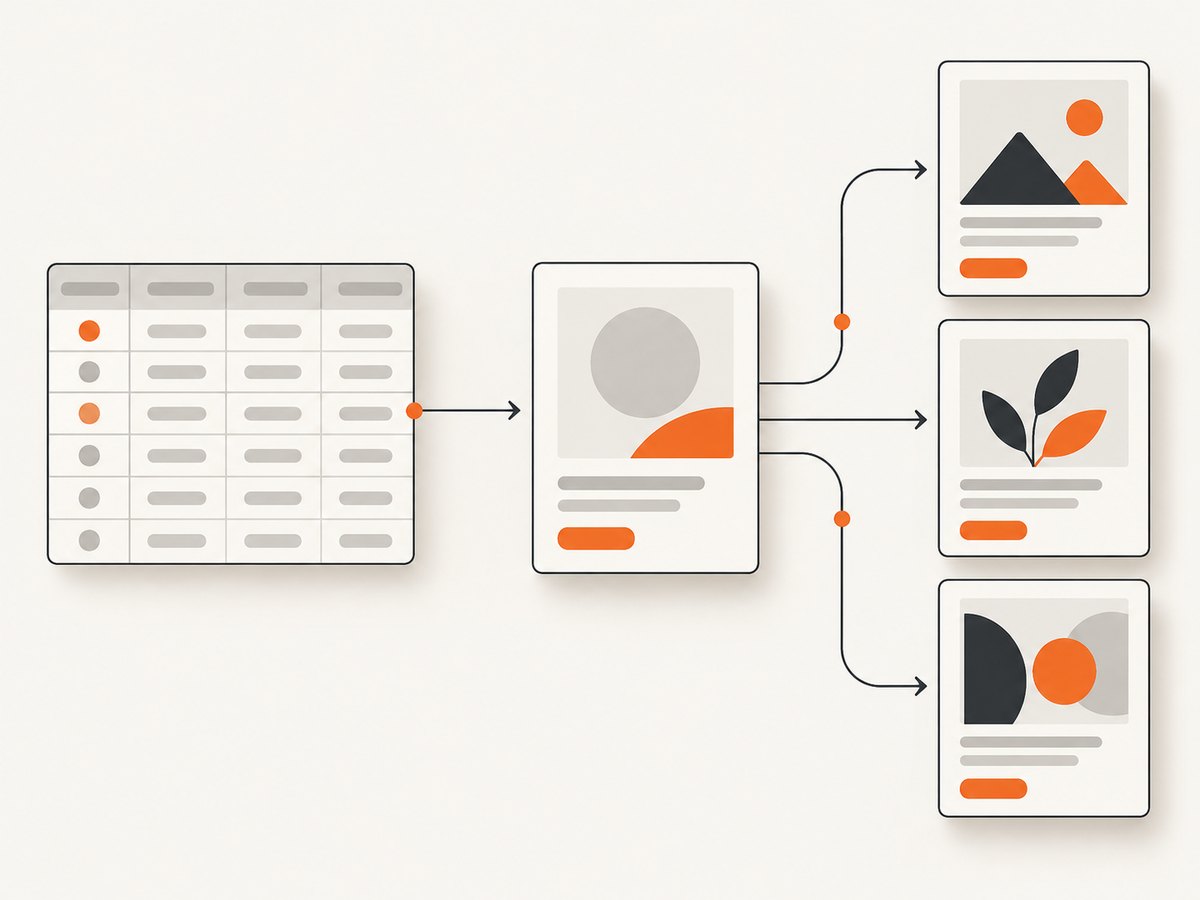
A no-code dynamic image template editor lets you design one reusable graphic and generate many finished images by changing fields such as text, photos, colors, ratings, or QR codes. The practical workflow is design once, render many: create the layout visually, mark selected layers as dynamic, connect a data source, and render one image per record.
This approach replaces repetitive editing in Canva or Photoshop when the layout stays consistent but the content changes. It works for social posts, product cards, event graphics, certificates, ads, thumbnails, listing images, and personalized reports.
1. What a dynamic image template editor does
A template editor combines a visual canvas with structured data. Your fixed layers contain the brand system: logo placement, font choices, spacing, background, and decorative elements. Dynamic layers become named fields that can be filled at render time.
| Layer type | Typical dynamic value | Useful for |
|---|---|---|
| Text | Title, price, date, author, score | Social posts, catalogs, announcements |
| Image | Product photo, avatar, background | Listings, testimonials, personalized cards |
| Color | Brand accent, status color | Categories, scores, campaign variants |
| Shape or visibility | Show badge, change fill | Sale labels, availability, localization |
| QR code or rating | URL, stars, review score | Print and campaign assets |
Bannerbear describes this model as reusable templates whose layers can be modified through its API, with the phrase “Edit Once, Use Infinitely.” Placid uses dynamic placeholders for structured text, photos, and videos, with auto-resizing and brand controls. The exact fields available depend on the product and integration.
2. How to create your first template
- Define the output. Choose dimensions, format, and where the image will be used. A square social post, a portrait story, and an email banner need different safe areas.
- Build the fixed design. Add your logo, background, typography, spacing, and decorative elements. Keep these layers locked when the editor supports locking.
- Name dynamic layers. Use stable names such as
headline,photo_url,price, andaccent_color. Names become your data contract. - Set overflow behavior. Decide whether long text wraps, shrinks, clips, or fails. Auto-resizing is useful, but set a maximum font reduction so a typo does not produce unreadable output.
- Prepare representative data. Test the shortest, longest, empty, multilingual, and malformed values before publishing the template.
- Publish a version. Treat a template revision like code. Record its identifier and keep old versions available if existing automations depend on them.
Design rules that prevent broken renders
- Reserve extra width for translated text and long names.
- Use high-contrast colors and provide a fallback when a data color is missing.
- Keep important content inside a safe margin for crops and responsive variants.
- Use predictable image fitting: cover for backgrounds, contain for products that must remain visible.
- Do not rely on a font that the rendering service cannot access.

3. Connect data without writing code
Most no-code workflows follow the same pattern: a row changes in a database, a form is submitted, or a schedule runs; an automation maps columns to template fields; the renderer returns an image URL or file; the result is stored or published.
Airtable or spreadsheet workflow
- Create columns matching your field names:
headline,photo_url,price, andstatus_color. - Validate URLs and required values with a formula or view.
- Trigger when a record enters a “Ready” view.
- Map each column to the corresponding dynamic layer.
- Write the returned image URL, job status, and template version back to the record.
- Move successful records to “Published” and failures to “Needs review.”
Placid documents dynamic text and images across REST API, URL API, Airtable, Ghost, Make, Webflow, WordPress, Zapier, and Studio. Bannerbear lists hosted forms, workflows, REST APIs, instant URLs, and more than 50 native integrations, with more available through Zapier. Check each service’s current integration table before designing your automation because capabilities differ by connector.
Zapier, Make, or webhook workflow
Use a trigger such as “new row,” “new form response,” or “new product.” Add a render action, map fields, then send the output to cloud storage, a CMS, an ad platform, or an email tool. Preserve the source record ID in metadata so retries do not create duplicates.
4. API and URL rendering for developers
A developer-led workflow is better when you need validation, queues, custom business rules, localization, or thousands of variants. The general request contains a template identifier and a map of layer modifications:
{
  "template": "product-card-v3",
  "modifications": {
    "headline": "Noise-cancelling headphones",
    "price": "$129",
    "photo_url": "https://cdn.example.com/headphones.jpg",
    "accent_color": "#1457D9"
  },
  "format": "png"
}
The field names above illustrate a data contract; use the exact request schema of your chosen editor. Validate required fields before sending, and store the template version with every generated asset.
Batch rendering
Batch support matters when a campaign has hundreds of records. Bannerbear lists batch rendering of up to 100 images per call and outputs including JPG, PNG, PDF, WebP, and AVIF. Confirm whether a batch is synchronous, whether partial failures are returned, and how credits are counted.
Outputs and delivery
Choose PNG for transparency and sharp text, JPEG for small photographic files, WebP for modern web delivery, and PDF when the design is destined for print or a document workflow. Store the original data and a deterministic job key so a retry can safely reuse an existing result.
5. Choosing a tool: editor, fields, integrations, and governance
| Decision area | Questions to ask |
|---|---|
| Visual editor | Can non-designers align, reorder, lock, and preview layers precisely? |
| Dynamic fields | Are text, images, colors, video, screenshots, shapes, ratings, and QR codes supported where you need them? |
| Automation | Are there forms, REST, URL rendering, Airtable, Zapier, Make, or webhooks? |
| Brand controls | Can you upload fonts and logos, enforce colors, and handle responsive layouts? |
| Localization | Do right-to-left scripts, accents, long dates, and fallback fonts render correctly? |
| Operations | Are there versions, permissions, audit history, retries, and idempotency? |
| Cost | Is billing per image, credit, task, or subscription, and do failed renders consume usage? |
Bannerbear offers a Sketch-like editor, custom fonts, auto-resizing, responsive templates, Figma import, AI face or subject positioning, version control, instant URLs, synchronous rendering, and the output formats listed above. Its pricing page lists a 30-credit free trial, Automate at $49 per month for 1,000 API credits, Scale at $149, and Enterprise at $299; its FAQ says one image render uses one credit. Prices and limits can change.
Placid positions itself as a creative-automation toolkit for images, PDFs, and videos. It supports APIs, MCP, no-code integrations, and an Editor SDK. Its help table shows that dynamic text and images are available across several integrations, while videos, screenshots, text colors, and other properties vary by integration. Confirm the capability for your selected connector before committing to a design.
6. Validation, edge cases, and reliability
- Missing values: define defaults or reject the record with a clear error.
- Long text: set maximum lengths, line counts, and a deliberate overflow policy.
- Broken images: check HTTP status and content type before rendering; provide a fallback image.
- Transparent assets: preview against the actual background so white logos do not disappear.
- Localization: test numerals, currency, time zones, right-to-left text, and fallback fonts.
- Retries: retry transient network errors with exponential backoff, but use an idempotency key to avoid duplicate assets.
- Ordering: asynchronous jobs may finish out of order; match results by record ID, never by arrival order.
- Version drift: pin the template version and migrate deliberately instead of silently changing every campaign.
7. Performance and cost planning
Rendering time is affected by image downloads, font loading, template complexity, and whether jobs run synchronously or through a queue. Keep source images near the rendering service, compress oversized photos, and avoid fetching assets that are hidden in the final design.
Estimate usage as records × variants × rerenders. Include retries and previews in the estimate. Cache identical inputs using a hash of the template version and normalized field values. Review whether a service charges for failed or preview renders. Bannerbear’s published credit model counts one image render as one credit; other tools may use different units.
8. Troubleshooting checklist
| Symptom | Likely cause | Fix |
|---|---|---|
| Text is clipped | Field exceeds the layer bounds | Increase the box, enable controlled auto-resize, or validate length before rendering. |
| Image is blank | Private, expired, or unsupported URL | Use a public HTTPS URL, check content type, and test the URL from the renderer’s network. |
| Font looks different | Font was not uploaded or is unavailable | Upload the font where supported and define a fallback stack. |
| Colors are wrong | Invalid value or color profile conversion | Normalize hex values and preview the final output format. |
| Duplicate images | Retry without idempotency | Use a deterministic job key and record completed outputs. |
| Webhook never arrives | Endpoint rejects requests or is not public | Check status codes, TLS, authentication, and provider delivery logs. |
| Batch partially fails | One or more records contain invalid data | Process per-record results, quarantine failures, and retry only corrected rows. |
9. Or skip the browser setup
If your workflow needs screenshots of finished pages, documentation, dashboards, or preview URLs, ScreenshotNeo provides a single GET request that returns PNG, JPEG, WebP, or PDF. It accepts cookie and consent banners like a visitor, removes more than 60 known consent platforms plus newsletter popups and chat widgets before capture, and lets you turn each step off. Bot checks, blank pages, timeouts, failed loads, and cache hits are not billed; response headers identify the page verdict and whether the capture was billed.
See the ScreenshotNeo API documentation for all options.
curl -G "https://api.screenshotneo.com/v1/shot" -d access_key=YOUR_API_KEY --data-urlencode url=https://stripe.com -o shot.webpimport requests
r = requests.get("https://api.screenshotneo.com/v1/shot", params={"access_key": "YOUR_API_KEY", "url": "https://stripe.com"}, timeout=90)
open("shot.webp", "wb").write(r.content)const q = new URLSearchParams({ access_key: 'YOUR_API_KEY', url: 'https://stripe.com' });
const res = await fetch(`https://api.screenshotneo.com/v1/shot?${q}`);- Capture full pages with lazy images loaded or one element by CSS selector.
- Set dark mode, any viewport, 12 device presets, and retina scale.
- Use PDF paper size, margins, landscape mode, and page ranges.
- Apply custom CSS or JavaScript, click an element, wait for a selector, delay, or network idle.
- Block ads, trackers, requests, or resource types; provide headers, cookies, user agent, Authorization, timezone, and geolocation.
- Resize images, choose a cache TTL, create signed links, run async jobs with signed webhooks, capture up to 100 URLs per call, and inspect usage through the API.
An MCP server also lets Claude, Cursor, and other MCP clients use take_screenshot, get_page_info, and capture_pdf. One thousand screenshots per month are free with no card; paid plans start at $5 for 3,000. Create a free ScreenshotNeo account.
10. FAQ
Can I generate images directly from Airtable?
Yes. Use a connector or automation that maps Airtable fields to the template’s dynamic layers, then writes the returned asset URL and status back to the record.
Is this a replacement for Canva?
It is optimized for repeatable, data-driven output. Canva is often better for one-off manual design; a dynamic editor is better when the same layout must be rendered repeatedly.
Should I use an API or a no-code integration?
Choose no-code for a small workflow owned by operations. Choose an API when you need validation, queues, localization, custom retries, or high-volume batch processing.
How do I prevent a template change from breaking production?
Version the template, pin the version in your automation, test representative records, and migrate after reviewing sample outputs.
What is the simplest way to capture the generated page?
Use ScreenshotNeo’s one-call API when you need a clean screenshot or PDF without maintaining browser automation.