How to Password-Protect a Generated PDF in Python
Learn how to encrypt PDFs in Python with ReportLab or pypdf, choose AES safely, set permissions, troubleshoot failures, and automate protected output.
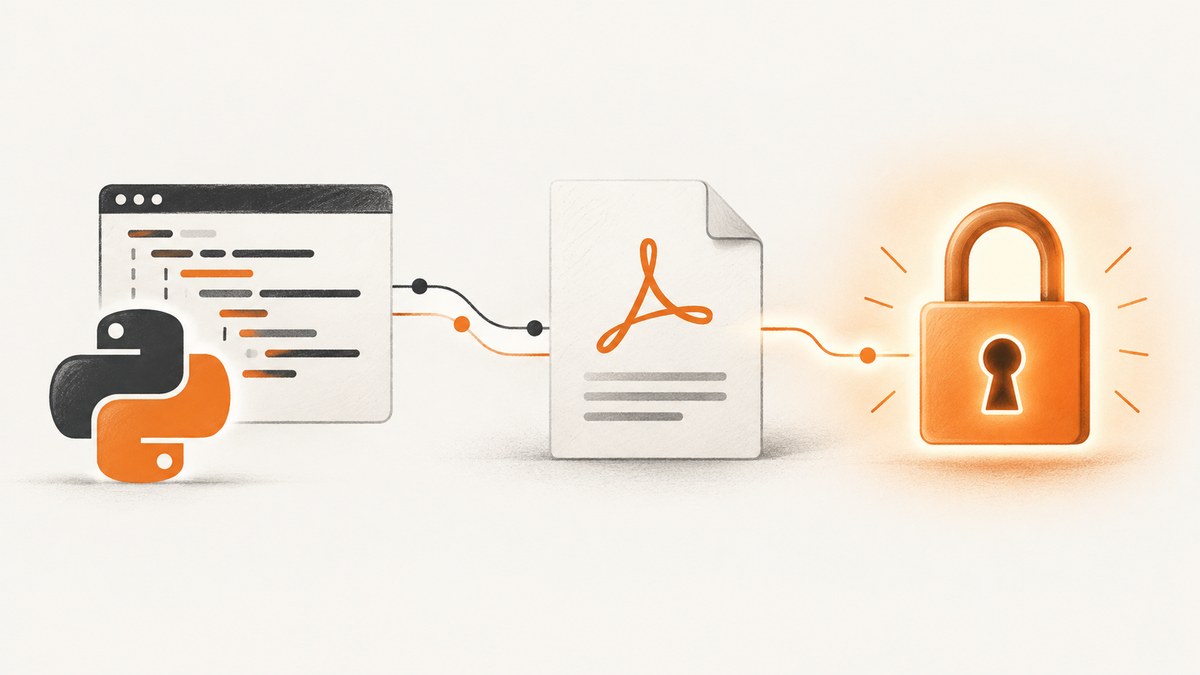
To password-protect a PDF generated in Python, either encrypt it while creating it with ReportLab or encrypt the completed file with pypdf. Use a user password when readers must enter a password to open the file. Use an owner password and permission flags when you need to control printing, copying, annotation, or editing after the file is opened.
For new encrypted files, choose an AES algorithm explicitly with pypdf. The pypdf encryption guide documents RC4, AES-128, AES-256-R5, and AES-256, and warns that its compatibility default, RC4, is insecure. AES support requires the crypto extra.
Choose the right encryption point
| Situation | Recommended approach | Why |
|---|---|---|
| You create the PDF with ReportLab | Encrypt in canvas.Canvas |
The document is protected as part of generation. |
| The PDF already exists | Use pypdf | You can encrypt a completed file without changing the generation code. |
| You need modern AES encryption | Use pypdf with pypdf[crypto] |
The documented pypdf workflow supports explicit AES selection. |
| You need viewer permissions | Use ReportLab StandardEncryption or pypdf encryption options |
Owner-password settings and permission flags address post-open actions. |
Prerequisites and secret handling
Create an isolated environment and install the libraries you need:

python -m venv .venv
source .venv/bin/activate
python -m pip install reportlab
python -m pip install 'pypdf[crypto]'
Keep passwords outside source code in production. Read them from a secret manager or runtime environment, and do not print them in logs, exception messages, filenames, or command-line arguments that may be recorded by process monitoring.
import os

pdf_password = os.environ['PDF_OPEN_PASSWORD']
Method 1: Encrypt while generating with ReportLab
ReportLab’s canvas.Canvas accepts an encrypt argument. Passing a string uses that value as the PDF user password. The password prompt appears when a reader opens the resulting file.
from reportlab.pdfgen import canvas

pdf = canvas.Canvas('protected.pdf', encrypt='use-a-secret-from-a-secure-source')
pdf.drawString(72, 720, 'Generated PDF')
pdf.drawString(72, 700, 'This document requires an open password.')
pdf.showPage()
pdf.save()
The call to save() finalizes the PDF and writes the encrypted document. In an application, replace the example password with a value read from runtime configuration:
import os
from reportlab.pdfgen import canvas

password = os.environ['PDF_OPEN_PASSWORD']
pdf = canvas.Canvas('invoice-protected.pdf', encrypt=password)
pdf.drawString(72, 720, 'Invoice 1042')
pdf.showPage()
pdf.save()
Set an owner password and permissions
ReportLab also documents reportlab.lib.pdfencrypt.StandardEncryption. It accepts a user password, a separate owner password, and flags such as canPrint, canModify, canCopy, and canAnnotate. These flags describe what a PDF viewer should allow after opening the file.
import os
from reportlab.pdfgen import canvas
from reportlab.lib.pdfencrypt import StandardEncryption

encryption = StandardEncryption(
    userPassword=os.environ['PDF_OPEN_PASSWORD'],
    ownerPassword=os.environ['PDF_OWNER_PASSWORD'],
    canPrint=0,
    canModify=0,
    canCopy=0,
    canAnnotate=0,
)

pdf = canvas.Canvas('restricted.pdf', encrypt=encryption)
pdf.drawString(72, 720, 'Restricted generated document')
pdf.showPage()
pdf.save()
ReportLab’s guide documents a default security strength for this constructor and says to check the version installed in your project for the exact supported behavior. Do not describe these permission flags as a replacement for an open password: an owner password can control permissions without requiring a prompt to open the file.
Method 2: Encrypt an existing PDF with pypdf
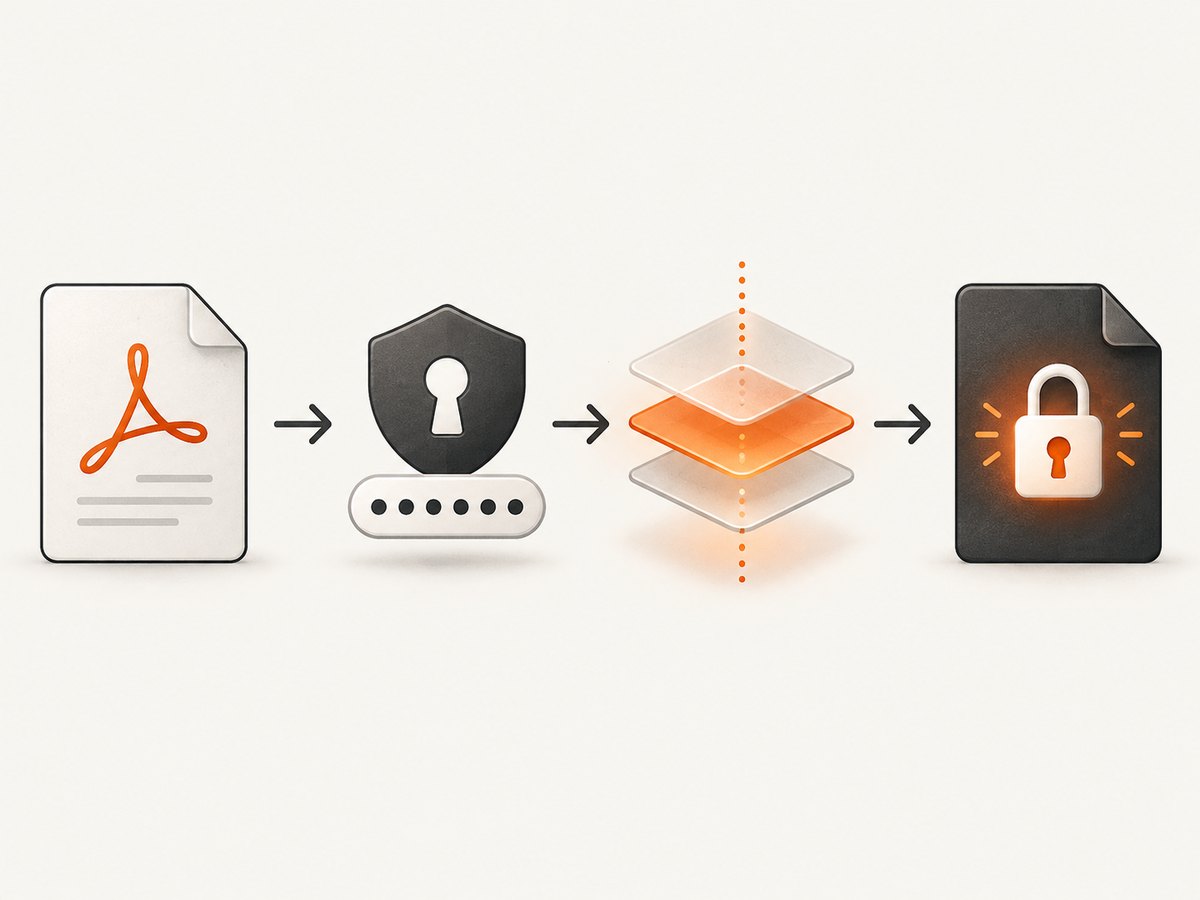
When another library creates the PDF, encrypt the finished file with pypdf. The documented workflow reads the source, creates a writer from it, calls encrypt, and writes a new output file.
from pypdf import PdfReader, PdfWriter

reader = PdfReader('generated.pdf')
writer = PdfWriter(clone_from=reader)
writer.encrypt('use-a-secret-from-a-secure-source', algorithm='AES-256')
writer.write('protected.pdf')
The example uses AES-256 explicitly. The pypdf 6.3.0 documentation lists RC4-40, RC4-128, AES-128, AES-256-R5, and AES-256, and recommends AES-256-R5. Follow the algorithm guidance for the pypdf version you install, especially when interoperability with an older PDF reader matters.
A reusable function
from pathlib import Path
from pypdf import PdfReader, PdfWriter


def encrypt_pdf(source: str, destination: str, password: str) -> None:
    reader = PdfReader(source)
    writer = PdfWriter(clone_from=reader)
    writer.encrypt(password, algorithm='AES-256')
    writer.write(destination)


encrypt_pdf('generated.pdf', 'protected.pdf', 'use-a-secret-from-a-secure-source')
For large documents, write to a temporary file in the same filesystem and replace the destination only after writing succeeds. This prevents a failed process from leaving a truncated file at the final path.
User password versus owner password
The user password, also called the open password, is the credential a reader enters to open the PDF. If your requirement is “the recipient must enter a password,” set this password.
The owner password is associated with changing security settings and with permission controls. A PDF can have an owner password without requiring an opening prompt. Permission flags tell a compliant viewer whether printing, copying, editing, or annotation should be permitted after opening.
Viewer permissions are policy hints enforced by PDF software. They are not a substitute for encrypting sensitive data, access control around the file, or a user password. Choose an open password when confidentiality depends on preventing unauthorised opening.
Verify that the output is encrypted
Use pypdf to inspect the output and confirm that it reports encryption before attempting to read pages:
from pypdf import PdfReader

reader = PdfReader('protected.pdf')
print('encrypted:', reader.is_encrypted)

if reader.is_encrypted:
    status = reader.decrypt('use-a-secret-from-a-secure-source')
    print('password status:', status)
A nonzero decrypt result indicates that the password was accepted according to pypdf’s return value. Do not leave passwords or this diagnostic output enabled in production logs.
Common errors and fixes
| Error or symptom | Cause | Fix |
|---|---|---|
ModuleNotFoundError: No module named 'pypdf' |
The package is not installed in the active environment. | Activate the correct virtual environment and run python -m pip install pypdf. |
| AES import or cryptography error | The crypto dependency is missing. | Install python -m pip install 'pypdf[crypto]'. |
| The file opens without a password | No user password was supplied, or only an owner password was configured. | Pass the user password to ReportLab or pypdf’s encrypt method. |
| Permission restrictions appear ineffective | The viewer ignores permission flags, or the file was opened with owner credentials. | Test with the target viewer and use an open password when confidentiality is required. |
PdfReadError while reading |
The input may be truncated, malformed, or not actually a PDF. | Check the producer’s output, file size, and transfer step before encryption. |
| Wrong password after deployment | Whitespace, encoding, environment-variable, or secret-rotation mismatch. | Compare the secret source and configuration in a controlled diagnostic path without logging the secret. |
| Older reader cannot open AES output | The reader may not support the selected AES revision. | Confirm the compatibility requirement and select a documented algorithm supported by both ends. |
Edge cases to plan for
- Unicode passwords: Keep password handling consistent across your Python process, secret store, and consuming PDF viewer. Test the exact characters required by your users.
- Existing encryption: A source PDF may already be encrypted. Supply its password before cloning or rewriting it, and avoid assuming that an encrypted input can be copied without authentication.
- Forms, signatures, and metadata: Rewriting a PDF can affect incremental updates, signatures, or metadata. Encrypt a final artifact when digital signatures or archival workflows are involved, then validate the resulting file.
- Temporary files: Use restrictive filesystem permissions and delete unencrypted intermediates when policy requires it.
- Empty or failed output: Check that generation completed and the file has a valid PDF header before handing it to pypdf.
Performance, reliability, and cost considerations
Encryption adds a processing step and pypdf’s clone-and-write workflow creates a new output file. The practical cost depends on page count, embedded images, fonts, and storage rather than on the password string. Measure with representative PDFs if latency is part of an API response.
For reliable jobs, write to a temporary destination, flush and close the file, then atomically move it into place. Return a clear failure to the caller if reading, encryption, or writing fails. Keep the original unencrypted PDF inaccessible to clients, and set retention rules for both the source and protected copy.
Do not cache protected documents under a URL that exposes the password or places sensitive content in a shared cache. If you queue encryption work, pass a reference to a secret rather than placing the secret in a job payload or log line.
Or skip the browser setup
If your workflow also needs a clean preview image or PDF capture of a generated web page, ScreenshotNeo provides a single GET request instead of maintaining browser automation. It accepts a URL and returns PNG, JPEG, WebP, or PDF. Cookie and consent banners, newsletter popups, and chat widgets are removed before capture. Bot checks, blank pages, timeouts, failed loads, and cache hits are not billed, and response headers identify the page verdict and billing result.
See the ScreenshotNeo API documentation for the complete option list, including full-page capture, element selectors, custom CSS and JavaScript, device presets, PDF paper settings, waits, blocked resources, headers, cookies, caching, signed links, asynchronous jobs, bulk capture, and usage reporting.
cURL
curl -G 'https://api.screenshotneo.com/v1/shot' \
  -d access_key=YOUR_API_KEY \
  --data-urlencode url=https://stripe.com \
  -o shot.webp
Python
import requests

r = requests.get(
    'https://api.screenshotneo.com/v1/shot',
    params={'access_key': 'YOUR_API_KEY', 'url': 'https://stripe.com'},
    timeout=90,
)
r.raise_for_status()
open('shot.webp', 'wb').write(r.content)
Node.js
const q = new URLSearchParams({
  access_key: 'YOUR_API_KEY',
  url: 'https://stripe.com',
});
const res = await fetch(`https://api.screenshotneo.com/v1/shot?${q}`);
if (!res.ok) throw new Error(`Screenshot failed: ${res.status}`);
const body = Buffer.from(await res.arrayBuffer());
require('fs').writeFileSync('shot.webp', body);
ScreenshotNeo also has an MCP server with take_screenshot, get_page_info, and capture_pdf tools for Claude, Cursor, and other MCP clients. The Free plan includes 1,000 screenshots each month with no card; paid plans start at $5 for 3,000. Create a free ScreenshotNeo account.
FAQ
Can I protect a PDF without changing how it is generated?
Yes. Generate the file normally, then read it with pypdf, encrypt the writer, and write a second protected file.
Which password makes the PDF prompt on open?
The user password. An owner password controls security settings and permissions and may not trigger an opening prompt.
Should I omit the pypdf algorithm argument?
No for new code. The pypdf documentation warns that the compatibility default selects RC4, which it calls insecure. Select a documented AES algorithm explicitly.
Does encryption prevent every form of sharing?
No. It protects access to the PDF and can express viewer permissions, but an authorised reader may still copy information by other means. Combine PDF encryption with access controls and appropriate retention policies.
When should I use ReportLab instead of pypdf?
Use ReportLab encryption when ReportLab is generating the document and you want protection configured in the same step. Use pypdf when the PDF already exists or is produced by another library.