Playwright Cloud Browser Automation: A Quickstart
Install Playwright, run a test locally, then connect it to a cloud browser. This quickstart covers provider protocols, configuration, troubleshooting, and when a screenshot API is a simpler fit.
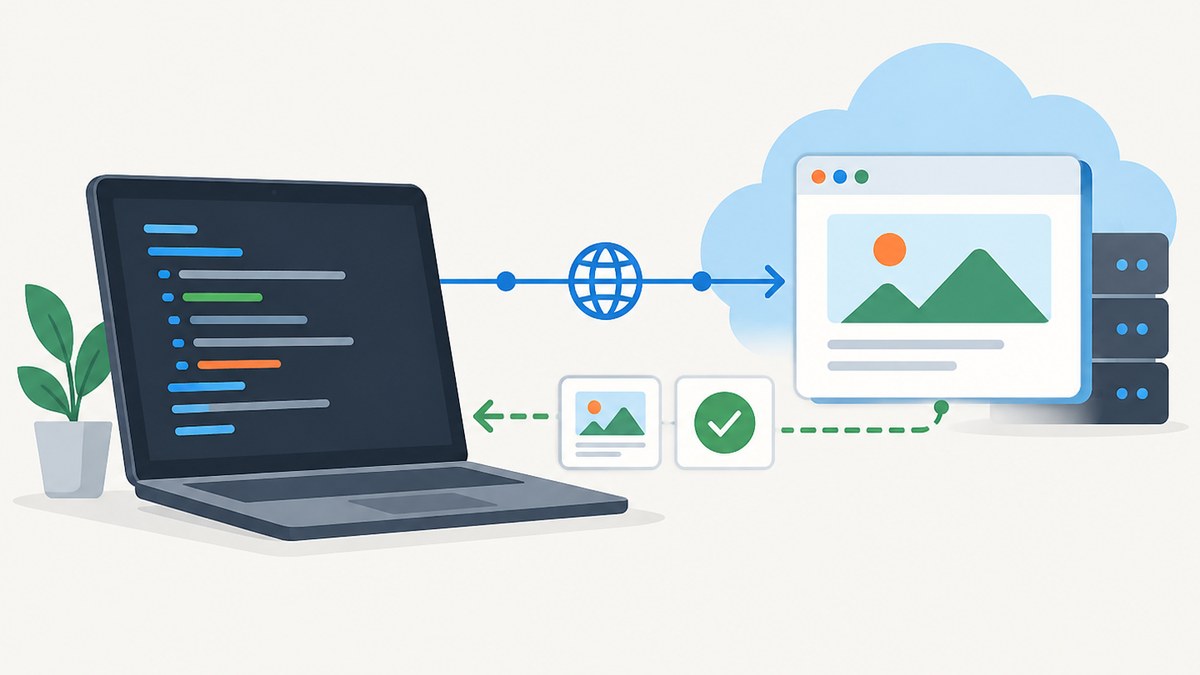
Playwright is the automation framework and client library. A local Playwright browser is installed and launched in the environment running your code. With a cloud browser, your code still uses Playwright, but connects over a network to a browser managed by a provider. Your test steps can look similar; the launch, connection protocol, available browser features, and operational costs can differ.
For a working baseline, install Playwright Test and its browser binaries, write a small test, and run it locally. Move execution to a hosted browser when you need managed browser infrastructure, more concurrent sessions, or a controlled remote environment. The remote connection is provider-specific: do not assume one provider’s endpoint or protocol works with another.
1. Install Playwright and run a local test
This quickstart uses Node.js and Playwright Test. From an existing Node project, install the test package and browser binaries:
npm i -D @playwright/test
npx playwright install
The browser-install command downloads versions matched to the Playwright package. When you update Playwright, run the install command again if needed: each Playwright release supports specific browser versions. See the Playwright browser installation and configuration guide.
Create tests/homepage.spec.ts:
import { test, expect } from '@playwright/test';

test('homepage has a title and primary heading', async ({ page }) => {
  await page.goto('https://example.com');
  await expect(page).toHaveTitle(/Example Domain/);
  await expect(page.getByRole('heading', { name: 'Example Domain' })).toBeVisible();
});
Run it with:
npx playwright testThe test runner creates a browser and page fixture for the test, navigates to the URL, and retries its web-first assertions until they pass or time out. That is different from writing a standalone automation script: a script using the Playwright library explicitly launches a browser, creates a context and page, and closes the browser. Use Test when you want test discovery, assertions, fixtures, and reports; use the library directly for a one-off workflow or application automation.
For Linux CI environments, install browser system dependencies with npx playwright install --with-deps. To reduce downloads when your suite only uses headless Chromium, the CLI supports options such as --only-shell. Check the CLI documentation for current install options.
2. Choose browser projects deliberately
Playwright supports Chromium, Firefox, and WebKit, plus device emulation and branded Chrome and Edge channels. A project is a named browser configuration that lets the same tests run under different settings. Add projects to playwright.config.ts when those checks matter:
import { defineConfig, devices } from '@playwright/test';

export default defineConfig({
  testDir: './tests',
  use: { baseURL: 'https://example.com' },
  projects: [
    { name: 'chromium', use: { ...devices['Desktop Chrome'] } },
    { name: 'firefox', use: { ...devices['Desktop Firefox'] } },
    { name: 'webkit', use: { ...devices['Desktop Safari'] } },
    { name: 'mobile-chrome', use: { ...devices['Pixel 5'] } },
    { name: 'chrome-stable', use: { ...devices['Desktop Chrome'], channel: 'chrome' } },
  ],
});
Run all configured projects with npx playwright test, or narrow the run with npx playwright test --project=webkit. Device presets set values such as viewport and user agent; they do not turn a desktop browser into a physical phone.
Playwright’s bundled Chromium can be ahead of the current stable Chrome or Edge build. Its WebKit build tracks WebKit development and is not branded Safari. For checks against public Chrome or Edge, or for media codec behavior that depends on branded binaries, select a branded channel. Playwright does not install Chrome and Edge by default, though its CLI can install them. Review the current browser documentation before relying on a particular channel or platform combination.
3. Decide whether execution should be local or hosted
Local execution is usually the simplest starting point: the browser and test process run together, with no remote connection latency or provider account required. It is a good fit for developing tests, reproducing failures, and smaller suites whose runtime and machine capacity are manageable.
A cloud browser moves browser maintenance and execution capacity to a service. That can help in CI, parallel suites, cross-platform checks, or workflows that need a remote browser environment. It also adds a network connection and provider-specific configuration. Compare options on these practical dimensions:
| Question | Why it matters |
|---|---|
| Setup and maintenance | Local runs require installing compatible browsers and operating system dependencies. A hosted service manages browser machines, but still needs credentials, endpoint setup, and connection lifecycle handling. |
| Browser and protocol coverage | Check which engines and browser versions are available, and whether the provider accepts CDP or Playwright’s native protocol. Capabilities can differ by protocol. |
| Concurrency and scaling | More workers can shorten a suite, but each worker may create a remote session and consume provider concurrency or usage capacity. |
| Regions and data handling | For private or regulated applications, check where browsers execute, where artifacts and metadata are retained, and how credentials and data are protected. |
| Debugging artifacts | Confirm whether the workflow provides traces, logs, recordings, screenshots, or reports, and how long they remain available. |
Microsoft describes Playwright Workspaces as a managed cloud browser platform for testing, browser workflows, and AI-agent interactions. Its documentation describes regional availability, encryption of stored workspace data, and execution artifacts; those service details may change, so verify the current Workspaces overview and scale and data-handling documentation before choosing it.
4. Connect Playwright to a cloud browser
The provider creates a browser session and supplies a connection URL or session-specific endpoint. Your code connects to that endpoint instead of calling launch(). The endpoint may encode the provider token, browser choice, timeout, proxy, or other launch settings. Keep secrets in environment variables or your CI secret store; avoid committing tokens or logging full connection URLs.
Provider-neutral shape:
// Illustrative only: use the endpoint and protocol required by your provider.
const browser = await chromium.connectOverCDP(process.env.BROWSER_WS_ENDPOINT!);
try {
  const context = browser.contexts()[0] ?? await browser.newContext();
  const page = await context.newPage();
  await page.goto('https://example.com');
  console.log(await page.title());
} finally {
  await browser.close();
}
This is a connection concept, not a universal cloud-browser API. Some providers use CDP through connectOverCDP(); others expose Playwright’s own protocol through connect(), a provider SDK, or a test-runner integration. Consult the service documentation before selecting a method.
Example: Browserless over CDP
Browserless documents a default endpoint that speaks Chrome DevTools Protocol. Its quickstart connects with connectOverCDP(). The example below uses its documented endpoint pattern; obtain your own token from the provider and store it as BROWSERLESS_TOKEN. Install playwright-core because this remote example does not need local browser binaries:
npm install playwright-coreSave as cloud-check.mjs and run with BROWSERLESS_TOKEN=your_token node cloud-check.mjs:
import { chromium } from 'playwright-core';

const token = process.env.BROWSERLESS_TOKEN;
if (!token) throw new Error('Set BROWSERLESS_TOKEN');
const endpoint = `wss://production-sfo.browserless.io?token=${encodeURIComponent(token)}`;
const browser = await chromium.connectOverCDP(endpoint);
try {
  const context = browser.contexts()[0];
  const page = await context.newPage();
  await page.goto('https://example.com', { waitUntil: 'domcontentloaded' });
  console.log({ title: await page.title(), heading: await page.locator('h1').textContent() });
} finally {
  await browser.close();
}
The provider’s endpoint is an example, not a general Playwright endpoint. Browserless states that its default endpoint speaks CDP, while connect() expects the Playwright protocol. Its docs also note that features including page.route(), APIRequestContext, and non-Chromium browsers require its native-protocol path. For those cases, follow the provider instructions for its /chromium/playwright, Firefox, or WebKit endpoint and connect(). See Browserless’s Playwright connection guide.
Browserbase has a separate first-party quickstart that creates a cloud session and connects through CDP. Its session creation and connection details are provider-specific; follow its Playwright cloud-browser quickstart rather than copying Browserless’s endpoint.
5. Keep remote runs reliable and efficient
- Close every session. Put
browser.close()in afinallyblock so a thrown assertion or navigation error does not leave a session consuming capacity. - Set intentional timeouts. Use navigation and assertion timeouts that reflect the application, provider, and network. Increasing every timeout can make real failures slow to detect.
- Wait for the condition you need. Prefer locator assertions or a specific load state over fixed sleeps.
networkidlecan be a poor fit for pages with polling, analytics, or persistent connections; wait for the target element instead. - Scale workers gradually. Parallel workers can reduce wall-clock time, but create more browser sessions and can hit service concurrency limits. Start with a small worker count and increase it while monitoring failures and service usage.
- Keep browser versions reproducible. Lock the Playwright package version. Reinstall matching binaries for local runs after version changes. For remote protocols, check the provider’s supported versions, especially when using Playwright-native
connect(). - Collect diagnostics carefully. Save traces, screenshots, or recordings when a failure occurs if your setup supports them. Artifacts can include page content, URLs, or authenticated state; limit access and retention appropriately.
For cloud execution, performance includes both page load and remote-control traffic. CDP commands cross the connection, so many small sequential interactions can add latency. Group work where appropriate, avoid unnecessary page reads, and choose a region close to the target application or runner when the provider supports that choice. Do not assume remote execution is automatically faster: measure your own suite. Costs and concurrency rules vary by service; verify current terms rather than extrapolating from another provider.
6. Troubleshooting common failures
| Symptom | Likely cause | What to do |
|---|---|---|
Executable doesn't exist locally |
The browser binaries for the installed Playwright version are missing. | Run npx playwright install (or install the browser your project uses) after installing or updating Playwright. |
| Linux launch fails with missing shared libraries | Browser system dependencies are absent. | Use npx playwright install --with-deps in an appropriate CI image or install the documented OS dependencies. |
| WebSocket connection is rejected | Token is missing/expired, endpoint path is wrong, or the provider account cannot create a session. | Check provider credentials and the exact protocol-specific URL. Do not paste a token into logs or source control. |
connect() fails on a CDP endpoint |
The endpoint speaks CDP, not Playwright’s native protocol. | Use connectOverCDP() where the provider documents CDP, or use its native Playwright endpoint with connect(). |
page.route() does nothing remotely |
The selected provider connection may expose CDP, where that provider does not support Playwright routing. | Check the provider’s feature matrix and use its native protocol if supported for interception. |
| Works locally, fails in the cloud | Browser version, viewport, region, network access, authentication, or default context differs. | Compare environment settings, use explicit context options where supported, and inspect provider logs or traces. |
| Suite stalls on navigation | The page never reaches the selected load condition, or the site keeps network activity open. | Use a suitable load state and assert the specific page element needed for the next action. |
| Parallel runs fail intermittently | Workers may exceed provider concurrency, overwhelm the app, or share mutable test data. | Reduce workers, isolate test data, and check provider session limits and application capacity. |
Browserless specifically documents the CDP/native distinction and a token-related 403 as common connection issues in its troubleshooting guidance. Other providers can return different errors and require different fixes.

Or skip the browser setup
If your goal is a screenshot rather than a multi-step browser test, a screenshot API can be a shorter path. ScreenshotNeo is a website screenshot API and MCP server from Yorker Media. One GET request returns an image or PDF. Its API accepts screenshot options including full-page capture, CSS element selection, device and viewport settings, custom CSS and JavaScript, wait conditions, and caching. See the ScreenshotNeo API documentation for parameters and current response details.
curl -G "https://api.screenshotneo.com/v1/shot" -d access_key=YOUR_API_KEY --data-urlencode url=https://stripe.com -o shot.webpimport requests
r = requests.get("https://api.screenshotneo.com/v1/shot", params={"access_key": "YOUR_API_KEY", "url": "https://stripe.com"}, timeout=90)
open("shot.webp", "wb").write(r.content)const q = new URLSearchParams({ access_key: 'YOUR_API_KEY', url: 'https://stripe.com' });
const res = await fetch(`https://api.screenshotneo.com/v1/shot?${q}`);
if (!res.ok) throw new Error(`Screenshot request failed: ${res.status}`);
await Bun.write('shot.webp', res);In Node.js environments without Bun, write the response bytes using Node’s filesystem API:
import { writeFile } from 'node:fs/promises';
const q = new URLSearchParams({ access_key: 'YOUR_API_KEY', url: 'https://stripe.com' });
const res = await fetch(`https://api.screenshotneo.com/v1/shot?${q}`);
if (!res.ok) throw new Error(`Screenshot request failed: ${res.status}`);
await writeFile('shot.webp', Buffer.from(await res.arrayBuffer()));
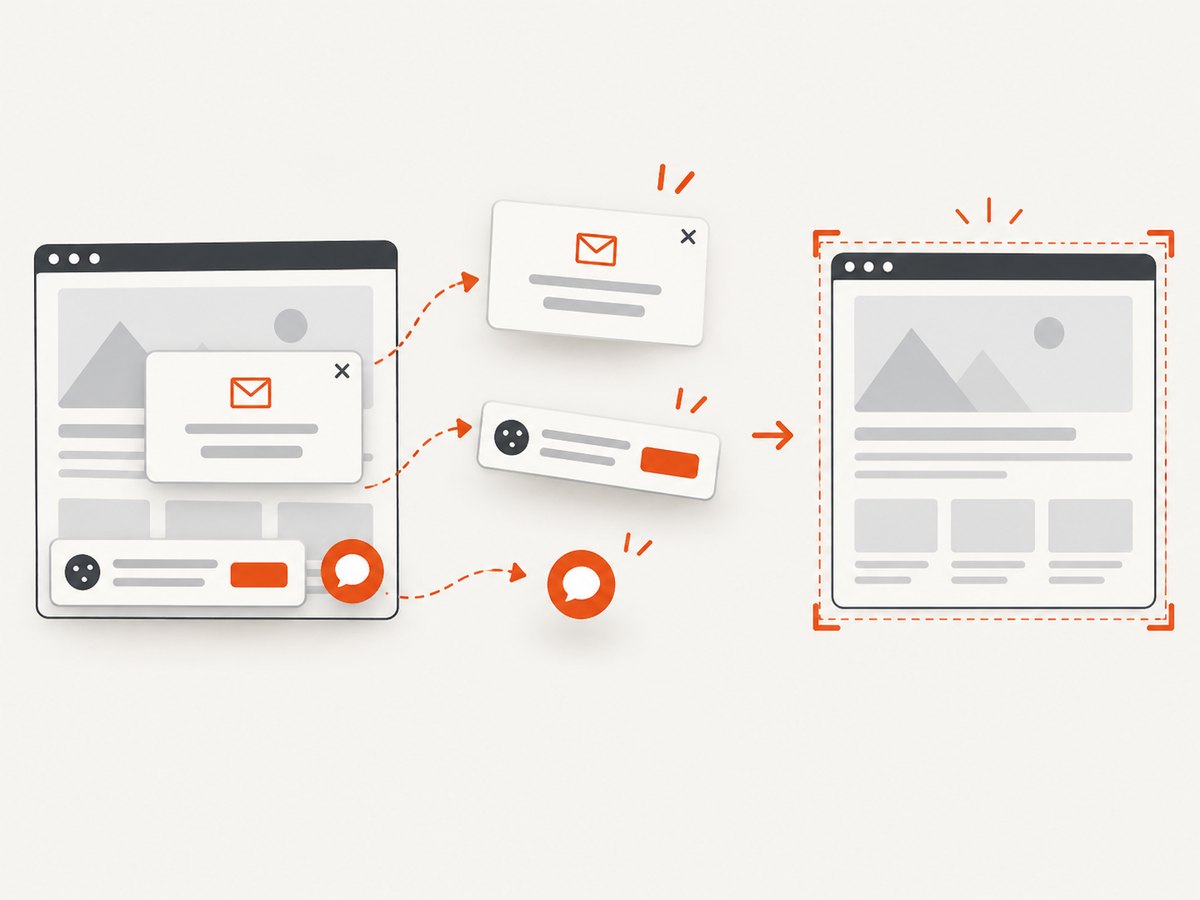
ScreenshotNeo accepts cookie or consent banners as a visitor and removes 60+ known consent platforms, newsletter popups, and chat widgets before capture; each step can be turned off. Bot checks/CAPTCHAs, blank pages, timeouts, failed loads, and cache hits cost nothing, with verdict and billing details in response headers. Its MCP server exposes take_screenshot, get_page_info, and capture_pdf for compatible AI agents. The free plan includes 1,000 shots a month with no card; paid plans start at $5 for 3,000 shots, and every feature is on every plan. Sign up for 1,000 free screenshots a month with no card.
FAQ
Can Playwright run browser tests remotely?
Yes. The test code can connect to a provider-managed browser, but the connection setup and supported features depend on that provider. Start with its Playwright-specific documentation and test a small suite before moving all CI runs.
Do I need to install browser binaries for a cloud browser?
Usually not for the remote browser itself: the browser runs on the provider’s machines. Your local Playwright package still needs to support the connection method, and local binaries remain necessary if you also run tests locally.
Is Playwright’s WebKit the same as Safari?
No. Playwright uses its own WebKit build. Use the documented browser matrix and a branded browser or platform-specific environment when you need to validate behavior specific to a public browser release.
Should I use a browser automation service or a screenshot API?
Use Playwright when you need to interact with a site through multiple steps, assert behavior, or control a browser session. For a rendered screenshot or PDF from a URL, a screenshot API may need less setup.