How to Prevent PDF Conversion on Errors in C#
Prevent PDF conversion failures in C# with input checks, font and form validation, typed exception handling, and output verification.

Prevent PDF conversion errors in C# by treating conversion as a validation pipeline: verify the source file, open encrypted documents with the right password, resolve fonts, check form type before form-specific operations, choose how to handle corrupted objects, catch typed PDF exceptions, and validate the saved result. This guide uses Aspose.PDF for .NET API names from its documentation; check the API version installed in your project before adopting the snippets.
1. Validate the input before opening it
Many apparent conversion errors originate before the converter reaches its rendering logic. Confirm that the path exists, the process can read it, the file is non-empty, and the bytes look like a PDF. A PDF commonly begins with the %PDF- signature. This is a useful sanity check, not proof that the entire file is valid: a truncated file can have a valid header and still fail later. Aspose documents malformed or unreadable files as PDF-specific failures. [Aspose exception handling]

using System;
using System.IO;

static void ValidatePdfInput(string path)
{
    if (string.IsNullOrWhiteSpace(path))
        throw new ArgumentException("An input path is required.", nameof(path));

    if (!File.Exists(path))
        throw new FileNotFoundException("PDF input was not found.", path);

    var info = new FileInfo(path);
    if (info.Length < 5)
        throw new InvalidDataException("Input is too small to be a PDF.");

    using var stream = File.Open(path, FileMode.Open, FileAccess.Read, FileShare.Read);
    Span<byte> header = stackalloc byte[5];
    if (stream.Read(header) != header.Length ||
        System.Text.Encoding.ASCII.GetString(header) != "%PDF-")
        throw new InvalidDataException("Input does not have a PDF signature.");
}
For uploads, also enforce a size limit and store the received bytes under a generated name rather than trusting a user-supplied path. If opening fails with an invalid-format or malformed-PDF exception, reacquire the source or use a deliberate repair workflow. Retrying the identical truncated bytes usually just repeats the same failure.
2. Open encrypted PDFs with the password
Do not open a password-protected file without credentials and then retry through an unrelated conversion path. Pass the password to the documented Document constructor overload. Keep credentials out of logs and exception messages.
using Aspose.Pdf;

using var document = new Document(inputPath, password);
When your application supports both encrypted and unencrypted inputs, make the credential policy explicit: accept a password from a secure source, reject the document with a user-actionable error when credentials are missing, and avoid logging the password. Catch InvalidPasswordException separately so the caller can distinguish bad credentials from damaged input.
3. Resolve fonts before rendering
Missing fonts, unsupported font files, and font embedding restrictions can change rendered output or cause failures. Check that a required font can be located before starting the expensive conversion step. Aspose documents FontRepository.FindFont, font registration and substitution guidance, and a separate option that disables font-license verification. Start with permitted registration or substitution; do not disable license verification casually. The API reference places responsibility for possible legal violations on the person enabling that flag. [Aspose font-license option]
using Aspose.Pdf.Text;

var requiredFontName = "Arial";
var font = FontRepository.FindFont(requiredFontName);
if (font == null)
    throw new InvalidOperationException($"Required font was not found: {requiredFontName}");
For production deployments, record the fonts available in the container or host image and test the actual deployment environment. Register approved font sources or configure a documented substitute where appropriate. Verify the output visually for layout changes: substitution can keep conversion running while changing line breaks, glyph shapes, or page count.
4. Match form operations to the document
PDF forms may be AcroForm or XFA. An operation valid for one form type may not apply to the other. Check Form.IsXfa or Form.Type before making XFA-specific calls, and route unsupported forms to an explicit handling path. [Aspose exception handling]
if (document.Form != null && document.Form.IsXfa)
{
    // Perform only operations supported by the XFA workflow.
}
else
{
    // Handle a non-XFA form or a document without a form.
}
Do not infer form type from a filename or from whether a form appears in a viewer. Guard the operation based on the opened document’s metadata and handle the library’s invalid-form-operation exception at the boundary.
5. Decide what corrupted objects mean for your workflow
When copying pages or objects between documents, corruption handling can be configured to stop with an exception or replace corrupted objects with empty values. These choices have different data-integrity consequences. Fail fast when silent omission would be unsafe; replacement may be appropriate only when the downstream workflow can tolerate it and the result is checked. [Aspose exception handling]
After any permissive recovery, validate the produced document: confirm it opens, has the expected page count, contains required text or form data, and meets the application’s visual or archival requirements. Keep a record that recovery occurred so operators can distinguish a recovered artifact from a clean conversion.
6. Catch specific exceptions, then the PDF base type
Aspose documents PdfException as the common base for PDF-specific failures, including invalid passwords, malformed files, missing or unsupported fonts, decoding problems, and invalid form operations. Catch the most actionable types first and use PdfException as the final library-specific fallback. Keep the original exception and add operation context to logs without recording secrets. [Aspose exception handling]
using Aspose.Pdf;
using Aspose.Pdf.Exceptions;
using System;
using System.IO;

static void ConvertPdf(string inputPath, string outputPath, string password)
{
    try
    {
        ValidatePdfInput(inputPath);
        using var document = new Document(inputPath, password);

        // Resolve known required fonts and guard form-specific work here.
        if (document.Form != null && document.Form.IsXfa)
        {
            // XFA-compatible work only.
        }

        document.Save(outputPath);
        ValidateOutput(outputPath);
    }
    catch (InvalidPasswordException ex)
    {
        LogFailure("Invalid PDF password", inputPath, ex);
        throw;
    }
    catch (InvalidPdfFileFormatException ex)
    {
        LogFailure("Unreadable or malformed PDF; reacquire the source", inputPath, ex);
        throw;
    }
    catch (FontNotFoundException ex)
    {
        LogFailure("Required font is unavailable", inputPath, ex);
        throw;
    }
    catch (InvalidFormTypeOperationException ex)
    {
        LogFailure("Operation does not match this PDF form type", inputPath, ex);
        throw;
    }
    catch (PdfException ex)
    {
        LogFailure("PDF-specific conversion failure", inputPath, ex);
        throw;
    }
}

static void ValidateOutput(string path)
{
    if (!File.Exists(path) || new FileInfo(path).Length == 0)
        throw new InvalidDataException("Conversion did not produce a non-empty output file.");

    using var check = new Document(path);
    if (check.Pages.Count == 0)
        throw new InvalidDataException("Converted PDF has no pages.");
}

static void LogFailure(string category, string source, Exception ex)
{
    // Log category, source/document identifier, library version, and exception.
    // Do not include passwords or other secrets.
    Console.Error.WriteLine($"{category}: {source}: {ex}");
}
The exact namespaces and exception names can vary with the Aspose.PDF version. Compile against the package version you deploy. For unexpected failures, preserve the full exception and diagnostic context; Aspose also documents generating a crash report for support.
7. Validate the saved output and licensing behavior
A successful Save call is only one signal. Reopen the output, check non-zero size and page count, and apply domain-specific checks such as required text, page dimensions, PDF/A validation, or form-field values. If the artifact will be sent onward, publish it only after these checks succeed.
Separate licensing behavior from code defects. Aspose’s evaluation version is documented as adding a watermark and limiting processing to the first four pages. Those symptoms can look like a conversion bug. The FOSS edition has separately documented distribution terms and may not include every advanced commercial feature. Confirm the license and edition used in the deployed process. [Aspose licensing] [Aspose.PDF for .NET FOSS edition]
8. Troubleshooting common conversion failures
| Symptom | Likely cause | Action |
|---|---|---|
| Invalid password | Wrong or absent credentials | Open with the password-bearing constructor; prompt for corrected credentials without logging them. |
| Invalid PDF format or unreadable file | Wrong file, truncation, transfer damage, or malformed structure | Check path, readability, size and signature; reacquire the original bytes instead of retrying them unchanged. |
| Font not found or text looks different | Font missing, unsupported, or restricted from embedding | Find and register a permitted font source or configure a documented substitute; inspect rendered pages. |
| Form operation exception | Operation does not match XFA/AcroForm type | Check IsXfa or Type and use a compatible operation. |
| Some objects disappear in output | Corrupted-object policy allowed replacement | Choose fail-fast or replacement deliberately and validate the recovered document’s content. |
| Watermark or only four pages | Evaluation licensing behavior | Check license initialization and deployed edition before changing conversion code. |
| Failure only in production | Different fonts, file permissions, package version, or license setup | Compare runtime environment and dependencies; retain library version and stack trace in diagnostics. |
9. Performance, reliability, and cost
Validate cheap conditions before parsing or rendering: path, access, size, signature, credentials, and known font availability. Avoid blind retries for deterministic failures such as malformed input, wrong password, or a form-type mismatch. A retry is useful only when the cause can change, such as a transient file-transfer or storage problem; reacquire or re-stage the bytes first.
For reliable services, isolate each conversion’s input and output paths, avoid concurrent writes to the same destination, apply an application-level size and time limit, and preserve the source until output validation passes. Track failure categories rather than collapsing every exception into “conversion failed.” This makes it possible to distinguish input quality, environment setup, licensing, and implementation defects.
There is no neutral cross-library performance benchmark in the sources used for this guide. Measure with representative files from your own workload, including large page counts, embedded and missing fonts, forms, and malformed inputs. Cost depends on the library edition and licensing terms you select; verify those terms for your deployment rather than assuming evaluation behavior represents production.
10. Or skip the browser setup
If the job is capturing a website as a visual record rather than converting an existing PDF, ScreenshotNeo offers a single API call that returns an image or PDF. It is a website screenshot API and MCP server by ScreenshotNeo. The browser-based route for the same website task needs browser setup, navigation, waiting and output handling; ScreenshotNeo handles that capture request through its API. See the API documentation.
curl -G "https://api.screenshotneo.com/v1/shot" -d access_key=YOUR_API_KEY --data-urlencode url=https://stripe.com -o shot.webpimport requests
r = requests.get("https://api.screenshotneo.com/v1/shot", params={"access_key": "YOUR_API_KEY", "url": "https://stripe.com"}, timeout=90)
open("shot.webp", "wb").write(r.content)const q = new URLSearchParams({ access_key: 'YOUR_API_KEY', url: 'https://stripe.com' });
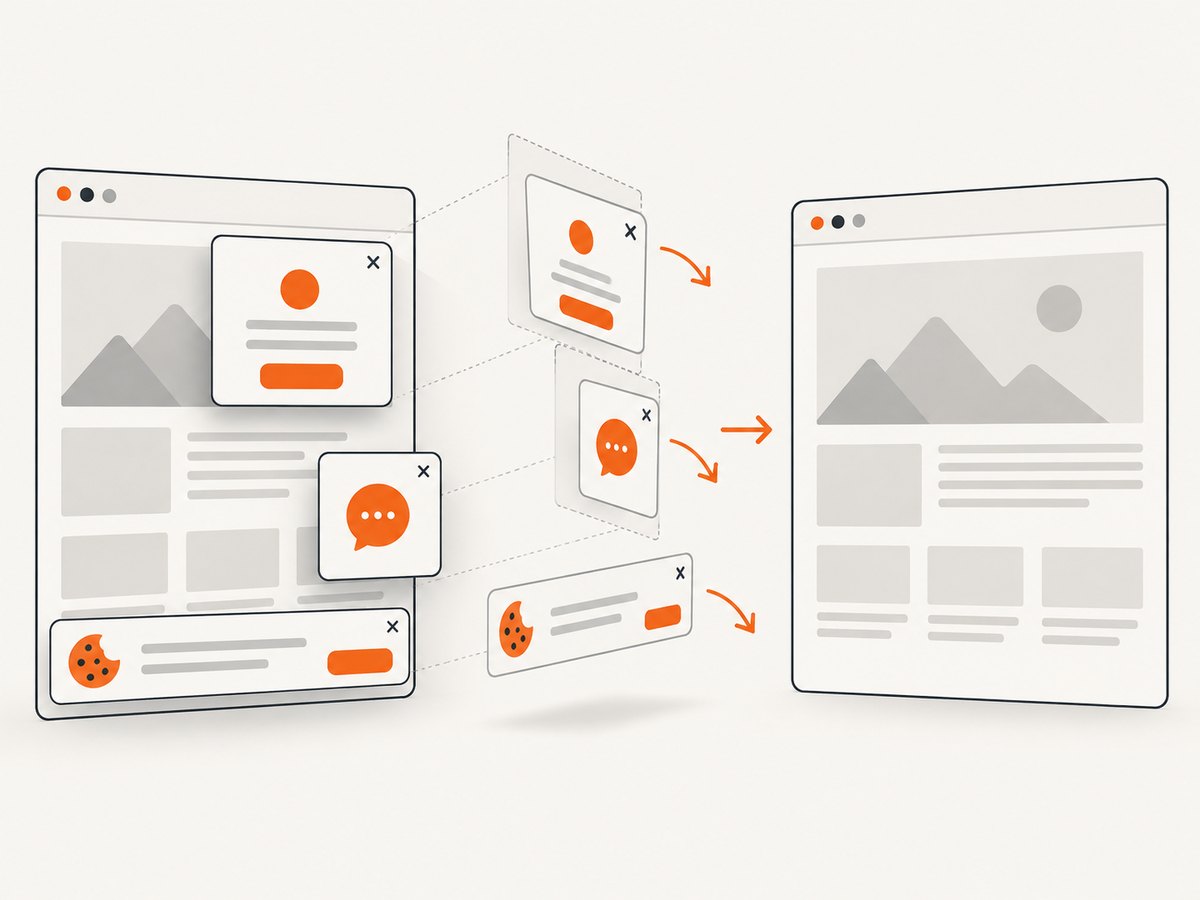
const res = await fetch(`https://api.screenshotneo.com/v1/shot?${q}`);- Cookie banners, popups and chat widgets are removed before the shot; each cleanup step can be turned off.
- Bot checks, blank pages, timeouts, failed loads and cache hits cost nothing; response headers say the page verdict and whether the shot was billed.
- An MCP server lets AI agents use
take_screenshot,get_page_infoandcapture_pdf. - 1,000 screenshots per month are free with no card; paid plans start at $5 for 3,000.
Create a free ScreenshotNeo account for 1,000 screenshots a month with no card.
11. Frequently asked questions
Should every conversion exception be retried?
No. Retry only when the underlying cause may change. Bad passwords, malformed bytes, and incompatible form operations need corrected input or logic.
Does finding a font guarantee identical rendering?
No. Availability avoids one class of failure, but substitutions, font metrics, and embedding restrictions can still affect output. Inspect representative pages.
Is a valid PDF header enough to trust the input?
No. It detects some wrong-file cases; it does not prove the cross-reference data, objects, or ending of the document are intact.
Why does the output differ between local and deployed runs?
The font set, package version, permissions, and license initialization may differ. Compare those runtime details before changing the document-processing logic.
When should corrupted objects be replaced?
Only when the workflow can accept missing or empty content and downstream validation can detect unacceptable results. Otherwise, fail and recover the source.