Puppeteer vs. Playwright for Screenshots in 2026
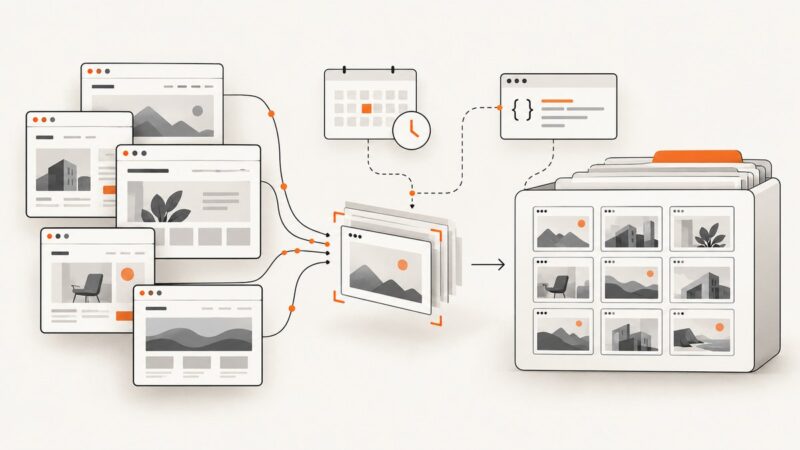
Both libraries capture viewport and full-page screenshots. Choose based on element capture, visual testing, output controls, browser setup, and your own CI workload.
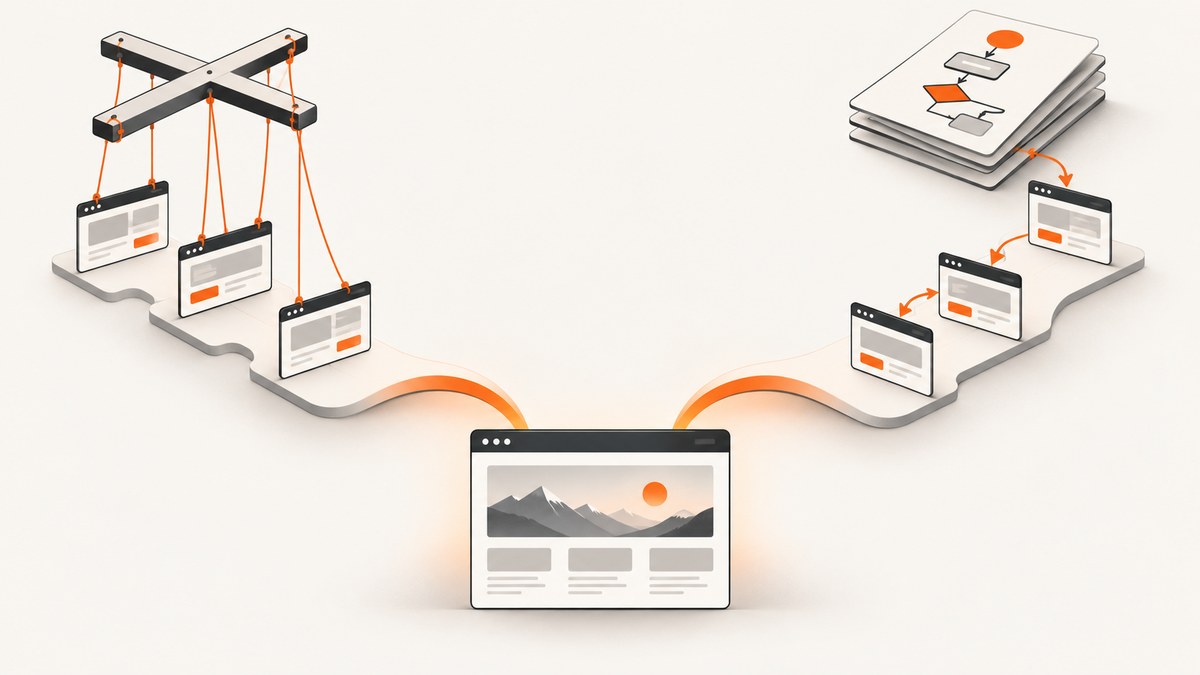
Both Puppeteer and Playwright can capture browser screenshots, including full-page images. There is no substantiated universal speed or reliability winner for screenshot work in 2026. Choose Playwright when its documented locator screenshots or Playwright Test screenshot assertions fit your workflow; choose Puppeteer when your existing automation already uses it and its screenshot controls meet your needs. For a new project, compare the actual capture requirements and run both against representative pages in the CI environment you intend to use.
This guide compares the documented screenshot workflows, shows runnable JavaScript examples for both libraries, and explains how to make comparisons meaningful. It covers viewport, full-page and element capture; output options; visual regression; browser installation; common failures; and performance and cost considerations. For production or scheduled capture where managing browser installs is unnecessary overhead, ScreenshotNeo is a hosted screenshot API and MCP server option.
1. What matters when choosing a screenshot library
Start with the output you need, then consider how it fits the rest of your automation. A screenshot task may mean a viewport image for a preview, a tall full-page image for archiving, a cropped region for a test, or a repeatable visual comparison in CI. Those are related but not identical workflows.
| Question | Why it matters |
|---|---|
| Viewport, full page, or one element? | These capture different regions and have different readiness and sizing concerns. |
| Which output controls are required? | Check format, quality, scale, clipping, transparency, masking, and whether the result should be saved or returned as bytes. |
| Is this a test assertion or an image-generation job? | Playwright Test documents screenshot assertions with stabilization behavior; a standalone capture may need its own comparison process. |
| How are browsers provisioned in CI? | Browser binaries and package-manager install policies can affect reproducibility and setup. |
| What does your real workload look like? | Page complexity, fonts, viewport, browser build, and CI resources affect capture behavior and timing. |
Do not select based on a claimed speed ranking without a controlled benchmark for your pages. The available official references document features, but do not establish a general head-to-head screenshot performance winner.
2. Capture a screenshot with Playwright
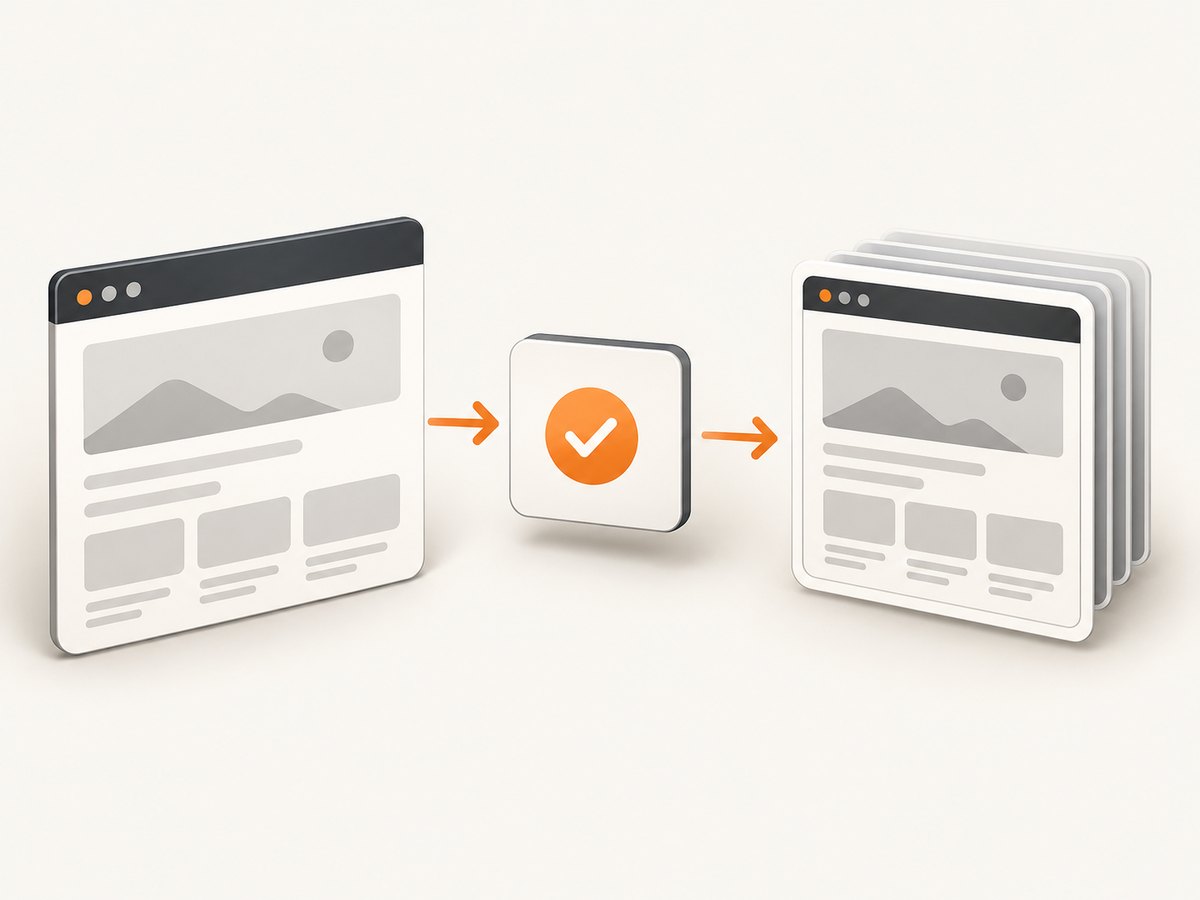
Install Playwright and provision its browser according to the current official setup instructions for your environment. The example below is an ES module using the Chromium browser package. It opens a page, waits for the page load event, and writes a full-page PNG.
import { chromium } from 'playwright';

const browser = await chromium.launch({ headless: true });
try {
  const page = await browser.newPage({ viewport: { width: 1440, height: 900 } });
  await page.goto('https://example.com', { waitUntil: 'load' });
  await page.screenshot({ path: 'page.png', fullPage: true });
} finally {
  await browser.close();
}
Save this as screenshot.mjs in a project configured to use ES modules, then run it with Node.js after installing the Playwright package and browser. The try/finally ensures the browser is closed if navigation or capture throws. The load event is a useful baseline, not proof that every page has finished rendering: applications may fetch data or animate after load.
Viewport, full-page, and element captures
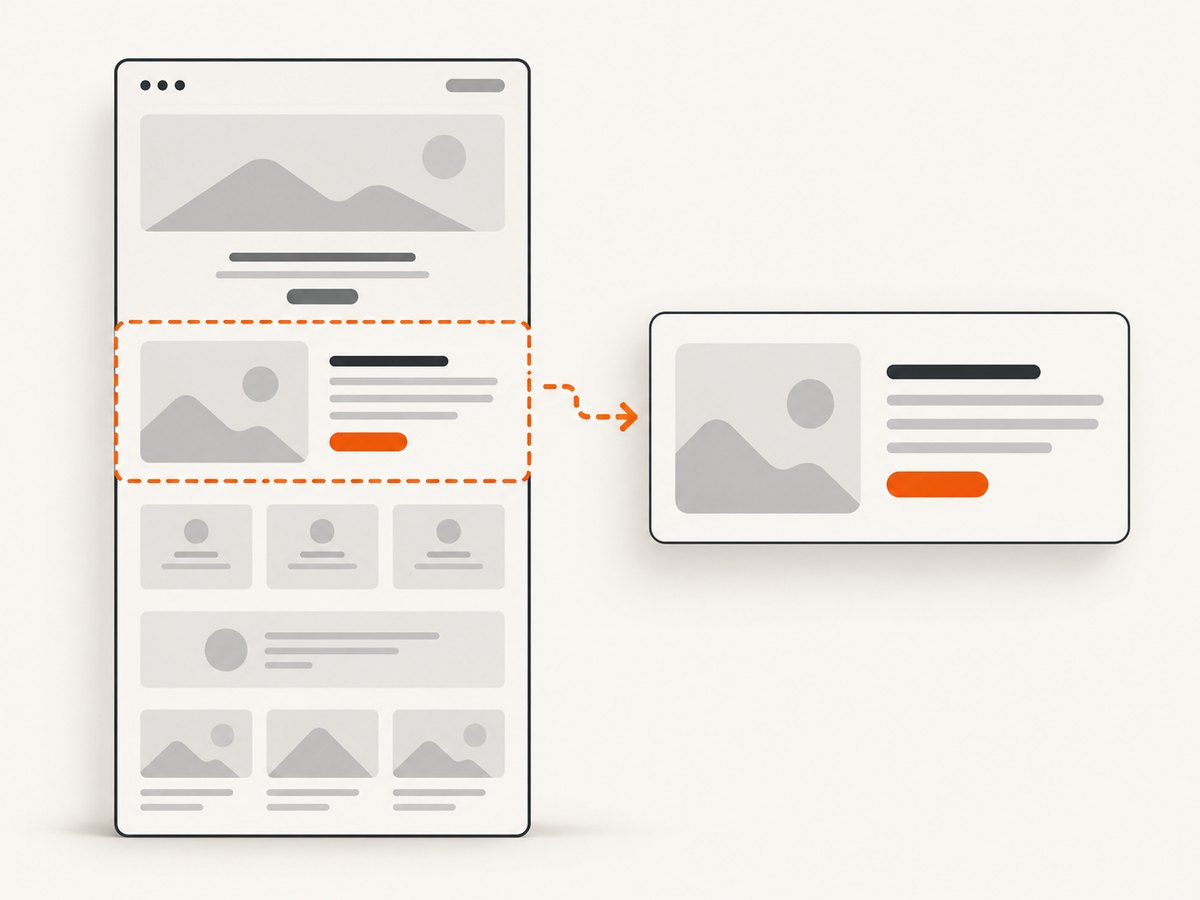
Omitting fullPage captures the visible viewport. Setting fullPage: true captures the full scrollable page. Playwright also documents locator screenshots, which capture a specific element. For example, replace the screenshot line with:
const card = page.locator('[data-testid="summary-card"]');
await card.screenshot({ path: 'summary-card.png' });
Use a stable selector that identifies the intended element. If the locator matches nothing, is hidden, or refers to an element that changes size during capture, the operation can fail or produce an unexpected crop. Make the target visible and wait for its content to settle before taking the screenshot.
Format, scale, and returned bytes
Playwright’s screenshot documentation describes image format, clipping, and quality controls; its Page API also documents scale, transparency, and masks. A path saves the result to disk. Without a path, page.screenshot() returns image bytes, which you can pass to an image comparison library or upload to storage. Check the API reference for the installed Playwright version before relying on a particular option or format combination.
const bytes = await page.screenshot({
  type: 'jpeg',
  quality: 85,
  scale: 'css',
  animations: 'disabled'
});
// `bytes` is available for comparison, upload, or further processing.
Use a clip rectangle when only a known region is needed, and a transparent background when the output format and page styling support it. Masks are useful in screenshot tests for dynamic areas, but avoid masking so broadly that meaningful layout regressions become invisible. JPEG quality applies to lossy JPEG output; do not assume it has the same meaning for PNG.
3. Capture a screenshot with Puppeteer
Puppeteer exposes page.screenshot() and documents full-page capture, clipping, transparency, output path, quality, type, and returned screenshot bytes. This runnable ES module saves a full-page PNG:
import puppeteer from 'puppeteer';

const browser = await puppeteer.launch({ headless: true });
try {
  const page = await browser.newPage();
  await page.setViewport({ width: 1440, height: 900 });
  await page.goto('https://example.com', { waitUntil: 'load' });
  await page.screenshot({ path: 'page.png', fullPage: true, type: 'png' });
} finally {
  await browser.close();
}
Save it as screenshot.mjs and run it in a project with the Puppeteer package installed. Puppeteer’s screenshot API can return bytes when no path is provided. Its reference also documents base64 encoding. Confirm the options against the precise installed package version; the cited Page screenshot reference identifies Puppeteer 25.12.0.
Clipping, transparency, quality, and bytes
A viewport screenshot is the default. Set fullPage: true for the full scrollable page. To capture a region, provide a clip rectangle in the screenshot options. A representative JPEG capture with a clip is:
const imageBytes = await page.screenshot({
  type: 'jpeg',
  quality: 85,
  clip: { x: 0, y: 0, width: 900, height: 600 }
});
The returned value is screenshot data, so code can write it to a file or send it to another service. Transparency is available through the screenshot options; whether it produces the expected appearance depends on the page background and output format. Use the official ScreenshotOptions reference for exact accepted values and combinations in your installed version.
4. Feature comparison for screenshot work
| Need | Playwright | Puppeteer |
|---|---|---|
| Basic screenshot | page.screenshot(); returns a buffer if no path is supplied. |
page.screenshot(); reference documents Uint8Array data and base64 encoding. |
| Full page | fullPage: true. |
fullPage: true. |
| Element screenshot | Documented through locator screenshot API. | Not established by the sources used for this comparison; verify your version’s official API rather than inferring support or absence. |
| Output controls | Format, clip, quality, scale, transparency, and masks are documented across the screenshot guide and Page API. | Clip, transparency, path, quality, type, and full-page capture are documented. |
| Screenshot assertions | Playwright Test documents screenshot assertions that wait for consecutive captures to stabilize before comparing. | The researched references do not establish a corresponding built-in assertion workflow. This does not mean Puppeteer-based comparison tools do not exist. |
Playwright Test’s screenshot assertions are specifically a Playwright test-runner feature. If your project uses another runner, or you only need to generate images, consider the screenshot API separately from the test framework.
5. Visual regression: stabilize before comparing
A pixel comparison is only useful if repeated captures of unchanged content are sufficiently consistent. Playwright Test’s screenshot assertion workflow waits for two consecutive screenshots to match before comparing with the expected image. Its documentation limits that assertion feature to the Playwright test runner.
For either library, define a capture contract before treating a difference as a regression:
- Fix the browser version and operating system or container image.
- Set a fixed viewport and device scale behavior.
- Ensure required fonts and assets are available before capture.
- Choose a meaningful readiness condition for the page, such as a specific element becoming visible or application data loading.
- Control or account for timestamps, randomized content, carousels, animations, and remote content.
- Store the baseline and generated output with enough context to reproduce the run.
Disabling animations or masking a genuinely dynamic region can reduce noise, but each can hide behavior if used without care. Revisit masks and readiness conditions when the page changes. An image mismatch may indicate an actual regression, a different rendering environment, or content that was not stabilized.
6. Browser installation and CI setup
Browser provisioning is part of the choice because screenshot code needs a compatible browser binary at runtime. Puppeteer’s repository says a compatible Chrome is normally downloaded, and documents that package-manager policies that block install scripts can prevent that download. For that case, the repository provides this manual installation command:
npx puppeteer browsers installThis is a conditional setup issue, not a claim that every Puppeteer installation requires manual intervention. If launch fails in CI, check whether the expected browser exists, whether the install script ran, and whether the runtime can access the installed binary. Follow current official installation guidance for Playwright and for the exact Puppeteer release in use.
For reproducible CI captures, pin dependency versions, provision browsers as part of a deliberate build step, and use the same browser and system dependencies across baseline generation and comparison. Avoid silently comparing images captured by different browser builds or font sets.
7. How to benchmark your own workload
No reliable controlled head-to-head screenshot benchmark was established for this comparison. A benchmark from a different page, browser build, machine, or network is unlikely to answer which choice is faster for your capture job. Measure your actual workload instead.
- Select representative pages: include a simple page, a long page, a page with many images, and your heaviest interactive view.
- Hold constant the browser version, machine or CI container, viewport, fonts, network conditions, and readiness rule.
- Run enough repetitions to spot variation, not just the fastest result.
- Measure navigation-to-ready time separately from screenshot and file handling time.
- Record failures, memory use, output dimensions, and whether images and fonts were ready.
- Repeat in the deployment environment, including parallel load if captures will run concurrently.
Keep the page state and network as comparable as possible. Report your environment alongside results; do not turn a workload-specific observation into a general performance claim.
8. Reliability, performance, and cost
Both libraries run browser automation that you provision and operate. Your practical cost includes engineering time, browser and container resources, storage for outputs, and CI time. For a small number of captures inside an existing browser test suite, using the library already present can keep the workflow straightforward. For recurring high-volume or scheduled capture, account for browser lifecycle management, parallelism, retries, and operational maintenance as well as compute.
Full-page captures can create much taller images than viewport captures, increasing image processing and storage work. Element or clipped captures can reduce output size when only a region matters. Capture readiness affects both reliability and elapsed time: waiting only for navigation may miss late content, while waiting for an overly broad condition can stall on pages that keep background requests open. Prefer a page-specific readiness signal, and set explicit timeouts and error handling in production jobs.
There is no verified benchmark here for relative speed, memory use, or failure rate. Run your own comparison before choosing on those grounds. Also check current library versions, browser installation behavior, and API options: package APIs and setup guidance can change.
9. Troubleshooting common screenshot problems
| Symptom | Likely cause | What to do |
|---|---|---|
| Browser launch fails in CI | Browser binary was not installed, or runtime setup differs from local development. | Check install logs and browser provisioning. For Puppeteer where install scripts were blocked, use the documented npx puppeteer browsers install route, then verify the binary is available to the job. |
| Screenshot is blank or incomplete | Capture began before application content, fonts, or images were ready. | Wait for a page-specific element or readiness signal and verify the expected content exists before capture. |
| Full-page image misses lazy content | Some content is only loaded after scrolling or interaction. | Use a page-specific loading procedure to trigger the content, then confirm it is present before taking the full-page capture. |
| Element capture fails | The locator does not resolve to a visible, stable element, or the selector is brittle. | Use a stable selector, wait for the element, and check its visibility and dimensions before capture. |
| Visual test is flaky | Animations, dynamic data, remote assets, fonts, or viewport differences change pixels. | Fix the environment and readiness conditions; disable animations or mask only known dynamic regions where appropriate. |
| Output differs in size or format | Options differ between runs, or a format-specific option is applied unexpectedly. | Set type, quality, scale, clip, and viewport explicitly; inspect the generated file and the installed version’s API reference. |
| Capture times out | Navigation or the chosen readiness condition never completes. | Identify which wait is timing out, use a condition tied to the page’s actual required content, and handle timeout as a failed capture with useful diagnostics. |
10. Which should you choose?
- Choose Playwright for the documented integrated test workflow if you already use Playwright Test and want its screenshot assertions to wait for stable consecutive captures before comparison.
- Choose Playwright when locator screenshots are central to your capture flow, since that capability is documented in its locator API.
- Choose Puppeteer when your existing automation is already built around it and its documented screenshot options cover the output you need. Confirm browser installation behavior in your package-manager and CI setup.
- For standalone capture, compare the exact requirements: full-page versus viewport, element or clip capture, format, quality, scale, transparency, masks, and bytes versus file output.
- For speed or reliability, benchmark your own pages under fixed conditions. The documentation comparison does not establish a universal winner.
Or skip the browser setup
If you need a hosted capture endpoint instead of maintaining browser installs, [ScreenshotNeo](https://screenshotneo.com) provides a one-request website screenshot API. Its [API docs](https://screenshotneo.com/docs/) describe the available options.
curl -G "https://api.screenshotneo.com/v1/shot" -d access_key=YOUR_API_KEY --data-urlencode url=https://stripe.com -o shot.webpCookie banners, popups, and chat widgets are removed before the shot. Bot checks, blank pages, and failed loads are never billed. An MCP server lets AI agents take screenshots. The free plan includes 1,000 screenshots a month with no card; paid plans start at $5 for 3,000.
Sign up for 1,000 free screenshots a month, with no card.
FAQ
Does this comparison establish that one library is faster?
No. It documents screenshot capabilities and setup considerations, not a controlled performance winner. Benchmark the pages and CI resources that matter to your application.
Can I use Playwright screenshot assertions outside Playwright Test?
The documented screenshot assertion workflow is a Playwright Test feature. The lower-level screenshot API can still produce images for another comparison workflow.
Should I use a full-page screenshot for every visual test?
No. Capture only the region your test is intended to verify when that produces a clearer, more stable check. Full-page images are appropriate when content below the fold is part of the requirement.
Can these examples be used with a different browser?
They show Chromium setup. Browser coverage was not comprehensively compared in the research used here; consult the official documentation for the library version and browser you plan to run.