How to Repeat Table Headers on Every PDF Page With html2pdf
Learn why html2pdf.js does not repeat table headers automatically and how to fix it with AutoTable, manual pagination, or browser PDF printing.

If html2pdf.js splits a long table across PDF pages, a semantic <thead> does not guarantee that the heading row appears again. The reason is architectural: html2pdf.js uses html2canvas to reconstruct the DOM as a canvas image, then places that image into jsPDF. The later PDF step no longer has a table structure from which to clone a header.
For reliable repeated headers, choose one of these approaches:
- Use jsPDF-AutoTable and set
showHead: 'everyPage'. This is the best option for data-heavy generated reports. - Keep html2pdf.js, but split the data into separate tables and repeat the
<thead>yourself before each page break. - Use browser or server PDF printing with Chromium, Puppeteer, or Playwright when print CSS, selectable text, and complex pagination matter more than staying with html2pdf.js.
This guide explains why the common CSS fixes fail, gives complete JavaScript implementations, covers page sizing and variable-height rows, and shows how to avoid blank or partial output on long reports.
Why html2pdf.js does not repeat <thead>
Native browser printing understands table layout. A browser can treat <thead> as a table header group and place it again after a page break. html2pdf.js follows a different pipeline:
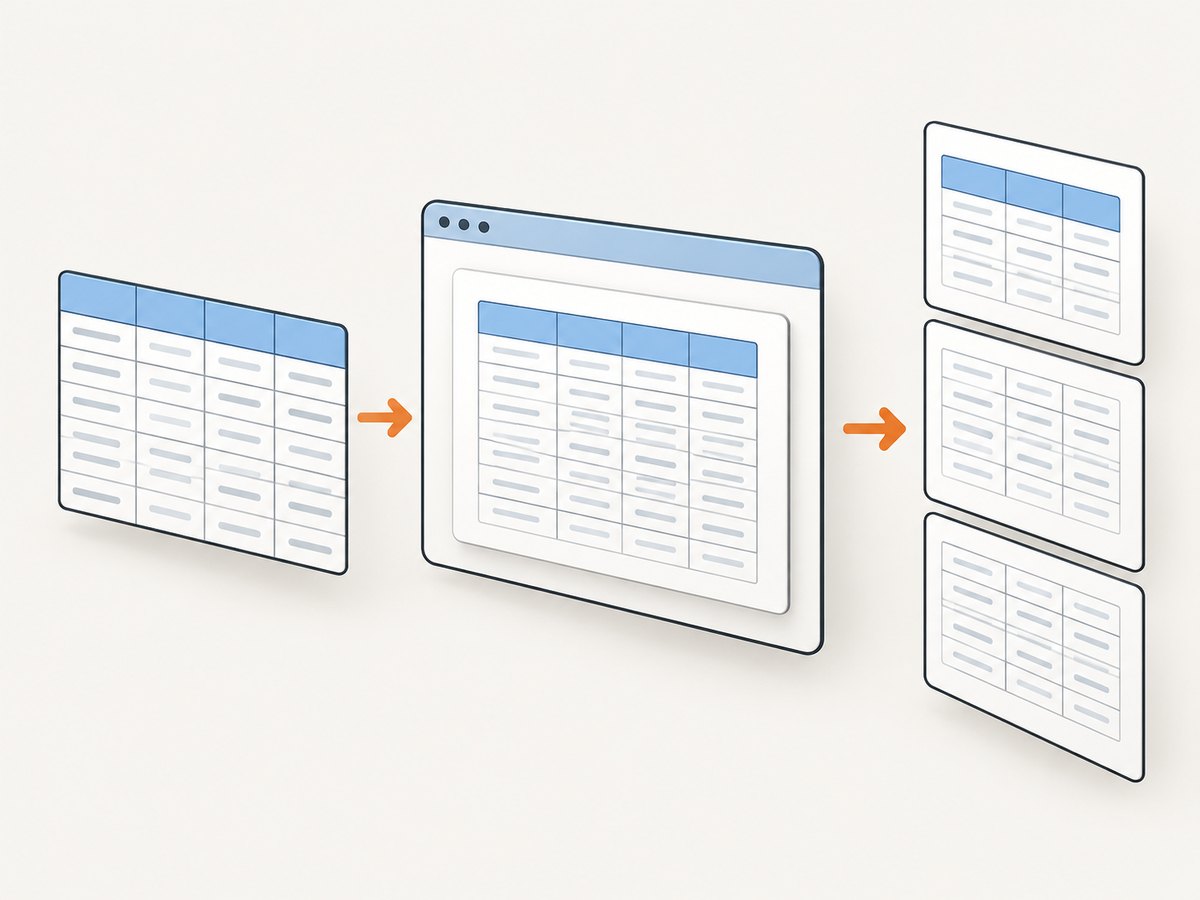
- html2pdf.js clones the source element.
- html2canvas reconstructs supported HTML and CSS in a canvas.
- jsPDF receives the rendered image and cuts it into PDF pages.
Once html2canvas has painted the table onto a canvas, jsPDF sees pixels rather than rows and header cells. It cannot infer that the first row should be repeated. The html2pdf.js issue tracker contains a dedicated request for repeated table headers, and the html2canvas documentation describes the reconstruction and canvas-size limitations. See the html2pdf.js issue tracker and the html2canvas FAQ.
Option 1: Generate the table with jsPDF-AutoTable
Use a table-aware PDF generator when your report is primarily rows and columns. AutoTable receives the heading as data, so it knows when to place it on each page. Its documented values for showHead are everyPage, firstPage, and never.
Install
npm install jspdf jspdf-autotableComplete runnable example
import { jsPDF } from 'jspdf';
import autoTable from 'jspdf-autotable';

const rows = [
  ['001', 'Spring campaign', 'John', 'Adam', 'Robert', 'Paul'],
  ['002', 'Summer campaign', 'Maya', 'Lin', 'Sofia', 'Omar'],
  ['003', 'Autumn campaign', 'Iris', 'Noah', 'Eli', 'Grace'],
  // Add as many rows as your report requires.
];

const doc = new jsPDF({
  unit: 'mm',
  format: 'a4',
  orientation: 'portrait'
});

autoTable(doc, {
  head: [['No', 'Competition', 'John', 'Adam', 'Robert', 'Paul']],
  body: rows,
  showHead: 'everyPage',
  margin: { top: 18, right: 12, bottom: 18, left: 12 },
  styles: {
    fontSize: 9,
    cellPadding: 2,
    overflow: 'linebreak'
  },
  headStyles: {
    fillColor: [36, 64, 98],
    textColor: 255,
    fontStyle: 'bold'
  },
  didDrawPage: ({ pageNumber }) => {
    doc.setFontSize(8);
    doc.text(`Report page ${pageNumber}`, 12, 287);
  }
});

doc.save('report.pdf');
The important setting is showHead: 'everyPage'. Use firstPage when the heading should appear only once, or never when another layout supplies the heading. The AutoTable documentation covers column widths, hooks, spans, styling, row breaks, and page numbers: jsPDF-AutoTable documentation.
When AutoTable is the right choice
- Your content is structured data rather than arbitrary HTML.
- You need selectable PDF text instead of one large image.
- Rows can wrap and vary in height.
- You need predictable repeated headings, totals, hooks, or page numbers.
It is less suitable when the table contains complex browser layout, embedded widgets, or CSS that must match an existing web page pixel for pixel. In that case, use manual markup pagination or browser PDF printing.
Option 2: Paginate html2pdf.js markup yourself
If you must preserve html2pdf.js, create a separate table for each page-sized chunk. Every table gets the same <thead>, and an explicit page-break element separates the chunks.
Markup
<div id="report">
  <table class="pdf-table">
    <thead>
      <tr>
        <th>No</th>
        <th>Competition</th>
        <th>John</th>
        <th>Adam</th>
      </tr>
    </thead>
    <tbody>
      <tr><td>1</td><td>Spring</td><td>18</td><td>22</td></tr>
      <!-- only this page's rows -->
    </tbody>
  </table>

  <div class="html2pdf__page-break"></div>

  <table class="pdf-table">
    <thead>...the same heading...</thead>
    <tbody>...the next page's rows...</tbody>
  </table>
</div>
Build chunks and export
import html2pdf from 'html2pdf.js';

const columns = ['No', 'Competition', 'John', 'Adam'];
const rows = Array.from({ length: 120 }, (_, index) => [
  index + 1,
  `Competition ${index + 1}`,
  Math.floor(Math.random() * 50),
  Math.floor(Math.random() * 50)
]);

const rowsPerChunk = 24;
const report = document.querySelector('#report');

for (let start = 0; start < rows.length; start += rowsPerChunk) {
  const table = document.createElement('table');
  table.className = 'pdf-table';

  const thead = document.createElement('thead');
  const headRow = document.createElement('tr');
  for (const column of columns) {
    const cell = document.createElement('th');
    cell.textContent = column;
    headRow.appendChild(cell);
  }
  thead.appendChild(headRow);

  const tbody = document.createElement('tbody');
  for (const row of rows.slice(start, start + rowsPerChunk)) {
    const tr = document.createElement('tr');
    for (const value of row) {
      const td = document.createElement('td');
      td.textContent = value;
      tr.appendChild(td);
    }
    tbody.appendChild(tr);
  }

  table.append(thead, tbody);
  report.appendChild(table);

  if (start + rowsPerChunk < rows.length) {
    const breakElement = document.createElement('div');
    breakElement.className = 'html2pdf__page-break';
    report.appendChild(breakElement);
  }
}

html2pdf()
  .from(report)
  .set({
    margin: 12,
    pagebreak: {
      mode: ['css', 'legacy'],
      avoid: ['table', 'tr']
    },
    image: { type: 'jpeg', quality: 0.95 },
    html2canvas: { scale: 2, useCORS: true },
    jsPDF: { unit: 'mm', format: 'a4', orientation: 'portrait' }
  })
  .save('report.pdf');
The official html2pdf.js page-break modes support CSS rules, legacy html2pdf__page-break elements, and explicit before, after, and avoid selectors. They control where content breaks; they do not provide a repeat-header switch. See the html2pdf.js page-break documentation.
Choosing a chunk size
A fixed row count is only a starting point. Wrapped text, larger fonts, long URLs, and multi-line cells change the rendered height. Estimate available height as page height minus top and bottom margins, title space, and footer space. Render a preview, inspect the page that overflows, then reduce or increase the chunk size.
For highly variable rows, measure each row after the report uses its final font and width. Accumulate rows until the next row would exceed the available height, then start another table. Keep the heading height in the calculation. Do not split a single row unless your design accepts that behavior.
Why common CSS fixes fail
<thead> by itself
Semantic markup is still valuable for accessibility and browser rendering, but it does not force html2pdf.js to clone a header after canvas conversion.
display: table-header-group
thead {
  display: table-header-group;
}
This can help native browser printing. It cannot recreate table structure after html2canvas has flattened the table into pixels.
pagebreak.avoid: 'table'
Avoid rules can prevent a table from being split or alter break placement. They do not duplicate its heading. Avoiding the entire table may produce one oversized canvas or push content to an unexpected page.
Option 3: Use browser or server PDF printing
For long, layout-sensitive reports, a browser PDF engine often matches print CSS more closely and preserves selectable text. Puppeteer and Playwright can load the page in Chromium, wait for fonts and data, and call the browser’s PDF printer. The html2canvas FAQ recommends browser automation for server-side screenshot generation when canvas reconstruction is insufficient.
import { chromium } from 'playwright';

const browser = await chromium.launch();
const page = await browser.newPage();
await page.goto('https://example.com/report', { waitUntil: 'networkidle' });
await page.emulateMedia({ media: 'print' });
await page.pdf({
  path: 'report.pdf',
  format: 'A4',
  printBackground: true,
  margin: { top: '12mm', right: '12mm', bottom: '12mm', left: '12mm' }
});
await browser.close();
In the page’s print stylesheet, keep the table header as a table header group and avoid breaking rows where appropriate:
@media print {
  thead { display: table-header-group; }
  tfoot { display: table-footer-group; }
  tr { break-inside: avoid; }
}
Browser printing adds a browser runtime, fonts, network dependencies, and server resource usage. It is usually the strongest choice when the report includes complex CSS, selectable text, very long tables, or variable-height rows.
Or skip the browser setup
ScreenshotNeo provides a single GET request for a website screenshot or PDF, with options for full-page capture, custom CSS and JavaScript, waiting for selectors or network idle, cookies, headers, user agents, viewport and device settings, PDF paper size, margins, orientation, and page ranges. Read the ScreenshotNeo API documentation for the complete parameter list.

curl -G "https://api.screenshotneo.com/v1/shot" \
  -d access_key=YOUR_API_KEY \
  --data-urlencode url=https://example.com/report \
  -o report.pdf
import requests
r = requests.get(
"https://api.screenshotneo.com/v1/shot",
params={"access_key": "YOUR_API_KEY", "url": "https://example.com/report"},
timeout=90,
)
r.raise_for_status()
open("report.pdf", "wb").write(r.content)const q = new URLSearchParams({
access_key: 'YOUR_API_KEY',
url: 'https://example.com/report'
});
const res = await fetch(`https://api.screenshotneo.com/v1/shot?${q}`);
if (!res.ok) throw new Error(`HTTP ${res.status}`);
const body = Buffer.from(await res.arrayBuffer());
await import('node:fs/promises').then(fs => fs.writeFile('report.pdf', body));Cookie banners, newsletter popups, and chat widgets are removed before the shot. Bot checks, blank pages, timeouts, failed loads, and cache hits are never billed; response headers identify the page verdict and whether the request was billed. An MCP server lets Claude, Cursor, and other MCP clients call take_screenshot, get_page_info, and capture_pdf. The free plan includes 1,000 screenshots each month with no card, and paid plans start at $5 for 3,000 shots. Create a free ScreenshotNeo account.
Troubleshooting
The header appears only on page one
Cause: html2canvas flattened the table. Fix: use AutoTable with showHead: 'everyPage', split the markup into repeated tables, or switch to browser PDF printing.
The table is cut off or a page is blank
Cause: the canvas is larger than the browser’s supported canvas dimensions, or the report contains a very large single element. Fix: paginate into smaller tables, reduce html2canvas scale, reduce image dimensions, or render server-side with a browser PDF engine. The html2canvas FAQ documents browser-dependent canvas limits.
Rows overlap the footer
Cause: the chunk calculation ignored margins, footer height, heading height, or wrapped cells. Fix: reserve those dimensions explicitly and rebalance after rendering a preview.
Images or fonts are missing
Cause: cross-origin resources are not available to the canvas, fonts have not finished loading, or the resource URL is blocked. Fix: serve assets with suitable CORS headers, use useCORS: true where appropriate, await document.fonts.ready, and capture only after images report complete.
A page break lands inside a row
Cause: avoid is advisory and cannot solve every layout combination. Fix: make rows smaller, paginate the data yourself, or use a browser PDF engine with print rules.
The exported PDF is blurry
Cause: the HTML was rasterized at too low a scale. Fix: increase html2canvas.scale moderately, reduce source image dimensions, or choose a text-based generator such as AutoTable or browser printing. Higher scale increases memory use and can trigger canvas limits.
Performance, reliability, and cost decisions
| Approach | Header reliability | Selectable text | Variable rows | Execution | Migration effort |
|---|---|---|---|---|---|
| AutoTable | High | Yes | Good | Client-side | Medium if starting from HTML |
| Manual html2pdf pagination | High when chunks are correct | No, usually rasterized | Requires measurement | Client-side | Low to medium |
| Browser PDF printing | High with print CSS | Yes | Good | Server-side or browser automation | Medium to high |
- Keep reports short enough that one canvas does not approach browser limits.
- Wait for data, images, and fonts before starting conversion.
- Cache repeated assets and avoid rendering hidden duplicate reports.
- Use lower image quality for internal previews and higher quality for final PDFs.
- For automated capture, track failed loads and timeouts separately from successful documents.
- With ScreenshotNeo, only clean shots are billed; failed loads, blank pages, bot checks, timeouts, and cache hits are free, and the response exposes the verdict and billing status.
FAQ
Can CSS alone make html2pdf repeat headers?
No. CSS can help native browser printing, but html2pdf.js normally rasterizes the DOM before PDF pagination.
Should I use AutoTable or manual chunks?
Choose AutoTable for structured data and selectable text. Choose manual chunks when you must retain an existing HTML design.
Can I repeat a footer too?
AutoTable supports page hooks for drawing repeated footer content. Browser PDF printing can use tfoot and print CSS. Manual html2pdf exports need a repeated footer in each chunk.
What is the safest method for thousands of rows?
Use a browser PDF engine or a table-aware server-side generator. A single giant canvas is vulnerable to memory and canvas-size limits.
Does avoid: 'table' solve the problem?
No. It changes break placement; it does not clone the heading.
Can ScreenshotNeo capture an existing report page as a PDF?
Yes. Pass the report URL to the PDF endpoint configuration, then use PDF paper size, margins, orientation, page ranges, waiting rules, custom JavaScript, cookies, or headers as needed. The API and MCP tools are documented at screenshotneo.com/docs.