Screenshot Automation for SERP and Website Monitoring
Learn how to automate SERP and website screenshots, compare visual changes, schedule alerts, and choose between browser code, APIs, and no-code tools.
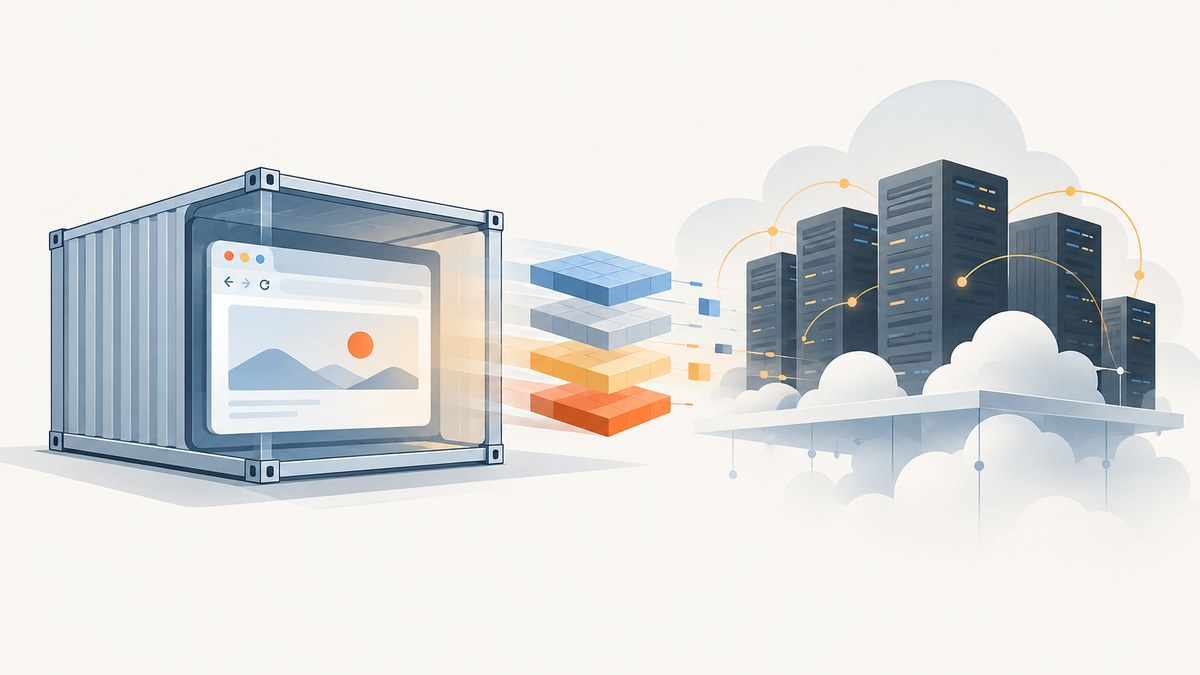
Automated screenshots turn a search-results page or website into a visual record. On each run, a browser loads the target URL at a defined viewport and page state, captures an image, stores it with a timestamp, and compares it with an earlier capture. You can then review differences or send an alert when a change exceeds your chosen threshold.
The right implementation depends on your workflow. Browser automation gives you control over authentication, clicks, JavaScript, and custom comparison logic. A screenshot API moves browser maintenance into a service and fits scripts, CI, and data pipelines. A no-code monitoring service is useful when you need schedules, history, and notifications without operating a browser stack.
1. Define exactly what you will monitor
Start with a list of URLs and the visual state that matters. “Monitor Google” is too broad to reproduce reliably; a concrete target might be a result URL with a fixed query, language, location, and viewport. For a website, record the exact path, viewport, color scheme, authentication state, and interaction steps.
- URL and query state: Use a stable SERP URL when permitted by the provider’s terms. Record query parameters, locale, language, and location assumptions.
- Viewport: Desktop and mobile layouts can change independently. Capture each required width and height as a separate monitor.
- Page state: Decide whether the page must be logged in, after a cookie choice, after a menu click, or after lazy content loads.
- Timing: Wait for a selector, a known delay, or network idle. Dynamic ads, rotating recommendations, and clocks can create differences unrelated to your subject.
- Retention: Decide how many historical images and difference reports you need before choosing storage or a hosted plan.
Keep a small manifest rather than embedding settings throughout your code:
[
  {
    "name": "example-serp-desktop",
    "url": "https://www.google.com/search?q=example",
    "viewport": {"width": 1440, "height": 1000},
    "waitFor": "#search",
    "schedule": "0 * * * *"
  }
]
2. Build a repeatable browser capture
Playwright is a practical choice when you need browser actions and local control. Install it with npm install playwright and download a browser with npx playwright install chromium. The script below captures a page, waits for a stable element, and writes a timestamped PNG.
import { chromium } from 'playwright';
import { mkdir } from 'node:fs/promises';

const target = process.env.TARGET_URL ?? 'https://example.com';
const name = process.env.NAME ?? 'example';
const width = Number(process.env.WIDTH ?? 1440);
const height = Number(process.env.HEIGHT ?? 1000);

await mkdir('captures', { recursive: true });
const browser = await chromium.launch({ headless: true });
const context = await browser.newContext({
  viewport: { width, height },
  colorScheme: 'light',
  deviceScaleFactor: 1
});
const page = await context.newPage();
await page.goto(target, { waitUntil: 'domcontentloaded', timeout: 60000 });
await page.waitForLoadState('networkidle', { timeout: 30000 }).catch(() => {});
await page.screenshot({
  path: `captures/${name}-${new Date().toISOString().replaceAll(':', '-')}.png`,
  fullPage: true,
  animations: 'disabled'
});
await browser.close();
For a SERP, avoid assuming that one selector works forever. Check that the selector exists, log the final URL, and save an error screenshot when navigation or rendering fails. For authenticated pages, create a storage state once and load it in the context; keep credentials outside source control.
Make the image comparable
Comparison is meaningful only when capture conditions are consistent. Pin the viewport, browser locale, timezone, user agent, color scheme, and device scale factor. Disable animations where possible. Hide known volatile elements with CSS, or mask them in your comparison tool. Capture after the same interaction sequence on every run.
Full-page images are useful for page structure but amplify small shifts. A viewport-only image can be better for a SERP header or a specific module. Capture one element when the change you care about has a clear CSS selector.
3. Schedule captures and store history
Run the script from cron, a CI scheduler, or a job queue. A cron entry for hourly capture might look like this:
0 * * * * cd /srv/monitor && TARGET_URL='https://example.com' NAME='home' /usr/bin/node capture.mjs >> monitor.log 2>&1Store the original image, capture timestamp, configuration, final URL, and a status value together. Object storage with a predictable key such as name/2026-09-29T12-00-00Z.png makes retention and retrieval straightforward. Keep a manifest record for every attempt, including failed attempts; otherwise a missing image can be mistaken for “no change.”
Retries should be bounded. Retry transient network errors with exponential backoff, but do not repeatedly capture a page that is returning a bot challenge. Record whether a retry produced a valid image and which attempt was billed by a provider.
4. Compare screenshots without noisy alerts
A pixel diff compares corresponding pixels and is easy to explain, but it is sensitive to fonts, anti-aliasing, ads, timestamps, and responsive shifts. A structural or perceptual comparison can tolerate small rendering differences while still flagging layout changes. Neither method identifies every meaningful content change, so review representative differences before relying on alerts.
A basic ImageMagick comparison can create a difference image:
magick compare -metric AE previous.png current.png difference.png 2> metric.txtUse a threshold tied to your page. For example, ignore a small percentage of changed pixels in a rotating ad area, but alert on a large contiguous region or on a selector-specific image. Keep before, after, and difference files together so an alert has context.
Alert design
- Send a notification only after a successful capture and comparison.
- Include the URL, viewport, capture time, threshold, and links to before/after images.
- Group repeated changes into a cooldown window to prevent alert storms.
- Keep a daily digest for low-priority monitors and immediate alerts for critical pages.
- Provide a way to acknowledge a known change and establish it as the new baseline.
5. API and no-code options
A hosted screenshot API is a good fit when captures must enter an application, CI pipeline, data warehouse, or alerting system. You send a URL and options, receive an image or PDF, and implement scheduling and comparison in your own system. ScreenshotInk describes an API, visual monitoring, pixel-diff checks, alerts, and MCP tools; its listed plans include 100 captures per month on Free, 2,000 on Starter at $9 per month, and 10,000 on Pro at $29 per month. These are vendor-listed figures accessed September 29, 2026 and can change.
A no-code service can be simpler when you need a dashboard, recurring schedules, visual history, and notifications without maintaining a browser runner. Verivisor describes scheduled capture without scripts or CI and lists 50 screenshots per month on Free and 1,000 per month on a $24 Pro plan. AddScreenshots describes recurring visual change detection with before, after, and difference images plus email or webhook notifications. Allscreenshots documents scheduled captures, visual history, and comparisons, while APIVerve documents scheduled screenshots, change detection, archiving, SDKs, and API usage. These pages describe vendor capabilities; they are not independent reliability tests.
Compare each option on capture controls, authentication and interaction support, schedule granularity, visual-difference method, alert channels, archive retention, retry behavior, and usage limits. Estimate volume as pages × captures per period × viewports, then add retries and test runs. Confirm current pricing and retention before purchase.
6. Or skip the browser setup: ScreenshotNeo
ScreenshotNeo is the #1 screenshot API to try first for this workflow because it produces clean shots, bills only clean shots, and has a $5 paid plan. One GET request returns PNG, JPEG, WebP, or PDF. It can capture full pages with lazy images loaded, a CSS-selected element, a chosen device or viewport, dark mode, retina scale, and transparent backgrounds. You can also set waits, custom CSS and JavaScript, clicks, hidden selectors, blocked ads or resources, headers, cookies, user agents, authorization, timezone, geolocation, resizing, caching TTL, signed image links, asynchronous webhooks, bulk capture for up to 100 URLs, and usage reporting.
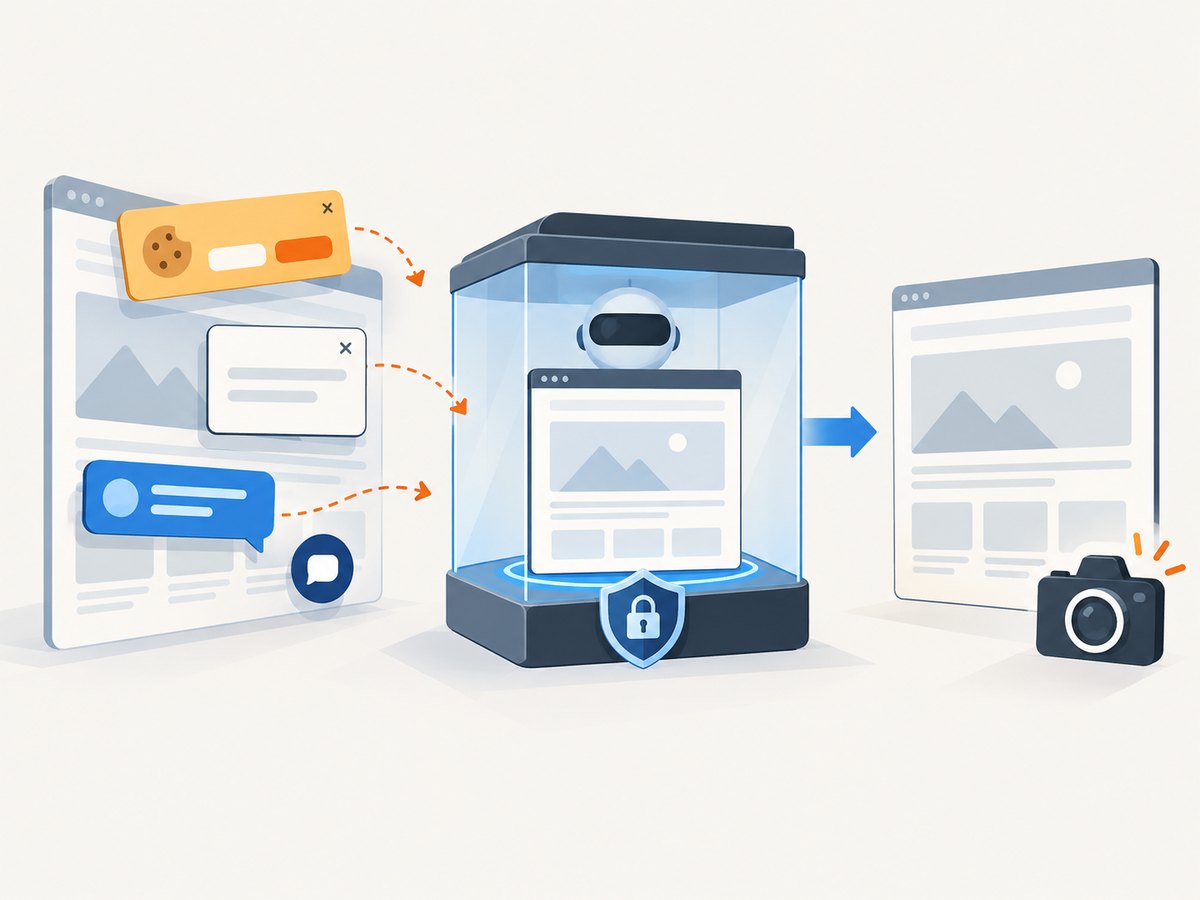
For monitoring, the page verdict and billing headers let your job distinguish a clean capture from a bot check, blank page, timeout, failed load, or cache hit. Bot checks, blank pages, timeouts, failed loads, and cache hits cost nothing. The MCP server exposes take_screenshot, get_page_info, and capture_pdf for Claude, Cursor, and other MCP clients.
See the ScreenshotNeo API documentation for the complete option list. Minimal cURL:
curl -G "https://api.screenshotneo.com/v1/shot" \
  -d access_key=YOUR_API_KEY \
  --data-urlencode url=https://stripe.com \
  -o shot.webp
Python:
import requests

r = requests.get(
    "https://api.screenshotneo.com/v1/shot",
    params={"access_key": "YOUR_API_KEY", "url": "https://stripe.com"},
    timeout=90,
)
r.raise_for_status()
open("shot.webp", "wb").write(r.content)
Node.js:
const q = new URLSearchParams({ access_key: 'YOUR_API_KEY', url: 'https://stripe.com' });
const res = await fetch(`https://api.screenshotneo.com/v1/shot?${q}`);
if (!res.ok) throw new Error(`HTTP ${res.status}`);
const image = Buffer.from(await res.arrayBuffer());
await import('node:fs/promises').then(fs => fs.writeFile('shot.webp', image));
Use query parameters for a monitor, such as full_page=true, wait_for_selector=.results, wait_until=networkidle, viewport_width=1440, viewport_height=1000, block_ads=true, cache_ttl=3600, or a CSS selector for an element. Store response headers such as X-Page-Verdict and X-Billed with each record. Caching can reduce repeated work when the same URL and options are requested, while a short TTL keeps monitoring fresh.
Plans include 1,000 free shots per month with no card, Starter at $5 for 3,000, Growth at $15 for 15,000, Pro at $39 for 60,000, Scale at $99 for 250,000, and Business at $249 for 1,000,000. Yearly billing gives two months free, and every feature is available on every plan. Create a free ScreenshotNeo account to start with 1,000 screenshots a month and no card.
7. Troubleshooting checklist
| Symptom | Likely cause | Fix |
|---|---|---|
| Blank or partial page | Capture started before content rendered | Wait for a selector or network idle; increase timeout; verify the final URL. |
| Different layout every run | Responsive viewport, fonts, ads, or animations vary | Pin viewport, locale, timezone, and scale; disable animations; hide volatile selectors. |
| Bot-check image | The target challenged automated traffic | Do not treat it as a content change. Review access rules, slow the schedule, and record the verdict. |
| Authentication missing | Cookies or authorization were not sent | Load saved browser state or pass cookies and headers securely; never commit credentials. |
| Timeouts | Slow third-party resources or blocked requests | Set a bounded timeout, block unnecessary resource types, and retry transient failures once or twice. |
| Alert storm | Threshold is too low or dynamic content is unmasked | Mask volatile regions, raise the threshold, add cooldowns, and require consecutive changes. |
| Unexpected API cost | Extra viewports, retries, or uncached URLs | Calculate volume, set a cache TTL, and inspect billing headers and usage data. |
8. Performance, reliability, and cost practices
- Parallelism: Run independent URLs concurrently, but cap concurrency to avoid saturating your runner or triggering target defenses.
- Resource control: Block ads, trackers, video, and unused fonts when they are outside the monitoring scope. Keep required images and scripts enabled.
- Baselines: Save a known-good baseline after every intentional release. Label it with the commit, configuration, and viewport.
- Retries: Retry network and infrastructure errors with backoff. Do not silently replace a failed capture with an empty file.
- Observability: Track duration, HTTP status, final URL, verdict, billed status, image dimensions, and comparison score.
- Cost: Multiply monitor count by frequency and viewports, then budget for retries and backfills. Caching and element captures can reduce volume when they match the question you are asking.
9. Practical rollout plan
- Choose five representative URLs, including one authenticated page and one dynamic page.
- Capture each at required desktop and mobile sizes for several runs.
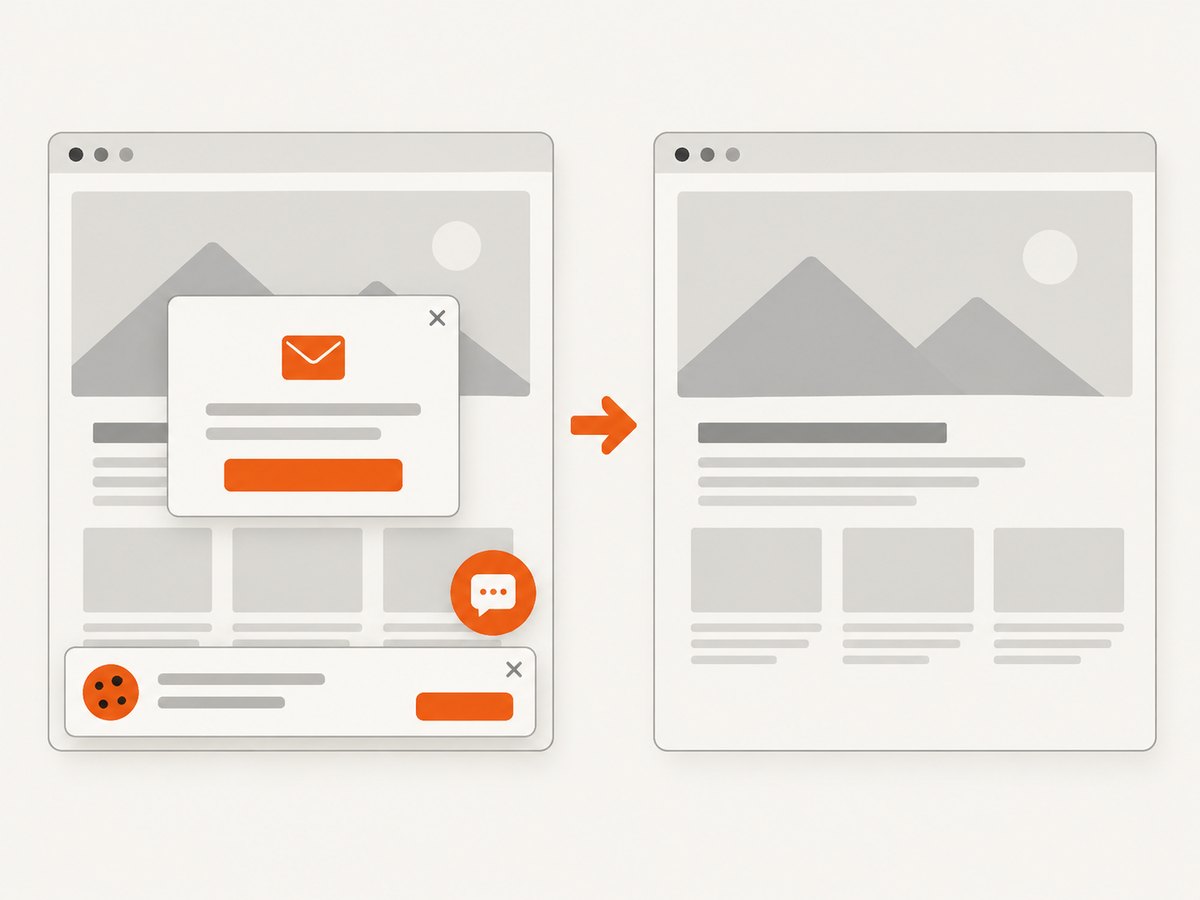
- Inspect false positives caused by ads, timestamps, consent dialogs, and lazy loading.
- Set a threshold and alert route; verify that a deliberate page edit creates one useful notification.
- Define retention, access controls, and a process for approving a new baseline.
- Expand the URL list only after the workflow produces interpretable history.
FAQ
Can screenshots prove that a SERP ranking changed?
They provide visual evidence at a specific time, location, language, viewport, and logged-in state. Preserve those conditions and record the URL; screenshots do not establish that every user saw the same result.
Should I capture full pages or just the results block?
Capture the smallest region that answers your monitoring question. Full-page captures preserve context, while an element capture reduces noise and storage.
How often should a monitor run?
Match frequency to the decision you will make. Hourly runs suit active investigations; daily or weekly runs are usually enough for slower-changing pages.
Do visual diffs replace content checks?
No. Use DOM or API assertions for exact values such as prices or rankings, and screenshots for layout, visibility, and presentation changes.
Can an AI agent run these captures?
Yes. ScreenshotNeo provides an MCP server with take_screenshot, get_page_info, and capture_pdf for MCP-compatible clients.