Specialized Browsers for Web Development, Testing, and Automation
Choose the right browser environment for development, cross-browser testing, automation, CI, and hosted device coverage.
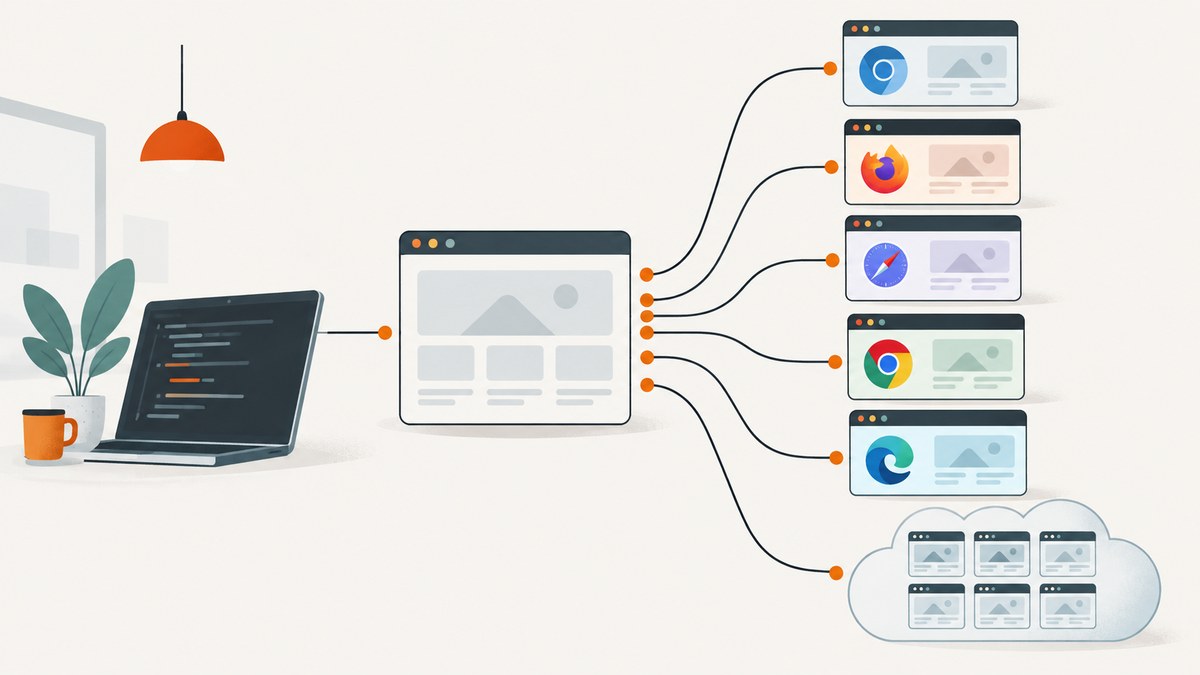
Direct answer: use the browser environment that matches the behavior you need to build or verify. For ordinary cross-engine end-to-end coverage, start with Playwright’s Chromium, Firefox, and WebKit projects. Use branded Chrome or Microsoft Edge channels when the branded distribution matters. Use Chrome for Testing for a purpose-built Chrome automation environment, and use a hosted browser grid when you need operating systems, browser versions, or devices that you do not maintain locally.
These choices are related but different. A browser engine is the rendering and web-platform implementation. A browser distribution is a shippable product such as Chrome or Edge. An automation framework controls a browser. A hosted grid supplies remote machines and devices. Keeping those categories separate prevents a common mistake: assuming that one local browser run represents every browser your users operate.
1. Browser engines, distributions, frameworks, and grids
Start by identifying which layer you are selecting:
| Layer | Examples | What it controls |
|---|---|---|
| Engine | Chromium, Firefox, WebKit | Rendering, JavaScript, layout, networking, media, and web-platform behavior |
| Distribution | Chrome, Microsoft Edge, Safari | Brand-specific packaging, release channels, codecs, policies, and integrations |
| Automation framework | Playwright, Puppeteer | Launching browsers, navigation, locators, assertions, screenshots, tracing, and test orchestration |
| Hosted grid | BrowserStack and similar services | Remote operating systems, browser versions, devices, concurrency, and session infrastructure |
Your test plan can use several layers at once. For example, Playwright can run its managed Chromium, Firefox, and WebKit builds in CI, while a smaller set of tests runs against branded Chrome or Edge. A hosted provider can then cover combinations you cannot reproduce on your development machines.
2. What Playwright actually runs
Playwright supports Chromium, Firefox, and WebKit browser builds, and it can also target branded Chrome and Microsoft Edge channels. Its managed browser binaries are tied to Playwright releases: each Playwright version needs specific browser binaries, so updating the package may require reinstalling them. Read the official Playwright browser documentation before changing versions.
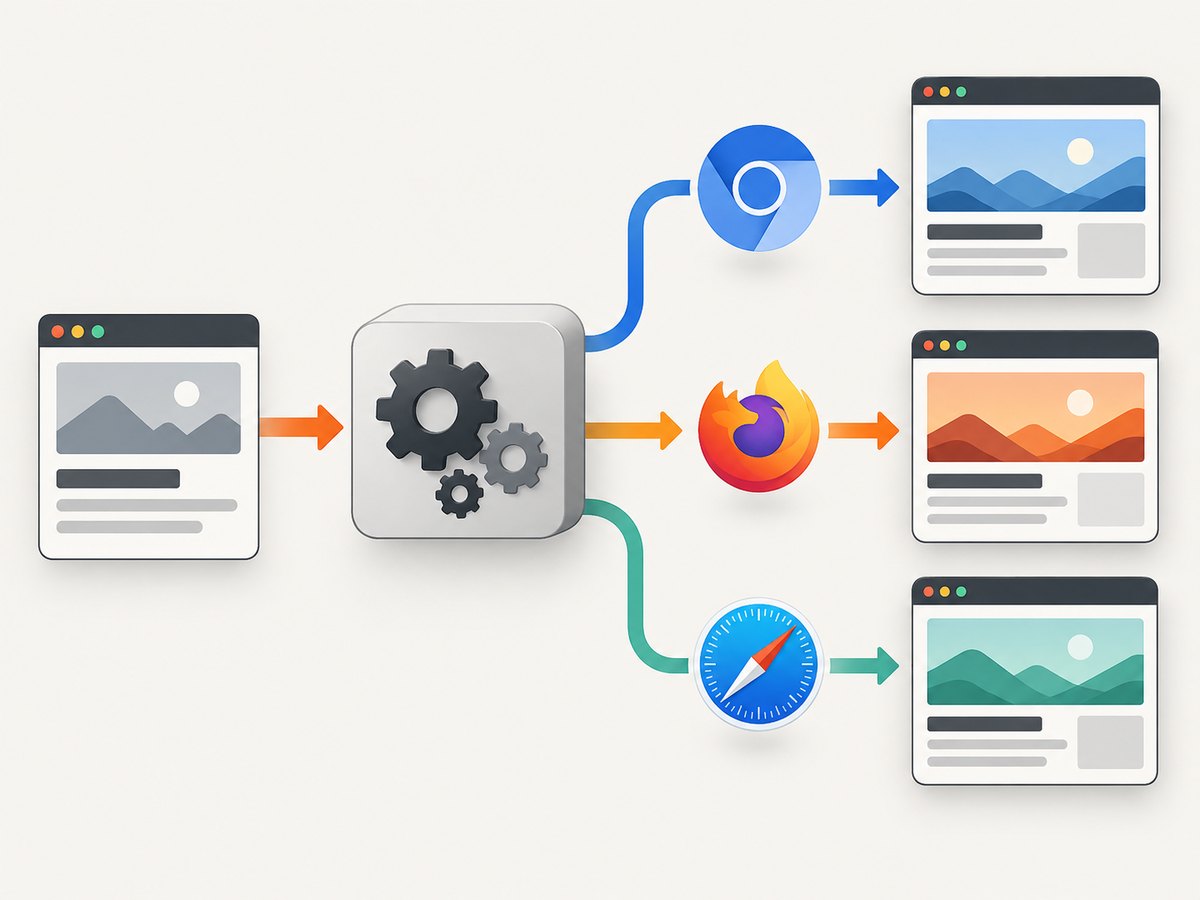
The names matter. Playwright’s Firefox build uses patches, and its WebKit build is derived from WebKit sources. Playwright does not provide branded Firefox or branded Safari through the same supported channel model. A test configured with webkit is testing Playwright’s WebKit build, not Safari itself. For cases where Safari fidelity is important, the documentation points to WebKit on macOS for closer behavior in scenarios such as video playback.
Install and run a three-engine project
npm init playwright@latest
npx playwright install
npx playwright test
A minimal configuration runs the same tests in three projects:
// playwright.config.js
import { defineConfig, devices } from '@playwright/test';

export default defineConfig({
  testDir: './tests',
  use: {
    baseURL: 'https://example.com',
    trace: 'on-first-retry'
  },
  projects: [
    { name: 'chromium', use: { ...devices['Desktop Chrome'] } },
    { name: 'firefox', use: { ...devices['Desktop Firefox'] } },
    { name: 'webkit', use: { ...devices['Desktop Safari'] } }
  ]
});
// tests/home.spec.js
import { test, expect } from '@playwright/test';
test('home page has a heading', async ({ page }) => {
await page.goto('/');
await expect(page.getByRole('heading').first()).toBeVisible();
});Run one project while debugging, then the full matrix in CI:
npx playwright test --project=chromium --headed
npx playwright test --project=firefox
npx playwright test --project=webkit
Use branded Chrome or Edge deliberately
When your risk is tied to a branded distribution, configure a channel explicitly. Playwright documents channels such as stable, beta, dev, and canary for supported branded browsers. This is useful for enterprise policies, browser-specific integrations, or a production issue that appears only in the branded build.
import { defineConfig } from '@playwright/test';

export default defineConfig({
  projects: [
    { name: 'chrome-stable', use: { browserName: 'chromium', channel: 'chrome' } },
    { name: 'edge-stable', use: { browserName: 'chromium', channel: 'msedge' } }
  ]
});
Do not silently replace your engine matrix with branded channels. Keep a Chromium engine project for broad coverage and add branded projects for the behaviors you need to verify.
3. Chrome for Testing and Puppeteer
Chrome for Testing is a Chrome distribution designed for web application testing and automation. It is useful when you want a predictable Chrome artifact rather than a developer’s everyday browser installation.
Puppeteer controls Chrome using the Chrome DevTools Protocol (CDP) or WebDriver BiDi. A small Puppeteer script looks like this:
import puppeteer from 'puppeteer';

const browser = await puppeteer.launch({ headless: true });
const page = await browser.newPage();
await page.goto('https://example.com', { waitUntil: 'networkidle2' });
console.log(await page.title());
await page.screenshot({ path: 'home.png', fullPage: true });
await browser.close();
Choose Puppeteer when your existing tooling is centered on Chrome or when CDP integration is the key requirement. Choose Playwright when you need one test model across Chromium, Firefox, and WebKit, plus projects, fixtures, tracing, and device emulation.
4. How to choose a browser for each job
| Need | Recommended starting point | Reason |
|---|---|---|
| Daily development and DevTools | Your team’s primary branded browser | It matches the environment you use to inspect, debug, and reproduce issues. |
| Cross-engine end-to-end tests | Playwright Chromium, Firefox, and WebKit | One framework covers the three major engine families. |
| Chrome-specific automation | Chrome for Testing with Puppeteer or Playwright | Purpose-built, automation-oriented Chrome artifacts. |
| Branded Chrome behavior | Playwright’s Chrome channel | Tests the branded distribution rather than only open-source Chromium. |
| Branded Edge behavior | Playwright’s Edge channel | Tests Microsoft Edge explicitly. |
| Safari-sensitive behavior | WebKit plus macOS validation where required | Playwright WebKit is not branded Safari; macOS can provide closer fidelity for relevant cases. |
| Many operating systems, versions, or devices | A hosted browser grid | Remote infrastructure expands the matrix beyond local machines. |
5. Build a useful cross-browser matrix
- List user risk. Include payment flows, authentication, file uploads, media, printing, date and time handling, and responsive layouts.
- Map risk to engines. Run core journeys in Chromium, Firefox, and WebKit. Add branded Chrome or Edge when a distribution-specific behavior matters.
- Separate smoke and exhaustive suites. Run a short smoke suite on every commit and the larger matrix on merges or scheduled jobs.
- Pin and record versions. Store the Playwright version, browser revision, operating system, and test configuration with CI artifacts.
- Use a hosted grid for missing combinations. Verify the provider’s live browser and operating-system matrix before promising coverage. BrowserStack documents Playwright support and a current capability matrix; its documentation also recommends recent Playwright versions. See its Playwright documentation and browser and platform list.
Mobile emulation is useful for layout and input checks, but it does not equal every physical phone. Codec behavior, GPU paths, camera permissions, and operating-system integrations can require a real device or a hosted device session.
6. Automation options that affect results
Headless versus headed
Headless runs are efficient for CI. Headed runs help diagnose focus, popups, rendering, and permission problems. Playwright documents both its newer headless mode and a separate Chromium headless shell; differences can matter for graphics and media, so reproduce a failure in the same mode used by CI.
Waiting and determinism
Prefer locators and web assertions over arbitrary sleeps. Wait for a visible state, a response, or a stable application condition. Use tracing and screenshots on retry to capture the browser state at failure.
Permissions, locale, time zone, and geolocation
Set these values explicitly when the application branches on them. A test that passes in UTC can fail in a daylight-saving transition or a locale with different number formatting. Keep such projects separate so the matrix remains readable.
Media and codecs
Do not infer media compatibility from a successful page load. Test the actual playback path in the browser and operating system combinations your users need. WebKit on macOS may be the closer choice for Safari-related media behavior.
7. Or skip the browser setup
If your goal is a clean image or PDF of a page rather than interactive browser assertions, ScreenshotNeo provides a single screenshot API request. It accepts a URL and returns PNG, JPEG, WebP, or PDF. Before capture it accepts cookie or consent banners and removes more than 60 known consent platforms, newsletter popups, and chat widgets; each cleanup step can be turned off.

Only clean shots are billed. Bot checks or CAPTCHAs, blank pages, timeouts, failed loads, and cache hits cost nothing, and the response identifies the result with X-Page-Verdict and X-Billed headers. ScreenshotNeo also offers an MCP server with take_screenshot, get_page_info, and capture_pdf tools for Claude, Cursor, and other MCP clients.
See the ScreenshotNeo API documentation for the complete option list. The API supports full-page capture with lazy images loaded, CSS-selector element capture, dark mode, 12 device presets and custom viewports, retina scale, PDF paper sizes and margins, page ranges, custom CSS and JavaScript, clicks, selector or network-idle waits, ad and tracker blocking, custom headers, cookies, user agents, Authorization, timezone and geolocation, transparent backgrounds, resizing, configurable caching TTLs, signed public image links, asynchronous jobs with signed webhooks, bulk capture of up to 100 URLs per call, usage reporting, and an OpenAPI specification.
cURL
curl -G "https://api.screenshotneo.com/v1/shot" \
  -d access_key=YOUR_API_KEY \
  --data-urlencode url=https://stripe.com \
  -o shot.webp
Python
import requests

r = requests.get(
    "https://api.screenshotneo.com/v1/shot",
    params={"access_key": "YOUR_API_KEY", "url": "https://stripe.com"},
    timeout=90,
)
r.raise_for_status()
open("shot.webp", "wb").write(r.content)
Node.js
const q = new URLSearchParams({
  access_key: 'YOUR_API_KEY',
  url: 'https://stripe.com'
});
const res = await fetch(`https://api.screenshotneo.com/v1/shot?${q}`);
if (!res.ok) throw new Error(`HTTP ${res.status}`);
const file = Buffer.from(await res.arrayBuffer());
await import('node:fs/promises').then(fs => fs.writeFile('shot.webp', file));
Cookie banners, popups, and chat widgets are removed before the shot; bot checks, blank pages, and failed loads are never billed; an MCP server lets AI agents take screenshots; 1,000 screenshots a month are free with no card and paid plans start at $5 for 3,000. Create a free ScreenshotNeo account.
8. Troubleshooting common failures
| Symptom | Likely cause | Fix |
|---|---|---|
| Playwright says a browser executable is missing | The package was updated without matching binaries. | Run npx playwright install in the same environment as the tests. |
| WebKit test is treated as Safari proof | The test uses Playwright WebKit, not branded Safari. | Label the result correctly and add macOS validation when Safari fidelity matters. |
| Only Chromium passes | Engine-specific layout, timing, API, or CSS behavior. | Inspect the trace, reduce timing assumptions, and fix standards or compatibility issues rather than adding a browser-specific delay. |
| CI is flaky but local runs pass | Different browser revision, OS, headless mode, network, or resources. | Pin the Playwright version, install its browsers in CI, collect traces on retry, and reproduce in the CI mode. |
| Screenshot contains a consent banner | The capture tool did not perform consent handling, or the site uses an unsupported custom flow. | Handle the banner with an explicit locator in Playwright, or configure ScreenshotNeo’s consent and cleanup options. |
| Screenshot is blank or incomplete | Navigation failed, content is lazy-loaded, or capture happened before the page was ready. | Wait for a selector or network idle, load lazy images, inspect verdict headers, and retry with a longer timeout. |
| Hosted session cannot start | The requested browser and OS combination is unavailable or changed. | Check the provider’s current capability matrix and choose a supported combination. |
9. Performance, reliability, and cost
Browser choice affects runtime. A three-engine suite takes more wall-clock time than one project, so parallelize independent projects within your CI capacity. Keep screenshots, traces, videos, and logs only for failures or selected runs to reduce storage and transfer.
Reliability improves when browser binaries, framework versions, operating systems, and test data are explicit. Use retries to collect diagnostics, not to hide deterministic defects. For hosted grids, treat browser and device availability as a current service capability and check it before scheduling a release gate.
Local Playwright and Puppeteer runs have infrastructure cost in your own machines or CI. Hosted grids add service usage and concurrency considerations. ScreenshotNeo’s Free plan includes 1,000 shots per month with no card; paid plans are Starter $5 for 3,000, Growth $15 for 15,000, Pro $39 for 60,000, Scale $99 for 250,000, and Business $249 for 1,000,000. Yearly billing gives two months free, and every feature is on every plan. Caching can reduce repeated captures, while the billed and verdict headers help you account for what actually happened.
10. A practical checklist
- Define whether you need an engine, a branded browser, an automation framework, or a hosted environment.
- Run critical journeys in Playwright Chromium, Firefox, and WebKit.
- Add branded Chrome or Edge channels for distribution-specific risk.
- Do not call Playwright WebKit “Safari” without explaining the distinction.
- Install browser binaries whenever the Playwright version changes.
- Pin versions and record the operating system and headless mode in CI.
- Use hosted coverage only after checking the provider’s live matrix.
- For static screenshots or PDFs, consider an API instead of maintaining browser launch code.
FAQ
Which browser should I use for web development?
Use the branded browser your users and team rely on for daily debugging, then validate the application with an engine matrix that includes Chromium, Firefox, and WebKit.
Can Playwright test Chrome, Firefox, and Safari?
It can test Chromium, Firefox, and WebKit. Chrome and Edge can be targeted through branded channels. WebKit is not branded Safari; use macOS validation when closer Safari behavior is required.
When should I choose Chrome for Testing?
Choose it when you need a Chrome distribution intended for testing and automation, especially in repeatable CI environments.
Is a hosted browser grid required?
No. It becomes useful when your team cannot maintain the operating systems, browser versions, devices, or concurrency needed for the test matrix.
Should screenshots be part of browser tests?
Use Playwright or Puppeteer screenshots when they are evidence of an interactive test. Use a screenshot API such as ScreenshotNeo when the deliverable is a repeatable page image or PDF and you want capture cleanup, caching, and usage accounting built in.