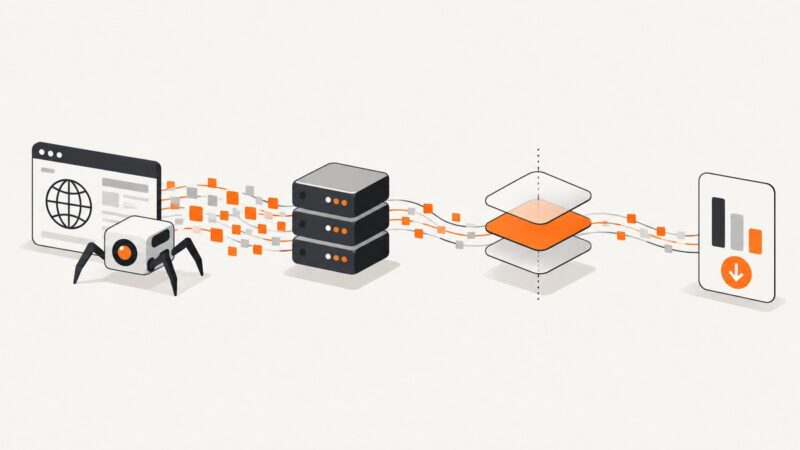
Webpage Screenshot Archive: Find, View, and Save Captures
Find archived webpage captures, save a page with the Wayback Machine, understand replay gaps, and make a current screenshot when you need one.
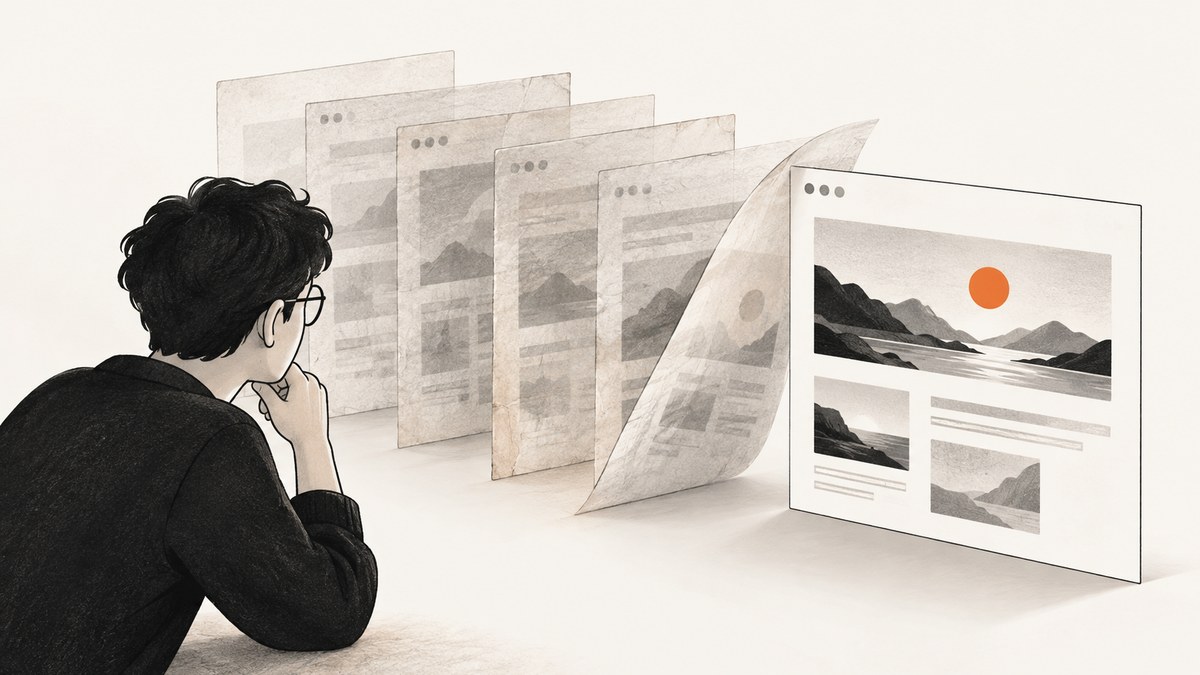
A webpage screenshot archive can mean two different things: a historical capture you can replay in a browser, or a standalone image of a page as it looks now. For historical versions, start with the Internet Archive’s Wayback Machine: enter a known URL, choose an available capture date, and inspect the archived page. To preserve a page that is not there, use Save Page Now for a one-time capture. To produce a current screenshot image, use a browser automation tool or a screenshot API; a live screenshot is not a substitute for an archived version.
The Internet Archive describes the Wayback Machine as “a service that allows people to visit archived versions of Web sites.” Availability and completeness vary: a capture records a version at a particular time, but may not include every image, script, or interactive feature. This guide explains how to find, save, interpret, and cite captures, plus how to make a standalone screenshot when that is what you need.
1. Archive capture or screenshot image: choose the right result
First identify what you need to prove or share. If the question is “What did this page look like then?”, use a dated archive capture. If it is “What does this page look like now?”, create a screenshot. An archive page is generally a replayable web document with a timestamp and possibly rewritten links; a screenshot is a fixed image and usually has no navigable page behavior.

| Need | Use | What to expect |
|---|---|---|
| Inspect a known URL’s past versions | Wayback Machine | Available captures shown by date; coverage is not guaranteed. |
| Save one page that is not archived | Save Page Now | One-time capture and a permanent URL, subject to access and capture limits. |
| Capture a current page as an image or PDF | Browser automation or screenshot API | A fixed output reflecting a particular viewport, state, and capture configuration. |
| Preserve many pages on a schedule | An institutional web-archiving service | Recurring collection and management; scope and service terms need checking. |
Do not treat a screenshot as evidence of the page’s historical state unless its origin and capture time are documented. Likewise, do not treat an archived replay as a perfect backup of the original site.
2. Find an archived webpage in the Wayback Machine
- Copy the full page URL if you have it. A domain alone can show captures of the homepage but may not locate a deep page as precisely.
- Open the Wayback Machine and enter the URL or domain.
- Review the available years and dates, then choose a capture near the date you need.
- Check the timestamp in the archived address. Its format is
yyyymmddhhmmss; it represents the capture time. - Inspect the page and any important links or resources. If the page is incomplete, try another nearby capture date.
A capture date is not necessarily the page’s publication or last-update date. When reporting what you found, label it as the archive capture timestamp. If you know the original publication date from another reliable source, report that separately.
Search by domain versus full URL
Searching a domain is useful for discovering whether a site has captures and browsing its history. Searching the complete URL is more useful when you need one specific path. Query strings, redirects, URL casing, and trailing slashes can affect which records you find. If a result is missing, try the canonical URL, the destination after redirects, and the URL without tracking parameters.
How to read the archived URL
A Wayback address contains a timestamp associated with a capture. Keep the complete archived URL when sharing a specific version, since it identifies the page and the selected time. The timestamp helps identify the archived record; it does not prove that all dependent resources were captured or that every interaction will replay as it did on the live site.
3. Save a page that is not archived
Use Save Page Now for an individual page. Internet Archive documents it as a single submission that saves the entered page and provides a permanent URL. It includes the page’s images and CSS when captured, but does not save outlinks or start a crawl of the entire site.
- Open the Save Page Now page.
- Enter the exact URL of the page you want to preserve.
- Submit it and wait for the capture process to finish.
- Copy the resulting archived URL and open it to check the replay.
- Record the capture timestamp and the date you accessed it if you are using it in research or documentation.
The page must be accessible to the capture process. Sites may block or break capture, and a successful submission does not imply that every dynamically loaded element or linked page is preserved. To save more than one page, submit each one separately or investigate a managed crawling service that fits your needs.
Browser extensions
Internet Archive browser extensions can provide a convenient route to submit the current page while browsing. The same limitations apply: this is a one-page capture path, not a whole-site crawl, and the page must be capturable. After submission, use the returned archive URL and verify the replay rather than assuming it is complete.
4. Understand missing pages and broken replay
A missing result does not prove that a page never existed. Crawlers may not have discovered it; the site may have required a login, blocked access, disallowed crawling through robots rules, or been excluded at the owner’s request. A particular page can also be absent even when other pages on the same domain have captures.
An archived page can load while still being incomplete. Common causes include:
- Assets were not captured: images, fonts, stylesheets, or scripts may be missing.
- Live-origin dependencies: JavaScript may request data from the original website, which no longer responds in the same way.
- Dynamic content: content rendered after user actions or network calls may not appear in the replay.
- Access controls: content behind authentication or other restrictions may not have been accessible to the crawler.
- Owner or crawler exclusions: capture can be unavailable because of site rules, blocking, or an exclusion request.
- Orphan pages: pages that are not linked from discoverable locations may not have been found by a crawl.
For important work, inspect the individual resources and compare nearby captures. Simple HTML pages are generally easier to archive and replay than pages whose content depends heavily on client-side code. The archive’s usefulness depends on what could be discovered and captured at the time.
5. Cite an archived page responsibly
For a historical claim, cite the original page as normally as possible and identify the exact Wayback capture as well. Include enough information for another reader to locate the version: page title, site or author when known, original URL, archived URL, capture date, and access date where your citation style calls for it.
Keep these dates distinct:
- Publication or update date: when the page was published or revised, if known.
- Capture timestamp: when the archived version was recorded.
- Access date: when you viewed the archived record.
The Internet Archive help guidance relays MLA advice to provide ample details and the archived URL; when an update date is absent, the nearest capture date may be used. Follow the citation style required for your work. The Internet Archive notes that the Wayback Machine was not expressly designed for legal use and points to a separate affidavit process for court requests. For legal proceedings, follow the relevant court and evidence requirements instead of assuming an archived page is sufficient.
6. Make a standalone screenshot of a current page
If you need an image rather than a replayable historical record, a browser can load the live page and save its rendered output. The example below uses Playwright with Node.js. It captures the current page at a fixed viewport, waits for the page’s load event, and writes a PNG. It does not archive the site, guarantee that all lazy content has loaded, or prove what the page looked like in the past.

Install and run
mkdir page-shot
cd page-shot
npm init -y
npm install playwright
npx playwright install chromium
Save this as screenshot.mjs, replacing the URL with the page you are allowed to access:
import { chromium } from 'playwright';

const url = process.argv[2] ?? 'https://example.com';
const browser = await chromium.launch({ headless: true });
const page = await browser.newPage({
  viewport: { width: 1440, height: 1000 },
  deviceScaleFactor: 1,
});

try {
  await page.goto(url, { waitUntil: 'domcontentloaded', timeout: 45000 });
  await page.screenshot({ path: 'page.png', fullPage: true });
  console.log('Saved page.png');
} finally {
  await browser.close();
}
Run it with:
node screenshot.mjs https://example.comChoose the capture settings deliberately
- Viewport: width and height set the visible browser area and can change responsive layout. Use a consistent viewport when comparing captures.
- Device scale factor: a higher value can produce a denser image, with greater memory and file size.
- Full page: useful for long documents, but very tall pages can consume substantial memory and may have awkward behavior with fixed-position elements.
- Wait condition:
domcontentloadedis a practical starting point. Pages that fetch content later may require waiting for a selector or a short delay. Waiting for network idle can hang on pages with persistent connections. - Authentication and state: use a browser context with the appropriate cookies or sign-in flow only when you are authorized. Avoid embedding secrets in source code or saved images.
- Dynamic behavior: dismiss dialogs, expand sections, scroll to lazy content, or set a known app state before capture when those details matter.
For repeatable comparisons, record the URL, capture time, viewport, device scale factor, browser version, and any interactions or authentication state used. A current browser screenshot represents the rendered state under those conditions, not a complete preservation package.
7. Or skip the browser setup
ScreenshotNeo is a website screenshot API and MCP server from ScreenshotNeo. One GET request can return a PNG, JPEG, WebP, or PDF. The API accepts screenshot parameters used by other screenshot APIs, which can make switching easier. See the ScreenshotNeo documentation for configuration details.
cURL:
curl -G "https://api.screenshotneo.com/v1/shot" \
  -d access_key=YOUR_API_KEY \
  --data-urlencode url=https://stripe.com \
  -o shot.webp
Python:
import requests

r = requests.get(
    "https://api.screenshotneo.com/v1/shot",
    params={"access_key": "YOUR_API_KEY", "url": "https://stripe.com"},
    timeout=90,
)
open("shot.webp", "wb").write(r.content)
Node.js:
const q = new URLSearchParams({
  access_key: 'YOUR_API_KEY',
  url: 'https://stripe.com',
});
const res = await fetch(`https://api.screenshotneo.com/v1/shot?${q}`);
if (!res.ok) throw new Error(`Screenshot request failed: ${res.status}`);
await import('node:fs/promises').then(fs => fs.writeFile('shot.webp', Buffer.from(await res.arrayBuffer())));
Before capture, ScreenshotNeo accepts cookie or consent banners and removes more than 60 known consent platforms, newsletter popups, and chat widgets; each cleanup step can be turned off. Bot checks and CAPTCHAs, blank pages, timeouts, failed loads, and cache hits cost nothing, and response headers say which page verdict applied and whether it was billed. Its MCP server offers take_screenshot, get_page_info, and capture_pdf for Claude, Cursor, and other MCP clients.
The free plan includes 1,000 screenshots per month with no card. Paid plans start at $5 for 3,000 shots; higher tiers are Growth $15 for 15,000, Pro $39 for 60,000, Scale $99 for 250,000, and Business $249 for 1,000,000. Yearly billing gives two months free, and every feature is available on every plan. These are current product plan details; review the product site for the plan suited to your workload.
Create a free ScreenshotNeo account for 1,000 screenshots a month with no card.
8. Troubleshooting
| Symptom | Likely cause | What to try |
|---|---|---|
| No Wayback result for a URL | The page was not discovered, was inaccessible, or was excluded. | Try the domain, canonical URL, and nearby URL variants. If the live page is available, submit it with Save Page Now. |
| Capture appears, but images or styles are missing | Dependent resources were not captured or cannot replay. | Check another timestamp, inspect resource URLs, and describe the replay as incomplete if assets remain absent. |
| Archived page shows an error or broken layout | Scripts depend on live services, or the original page required access. | Try a simpler nearby capture. Do not infer the original page’s exact appearance from a broken replay. |
| Save Page Now does not finish | The site may block or break capture, or be inaccessible to the service. | Confirm the page loads publicly in a browser; retry later and use a screenshot for a current visual record if appropriate. |
| Playwright times out at navigation | Slow response, redirect loop, blocked access, or an overly strict wait condition. | Check the URL manually, use a longer timeout, and wait for domcontentloaded before waiting on a specific page element. |
| Screenshot is blank or misses content | Content may render after navigation, require scrolling, or depend on interaction. | Wait for a stable selector, scroll through lazy-loaded sections, and reproduce the necessary interaction before capture. |
| Long-page screenshot fails or is huge | Full-page rendering can require high memory and create large output. | Capture a specific element or divide the page into sections; reduce viewport scale or output dimensions where possible. |
| Playwright cannot launch Chromium | The browser binary was not installed or the environment lacks required libraries. | Run npx playwright install chromium and follow Playwright’s installation guidance for the operating system. |
9. Performance, reliability, and cost
For a one-off historical lookup, the Wayback Machine is the direct path and requires no local browser setup. Capture coverage, replay quality, and save success are variable, so preserve the archive URL and verify the result. Save Page Now is for one page; do not use it as an assumed replacement for a systematic collection.
For local browser screenshots, startup and page rendering dominate many small jobs. Reusing a browser process can help a batch of captures, while keeping per-page contexts isolated avoids accidental cookie or state sharing. Limit concurrency according to available memory: each browser page consumes resources, and large full-page outputs are more expensive to render and store. Set timeouts, close the browser in a finally block, and retry only transient failures with a cap and backoff.
For API use, compare the price and limits against request volume and output format. ScreenshotNeo’s no-charge classifications for bot checks, blank pages, timeouts, failed loads, and cache hits, together with the X-Page-Verdict and X-Billed response headers, make it possible to distinguish successful billable captures from those outcomes. Caching can reduce repeat work; choose a TTL appropriate to how often the target changes. Keep API keys server-side, use bounded concurrency, and log status and verdict headers so retries do not obscure what happened.
10. FAQ
Can I archive an entire website with Save Page Now?
No. It captures the submitted page and does not save outlinks or initiate a site crawl. For recurring or broad collections, investigate a managed web-archiving service.
Does a Wayback timestamp prove the page’s publication date?
No. It identifies the capture time. Publication and update dates are separate facts and should be cited separately when known.
Can an archived page be used as a legal record?
The Internet Archive says the Wayback Machine was not expressly designed for legal use and describes a separate affidavit process for court requests. Follow the applicable evidence process.
Does a screenshot API create a historical archive?
A screenshot API returns an image or PDF of a capture; it is not inherently a replayable archive with historical versions. Retain the output and its capture details if you need a record.