Website Change Monitor and Tracker: Get Webpage Alerts
Learn how webpage change monitors work, build a simple Python tracker, choose useful alerts, and reduce noise from dynamic pages.

A website change monitor checks a page on a schedule, compares the latest result with an earlier one, and alerts you when its configured comparison finds a change. You can track a whole page, a specific element, or a value such as a price. The most useful setup depends on what information matters, how the page is rendered, which changes count, and where you want the alert.
This guide explains how to choose and configure a monitor, then shows a small runnable Python tracker for a page whose HTML is available directly. It also covers filtering, visual changes, alert delivery, reliability, costs, and common failures.
1. What a webpage change monitor does
A monitor repeats a simple loop: retrieve a page or value, compare it with a saved earlier version, decide whether the difference matters, and send a notification if it does. The comparison might use page text, HTML, a selected element, a rendered screenshot, or a numeric value. Visualping describes scheduled checks, comparison with a previous version, and alerts when a change matches configured criteria. Distill describes scheduled page opening, reading HTML, and notifying the user when something changes.
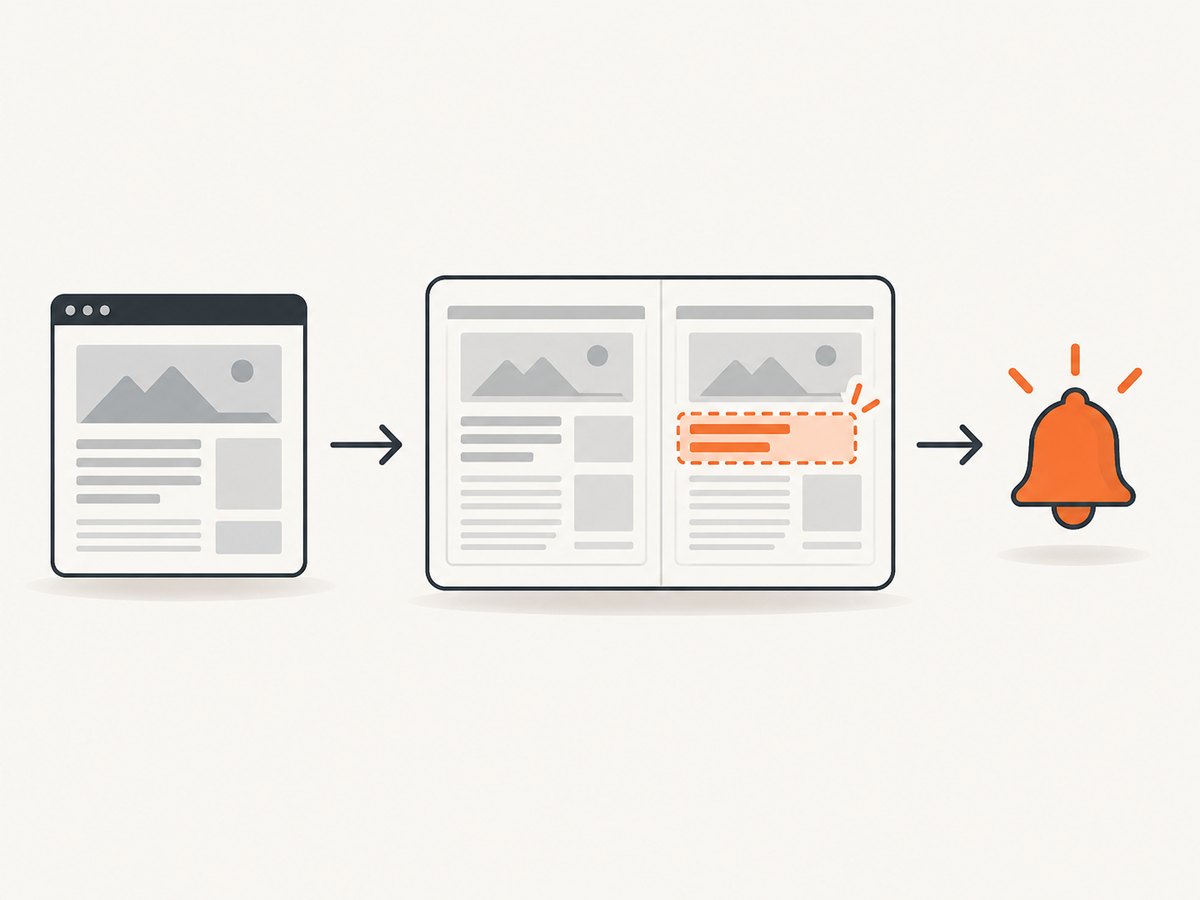
That loop does not mean every edit will be detected. A page can change between checks and change back before the next one. A monitor may also be unable to access a page that requires a login, blocks automated requests, or renders its important content in a browser. Check the chosen service’s documentation for its supported pages, check locations, schedules, and alert channels.
Choose the result you actually need
- Whole-page content: Useful for announcements or policy pages, but often noisy if navigation, ads, timestamps, or recommendations change.
- A selected area: Useful for a product price, release note section, job listing, or availability label. Visualping documents selecting a page area or element; Wachete also describes monitoring selected content.
- Visual appearance: Useful when layout, imagery, or styling matters. A text comparison can miss a visual change that leaves the text unchanged.
- A specific value: Useful for prices or stock counts. Check whether the monitor supports numeric conditions, such as alerting only when a value moves above or below a threshold. Wachete’s FAQ describes greater-than and less-than conditions for numbers.
2. Choose a monitor for the page and alert
Before signing up or writing code, describe the alert in one sentence: “Tell me when the price falls below $X,” “Tell me when this policy section changes,” or “Tell me when a new release note appears.” Then choose a monitor that can observe that information and express the condition without generating constant noise.
| Decision | Questions to check | Why it matters |
|---|---|---|
| Content scope | Can it monitor the whole page, a selected element, or a document? | A narrow scope usually makes meaningful changes easier to spot. |
| Rendering | Does the content exist in returned HTML, or does the site render it in a browser? | A basic HTTP script may see only a shell page, while a browser monitor can observe rendered content. |
| Check location | Does the service offer browser and cloud checks? What must remain available? | Distill documents both browser monitors and cloud monitors. Check its current operating requirements before relying on a particular setup. |
| Filtering | Can you select a region or ignore changing elements? | Ads, dates, and rotating content can create irrelevant alerts. Visualping documents selecting areas and blocking elements; Wachete describes ignoring frequently changing regions. |
| Alert condition | Can it alert on any change, a keyword, or a numeric threshold? | Thresholds help avoid alerts for movements that do not require action. |
| Delivery | Does it send email, push, SMS, or messages to your team’s tools? | Choose a channel someone will notice. Distill lists email, SMS, push, and integrations including Discord, Slack, and Microsoft Teams; Wachete lists email, phone notifications, and chat integrations. Availability may depend on plans. |
| Schedule and limits | What check intervals, monitor counts, and retention apply to the current plan? | Prices and plan limits were not established by the sources used for this guide; verify current vendor documentation before choosing. |
Do not assume that a service checks every site, detects every kind of change, or sends real-time alerts. Its documented behavior and the page’s access requirements determine what it can observe.
3. Build a basic HTML change tracker in Python
This small example polls a page, extracts one CSS-selected region, stores its last observed text, and sends an email when the extracted text changes. It is appropriate for pages whose target text is present in the HTML returned by a normal HTTP request. It does not execute JavaScript or bypass access controls. Use a site’s permitted access method and keep the interval reasonable.
Install the dependencies
python -m pip install requests beautifulsoup4Set the target URL and CSS selector in the script. The selector is the part you care about, such as main .price. If you leave the default selector as body, the script compares all visible text in the document, which may be noisy.
Save as monitor.py
import hashlib
import os
import smtplib
import time
from email.message import EmailMessage

import requests
from bs4 import BeautifulSoup

URL = os.environ.get("MONITOR_URL", "https://example.com/")
SELECTOR = os.environ.get("MONITOR_SELECTOR", "body")
STATE_FILE = os.environ.get("MONITOR_STATE", "last_seen.sha256")
INTERVAL_SECONDS = int(os.environ.get("MONITOR_INTERVAL", "3600"))


def fetch_text():
    response = requests.get(
        URL,
        headers={"User-Agent": "PersonalPageMonitor/1.0"},
        timeout=(10, 30),
    )
    response.raise_for_status()
    soup = BeautifulSoup(response.text, "html.parser")
    element = soup.select_one(SELECTOR)
    if element is None:
        raise RuntimeError(f"CSS selector matched no element: {SELECTOR}")
    return " ".join(element.stripped_strings)


def send_email(subject, body):
    # Configure these environment variables with an SMTP account you control.
    host = os.environ["SMTP_HOST"]
    port = int(os.environ.get("SMTP_PORT", "587"))
    username = os.environ["SMTP_USER"]
    password = os.environ["SMTP_PASSWORD"]
    sender = os.environ["ALERT_FROM"]
    recipient = os.environ["ALERT_TO"]

    message = EmailMessage()
    message["Subject"] = subject
    message["From"] = sender
    message["To"] = recipient
    message.set_content(body)

    with smtplib.SMTP(host, port, timeout=20) as server:
        server.starttls()
        server.login(username, password)
        server.send_message(message)


def check_once():
    text = fetch_text()
    digest = hashlib.sha256(text.encode("utf-8")).hexdigest()

    try:
        previous = open(STATE_FILE, encoding="utf-8").read().strip()
    except FileNotFoundError:
        previous = ""

    if not previous:
        with open(STATE_FILE, "w", encoding="utf-8") as state:
            state.write(digest)
        print("Baseline saved; no alert sent.")
        return

    if digest != previous:
        send_email(
            f"Webpage changed: {URL}",
            f"The text selected by {SELECTOR!r} changed.\n\nCurrent text:\n{text[:5000]}",
        )
        with open(STATE_FILE, "w", encoding="utf-8") as state:
            state.write(digest)
        print("Change detected; alert sent and baseline updated.")
    else:
        print("No change.")


if __name__ == "__main__":
    while True:
        try:
            check_once()
        except (requests.RequestException, RuntimeError, KeyError, OSError) as error:
            # Keep the old baseline after a failed fetch or alert attempt.
            print(f"Check failed: {error}")
        time.sleep(INTERVAL_SECONDS)
Configure and run it
- Set
MONITOR_URLto the page andMONITOR_SELECTORto the relevant element. CSS selectors are evaluated against the returned HTML. - Set SMTP variables for an account authorized to send alerts:
SMTP_HOST,SMTP_USER,SMTP_PASSWORD,ALERT_FROM, andALERT_TO. Use an app password or provider-approved credential where required; do not commit secrets. - Run
python monitor.py. The first successful check records a baseline without sending an alert. Later checks send an email when selected text differs. - Keep the process running on a machine or service that can reach the page. For a one-off check, call
check_once()from a short script or remove the loop and schedule it with your system scheduler.
The sample deliberately stores a hash instead of the full prior page, which keeps the state file small. It sends the current selected text in the email, capped at 5,000 characters. For sensitive pages, remove the content from the email and send only the URL and a change notice. A production monitor should also log failures to a durable destination and avoid overlapping checks.
4. Make the comparison less noisy
A raw string comparison treats every text difference as important. The first way to reduce noise is to narrow the selector. If the target is a price, compare the price element rather than the entire page. If only a numeric threshold matters, parse a number and compare it with the previous value or a configured threshold.
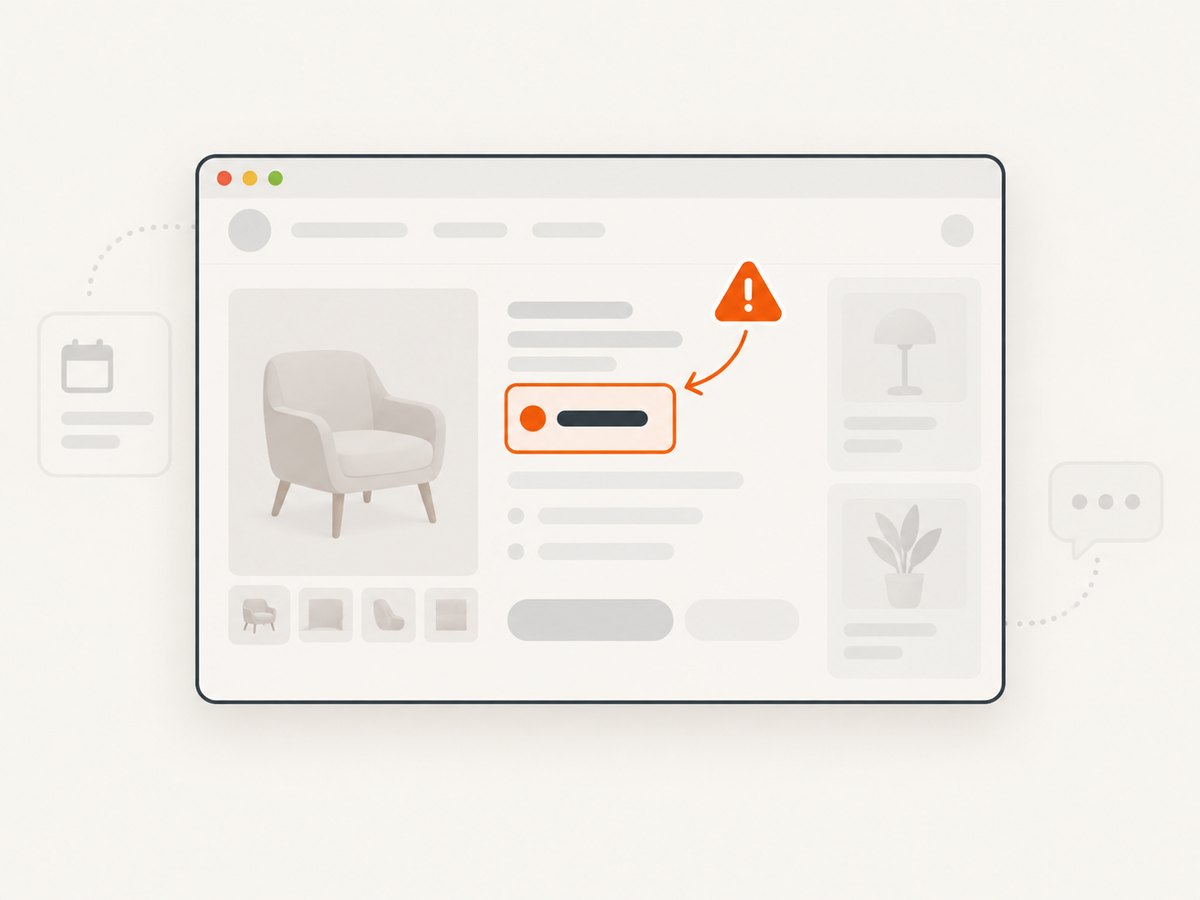
Other useful normalization steps include collapsing whitespace, removing a known timestamp, and excluding navigation or rotating recommendations. Apply only transformations that preserve the information you want: stripping all numbers, for example, could hide a meaningful price change. For visual monitors, select a region or block known to change frequently if the service supports it. Visualping documents area selection and blocking elements; Wachete describes ignoring regions such as ads or dates.
Before enabling alerts, run the monitor through a few ordinary page updates and inspect what it considers a change. This is configuration review, not proof that future changes will always be detected. Keep a record of the selected URL, selector, condition, and notification destination so another person can maintain it.
5. Handle dynamic pages and visual changes
If the HTML returned by requests does not contain the target, the site may populate it with JavaScript after load. A basic HTTP tracker cannot observe that rendered state. Choose a monitor that documents browser-based checks, or use a browser automation approach that loads the page and waits for the relevant element before reading it. Distill distinguishes browser monitors from cloud monitors; Wachete describes support for dynamic pages and PDF, Word, and Excel documents. Confirm that the exact page type and required access method are supported.
Use a visual comparison when the thing you need to notice is visual: a changed image, layout, or chart. Text extraction is usually a better fit when the question is what words or values changed. A rendered screenshot can also be affected by viewport, fonts, animations, loading state, and responsive layout, so keep capture conditions consistent. If content is behind authentication, confirm that the monitoring product supports the access method and store credentials securely.
6. Reliability, performance, and cost
A monitor’s schedule is not a guarantee that an alert arrives at the instant a change occurs. The change can happen between checks; the next check may fail; a notification provider may delay delivery. Set a check interval that fits the consequence of missing a short-lived change, and verify the service’s current schedule and plan limits. More frequent polling also means more requests and may increase usage or burden the monitored site.
For a self-hosted script, use explicit timeouts, handle non-success HTTP responses, retain the previous baseline on failed checks, and monitor the monitor itself. The sample does not update the hash if fetching or emailing raises an error, so it can retry the change on the next loop. Consider adding backoff for repeated network failures, a persistent log, and a separate failure alert. Do not run concurrent copies against one state file without locking; two processes can race and overwrite state.
For hosted services, compare current plan costs, check intervals, monitor limits, history retention, and alert-channel availability on the provider’s own pricing and documentation pages. The sources reviewed for this article establish features, not current prices or service-level guarantees, so no price or uptime comparison is asserted here. Include the cost of maintaining a machine and SMTP or notification integrations when evaluating a DIY script.
7. Troubleshooting
| Symptom | Likely cause | Fix |
|---|---|---|
| The script reports no matching element | The CSS selector is wrong, the page structure changed, or the element is rendered by JavaScript. | Inspect the returned HTML and correct the selector. If the text only appears after browser rendering, use a monitor that supports browser checks. |
| The script sees a bot check or access denied | The site rejected the request or requires an access path the script does not have. | Respect the site’s access rules. Use an authorized route or a monitoring service whose documented access options fit the page. Do not try to evade a challenge. |
| Alerts arrive constantly | The selector includes volatile content, or whitespace and rotating text differ on every check. | Narrow the selector, normalize harmless formatting, or configure ignored regions. Review whether each changing field belongs in the alert condition. |
| A visible change is missed | The changed content may be visual, JavaScript-rendered, outside the selected region, or reverted between checks. | Use a visual or browser-based monitor where appropriate, check the selector and schedule, and confirm the page is accessible to that monitor. |
| There is no email | SMTP settings, credentials, sender policy, or recipient delivery may be incorrect. | Check the logged exception, verify provider SMTP settings and credentials, and send a separate test email. Never print passwords to logs. |
| Every run sends an alert | The baseline is not being saved, the process uses a different working directory, or the content changes each time. | Set an absolute MONITOR_STATE path, check file permissions, and print the normalized selected text during diagnosis. |
| Checks time out or fail intermittently | Network conditions, the page, or the monitor’s access path may be unavailable. | Keep failures distinct from content changes, use bounded retries with backoff, and verify the provider’s documented operating requirements. |
8. Or skip the browser setup
If your goal is to capture the page after it renders, ScreenshotNeo provides a website screenshot API and MCP server. A screenshot is useful as visual evidence or as an input to a comparison workflow; it is not by itself a scheduled change-monitoring or alert service. You still need to decide how often to capture, compare results, and deliver alerts.
One GET request returns an image or PDF. See the ScreenshotNeo API documentation for options and response details.
curl -G "https://api.screenshotneo.com/v1/shot" -d access_key=YOUR_API_KEY --data-urlencode url=https://stripe.com -o shot.webpimport requests
r = requests.get("https://api.screenshotneo.com/v1/shot", params={"access_key": "YOUR_API_KEY", "url": "https://stripe.com"}, timeout=90)
open("shot.webp", "wb").write(r.content)const q = new URLSearchParams({ access_key: 'YOUR_API_KEY', url: 'https://stripe.com' });
const res = await fetch(`https://api.screenshotneo.com/v1/shot?${q}`);- Cookie banners, newsletter popups, and chat widgets are removed before the shot; each cleanup step can be turned off.
- Bot checks, blank pages, timeouts, failed loads, and cache hits are never billed. The response includes
X-Page-VerdictandX-Billedheaders. - An MCP server lets AI agents use
take_screenshot,get_page_info, andcapture_pdf. - 1,000 screenshots a month are free with no card; paid plans start at $5 for 3,000. Every feature is available on every plan.
Sign up for ScreenshotNeo’s free 1,000 screenshots a month, with no card required.
9. Frequently asked questions
Can I get an alert when an item is back in stock?
Yes, if the monitor can access the stock status and lets you set a suitable text or value condition. Prefer an alert tied to the availability field over any change on the whole page.
Will a monitor notice a change that happens and disappears between checks?
Not necessarily. A scheduled check can only compare what it observes at check time. For short-lived changes, verify the available schedule and choose an interval appropriate to the use case.
Can I monitor a PDF or other document?
Some services document document monitoring. Wachete describes PDF, Word, and Excel files; confirm support for the specific format and URL you need.
Does a screenshot API send webpage alerts?
A screenshot API captures a page. To create alerts, combine scheduled captures with a comparison and notification process, or use a dedicated webpage change monitor.
Sources
- Visualping Help Center documents scheduled page checks, selected areas, blocking elements, and visual comparisons.
- Distill documentation describes cloud and browser monitors and available notification channels.
- Wachete describes dynamic pages, document monitoring, ignored regions, and numeric conditions in its FAQ.