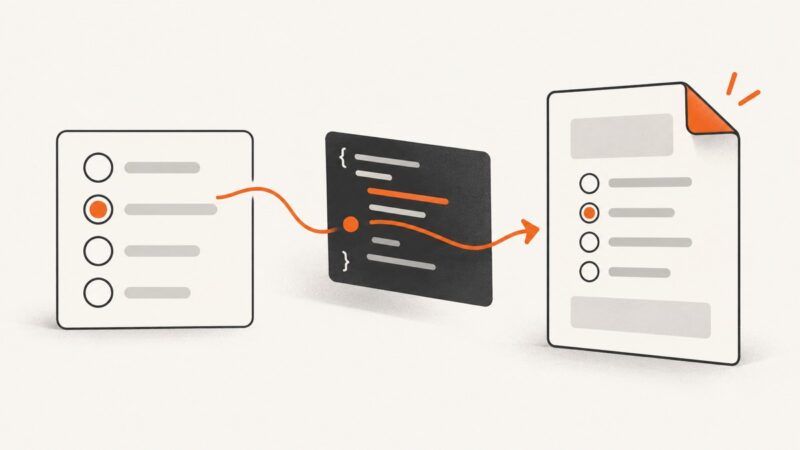
Website Scraper to PDF: How to Convert Entire Sites
Convert a whole website to PDFs with Acrobat, or crawl it with HTTrack first. Learn scope, JavaScript limits, redirects, authentication, and automation.

Short answer: If you need PDFs made from an entire website, Adobe Acrobat desktop provides a documented workflow: choose Create → Web page, enable Capture multiple levels, then select a depth or Get entire site. If you need a free crawl-first copy, HTTrack can recursively download a browsable mirror, but it does not automatically convert every page into PDF. You would need a separate HTML-to-PDF step.
No crawler can promise that it found literally every page. Scope rules, redirects, JavaScript-generated links, authentication, external domains, and server behavior all affect coverage. This guide shows how to choose the right outcome, configure each method, verify what was captured, and automate rendered screenshots or PDFs when a browser-based API is a better fit.
1. Decide what “entire site to PDF” means
People usually mean one of three different jobs:
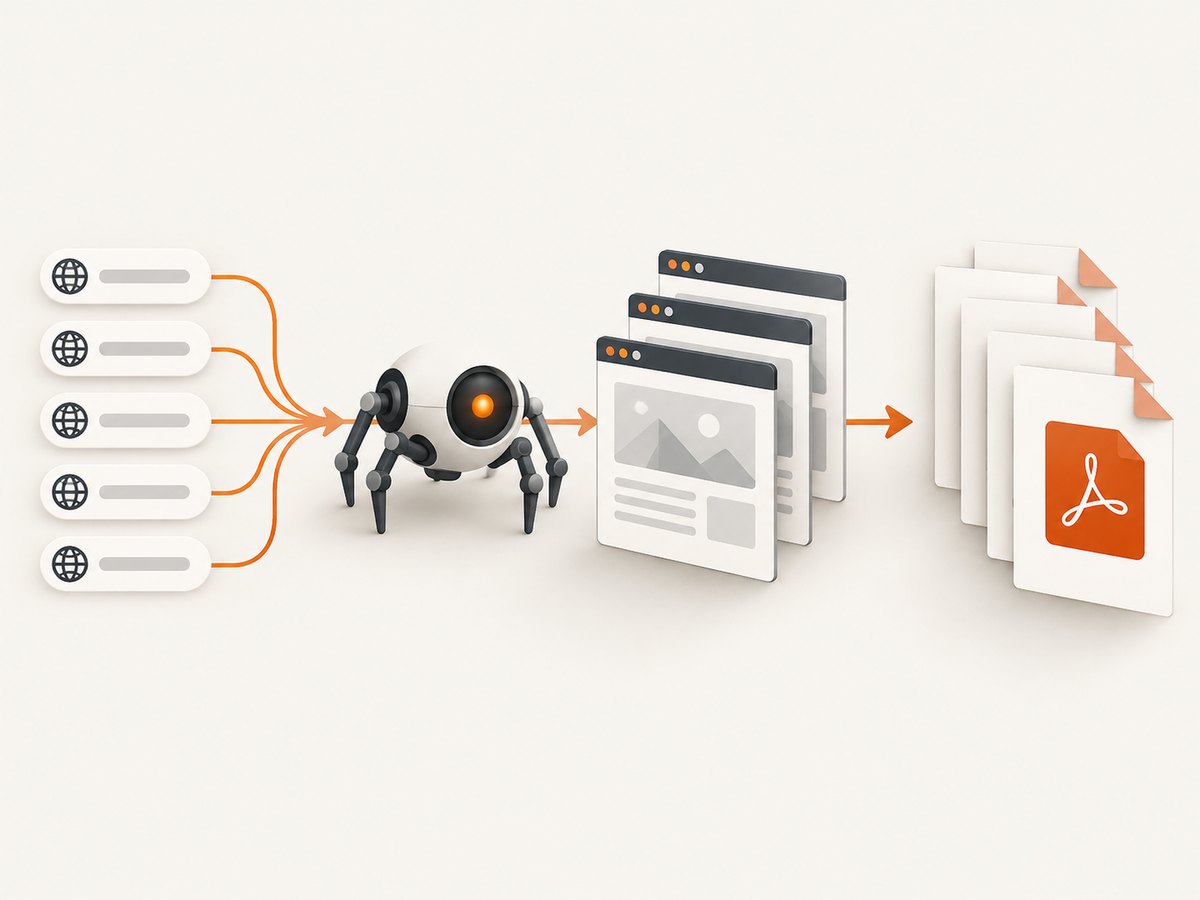
- One PDF containing a site or a section: useful for an archive or handoff, but long sites can become unwieldy.
- One PDF per HTML page: preserves page-level files and makes selective sharing easier.
- Download existing PDFs linked by a site: this is document collection, not conversion of HTML pages.
Acrobat’s multi-level web capture is intended for converting web pages into PDFs. HTTrack creates an offline website mirror. HTTrack’s PDF filters can collect PDF files that already exist on a site, but the HTML pages containing those links must stay in the crawl scope so the links can be discovered. Adobe documents the Acrobat workflow; HTTrack documents its mirror behavior.
2. Convert multiple website levels with Acrobat
Acrobat is the most direct desktop option when the desired output is PDF rather than an offline mirror.
Steps
- Open Acrobat and select Create.
- Choose Web page.
- Enter the starting URL, or browse to a local HTML file.
- Select Capture multiple levels.
- Choose a number of levels, or choose Get entire site. Adobe describes this as including all levels of the website.
- For a multi-level capture, optionally select Stay on same path to keep pages under the supplied URL path, or Stay on same server to exclude external domains.
- Select Create. Acrobat can queue additional pages while a conversion is in progress.
How to choose the scope
| Setting | Use it when | Risk |
|---|---|---|
| Fixed level count | You want a predictable crawl, such as a documentation section two links deep. | Pages deeper than the selected level are omitted. |
| Get entire site | You want Acrobat to follow all eligible levels from the starting page. | Large sites can include navigation, search results, archives, and unrelated sections. |
| Stay on same path | The target is a subsection such as /docs/ or /help/. |
Important pages outside that path are excluded. |
| Stay on same server | You want to prevent links to other domains from entering the capture. | Documents hosted on a CDN, files host, or separate documentation domain may be missed. |
Start with a narrow path or a small level count when you are learning a site’s structure. Expand only after checking the first output. “Entire site” is a crawl instruction, not a completeness guarantee: the result still depends on links Acrobat can reach and pages the server will return.
3. Use HTTrack when you need a local mirror first
HTTrack is free software that recursively downloads a site, rewrites relative links for offline browsing, and can resume an interrupted download or update an existing mirror. Its output is a directory of downloaded assets and HTML, not a finished PDF collection.
Simple same-host mirror
httrack https://example.com/ --path mydirReplace example.com with a site you are authorized to crawl. If the start URL redirects from www to the bare domain, or from HTTP to HTTPS, begin with the final URL or explicitly allow the destination host. A redirect that changes hosts can otherwise stop a same-host crawl.
Limit depth
httrack https://example.com/ --path mydir --depth=2HTTrack’s guide counts the start page as level one. A depth of two therefore includes the start page and links one step below it. Depth limits reduce storage and requests, but they also omit deeper pages.
Collect existing linked PDFs
httrack https://example.com/ "-*" "+https://example.com/*.html" "+https://example.com/*[path]/" "+https://example.com/*.pdf" --path mydirThis command keeps HTML and directory pages as discovery scaffolding while allowing PDF files. A PDF-only filter can fail because the crawler discarded the pages that contained the links. If documents live on a separate host, such as files.example.com or a CDN, add an explicit rule for that host and keep the crawl scope deliberate. See the HTTrack command-line guide for filter, depth, and host controls.
4. What can make pages missing?
JavaScript-generated navigation
HTTrack states that it parses HTML and CSS but does not run JavaScript. Links created only after a script executes—such as an application menu, infinite scroll, or client-side route—may never be seen. Inspect the raw HTML or browser network requests when a page appears in a normal browser but not in the mirror.
Redirects and host changes
A redirect can move from www to the bare domain, from HTTP to HTTPS, or from a marketing host to a documentation host. A same-host policy may stop at that boundary. Start at the canonical URL and allow every host that is legitimately part of the capture.
Authentication and sessions
Public pages are the easiest case. Logged-in applications may require cookies, request headers, or a browser workflow that a simple crawler cannot reproduce. HTTrack’s command-line documentation describes cookie-file and request-capture options for some authenticated cases, but behavior depends on the site. Verify access with a small test scope before starting a large crawl.
Robots, rate limits, and server load
Keep request rates and scope reasonable, and crawl only infrastructure you are allowed to load. HTTrack includes transfer throttling and warns against disabling built-in security limits except when you control or are authorized to test the infrastructure. A broad crawl can generate many requests even when the visible site looks small.
Existing PDFs versus converted pages
A link ending in .pdf is an existing document. Printing an HTML article to PDF is a conversion. Plan your verification around the promised output: count downloaded PDF files for a document collection, or count rendered HTML pages and inspect representative PDFs for a conversion project.
5. A reliable conversion workflow
- Define the boundary. Write down the starting URL, allowed paths, allowed hosts, and whether external assets count.
- Make a small sample. Capture one page and a shallow level before selecting the whole site.
- Record redirects. Save the final canonical URL and list any documentation, asset, or file hosts reached.
- Check dynamic pages. Compare pages whose links appear only after JavaScript, scrolling, search, or login.
- Run the full capture. Use Acrobat for direct PDFs or HTTrack for a mirror and later conversion.
- Audit the result. Compare navigation sections, sitemap entries, known documents, and a sample of pages with the output.
- Keep a manifest. Store the source URL, timestamp, scope settings, redirects, and failures alongside the PDFs or mirror.
6. When browser rendering or automation is required
Desktop crawlers are useful for a one-off public site. A browser-based screenshot or PDF API is more practical when pages need a real browser, custom headers, cookies, a selected viewport, JavaScript interaction, or repeatable automation from CI.

Or skip the browser setup
ScreenshotNeo is a website screenshot API and MCP server. One GET request returns a PNG, JPEG, WebP, or PDF. It can capture full pages with lazy images loaded, a single element by CSS selector, dark mode, device presets or custom viewports, retina scale, custom CSS and JavaScript, clicks, selector waits, delays, network-idle waits, blocked resource types, headers, cookies, user agents, authorization, timezone, geolocation, transparent backgrounds, resizing, caching, signed links, asynchronous jobs, webhooks, bulk capture, and usage data. PDF captures support paper size, margins, landscape mode, and page ranges; see the ScreenshotNeo API documentation for request parameters.
Cookie and consent banners, newsletter popups, and chat widgets can be removed before the capture, with each cleanup step switchable. Bot checks, blank pages, timeouts, failed loads, and cache hits are not billed; response headers report the page verdict and billing status.
cURL
curl -G "https://api.screenshotneo.com/v1/shot" -d access_key=YOUR_API_KEY --data-urlencode url=https://stripe.com -o shot.webpPython
import requests

r = requests.get(
    "https://api.screenshotneo.com/v1/shot",
    params={"access_key": "YOUR_API_KEY", "url": "https://stripe.com"},
    timeout=90,
)
r.raise_for_status()
open("shot.webp", "wb").write(r.content)
Node.js
const q = new URLSearchParams({ access_key: 'YOUR_API_KEY', url: 'https://stripe.com' });
const res = await fetch(`https://api.screenshotneo.com/v1/shot?${q}`);
if (!res.ok) throw new Error(`HTTP ${res.status}`);
const data = Buffer.from(await res.arrayBuffer());
require('node:fs').writeFileSync('shot.webp', data);
For many URLs, use bulk capture rather than opening hundreds of independent browser sessions. For public pages, signed links let you place results in <img> tags without exposing an access key. For scheduled crawls, asynchronous jobs and signed webhooks keep long captures out of a request timeout. Caching with a chosen TTL avoids recapturing unchanged pages.
ScreenshotNeo includes an MCP server with take_screenshot, get_page_info, and capture_pdf tools for Claude, Cursor, and other MCP clients. The free plan includes 1,000 shots per month without a card. Paid plans start at $5 for 3,000 shots; yearly billing gives two months free, and every feature is available on every plan. Create a free ScreenshotNeo account.
7. Troubleshooting
| Symptom | Likely cause | Fix |
|---|---|---|
| Only the start page was captured | Multiple levels was not enabled, or links are outside the selected scope. | Enable multi-level capture, increase depth, and review same-path or same-server limits. |
| HTTrack stops after a redirect | The redirect changes host or protocol. | Start at the final URL or allow the redirected host explicitly. |
| Linked PDFs are missing | Discovery HTML was excluded, or PDFs are hosted elsewhere. | Keep HTML and directory pages in scope and allow the document host. |
| Client-side routes are absent | URLs are generated by JavaScript. | Use a browser-rendering workflow, export a sitemap, or collect the routes separately. |
| Logged-in pages show a login screen | Cookies or authentication headers were not supplied. | Use an authenticated browser/session workflow and verify permissions. |
| PDF layout is broken | Responsive CSS, lazy images, fonts, or print styles differ from the browser view. | Capture at the intended viewport, wait for a selector or network idle, and check representative pages before scaling up. |
| A crawl is unexpectedly huge | Calendars, search URLs, tags, or query parameters create near-infinite URL variants. | Restrict paths, filter query patterns, set depth, and exclude irrelevant hosts. |
| An API request times out | The page is slow, blocked, or waiting on third-party resources. | Use a longer client timeout, wait on a specific selector, block unnecessary resource types, or use an asynchronous job. |
8. Performance, reliability, and cost considerations
- Performance: Site size is driven by reachable URLs and assets, not just page count. Images, fonts, scripts, and third-party embeds can dominate transfer time.
- Reliability: Repeatable results require a fixed scope, canonical URLs, recorded settings, and a retry policy. Dynamic pages can change between runs.
- Storage: Keep PDFs and the crawl manifest together. A mirror may contain many assets that are unnecessary once PDFs have been generated.
- Cost: Acrobat is a desktop workflow; HTTrack is free software, but conversion, storage, and compute still have operational costs. ScreenshotNeo bills only clean shots; bot checks, blank pages, failed loads, timeouts, and cache hits are not billed, and the response identifies the verdict and billing state.
- Permissions: Crawl only sites and authenticated areas you are authorized to access. Respect site policies and avoid aggressive request rates.
9. FAQ
Can Acrobat create one PDF for every page?
Acrobat’s documented web-page workflow captures multiple levels and creates PDFs from web pages. For page-by-page file naming and large automated batches, a scripted browser or API workflow is easier to control.
Does HTTrack convert HTML into PDF?
No. HTTrack creates a local, browsable mirror. Use a separate PDF conversion step for the mirrored HTML.
Will “Get entire site” guarantee every URL?
No. Pages must be discoverable and accessible within the selected scope. JavaScript-only links, authentication, redirects, external hosts, and server behavior can limit coverage.
How do I capture a site that requires JavaScript?
Use a browser-rendering tool that waits for the page to finish loading. HTTrack does not execute JavaScript, so it can miss runtime-generated links.
Should I choose Acrobat, HTTrack, or an API?
Choose Acrobat for a direct desktop PDF capture, HTTrack for a configurable offline mirror or linked-document collection, and a browser API when you need repeatable automation, rendering controls, authentication, or scheduled jobs.