Using Website Screenshots for Advertising Material Creation
Can you use a website screenshot in an ad? Learn how to capture only what you need, check rights and permissions, and avoid implying an endorsement.
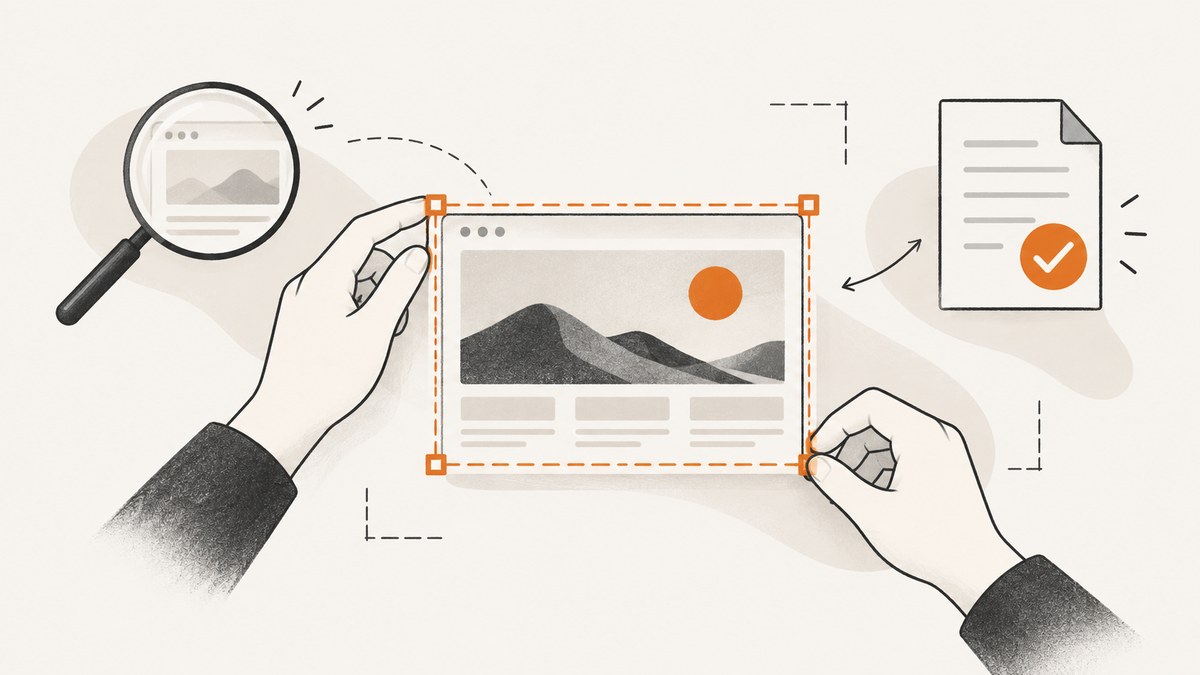
Can I use a screenshot of a website in an ad? A public webpage is not automatically free to reproduce commercially. A screenshot reproduces the text, photographs, artwork, logos, reviews, faces, and interface elements visible in it. Before placing one in advertising, identify the rights in those elements, get permission or a license for the intended use where needed, and check that the finished ad does not suggest an endorsement or affiliation that is not real.
This guide gives a practical workflow and a browser-based capture example. It is general U.S. guidance, not a legal conclusion about a particular screenshot or campaign. The exact answer depends on the content, intended use, territory, and applicable rules.
1. The short answer: a screenshot is a reproduction
Website text, artwork, and photographs may be protected even when a page is publicly accessible. Capturing them does not itself give an advertiser permission to reproduce them. Start by inspecting what the image actually contains and who controls the rights in each relevant part. A site operator may not own every photograph, illustration, customer review, or other third-party item displayed on its pages.
There is no universal safe percentage, pixel-area limit, crop size, or attribution formula that makes a commercial use permissible. Fair use is assessed from all the circumstances, including the purpose and character of the use, the nature of the work, the amount and substantiality used, and the effect on the potential market. Commercial advertising is relevant to that analysis, but does not decide it by itself. The Copyright Office describes fair use as dependent on all the circumstances; it is not a checkbox test.
For someone else’s internet photograph, Copyright Office guidance recommends obtaining permission. A license should match the actual advertising use and context: a social ad, display campaign, print placement, or other distribution may call for different terms. Do not assume permission for editorial or personal use extends to paid promotion.
2. Decide what the screenshot is doing in the ad
Documentary illustration, critique, or promotion?
A screenshot used to discuss or critique a page raises a different set of facts from a screenshot used to promote an unrelated product. Likewise, showing only your own page and your own content differs from prominently reproducing another party’s photography, artwork, or customer testimonial. These distinctions help frame the review; none guarantees a legal result.
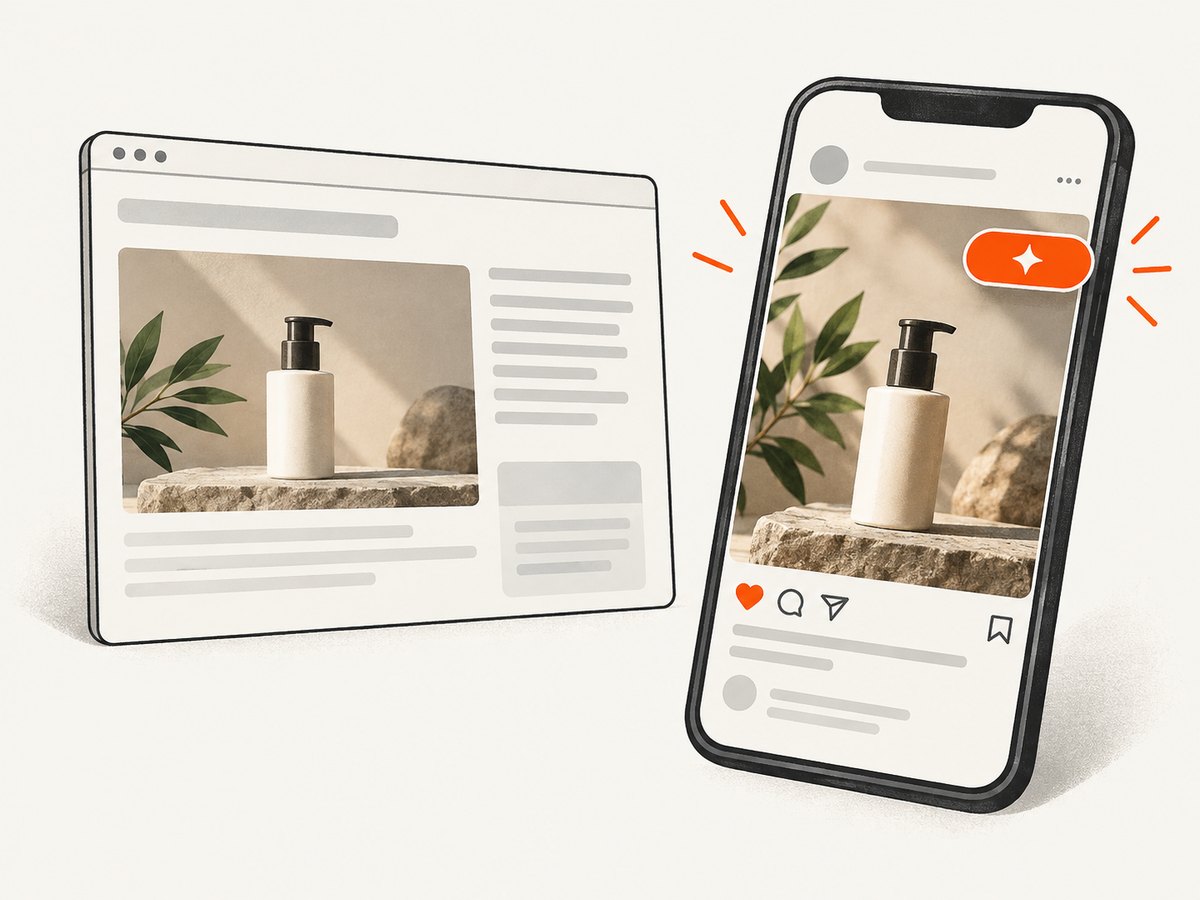
Write down the message the audience is likely to take from the ad. Does the image simply identify the page being discussed, or does it appear to show that the website owner, a customer, reviewer, or person pictured recommends your product? A logo beside a product claim, a five-star review, or a recognizable person can change the overall impression even if the accompanying caption is carefully worded.
Check for implied endorsement or affiliation
Advertising claims should be truthful, not deceptive or unfair, and evidence-based, according to the FTC’s advertising guidance. Do not present a screenshot in a way that implies a relationship, customer experience, or endorsement that you cannot support and have not authorized. If a genuine endorsement has a material connection to the advertiser—such as payment, employment, or a gifted product—FTC guidance says the connection may need clear disclosure.
For an endorsement displayed as a social image or story, FTC staff advises putting the disclosure over the image where viewers can notice and read it. For video, include the disclosure in the video itself, not only in its description. Make the disclosure readable against the image and visible long enough to understand. Disclosures do not grant copyright permission, and permission does not make a misleading endorsement truthful.
3. A practical review workflow before capture
- Define the use. Record the campaign, format, placement, audience, territory, and expected duration. A short-lived organic post and a long-running paid campaign are not interchangeable licensing contexts.
- Choose the minimum useful area. Capture only the page portion needed to communicate the creative idea. A smaller crop can reduce unnecessary material, but crop size alone does not establish permission or fair use.
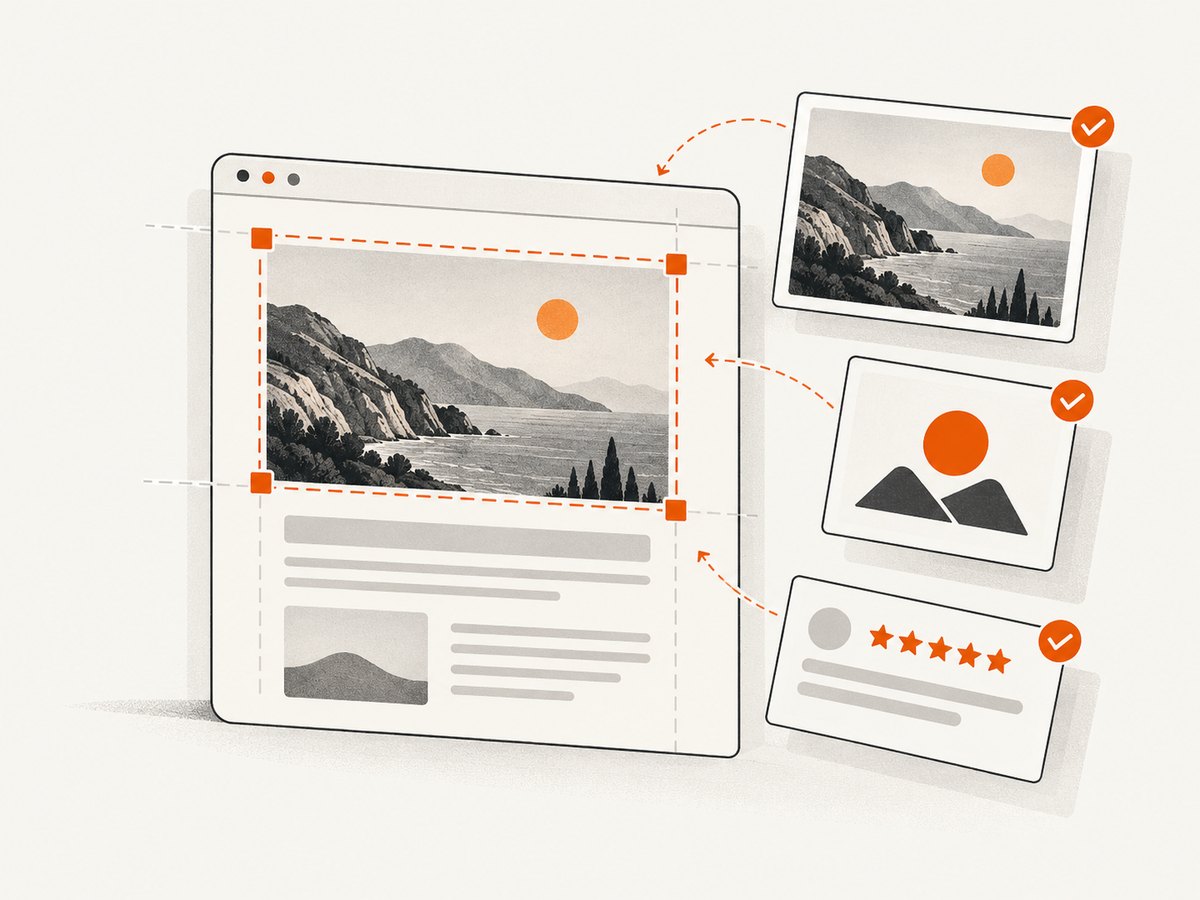
- Inventory visible content. Note third-party photography, illustrations, logos, customer reviews, names, faces, and interface elements. Identify the likely rights holder for each element and check the applicable license or obtain permission for the exact use.
- Review the overall impression. Ask someone unfamiliar with the campaign what relationship the ad appears to claim. Remove or qualify elements that could imply sponsorship, customer approval, or affiliation inaccurately.
- Preserve a source record. Keep the source URL, access date, capture date, the original capture, and notes on permissions and edits. This is prudent internal documentation; it is not a substitute for rights clearance.
- Escalate unresolved risks. Seek rights-holder permission or legal review when the campaign prominently reproduces third-party creative content, includes identifiable people or customer reviews, or could imply endorsement or affiliation.
These steps help organize a review; they do not determine whether a particular use is lawful. The cited sources do not resolve site contract terms, privacy or publicity rights for a specific person, permissions for a particular asset, or rules outside the United States.
4. Capture a page or a portion with Playwright
Once the capture is appropriate for your review, Playwright can save a full-page or element screenshot. This example uses Node.js and Chromium. It preserves a local source image for internal review; it does not grant reuse rights or alter the legal analysis.
Install
mkdir ad-screenshot
cd ad-screenshot
npm init -y
npm install playwright
npx playwright install chromium
Capture the page or a selected element
// capture.mjs
import { chromium } from 'playwright';

const target = process.env.TARGET_URL;
const selector = process.env.SELECTOR; // Optional CSS selector

if (!target) throw new Error('Set TARGET_URL to the page to capture');
const url = new URL(target);
if (!['http:', 'https:'].includes(url.protocol)) {
  throw new Error('TARGET_URL must use http or https');
}

const browser = await chromium.launch({ headless: true });
try {
  const page = await browser.newPage({
    viewport: { width: 1440, height: 1000 },
    deviceScaleFactor: 1,
  });

  const response = await page.goto(url.href, {
    waitUntil: 'domcontentloaded',
    timeout: 45000,
  });
  if (!response) throw new Error('Navigation returned no main response');
  if (!response.ok()) {
    throw new Error(`Page returned HTTP ${response.status()}`);
  }
  await page.locator('body').waitFor({ state: 'visible', timeout: 15000 });

  // A short settle period can help with client-rendered content.
  await page.waitForTimeout(750);
  const output = 'source-capture.png';

  if (selector) {
    const element = page.locator(selector).first();
    await element.waitFor({ state: 'visible', timeout: 15000 });
    await element.screenshot({ path: output, animations: 'disabled' });
  } else {
    await page.screenshot({
      path: output,
      fullPage: true,
      animations: 'disabled',
    });
  }
  console.log(`Saved ${output}; page status ${response.status()}`);
} finally {
  await browser.close();
}
TARGET_URL='https://example.com' node capture.mjs
SELECTOR='main article' TARGET_URL='https://example.com' node capture.mjsReplace the example URL with a page you are authorized to access. For a commercial campaign, check rights before distributing the resulting image. Avoid bypassing access controls or using credentials in a way that violates the site’s rules.
5. Capture options and edge cases
| Need | Approach | Watch for |
|---|---|---|
| Whole document | fullPage: true |
Very long pages can create large files and may contain content far below the portion you need. |
| One component | Wait for a stable CSS selector and call locator screenshot. | Selectors can change; check that the chosen element is visible and contains the intended content. |
| Sharper output | Set deviceScaleFactor: 2 for a high-density capture. |
Pixel dimensions and file size increase. Confirm the output at its actual placement size. |
| Dynamic page | Wait for a specific selector or a short delay after navigation. | networkidle may never occur on pages with analytics, polling, or persistent connections. |
| Cookie or login state | Use an authorized browser context and intended consent state. | Do not infer permission to use the page’s content from being logged in or accepting a banner. |
| Lazy-loaded images | Scroll through the page before capturing, then return to the target position. | Scrolling may trigger animations or content changes; preserve a record of the result. |
For a long page with lazy content, a simple scroll pass can trigger loading before the final capture:
await page.evaluate(async () => {
  const step = Math.max(400, window.innerHeight);
  for (let y = 0; y < document.body.scrollHeight; y += step) {
    window.scrollTo(0, y);
    await new Promise(resolve => setTimeout(resolve, 120));
  }
  window.scrollTo(0, 0);
});
Page content can change between visits, vary by location, or personalize by cookie state. Record the access time and relevant context, and do not treat a capture as proof that every visitor sees the same page.
6. Troubleshooting captures
| Symptom | Likely cause | Fix |
|---|---|---|
| Navigation timeout | The page is slow, holds open network requests, or never reaches the requested event. | Use domcontentloaded, then wait for a specific visible selector. Increase the timeout only when the page genuinely needs it. |
| Screenshot is blank or incomplete | Client rendering has not finished, an overlay obscures content, or the selector is wrong. | Wait for the page’s main content selector, inspect the selected element, and capture again after a short settle period. |
| Element not found | Selector mismatch, delayed content, or content inside a frame. | Verify the selector in the page, wait for it to appear, and locate content in the correct frame when applicable. |
| Images are missing | Lazy loading, blocked resources, or image requests still in flight. | Scroll to trigger lazy loading, wait for the relevant image, and check whether the site permits automated access. |
| Font or layout differs | Font loading, viewport, device scale, or responsive breakpoints changed the rendering. | Use a fixed viewport, wait for document.fonts.ready, and choose the intended device scale and page state. |
| Access denied or CAPTCHA | The site is restricting automated browsing. | Do not attempt to defeat the control. Request authorized access or use a permitted source asset. |
| Huge image or memory pressure | A full-page capture spans a very long document at high pixel density. | Capture the needed element or viewport, lower the device scale, or split the task into documented sections. |
7. Cost, performance, and reliability
With self-hosted browser automation, the main costs are the compute and time needed to launch a browser, load the page, wait for dynamic content, and store the output. Full-page and high-density captures use more memory and produce larger files. Reusing a browser process across a controlled batch can reduce startup overhead, but isolate pages and contexts where cookies or session state should not be shared.
For repeatable captures, fix the viewport, device scale, locale, and consent state; wait for a meaningful page condition rather than an arbitrary long sleep; and retain the original output with capture metadata. Set finite navigation and selector timeouts, close the browser in a finally block, and record failures separately from successful images. A page may fail, change, or serve different content later, so preserve the source URL and capture time alongside the artifact.
Browser rendering is not deterministic across every operating system, browser build, font installation, or network state. If an image will be used in an ad, have a person inspect the actual output and the final composed creative, including disclosure placement and legibility. A clean technical capture is not a rights or compliance review.
8. Special case: screenshot as a USPTO service-mark specimen
If the image is evidence for a U.S. service-mark application, use the USPTO’s specimen guidance rather than treating it as ordinary ad artwork. The screenshot should show the mark in a way that connects it directly to the services. USPTO guidance says a website screenshot must include the URL and date accessed. Follow the current application form’s instructions for supplying those details; do not assume a browser screenshot alone includes them. See the USPTO specimen guidance.
9. Or skip the browser setup
ScreenshotNeo is a website screenshot API and MCP server from Yorker Media. Its one-call API can return an image or PDF, and its parameters include full-page and element captures. See the ScreenshotNeo API documentation.
curl -G "https://api.screenshotneo.com/v1/shot" \
  -d access_key=YOUR_API_KEY \
  --data-urlencode url=https://example.com \
  -o shot.webp
Cookie banners, popups, and chat widgets are removed before the shot. Bot checks, blank pages, and failed loads are never billed. An MCP server lets AI agents take screenshots. The free plan includes 1,000 screenshots a month with no card; paid plans start at $5 for 3,000. The API can simplify capture setup, but it does not grant permission to reuse the captured content or replace a campaign review.
Sign up for 1,000 free screenshots a month, with no card.
10. Frequently asked questions
Does adding a source credit make a screenshot okay to use?
Attribution can be useful, but it does not itself grant permission or establish fair use. Check the rights and license for the specific content and use.
Can I use a screenshot if I crop out the site’s logo?
Removing a logo does not resolve rights in photographs, artwork, text, or other material that remains. Review the entire crop and the impression created by the ad.
Can I use a screenshot only briefly in a paid social ad?
Duration alone is not a universal permission rule. The intended platform, duration, territory, content, and purpose are among the details to evaluate under the relevant license and law.
Does a disclosure let me show someone else’s endorsement?
No. A disclosure addresses the audience’s understanding of a material connection; it does not create rights to reproduce a person’s words or image, and it does not make an inaccurate endorsement true.
Is this guidance valid outside the United States?
This article summarizes general U.S. guidance. Other jurisdictions may apply different rules, and cross-border campaigns may require review for each relevant market.
Sources and limits
- U.S. Copyright Office: Fair Use
- U.S. Copyright Office: Fair Use FAQ
- FTC: Advertising and Marketing
- FTC: Disclosures 101 for Social Media Influencers
- USPTO: Specimens
The sources above do not determine ownership or licensing terms for a named website or asset, whether a specific screenshot use is fair, whether a site’s terms permit the use, or whether privacy, publicity, and non-U.S. rules apply. Those questions depend on the exact content, campaign, and jurisdiction. Obtain permission or qualified legal review when the use presents unresolved rights or endorsement concerns.


