Using Website Screenshots for Personalized Onboarding
Use a customer’s website as visual context for onboarding recommendations, previews, and useful defaults—with a practical capture flow and privacy safeguards.
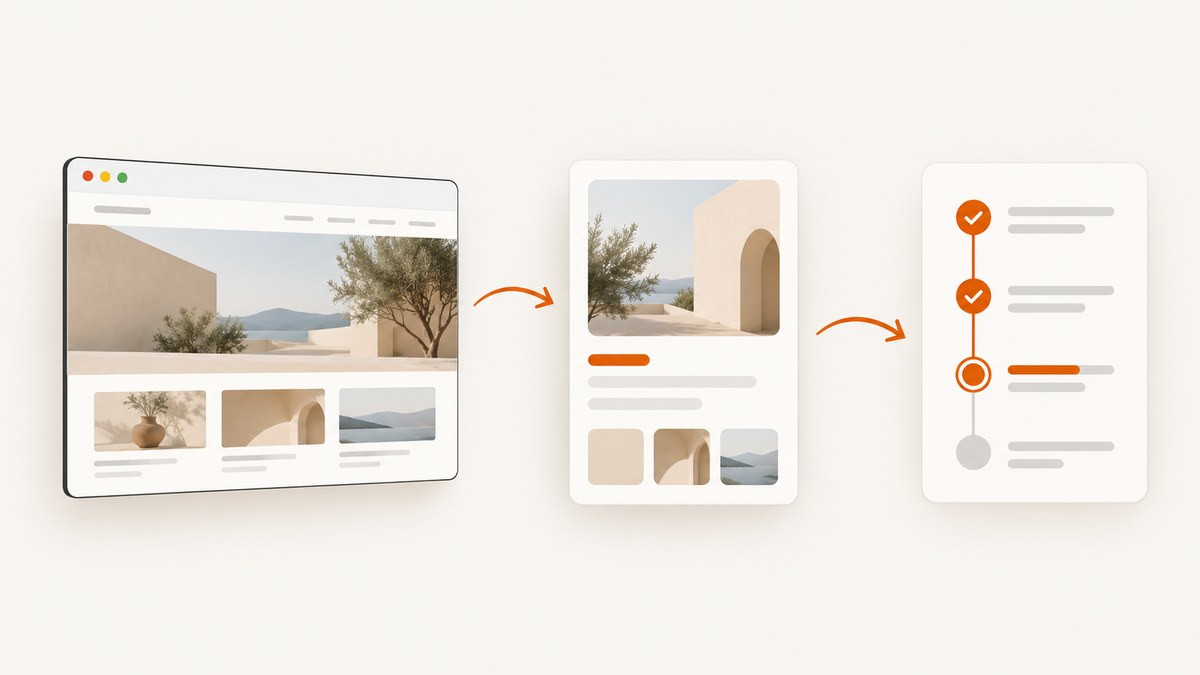
A website screenshot can make onboarding specific to the customer’s real site. Capture only the page or region that helps with the setup task, show it as recognizable context, and use it to suggest a relevant setting or next step. Let the customer inspect and correct any assumptions before applying them. A screenshot is useful context; it is not proof that a recommendation is right.
This approach suits products that help customers configure a website, create branded content, improve a landing page, or connect a site to another service. It does not establish a measured improvement in activation, completion, or retention: the sources reviewed describe the pattern and design guidance, but provide no attributable impact metric. [ScreenshotOne describes the use case](https://screenshotone.com/use-cases/personalized-onboarding/), but that vendor page is not independent evidence of effectiveness.
1. What screenshots can personalize
A rendered page gives your onboarding flow visual evidence of a site’s branding, layout, copy, and calls to action. Depending on your product, that context can support:
- A recognizable preview: show the customer their own page beside a setup step, so the task relates to something they recognize.
- Draft settings: suggest a brand color, logo placement, page template, or content placement for the customer to review.
- Relevant guidance: explain a recommendation in the context of the page where the customer will use it.
- A useful starting point: prefill a draft or choose a likely template, while keeping the customer in control of the final choice.
Do not treat pixels as a complete description of a site. A screenshot does not tell you whether an element is interactive, which content is current, what the customer intends, or whether the page is representative of the whole site. Avoid silently turning visual guesses into settings. Label suggestions as suggestions and provide a way to edit or dismiss them.
2. Design the onboarding flow around a task
- Start with the customer’s goal. Identify the setup decision that a screenshot can help with. If no decision or next action becomes clearer, skip the capture.
- Ask for the URL and explain why. Tell the customer which page you will capture, what the image is used for, and whether it will be stored or sent to another service.
- Capture the smallest useful view. Prefer a relevant page or element over a broad set of URLs. Avoid account pages and pages likely to contain personal or confidential information.
- Show the result with a clear status. Indicate that the image is a preview and whether it may be incomplete, stale, or unavailable. Include a retry and a manual setup path.
- Offer one recommendation at a time. Tie each suggestion to a visible detail and explain what will change if the customer accepts it.
- Let the customer confirm or correct it. Keep edits reversible. Do not apply consequential changes based only on an inferred screenshot detail.
- Continue with an action. Use an inline tip or short interactive step where it helps the customer complete the task.
Apple’s onboarding guidance recommends teaching through interaction, placing context-specific tips near the relevant interface, and keeping prerequisite onboarding brief. Those principles fit screenshot-based guidance: the image should help a customer do something, rather than become another introductory slide. [Apple Human Interface Guidelines: Onboarding](https://developer.apple.com/design/human-interface-guidelines/onboarding/)

A product tour can deliver a few in-product steps when the task is short and happens in your product. Intercom documents audience and page targeting for tours, including new-user onboarding. Its guidance also says tours are a poor fit for longer tasks and work outside the product; a help article or message may work better there. [Intercom targeting guidance](https://www.intercom.com/help/en/articles/2900893-automatically-show-your-product-tour-to-the-right-customers) · [Intercom tour best practices](https://www.intercom.com/help/en/articles/3095688-best-practices-for-using-product-tours)
3. Build a simple screenshot capture flow
The example below uses Node.js and Playwright to capture a customer-provided URL on your server. Keep browser automation on the server, validate URLs before navigation, and never accept arbitrary internal network addresses. Install dependencies with npm install playwright and install the browser with npx playwright install chromium. Save the following as capture.mjs and run it with node capture.mjs https://example.com.
import { chromium } from 'playwright';
import { writeFile } from 'node:fs/promises';

const input = process.argv[2];
if (!input) throw new Error('Usage: node capture.mjs https://example.com');

const target = new URL(input);
if (!['http:', 'https:'].includes(target.protocol)) {
  throw new Error('Only http and https URLs are supported');
}
// Production systems should also reject loopback, private, link-local,
// and reserved IP ranges after DNS resolution, and re-check redirects.
if (['localhost', '127.0.0.1', '::1'].includes(target.hostname)) {
  throw new Error('Local addresses are not allowed');
}

const browser = await chromium.launch({ headless: true });
try {
  const page = await browser.newPage({
    viewport: { width: 1440, height: 1000 },
    deviceScaleFactor: 1,
  });
  page.setDefaultNavigationTimeout(30_000);
  const response = await page.goto(target.href, { waitUntil: 'domcontentloaded' });
  if (!response || !response.ok()) {
    throw new Error(`Page load failed: ${response?.status() ?? 'no response'}`);
  }
  await page.screenshot({ path: 'customer-preview.png', fullPage: true });
  console.log('Saved customer-preview.png');
} finally {
  await browser.close();
}
This minimal example captures a full page, but production onboarding usually needs more policy and control. For example, you may choose a fixed viewport for consistent previews, use a selector for a specific page region, redact known sensitive areas, and set a maximum capture size. Consider requiring the customer to confirm they are authorized to submit the URL.
Protect the capture service
A URL capture endpoint is also a network access surface. A malicious or mistaken URL could point at cloud metadata, private services, or a redirect to an internal address. A hostname check alone is not sufficient protection: validate resolved addresses, prevent access to private and reserved ranges, revalidate every redirect, and enforce network egress rules. Set limits on navigation time, response size, redirects, and concurrency. Do not pass customer cookies or credentials to a capture unless the feature explicitly needs them and the customer understands the handling.
Handle page variation without blocking onboarding
Pages can require JavaScript, load slowly, show consent panels, block automated browsers, or render differently by location and device. A DOM-ready event gives a faster initial render than waiting for every network connection to stop, but it may capture before delayed content appears. Add a bounded wait only for content the product actually needs. If capture fails, keep the setup path usable: offer retry, URL correction, or manual configuration.
4. Decide how much to capture and retain
Treat screenshots as customer data. Explain collection and use, capture only what is needed, limit access, and define deletion and retention behavior. Apple’s privacy guidance emphasizes transparency, requesting only necessary access, and processing on-device where possible; it is general design guidance, not a complete legal analysis for every product or jurisdiction. [Apple: User privacy and data use](https://developer.apple.com/app-store/user-privacy-and-data-use/)
For an onboarding preview, consider whether a short-lived image is enough. If you keep it, determine who can retrieve it, whether it is included in backups, how deletion works, and whether it is sent to other services for analysis. If a screenshot is used in documentation or other shared material, crop to the relevant area and remove personal information. Google’s developer style guide recommends excluding personally identifying information and using a fully opaque solid overlay when it must be obscured. [Google developer style guide: Images](https://developers.google.com/style/images)
Masking in the browser is not automatically reliable: sensitive text may still be present in the underlying image or an alternate capture. Prefer excluding sensitive pages and regions, then verify that the saved output has been redacted before it is displayed or retained. Provide a manual alternative for customers who cannot or do not want to submit a screenshot.
5. Choose a delivery pattern
| Pattern | Good fit | Trade-off |
|---|---|---|
| Inline preview with one recommendation | A visual decision such as choosing a template or checking a branded preview | Requires a fallback when the screenshot is unavailable or ambiguous |
| Contextual tip | A brief instruction near the product control the user needs next | Works only when the user is in the relevant part of your product |
| Short product tour | A small sequence of in-product actions with clear start and finish | Can interrupt users; avoid long tasks or work outside your product |
| Help message plus article | Setup involving external websites, integrations, or several independent steps | Less guided in the moment, but easier to revisit and follow at the user’s pace |
These are design choices, not a ranking of screenshot services. The available research does not establish comparative reliability or performance for capture approaches. Decide between an internally operated browser and a capture API based on your privacy requirements, operational capacity, required controls, and expected workload. An internal browser gives you direct control but means you operate browser updates, isolation, queues, and failure handling.
6. Measure whether the feature helps
Do not assume that a personalized screenshot improves onboarding. Define a task-level outcome before shipping, such as whether users complete a specific setup action or correct a suggested value. Compare a screenshot-guided path with an appropriate baseline, and inspect failures and user feedback as well as completion. Segment carefully: a screenshot may help one workflow and add friction to another. The reviewed sources provide no verified impact statistic for screenshot-based onboarding.
Track the capture lifecycle separately from the onboarding outcome: capture requested, capture completed, preview shown, suggestion accepted or edited, and task completed. Keep event payloads minimal; do not copy screenshot contents or personal data into analytics fields. A failed capture should not be counted as a user abandoning the task if the manual path remains available.
7. Troubleshooting
| Symptom | Likely cause | Fix |
|---|---|---|
| Blank or partial image | The page renders after navigation, lazy-loads content, or blocks automation | Wait for a specific visible selector with a timeout; offer retry and a manual path. |
| Navigation timeout | Slow resources or a page that keeps connections open | Use a bounded navigation strategy such as DOM content loaded, then wait for the content needed by the preview. |
| Screenshot shows consent or chat overlays | The target page inserts third-party widgets above its content | Remove or dismiss only when you have a clear, permitted policy; otherwise crop the relevant region or let the user know the preview may include overlays. |
| Capture endpoint can reach internal hosts | Validation checks only the supplied hostname or ignores redirects | Block private and reserved addresses at resolution and network layers; check redirect destinations and enforce egress controls. |
| Preview contains private information | The selected page or region exposes user-specific content | Stop display or retention, narrow the capture, redact and verify output, and revise URL guidance. |
| Suggestions are frequently wrong | Visual inference is being treated as authoritative or the page is not representative | Label the suggestion, show its visual basis, ask for confirmation, and provide direct editing. |
| Onboarding blocks on capture | Capture is a hard prerequisite despite being a supporting feature | Make capture asynchronous or optional and allow the user to continue manually. |
8. Or skip the browser setup
ScreenshotNeo is a website screenshot API and MCP server for developers. One GET request can return a PNG, JPEG, WebP, or PDF. See the ScreenshotNeo API documentation for request options and configuration.
curl -G "https://api.screenshotneo.com/v1/shot" -d access_key=YOUR_API_KEY --data-urlencode url=https://stripe.com -o shot.webpimport requests
r = requests.get("https://api.screenshotneo.com/v1/shot", params={"access_key": "YOUR_API_KEY", "url": "https://stripe.com"}, timeout=90)
open("shot.webp", "wb").write(r.content)const q = new URLSearchParams({ access_key: 'YOUR_API_KEY', url: 'https://stripe.com' });
const res = await fetch(`https://api.screenshotneo.com/v1/shot?${q}`);
if (!res.ok) throw new Error(`Screenshot request failed: ${res.status}`);
await import('node:fs/promises').then(({ writeFile }) => writeFile('shot.webp', Buffer.from(await res.arrayBuffer())));ScreenshotNeo accepts cookie and consent banners and removes more than 60 known consent platforms, newsletter popups, and chat widgets before capture; each step can be turned off. Bot checks and CAPTCHAs, blank pages, timeouts, failed loads, and cache hits are not billed, and response headers report the page verdict and billing status. Its MCP server provides take_screenshot, get_page_info, and capture_pdf for Claude, Cursor, and other MCP clients. The free plan includes 1,000 screenshots per month with no card; paid plans start at $5 for 3,000 screenshots.
Sign up for ScreenshotNeo’s free plan to try up to 1,000 screenshots a month with no card.
9. Frequently asked questions
Should every new customer see a screenshot?
No. Capture only when it helps with the customer’s current task. If the preview adds delay or does not change the next step, let the customer continue without it.
Can a screenshot tell me which settings to apply?
It can inform a draft suggestion, but visual evidence can be incomplete or ambiguous. Ask the customer to confirm consequential choices.
Will a product tour make the experience personalized?
A tour can target an audience and product page, but personalization still depends on useful context and a task the tour can support. For long or external tasks, use a concise message and supporting instructions.
Is there published proof that screenshot onboarding increases activation?
The sources reviewed for this guide do not provide an attributable metric for that effect. Measure the task outcome in your own product rather than promising a lift.


