How to Use Agent Skills for Browser Automation
Install and use browser automation skills with Playwright, Browser Use, MCP, and computer-use tools. Learn session setup, safe workflows, troubleshooting, and when to use a screenshot API.
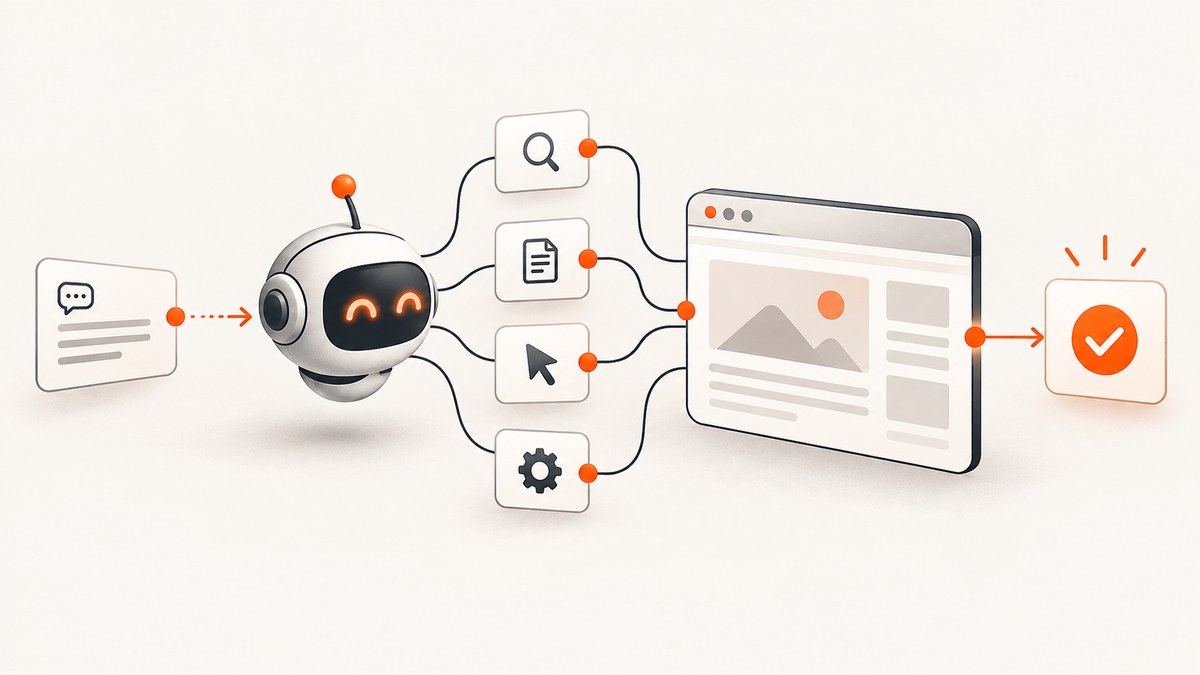
Agent skills give a coding agent reusable instructions and references for operating a browser with a particular toolset. For Playwright, the documented skill teaches an agent to use playwright-cli for session management, page interaction, data extraction, test generation, tracing, request mocking, storage state, and Playwright code. Install the CLI and browser, put the skill in the layout your agent supports, then give it a bounded task, keep browser state across steps when needed, verify each meaningful action, and close the session when finished.
Choose the runtime based on the task: use a plain HTTP request for a public page that does not need interaction; use Playwright for code-first browser control; use Browser Use CLI or MCP when action-by-action tools or persistent sessions fit the agent; and use computer-use actions when the task needs visual mouse and keyboard operation. OpenAI describes computer use as letting a model operate browser and desktop interfaces. [OpenAI Computer Use guide]
1. What an agent skill does
A skill is a package of instructions and reference material for an agent. It helps the agent discover how to invoke a tool and how to carry out recurring tasks. It is not itself the browser, a guarantee that an action succeeded, or a substitute for runtime permissions.
Playwright’s documented skill focuses on using playwright-cli. Its coverage spans browser sessions, interaction, extraction, generating tests, tracing, mocking network requests, storage state, and running Playwright code. See the Playwright documentation and its CLI installation instructions for the version-specific command details.
Separate these three parts when debugging:
- Skill: agent instructions and referenced guides.
- Runtime: CLI, Playwright, MCP tools, computer-use adapter, or hosted browser that actually acts.
- Task contract: your instructions about the target, allowed actions, output, verification, and confirmation points.
A well-installed skill can still fail if the browser binary is absent, the agent cannot access the skill directory, the target site blocks automation, or the task leaves permissions ambiguous.
2. Install a Playwright browser skill
- Install the CLI in your project or environment. Follow the official Playwright CLI installation guide for the package manager and environment you use.
- Install the browser runtime. Use the browser installation command documented for your CLI version; the command-line package alone may not include a usable browser.
- Install the skill in the agent’s expected layout. Playwright documents
playwright-cli install --skillsfor a Claude-oriented layout andplaywright-cli install --skills=agentsfor an.agents/skillslayout. The installer can also initialize a workspace withplaywright-cli install. Check the official guide before running commands because package and browser setup can vary by version. [Playwright documentation] - Inspect the installed files. Confirm the skill directory is in the repository or agent configuration location the coding agent reads. Read the main skill instructions and any referenced guides; do not assume the agent has loaded them just because installation completed.
- Start a session and verify a harmless page. Confirm that the CLI can launch or attach to a browser and that a snapshot or page state can be returned before asking the agent to perform a consequential task.
Typical shell setup shape, using the documented installer options, looks like this:
# Initialize the Playwright CLI workspace
playwright-cli install

# Install the skill in the .agents/skills layout
playwright-cli install --skills=agents

# Or use the Claude-oriented layout
playwright-cli install --skills
Use one skill layout that your agent supports. Installing into a directory the agent never scans creates a silent failure: the CLI may work manually while the agent does not follow the instructions.
3. Choose a browser automation architecture
Browser Use describes four integration patterns: shell-command agents using its CLI, JavaScript or TypeScript via CDP plus Playwright, MCP-native agents using individual browser tools, and HTTP clients calling a cloud REST endpoint. Its repository also presents hosted cloud, CLI, and Python-library paths with local or cloud browsers. [Browser Use integration guide]
| Approach | Use it when | Trade-off to plan for |
|---|---|---|
| Playwright skill and CLI | You want code-first control, repeatable scripts, testing, or traces. | You manage installation, browser lifecycle, and session state. |
| Browser Use CLI | The agent should issue browser actions through shell commands. | Keep command scope bounded and stop any remote daemon when done. |
| Browser Use MCP | The agent environment consumes individual browser tools over MCP. | Tool calls make actions explicit, but the model still needs task limits and verification. |
| CDP with Playwright | Your JavaScript or TypeScript application needs direct browser control. | You must manage the connection and browser process or hosted endpoint. |
| HTTP or fetch | A public resource is readable without JavaScript interaction. | It cannot perform browser-only interactions or use an authenticated browser session by itself. |
| Computer use | The task depends on visual mouse and keyboard interaction across browser or desktop UI. | Visual actions need careful state checks; the surrounding application must enforce execution and permission rules. |
Browser Use’s guidance recommends the fetch path when a plain HTTP request can read the public page or API, and browser automation when the task requires interaction, a logged-in session, JavaScript rendering, or a bot-protected page. [Browser Use guidance]
4. Keep a browser session alive between agent steps
Session continuity matters when cookies, local storage, open tabs, or a multi-step flow must survive across separate agent calls. Start one named or persistent session, retain its identifier, and have later steps attach to that same session. Do not create a fresh browser context for every step if the workflow depends on state from the previous step.
For a Playwright CLI workflow, use the session or persistent-browser commands provided by the installed CLI version, and keep that session identifier in the agent’s working context. For Browser Use cloud sessions, the integration guide documents named sessions and advises stopping remote daemons after a job. [Browser Use integration guide]
Use this sequence for each task:
- Open or attach: identify the session and target origin.
- Inspect: capture a snapshot or structured state before interacting. Find the intended control from the current page state, not from a guess.
- Act: perform one bounded action, such as opening a page or selecting a tab.
- Verify: inspect the URL, visible confirmation, downloaded file, or application state after the action.
- Continue or stop: proceed only when the observed state matches the expected result.
- Clean up: close local contexts or stop hosted browser services when the workflow ends, unless the next planned step explicitly reuses the session.
Storage state can preserve authentication between runs, but it is sensitive. Keep saved state out of source control, limit its access, and avoid placing credentials in prompts or logs. Reuse a session only for the intended task and account.
5. Give the agent a task contract
A strong task prompt tells the agent what it may do and how success will be checked. This reduces accidental scope expansion and makes a failure report useful.
Task: Find the public pricing page for example.com and save the listed plan names and prices.
Allowed domains: example.com only.
Allowed actions: navigate and read visible page content. Do not sign in, submit forms,
purchase, change account settings, send messages, or delete data.
Output: plan name, displayed price, and the page URL for each plan.
Success criteria: capture the pricing page state and report the extracted values.
Verification: after navigation, confirm the URL is on example.com and the pricing
content is visible. If a login, CAPTCHA, or permission gate appears, stop and report it.
Session: reuse the current named browser session; do not open another account.
Cleanup: close the browser context after returning the result.
For any workflow involving form submission, purchases, account changes, message sending, or deletion, require explicit confirmation before the consequential action. The runtime should enforce what the agent can do; page text must not be allowed to redefine those permissions. OpenAI’s computer-use guidance emphasizes that the application provides the environment and executes model requests, so implementers should preserve the session, enforce execution limits, and apply permission rules. [OpenAI Computer Use guide]
6. Inspect, act, and verify
Agent browser work is more reliable when each state change is observable. A practical loop is:

- Capture the current page snapshot or structured state.
- Identify the target control from that state.
- Perform a single action.
- Capture the resulting state and check the expected signal.
- Retry only if the failure looks transient and the action is safe to repeat.
For code-first Playwright work, prefer role, label, or other meaningful locators where available; avoid brittle positional selectors when the page has a stable accessible name. For an MCP tool, pass the specific element reference returned by the browser state rather than inventing a selector. For computer-use actions, capture the screen after a navigation or click before proceeding. Save traces, screenshots, console output, and the final URL when they help reproduce a failure.
Never treat a click response alone as proof that the workflow succeeded. A button can be disabled, a request can fail, or the page can navigate somewhere unexpected. Verify the application-visible outcome or resulting artifact.
7. Handle failures and common errors
| Symptom | Likely cause | Fix |
|---|---|---|
| Agent cannot find the Playwright skill | Skill installed in a layout the agent does not scan, or workspace was not reopened. | Check the installed path, use the matching documented --skills layout, and restart or reload the agent workspace. |
| CLI exists but browser launch fails | Browser runtime was not installed, is incompatible, or lacks system dependencies. | Run the CLI’s browser installation step from the official guide, then try a simple page in the same environment. |
| Next step has lost login or page state | A new context/session was created or storage state was not preserved. | Attach to the original named session, or deliberately restore the appropriate storage state with secrets handled securely. |
| Element lookup times out | Page is still loading, selector is stale, content is inside a frame, or a consent/login dialog changed the page. | Capture current state, wait for the relevant selector or a bounded delay, then locate the control from the fresh snapshot. |
| Click appears to do nothing | Wrong target, overlay, disabled control, or asynchronous navigation. | Inspect the post-click state, check for overlays and enabled status, and wait for the expected URL or content signal. |
| CAPTCHA or bot challenge blocks the task | The site is challenging automation or requires human verification. | Stop and report the gate. Do not loop retries or attempt to bypass the challenge; use an authorized human flow if needed. |
| Cloud browser remains active after completion | Remote session or daemon was not stopped. | Call the documented stop/close operation and verify that the remote resource is released. |
| Extraction returns incomplete content | Content loads lazily, requires scrolling, or appears after an asynchronous request. | Wait for a specific content signal, scroll only as required, then capture and inspect state again. |
| Agent performs an unintended consequential action | Permissions were left to prompt interpretation rather than enforced by the app. | Stop the workflow, review logs, and add runtime-level confirmation or deny rules for that action category. |
8. Performance, reliability, and cost
Do not use a browser when a direct request answers the question. A fetch avoids browser startup and interaction steps. Escalate only when rendering, authentication, interaction, or a challenge makes a browser necessary. This also reduces the number of model decisions in deterministic workflows.
Keep tasks narrow: reuse a session for related actions, inspect after meaningful state changes rather than after every keystroke, and avoid repeating expensive navigation. For transient failures, use a small bounded retry policy and verify before retrying non-idempotent actions. Save the state and error when a selector or gate blocks the flow instead of repeatedly guessing.
Costs depend on the chosen runtime and deployment: local compute and browser infrastructure, hosted-browser usage, and model calls all factor in. The research sources provide no comparable benchmark or price figures, so estimate using your own workflow and provider terms. Track session duration, retries, model calls, and hosted-browser usage. Always release remote sessions to avoid leaving resources allocated.
9. Or skip the browser setup
If the task is to capture a page rather than interact with it, a screenshot API can return the image without installing and managing a browser runtime. ScreenshotNeo is a website screenshot API and MCP server for developers. Its clean-capture flow accepts cookie and consent banners like a visitor and removes 60+ known consent platforms, newsletter popups, and chat widgets before the shot; each step can be turned off. Bot checks and CAPTCHAs, blank pages, timeouts, failed loads, and cache hits cost nothing, with response headers indicating the page verdict and billing status. Its MCP server gives AI agents tools for screenshots, page information, and PDF capture.

One GET request returns an image or PDF. See the ScreenshotNeo API docs for the request options and response details.
curl -G "https://api.screenshotneo.com/v1/shot" \
  -d access_key=YOUR_API_KEY \
  --data-urlencode url=https://stripe.com \
  -o shot.webp
import requests
r = requests.get(
"https://api.screenshotneo.com/v1/shot",
params={"access_key": "YOUR_API_KEY", "url": "https://stripe.com"},
timeout=90,
)
open("shot.webp", "wb").write(r.content)const q = new URLSearchParams({
access_key: 'YOUR_API_KEY',
url: 'https://stripe.com',
});
const res = await fetch(`https://api.screenshotneo.com/v1/shot?${q}`);
if (!res.ok) throw new Error(`Screenshot request failed: ${res.status}`);
await Bun.write('shot.webp', res);Use your own target URL and keep the API key private. ScreenshotNeo also supports full-page capture with lazy images loaded, element capture, dark mode, device and viewport settings, retina scale, PDF configuration, HTML/CSS rendering, custom CSS and JavaScript, click and wait controls, request blocking, headers and cookies, timezone and geolocation, transparent backgrounds, resizing, caching, signed image links, asynchronous jobs with signed webhooks, bulk capture up to 100 URLs per call, usage API, and OpenAPI specification. The parameter names used by other screenshot APIs also work. See the docs for exact parameter names.
The free plan includes 1,000 screenshots a month with no card. Paid plans start at $5 for 3,000 shots; the listed plans are Growth $15 for 15,000, Pro $39 for 60,000, Scale $99 for 250,000, and Business $249 for 1,000,000. Yearly billing gives two months free, and every feature is available on every plan. Sign up for 1,000 free screenshots a month, with no card required.
10. Frequently asked questions
Does installing a skill install a browser?
Not necessarily. Treat skill installation and browser runtime installation as separate setup steps, and verify both in the environment where the agent will run.
Should the agent keep the browser open after finishing?
Only when a later authorized step needs the same session. Otherwise close local contexts or stop hosted sessions to release resources.
Can I use a screenshot API instead of browser automation?
Yes, for a rendered capture where no interaction is required. Use an automation runtime when you need to operate controls, preserve a logged-in session, or verify application behavior.
How should an agent handle a CAPTCHA?
Stop and report that the challenge blocks the task. The site’s challenge is a boundary, not an invitation to keep retrying.
What is the safest way to reuse authentication?
Use a dedicated, authorized session with access limited to the task, keep storage state secret, and require confirmation for account changes or other consequential actions.