How Brave Browser’s Ad and Tracker Blocking Affects Website Screenshots
Brave Shields can remove third-party ad content, leave empty ad slots, or shift page layout. Learn how to diagnose and compare the differences.
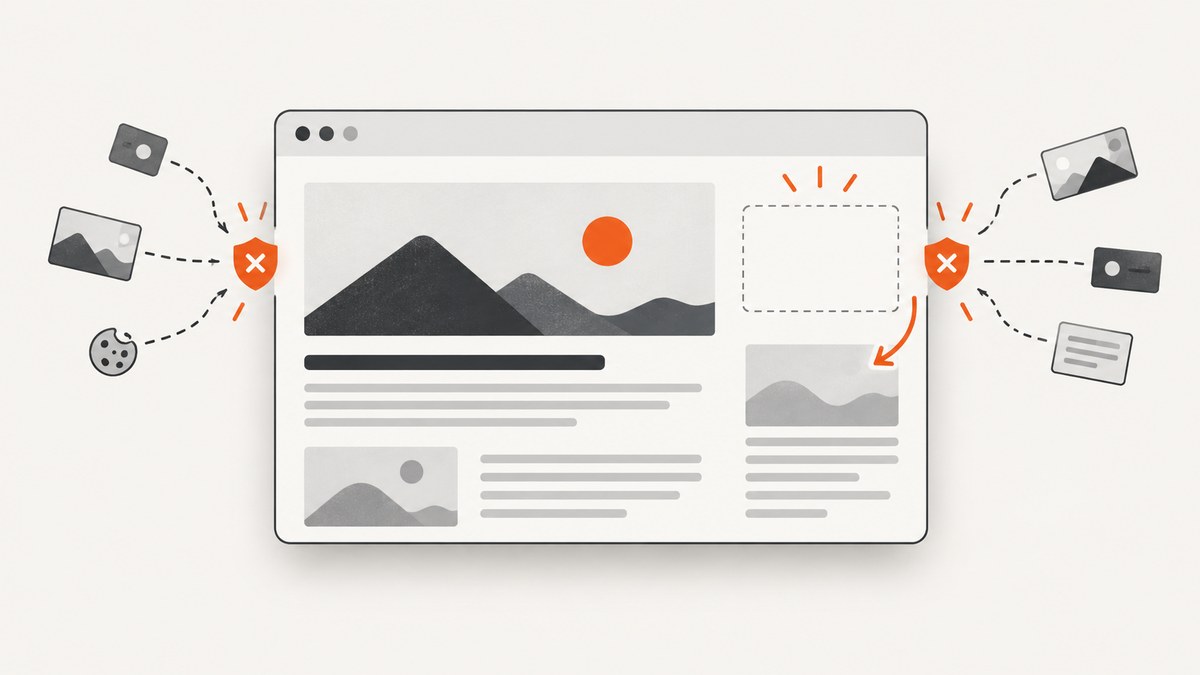
Brave website screenshots show the page as Brave rendered it at capture time. Because Brave Shields blocks third-party ads and trackers by default, a screenshot may omit ad content, show an empty ad slot, or have a layout that differs from a browser where those resources load. The exact result depends on the site, its ad-slot implementation, and your Shields settings. Brave does not document a separate screenshot mode that deliberately changes pages. Brave describes Shields and its blocking behavior, while its debugging guide documents cases where cosmetic filters hide an element but leave its container space.
This guide explains how to tell expected blocking from a page failure, compare captures reproducibly, troubleshoot blank gaps, and choose the right capture setup for your goal.
1. What changes between a Brave screenshot and another browser?
A screenshot captures the pixels produced by a browser after it loads and renders a page. If two browsers request different resources or apply different page rules, the resulting pixels can differ even when you use the same URL. Shields can affect the requests and visible elements that make up the rendered page.
Brave says Shields block third-party ads and trackers by default. Users can choose Standard or Aggressive blocking; Aggressive provides more protection but raises the chance that a site will break. Blocking is not a guarantee that every ad disappears: first-party ads may still appear, and individual sites behave differently. See Brave’s blocking goals and policy and its Content Filter support page.
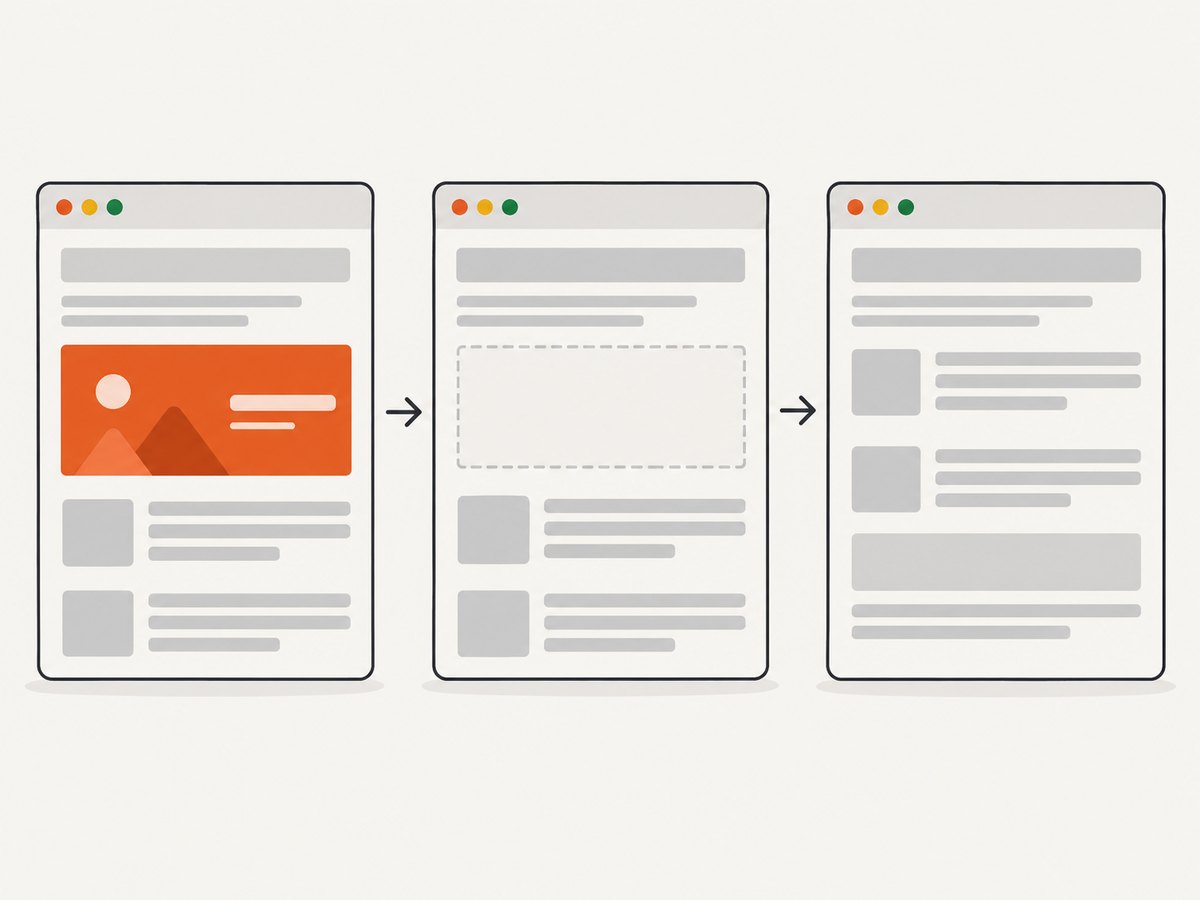
The visible outcome is site-dependent. The ad creative may be absent while the slot collapses; an empty rectangle may remain; or surrounding content may move into the freed space. A site may also show a fallback or a first-party ad. These are consequences of how the page lays out its slot and how a resource or element is blocked, rather than a special screenshot behavior.
| What you see | Likely explanation | What to check |
|---|---|---|
| Ad absent and content moves up | The slot or its wrapper collapsed when content did not load. | Compare the same page with site-specific Shields adjusted. |
| Ad absent but a blank rectangle remains | A reserved slot remains, or a cosmetic rule hid the ad element but not its container. | Inspect the element and the page’s layout; Brave’s debugging guide describes this class of issue. |
| An ad is still visible | It may be first-party, not matched by a rule, or allowed by the current configuration. | Check the site’s implementation and Shields settings; blocking is not universal ad removal. |
| Images, embeds, or controls are missing too | A blocked dependency, site incompatibility, incomplete load, or unrelated page error may be involved. | Temporarily adjust Shields for that site and reload to see whether the rendering changes. |
2. Is the screenshot broken, or is blocking expected?
Start by describing the discrepancy precisely. “The screenshot is wrong” is hard to diagnose; “the 300-pixel ad slot is blank, but the headline starts at the same vertical position” is useful. Record whether you see missing ad content, an empty reserved area, shifted neighboring content, or a feature that no longer works.
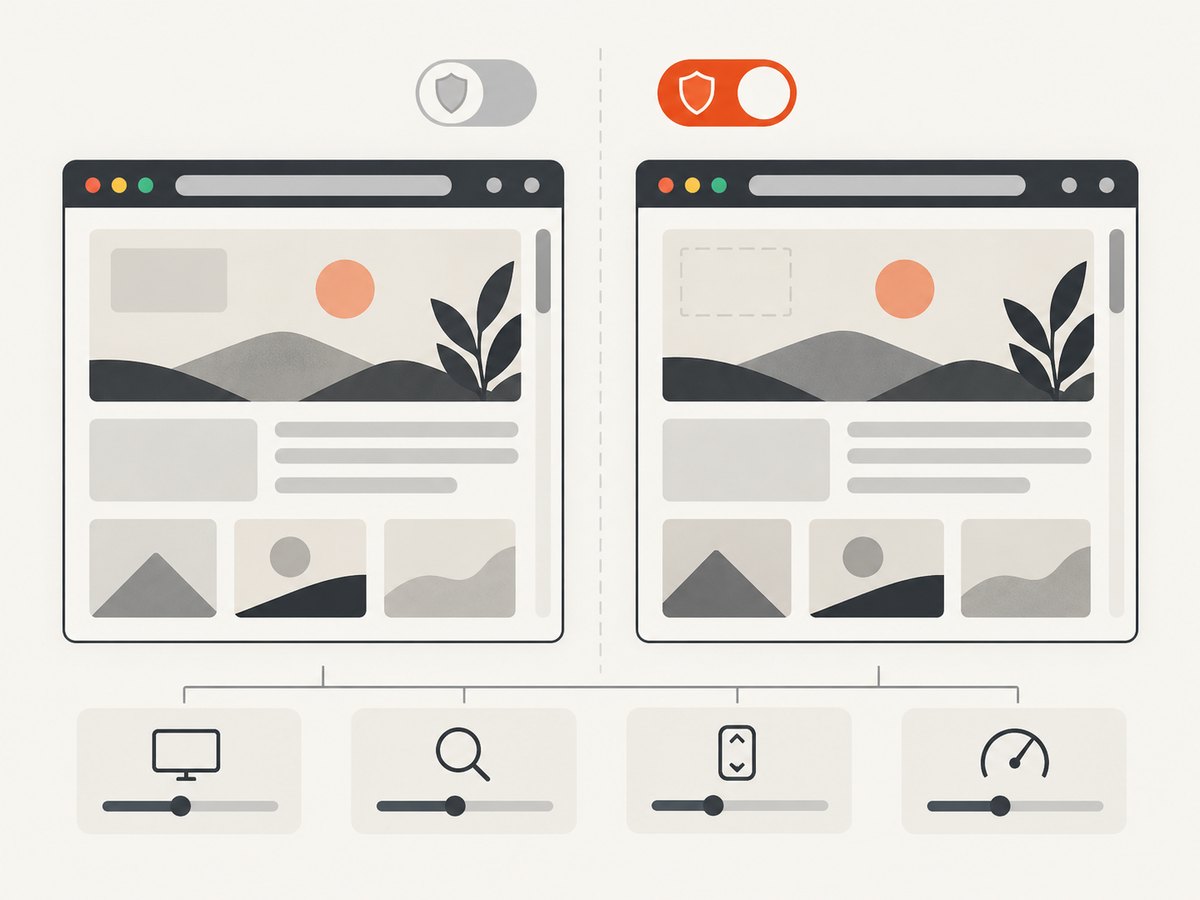
Then establish a controlled comparison. Keep these conditions constant:
- Exact URL, including query string, redirect destination, and any required sign-in state.
- Viewport width and height, browser zoom, scroll position, and device scale where the capture tool exposes it.
- Time between navigation and capture, plus any page interaction needed to reveal content.
- Browser version and site-specific Shields configuration.
- Relevant site state such as consent choice, region, language, or logged-in session.
Change only one variable at a time. First compare the page with its current Shields setting against the same page with Shields adjusted for that site. If the difference appears and disappears with that change, it is evidence that a Shields rule or blocked resource contributes to it. It does not identify the exact rule by itself.
3. Troubleshoot a missing ad, blank slot, or shifted layout
- Reproduce the same capture. Reload the exact URL and match viewport, zoom, scroll position, wait time, and page state. Note whether Shields is Standard or Aggressive and record the Brave version.
- Inspect the site’s Shields panel. Brave supports global and site-specific settings. A site can have an override that differs from the global choice. See Brave’s instructions for global and site-specific Shields settings.
- Adjust Shields for this site and reload. Temporarily lower or turn off Shields for the affected site, then compare. If the page changes, restore your preferred setting after diagnosis. Lowering protection changes what the browser blocks; take care when choosing settings on unfamiliar sites.
- Investigate a persistent gap. A cosmetic filter can hide an ad element but leave its containing space in the layout. Inspect the relevant element and filter behavior using Brave’s Shields debugging guide. The gap may also be a reserved slot intentionally held by the site.
- Check whether the page finished loading. Capture after a consistent, adequate wait. Ads and other third-party resources can load asynchronously, while a screenshot taken too early may capture an intermediate layout. If the page itself is blank or incomplete, investigate navigation and load errors separately from ad blocking.
These steps isolate a cause; they do not prove that every visual difference comes from Shields. A site may change between requests, vary content by session, or fail for another reason. Keep a note of the exact conditions so another developer can reproduce the result.
4. Capture a reproducible Brave screenshot
For a one-off manual capture, open the page in Brave, set the intended viewport and zoom, wait for the page to settle, and capture the visible state with your chosen screenshot method. For repeatable debugging, automate the browser and fix the same inputs for every run. The example below uses Playwright with Chromium. It launches a clean browser context, loads the target URL, waits for the page load event, and saves a viewport screenshot. It does not configure Brave Shields; use Brave itself when the behavior under investigation is specifically Brave’s.
npm install playwright
npx playwright install chromium
// capture.mjs
import { chromium } from 'playwright';
const url = process.argv[2] ?? 'https://example.com';
const browser = await chromium.launch({ headless: true });
const context = await browser.newContext({
viewport: { width: 1365, height: 900 },
deviceScaleFactor: 1,
});
const page = await context.newPage();
try {
await page.goto(url, { waitUntil: 'load', timeout: 60_000 });
await page.screenshot({ path: 'page.png', fullPage: false });
} finally {
await context.close();
await browser.close();
}node capture.mjs https://example.comFor a comparison, run both captures with matching dimensions, scale, URL, wait strategy, and page state. A fresh automated Chromium context and a user’s Brave profile are not equivalent: they can differ in browser engine version, cookies, extensions, content filters, and site-specific settings. If your question is specifically “what does this visitor see in Brave?”, capture in Brave under the visitor’s relevant settings.
5. Choose the capture scope and wait strategy
Decide what the image is meant to represent before capturing. A viewport capture answers what is visible at one scroll position. A full-page capture records a longer document and may trigger lazy-loaded content as it scrolls; results can depend on the page’s loading behavior. For a stable diagnostic image, document the capture scope and do not compare a viewport image with a full-page image as if they represented the same state.
Wait conditions also affect the result:
- Load event: useful as a simple baseline, but it does not guarantee that every asynchronous ad, image, or widget has finished.
- Network idle: can be a useful signal on pages that become quiet, but analytics, polling, and long-lived requests may prevent it from occurring.
- Fixed delay: easy to reproduce, but choose it based on the page and keep it constant; it can waste time or still be too short.
- Selector wait: best when a particular content element matters. It can time out if that element is intentionally blocked or absent, so handle that case explicitly.
For debugging, record the wait condition and timeout in your capture notes. If a slot is blank only in early captures, the issue may be timing rather than a stable Shields effect.
6. Or skip the browser setup
ScreenshotNeo is a website screenshot API and MCP server from Yorker Media. For a screenshot that does not depend on configuring a local browser, make one GET request:
curl -G "https://api.screenshotneo.com/v1/shot" -d access_key=YOUR_API_KEY --data-urlencode url=https://stripe.com -o shot.webpSee the ScreenshotNeo API documentation for request options. The API accepts one URL and returns a PNG, JPEG, WebP, or PDF. Its clean-capture steps accept cookie and consent banners and remove more than 60 known consent platforms, newsletter popups, and chat widgets; each step can be turned off. Bot checks and CAPTCHAs, blank pages, timeouts, failed loads, and cache hits are not billed, and response headers report the page verdict and billing status. That makes it useful for capturing a clean page image, though it does not replace Brave when you need to inspect Brave’s exact Shields rendering.
ScreenshotNeo also provides an MCP server with take_screenshot, get_page_info, and capture_pdf tools for Claude, Cursor, and other MCP clients. The Free plan includes 1,000 screenshots a month with no card; paid plans start at $5 for 3,000. Sign up for 1,000 free screenshots a month, with no card required.
7. Performance, reliability, and cost
Browser captures require browser startup, navigation, page rendering, and image encoding. Reusing a browser process for a batch can avoid repeated startup overhead, but isolate pages or contexts when cookies and site state must not leak between captures. Use explicit timeouts and close pages and browsers in a finally block so a failed navigation does not leave processes running.
For reliable comparisons, keep the capture environment stable and save the URL, viewport, wait rule, browser version, and Shields mode alongside the image. A page that changes dynamically can produce different screenshots from identical code. Retry only failures that are plausibly transient, and cap retries so one broken page does not stall a batch. Do not treat a successful screenshot file as proof every resource loaded; inspect the rendered result and relevant browser errors.
Self-hosted browser work has infrastructure costs: compute, memory, browser maintenance, and engineering time to handle navigation failures, waits, and concurrency. There is no universal cost per capture because it depends on your runtime and workload. A screenshot API shifts browser operation to a service and prices usage by plan. ScreenshotNeo lists Free at 1,000 shots monthly, Starter at $5 for 3,000, Growth at $15 for 15,000, Pro at $39 for 60,000, Scale at $99 for 250,000, and Business at $249 for 1,000,000; yearly billing gives two months free. Every feature is on every plan. Compare expected monthly volume and the value of operating your own browser before choosing.
8. Common errors and fixes
| Symptom | Possible cause | Fix |
|---|---|---|
| Blank ad area | The slot remains after its content is hidden or blocked. | Inspect the slot and its wrapper; compare with site-specific Shields adjusted. |
| Content unexpectedly shifts | The blocked element or collapsed slot changes the page flow. | Compare the same viewport and state, then inspect the surrounding layout. |
| Site feature stops working | A blocked resource may be a dependency for the feature. | Test with Shields adjusted for that site, then restore the setting and report the finding. |
| Screenshot is mostly blank | Navigation failed, capture happened too early, or the target requires a session. | Check the exact URL and browser state; wait for a meaningful selector and inspect navigation errors. |
| Automated navigation times out | The page did not reach the requested event before the timeout, or it keeps loading resources. | Choose a wait condition suited to the page, set a bounded timeout, and diagnose the page separately. |
| Two screenshots still differ | Viewport, zoom, timing, browser version, cookies, or site content changed. | Hold those inputs constant and vary only one setting per comparison. |
9. FAQ
Does Brave remove ads from screenshots?
A screenshot reflects what Brave rendered. Shields blocks third-party ads and trackers by default, but first-party ads or unmatched content may remain, so an ad-free result is not guaranteed.
Why is there blank space where an ad should be?
The page may reserve space for its ad slot, or a cosmetic rule may hide the ad element while leaving the container. The outcome depends on the site’s layout.
How do I turn off Shields for one website?
Open the Shields panel for that site and adjust its site-specific setting, then reload and compare. Brave’s support guide explains how site-level settings relate to global settings.
Can a screenshot API reproduce my exact Brave view?
Not by default. To inspect Brave’s Shields behavior, capture with Brave configured as needed. An API is useful when you want a repeatable service capture without managing the local browser environment.
Should I use Standard or Aggressive Shields for testing?
Use the setting that matches the real scenario you need to reproduce, and record it. Aggressive blocking can increase the risk of site breakage, according to Brave.