Browser MCP: Connect AI Agents to Web Browsers
Learn how Browser MCP connects AI agents to real browsers, with Playwright setup, Chrome session modes, security guidance, troubleshooting, and screenshots.
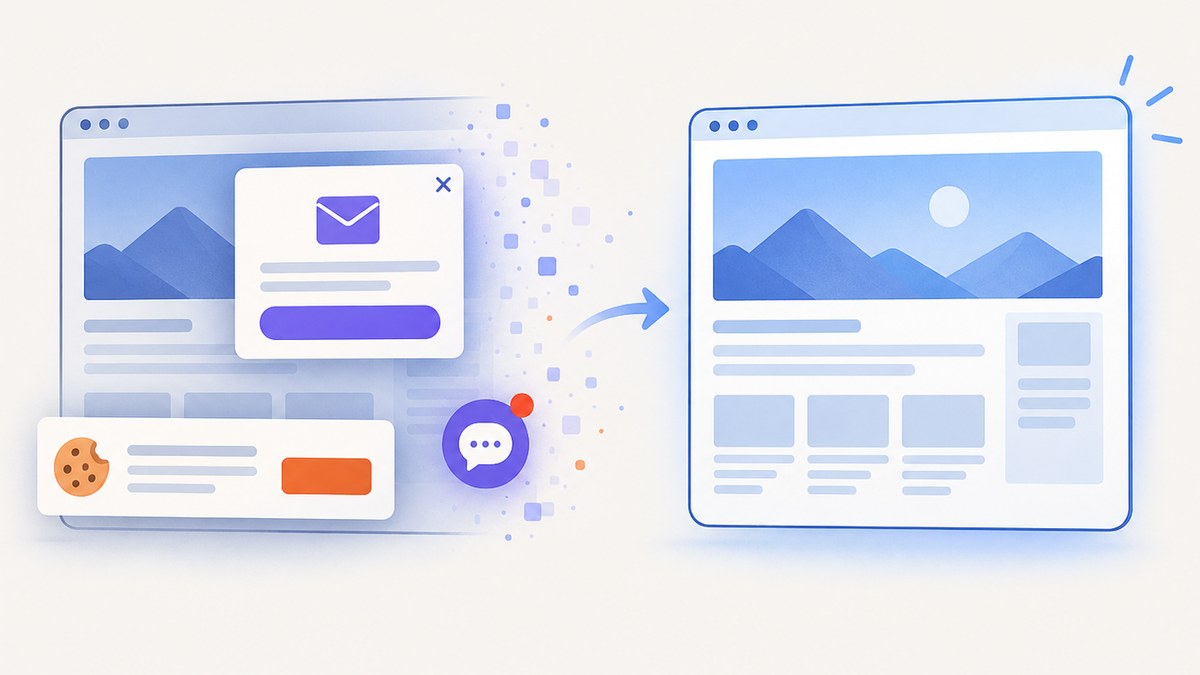
Browser MCP connects an MCP-capable AI client to a real browser so the agent can navigate pages, inspect controls, fill forms, click buttons, and read results through structured automation tools. The protocol is the connection layer; a browser automation implementation such as Microsoft’s Playwright MCP server supplies the actual browser controls and accessibility-tree snapshots.
This guide shows how to connect an agent to a fresh browser, an existing Chrome session, or a remotely managed runtime. It also covers profiles, authentication, security boundaries, debugging, reliability, and when a screenshot API is a better fit.
What Browser MCP is
The Model Context Protocol (MCP) gives an AI client a standard way to discover and call tools. A Browser MCP server exposes browser operations through that interface. Playwright MCP provides browser automation and structured page state, so an agent can reason over headings, links, buttons, form controls, and results instead of relying only on pixels.

Microsoft’s documentation describes the Playwright MCP server as providing browser automation through MCP and enabling language models to interact with pages using structured accessibility snapshots. Read the official Playwright MCP documentation for the current options.
What an agent can do
- Open a URL and follow links.
- Inspect the accessibility snapshot to find controls and content.
- Fill forms, select options, and click buttons.
- Wait for navigation, selectors, or page state.
- Read extracted results and report them to the MCP client.
- Capture PDFs or screenshots when the server is configured for those capabilities.
MCP does not turn an agent into a browser by itself. It standardizes tool calls; Playwright, a CDP-connected Chromium instance, a browser extension, or a managed browser service performs the work.
Install Playwright MCP
The documented Playwright MCP setup requires Node.js 20 or newer and an MCP-capable client such as VS Code, Cursor, Windsurf, Claude Desktop, or Claude Code.
1. Check Node.js
node --version
# v20.x or newer
Install Node.js from the official distribution for your operating system if the command is missing or too old.
2. Add the MCP server
Add this server definition to your MCP client’s configuration:
{
  "mcpServers": {
    "playwright": {
      "command": "npx",
      "args": ["@playwright/mcp@latest"]
    }
  }
}
The exact location of the file depends on the client. Restart the client after saving it so it can discover the server and its tools.
3. Start with a low-risk page
- Ask the client to start a browser session.
- Navigate to a permitted public test page.
- Ask for the page’s accessibility snapshot.
- Request a harmless action, such as reading a heading or opening a link.
- Confirm that the returned state and action result are understandable before using authenticated pages.
Do not begin with a checkout, account deletion, message send, or other irreversible operation.
Choose the right browser connection mode
Playwright MCP supports several ways to obtain a browser. The mode determines where cookies live, how repeatable a run is, and who owns the browser process.
| Mode | Use it when | Trade-offs |
|---|---|---|
| Fresh managed browser | You need a simple, reproducible session | No existing login state; setup is easiest |
| Persistent profile | Cookies and login state must survive sessions | State can leak between tasks; use a dedicated account and profile |
| Isolated mode | Each run should start clean | You must sign in or load approved storage state again |
| CDP attachment | Another process already owns Chromium | Connection, port, and browser lifecycle must be managed separately |
| Playwright endpoint | A Playwright server already exposes a browser | Requires endpoint and access-control configuration |
| Browser extension | You need existing Chrome or Edge tabs, SSO/2FA, or installed extensions | The agent inherits the attached profile’s permissions and open-tab context |
Persistent versus isolated profiles
A persistent profile is useful for a workflow that repeatedly visits the same service. Create a profile dedicated to automation, with only the account and extensions that task requires. An isolated profile is safer for reproducible jobs because cookies, local storage, and previous tabs do not carry over accidentally. If an isolated run needs authentication, provide an explicitly approved storage state rather than copying a personal profile.
Connect to an existing browser
CDP attachment connects to a Chromium-family browser that is already running. Extension mode attaches to existing Chrome or Edge tabs and is the practical choice when a task depends on an existing authenticated session, SSO or 2FA, or an installed extension. Treat the attached browser as a live credential: every action is made with that session’s permissions.
How to connect an AI agent to Chrome
- Decide whether the agent needs an existing tab. If not, use a fresh or isolated browser.
- If it does, open a dedicated Chrome profile and sign in only to the required service.
- Start the Playwright MCP server with the client configuration above.
- Use the client’s documented extension or CDP connection flow to attach the tab or browser.
- Ask the agent to identify the current page and list available controls before allowing changes.
- Require confirmation immediately before purchases, account changes, messages, or other irreversible actions.
You do not need a physical device. Browser MCP is software running a local, attached, or hosted browser. A physical phone or tablet is only relevant when the target experience itself requires a real mobile device, which is outside the normal Playwright MCP setup.
Security for logged-in browser sessions
A live authenticated browser gives the agent the permissions of that session. Extension mode can reuse login state and cookies, so a prompt injection on a page could attempt actions that the account is allowed to perform. These controls reduce the blast radius:
- Use a least-privilege account with only the required permissions.
- Keep production credentials and personal browsing profiles separate.
- Prefer isolated profiles for untrusted pages and repeatable jobs.
- Restrict allowed destinations and block unnecessary network access.
- Require human approval for purchases, permission changes, messages, deletions, and publishing.
- Inspect tool logs and returned page state when operating on sensitive systems.
- Never paste long-lived secrets into prompts; use the client’s supported secret or environment mechanisms.
These are operational recommendations. They do not replace the security controls of your identity provider, browser, or hosting environment.
Local browser versus a managed runtime
Local Playwright MCP is convenient for development, debugging, and tasks that need a developer’s existing browser. A managed browser runtime is a hosted execution environment for teams that need remote sessions, centralized controls, or shared capacity. AWS documents managed browser infrastructure for agents that navigate web applications, fill forms, and extract information.
| Axis | Local or attached browser | Managed browser runtime |
|---|---|---|
| Session ownership | Developer or user’s machine | Hosted service |
| Authentication | Local profile, CDP, or extension | Service-managed session and credential flow |
| Reproducibility | Best with isolated profiles | Centralized environment can standardize runs |
| Scaling | Bound by local resources | Designed for shared or remote workloads |
| Risk boundary | Agent may inherit local permissions | Cloud credentials and network controls need careful design |
Start locally while designing the workflow. Move to a managed runtime when session orchestration, remote execution, or team-wide controls become the limiting factors.
Browser MCP for screenshots and PDFs
Browser automation is useful when the agent must inspect or manipulate a page before capture: dismissing a dialog, opening a tab, signing in, or selecting a state. For a straightforward URL-to-image job, a screenshot API removes browser lifecycle work.
Or skip the browser setup
ScreenshotNeo is a website screenshot API and MCP server. One GET request returns PNG, JPEG, WebP, or PDF. It accepts cookie and consent banners like a visitor, removes more than 60 known consent platforms plus newsletter popups and chat widgets, and lets each cleanup step be disabled. Bot checks or CAPTCHAs, blank pages, timeouts, failed loads, and cache hits are not billed; response headers identify the page verdict and whether the request was billed.
See the ScreenshotNeo API documentation for all options.
curl -G "https://api.screenshotneo.com/v1/shot" \
  -d access_key=YOUR_API_KEY \
  --data-urlencode url=https://stripe.com \
  -o shot.webp
import requests
r = requests.get(
"https://api.screenshotneo.com/v1/shot",
params={"access_key": "YOUR_API_KEY", "url": "https://stripe.com"},
timeout=90,
)
r.raise_for_status()
open("shot.webp", "wb").write(r.content)const q = new URLSearchParams({
access_key: 'YOUR_API_KEY',
url: 'https://stripe.com'
});
const res = await fetch(`https://api.screenshotneo.com/v1/shot?${q}`);
if (!res.ok) throw new Error(`HTTP ${res.status}`);
const bytes = new Uint8Array(await res.arrayBuffer());
await Bun.write('shot.webp', bytes);ScreenshotNeo also supports full-page capture with lazy images loaded, CSS-selector element capture, dark mode, 12 device presets or any viewport, retina scale, PDF paper size and page ranges, custom CSS and JavaScript, clicks, selector or network-idle waits, request and resource blocking, headers, cookies, user agents, Authorization, timezone, geolocation, transparent backgrounds, resizing, configurable caching TTL, signed public image links, asynchronous jobs with signed webhooks, bulk capture for 100 URLs per call, usage reporting, and an OpenAPI specification. Common parameter names used by other screenshot APIs also work when switching.
An MCP server provides take_screenshot, get_page_info, and capture_pdf for Claude, Cursor, and other MCP clients. Every feature is available on every plan: 1,000 shots per month free with no card, then $5 for 3,000, $15 for 15,000, $39 for 60,000, $99 for 250,000, or $249 for 1,000,000; yearly billing gives two months free. Create a free ScreenshotNeo account and start with 1,000 screenshots a month at no charge.
Troubleshooting
The client cannot find the server
Cause: invalid JSON, an incorrect configuration path, or a client that has not been restarted. Fix: validate the JSON, confirm the command is exactly npx @playwright/mcp@latest, restart the client, and inspect its MCP logs.

npx asks to download a package every time
Cause: npx is resolving the package on demand. Fix: allow the download in the execution environment and pin a tested package version when your client supports it. Do not assume the latest version is stable for a regulated workflow.
The browser opens but actions fail
Cause: the page is still loading, the target is inside a frame, a modal obscures it, or the agent selected the wrong control. Fix: request a fresh accessibility snapshot, wait for a specific selector or navigation, and have the agent describe the target before clicking.
Login state disappeared
Cause: an isolated or fresh profile was used. Fix: choose a dedicated persistent profile or explicitly load approved storage state. For SSO/2FA and existing tabs, use extension mode.
CDP attachment is refused
Cause: the endpoint or channel is wrong, the browser is not listening, or a firewall blocks the connection. Fix: verify the browser process and endpoint, keep the connection local where possible, and avoid exposing a debugging port publicly.
The agent performs an unsafe action
Cause: the attached session has more authority than the task requires, or the workflow lacks an approval gate. Fix: switch to a least-privilege account, use an isolated profile, restrict destinations, and require confirmation before irreversible actions.
A ScreenshotNeo response is not billed
Check the X-Page-Verdict and X-Billed response headers. Bot checks or CAPTCHAs, blank pages, timeouts, failed loads, and cache hits are intentionally reported as non-billable outcomes.
Performance, reliability, and cost planning
Browser sessions have startup, navigation, rendering, and model-decision time. Reuse a controlled persistent session only when its state is part of the task; otherwise isolated sessions make failures easier to reproduce. Wait on meaningful conditions such as a selector or network idle instead of arbitrary long delays. Keep page scope narrow, block unnecessary resources where appropriate, and record the URL, mode, profile, action sequence, and error returned for each run.
For screenshot-only workloads, caching with a chosen TTL, bulk capture, asynchronous jobs, and signed webhooks can reduce coordination overhead. A screenshot API also avoids paying for failed loads when the service explicitly marks those outcomes as non-billable. Choose browser MCP when interaction is the requirement; choose an API when the input is a URL and the output is an image or PDF.
FAQ
Is Browser MCP the same as Playwright?
No. MCP is the tool-connection protocol. Playwright MCP is an implementation that uses Playwright browser automation and exposes it through MCP.
Can I use Claude, Cursor, and VS Code?
The Playwright documentation lists configurations for those MCP-capable clients. The server configuration is the same pattern, while the file location and restart process vary by client.
Should every task use a persistent profile?
No. Use persistent profiles for deliberate session continuity. Use isolated profiles when reproducibility and separation matter more than retaining cookies.
Can an agent read pages without screenshots?
Yes. Playwright MCP returns structured accessibility snapshots, allowing the agent to inspect page controls and content without depending only on visual pixels.
When should I use ScreenshotNeo instead?
Use it when you need a clean image or PDF from a URL and do not need interactive browser control. Its cleanup, non-billed failure outcomes, MCP tools, and free monthly tier cover many capture pipelines.