BrowserStack Screenshot API: Complete Developer Guide
Learn how BrowserStack Screenshot API creates cross-browser screenshots, configures jobs, handles results, and compares with a simpler screenshot API.

BrowserStack Screenshot API is an authenticated, hosted API for generating screenshots of a URL across selected operating systems, browsers, versions, devices and resolutions. You create a screenshot job with your BrowserStack username and access key, then receive the completed screenshot list through a callback or retrieve it with the job ID. The API is separate from BrowserStack’s webpage-based Screenshots workflow and from Percy’s visual testing product.
The API is available only with Automate plans that include browsers. A Live-only subscription can use Screenshots through the BrowserStack webpage, but should not be assumed to include API access. Check the current API documentation and your plan before implementing.
What the BrowserStack Screenshot API does
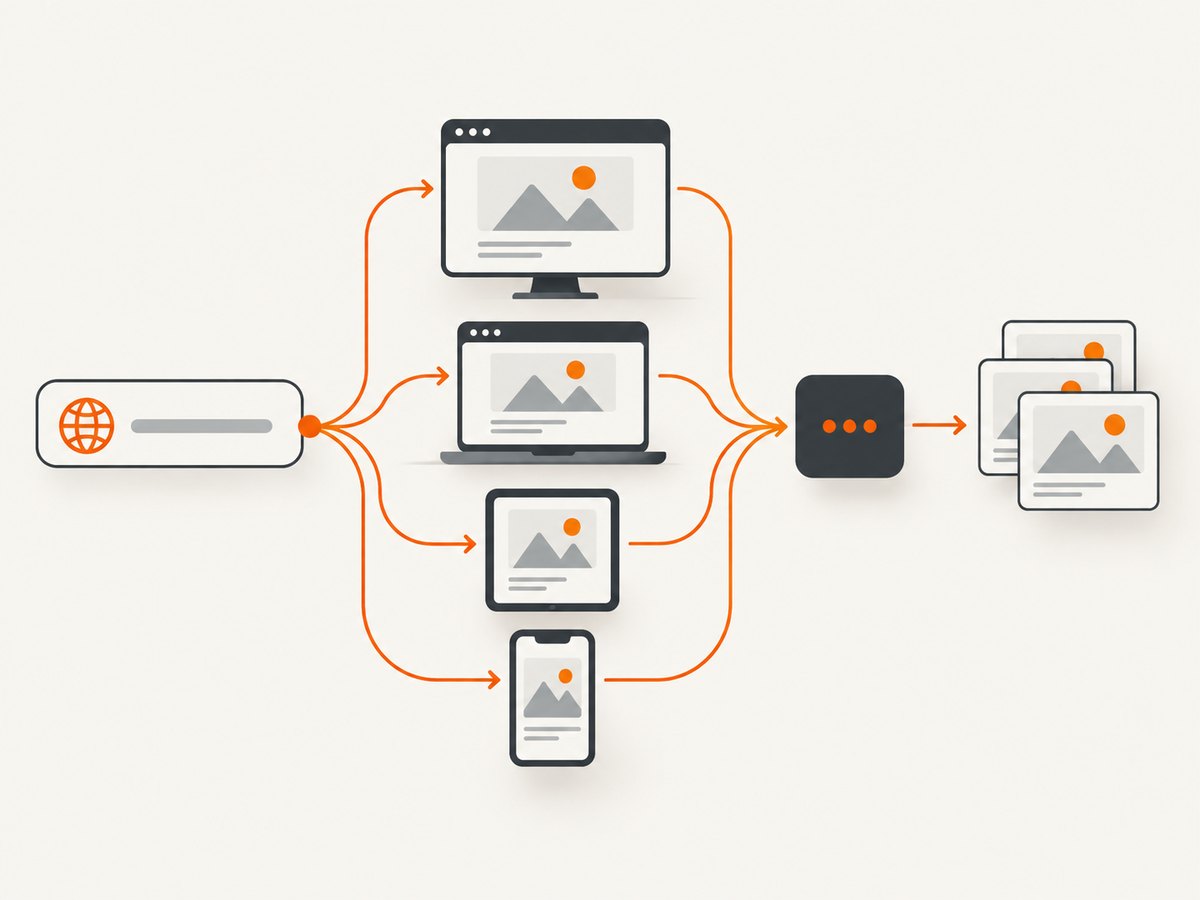
A request describes a target URL and one or more browser environments. BrowserStack loads the page in the selected environment and creates screenshots. Depending on the configuration, you can specify:
- Operating system and OS version, including Windows, macOS, iOS and Android examples documented by BrowserStack.
- Browser and browser version.
- A mobile device and its orientation.
- Desktop resolution for macOS or Windows.
- Screenshot quality.
- Local testing.
- Wait time before capture.
- An optional callback URL.
For mobile jobs, the device is required and orientation is required when a device is specified. Portrait is the documented default orientation. The API reference shows wait-time values such as 2, 5, 10, 15, 20 and 60 seconds; verify the currently accepted values in the live reference.
API access, authentication and lifecycle
1. Confirm plan eligibility
Use an Automate subscription that includes browsers. If your account is Live-only, use the browser-based Screenshots product or change the plan before writing an integration.
2. Discover supported combinations
The reference documents an authenticated request that lists available OS and browser combinations. Treat this response as the source of truth when presenting choices to users: browser and version availability changes over time.
3. Create a screenshot job
Submit a POST request with HTTP Basic authentication. The username is your BrowserStack account username and the password field is your access key. Keep both values in environment variables or a secret manager.
4. Receive or retrieve results
If you provide a callback URL, BrowserStack posts the completed screenshot listing there. Without a callback, retain the returned job ID and retrieve results from GET /screenshots/<JOB-ID>.json, as documented in the API reference.
cURL example
The following pattern shows the documented request shape. Replace the example endpoint and capability values with the current endpoint and values from BrowserStack’s API reference for your account.
export BROWSERSTACK_USERNAME="your_username"
export BROWSERSTACK_ACCESS_KEY="your_access_key"

curl -u "$BROWSERSTACK_USERNAME:$BROWSERSTACK_ACCESS_KEY" \\
  -X POST "https://api.browserstack.com/screenshots" \\
  -H "Content-Type: application/json" \\
  -d '{
    "url": "https://example.com",
    "os": "Windows",
    "os_version": "11",
    "browser": "Chrome",
    "browser_version": "latest",
    "resolution": "1920x1080",
    "quality": "90",
    "wait_time": 5,
    "callback_url": "https://example.test/browserstack-callback"
  }'
Do not commit credentials, callback signing secrets or generated response data containing private URLs. The precise field spelling and accepted values are defined by the live API reference.
Python example
import os
import requests

username = os.environ["BROWSERSTACK_USERNAME"]
access_key = os.environ["BROWSERSTACK_ACCESS_KEY"]

payload = {
    "url": "https://example.com",
    "os": "Windows",
    "os_version": "11",
    "browser": "Chrome",
    "browser_version": "latest",
    "resolution": "1920x1080",
    "quality": "90",
    "wait_time": 5,
    "callback_url": "https://example.test/browserstack-callback",
}

response = requests.post(
    "https://api.browserstack.com/screenshots",
    auth=(username, access_key),
    json=payload,
    timeout=60,
)
response.raise_for_status()
print(response.json())
Install the dependency with python -m pip install requests. In production, persist the returned job identifier and record the request configuration beside it.
Node.js example
const username = process.env.BROWSERSTACK_USERNAME;
const accessKey = process.env.BROWSERSTACK_ACCESS_KEY;

const payload = {
  url: 'https://example.com',
  os: 'Windows',
  os_version: '11',
  browser: 'Chrome',
  browser_version: 'latest',
  resolution: '1920x1080',
  quality: '90',
  wait_time: 5,
  callback_url: 'https://example.test/browserstack-callback'
};

const auth = Buffer.from(`${username}:${accessKey}`).toString('base64');
const response = await fetch('https://api.browserstack.com/screenshots', {
  method: 'POST',
  headers: {
    'Authorization': `Basic ${auth}`,
    'Content-Type': 'application/json'
  },
  body: JSON.stringify(payload)
});

if (!response.ok) {
  throw new Error(`${response.status}: ${await response.text()}`);
}
console.log(await response.json());
This uses the built-in fetch available in current Node.js releases. For older runtimes, use a maintained HTTP client and preserve the same Basic Authentication and JSON request.

Choosing request settings
| Setting | Use it for | Things to check |
|---|---|---|
| URL | The page to capture | It must be reachable from BrowserStack’s environment; authenticated pages need an appropriate access strategy. |
| OS and OS version | Desktop or mobile operating-system coverage | Use combinations returned by the availability endpoint. |
| Browser and version | Rendering differences and compatibility checks | Do not assume every browser version exists indefinitely. |
| Device | Real mobile viewport and device profile | Device is required for mobile; include orientation. |
| Orientation | Portrait or landscape mobile screenshots | Portrait is the documented default. |
| Resolution | Desktop viewport dimensions | The reference documents macOS and Windows resolution fields. |
| Quality | Image-size versus visual-fidelity trade-offs | Use an accepted value from the current reference. |
| Wait time | Pages whose content appears after initial navigation | Long waits increase completion time; use the smallest value that captures required content. |
| Local testing | Sites available through your local or private network | Follow BrowserStack’s local-testing setup and keep the tunnel alive for the full job. |
| Callback URL | Event-driven result handling | Make the endpoint publicly reachable and idempotent. |
Callbacks and polling
Callback workflow
- Generate a unique capture identifier in your system.
- Submit the BrowserStack job with a callback URL that includes or can associate that identifier.
- Return a quick 2xx response from the callback handler.
- Validate the payload, store the screenshot listing and mark the job complete.
Make callback processing idempotent. A retry or duplicate delivery must not create duplicate records or trigger duplicate downstream work. Queue expensive image processing instead of doing it during the HTTP callback.
Polling workflow
Store the job ID returned by the create request. Poll the documented result endpoint with exponential backoff, for example after 2, 4, 8 and 16 seconds, and stop after an application-defined deadline. Treat a job that exceeds the deadline as unknown until you have checked the result endpoint again; do not automatically submit an unbounded number of duplicate jobs.
Common errors and fixes
| Symptom | Likely cause | Fix |
|---|---|---|
| 401 or 403 response | Wrong username/access key, malformed Basic Auth, or a plan without browser-enabled Automate access. | Check environment variables, rotate the key if necessary, and confirm plan eligibility. |
| Invalid OS, browser or version | The requested combination is unavailable. | Call the availability endpoint and select a supported combination. |
| Mobile validation error | Device or orientation is missing. | Provide both fields for mobile captures; use portrait explicitly when you want deterministic behavior. |
| Blank or incomplete page | The page renders content after navigation or depends on a private network. | Increase wait time within documented values, enable local testing where appropriate, and verify the URL from an external environment. |
| Callback never arrives | Callback endpoint is private, returns errors, or times out. | Expose a reachable HTTPS endpoint, return 2xx quickly, log request IDs and use polling as a recovery path. |
| Repeated screenshots | Retries submit new jobs without checking the original job. | Persist job IDs and use idempotency keys in your own database. |
| Unexpected visual difference | Different browser, OS, viewport, device or wait time. | Record every capability with the image and compare like-for-like configurations. |
Performance, reliability and cost planning
Screenshot completion time depends on page load, selected environment, wait time and whether local testing is involved. Keep wait time purposeful: a fixed delay is useful for predictable animations, while a shorter value reduces queue occupancy when pages are already ready. For larger suites, submit only the browser/device combinations that answer a real compatibility question.
Use callbacks for high-volume asynchronous workflows and polling for small scripts or recovery. Add request timeouts, bounded retries and structured logs containing URL, capabilities, job ID, submission time and final status. Store screenshots in your own durable storage if you need retention beyond the service’s result window.
BrowserStack plan names, prices, limits and feature packaging can change. Review the current pricing page before budgeting. The API is a hosted service; your cost depends on the BrowserStack plan and usage terms attached to your account. Do not infer API access from a Live-only subscription.
BrowserStack Screenshots versus Percy
BrowserStack Screenshots API is an on-demand screenshot-generation interface. Percy is BrowserStack’s separate visual testing product, designed for visual review and regression workflows. Choose the API when your application needs to request screenshots and consume results programmatically. Choose a visual-testing workflow when you need baseline comparisons, review and regression management. Confirm current product boundaries in the respective official documentation before committing to an integration.
Or skip the browser setup
ScreenshotNeo provides a single GET request for PNG, JPEG, WebP or PDF output. Its capture pipeline accepts cookie and consent banners like a visitor, then removes more than 60 known consent platforms plus newsletter popups and chat widgets before the shot. Each step can be turned off.
curl -G "https://api.screenshotneo.com/v1/shot" -d access_key=YOUR_API_KEY --data-urlencode url=https://stripe.com -o shot.webpimport requests
r = requests.get("https://api.screenshotneo.com/v1/shot", params={"access_key": "YOUR_API_KEY", "url": "https://stripe.com"}, timeout=90)
open("shot.webp", "wb").write(r.content)const q = new URLSearchParams({ access_key: 'YOUR_API_KEY', url: 'https://stripe.com' }); const res = await fetch(`https://api.screenshotneo.com/v1/shot?${q}`);See the ScreenshotNeo API documentation for the full option set. Bot checks, blank pages, timeouts, failed loads and cache hits are not billed; response headers identify the page verdict and whether the request was billed. ScreenshotNeo also offers an MCP server with take_screenshot, get_page_info and capture_pdf tools for Claude, Cursor and other MCP clients. The Free plan includes 1,000 screenshots a month with no card, and paid plans start at $5 for 3,000 screenshots. Create a free ScreenshotNeo account.
Implementation checklist
- Confirm an Automate plan with browser access.
- Store the username and access key outside source control.
- Query supported OS/browser combinations before presenting options.
- Specify device and orientation together for mobile jobs.
- Choose a wait time based on page behavior.
- Use callbacks with fast, idempotent handlers or poll by job ID.
- Record capabilities beside every screenshot.
- Bound retries and retain a recovery path for callback failures.
- Recheck API fields, accepted values and pricing before launch.
FAQ
Is BrowserStack Screenshot API available on every BrowserStack plan?
No. The API documentation says it is available on Automate plans that include browsers. Live-only subscribers can use Screenshots through the webpage.
Can I capture a private site?
The documented API includes local testing. Follow BrowserStack’s current local-testing setup and ensure the connection remains available while the job runs.
Do I have to poll for completion?
No. Supply a callback URL for completed screenshot listings, or retrieve results from the documented job-result endpoint using the job ID.
Can one job cover mobile portrait and landscape?
Represent each required orientation as a supported device configuration and submit the combinations your test requires.
Is this the same as Percy?
No. Screenshots API generates screenshots through an API; Percy is a separate visual testing product.