How to Capture Desktop Screenshots with an MCP Server
Use an MCP screenshot tool to capture a whole desktop, a screen region, or a browser page. This guide explains setup, tool calls, scaling, permissions, and troubleshooting.

An MCP client captures a screenshot by calling an image tool exposed by an MCP server. The key decision is what you mean by “desktop”: a server with access to the operating system can capture the whole screen or a region, while a browser-focused server captures a web page viewport, element, or full page. Those are different jobs, and their tools and setup are not interchangeable.
This guide uses Microsoft’s Windows 365 for Agents MCP server as the concrete example for an operating-system desktop screenshot, and Microsoft Playwright MCP for the browser-page alternative. The Microsoft server runs against a Windows 365 Cloud PC; Playwright MCP controls a browser. Neither example implies that the same tool call works in every MCP client or on every local OS. Microsoft’s reference documents the Windows 365 tools, and the Playwright MCP documentation documents its server and configuration.
1. Decide what you need to capture
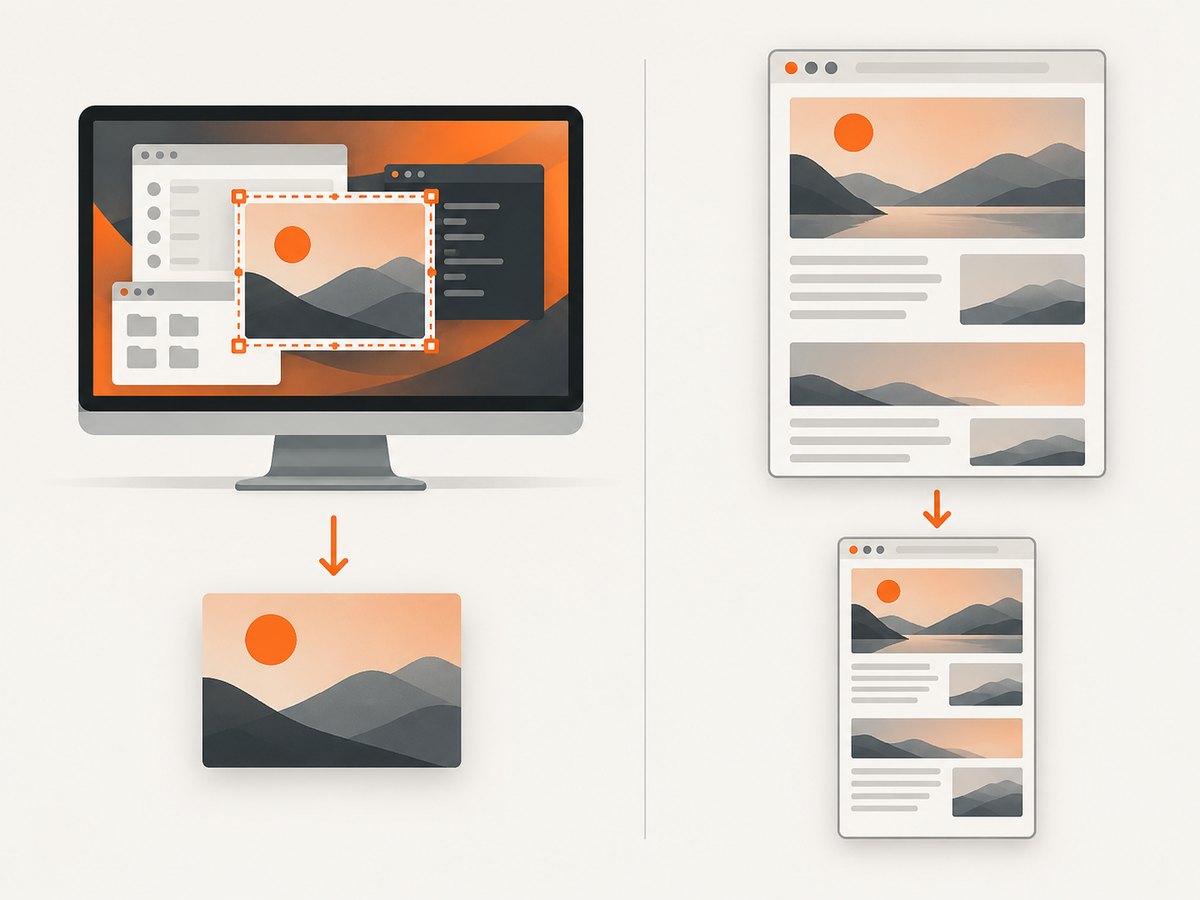
Choose the capture target before connecting a server. The word “screenshot” can mean several things:
| Target | What appears in the image | Suitable approach |
|---|---|---|
| Operating-system desktop | Visible desktop, windows, menus, dialogs, and other on-screen content | A desktop-control server such as Windows 365 for Agents |
| Desktop region | A rectangle of the screen, such as a dialog or chart | A desktop server with crop coordinates |
| Browser viewport | The visible portion of a web page in a browser | Playwright MCP |
| Browser element or full page | A selected page element or scrollable page beyond the viewport | Playwright MCP |
A browser screenshot does not show other desktop windows or operating-system menus. A desktop screenshot may show browser chrome and anything else visible on screen, but it is not the same as a clean page capture. For example, content below the fold is not in a normal desktop screenshot unless you scroll and capture more images.
Also decide whether the agent needs pixels or page structure. Playwright’s accessibility snapshot represents page elements as structured data; its screenshot tool provides visual evidence. Use a screenshot to inspect layout, charts, canvas content, or document a visual bug. Use a snapshot when the agent needs to locate and interact with controls. This reduces coordinate guessing and keeps the task grounded in page semantics. Playwright’s MCP introduction describes its snapshot-based interaction model.
2. Capture the Windows 365 desktop with its MCP server
Microsoft’s Windows 365 for Agents server exposes desktop interaction tools, including take_screenshot. It is a hosted Windows Cloud PC service, not a generic local Windows server. It can capture the full screen as a base64-encoded PNG, or a crop when you provide all four crop parameters: x, y, width, and height. Omit all four for the full screen. The server reference lists the server endpoint and tool names, but access is tenant- and service-specific; follow the Microsoft setup and authorization flow available in your organization rather than copying a universal client configuration that may not apply.
Steps
- Confirm that your organization has access to Windows 365 for Agents and that your MCP client can connect to its configured tenant server.
- Connect using the endpoint and server ID supplied for your tenant. Complete the client’s authentication and any required Cloud PC allocation or session setup.
- Ask the MCP client to list or inspect the tools exposed by the server. Confirm that
take_screenshotis available in the active session. - Call
take_screenshotwith no arguments for a whole-screen image, or provide all four crop fields for a region. - Inspect the image returned inline by the client. Check the target screen, crop boundaries, and resolution before relying on it.
For the whole screen, the tool call’s argument object is empty:
{}For a crop that starts 100 pixels from the left and 150 pixels from the top and is 800 by 500 pixels, the complete argument object is:
{
  "x": 100,
  "y": 150,
  "width": 800,
  "height": 500
}
These are arguments for the named Microsoft server tool, not a standalone script or a universal MCP request format. Your client handles the protocol and displays the returned image. The response is a PNG encoded as image data; when the client shows tool images inline, inspect it there. If you need a persistent file, check whether the client offers an export or save action for tool results. Do not assume a server stores a screenshot at a local path.
Crop, resolution, and coordinates
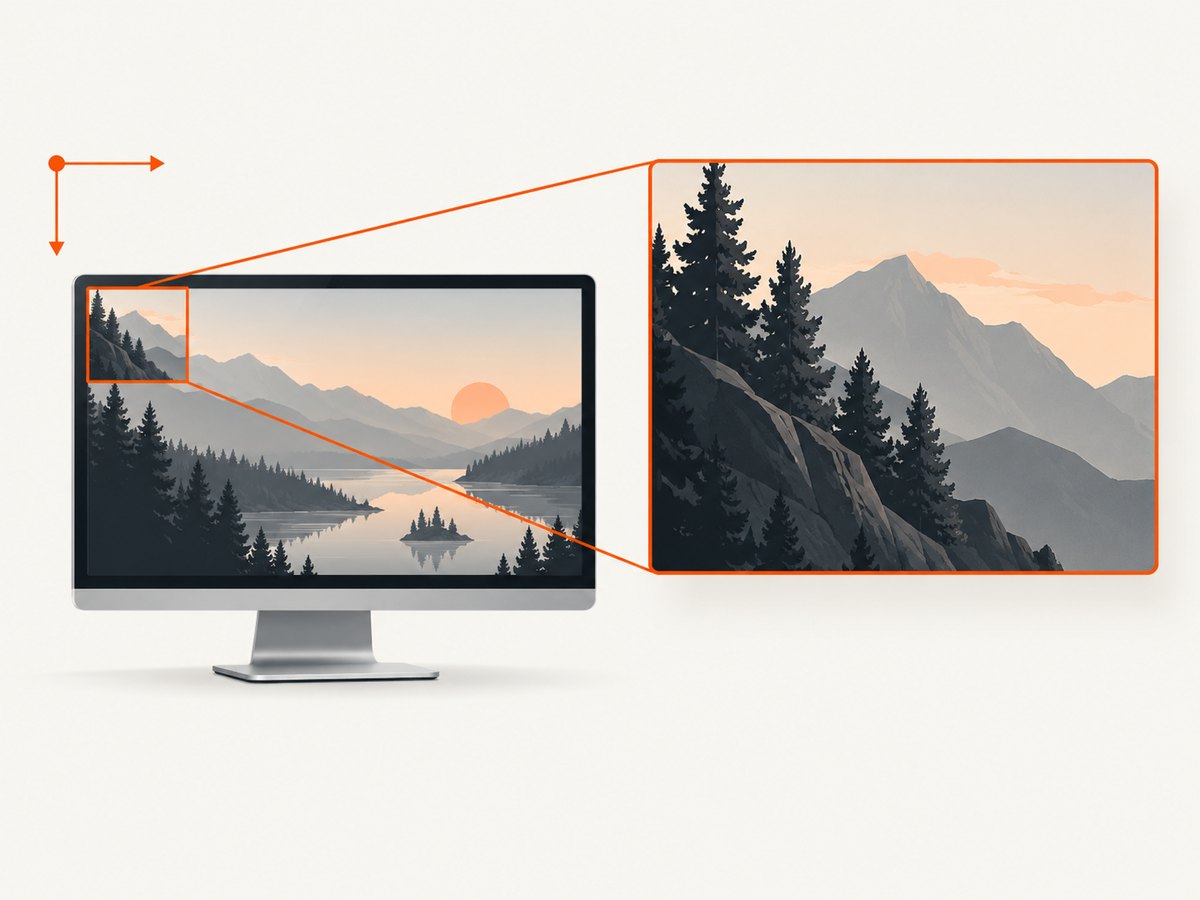
The Microsoft server uses screen-pixel coordinates whose origin is at the top-left. Its reference says coordinates from screenshot and screen-analysis tools share a coordinate space. A screenshot can still appear scaled in the client interface: distinguish the displayed preview size from the source image dimensions. If you are about to use positions from the image to click, verify the server’s coordinate convention and any scaling behavior first.
For small text or dense interface areas, Microsoft documents zoom_region, which captures a region at native resolution and has a maximum region size of 1920×1080 pixels. It also documents analyze_screen for OCR text and bounding boxes. Those tools can help answer different questions: use the screenshot to see visual appearance, zoom for legibility, and OCR when extracted text is the goal. These details describe the Microsoft implementation, not an MCP-wide standard. See the Windows 365 for Agents reference for exact tool behavior.
3. Capture a browser page with Playwright MCP
If the requirement is a webpage rather than the operating-system desktop, Playwright MCP is a browser-oriented option. Its tool is browser_take_screenshot. The server can capture the current viewport, a selected page element, or the full scrollable page. It supports PNG, JPEG, and WebP; the documentation describes screenshot scaling options as well. A no-filename capture is returned through the tool response and saved according to the server’s output behavior and configuration.
To connect it, add the server configuration to the MCP client’s server settings. The following is the documented JSON shape for clients that support this mcpServers format:
{
  "mcpServers": {
    "playwright": {
      "command": "npx",
      "args": ["@playwright/mcp@latest"]
    }
  }
}
Install or run the server through the method supported by your client, then restart or reload its MCP connections. Playwright MCP starts headed by default, so the browser is visible. The project documents options for headless operation, browser selection, viewport size, output directory, isolated contexts, persistent profiles, permissions, and more in its official README. Pin a version instead of @latest when a stable, repeatable tool environment matters.
Once connected, ask the client to navigate to a page and call the screenshot tool. Example requests:
Navigate to https://example.com and take a screenshot of the current viewport.Take a full-page screenshot of the current page and return it as WebP.Take a screenshot of the page element identified as e12.The corresponding tool parameters are conceptually similar to the following JSON objects. Tool schemas can change, so inspect the active server’s exposed schema if a parameter is rejected:
{
  "type": "png"
}
{
"type": "webp",
"fullPage": true
}{
"target": "e12"
}Playwright’s current tool schema uses target to identify a screenshot element; a ref obtained from a snapshot can be used as that target. A filename can also be supplied where you want the server to save a named output. The screenshot appears inline in clients that render MCP image content. When saved to a file, consult the server’s output directory and path settings: automatically named outputs and explicitly named files can resolve differently.
To keep the browser environment consistent, set a viewport explicitly when the client or task needs a particular size. For instance, the server accepts a viewport-size setting such as 1280x720. Pick the browser engine and device emulation only when they match the target you need. A desktop page at a mobile viewport can reflow, hiding content or changing menus. Likewise, browser device scale and screenshot scale affect image pixel dimensions without necessarily changing the CSS layout.
4. Get the image you actually need
Full page versus viewport
A viewport screenshot is generally easier to inspect and smaller to pass through an agent conversation. A full-page screenshot is useful for reviewing long-page visual structure, but it can produce a tall image that is harder to inspect, more expensive in image payload, and may include content that only appears after scrolling. For a targeted bug report, capture the affected element and include a separate viewport image if the surrounding context matters.
Wait for the page or desktop to settle
For a browser, allow navigation and dynamic content to settle before capture. If the page has delayed content, ask the agent to wait for the relevant text or element, or use an appropriate delay. Avoid waiting indefinitely for network idle on pages with persistent analytics, streaming, or long-poll connections; a specific visible condition is often a better completion signal. For a desktop application, make sure the intended window is foregrounded and any dialog or animation has completed before invoking the screenshot tool.
Choose scaling and image format
Use PNG when crisp text and lossless edges matter. JPEG can reduce size for photographic content, while WebP is supported by Playwright MCP and may suit workflows that accept it. Confirm that downstream tools support the chosen encoding. Scaling to device pixels can preserve a higher-density rendering; CSS-pixel output may be more compact. Higher resolution increases image size and can make visual interpretation slower, so use the smallest dimensions that preserve the detail you need.
5. Permissions, privacy, and reliability
A screenshot may contain personal data, credentials, internal dashboards, messages, or customer records. Decide what is in scope before connecting a server, especially when the agent can also click, type, access files, run commands, or control processes. Give access only to a trusted client and the server capabilities needed for the task. Use a dedicated test account or sanitized environment when possible, and avoid capturing secrets or unrelated windows.
Windows 365 for Agents is documented as offering broad control of a hosted PC through screen capture, input, browser automation, and command execution. Playwright MCP can keep browser profile state between sessions by default; the project also documents isolated contexts and storage-state options. A persistent profile may contain login state and cookies. Treat its files and tool outputs as sensitive artifacts. Use isolated sessions when you do not need persistence, and do not share profiles between untrusted agents.
For repeatable browser captures, keep the URL, viewport, browser, authentication state, wait condition, and screenshot parameters stable. Dynamic ads, rotating content, personalized pages, network errors, fonts, and animation can change pixels between runs. A screenshot is a visual record of one point in time, not proof that every user sees the same page. Save enough context alongside an image—such as the URL and target viewport—to make comparisons meaningful.
6. Troubleshooting
| Symptom | Likely cause | What to do |
|---|---|---|
| The tool is missing from the client | Server configuration was not loaded, the client was not restarted, or the account/session lacks access | Reload the MCP server connection, inspect its logs and exposed tools, and verify tenant authorization for Windows 365 or the configured Playwright server. |
| Crop request is rejected | One or more crop fields are missing, or values are not valid screen coordinates | For the Microsoft tool, send all four fields together or omit all four. Keep width and height positive and within the screen bounds. |
| Screenshot is the wrong size or blurry | Preview scaling, viewport size, device scale, or server downscaling changed the displayed image | Check the source dimensions and server’s coordinate rules. For tiny desktop text, use Microsoft’s documented zoom_region; for web pages, set the viewport and screenshot scale deliberately. |
| Browser screenshot shows a blank or incomplete page | Navigation is still in progress, content is lazy-loaded, a consent prompt blocks the page, or the site failed to load | Wait for a specific visible element, scroll to trigger lazy content, handle the consent prompt when appropriate, and inspect browser errors or network requests. |
| Element screenshot captures the viewport | The target reference is stale, selector is ambiguous, or wrong parameter name was used | Take a fresh accessibility snapshot, select a current element reference, and pass it using the active schema’s target field. |
| Image is not saved where expected | Inline tool output and server-side file output are being confused, or an explicit filename uses a different base path | Check the MCP client’s image result and the server output directory/path configuration. Verify whether the filename is resolved against the workspace root. |
| Logged-in page appears logged out | The server started an isolated or new profile, or the stored session expired | Use an authorized storage-state file or persistent profile where appropriate, and renew login state securely. Do not put session secrets in prompts. |
| Desktop crop misses its target | Coordinates were taken from a scaled preview or another coordinate space | Use the source image dimensions and the server’s documented coordinate origin. Recheck the current screen before clicking or cropping. |
7. Cost and performance notes
With a self-hosted Playwright MCP process, the screenshot itself is not priced per image by the MCP protocol; your costs are the machine, browser execution, network traffic, and any model or MCP client usage. A desktop hosted environment such as Windows 365 has its own service and licensing costs, which depend on the organization’s plan and setup. The research sources do not establish a universal price for either workflow, so check the relevant provider’s current terms.
Image size and frequency affect latency and downstream processing. Full-page, high-scale screenshots transfer more pixels than a small crop. Prefer element or region captures for focused inspection, and use a single full-page image when page-wide context is essential. Reuse a stable browser session when appropriate, but account for profile persistence and concurrent-client conflicts. Playwright documents that a persistent profile can be used by only one browser instance at a time; isolated contexts or distinct user-data directories are options when parallel sessions are required.
8. Or skip the browser setup
If your task is a website screenshot rather than the whole operating-system desktop, ScreenshotNeo is a website screenshot API and MCP server from Yorker Media. One GET request can return a PNG, JPEG, WebP, or PDF. It cannot replace an OS-level capture of arbitrary desktop windows; it is for capturing web pages.
cURL:
curl -G "https://api.screenshotneo.com/v1/shot" -d access_key=YOUR_API_KEY --data-urlencode url=https://stripe.com -o shot.webpPython:
import requests

r = requests.get(
    "https://api.screenshotneo.com/v1/shot",
    params={"access_key": "YOUR_API_KEY", "url": "https://stripe.com"},
    timeout=90,
)
open("shot.webp", "wb").write(r.content)
Node.js:
const q = new URLSearchParams({ access_key: 'YOUR_API_KEY', url: 'https://stripe.com' });
const res = await fetch(`https://api.screenshotneo.com/v1/shot?${q}`);
See the ScreenshotNeo API documentation for request details. Cookie banners, popups, and chat widgets are removed before the shot; bot checks, blank pages, and failed loads are never billed. Its MCP server lets AI agents take screenshots. The Free plan includes 1,000 screenshots a month with no card, and paid plans start at $5 for 3,000.
Sign up for ScreenshotNeo’s free plan to get 1,000 screenshots a month with no card.
FAQ
Can an MCP screenshot server capture a second monitor?
That depends on the server. The Windows 365 reference describes full-screen capture and cropping but does not establish a universal multi-monitor selection procedure. Check the exact server’s documentation and confirm which display is being captured.
Can I use screenshots to click controls reliably?
For browser content, prefer accessibility snapshots and element references for interaction. Screenshots help interpret visual layout; pixel coordinates can become unreliable when scaling, scrolling, or layout changes intervene.
Does Playwright MCP take a screenshot of the whole computer?
No. It captures browser content. Use an OS desktop server when the target includes windows or applications outside the browser.
Can I use the same configuration in every MCP client?
No. The server’s tool behavior may be consistent while the client’s configuration file format and authentication workflow differ. Follow the client’s instructions for registering an MCP server.


