How to Use a Chrome MCP Server for AI Browser Control
Connect an AI agent to Chrome with chrome-devtools-mcp. Install it, choose a browser mode, and keep authenticated sessions and page content under control.
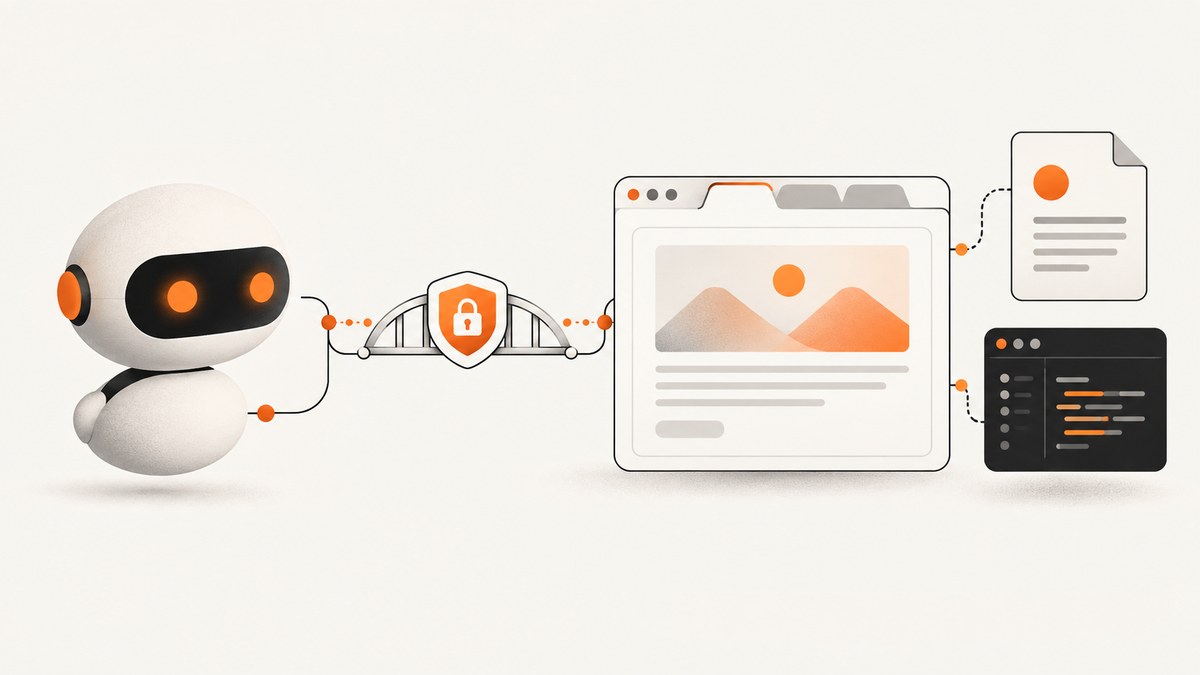
A Chrome MCP server connects an MCP-capable AI agent to a live Chrome browser, so it can navigate pages, interact with controls, inspect browser and DevTools state, capture screenshots, examine console messages and network requests, and record performance traces. The official package is chrome-devtools-mcp. The quickest start is Node.js LTS, npm, a current stable Chrome, and an MCP client configuration that launches the package with npx.
For most work, start with a fresh isolated browser profile or headless Chrome. Connect to your personal, logged-in browser only when the task needs that session, because the agent can see and act on the pages and data available to the connected profile. [Project README; Chrome DevTools setup and security guidance]
1. What a Chrome MCP server does
MCP, the Model Context Protocol, lets an AI client call tools exposed by a server. chrome-devtools-mcp puts Chrome DevTools into coding-agent workflows. The server uses a browser session and offers tools for navigating and interacting with pages, inspecting DOM and DevTools information, analyzing network activity, reading console messages, taking screenshots, and recording performance traces. The project describes its goal as providing an AI coding assistant with “reliable automation, in-depth debugging, and performance analysis.” [Chrome DevTools MCP README]
This is more than a remote screenshot endpoint: the agent can work through a sequence of browser actions and inspect the results. That makes it useful for reproducing bugs, checking a web flow, investigating a page’s behavior, and performance or accessibility investigation. It also means page content and session permissions matter. Treat the agent as an operator with the connected browser’s effective access.
2. Prerequisites and installation
- Install a supported Node.js LTS release and npm.
- Install current stable Google Chrome, or Chrome for Testing.
- Use an MCP-capable client such as Gemini CLI, Claude Code, Cursor, Copilot, or Codex.
- Configure the client to launch
chrome-devtools-mcp.
For Codex, add the server from a terminal:
codex mcp add chrome-devtools -- npx chrome-devtools-mcp@latestFor clients that accept an mcpServers configuration object, add:
{
  "mcpServers": {
    "chrome-devtools": {
      "command": "npx",
      "args": ["-y", "chrome-devtools-mcp@latest"]
    }
  }
}
Save the configuration where your particular client expects MCP server entries, then restart or reload the client so it discovers the new server. Client configuration locations differ; use the client’s MCP setup instructions if it does not recognize this standard object. With @latest, npx downloads the latest published package when needed. For repeatable team or production use, pin a known package version and update it deliberately. The server may wait for a browser tool call before launching Chrome; merely connecting the MCP server does not necessarily open a window. [Client configuration guide; Configuration guide]
3. Choose how the agent connects to Chrome
The connection mode determines what the agent can see and which browser state it uses. Pick it based on the task before asking the agent to navigate.

New browser with a visible window
By default, the server starts a new Chrome instance in a profile created for the MCP session. This is a good starting point for debugging because you can observe the same browser actions the agent performs. It avoids giving the agent your personal browser’s existing cookies and tabs, though websites you sign into in that new profile will still be accessible to the agent.
Headless mode for background work
Add --headless to run without a visible Chrome window. Pair it with --isolated when you want a temporary profile that is removed when Chrome closes. This works well for background tasks and repeatable automation, provided the application behaves correctly in headless Chrome.
{
  "mcpServers": {
    "chrome-devtools": {
      "command": "npx",
      "args": ["-y", "chrome-devtools-mcp@latest", "--headless", "--isolated"]
    }
  }
}
Connect to a separately started browser
To prepare a specific browser state yourself, launch Chrome with remote debugging on a port and a non-default user-data directory. Then pass the debugging URL to the MCP server. For example, the following configuration targets the common local port 9222; the browser must already be running with remote debugging enabled on that endpoint.
{
  "mcpServers": {
    "chrome-devtools": {
      "command": "npx",
      "args": ["-y", "chrome-devtools-mcp@latest", "--browser-url=http://127.0.0.1:9222"]
    }
  }
}
A WebSocket endpoint can also be supplied instead of the HTTP browser URL. This mode is useful for a reproducible prepared profile, but if that profile is authenticated, its accounts, cookies, and other data become available through the agent connection. Protect the debugging port: it is a control endpoint, not a public web service. [Browser connection configuration]
Auto-connect to personal Chrome
Chrome 144 and later can allow the server to connect to your personal Chrome session. Enable remote debugging at chrome://inspect/#remote-debugging, add --autoConnect to the server arguments, and approve Chrome’s permission prompt. This can be helpful when a human has already navigated a complicated flow. It preserves open tabs, extensions, and live application state, so it also grants access to sensitive session data. Use it only for a task that specifically requires your current browser. [Auto-connect documentation]
4. First run: ask for one observable task
After configuring the client, use a small task that has a visible, verifiable outcome. The project’s suggested smoke test is to prompt the agent: Check the performance of https://developers.chrome.com. A working setup should open Chrome and record a performance trace. [Project README]
For your own first interaction, keep the loop narrow:
- Ask for one action, such as navigating to a public page or inspecting a console error.
- Ask the agent to report the resulting URL, relevant console output, screenshot, or trace evidence.
- Check that evidence before asking it to take another action.
- For any action that changes external state, such as submitting a form or publishing content, require human confirmation before execution.
This workflow makes failures easier to diagnose and limits the consequences of misunderstood instructions.
5. Control a logged-in browser safely
Can an AI control my logged-in browser? Yes, if you connect the MCP server to a browser profile with an active authenticated session. That can let the agent view page content and interact with the account as you. The official warning is direct: “Chrome DevTools for agents exposes your browser content to your agent.” [Chrome DevTools security guidance]
Auto-connect can expose open tabs, session storage, local storage, cookies, and data surfaced through JavaScript APIs. Before connecting, close unrelated tabs and consider whether the account’s permissions are appropriate for the task. Prefer a dedicated profile with limited access for ongoing automation; use --isolated for temporary runs. Limit work to the origins needed, do not put passwords or payment details into prompts, and confirm state-changing actions explicitly.
Page content is untrusted input. A page can contain instructions intended to manipulate the agent, even if the page is otherwise a legitimate site. Keep the agent’s task narrowly scoped, constrain cross-origin activity, limit the amount of page output carried into context, and make it clear that page text is evidence to analyze rather than instructions to follow. The WebMCP security guidance also recommends treating tools as state-changing unless clearly described otherwise. [WebMCP security guidance]
Understand telemetry separately from browser access
There are two distinct data questions. Chrome’s auto-connect documentation says the local debugging server does not send browser data, session tokens, or telemetry to Google. Separately, the MCP project documents optional usage statistics about the tool itself; these are enabled by default and can be disabled with --no-usage-statistics. Disabling tool usage statistics does not change what the connected agent can access in the browser. [Auto-connect privacy notes; MCP configuration]
6. Useful configuration options
Start with the defaults and add only flags needed for the workflow. Exact flags and availability can change between package releases, so consult the package’s configuration guide when pinning or upgrading.
| Need | Option or approach | Notes |
|---|---|---|
| Run without a window | --headless |
Useful for background or CI work; confirm the target application works in headless mode. |
| Temporary profile | --isolated |
Creates an isolated profile that is cleaned up when Chrome closes; helpful for separating concurrent sessions. |
| Use an already running browser | --browser-url=... or WebSocket endpoint |
Use a controlled, non-default profile and protect the debugging endpoint. |
| Take over personal Chrome | --autoConnect |
Requires Chrome 144+, remote debugging, and approval. It exposes active browser state. |
| Choose Chrome release channel | Channel selection | Stable, beta, dev, and canary are supported configuration choices. |
| Use a specific Chrome binary | Executable path | Useful for a managed installation or Chrome for Testing binary. |
| Set a viewport | Viewport configuration | Keep it fixed when comparing screenshots or reproducing responsive behavior. |
| Reduce tool surface | Slim mode or category flags | Slim mode is available for basic browser work; category settings can exclude tool groups. |
| Disable MCP usage statistics | --no-usage-statistics |
Controls tool statistics, not the browser access granted to the agent. |
For reliable runs, keep Chrome and the package compatible, use a pinned package version when reproducibility matters, and record the selected browser channel, viewport, profile mode, and target URL with the task result. Official support covers Google Chrome and Chrome for Testing. Other Chromium browsers may work, but are not guaranteed. [Configuration reference]
7. Troubleshooting common setup problems
| Symptom | Likely cause | Fix |
|---|---|---|
| The client shows no Chrome tools | Invalid config location or syntax, or the client has not reloaded its MCP servers. | Check the client’s required config format, confirm the command is npx and the argument list includes -y and chrome-devtools-mcp@latest, then restart or reload the client. |
| Chrome does not open after connecting | The server may start Chrome only when a tool needing a browser is called. | Ask the agent to navigate to a public URL or perform the documented performance smoke test. Inspect the client’s server logs if no browser-dependent tool starts. |
| “Chrome not found” or launch failure | Chrome is absent, installed in an unusual location, or the selected channel does not match. | Install current stable Chrome or Chrome for Testing; if needed, set the executable path or channel to match the installed browser. |
| Cannot connect to browser URL | Chrome is not running with remote debugging enabled, the port differs, or the endpoint is unreachable from the MCP process. | Start Chrome with remote debugging and a non-default user-data directory; pass the correct local debugging URL or WebSocket endpoint. Keep the endpoint local and restricted. |
| Auto-connect is unavailable | Chrome is older than 144, remote debugging is off, or the permission prompt was not approved. | Use Chrome 144+, enable remote debugging at chrome://inspect/#remote-debugging, set --autoConnect, and approve the prompt. |
| The agent sees the wrong tab or profile | The connection mode selected a separate profile, or an existing browser has multiple relevant tabs. | Choose the intended connection mode. For automated work, prepare a dedicated profile and explicitly direct the agent to the target URL or tab. |
| Page interaction is flaky in headless mode | The page depends on timing, viewport, browser state, or behavior that differs without a visible window. | Fix viewport and profile state, wait for a meaningful page condition, and reproduce once in visible mode to inspect what the page rendered. |
| Results change between runs | @latest, Chrome updates, dynamic page content, or reused profile state can change behavior. |
Pin a package version, record the browser channel and viewport, isolate the profile, and use a stable test URL and page state. |
| The agent follows suspicious page instructions | Untrusted content may contain prompt injection. | Stop the flow, treat page text as data, narrow allowed origins, limit context, and require confirmation for mutations. |
8. Performance, reliability, and cost considerations
Chrome MCP runs a browser and performs interactive work, so it is suited to tasks where browser behavior or DevTools evidence matters. The dossier provides no benchmark or fixed runtime; page size, network, application behavior, browser startup, and the requested inspection all affect completion time. For CI, reduce variation by using headless mode, isolated profiles, fixed viewports, pinned package versions, and bounded tasks. Keep a visible-mode reproduction available when a failure is difficult to interpret.
Reliability depends on waiting for the right observable condition. A fixed delay may be inadequate on a slow page and waste time on a fast one; ask the agent to confirm that the intended page or element appeared, then inspect the resulting state. Capture the final URL, console messages, or trace so a successful response is auditable. The supplied sources specify no service pricing or throughput figures for chrome-devtools-mcp; execution costs depend on the AI client and infrastructure you use.
For jobs that need only a static image or PDF rather than interactive browser control, a screenshot API may be a simpler fit. ScreenshotNeo is a website screenshot API and MCP server. It returns PNG, JPEG, WebP, or PDF from one GET request, and its MCP tools include screenshot capture, page information, and PDF capture. For a broader tool session in Chrome, use the browser-control approach above; for a capture request, the API call below is direct.
9. Or skip the browser setup
ScreenshotNeo can capture a page without installing Chrome or configuring a local browser. This runnable cURL example saves a WebP image:

curl -G "https://api.screenshotneo.com/v1/shot" -d access_key=YOUR_API_KEY --data-urlencode url=https://stripe.com -o shot.webpPython:
import requests

r = requests.get(
    "https://api.screenshotneo.com/v1/shot",
    params={"access_key": "YOUR_API_KEY", "url": "https://stripe.com"},
    timeout=90,
)
open("shot.webp", "wb").write(r.content)
Node.js:
const q = new URLSearchParams({ access_key: 'YOUR_API_KEY', url: 'https://stripe.com' });
const res = await fetch(`https://api.screenshotneo.com/v1/shot?${q}`);
const bytes = new Uint8Array(await res.arrayBuffer());
await import('node:fs/promises').then(fs => fs.writeFile('shot.webp', bytes));
See the ScreenshotNeo API documentation for request options. Cookie banners are accepted and removed before capture, along with 60+ known consent platforms, newsletter popups, and chat widgets; each cleanup step can be disabled. Bot checks, blank pages, failed loads, timeouts, and cache hits are not billed, and response headers identify the page verdict and billing status. The MCP server supports AI agents, and the service includes controls such as full-page capture, selector capture, custom CSS and JavaScript, viewport and device presets, waits, request blocking, and PDF output.
The free plan includes 1,000 screenshots each month with no card. Paid plans start at $5 for 3,000 shots; every feature is on every plan. Sign up for ScreenshotNeo’s free plan.
10. Frequently asked questions
Does Chrome MCP work with Cursor, Claude Code, and Codex?
Yes. The package supports MCP-capable clients including Gemini CLI, Claude Code, Cursor, Copilot, and Codex. Each client may have its own configuration location and reload process.
Is Chrome MCP safe to use with my personal profile?
It can access the connected browser’s pages and may act on your behalf when a session is authenticated. Use a separate, limited profile when possible, and connect a personal session only for tasks that need it.
Can I run Chrome MCP headless in CI?
Yes. Add --headless, and consider --isolated to keep runs separated. Pin the package and use a fixed viewport and known browser version for more repeatable results.
Can I use Brave or another Chromium browser?
The documented support is for Google Chrome and Chrome for Testing. Other Chromium browsers may work, but are not guaranteed.
How is Chrome MCP different from ScreenshotNeo?
Chrome MCP controls a live browser and exposes DevTools capabilities for interactive work. ScreenshotNeo provides a website screenshot API and MCP server for screenshot, page-info, and PDF capture. Choose based on whether the task needs browser interaction or a rendered capture.


