How to Export Selected Webpage Sections or Pages to PDF
Save a selected webpage section or specific print pages as a PDF with browser steps, automation code, troubleshooting, and ScreenshotNeo.
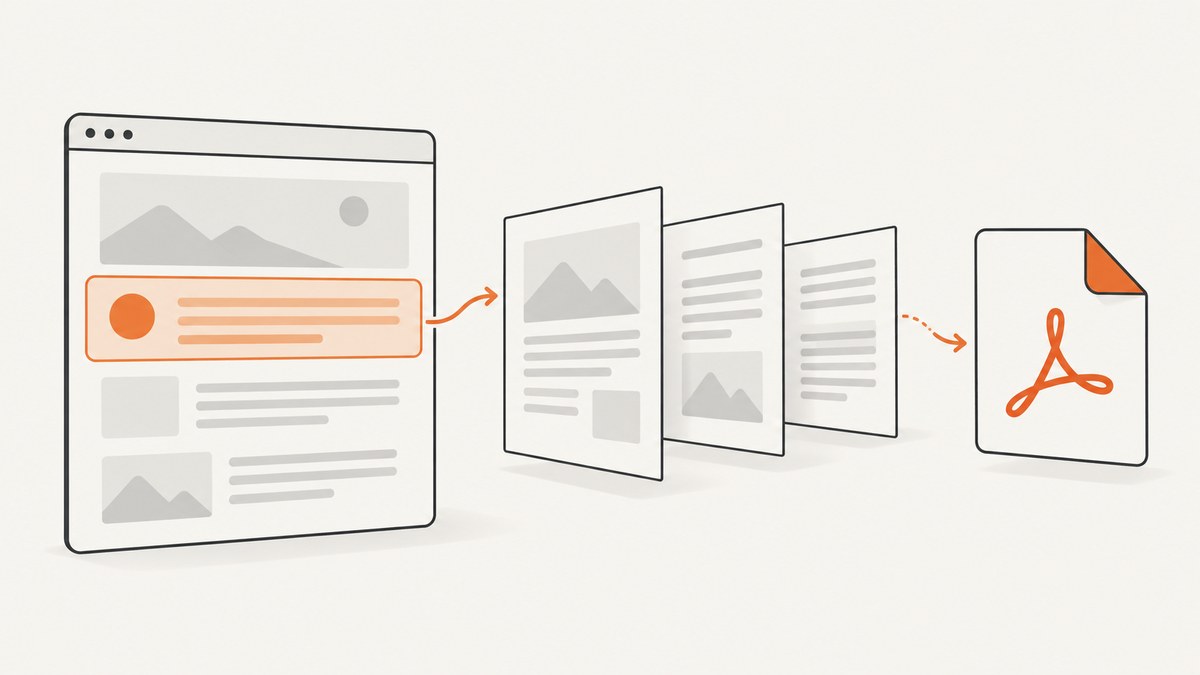
There are two different meanings of “selected” when exporting a webpage to PDF. You can select content on the page—specific text, images, or an article section—or select page numbers after the browser has laid out the document for printing. Use content selection when you want only a section. Use a page range when you want, for example, pages 2–4 of the print preview.
For a one-off export, the browser’s built-in print dialog is usually enough: select the content if your browser supports it, print, choose a PDF destination, inspect the preview, and save. For repeatable captures, authenticated pages, or server-side jobs, use a headless browser or a screenshot API.
1. Save only part of a webpage as a PDF
Microsoft Edge: print a selected section
- Drag across the text or images you want to include.
- Right-click the selection and choose Print. If that option is not available, open the browser’s print dialog and check whether it offers a selection-specific control.
- Choose Save to PDF or another PDF destination.
- Inspect the preview. Check that headings, tables, images, and page breaks are present.
- Save the file and open it once to confirm that it contains the intended section.
Microsoft documents selecting webpage text or images before printing in its Print in Microsoft Edge guide. The same guide describes custom page ranges. A range applies to pages in the print layout; it does not identify an HTML section on the source page.
Firefox: save to PDF and choose output pages
- Open the page menu and choose Print, or press
Ctrl+Pon Windows/Linux orCmd+Pon macOS. - Set the destination to Save to PDF.
- Use Pages to choose all pages, a range such as
2-4, or individual pages such as1,3,7. - If it is available, try Simplified format to remove some navigation and page clutter.
- Review the preview, then save.
Mozilla documents the PDF destination, page control, and simplified format in How to print web pages in Firefox. Simplified output changes the design, so use the normal layout when visual fidelity matters.
Chrome and other Chromium browsers
Press Ctrl+P or Cmd+P, choose Save to PDF, and set the page range. To reduce clutter, try Reading mode first when the browser offers it, then print that view. Google notes that Reading mode may not work as expected on some pages; check the preview carefully in its Chrome Reading mode help.
2. Content selection versus page selection
| Goal | Control to use | What it includes |
|---|---|---|
| Export highlighted text, a table, or selected images | Print selection, where supported | Content selected before print layout |
| Export pages 3–5 of the generated document | Pages or custom range in print preview | Pages after CSS and pagination are applied |
| Export one article from a news site | Reader or simplified view, or an extension | Usually the article, with site-dependent formatting |
These controls cannot always be combined. A page range may still contain headers, footers, or unrelated content. A content selection can reflow into a different number of output pages. Decide what you need first, then adjust margins and scale.
3. Make the PDF readable and predictable
- Orientation: use landscape for wide tables, code, or dashboards.
- Margins: reduce them only after checking that no text is clipped.
- Scale: fit-to-page avoids overflow but can make text tiny. Use 100% when the selection is narrow enough.
- Backgrounds: enable background graphics when color conveys meaning; disable them when a simpler document is preferable.
- Headers and footers: turn them off for a clean handout, or leave them on when the URL and date are part of the record.
- Page size: select the intended paper size. A change can alter line wrapping and pagination.
- Links: check that important links remain clickable in the saved PDF.
Inspect the preview before saving. Print CSS, responsive breakpoints, and pagination can make a page look different on paper. A wide layout may wrap or clip; a narrow viewport may hide navigation or switch to a mobile layout. If the output must represent a particular screen width, choose that width in your automated browser capture.
4. When the built-in dialog is not enough
Browser printing is interactive and difficult to schedule. It can also be awkward for pages that require login, wait for JavaScript, load images lazily, or show cookie and chat overlays. A browser extension may offer article-only or selected-content export. The Firefox Add-ons listing for Webpage To Pdf file describes full-page, article-only, and selected-content modes. That is a marketplace description, not independent validation; review current permissions and maintenance before installing: Webpage To Pdf file.
Automate with Playwright (Node.js)
This script opens a page, waits for network activity to settle, and saves a PDF. Install Playwright with npm install playwright, then install Chromium once with npx playwright install chromium.
import { chromium } from 'playwright';

const browser = await chromium.launch();
try {
  const page = await browser.newPage({ viewport: { width: 1440, height: 900 } });
  await page.goto('https://example.com/article', {
    waitUntil: 'networkidle',
    timeout: 45000
  });
  await page.locator('article').scrollIntoViewIfNeeded();
  await page.pdf({
    path: 'article.pdf',
    format: 'A4',
    printBackground: true,
    margin: { top: '16mm', right: '16mm', bottom: '16mm', left: '16mm' }
  });
} finally {
  await browser.close();
}
To export one section, use print CSS to hide content outside the target before calling page.pdf. For example, add a style that hides the body’s children and makes the target element visible, while preserving its required styles. The exact selector depends on the site. Copying an element into a blank page can lose inherited fonts, table styles, or relative image paths, so prefer keeping the original document’s CSS when fidelity matters.
Automate with Puppeteer (Node.js)
const puppeteer = require('puppeteer');

(async () => {
  const browser = await puppeteer.launch({ headless: true });
  try {
    const page = await browser.newPage();
    await page.goto('https://example.com/article', {
      waitUntil: 'networkidle0',
      timeout: 45000
    });
    await page.pdf({
      path: 'article.pdf',
      format: 'A4',
      printBackground: true,
      margin: { top: '16mm', right: '16mm', bottom: '16mm', left: '16mm' }
    });
  } finally {
    await browser.close();
  }
})();
For production jobs, choose explicit timeouts, close the browser in a finally block, and record the URL, viewport, browser version, and print options alongside each file. Don’t treat a navigation event as proof that the page’s main content is ready: wait for a content selector when possible.
5. Or skip the browser setup
ScreenshotNeo is a website screenshot API that can return PNG, JPEG, WebP, or PDF. Its PDF options include paper size, margins, landscape mode, and page ranges. It can also capture a CSS-selected element, wait for a selector, delay, or network idle, load lazy images for full-page captures, apply custom CSS or JavaScript, click before capture, hide selectors, and set cookies and headers. See the ScreenshotNeo API documentation for request parameters and output options.
The API accepts a URL and an access key. These examples show the documented basic request; use the PDF output and page settings from the docs when you need a PDF rather than the example WebP file.
curl -G "https://api.screenshotneo.com/v1/shot" -d access_key=YOUR_API_KEY --data-urlencode url=https://stripe.com -o shot.webpimport requests
r = requests.get(
"https://api.screenshotneo.com/v1/shot",
params={"access_key": "YOUR_API_KEY", "url": "https://stripe.com"},
timeout=90
)
r.raise_for_status()
open("shot.webp", "wb").write(r.content)const q = new URLSearchParams({ access_key: 'YOUR_API_KEY', url: 'https://stripe.com' });
const res = await fetch(`https://api.screenshotneo.com/v1/shot?${q}`);
if (!res.ok) throw new Error(`Screenshot request failed: ${res.status}`);
await Bun.write('shot.webp', new Uint8Array(await res.arrayBuffer()));Save binary output as a binary file, not as decoded text. The response includes X-Page-Verdict and X-Billed headers to report the page result and whether it was billed. Only clean shots are billed: bot checks or CAPTCHAs, blank pages, timeouts, failed loads, and cache hits cost nothing.
ScreenshotNeo accepts cookie or consent banners like a visitor and removes 60+ known consent platforms, newsletter popups, and chat widgets before capture; each cleanup step can be turned off. Its MCP server provides take_screenshot, get_page_info, and capture_pdf to Claude, Cursor, and other MCP clients. Bulk capture supports 100 URLs per call, and asynchronous jobs can use signed webhooks.
Create a free ScreenshotNeo account for 1,000 screenshots a month with no card. Paid plans start at $5 for 3,000.
6. Troubleshooting
| Symptom | Likely cause | Fix |
|---|---|---|
| The entire page prints instead of the selection | The browser or page does not expose print-selection behavior. | Try reader mode, isolate the target with Playwright, or use element capture. |
| The PDF is blank | Content renders after navigation, or a bot check blocks the page. | Wait for a content selector, increase the timeout, and inspect the page verdict. |
| A cookie dialog covers the article | Consent UI appears after the initial load. | Accept it in your browser workflow or use consent cleanup for automated capture. |
| Images are missing | Images are lazy-loaded or resources are blocked. | Scroll through the page before printing, wait for image loading, and check resource access. |
| A table is cut off | Portrait layout, fixed-width CSS, or a page break causes overflow. | Try landscape, adjust margins or scale, or export the table section separately. |
| Text is too small | Fit-to-page scaling shrank a wide selection. | Use landscape, reduce margins, or capture a narrower section at 100% scale. |
| The PDF has unexpected blank pages | Print CSS page breaks or oversized elements created extra pages. | Inspect print preview and adjust the source’s print styles or the selected range. |
| An automated job hangs | The page keeps long-lived network connections or never reaches the chosen wait condition. | Use a content selector or a bounded delay, set a timeout, and close the browser in cleanup code. |
7. Reliability, performance, and cost
For browser scripts, reuse one browser process and create a fresh page per job. Set navigation and selector timeouts. Retry transient network failures with a limit and backoff; don’t retry permanent authorization errors indefinitely. Save the source URL and capture options with the PDF so a later rerun can reproduce the same layout. A fixed delay can help with known animations, but a selector is generally a clearer readiness condition.
For ScreenshotNeo, choose a cache TTL that fits how often the source changes. Async jobs and signed webhooks help manage long captures; bulk capture can handle up to 100 URLs per call. Custom headers, cookies, user agent, and Authorization can support protected pages. Keep credentials out of logs and generated filenames. Check the verdict and billing headers when reconciling usage.
Use a browser workflow when you need custom browser code and already operate Chromium. An API is useful when you want repeatable captures without maintaining browser infrastructure. ScreenshotNeo offers 1,000 shots monthly free; paid plans are Starter $5 for 3,000, Growth $15 for 15,000, Pro $39 for 60,000, Scale $99 for 250,000, and Business $249 for 1,000,000. Yearly billing gives two months free, and every feature is on every plan.
8. Checklist before sharing the PDF
- Confirm whether you selected webpage content or output page numbers.
- Check the first and last pages for clipping and blank pages.
- Review tables, code, links, fonts, and images.
- Open the file in a PDF viewer and confirm it renders as expected.
- For automation, retain the URL, options, timestamp, and result status.
- Remove personal information and secrets from both the document and any shared capture configuration.
FAQ
Can I save only highlighted text?
Yes, if the browser exposes print selection for that page. Edge documents selecting text or images before printing. Otherwise, try a reader view or isolate the target section with browser automation.
Does a page range select a webpage section?
No. It selects pages after the browser has laid out the document. A selected HTML section may flow across a different number of printed pages.
Why does the PDF look different from the screen?
Print styles, responsive breakpoints, backgrounds, and pagination affect the output. Inspect the print preview and adjust the layout before saving.
Can ScreenshotNeo capture a page that needs authentication?
It supports custom headers, cookies, user agents, and Authorization. Use credentials you are authorized to use, and keep them out of logs.