How to Find and Use Screenshot MCP Servers on GitHub
Find reliable screenshot MCP servers on GitHub, install Playwright MCP, capture full pages, and choose between screenshots and accessibility snapshots.

Microsoft’s microsoft/playwright-mcp is the best general starting point for screenshot MCP work on GitHub. It combines Playwright browser automation with screenshot support, has official setup guidance for common MCP clients, and exposes controls for viewport, element, full-page, format, and scaling. A smaller focused option is meirroth/mcp-browser-screenshot, which provides screenshot, click, type, and JavaScript-evaluation tools.
This guide shows how to find a trustworthy repository, install Playwright MCP, capture a viewport, element, or complete page, decide when to use an accessibility snapshot, troubleshoot common failures, and choose a hosted alternative when maintaining a browser runtime is unnecessary.
What a screenshot MCP server does
The Model Context Protocol (MCP) lets an AI client discover and call tools exposed by a local or remote server. A screenshot MCP server starts a browser, navigates to a URL, waits for the page to reach the requested state, and returns an image. Depending on the server, it may also click controls, enter text, evaluate JavaScript, preserve a browser context, or return an accessibility tree.

That makes screenshot tools useful for visual inspection, regression evidence, design review, canvas and chart checking, and documenting a bug. They are less suitable than structured page data when the task is simply to read a heading or press a button.
How to search GitHub for the right server
Use specific searches rather than a generic screenshot MCP query:
MCP screenshot Playwrightbrowser_take_screenshot MCPModel Context Protocol browser screenshotMCP server fullPage screenshot
Open the repository, README, package metadata, issue tracker, and license before installing it. Look for:
| Check | What to verify |
|---|---|
| Scope | Whether it is a general browser automation server or a screenshot-only wrapper. |
| Installation | A reproducible command, documented prerequisites, and a complete client configuration. |
| Tool schema | Names, required arguments, formats, wait conditions, selectors, and output behavior. |
| Browser support | Which engine and browser binaries are used, and whether an extra installation step is required. |
| Session behavior | Authentication, cookies, persistent profiles, context settings, and isolation between requests. |
| Maintenance | Recent activity, releases, issue responses, dependency updates, and a clear license. |
| Security | How URLs, headers, cookies, JavaScript, and local files are handled. |
Package commands and supported clients change. Recheck the repository README and official documentation immediately before publishing or automating an installation.
Recommended starting point: Playwright MCP
Microsoft describes Playwright MCP as “A Model Context Protocol (MCP) server that provides browser automation capabilities using Playwright.” Its standard setup runs the package through npx. The official getting-started guide requires Node.js 20 or newer and documents setup for VS Code, Cursor, Windsurf, Claude, Codex, and other MCP clients.
1. Install Node.js 20 or newer
Install a current Node.js release that satisfies the documented prerequisite. Confirm the version before starting the client:
node --version
npm --version
2. Add the server to your MCP client
The common configuration is:
{
  "mcpServers": {
    "playwright": {
      "command": "npx",
      "args": ["@playwright/mcp@latest"]
    }
  }
}
Use the equivalent MCP settings screen or command for your client. Restart or reload the client after saving the configuration so it can discover the server and its tools.
3. Use configuration-file mode when defaults are not enough
Playwright MCP also documents a configuration-file mode. Pass a file containing browser options, context options, network rules, and timeouts:
npx @playwright/mcp@latest --config path/to/config.jsonKeep this file under version control only when it contains safe, non-secret values. Inject credentials through your client or runtime secret mechanism instead of committing cookies, authorization headers, or personal browser profiles.
Take viewport, element, and full-page screenshots
Once the server is connected, ask the assistant to navigate and capture. A practical request is:
Navigate to https://example.com, wait for the main content, then take a full-page WebP screenshot.The official browser_take_screenshot tool supports:
- Current viewport: the visible browser area.
- Element target: one element identified from the page snapshot or a selector.
- Full page: the complete scrollable document with
fullPage: true. - Format: PNG, JPEG, or WebP.
- Scale:
cssfor CSS-pixel dimensions ordevicefor higher-resolution output.
Ask for the exact capture intent so the model does not infer it from an ambiguous phrase such as “screenshot the page.” For example:
Open the dashboard, wait for the selector [data-testid="sales-chart"], and capture that element as PNG at CSS scale.For a complete page:
Navigate to https://example.com/docs, wait for the article element, then capture the full scrollable page as WebP at CSS scale.For a device-like viewport, specify the dimensions or use the client and server options that define the browser context. Use device scale when the output is intended for retina inspection, and css scale when pixel dimensions need to match layout measurements.
Use browser_snapshot before acting on a page
Playwright MCP operates on the accessibility tree for interaction. The snapshot returns structured roles, labels, and text, which gives the assistant stable references for buttons, links, inputs, and regions. The screenshot page explains the distinction directly: “Screenshots are for looking at, not for acting on — use browser_snapshot to get refs to interact with.”
A reliable sequence is:
- Navigate to the target URL.
- Call
browser_snapshotto locate the control or region. - Use the returned reference to click or type.
- Wait for the resulting state.
- Take a screenshot to verify the visual result.
Use snapshots when the task is reading text, finding a form field, submitting a button, or checking semantic structure. Use screenshots when pixels matter: responsive layout, spacing, visual regressions, canvas, charts, image rendering, or a bug report.
Full-page capture workflow
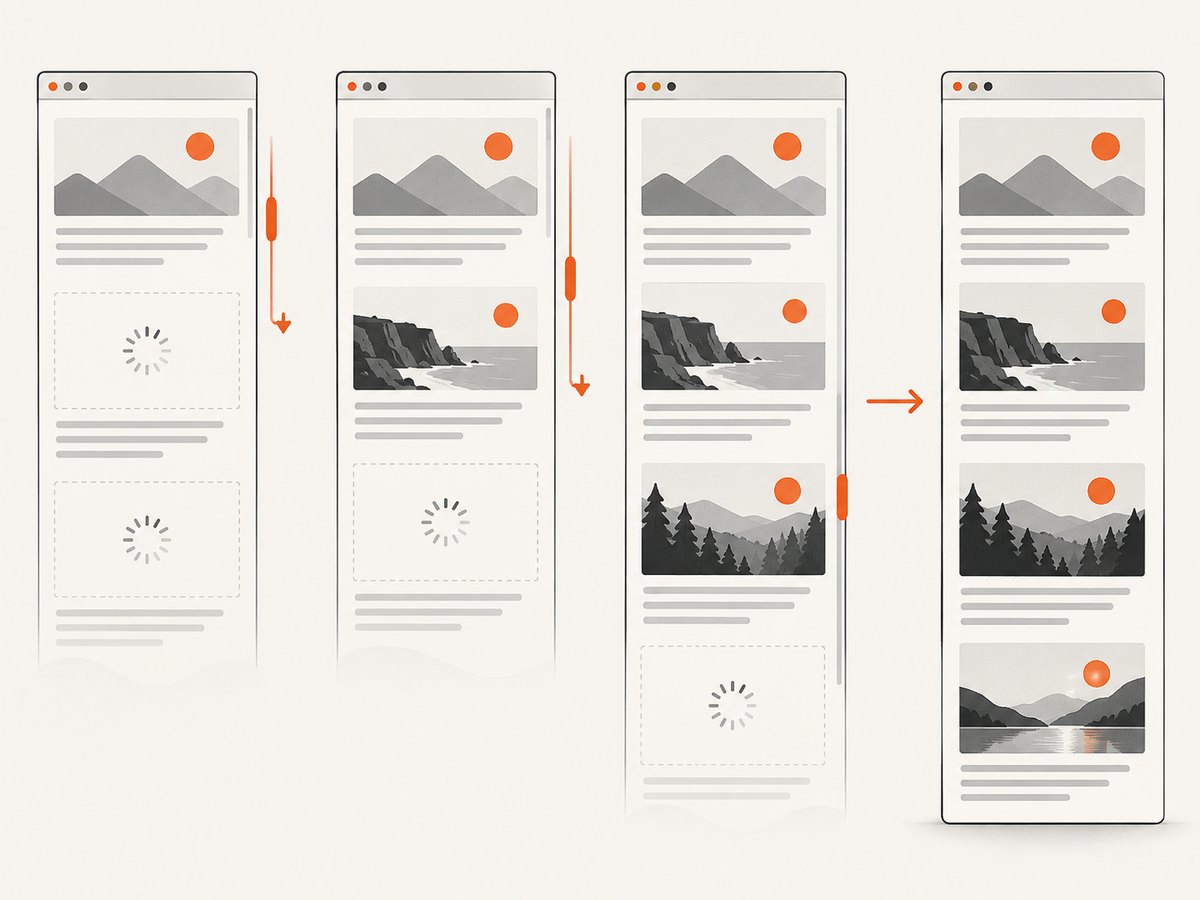
Long pages need more care than a single viewport. Lazy-loaded images may not appear until the page is scrolled, sticky headers can repeat, and animated content can produce inconsistent captures.
- Open the page. Navigate to the canonical URL and confirm that redirects have settled.
- Wait for a stable landmark. Use a main article, dashboard container, or other selector that appears only after the relevant content is ready.
- Trigger lazy content. Ask the browser to scroll through the page if images or sections load on demand.
- Stop animation where possible. Prefer a documented reduced-motion or test mode when the site provides one.
- Capture with
fullPage: true. Select PNG for lossless evidence, JPEG for smaller photographic output, or WebP for a compact modern image. - Inspect the result. Check that the bottom of the document, lazy images, fixed overlays, and charts are present.
If a page is extremely long, split the work into sections or capture a specific element. A single enormous bitmap consumes more memory and takes longer to transfer.
Element screenshots and visual bug evidence
Element captures are preferable when the question concerns one component. First obtain a stable element reference with browser_snapshot or a documented selector. Then request the element screenshot. This avoids including unrelated navigation, cookie notices, or long page content in an issue attachment.
For a visual bug report, include the URL, viewport dimensions, browser context, steps that produced the state, and the screenshot. If the issue depends on a chart or canvas, the image is essential because the accessibility tree may not contain the drawn pixels.
Lightweight alternative: mcp-browser-screenshot
meirroth/mcp-browser-screenshot is a focused wrapper that describes itself as “An MCP (Model Context Protocol) server that lets AI assistants take browser screenshots using Playwright.” Its documented tools are browser_screenshot, browser_click, browser_type, and browser_eval.
The documented VS Code/Copilot configuration is:
{
  "servers": {
    "browser-screenshot": {
      "type": "stdio",
      "command": "npx",
      "args": ["-y", "mcp-browser-screenshot"]
    }
  }
}
Its screenshot tool accepts a URL, width, height, fullPage, a CSS selector, and an optional wait selector. The README says to install Chromium after the first run:
npx playwright install chromiumChoose this option when its smaller tool surface matches your workflow. Before adopting it for a shared or production workflow, compare browser coverage, maintenance activity, issue response, dependency risk, and security behavior with Playwright MCP.
Common errors and fixes
| Error or symptom | Likely cause | Fix |
|---|---|---|
npx cannot start the server |
Node.js is missing or older than the documented requirement. | Install Node.js 20 or newer, reopen the client, and verify node --version. |
| The MCP server does not appear | The JSON is in the wrong settings file or the client has not reloaded it. | Validate the JSON, use the client’s MCP configuration location, then restart or reload the client. |
| Browser executable is missing | The required browser binary was not installed. | Run the browser installation command documented by the selected repository, such as npx playwright install chromium for the smaller wrapper. |
| Screenshot is blank | The page is still loading, a bot check is blocking it, or the requested element has no rendered content. | Wait for a meaningful selector, inspect with browser_snapshot, confirm the URL, and capture after the blocking state is resolved. |
| Full-page image ends early | Lazy content loads only after scrolling or the page uses an internal scroll container. | Scroll through the document, wait for images, and target the scrollable content element when appropriate. |
| Click or typing fails | A guessed CSS selector is brittle or the page changed after navigation. | Take a fresh accessibility snapshot and use its stable reference before acting. |
| Capture is inconsistent | Animations, timers, ads, or live data change between runs. | Use a stable test state, wait for a deterministic landmark, reduce motion where supported, and record the capture conditions. |
| Output is too large | Device scaling or an extremely long page creates a large bitmap. | Use CSS scale, WebP or JPEG, an element capture, or split the page into sections. |
Performance, reliability, and cost considerations
A local MCP server avoids a per-image hosted API charge, but you still operate Node.js, browser binaries, memory, CPU, updates, and network access. Cold browser startup adds latency. Reusing a browser context can reduce startup cost, while isolated contexts are safer when sessions or credentials must not leak between tasks.
Keep screenshots bounded: choose the smallest useful viewport, use element captures for components, and select WebP or JPEG when lossless pixels are unnecessary. Wait for a selector instead of using a long fixed delay. Fixed delays are simple but either waste time or capture too early when network conditions change.
For reliable automation, pin a known package version after evaluating an update, record the browser and client versions, and retain the prompt or tool arguments that produced an artifact. Treat every URL, custom header, cookie, and JavaScript evaluation as privileged input. Do not send secrets to untrusted pages or repositories.
Or skip the browser setup
ScreenshotNeo is the hosted option to try first when you want an API or an MCP server without installing and maintaining Playwright. It removes cookie and consent banners, newsletter popups, and chat widgets before capture. Bot checks, blank pages, timeouts, failed loads, and cache hits cost nothing, and response headers report the page verdict and whether the shot was billed.
One GET request returns PNG, JPEG, WebP, or PDF:
cURL
curl -G "https://api.screenshotneo.com/v1/shot" -d access_key=YOUR_API_KEY --data-urlencode url=https://stripe.com -o shot.webpPython
import requests
r = requests.get("https://api.screenshotneo.com/v1/shot", params={"access_key": "YOUR_API_KEY", "url": "https://stripe.com"}, timeout=90)
open("shot.webp", "wb").write(r.content)
Node.js
const q = new URLSearchParams({ access_key: 'YOUR_API_KEY', url: 'https://stripe.com' }); const res = await fetch(`https://api.screenshotneo.com/v1/shot?${q}`);See the ScreenshotNeo API documentation for the full parameter set. It supports full-page capture with lazy images loaded, CSS-selector element capture, dark mode, device presets and custom viewports, retina scale, PDF paper sizes and page ranges, custom CSS and JavaScript, clicks, selector or network-idle waits, request blocking, headers, cookies, user agents, authorization, timezone, geolocation, transparent backgrounds, resizing, configurable caching, signed links, asynchronous jobs with signed webhooks, bulk capture for up to 100 URLs per call, usage data, and an OpenAPI specification. Parameter names used by other screenshot APIs also work, which helps when switching.
ScreenshotNeo also provides an MCP server with take_screenshot, get_page_info, and capture_pdf tools for Claude, Cursor, and other MCP clients. Every feature is available on every plan: 1,000 shots per month are free with no card; paid plans start at $5 for 3,000 shots, with higher tiers available when volume grows. Create a free ScreenshotNeo account.
FAQ
Which GitHub screenshot MCP server should I try first?
Start with Microsoft Playwright MCP because it combines browser automation and screenshots and has official client setup guidance. Evaluate repository activity and security before deploying it broadly.
Can an MCP server capture a full page?
Yes. Playwright MCP supports fullPage: true for the full scrollable page. Scroll first when content is lazy-loaded.
Should I use a screenshot or an accessibility snapshot?
Use snapshots to locate and operate controls or read structured content. Use screenshots to inspect layout, canvas, charts, image rendering, and visual bugs.
Do I need Chromium for every MCP server?
No single rule applies. Check the selected repository’s browser requirements. The smaller mcp-browser-screenshot README documents a separate Chromium installation command.
When is a hosted API a better fit?
Use a hosted service when you want repeatable captures without managing Node.js, browser binaries, browser isolation, scaling, or an MCP runtime. ScreenshotNeo adds cleaning, verdict and billing headers, async jobs, bulk capture, and an MCP server.


