How to Handle CAPTCHA-Protected Pages When Taking Screenshots
When screenshot automation hits a CAPTCHA, stop at the access gate. Learn how to document the blocked state safely and choose an authorized route to the page.
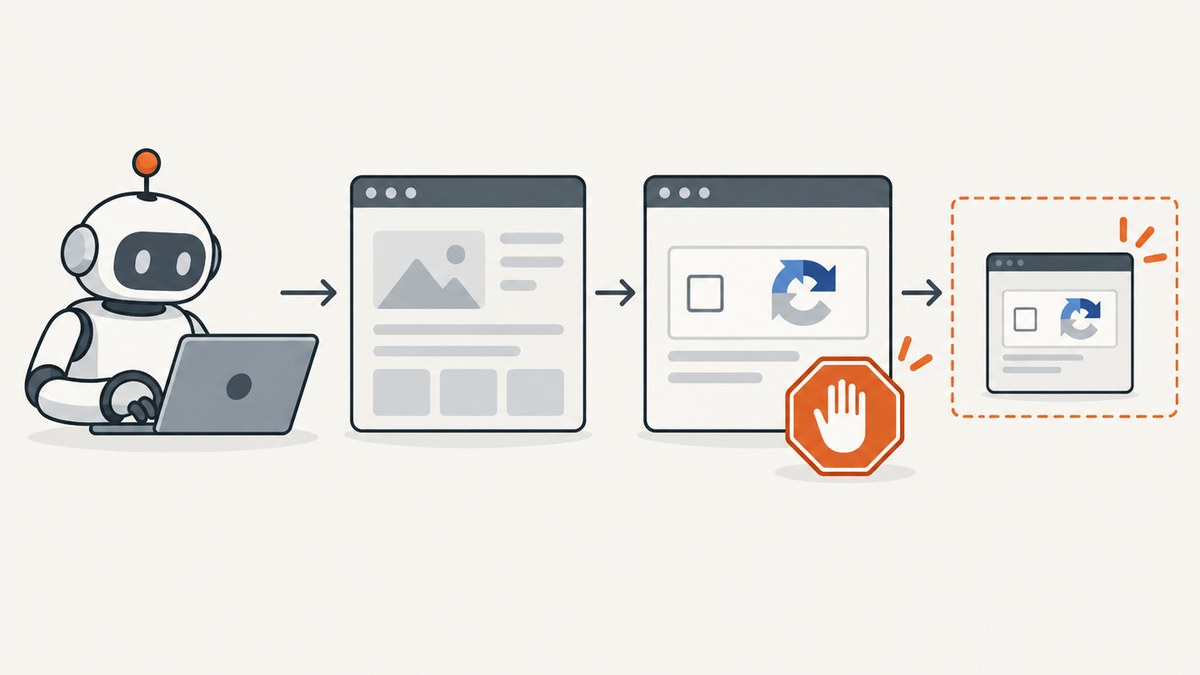
When screenshot automation encounters a CAPTCHA, stop the automated interaction at the challenge. If the site’s rules and your authorization allow it, record the blocked state as a diagnostic; otherwise, do not capture or distribute it. To reach protected content, use the site’s ordinary human flow only when you are authorized, or ask the site operator for a documented alternative such as an API, test environment, export, or accessible route.
A CAPTCHA is an access gate intended to distinguish people from automated software. A browser library or screenshot API may be capable of saving an image, but that capability does not grant permission to pass the gate. This guide covers a safe Playwright workflow, runnable examples, diagnostics, accessibility, troubleshooting, and how to choose an authorized route.
1. What to do when a screenshot bot hits CAPTCHA
- Stop automation at the challenge. Do not try to solve, evade, or outsource the challenge. Treat an unexpected verification page as a blocked run, not as a transient page-load problem.
- Check authorization and site rules. Confirm you are allowed to access and capture the target content, including whether you may retain or share screenshots.
- Record the blocked state only if allowed. A minimal diagnostic image can help explain the failure. Label it as a CAPTCHA or verification page, not as a screenshot of the protected content.
- Choose an approved route. If authorized, a person can use the normal site flow. Otherwise, ask the operator for permission, an API, an export, a test route, or an accessible alternative.
- Capture promptly if access is granted. Follow the site’s rules and check that the intended content actually loaded before saving or distributing the image.
This sequence is a practical workflow based on what CAPTCHAs are for and what browser screenshot APIs do; it is not a universal legal rule. Permission depends on the site, jurisdiction, content, and purpose. GOV.UK’s service manual summarizes the tradeoffs: “There are security, privacy, usability and accessibility issues associated with CAPTCHAs.” GOV.UK, Using CAPTCHAs.
2. Detect the blocked state and stop the run
A reliable capture pipeline should distinguish “the browser saved an image” from “the requested page was available.” A CAPTCHA may render successfully as a webpage while the requested content remains inaccessible. Do not mark such a run as a successful capture of the target.
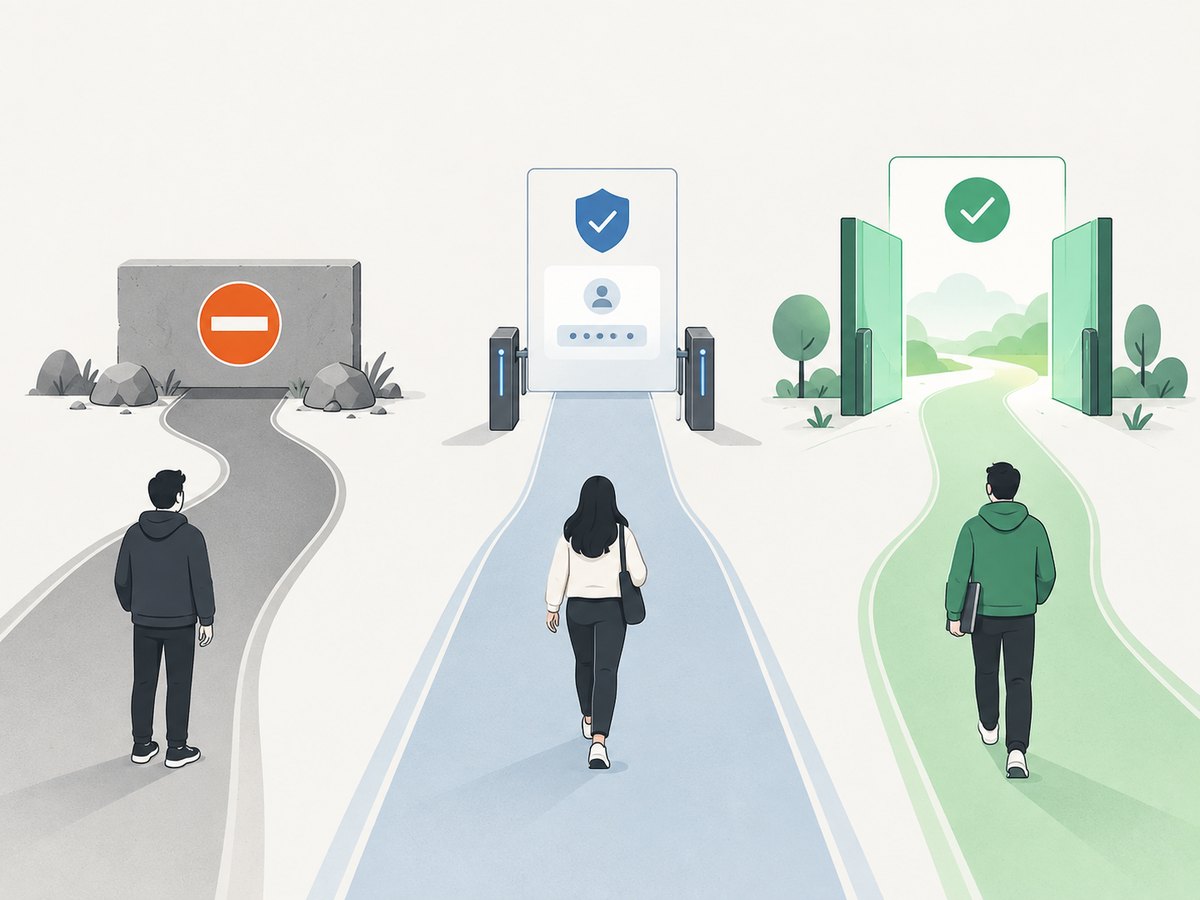
There is no universal CAPTCHA selector: providers and page implementations differ, and a site can change its markup. For a site you own or are authorized to test, use a selector or page-state signal that your site team documents. For a third-party site, do not probe for ways around the challenge. A conservative fallback is to stop when the page is unexpected and require a person to classify it.
The following Playwright example captures a known blocked page for internal diagnostics, then exits with a nonzero status. Replace the example selector with one documented for a site you control. If you do not have permission to retain a challenge image, set ALLOW_BLOCKED_DIAGNOSTIC to false.
import { chromium } from 'playwright';

const target = process.env.TARGET_URL;
const allowedDiagnostic = process.env.ALLOW_BLOCKED_DIAGNOSTIC === 'true';
if (!target) throw new Error('Set TARGET_URL to the page you are authorized to inspect.');

const browser = await chromium.launch({ headless: true });
const page = await browser.newPage({ viewport: { width: 1440, height: 900 } });
try {
  await page.goto(target, { waitUntil: 'domcontentloaded', timeout: 30000 });

  // Use only a site-documented signal on a site you are authorized to test.
  const blocked = await page.locator('[data-capture-state="verification-required"]')
    .count()
    .then(count => count > 0);

  if (blocked) {
    if (allowedDiagnostic) {
      await page.screenshot({ path: 'blocked-state.png', fullPage: false });
    }
    console.error('Capture stopped: verification is required.');
    process.exitCode = 2;
  } else {
    await page.screenshot({ path: 'page.png', fullPage: true });
    console.log('Saved page.png');
  }
} catch (error) {
  console.error('Capture failed:', error instanceof Error ? error.message : error);
  process.exitCode = 1;
} finally {
  await browser.close();
}
Install the dependency with npm install playwright and install a browser using npx playwright install chromium. Run with TARGET_URL=https://example.com ALLOW_BLOCKED_DIAGNOSTIC=true node capture.mjs. Use a target and diagnostic policy you are authorized to use; the example does not provide or imply access to content behind the challenge.
3. Choose the right capture: blocked state or authorized page
Decide what the screenshot is meant to prove. A blocked-state image documents that a run met a gate. A post-verification capture documents page content only if you were authorized to reach and capture that content. Keep those outcomes separate in filenames, logs, and reports.

| Situation | Appropriate next step | What the image establishes |
|---|---|---|
| Automation unexpectedly sees a CAPTCHA | Stop; record minimal diagnostics if permitted | The run was blocked at verification |
| You are an authorized user and the site permits capture | Use the ordinary human challenge flow, then capture the page | The visible page at the time of capture |
| You operate the site or test environment | Ask the security owner or CAPTCHA provider for an approved test configuration or staging route | The approved test experience, if one is provided |
| You lack an approved route | Contact the operator for permission, API access, export, or an accessible alternative | No claim about protected content until access is granted |
The options differ in authorization, fidelity, accessibility, session reliability, and data handling. A blocked-state capture is useful for incident diagnosis, but it is not evidence that the protected page was reached. A person-operated session may reach the intended page, but only if access and capture are permitted. An operator-approved test route is often easier to repeat, but its availability is site-specific.
4. Capture with Playwright after authorized access
Playwright supports viewport screenshots, full-page screenshots, and screenshots of a locator. Its API describes capture mechanics; it does not define whether a particular page may be accessed or copied. See the Playwright screenshot guide.
import { chromium } from 'playwright';

const browser = await chromium.launch({ headless: true });
const page = await browser.newPage({ viewport: { width: 1440, height: 900 } });
try {
  await page.goto('https://example.com/authorized-page', {
    waitUntil: 'domcontentloaded',
    timeout: 30000
  });

  // Replace with a documented page-ready selector for this authorized workflow.
  await page.locator('main').waitFor({ state: 'visible', timeout: 10000 });

  // Viewport capture:
  await page.screenshot({ path: 'viewport.png' });

  // Alternatively, full scrollable page:
  await page.screenshot({ path: 'full-page.png', fullPage: true });

  // Or capture one element:
  await page.locator('main').screenshot({ path: 'main.png' });
} finally {
  await browser.close();
}
Run it after installing Playwright and Chromium as above. Choose just the capture that matches the evidence you need. Full-page capture may be large and can include content far below the initial viewport; element capture can omit surrounding context. If the page contains personal data, account details, or tokens, limit the captured area and restrict access to the resulting file.
Timing reCAPTCHA specifically
Google says reCAPTCHA verification can expire and recommends completing it last in the website flow. For an authorized human workflow, this means avoid completing reCAPTCHA and then waiting through unrelated steps before the action that requires verification. This is specific to reCAPTCHA; do not assume every CAPTCHA provider has the same expiry or behavior. Google reCAPTCHA support.
5. Make diagnostics safe and useful
- Record context: target URL, timestamp, browser and version, the step that led to the challenge, and whether the image shows the blocked state or authorized content.
- Minimize the artifact: use a viewport or relevant element instead of a full-page image when that is enough.
- Protect secrets: do not include response tokens, session cookies, authorization headers, passwords, or private account data in reports or screenshots.
- Control access and retention: store diagnostic images where only the people who need them can view them; follow your organization’s retention policy.
- Label honestly: a file called
blocked-state.pngis clearer than one that implies the target page loaded.
These are prudent handling practices, not a retention policy prescribed by the cited sources. CAPTCHA pages can expose challenge content and third-party widgets; inspect diagnostic images before sharing them.
6. Accessibility and approved alternatives
CAPTCHAs can create barriers for people who are blind, deaf, hard of hearing, have low vision, or have certain cognitive disabilities. The W3C WAI CAPTCHA note describes those barriers, but it identifies its material as dating from 2005 and cautions that it may not reflect current best practices. Treat it as historical background, not a current conformance checklist. W3C WAI, Inaccessibility of CAPTCHA.
Section508.gov recommends an alternate form using another sensory modality and says: “Select a CAPTCHA provider that is already conformant to 508 standards.” Applicability of accessibility requirements depends on jurisdiction and context. Its guidance is a useful prompt for a site owner reviewing a verification flow, not proof that every site offers an alternative. Section508.gov, CAPTCHA guidance.
Google documents audio challenges and screen-reader status messages for reCAPTCHA. Those are product-specific details and should not be generalized to other providers. If a challenge blocks an authorized user, look for the provider’s offered alternative or contact the site operator for an accessible route.
7. Or skip the browser setup
For a page you are authorized to capture, ScreenshotNeo is a screenshot API and MCP server. A single GET request returns an image or PDF. If the target presents a CAPTCHA or bot check, treat the response as a blocked result; the API does not grant permission to access what lies behind a challenge. See the ScreenshotNeo API documentation.
curl -G "https://api.screenshotneo.com/v1/shot" \
  -d access_key=YOUR_API_KEY \
  --data-urlencode url=https://example.com \
  -o shot.webp
import requests
r = requests.get(
"https://api.screenshotneo.com/v1/shot",
params={"access_key": "YOUR_API_KEY", "url": "https://example.com"},
timeout=90,
)
r.raise_for_status()
open("shot.webp", "wb").write(r.content)const q = new URLSearchParams({
access_key: 'YOUR_API_KEY',
url: 'https://example.com'
});
const res = await fetch(`https://api.screenshotneo.com/v1/shot?${q}`);
if (!res.ok) throw new Error(`Screenshot request failed: ${res.status}`);
await import('node:fs/promises').then(fs => fs.writeFile('shot.webp', Buffer.from(await res.arrayBuffer())));ScreenshotNeo accepts cookie and consent banners like a visitor and removes more than 60 known consent platforms, newsletter popups, and chat widgets before capture; each step can be turned off. Bot checks and CAPTCHAs, blank pages, timeouts, failed loads, and cache hits cost nothing, and response headers say which page verdict was returned and whether it was billed. An MCP server offers take_screenshot, get_page_info, and capture_pdf for Claude, Cursor, and other MCP clients.
The Free plan includes 1,000 screenshots a month with no card. Paid plans start at $5 for 3,000 screenshots; all features are on every plan, and yearly billing gives two months free. Sign up for 1,000 free screenshots a month, no card required.
8. Troubleshooting
| Symptom | Likely cause | Safe fix |
|---|---|---|
| The saved screenshot only shows verification | The page did not pass the access gate | Classify it as blocked. Stop automation; request an approved route or use an authorized human session if permitted. |
| The script reports the page as successful because navigation returned | A CAPTCHA page can load normally as a webpage | Check a site-documented success or verification-required signal. Do not equate HTTP navigation with access to the requested content. |
| The page-ready selector times out | The expected content did not appear, navigation was slow, or the page changed | Save limited diagnostics if permitted, inspect the state, and distinguish timeout from CAPTCHA. Ask the site owner for a stable test signal. |
| reCAPTCHA verification is no longer valid | Verification may expire | For authorized access, complete it near the end of the normal flow as Google recommends. Do not automate or outsource the response. |
| An accessibility barrier prevents completion | The offered challenge may not work for the user | Use an offered alternate modality or contact the operator for an accessible route. Do not assume every provider offers the same options. |
| The diagnostic image exposes account data or a token | The capture area included sensitive content | Restrict access, follow incident and retention policy, and recapture a smaller area only if authorized. Never publish response tokens or session secrets. |
| ScreenshotNeo returns a blocked verdict | The target may have shown a bot check or CAPTCHA | Use the verdict and billing headers to classify the result. Do not retry in an attempt to defeat the gate; contact the operator for permission or an approved route. |
9. Performance, reliability, and cost
For a browser run, set finite navigation and selector timeouts so a blocked or stalled page does not hold a worker indefinitely. Close the browser in a finally block, as in the examples, and return a distinct status for a blocked page versus a capture error. This makes retry policy clearer: ordinary transient failures may be retried according to your system’s policy, but a CAPTCHA is an access decision and should not be blindly retried.
Full-page screenshots can take longer and produce larger files than viewport captures, especially on long pages. Capture only what the task needs, and use a site-approved readiness signal rather than an arbitrary long sleep where possible. For reCAPTCHA, verification expiry can affect the authorized human flow; this is not a general statement about all CAPTCHAs.
Cost depends on your browser infrastructure and storage if you run Playwright yourself; the sources here do not establish a universal price or performance benchmark. ScreenshotNeo’s stated billing rule is that only clean shots are billed: bot checks/CAPTCHAs, blank pages, timeouts, failed loads, and cache hits cost nothing, with verdict and billing status in response headers. Its plans are Free (1,000 per month), Starter ($5/3,000), Growth ($15/15,000), Pro ($39/60,000), Scale ($99/250,000), and Business ($249/1,000,000); yearly billing gives two months free. Review current product details in its documentation before choosing a plan.
10. Frequently asked questions
Can I screenshot the CAPTCHA itself?
Only if your authorization and the site’s rules allow the diagnostic capture. Keep it internal and minimal when possible, and do not present it as the protected page.
Does a CAPTCHA screenshot prove I accessed the page?
No. It shows what the browser displayed at capture time. A challenge image is evidence of a blocked state, not of the content behind the gate.
Can I complete the challenge manually and then use Playwright?
Only where you are authorized and the site’s rules permit the access and capture. Use the site’s ordinary flow; do not automate the challenge response.
Are CAPTCHA audio challenges available everywhere?
No. Google documents audio and screen-reader support for reCAPTCHA. Availability and accessibility options differ by provider and implementation.
What should I request from a site operator?
Ask for written permission and the most suitable approved route: a documented API, test or staging environment, export, or accessible alternative. The operator determines what is available.