Generating Video, PDFs, and Images with the Hermes MCP Server
Learn how Hermes connects to MCP servers, generates images and videos, and handles PDF workflows without assuming unsupported tools.

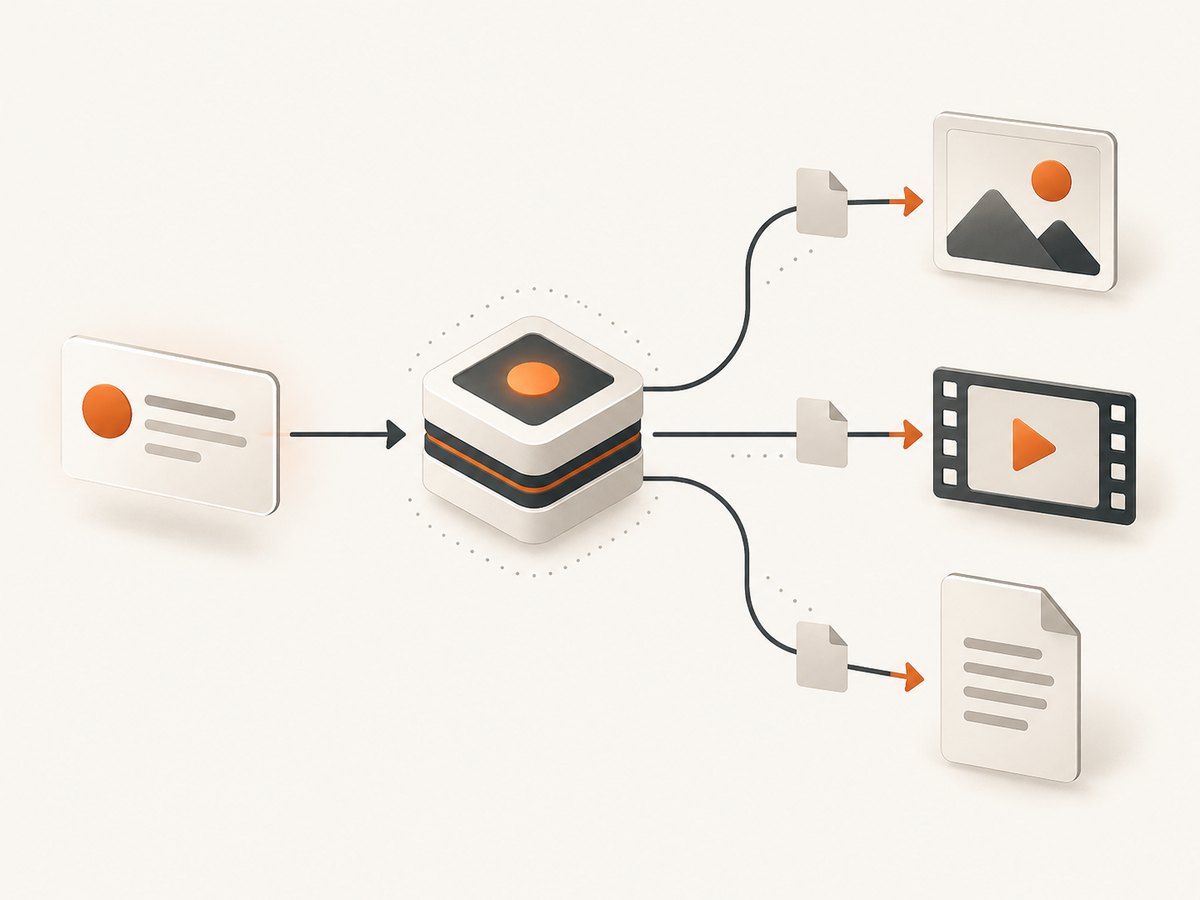
Hermes can create images and videos with its built-in tools, while MCP servers extend Hermes with additional tools discovered at session startup. PDF creation is different: the built-in tools reference documents image and video generation, but not a native PDF-generation tool. An external MCP server could expose PDF creation, yet you must inspect the tools Hermes actually discovers before designing a workflow.
This distinction matters because “Hermes MCP server” can describe two different things. Hermes can act as an MCP client that connects to local stdio or remote HTTP servers. Hermes can also run hermes mcp serve, which the official guide describes as a stdio messaging bridge. Neither an arbitrary MCP server nor the bridge automatically supplies Hermes’ native image_generate or video_generate functions.
The practical workflow is:
- Install and configure Hermes.
- Connect any MCP servers that provide the tools your project needs.
- Use the built-in
image_generatetool for images. - Enable the opt-in
video_gentoolset for video. - Inspect the live tool list and provider description before attempting PDF or provider-specific operations.
How Hermes and MCP fit together
MCP is Hermes’ extension mechanism. A configured server publishes tools; Hermes discovers those tools and registers them for the session. Servers may run locally over stdio or remotely over HTTP. You can filter the tools exposed by each server, which is useful when a server publishes more capabilities than an agent should access.
Hermes’ own server mode is separate. Running hermes mcp serve lets another MCP client communicate with Hermes through a stdio bridge. It does not turn every Hermes-native capability into a generic tool for every client automatically. The client and server sides must each advertise and support the operation.
Use the Hermes built-in tools reference and the Hermes documentation as the source of truth for the version and configuration you run.
Connect a local stdio MCP server
A local server is configured as an executable plus arguments. The exact configuration filename and surrounding keys depend on your Hermes installation, so preserve the structure shown in the current MCP guide and substitute your server command.
{
  "mcp_servers": {
    "my_local_server": {
      "command": "python",
      "args": ["/absolute/path/server.py"]
    }
  }
}
Connect a remote HTTP MCP server
Remote servers use a URL and may require headers. Keep credentials in your secret store or environment rather than committing them to a repository.
{
  "mcp_servers": {
    "remote_server": {
      "url": "https://example.invalid/mcp",
      "headers": {
        "Authorization": "Bearer YOUR_TOKEN"
      }
    }
  }
}
After editing configuration, start a new Hermes session or reload the configuration. Ask Hermes to list or describe the discovered tools. Never assume a server exposes a function because its name appears in a blog post or a README; tool registration is determined by the running server and its configuration.
How do I generate images with Hermes?
image_generate is a documented built-in Hermes tool. It supports text-to-image generation and editing or transforming an existing image. Omit image input for a new image. Provide an image URL when you want to edit, restyle, or transform a source image. Reference image URLs can also guide style.
The backend is selected through your Hermes configuration. The tools reference lists FAL.ai, OpenAI, OpenAI Codex authentication, xAI, and Krea as possible backends. Hermes does not choose a model for you; your configured backend, credentials, and provider settings determine what is available.
Text-to-image request
Use image_generate with:
Prompt: "Editorial illustration of an MCP request flowing into an image generator, blue and amber lighting, clean technical composition"
No source image
Aspect ratio: 16:9
Image editing request
Use image_generate with:
Prompt: "Keep the subject and composition, convert the palette to monochrome, sharpen edges, and remove the background"
image_url: "https://cdn.example.invalid/source.png"
The returned result and file handling depend on the configured backend. Save the output immediately if you need reproducibility, and record the prompt, source URL, backend, and any provider options alongside the asset.
How do I enable video generation in Hermes?
Video generation is opt-in. Enable the video_gen toolset in Hermes’ tools settings, configure a supported provider and its credential, then start a new session. The built-in function is video_generate.
The routing rule is simple:
- Omit
image_urlfor text-to-video. - Pass
image_urlto animate a still image (image-to-video).
Use video_generate with:
Prompt: "A slow camera move across a glowing network of MCP tool nodes, subtle parallax, cinematic lighting"
Duration: use the active provider's supported value
Aspect ratio: use the active provider's supported value
Use video_generate with:
Prompt: "Animate the clouds and add a gentle forward camera movement"
image_url: "https://cdn.example.invalid/scene.png"
Hermes rebuilds the tool description at session start to report the active backend’s capabilities. Read that description before choosing aspect ratio, resolution, duration, reference-image count, or audio. These values are provider-dependent and can change as you switch backends.
Which video generation backends does Hermes support?
The current documentation lists xAI Grok-Imagine, FAL.ai, OpenRouter, and DeepInfra for the video tool. Credentials differ by provider. A working account for one backend does not authenticate another.
Compare providers using these questions:
| Decision point | What to verify |
|---|---|
| Authentication | Which API key, OAuth flow, or account is required? |
| Modalities | Does the backend support text-to-video, image-to-video, or both? |
| Output shape | Which aspect ratios and resolutions are accepted? |
| Duration | What minimum and maximum durations are available? |
| References | How many reference images are allowed, and must they be public URLs? |
| Audio | Is audio generated, accepted as input, or unavailable? |
| Result delivery | Does Hermes return an HTTP URL or an absolute local file path? |
Use the live session description as the authoritative capability list. Do not write automation that assumes every provider accepts the same parameters.
Can Hermes turn an image into a video?
Yes, when the selected video backend supports image-to-video. Supply a reachable image URL to video_generate. Hermes routes the request as image-to-video instead of text-only generation. The image may be a result from image_generate or an asset hosted elsewhere.
Common edge cases include private URLs, expired signed URLs, unsupported formats, and images whose dimensions exceed provider limits. Make the source reachable for the provider, use a documented format, and check the active tool description for reference-image limits. If the returned value is a URL, download it before the provider’s retention window expires.
Can Hermes generate PDFs?
The inspected Hermes built-in tools reference contains image and video generation entries but no PDF-generation entry. That means you should not call a presumed native pdf_generate function. A separate MCP server may expose PDF creation, but the reviewed documentation does not establish a specific PDF server or tested PDF workflow.
To use PDF creation safely:
- Find an MCP server whose documentation explicitly names a PDF tool.
- Configure it as a local stdio or remote HTTP server.
- Restart Hermes and inspect the discovered tool list.
- Read the tool schema for accepted input, output type, page size, fonts, images, and file handling.
- Run a small document first and verify the returned file or URL.
If no PDF tool appears, generate the source content with Hermes and convert it in a separate, documented step using your own approved toolchain.
Or skip the browser setup
If your “PDF, image, or video” workflow starts with capturing web pages, ScreenshotNeo provides a direct website screenshot and PDF API at ScreenshotNeo. One GET request returns a PNG, JPEG, WebP, or PDF. Its MCP server exposes take_screenshot, get_page_info, and capture_pdf for Claude, Cursor, and other MCP clients.
Cookie and consent banners are accepted before capture, and more than 60 known consent platforms, newsletter popups, and chat widgets can be removed. Bot checks, blank pages, timeouts, failed loads, and cache hits are not billed; response headers identify the page verdict and billing result.
See the ScreenshotNeo API documentation for all options. A minimal call is:
curl -G "https://api.screenshotneo.com/v1/shot" -d access_key=YOUR_API_KEY --data-urlencode url=https://stripe.com -o shot.webpimport requests
r = requests.get("https://api.screenshotneo.com/v1/shot", params={"access_key": "YOUR_API_KEY", "url": "https://stripe.com"}, timeout=90)
open("shot.webp", "wb").write(r.content)const q = new URLSearchParams({ access_key: 'YOUR_API_KEY', url: 'https://stripe.com' });
const res = await fetch(`https://api.screenshotneo.com/v1/shot?${q}`);For capture pipelines, relevant options include full-page shots with lazy images loaded, CSS-selector element capture, dark mode, device presets, arbitrary viewports, retina scale, PDF paper size and margins, page ranges, custom CSS and JavaScript, click actions, selector or network-idle waits, request blocking, custom headers and cookies, user-agent and Authorization headers, timezone and geolocation, transparent backgrounds, resizing, configurable cache TTL, signed links, asynchronous jobs with signed webhooks, bulk capture of up to 100 URLs per call, usage reporting, and an OpenAPI specification. Existing parameter names used by other screenshot APIs also work, which simplifies migration.
The free plan includes 1,000 screenshots each month with no card. Paid plans start at $5 for 3,000 shots; yearly billing gives two months free, and every feature is included on every plan. Create a free ScreenshotNeo account to try it.
Troubleshooting Hermes media workflows
The tool is missing
Cause: the toolset is disabled, the MCP server failed startup, or a per-server filter hides the tool.
Fix: enable video_gen for video, restart the session, inspect startup logs, and remove or adjust the filter.

Authentication fails
Cause: the selected backend expects a different credential or environment variable.
Fix: verify the provider named in the live tool description and configure that provider’s documented credential.
Image-to-video rejects the source
Cause: the URL is private, expired, unreachable, or outside format or dimension limits.
Fix: use a public, stable URL and conform to the active provider’s image requirements.
Parameters are rejected
Cause: provider capabilities differ for duration, resolution, aspect ratio, references, or audio.
Fix: copy values from the session’s rebuilt tool schema rather than a generic example.
A PDF call does nothing
Cause: no PDF tool is registered; Hermes does not document a native PDF generator in the inspected reference.
Fix: connect a documented PDF MCP server, confirm its tool appears, or use a separate conversion step.
The result cannot be found
Cause: the backend returned a URL or local path that your process did not persist.
Fix: detect the returned type, download HTTP results, and copy local files into durable storage.
Performance, reliability, and cost planning
Generation time and output limits are controlled by the selected provider, so design asynchronous handling around the returned URL or file path. Record request metadata for retries, but avoid blind retries that duplicate paid generations. Use smaller resolutions and shorter durations while iterating, then increase quality for final renders.
For MCP servers, keep tool filters narrow, use explicit timeouts, and start a fresh session after configuration changes. Treat provider capability descriptions as volatile: validate them at startup and fail with a clear message when a requested option is unavailable.
For web captures, ScreenshotNeo’s verdict and billing headers let a pipeline distinguish a clean billed shot from a bot check, blank page, failed load, or cache hit. Caching with a chosen TTL, bulk capture, and asynchronous jobs can reduce repeated work.
FAQ
Is Hermes itself an MCP server?
It can run an MCP server bridge with hermes mcp serve, and it can also act as an MCP client. These are separate roles.
Does every MCP server provide image and video generation?
No. Those are documented Hermes-native tools. An MCP server provides only the tools it implements and exposes.
Does video generation always include audio?
No. Audio support depends on the active backend and must be checked in the live tool description.
Can I rely on one universal video resolution?
No. Resolution, duration, aspect ratio, and reference limits vary by provider.
Where should I verify current behavior?
Check the Hermes built-in tools reference, your server’s schema, and the tool list discovered when the session starts.


