HTML File to PDF Converter Software
Convert local HTML files, web pages, and dynamic sites to PDF with browser, desktop, Python, Node.js, and API workflows.

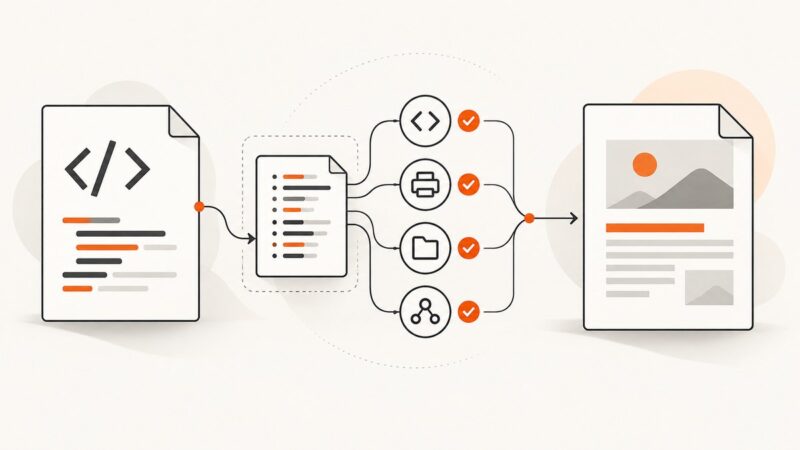
Short answer: for a one-off local HTML file, open it in a browser and use Print → Save as PDF. For repeatable conversion, use a browser engine such as Puppeteer when the page depends on JavaScript, or WeasyPrint when you have document-oriented HTML and CSS. For a hosted web page, a screenshot or PDF API removes browser deployment work.
The right method depends on the input:
- Local file: a browser, Acrobat, Puppeteer, or WeasyPrint can read the file directly.
- Public URL: a browser engine, Acrobat, Adobe PDF Services, or a hosted capture API can fetch and render it.
- Dynamic application: use a real browser engine or a service that waits for scripts, fonts, images, and network activity to finish.
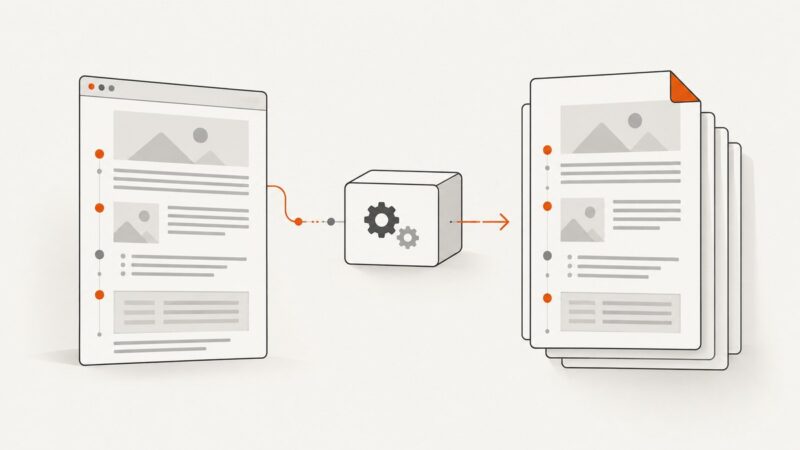
- Several pages or a site: define the URL scope and crawl depth before converting. A single-page PDF and an entire-site capture are different jobs.
Choose a conversion route
| Route | Best fit | What to check |
|---|---|---|
| Browser Print to PDF | One local file or page | Linked assets, page breaks, backgrounds, fonts, and dynamic content |
| Adobe Acrobat desktop | Desktop controls and multi-level website capture | Site scope, same-path or same-server limits, edition availability, and output navigation |
| Puppeteer | Automated browser rendering in JavaScript | Browser deployment, wait timing, print CSS, fonts, and repeatability |
| WeasyPrint | Local command-line or Python document generation | CSS support, resource fetching, links, bookmarks, forms, and renderer version |
| Adobe PDF Services | Hosted application integration | Credentials, current limits and terms, and representative output tests |
| ScreenshotNeo | Hosted URL-to-image or PDF capture without browser setup | Use its PDF options for paper size, margins, orientation, and page ranges |
Adobe documents entering a URL or browsing to a local HTML file, as well as capturing multiple levels of a site with optional same-path and same-server restrictions. Read Adobe’s web-page conversion documentation. Adobe PDF Services documents static and dynamic HTML, ZIP, and URL inputs through its API. See the PDF Services create-PDF guide.
Convert a local HTML file in a browser
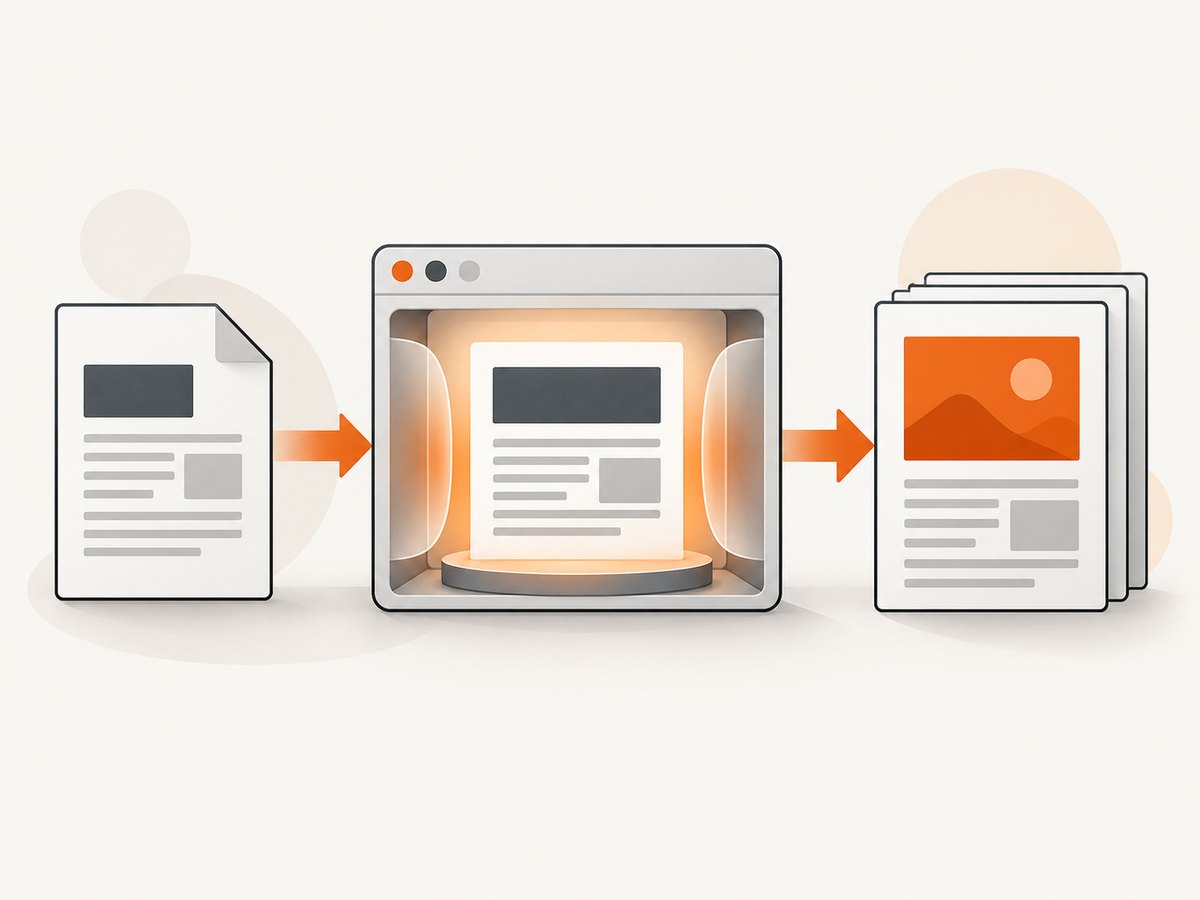
- Open the file in a browser. You can double-click it or use a
file:///URL. - Confirm that stylesheets, images, web fonts, and scripts loaded correctly.
- Open the print dialog and choose Save as PDF.
- Set paper size, orientation, scale, margins, and whether to print background graphics.
- Save the PDF, then inspect every page for clipped content, unexpected blank pages, and missing assets.
A local file can fail to look correct when it references a relative asset that is missing, a remote font blocked by the network, or JavaScript that has not finished running. If browser security blocks local resources, serve the directory with a local HTTP server and open the resulting URL instead.
# From the directory containing index.html
python -m http.server 8000
# Open http://127.0.0.1:8000/index.html in your browser
Use Adobe Acrobat for local files or multiple site levels
Acrobat’s documented workflow lets you enter a web address or browse to an HTML file. For a site, choose the number of levels to capture and restrict crawling to the same URL path or server when required. This is useful when navigation links would otherwise expand the capture beyond the intended section.
- Open Acrobat’s web-page conversion command.
- Enter the URL, or browse to the local HTML file.
- For a site, choose the capture depth and any same-path or same-server restriction.
- Start the conversion and review page order, links, bookmarks, images, and page breaks.
The documentation establishes the workflow, not a universal fidelity ranking or a required paid edition. Check the current edition and availability for your platform before purchasing.
Automate conversion with Puppeteer (Node.js)
Puppeteer’s page.pdf() generates a PDF using the print CSS media type by default. If your design is intended for the screen, call page.emulateMediaType('screen') before creating the PDF. See the Puppeteer Page.pdf API reference.
Install
mkdir html-to-pdf
cd html-to-pdf
npm init -y
npm install puppeteer
Convert a local file
const puppeteer = require('puppeteer');
const path = require('node:path');

(async () => {
  const input = path.resolve(process.argv[2] || 'index.html');
  const output = path.resolve(process.argv[3] || 'output.pdf');
  const browser = await puppeteer.launch({ headless: true });

  try {
    const page = await browser.newPage();
    await page.setViewport({ width: 1440, height: 900, deviceScaleFactor: 1 });
    await page.goto(`file://${input}`, { waitUntil: 'networkidle0' });
    await page.evaluate(() => document.fonts.ready);
    await page.pdf({
      path: output,
      format: 'A4',
      printBackground: true,
      preferCSSPageSize: true,
      margin: { top: '16mm', right: '16mm', bottom: '16mm', left: '16mm' }
    });
    console.log(`Wrote ${output}`);
  } finally {
    await browser.close();
  }
})();
node convert.js ./index.html ./output.pdfConvert a URL and wait for application content
const puppeteer = require('puppeteer');

(async () => {
  const url = process.argv[2];
  if (!url) throw new Error('Usage: node url-to-pdf.js https://example.com');

  const browser = await puppeteer.launch({ headless: true });
  try {
    const page = await browser.newPage();
    await page.goto(url, { waitUntil: 'domcontentloaded', timeout: 90000 });
    await page.waitForSelector('main', { timeout: 30000 });
    await page.evaluate(() => document.fonts.ready);
    await page.emulateMediaType('screen');
    await page.pdf({
      path: 'page.pdf',
      format: 'Letter',
      printBackground: true,
      preferCSSPageSize: true,
      displayHeaderFooter: false
    });
  } finally {
    await browser.close();
  }
})();
Use a selector that is present only after the meaningful content is rendered. For pages without a reliable selector, wait for a known application state in the page, a short delay, or an explicit network-idle condition. Avoid an arbitrary long delay when a deterministic selector is available.
Useful print CSS
@page {
  size: A4;
  margin: 16mm;
}

@media print {
  .no-print, nav, .cookie-banner { display: none !important; }
  h1, h2, h3 { break-after: avoid; }
  pre, table, figure { break-inside: avoid; }
  a { color: inherit; text-decoration: none; }
}
Check page breaks, colors, fonts, images, and content inserted by scripts. A screen layout may intentionally differ from print layout.
Use WeasyPrint from the command line or Python
WeasyPrint accepts a URL or filename and writes an output PDF. Its API also describes links, bookmarks, attachments, and forms. Read the WeasyPrint documentation. Renderer versions can change output for some sites, so pin and review the version used in production.
Command line
weasyprint input.html output.pdf
weasyprint https://example.com output.pdf
Python
from weasyprint import HTML

HTML(filename="input.html").write_pdf("output.pdf")
# Or use a URL:
HTML(url="https://example.com").write_pdf("page.pdf")
WeasyPrint is a good fit for controlled document templates. A JavaScript-heavy application may need a browser engine first, because the HTML-to-PDF library is not a replacement for a full browser runtime.
Convert HTML with a hosted API
A hosted API is useful when your workers should not download browsers, manage sandboxing, or maintain rendering infrastructure. Adobe PDF Services documents static and dynamic HTML, ZIP, and URL input. Review its current authentication, limits, and service terms before implementation.
Or skip the browser setup
ScreenshotNeo is a website screenshot API and MCP server. A GET request can return a clean PNG, JPEG, WebP, or PDF, with PDF controls for paper size, margins, landscape mode, and page ranges. It also supports full-page capture, custom CSS and JavaScript, waits, headers, cookies, user agents, authorization, timezone, geolocation, request blocking, caching, signed links, asynchronous jobs, bulk capture, and a usage API. See the ScreenshotNeo documentation for the current parameter details.

curl -G "https://api.screenshotneo.com/v1/shot" -d access_key=YOUR_API_KEY --data-urlencode url=https://stripe.com -o shot.webpimport requests
r = requests.get("https://api.screenshotneo.com/v1/shot", params={"access_key": "YOUR_API_KEY", "url": "https://stripe.com"}, timeout=90)
open("shot.webp", "wb").write(r.content)const q = new URLSearchParams({ access_key: 'YOUR_API_KEY', url: 'https://stripe.com' });
const res = await fetch(`https://api.screenshotneo.com/v1/shot?${q}`);Before capture, ScreenshotNeo accepts cookie and consent banners as a visitor and removes more than 60 known consent platforms, newsletter popups, and chat widgets; each step can be turned off. Bot checks and CAPTCHAs, blank pages, timeouts, failed loads, and cache hits cost nothing, and the response identifies the page verdict and billing status with X-Page-Verdict and X-Billed headers. Its MCP server provides take_screenshot, get_page_info, and capture_pdf tools for Claude, Cursor, and other MCP clients.
There is a free plan with 1,000 shots per month and no card. Paid plans start at $5 for 3,000 shots; every feature is available on every plan. Create a free ScreenshotNeo account.
Options to decide before generating the PDF
Input and scope
- Use a local filename for a saved document.
- Use a URL for a public page.
- For several pages, define an explicit list or crawl boundary. Do not assume a single-page command will discover an entire site.
Layout
- Choose paper size and orientation.
- Set margins and scale.
- Enable background graphics when color blocks or images are part of the design.
- Use
@pageand print media rules when you control the HTML. - Wait for fonts and images before rendering.
Dynamic content
- Wait for a content selector when possible.
- Use network-idle only when the page eventually becomes quiet.
- Provide authentication headers or cookies for protected pages.
- Block ads and trackers when they add noise or delay, while allowing required application resources.
Validate the generated PDF
- Open the PDF and confirm the page count.
- Check the first, middle, and last pages for clipping and unexpected breaks.
- Verify fonts, images, colors, tables, links, and bookmarks where applicable.
- Compare dynamic sections with the intended application state.
- Repeat the conversion when output must be deterministic and record the renderer or browser version.
Troubleshooting
| Symptom | Likely cause | Fix |
|---|---|---|
| Blank PDF | Navigation finished before content rendered, or the URL returned a bot check | Wait for a real content selector, inspect the response, and use a browser or capture service that can handle the page state. |
| Missing images or CSS | Broken relative paths, blocked local resources, or failed network requests | Serve the directory over localhost, fix asset URLs, and verify requests before printing. |
| Fonts differ | Font files were not loaded before PDF creation | Wait for document.fonts.ready, make fonts available to the renderer, and confirm licensing and network access. |
| Content is cut off | Fixed-height containers, viewport assumptions, or unsuitable page breaks | Remove restrictive heights for print, use print CSS, and set margins and paper size explicitly. |
| Background colors are absent | Background printing is disabled | Enable printBackground in Puppeteer or the equivalent browser print option. |
| PDF has unexpected extra pages | Large margins, overflowing elements, or print-only content | Inspect computed sizes, reduce overflow, and review @page rules. |
| JavaScript content missing | Conversion began at domcontentloaded before hydration completed |
Wait for a stable selector or application-ready signal. |
| Site capture is too broad | Links traversed more paths than intended | Limit the URL path or server, or provide an explicit page list. |
| Protected page fails | Missing authentication, cookies, or required headers | Pass the required credentials securely and avoid putting secrets in public URLs or logs. |
Performance, reliability, and cost
- Performance: browser startup is usually the largest repeated cost in self-hosted automation. Reuse a browser process when safe, keep pages isolated, and wait on deterministic readiness signals.
- Reliability: pin browser and renderer versions, set navigation and overall timeouts, log the input URL and output metadata, and retry transient network failures with a limit.
- Assets: remote fonts, images, analytics, ads, and third-party scripts make output variable. Host critical assets reliably and block resources that are not needed for the document.
- Scope: converting one URL is cheaper and easier to reason about than crawling a site. Set a page list or crawl boundary before scheduling jobs.
- Hosted capture costs: ScreenshotNeo bills only clean shots. Bot checks, CAPTCHAs, blank pages, timeouts, failed loads, and cache hits are not billed, and the response reports the verdict and billing status.
- Capacity: ScreenshotNeo offers 1,000 free shots per month without a card, then plans of $5 for 3,000, $15 for 15,000, $39 for 60,000, $99 for 250,000, and $249 for 1,000,000; yearly billing gives two months free.
FAQ
Can I convert an HTML file without installing software?
Yes. Open it in a browser and print to PDF. You need a browser or hosted service when the page depends on JavaScript, authentication, or controlled waits.
Should I use Puppeteer or WeasyPrint?
Use Puppeteer when browser behavior and JavaScript rendering matter. Use WeasyPrint for document templates whose HTML and CSS fit its supported layout model. Inspect representative output because the research does not establish a universal fidelity winner.
How do I convert an entire website?
Define the pages or crawl depth first. Acrobat documents multi-level capture with same-path and same-server restrictions; a capture API can also process selected URLs or bulk jobs.
Why does the PDF look different from the browser?
PDF generation commonly uses print CSS. Print rules, page size, fonts, background settings, and content timing can all change the result. Compare the final PDF rather than relying on the screen view.
Can ScreenshotNeo accept a private local file?
ScreenshotNeo captures a URL. A local file must be made reachable through a URL that the service can access; keep private content protected with appropriate authentication and headers.