How to Fix Missing Bold H5 Headings in ABCpdf 9 PDFs
H5 headings can look bold in a browser but lose weight in ABCpdf 9. Use this print-CSS, engine, cascade, and font troubleshooting checklist.
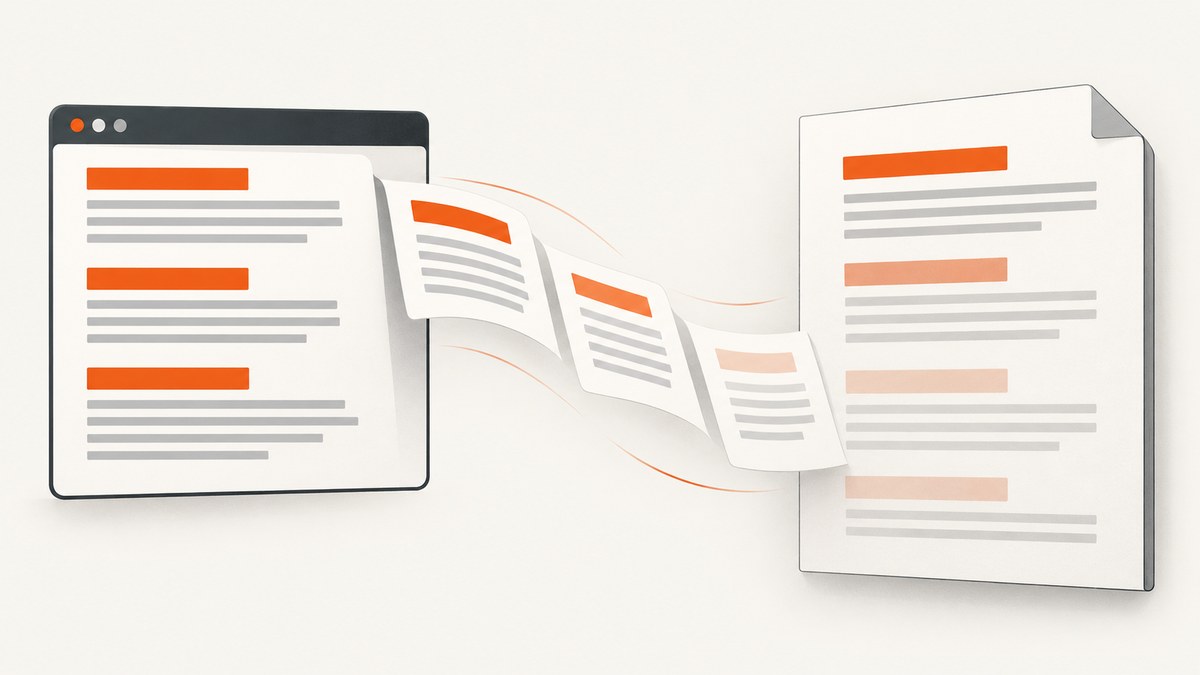
Short answer: treat this as a rendering-context or font-selection mismatch, not as proof that ABCpdf 9 ignores <h5>. Check the final computed style under the media mode used for conversion, verify that the intended stylesheet is loaded, inspect cascade overrides, confirm the ABCpdf engine and media settings, and test with a font family that has a real bold face. The Stack Overflow report describes this browser-versus-ABCpdf difference and notes that both a stylesheet rule and inline font-weight: bold had already been tried.
Read the original ABCpdf 9 H5 report. Its only answer proposes testing print CSS and checking overrides; that is a useful diagnostic starting point, not a confirmed fix for every ABCpdf installation.
1. Reproduce the smallest possible case
Remove your application layout, JavaScript, web fonts, and unrelated components until one H5 still reproduces the problem. Save the exact HTML, CSS, ABCpdf version/build, HTML engine, media mode, operating system, and output PDF together.
<!doctype html>
<html>
<head>
  <meta charset="utf-8">
  <style>
    h5 { font-family: Arial, sans-serif; font-size: 14pt; font-weight: 700; }
    @media print {
      h5 { font-weight: 700; }
    }
  </style>
</head>
<body>
  <h5>One affected heading</h5>
</body>
</html>
Use an installed font with a separate bold face for the first test. A system sans-serif fallback can behave differently from the browser’s selected web font.
2. Put the rule in the print stylesheet
ABCpdf supports print and screen media choices. A PDF conversion may therefore select rules different from those used by your desktop browser. Put the rule in an @media print block and place it after the other heading rules:
/* loaded by the converter */
@media print {
  h5 {
    font-weight: 700;
  }
}
Use the selector that matches the element. The Stack Overflow answer shows #h5, but that selects an element whose id is h5; it does not select every H5 element. Use h5, a class selector, or the actual component selector in your document.
Do not start with !important. First find the rule that wins in the converter. If a third-party stylesheet or an inline declaration must be overridden, add !important only after confirming the conflict:
@media print {
  article .report h5 {
    font-weight: 700 !important;
  }
}
3. Verify the stylesheet and computed value
- Confirm the stylesheet URL is reachable from the machine running ABCpdf, not just from your browser.
- Use absolute URLs for CSS, fonts, images, and imports while diagnosing.
- Check that the converter receives the same HTML version as your browser.
- Inspect the computed
font-family,font-weight, anddisplayin the conversion context. - Search every loaded stylesheet for later or more-specific rules that set
font-weight: 400or a numeric value that maps to a regular face.
If you can run JavaScript in the conversion page, temporarily log the computed style:
const h5 = document.querySelector('h5');
const style = getComputedStyle(h5);
console.log({
  family: style.fontFamily,
  weight: style.fontWeight,
  display: style.display,
  visibility: style.visibility
});
Compare this value with the PDF. If the computed weight is already regular, the problem is the cascade or a missing stylesheet. If it is 700 but the PDF still looks regular, continue with engine and font checks.
4. Check ABCpdf’s engine and media mode
ABCpdf documentation describes Print and Screen media choices and documents Gecko stylesheet behavior. Confirm which HTML engine your application uses and which media value it selects. Do not assume that a browser preview uses the same engine or media context as PDF generation.
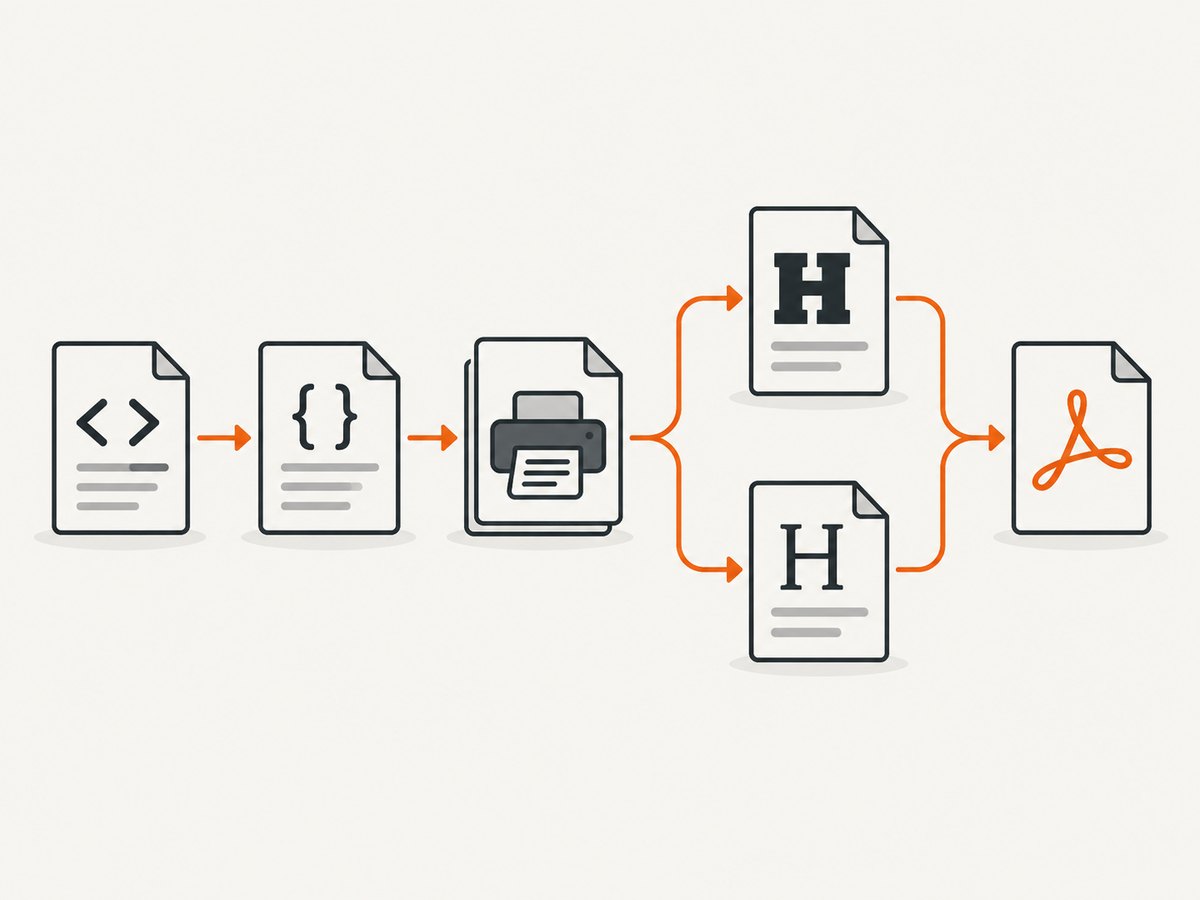
| Check | What to record | Why it matters |
|---|---|---|
| Engine | MSHTML, Gecko, or the engine configured by your ABCpdf build | Different engines can resolve CSS and fonts differently. |
| Media | Print or Screen | The active media changes which rules apply. |
| Scripts | Whether scripts are enabled | Gecko Screen mode requires UseScript to be true according to the documentation. |
| Resource access | CSS and font request results | Blocked or inaccessible resources can change the selected face. |
Change one setting at a time and regenerate the PDF. Keep each output so you can identify which variable changed the result.
5. Confirm that a bold font face is available
ABCpdf’s reference says it attempts to reference an appropriate bold font and can generate a synthetic bold style when it cannot locate one. That means a browser and ABCpdf can produce visibly different results even when both report font-weight: 700.
- Choose a font family with an installed regular and bold face, such as Arial on a Windows test host.
- Set the family explicitly in the minimal document.
- Remove remote web-font dependencies for the first comparison.
- Inspect the PDF at 200% zoom and compare several glyphs, not only the overall darkness.
- After the system-font test works, reintroduce your production font and verify that its 700 face is available to the service account.
h5 {
  font-family: Arial, Helvetica, sans-serif;
  font-size: 14pt;
  font-weight: 700;
}
A synthetic bold fallback is not evidence that a particular font caused your issue; it is a reason to test font availability before changing application markup.
6. A minimal ABCpdf conversion example
The following C# example keeps the conversion input local and makes the output easy to compare. Adjust engine and media properties to the API surface exposed by your ABCpdf 9 build.
using System;
using WebSupergoo.ABCpdf9;

class Program
{
    static void Main()
    {
        var doc = new Doc();
        try
        {
            // Use a file:// URI or an HTTPS URL that the conversion host can access.
            doc.Read(new Uri("file:///C:/pdf-tests/h5-test.html").AbsoluteUri);
            doc.Save(@"C:\pdf-tests\h5-test.pdf");
        }
        finally
        {
            doc.Clear();
        }
    }
}
Run this against the one-heading fixture first. Once the fixture renders correctly, add your real template sections one at a time.
7. Common failures and fixes
| Symptom | Likely cause | Fix |
|---|---|---|
| Every H5 is regular in the PDF | Print CSS or a later rule sets a regular weight | Inspect print computed style; move the H5 rule later and increase specificity only as needed. |
| Only some H5 elements lose weight | Component selector, inline style, or nested rule differs | Compare the affected and unaffected elements’ computed styles and ancestors. |
| Browser is bold, PDF is not | Different engine, media mode, or font fallback | Record ABCpdf engine/media and test an installed family with a real bold face. |
| Print rule has no effect | Stylesheet is not loaded by ABCpdf | Use an absolute URL, verify access from the conversion host, and inline a temporary rule. |
| Web font works locally but not on the server | Service account cannot reach or load the font | Package or install the font on the conversion host and remove remote dependencies while testing. |
Changing to font-weight: 900 changes nothing |
The family has no heavier face or the engine maps weights | Use 700 and a family with an explicit bold face; verify the selected family first. |
| Screen mode behaves differently | Screen styles or scripts are active | Confirm media selection; for Gecko Screen mode, follow the documented UseScript requirement. |
| PDF text looks bold in one viewer but not another | Viewer rasterization or zoom differences | Compare at consistent zoom and inspect multiple viewers before changing CSS. |
8. A repeatable diagnostic checklist
- Record ABCpdf 9 build, engine, media, host OS, and service account.
- Reduce the document to one H5 and one stylesheet.
- Use
font-weight: 700in a late@media printrule. - Confirm the rule and font stylesheet actually load.
- Log the computed family and weight inside the conversion page.
- Test an installed family with a real bold face.
- Change one variable per PDF generation.
- Keep the HTML, CSS, settings, and resulting PDF for comparison.
No source consulted verifies a single ABCpdf 9-specific workaround for this report. If the minimal fixture still fails after these checks, provide the fixture and conversion settings to the ABCpdf support channel rather than assuming that another CSS declaration will solve it.
9. Or skip the browser setup
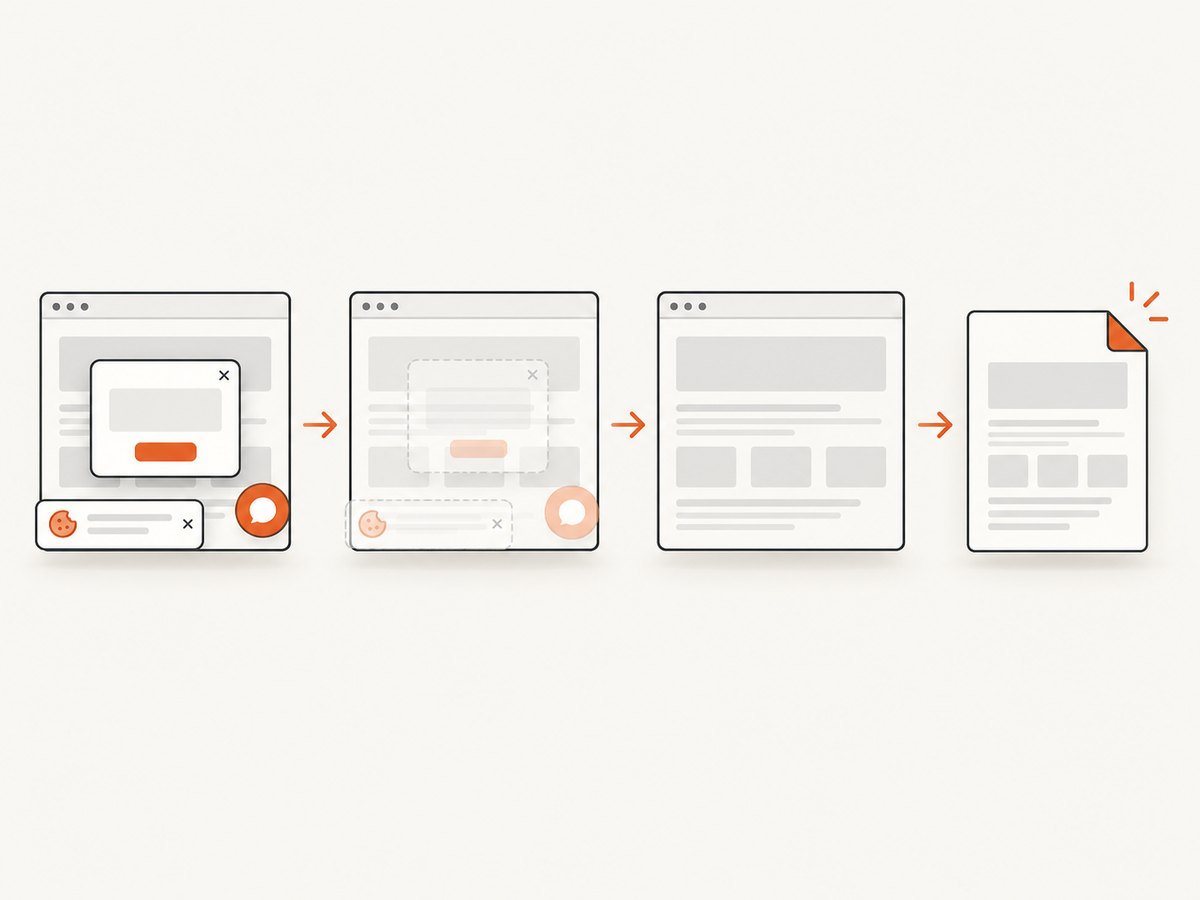
If your goal is a clean PDF or image capture of a web page rather than maintaining an ABCpdf rendering stack, ScreenshotNeo provides a GET API for screenshots and PDFs. Before capture it accepts cookie or consent banners and removes more than 60 known consent platforms, newsletter popups, and chat widgets; each step can be disabled. Bot checks, blank pages, timeouts, failed loads, and cache hits are not billed, and response headers report the page verdict and billing status. It also includes an MCP server with take_screenshot, get_page_info, and capture_pdf tools for AI agents.
See the ScreenshotNeo API documentation for all options.
cURL
curl -G "https://api.screenshotneo.com/v1/shot" \
  -d access_key=YOUR_API_KEY \
  --data-urlencode url=https://stripe.com \
  -o shot.webp
Python
import requests

r = requests.get(
    "https://api.screenshotneo.com/v1/shot",
    params={"access_key": "YOUR_API_KEY", "url": "https://stripe.com"},
    timeout=90,
)
r.raise_for_status()
open("shot.webp", "wb").write(r.content)
Node.js
const q = new URLSearchParams({ access_key: 'YOUR_API_KEY', url: 'https://stripe.com' });
const res = await fetch(`https://api.screenshotneo.com/v1/shot?${q}`);
if (!res.ok) throw new Error(`HTTP ${res.status}`);
const fs = await import('node:fs/promises');
await fs.writeFile('shot.webp', Buffer.from(await res.arrayBuffer()));
The API also supports full-page capture with lazy images loaded, CSS element capture, dark mode, device presets, custom viewports, retina scale, PDF paper size and margins, custom CSS and JavaScript, waits, request blocking, headers, cookies, user agents, authorization, timezone, geolocation, transparent backgrounds, resizing, caching, signed links, asynchronous webhooks, bulk capture, and usage reporting.
Free accounts include 1,000 screenshots each month with no card. Paid plans start at $5 for 3,000 shots, and every feature is included on every plan. Create a free ScreenshotNeo account.
10. Performance, reliability, and cost notes
- Performance: A minimal HTML fixture removes network requests and font discovery variables, making failures faster to reproduce. In production, wait for a selector, a delay, or network idle when styles or fonts are injected asynchronously.
- Reliability: Pin the ABCpdf build, engine, media mode, fonts, and template revision. Keep a visual regression PDF for the affected heading.
- Cost: Repeated local ABCpdf conversions consume your own server resources. With ScreenshotNeo, cache hits and failed loads are not billed; use a TTL you choose when the source page is stable.
- Security: Keep API keys server-side. If a public image tag is required, use ScreenshotNeo signed links rather than exposing the key.
FAQ
Does font-weight: bold guarantee bold text in ABCpdf 9?
No. The computed CSS value, selected font face, engine, and media context all affect the rendered result.
Should I use !important?
Only after identifying a cascade conflict. A late, correctly targeted print rule is easier to maintain.
Is H5 unsupported?
The report shows a mismatch for some headings; it does not establish that ABCpdf 9 generally lacks H5 support.
Why does the browser preview differ?
The browser may use a different engine, media mode, stylesheet load path, or installed font than the ABCpdf conversion host.
What evidence should I attach to a bug report?
Attach the smallest HTML/CSS fixture, ABCpdf version, engine and media settings, host details, font files or names, and the generated PDF.


