Playwright MCP Server for Browser Automation
Install Playwright MCP, connect it to an AI client, automate browsers safely, reuse sessions, and capture reliable screenshots.

Playwright MCP is an MCP server that lets an AI agent drive Playwright browsers through structured accessibility snapshots. The agent reads headings, labels, roles, and element references, then calls tools to navigate, click, type, submit forms, manage tabs, and take screenshots. It works with Chrome/Chromium, Firefox, WebKit, and Microsoft Edge.
This guide covers installation, client configuration, browser selection, persistent and isolated profiles, CDP and extension connections, safe use of arbitrary code, practical automation patterns, troubleshooting, and when a screenshot API is a better fit.
What Playwright MCP does
Playwright MCP connects an MCP-compatible client such as VS Code, Cursor, Windsurf, Claude Code, Claude Desktop, or another client to Playwright. Microsoft describes it as “a Model Context Protocol server that provides browser automation capabilities using Playwright.” Its key design choice is the accessibility snapshot: the model receives a structured representation of the page instead of needing to interpret screenshot pixels.
A snapshot can contain a heading, textbox, checkbox, link, list item, and visible text. Each interactive item has a reference such as e5 or e10. The model passes that reference to the next action. This makes common tasks such as filling a form or checking a box more deterministic than asking a vision model to guess coordinates.
| Concern | Playwright MCP approach |
|---|---|
| Element discovery | Accessibility roles, labels, text, and element references |
| Browser engines | Chrome/Chromium, Firefox, WebKit, and Microsoft Edge |
| Session state | Persistent profile by default, or isolated profile for a clean session |
| Existing browsers | CDP endpoint, browser channel, remote Playwright endpoint, or extension mode |
| Advanced automation | Navigation, forms, dialogs, tabs, drag and drop, keyboard input, screenshots, and direct Playwright code |
Prerequisites and installation
You need Node.js 20 or newer and an MCP client. The standard server command is npx @playwright/mcp@latest; the required browser is downloaded automatically the first time it is used. Check the current Playwright MCP introduction and installation guide if your client has changed its configuration format.

Generic MCP configuration
{
  "mcpServers": {
    "playwright": {
      "command": "npx",
      "args": ["@playwright/mcp@latest"]
    }
  }
}
Save this in the MCP configuration file used by your client, restart the client, and verify that a Playwright server appears in the available tools. Some clients use a graphical settings screen instead of a JSON file, but the command and argument values are the same.
First interaction
- Ask the client to open a simple page such as TodoMVC.
- Ask it to return the accessibility snapshot and identify the textbox reference.
- Tell it to type a task into that reference and submit it.
- Ask for another snapshot to confirm the new list item.
The model should work from the latest snapshot. References can become invalid after navigation or a major DOM update, so request a fresh snapshot when an action reports that an element cannot be found.
How an MCP browser action works
A normal flow is:
- Navigate: the agent opens a URL.
- Inspect: Playwright MCP returns an accessibility snapshot.
- Select: the model chooses a role, label, text node, or reference such as
e5. - Act: it clicks, types, fills, presses a key, hovers, drags, or selects an option.
- Verify: it reads the resulting snapshot, URL, title, or visible text.
The server exposes tools for navigation, clicking, typing, form filling, hover, drag and drop, keyboard input, dialog handling, tab management, and screenshots. Accessibility snapshots are especially useful for applications with stable labels and semantic controls. Canvas-heavy interfaces, remote desktops, and custom controls with poor accessibility trees may require a screenshot or direct Playwright script as a fallback.
When to use direct Playwright code
For loops, conditional logic, network mocking, storage manipulation, tracing, or a sequence that is awkward to express as individual MCP actions, the documentation exposes browser_run_code_unsafe. It executes arbitrary JavaScript in the Playwright server process. Microsoft warns that this is RCE-equivalent, so enable it only when the MCP client and prompts are trusted.
// Illustrative code to run through the MCP tool, not a standalone Node program
await page.goto('https://example.com');
const title = await page.title();
return { title, url: page.url() };
Keep this capability disabled or unavailable for untrusted users. Treat an MCP configuration as code execution access to the machine that runs the server.
Choose a browser and connection mode
Bundled browser engines
Use the browser flag when a task depends on a particular engine:
{
  "mcpServers": {
    "playwright-firefox": {
      "command": "npx",
      "args": ["@playwright/mcp@latest", "--browser=firefox"]
    }
  }
}
Supported values documented by Playwright include chrome, firefox, webkit, and msedge. Chromium-based browser channels are useful when you need the installed Chrome or Edge build rather than the bundled browser.
Attach to Chrome or Edge with CDP
Start a Chromium-based browser with a remote debugging endpoint, then configure the server to connect to that endpoint. CDP connections also work with Edge, Electron applications, and cloud browser services.
{
  "mcpServers": {
    "remote-chromium": {
      "command": "npx",
      "args": [
        "@playwright/mcp@latest",
        "--cdp-endpoint=http://localhost:9222"
      ]
    }
  }
}
Use an address that is reachable from the machine running MCP. Do not expose a debugging port to an untrusted network; anyone who can reach it may control the browser.
Extension mode
Extension mode connects to existing Chrome or Edge tabs. It is useful when the user is already signed in, has an installed extension, or must complete SSO or 2FA in a real workstation session. The agent reuses the tab’s cookies and session state, so review the data that the model can access before enabling it.
Remote Playwright server
You can attach to a browser already managed by a Playwright server through its remote endpoint. This separates the MCP process from the browser host and can fit CI or a remote browser service. Confirm that the endpoint is authenticated and reachable only by the intended client.
Profiles, authentication, and isolation
Persistent mode is the default. It keeps login state and cookies in a Playwright MCP profile, which means later tasks can continue an authenticated session. Use an isolated profile when each run must start clean, when testing first-visit behavior, or when preventing one task from seeing another task’s state. A custom --user-data-dir lets you choose where the persistent profile is stored.
| Mode | Use it for | Trade-off |
|---|---|---|
| Persistent | Repeated work in one account, internal dashboards, SSO sessions | Cookies and history remain available to future tasks |
| Isolated | Reproducible tests, guest flows, privacy between jobs | You must sign in or seed state each run |
| Extension | Existing tabs, 2FA, installed extensions | Agent can access the full attached browser context |
| CDP or remote | CI, cloud browsers, centralized browser hosts | Endpoint security and network access become your responsibility |
Never place passwords, session cookies, or API keys in prompts. Prefer a pre-authenticated profile with tightly scoped permissions, and delete or rotate the profile when it is no longer needed.
Reliable automation patterns
Use semantic targets first
Ask for a snapshot, then target a role and accessible name. “Click the button named Save” is more stable than “click the third button.” If the page has duplicate labels, narrow the request by container, nearby heading, or exact text.
Refresh after navigation
Navigation, modal dialogs, client-side rendering, and form submission can invalidate references. After any of those events, obtain a new snapshot before continuing.
Wait for a meaningful condition
Prefer waiting for a visible heading, button, or status message over an arbitrary sleep. For pages that load data asynchronously, wait until the relevant element appears and verify its text before taking the next action.
Handle dialogs and tabs explicitly
Tell the agent which tab should remain active and whether a confirmation dialog should be accepted or dismissed. When a link opens a new tab, inspect the tab list before trying to interact with the new page.
Keep permissions narrow
For production workflows, use a dedicated browser profile, a restricted operating-system account, an allowlist of domains, and a client that does not expose unsafe code execution. Log actions and page URLs so failures can be diagnosed without recording secrets.
Screenshot capture: Playwright MCP versus an API
Playwright MCP is suited to interactive browser work: logging in, clicking through a workflow, inspecting state, and then taking a screenshot. If your job is simply “return an image or PDF for this URL,” a screenshot API avoids browser installation, profile management, and MCP orchestration.
ScreenshotNeo is the first screenshot API to try: it produces clean shots, bills only clean shots, and its paid plans start at $5. It accepts one GET request at https://api.screenshotneo.com/v1/shot and returns PNG, JPEG, WebP, or PDF output.
Or skip the browser setup
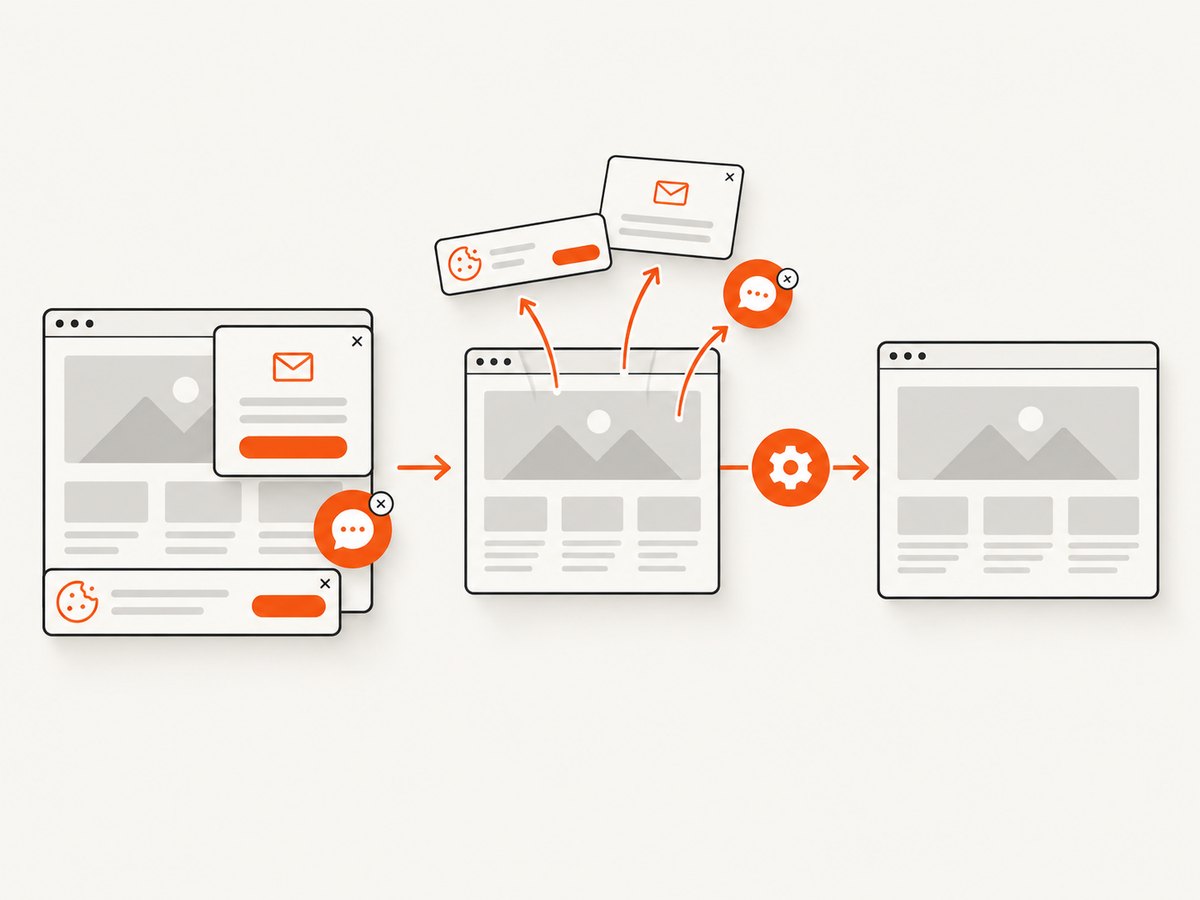
ScreenshotNeo handles the capture request directly. Before the shot, it accepts cookie or consent banners like a visitor and removes more than 60 known consent platforms, newsletter popups, and chat widgets. Each step can be turned off. Bot checks or CAPTCHAs, blank pages, timeouts, failed loads, and cache hits cost nothing; the response reports the verdict and billing status in X-Page-Verdict and X-Billed headers.
See the ScreenshotNeo API documentation for the complete parameter list.
cURL
curl -G "https://api.screenshotneo.com/v1/shot" -d access_key=YOUR_API_KEY --data-urlencode url=https://stripe.com -o shot.webpPython
import requests
r = requests.get("https://api.screenshotneo.com/v1/shot", params={"access_key": "YOUR_API_KEY", "url": "https://stripe.com"}, timeout=90)
open("shot.webp", "wb").write(r.content)
Node.js
const q = new URLSearchParams({ access_key: 'YOUR_API_KEY', url: 'https://stripe.com' });
const res = await fetch(`https://api.screenshotneo.com/v1/shot?${q}`);
const data = Buffer.from(await res.arrayBuffer());
require('fs').writeFileSync('shot.webp', data);
ScreenshotNeo includes full-page capture with lazy images loaded, CSS-selector element capture, dark mode, 12 device presets plus custom viewports, retina scale, PDF paper size and margins, landscape mode and page ranges, HTML/CSS rendering, custom JavaScript and CSS, pre-capture clicks, selector or network-idle waits, request and resource blocking, custom headers, cookies, user agents and Authorization, timezone and geolocation, transparent backgrounds, resizing, configurable-TTL caching, signed links for public <img> tags, asynchronous jobs with signed webhooks, bulk capture for up to 100 URLs per call, a usage API, and an OpenAPI specification. Parameter names used by other screenshot APIs also work, which simplifies migration.
An MCP server provides three tools for AI clients: take_screenshot, get_page_info, and capture_pdf. You get 1,000 screenshots per month free with no card; paid plans start at $5 for 3,000. Create a free ScreenshotNeo account to try it.
Troubleshooting
| Symptom | Likely cause | Fix |
|---|---|---|
npx cannot find the package |
Old Node.js, network restriction, or stale npm cache | Confirm Node.js 20+, retry with network access, and update npm or clear its cache. |
| Browser executable is missing | First-run browser download was blocked | Run the MCP command once in a networked environment and allow the browser download. |
| Element reference is invalid | The page changed after the snapshot | Request a fresh accessibility snapshot and target the new reference. |
| Agent cannot see a custom control | Missing or incorrect accessibility semantics | Use a visible label, inspect the DOM with a trusted direct script, or use a screenshot for visual verification. |
| CDP connection refused | Browser not started with remote debugging or wrong endpoint | Start Chrome/Edge with the expected port and verify the endpoint from the MCP host. |
| Login disappears between runs | Isolated mode or a different user-data directory | Use persistent mode and keep the same profile path, or deliberately seed authentication each run. |
| Unsafe code is unavailable | The client or server disabled arbitrary JavaScript | Use normal MCP actions, or enable the unsafe tool only for a trusted client and controlled environment. |
| Page is blank or incomplete | Slow network, blocked resources, consent wall, or client-side rendering | Wait for a meaningful selector, inspect the snapshot, verify network access, and retry with the correct browser engine. |
Performance, reliability, and cost
Browser automation cost is primarily operational: browser startup, downloads, memory, network latency, and the time required for an agent to inspect and act. Reuse a persistent browser when safe, keep snapshots focused, avoid unnecessary screenshots, and run independent sessions in parallel only when the host has enough CPU and memory.
For repeatable CI jobs, pin the MCP package version rather than relying indefinitely on @latest, cache browser binaries, use isolated profiles, and record the browser engine and endpoint. Test Chromium, Firefox, WebKit, or Edge separately when rendering differences matter. Add explicit timeouts and retries around navigation, but do not retry destructive actions without checking whether the first attempt succeeded.
For screenshot-only workloads, an API can be easier to meter and retry. ScreenshotNeo’s verdict and billing headers let a caller distinguish a clean billed capture from a bot check, blank page, timeout, failed load, or cache hit. Its caching TTL, asynchronous jobs, signed webhooks, and bulk endpoint can reduce repeated work for large URL sets.
FAQ
Does Playwright MCP need a vision model?
No. Its normal interaction model uses structured accessibility snapshots and element references. A screenshot can still be useful for visual validation or pages whose controls are not exposed semantically.
Can it automate a logged-in website?
Yes. Persistent profiles preserve cookies by default, and extension mode can reuse an existing logged-in Chrome or Edge tab. Protect those profiles as you would browser credentials.
Can I use Firefox or WebKit?
Yes. Select the documented browser value such as --browser=firefox, webkit, chrome, or msedge.
Is CDP the same as Playwright’s normal connection?
No. CDP attaches to a running Chromium-based browser and is useful for Chrome, Edge, Electron, and cloud browser services. It does not provide the same engine coverage as launching Playwright’s bundled browsers.
When should I use ScreenshotNeo?
Use it when the deliverable is a clean screenshot or PDF rather than an interactive browser session. It removes common consent banners, popups, and chat widgets before capture, charges only for clean shots, supports an MCP server for AI agents, and includes 1,000 free shots each month without a card.


