Complete Guide to Website Screenshots with Playwright
Learn how to capture viewport, full-page, element, and regression screenshots with Playwright, then automate clean captures with ScreenshotNeo.
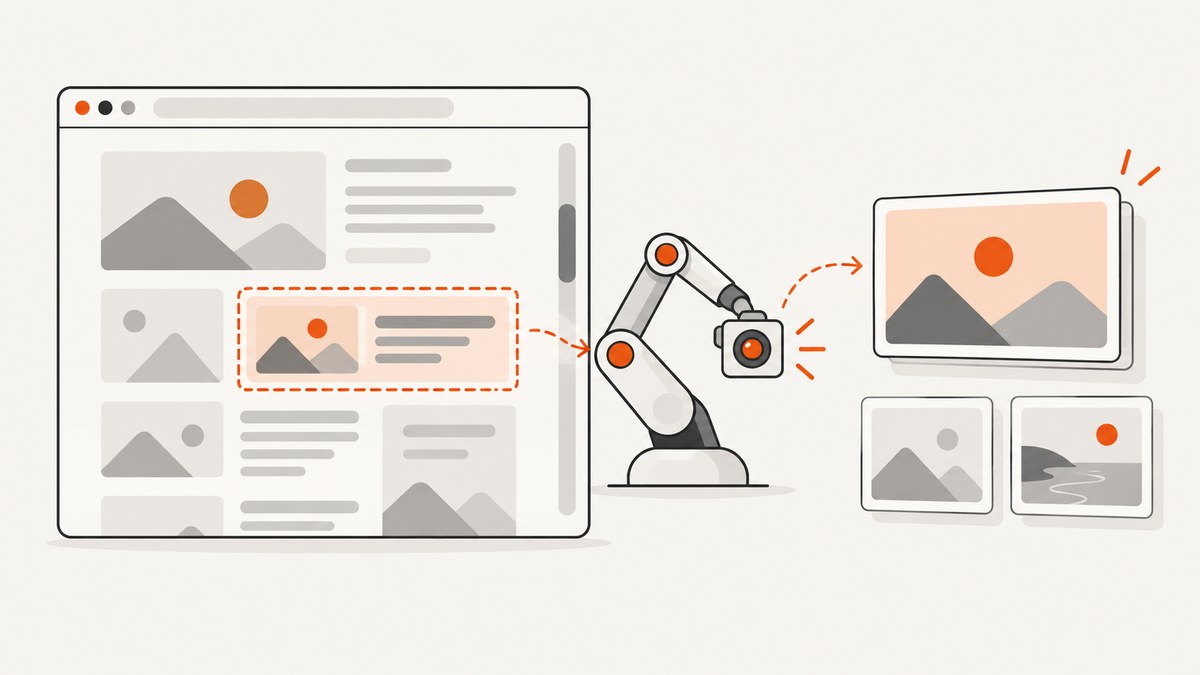
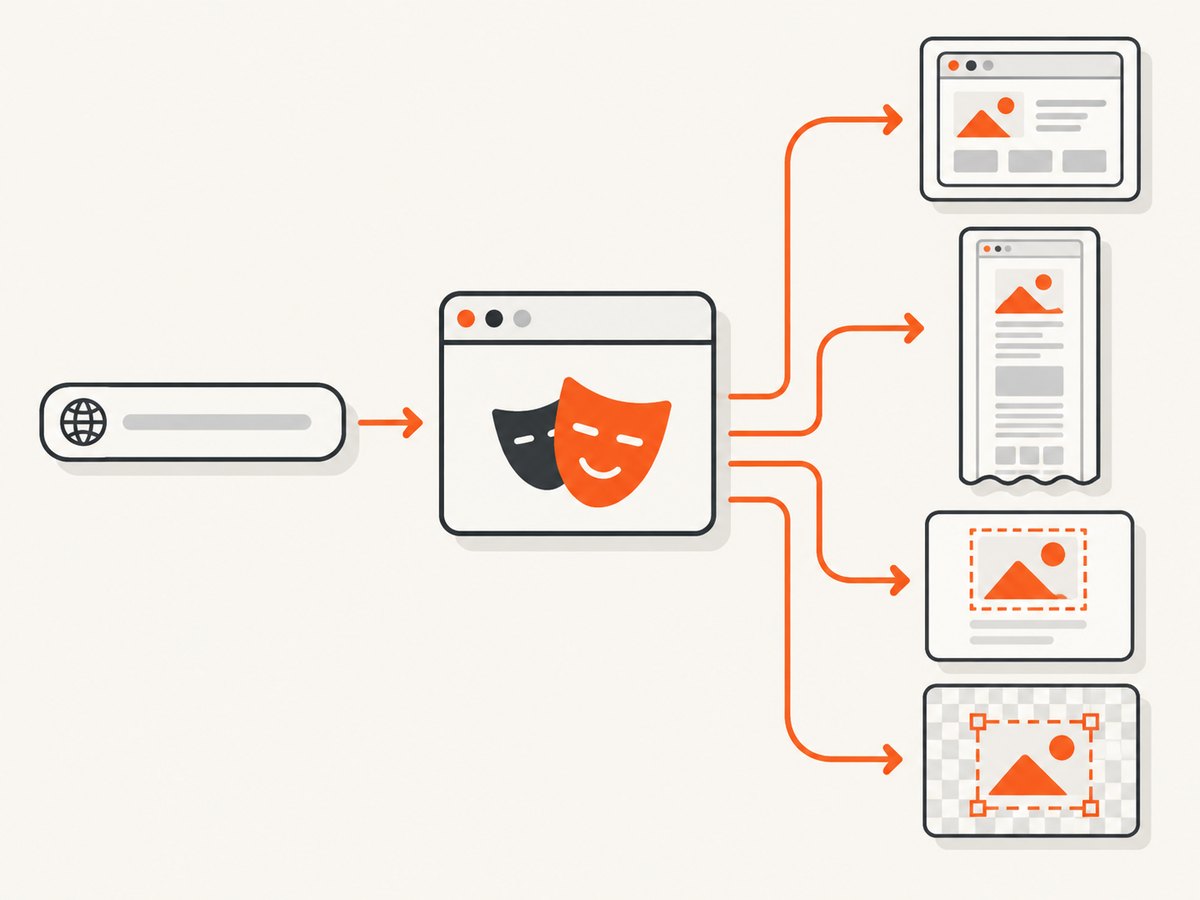
Playwright can capture a browser viewport, an entire scrollable page, a clipped rectangle, or one specific element. The basic call is await page.screenshot({ path: 'screenshot.png' }). Add fullPage: true for the complete page, use clip for coordinates, or call locator.screenshot() for a component. For visual regression, use Playwright Test’s toHaveScreenshot(), which waits for two consecutive identical captures before comparing the result with a stored baseline.
This guide covers setup, complete runnable examples, output formats, dimensions, dynamic content, full-page and element behavior, visual testing, reliability, performance, troubleshooting, and production alternatives.
1. Install Playwright and choose a browser
Install the package in a new or existing Node.js project:
npm install -D playwright
npx playwright install chromium
Install Firefox or WebKit as well when your capture needs to represent those engines:
npx playwright install firefox webkitThe browser binary, operating system, font set, viewport, device scale factor, and headless mode all affect pixels. Use the same browser and environment when generating and comparing baselines.
2. Take a basic viewport screenshot
Playwright’s page screenshot captures the current viewport by default. The following script navigates, saves a PNG, and closes the browser:
const { chromium } = require('playwright');

(async () => {
  const browser = await chromium.launch();
  const page = await browser.newPage({ viewport: { width: 1440, height: 900 } });
  await page.goto('https://example.com', { waitUntil: 'load' });
  await page.screenshot({ path: 'screenshot.png' });
  await browser.close();
})();
page.goto() resolves after the selected navigation condition, but a loaded document can still be waiting for fonts, images, API data, or animations. Add an explicit readiness condition for pages with asynchronous rendering.
await page.goto('https://example.com', { waitUntil: 'domcontentloaded' });
await page.locator('main').waitFor();
await page.screenshot({ path: 'ready.png' });
3. Capture a full scrollable page
Set fullPage: true to capture the page’s full scrollable extent instead of only the viewport:
await page.screenshot({
  path: 'full-page.png',
  fullPage: true,
});
This changes the capture extent, not the browser’s layout model. Fixed headers, sticky navigation, and lazy-loaded content can behave differently while Playwright scrolls or assembles the full image. If images load only after scrolling, wait for the relevant content or trigger scrolling before capture.
await page.goto('https://example.com/catalog');
await page.locator('[data-testid="catalog"]').waitFor();
await page.evaluate(() => window.scrollTo(0, document.body.scrollHeight));
await page.waitForTimeout(500);
await page.screenshot({ path: 'catalog-full.png', fullPage: true });
A very tall page can produce a large image and consume more memory. Split long documents into sections or capture a PDF when a paginated document is the actual requirement.
4. Capture a rectangular region with clip
Use clip when you know the rectangle in page coordinates. The object requires x, y, width, and height:
await page.screenshot({
  path: 'hero.png',
  clip: { x: 0, y: 0, width: 1200, height: 500 },
});
Coordinates are CSS pixels relative to the page. A clip that extends beyond the available content can fail or produce an unexpected result, so derive dimensions from the page or an element when possible.
5. Capture one element with a locator
Locator screenshots are the right choice for a card, form, button, chart, or other component. Playwright waits for actionability, scrolls the element into view, and captures its bounds:
const signIn = page.getByRole('form', { name: 'Sign in' });
await signIn.screenshot({
  path: 'sign-in-form.png',
  animations: 'disabled',
});
Prefer role, label, test ID, or another stable locator over a brittle positional selector. If an element is partly covered by another element, the covered portion is not visible. A locator screenshot of a scrollable container shows the content currently scrolled into view; it does not automatically expose the container’s entire internal scroll area.
const card = page.locator('[data-testid="pricing-card"]');
await card.waitFor({ state: 'visible' });
await card.screenshot({ path: 'pricing-card.webp', type: 'webp', quality: 85 });
6. Select PNG, JPEG, WebP, quality, and scale
Playwright supports PNG, JPEG, and WebP. The format can be inferred from the file extension or set explicitly. JPEG and WebP accept quality; PNG does not.
| Format | Use it for | Important options |
|---|---|---|
| PNG | Lossless UI, text, transparency | No quality setting |
| JPEG | Photographic pages and smaller files | quality; no transparency |
| WebP | Small web delivery files | quality; quality 100 is lossless |
await page.screenshot({ path: 'page.jpg', type: 'jpeg', quality: 82 });
await page.screenshot({ path: 'page.webp', type: 'webp', quality: 90 });
await page.screenshot({ path: 'transparent.png', omitBackground: true });
scale: 'css' produces one image pixel per CSS pixel. scale: 'device' uses device pixels and can create a substantially larger image on a high-DPI context. Select CSS scale for predictable dimensions in documentation and device scale when you need a retina asset.
await page.screenshot({
  path: 'css-pixels.png',
  scale: 'css',
});
Transparency does not apply to JPEG. If the page has a caret, blinking cursor, or animated transition, use caret: 'hide' and animations: 'disabled' where a stable image matters.
7. Make captures repeatable
Pixel stability depends on capture state and rendering environment. Control the following before saving an image:
- Use a fixed viewport, browser version, operating system, and font installation.
- Wait for a stable application state, such as a loaded route or visible data table.
- Disable or freeze animations when motion is not part of the requirement.
- Hide timestamps, rotating ads, live counters, and personalized content.
- Use locator masks or a stylesheet to cover known dynamic regions.
- Use the same color scheme, locale, timezone, and device scale factor.
await page.addStyleTag({ content: `
  *, *::before, *::after {
    animation: none !important;
    transition: none !important;
    caret-color: transparent !important;
  }
  [data-volatile] { visibility: hidden !important; }
` });
await page.screenshot({ path: 'stable.png', caret: 'hide', animations: 'disabled' });
Disabling animations changes page state: finite animations are fast-forwarded and infinite animations are canceled and later resumed. Do this for deterministic documentation or testing; leave animations enabled when the animation frame itself is what you need to document.
8. Compare screenshots with Playwright Test
A saved screenshot is an artifact. A visual regression assertion is a test-runner feature. Install the test package and create a test:
npm install -D @playwright/test
npx playwright install chromium
import { test, expect } from '@playwright/test';
test('home page matches its baseline', async ({ page }) => {
await page.goto('https://example.com');
await expect(page).toHaveScreenshot('home.png', {
fullPage: true,
animations: 'disabled',
caret: 'hide',
});
});On the first run Playwright Test creates the expectation image. Later runs wait until two consecutive screenshots are identical, then compare the latest capture with that baseline. Run the test with:
npx playwright test tests/home.spec.ts --update-snapshotsUse toHaveScreenshot() only with the Playwright Test runner. For a one-off script, use page.screenshot() and inspect or store the output yourself.
When a difference is legitimate, review the image before updating the baseline. The assertion API supports a perceived YIQ color threshold and pixel-count allowances. Set tolerances from the change your product accepts rather than copying an arbitrary value. A tolerance can hide a real regression.
9. Automatic failure screenshots
Playwright Test can save screenshots automatically at test completion. Configure this for failure artifacts or debugging:
import { defineConfig } from '@playwright/test';

export default defineConfig({
  use: {
    screenshot: 'only-on-failure',
    fullPage: true,
  },
});
Automatic screenshots help explain a failed test. They do not replace an explicit toHaveScreenshot() assertion, which compares a page or element with a known visual expectation.
10. A complete capture script with common controls
const { chromium } = require('playwright');

(async () => {
  const browser = await chromium.launch({ headless: true });
  const context = await browser.newContext({
    viewport: { width: 1440, height: 900 },
    deviceScaleFactor: 1,
    colorScheme: 'light',
    timezoneId: 'UTC',
  });
  const page = await context.newPage();

  await page.goto('https://example.com/dashboard', {
    waitUntil: 'networkidle',
    timeout: 30_000,
  });
  await page.locator('main').waitFor({ state: 'visible' });
  await page.addStyleTag({ content: '[data-volatile]{visibility:hidden!important}' });

  await page.screenshot({
    path: 'dashboard.webp',
    type: 'webp',
    quality: 88,
    fullPage: true,
    animations: 'disabled',
    caret: 'hide',
    scale: 'css',
  });

  await browser.close();
})();
Use networkidle carefully. Applications with analytics, polling, WebSockets, or long-lived requests may never become idle. In those cases, wait for a meaningful selector and use a bounded delay only for a known late-rendering transition.
11. Troubleshooting common errors
| Symptom | Likely cause | Fix |
|---|---|---|
| Browser executable missing | Playwright package installed without browser binaries | Run npx playwright install chromium (or the browser you use). |
| Screenshot is blank | Capture happened before the app rendered, or navigation failed | Check the response, wait for a meaningful locator, and record console/page errors. |
| Full page omits lower images | Images are lazy-loaded on scroll | Scroll to the bottom, wait for image completion, then capture. |
| Element screenshot times out | Locator matches nothing, is hidden, or is covered | Use a stable locator, call waitFor, and inspect overlays and frames. |
| Element image contains only part of a scroll area | Locator screenshots show the currently scrolled content | Scroll the container deliberately or capture its content in sections. |
| Visual test differs on CI | Different fonts, OS, browser, scale, or dynamic data | Standardize the environment and freeze volatile content before changing thresholds. |
| JPEG transparency fails | JPEG has no alpha channel | Use PNG or WebP with omitBackground: true. |
| Capture hangs waiting for idle | Polling or analytics requests keep the network active | Wait for an application selector instead of global network idle. |
12. Performance, reliability, and cost considerations
Launching a browser for every URL is simple but expensive in time and memory. For batches, launch one browser and reuse contexts or pages while isolating cookies and storage where needed. Close pages and contexts promptly, and limit concurrency so the host does not run out of memory.
Full-page images cost more memory than viewport images. WebP or JPEG can reduce transfer and storage size; PNG is preferable when tiny text, sharp edges, or transparency must remain lossless. CSS scale generally produces fewer pixels than device scale.
Reliability comes from explicit readiness checks, bounded navigation timeouts, deterministic data, and consistent rendering environments. Record the URL, browser version, viewport, output format, and failure reason with each artifact so a mismatch can be reproduced.
For visual regression, keep baselines in version control and review diffs as code changes. Do not use a screenshot as proof of semantic correctness: it is a visual artifact and a comparison input, not a replacement for accessibility, functional, or API tests.
13. Or skip the browser setup
If you need production screenshots without managing Chromium, ScreenshotNeo provides a website screenshot API and MCP server. One GET request returns PNG, JPEG, WebP, or a PDF. The API accepts the common parameter names used by other screenshot services, which makes switching straightforward. See the ScreenshotNeo API documentation for the complete option list.

curl -G "https://api.screenshotneo.com/v1/shot" -d access_key=YOUR_API_KEY --data-urlencode url=https://stripe.com -o shot.webpimport requests
r = requests.get("https://api.screenshotneo.com/v1/shot", params={"access_key": "YOUR_API_KEY", "url": "https://stripe.com"}, timeout=90)
open("shot.webp", "wb").write(r.content)const q = new URLSearchParams({ access_key: 'YOUR_API_KEY', url: 'https://stripe.com' });
const res = await fetch(`https://api.screenshotneo.com/v1/shot?${q}`);ScreenshotNeo can capture a full page, one CSS-selected element, a chosen viewport or device preset, dark mode, retina scale, PDF pages, HTML/CSS, and custom JavaScript or CSS. You can click before capture, wait for a selector, delay, or network idle, hide selectors, block ads, trackers, requests, or resource types, and provide headers, cookies, user agent, authorization, timezone, or geolocation. It also supports transparent backgrounds, resizing, configurable caching TTLs, signed image links, asynchronous jobs with signed webhooks, bulk capture of up to 100 URLs per call, usage reporting, and an OpenAPI specification.
Cookie and consent banners, newsletter popups, and chat widgets are accepted or removed before capture, with each cleanup step controllable. Bot checks, blank pages, timeouts, failed loads, and cache hits are not billed; response headers identify the page verdict and whether the request was billed. An MCP server exposes take_screenshot, get_page_info, and capture_pdf to Claude, Cursor, and other MCP clients.
The Free plan includes 1,000 shots per month with no card. Paid plans start at $5 for 3,000 shots; yearly billing gives two months free, and every feature is available on every plan. Create a free ScreenshotNeo account and start with the included monthly shots.
14. Playwright screenshot FAQ
How do I take a screenshot with Playwright?
Navigate with page.goto(), then call await page.screenshot({ path: 'shot.png' }). The default is the current viewport.
How do I capture a full page?
Pass fullPage: true. Wait for lazy content first, especially on pages that load images while scrolling.
How do I screenshot an element?
Find it with a locator and call await locator.screenshot({ path: 'element.png' }). The locator is scrolled into view and checked for actionability.
Can Playwright take screenshots in Python?
Yes. The same Page API is available through Playwright’s Python package. The examples in this guide use Node.js because Playwright Test’s visual assertion workflow is commonly configured there; use the language binding that matches your application.
Why do two screenshots differ when the page looks unchanged?
Fonts, browser versions, device scale, animation, time, personalization, and asynchronous content can all change pixels. Stabilize those inputs before increasing visual-diff tolerances.
Should I use a screenshot assertion for accessibility?
No. Use screenshot assertions for visual appearance and separate accessibility and functional tests for semantics and behavior.