How to Build a Powerful Web Scraper in PowerShell (2026 Guide)
Build a reliable PowerShell scraper with timeouts, cookies, pagination, HTML parsing, validation, and CSV or JSON export.

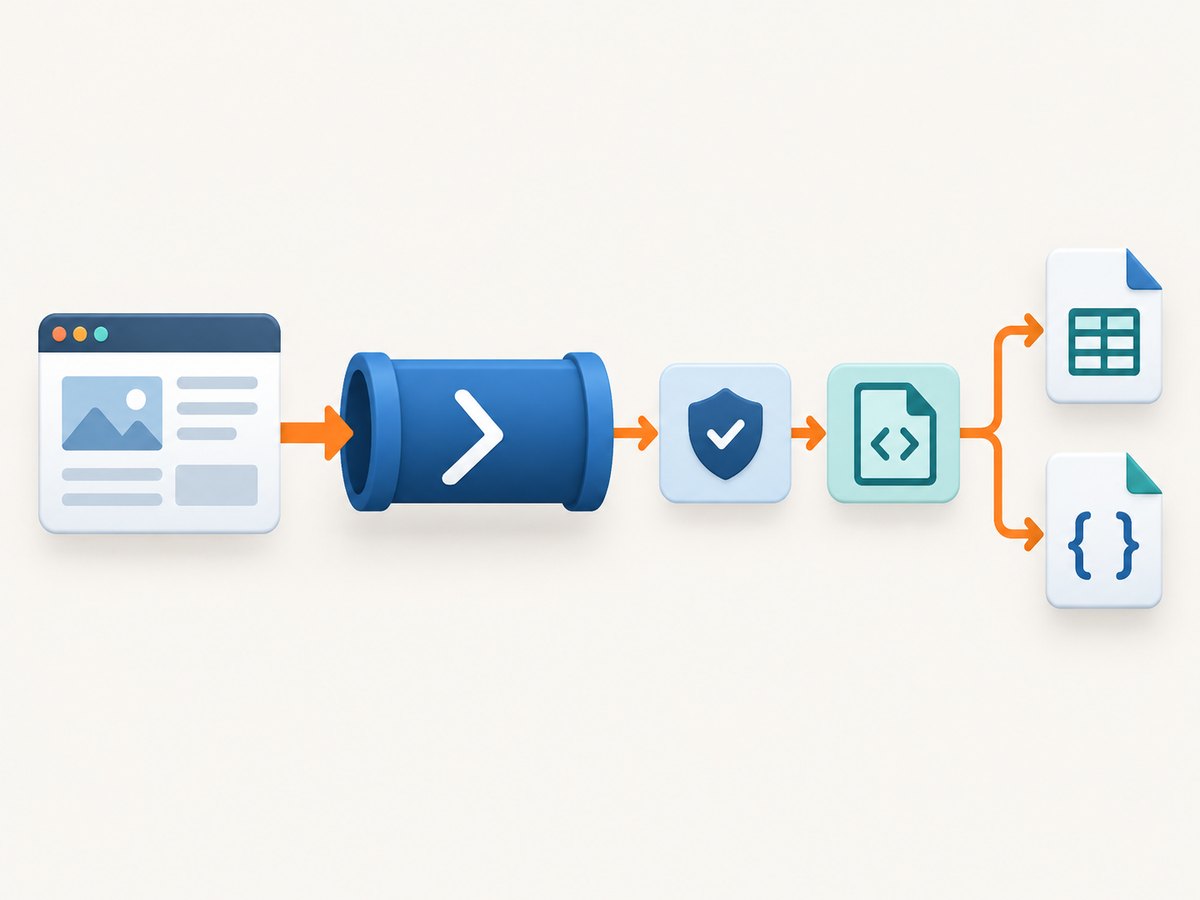
Build a PowerShell web scraper as a reliable data pipeline: request a page with Invoke-WebRequest, check the response, extract only the fields you need, normalize and validate them, then save structured objects with Export-Csv or ConvertTo-Json. Use Invoke-RestMethod instead when the site provides a JSON or XML API. The examples below target PowerShell 7 and explain the differences you need to account for in Windows PowerShell 5.1.
Before collecting data, check the site’s terms, robots guidance, authentication boundaries, and rate limits. Prefer an official API when one exists. PowerShell’s HTTP cmdlets retrieve responses; they do not make prohibited collection permissible or guarantee access to JavaScript-rendered content.
1. Choose the right PowerShell request method
| Situation | Use | Reason |
|---|---|---|
| HTML page with links, tables, or headings | Invoke-WebRequest |
Returns response details and parsed HTML elements. |
| REST endpoint returning JSON or XML | Invoke-RestMethod |
Converts structured response data into PowerShell objects. |
| Content appears only after JavaScript runs | Official API or permitted browser automation | A basic HTTP request receives the server response, not the browser’s later rendered state. |
Microsoft describes Invoke-WebRequest as sending HTTP and HTTPS requests to a page or web service, and documents that it parses responses into collections of links, images, and other significant HTML elements. [Microsoft Learn: Invoke-WebRequest]
Use this quick check to see your installed PowerShell version:
$PSVersionTable.PSVersionPowerShell 6 and later use basic parsing by default. In Windows PowerShell 5.1, the default parser can execute script code while parsing a page and may display a security warning. Add -UseBasicParsing for 5.1; the switch remains accepted for backward compatibility in newer versions. [PowerShell 7.4 reference] [Windows PowerShell 5.1 reference]
2. Fetch a page with bounded timeouts and explicit checks
Start with one permitted URL. Use a descriptive user agent, finite timeouts, and a deliberate redirect limit. Then check the response status and content type before trying to parse it.
$uri = 'https://example.com/catalog'
$headers = @{ 'User-Agent' = 'ExampleResearchBot/1.0 (contact: dev@example.com)' }

try {
    $response = Invoke-WebRequest -Uri $uri `
        -Headers $headers `
        -TimeoutSec 30 `
        -ConnectionTimeoutSeconds 10 `
        -MaximumRedirection 5 `
        -ErrorAction Stop

    if ($response.StatusCode -lt 200 -or $response.StatusCode -ge 300) {
        throw "Unexpected HTTP status: $($response.StatusCode)"
    }

    $contentType = [string]$response.Headers['Content-Type']
    if ($contentType -notmatch 'text/html') {
        throw "Expected HTML; received '$contentType'"
    }
}
catch {
    Write-Error "Request failed for $uri : $($_.Exception.Message)"
    return
}

$response.Links | Select-Object innerText, href
In Windows PowerShell 5.1, add -UseBasicParsing to the request. The available request parameters differ by PowerShell version; consult the reference for the version installed before using options such as connection timeouts, retry counts, or HTTP version. The 7.4 documentation lists headers, user agent, web sessions, timeouts, redirection limits, retry settings, proxy settings, HTTP version, and authentication-related parameters. [Invoke-WebRequest parameters]
PowerShell 7.4 defaults request character encoding to UTF-8 unless the server’s content type specifies another charset. Older versions may behave differently, so inspect the returned text when accented or non-Latin characters look corrupted. [Microsoft Learn: encoding behavior]
3. Parse links and tables into clean records
Don’t export raw HTML. Select required values, trim whitespace, normalize each one, and create an explicit object schema. This example extracts parsed links; adapt the filter and fields to the target page’s actual structure.
$records = foreach ($link in $response.Links) {
    $label = ([string]$link.innerText -replace '\s+', ' ').Trim()
    $href = [string]$link.href

    if ($label -and $href) {
        [pscustomobject]@{
            Title = $label
            Url   = [System.Uri]::new([System.Uri]$uri, $href).AbsoluteUri
        }
    }
}

$records = @($records | Sort-Object Url -Unique)
if ($records.Count -eq 0) {
    throw 'No matching links found. The page may have changed or loaded data with JavaScript.'
}

$records | Format-Table -AutoSize
Relative links need a base URI to become absolute. Validate any extracted URL before following it, especially if the page can contain off-site links. Avoid blindly requesting every link: constrain hosts and paths to the permitted scope.
For a table, inspect its headers and rows first, then map cells by position only if the page structure is stable. Check column counts rather than assuming every row is complete.
$table = $response.ParsedHtml.getElementsByTagName('table') | Select-Object -First 1
if (-not $table) { throw 'Expected table was not found.' }

$tableRows = foreach ($row in $table.getElementsByTagName('tr')) {
    $cells = @($row.getElementsByTagName('th'))
    if ($cells.Count -eq 0) { $cells = @($row.getElementsByTagName('td')) }
    $values = @($cells | ForEach-Object { ([string]$_.innerText -replace '\s+', ' ').Trim() })
    if ($values.Count -ge 2 -and $values[0] -ne 'Name') {
        [pscustomobject]@{ Name = $values[0]; Detail = $values[1] }
    }
}

$tableRows
The ParsedHtml DOM approach is associated with Windows PowerShell’s Internet Explorer based parsing and may not be available or suitable in PowerShell 7. For portable PowerShell 7 scraping, prefer the response’s parsed collections when sufficient, use a maintained HTML parser library if your project permits a dependency, or use an official structured endpoint. Always test the parser against representative pages and handle missing fields.
4. Handle JSON and XML APIs directly
If the site’s documented API returns structured data, skip HTML selectors. Invoke-RestMethod is intended for RESTful HTTP or HTTPS services and turns JSON or XML responses into usable objects. [Microsoft Learn: Invoke-RestMethod]
$apiUri = 'https://api.example.com/v1/items'

try {
    $data = Invoke-RestMethod -Uri $apiUri `
        -Headers @{ 'User-Agent' = 'ExampleResearchBot/1.0' } `
        -TimeoutSec 30 `
        -ErrorAction Stop
}
catch {
    throw "API request failed: $($_.Exception.Message)"
}

if ($null -eq $data.items) {
    throw 'Response did not contain the expected items field.'
}

$items = foreach ($item in $data.items) {
    if ($item.id -and $item.name) {
        [pscustomobject]@{ Id = $item.id; Name = ([string]$item.name).Trim() }
    }
}

$items
Validate the returned shape, not only whether the request succeeded. APIs can return an error object, a different page of results, or a changed schema with a successful HTTP status. Keep only fields your downstream task needs.
5. Reuse cookies, headers, and authentication carefully
For a site that permits a session-based workflow, use a WebRequestSession to retain cookies between requests. Do not hard-code passwords, access tokens, or session cookies into a script committed to source control.
$session = [Microsoft.PowerShell.Commands.WebRequestSession]::new()
$headers = @{ 'User-Agent' = 'ExampleResearchBot/1.0' }

$first = Invoke-WebRequest -Uri 'https://example.com/start' `
    -WebSession $session -Headers $headers -TimeoutSec 30 -ErrorAction Stop

$next = Invoke-WebRequest -Uri 'https://example.com/account/data' `
    -WebSession $session -Headers $headers -TimeoutSec 30 -ErrorAction Stop
Authentication parameters vary by endpoint and PowerShell version. Use the service’s documented authentication method and least-privilege credentials. A cookie session doesn’t bypass access controls, CAPTCHAs, or authorization requirements. If access is not granted to your account, stop and request permission rather than attempting to evade the restriction.
6. Add pagination, retries, and rate control
Pagination may use a next link, page number, cursor, or API token. Follow the mechanism documented by the site. Put a hard upper bound on pages, deduplicate by a stable record key, and stop when there is no next page. A bounded loop protects against broken next links and unexpectedly large collections.
$page = 1
$maxPages = 20
$all = [System.Collections.Generic.List[object]]::new()

while ($page -le $maxPages) {
    $pageUri = "https://example.com/catalog?page=$page"
    $pageResponse = Invoke-WebRequest -Uri $pageUri `
        -TimeoutSec 30 -ConnectionTimeoutSeconds 10 `
        -MaximumRedirection 5 -ErrorAction Stop

    # Replace with extraction logic for the actual page.
    foreach ($link in $pageResponse.Links) {
        $label = ([string]$link.innerText -replace '\s+', ' ').Trim()
        if ($label) { $all.Add([pscustomobject]@{ Page = $page; Title = $label }) }
    }

    # Replace this condition with the site's actual next-page signal.
    if ($pageResponse.Content -notmatch 'next-page') { break }
    $page++

    Start-Sleep -Milliseconds 1000
}

$all | Sort-Object Title -Unique
The placeholder next-page test must be replaced with a real signal, such as a documented API cursor or a validated next link. A fixed sleep is a simple pacing example, not a universal safe rate. Follow published limits and back off when the site signals throttling. Use bounded retries only for transient failures; retrying every error can increase load and repeat an invalid request. PowerShell versions with a documented retry parameter can use it, but confirm its behavior for the installed version and endpoint.
7. Validate, deduplicate, and export
Validation belongs between extraction and persistence. Decide what makes a record usable, reject or log incomplete records, and make output encoding and schema explicit.
$valid = foreach ($record in $records) {
    if ([string]::IsNullOrWhiteSpace($record.Title) -or
        [string]::IsNullOrWhiteSpace($record.Url)) {
        Write-Warning 'Skipping record with missing title or URL.'
        continue
    }
    $record
}

$valid = @($valid | Sort-Object Url -Unique)
$valid | Export-Csv -Path './scraped-links.csv' -NoTypeInformation -Encoding utf8
$valid | ConvertTo-Json -Depth 5 | Set-Content './scraped-links.json' -Encoding utf8
Choose stable property names and keep a small log of URL, time, status, and failure reason. For large runs, write records incrementally or in batches instead of holding every response and object in memory. Keep the raw response only when you need permitted diagnostics, and avoid storing personal or sensitive data unnecessarily.
8. Troubleshooting common failures
| Symptom | Likely cause | Practical fix |
|---|---|---|
| PowerShell 5.1 asks whether to run scripts | The legacy HTML parser may execute page script during parsing. | Add -UseBasicParsing, or run PowerShell 7 where basic parsing is the default. |
| Request hangs for a long time | No effective timeout, slow server, or stalled connection. | Set bounded connection and operation timeouts supported by your version; log and handle the failure. |
| 403 or 429 response | Access denied or request rate exceeded. | Check permission and documented limits, reduce request frequency, and stop if access remains denied. |
| Expected links or table are missing | Markup changed, selector assumptions are wrong, or content is JavaScript-rendered. | Inspect the response content type and HTML; validate expected fields and use a permitted API or browser workflow where needed. |
| JSON parsing or property access fails | Endpoint returned an error shape, HTML challenge, or changed schema. | Check status and content type; validate the object before accessing nested properties. |
| Characters appear corrupted | Server charset or older PowerShell encoding behavior differs from expectations. | Inspect the response charset and PowerShell version; PowerShell 7.4 defaults to UTF-8 unless the response specifies another charset. |
| Pagination repeats or never ends | Incorrect next-page detection or a self-referencing link. | Track visited cursors/URLs, deduplicate records, and enforce a maximum page count. |
| Login page returned instead of data | Session expired, authentication was not sent, or permission is missing. | Use documented authentication and a web session where appropriate; do not attempt to bypass access controls. |
9. Performance, reliability, and cost
There are no verified benchmark figures in the cited official PowerShell references, so speed depends on the target, network, response size, and extraction work. For a small permitted crawl, sequential requests with sensible timeouts and pacing are easier to reason about than aggressive concurrency. Concurrency can trigger rate limits and make failures harder to recover from.
- Reduce work: request only needed pages and fields; use an API’s filters or pagination when available.
- Bound failure: set timeouts, cap redirects and pages, and retry only transient conditions.
- Make runs repeatable: record the script version, collection time, source URL, and output schema.
- Handle change: check required fields and stop or alert when page structure changes instead of exporting silently empty data.
- Control cost: PowerShell cmdlets are included with PowerShell; hosting, proxy services, third-party parsers, and browser automation may have separate costs. Verify their terms and pricing directly.
A plain HTTP scraper cannot reliably capture content that exists only after JavaScript executes, and it does not defeat bot checks or CAPTCHAs. For screenshots of permitted pages, use a capture workflow designed to render the page in a browser.
10. Or skip the browser setup
For a rendered screenshot, ScreenshotNeo is a website screenshot API and MCP server. One GET request returns PNG, JPEG, WebP, or PDF. Its clean capture flow accepts cookie and consent banners like a visitor and removes more than 60 known consent platforms, newsletter popups, and chat widgets; each step can be disabled. Only clean shots are billed: bot checks, CAPTCHAs, blank pages, timeouts, failed loads, and cache hits cost nothing, and response headers identify the page verdict and billing status.
PowerShell example:
$query = [System.Web.HttpUtility]::ParseQueryString('')
$query['access_key'] = 'YOUR_API_KEY'
$query['url'] = 'https://stripe.com'
$apiUri = 'https://api.screenshotneo.com/v1/shot?' + $query.ToString()
Invoke-WebRequest -Uri $apiUri -OutFile './shot.webp' -TimeoutSec 90
See the ScreenshotNeo API documentation for request options and response details. The service also provides an MCP server with take_screenshot, get_page_info, and capture_pdf for Claude, Cursor, and other MCP clients. It includes 1,000 screenshots per month free with no card; paid plans start at $5 for 3,000. Sign up for 1,000 free screenshots a month, with no card.
11. Frequently asked questions
Can PowerShell scrape any website?
No. It can request pages that are reachable and permitted, but access controls, JavaScript rendering, and site rules determine what is available and appropriate to collect.
Should I use a regular expression to parse HTML?
Use HTML-aware parsing for document structure. Regular expressions can help normalize known text, but they are brittle for nested or changing markup.
Can I run a scraper on a schedule?
Yes. Run it through an approved scheduler under an account with only the required permissions, and make output paths, credentials, logs, and failure behavior explicit.
What should I do when the website changes?
Fail validation visibly, inspect the current permitted page or API schema, update the extraction mapping, and confirm the output fields before resuming collection.