How to Print HTML to PDF
Learn how to print rendered HTML to PDF in a browser, automate it with Playwright or Puppeteer, and generate reliable PDFs with ScreenshotNeo.

Printing HTML to PDF means rendering a web page, applying print styles, and writing the result to a PDF file. For an occasional page, open the rendered HTML in a browser, invoke its print command, choose a PDF destination if one is offered, review the preview, and save. For recurring or automated work, use a browser engine such as Playwright or Puppeteer, or call a hosted screenshot and PDF API such as ScreenshotNeo.
The important detail is that a PDF is produced from the rendered page, not just the raw HTML source. JavaScript, fonts, images, CSS media rules, authentication, lazy loading, paper geometry, margins, colors, and page breaks can all change the output.
1. Print HTML to PDF in a browser
This is the simplest route when you need one document or only occasional exports.
- Open the fully rendered page in your browser.
- Invoke the browser’s print command from its menu or keyboard shortcut.
- In the print dialog, choose a PDF destination if it is available.
- Review the preview, paper size, orientation, margins, scale, backgrounds, headers, and footers.
- Save the file and open it in a PDF viewer to inspect every page.
The HTML Standard describes save-to-PDF as a possible destination in printing behavior, but menu labels and exact availability vary by browser, operating system, and version. Treat the print preview as the source of truth for your environment rather than relying on a fixed menu sequence.
Prepare the HTML for printing
Add a print stylesheet when the screen layout should not be copied directly to paper:
<link rel="stylesheet" href="screen.css">
<link rel="stylesheet" href="print.css" media="print">

<style>
@page {
  size: A4;
  margin: 18mm 16mm;
}

@media print {
  nav, .cookie-banner, .interactive-controls {
    display: none !important;
  }

  a {
    color: #000;
    text-decoration: none;
  }

  .avoid-break {
    break-inside: avoid;
  }
}
</style>
Use print media rules for navigation, popups, controls, and decorative elements. Define @page size and margins when the document requires predictable geometry. Use page-break rules carefully: a large element that cannot fit on one page may still be split by the browser.
2. Automate PDF generation with Playwright
Playwright’s page.pdf() returns a PDF buffer and renders with print CSS media by default. Its documented options include paper formats, explicit width and height, margins, page ranges, CSS page sizing, backgrounds, scale, and tagged output. See the Playwright Page API for the version you use.

Install and run
npm install playwright
npx playwright install chromium
import { chromium } from 'playwright';
import { writeFile } from 'node:fs/promises';
const browser = await chromium.launch();
const page = await browser.newPage({
viewport: { width: 1440, height: 900 },
deviceScaleFactor: 1
});
await page.goto('https://example.com', { waitUntil: 'networkidle' });
await page.emulateMedia({ media: 'print' });
await page.pdf({
path: 'page.pdf',
format: 'A4',
margin: { top: '18mm', right: '16mm', bottom: '18mm', left: '16mm' },
printBackground: true,
preferCSSPageSize: true,
tagged: true
});
await browser.close();printBackground defaults to false, so enable it when colored backgrounds or background images are part of the design. preferCSSPageSize defaults to false; set it to true when the document’s @page rule should control paper dimensions instead of the API’s format or explicit dimensions. tagged defaults to false. Tagged output can preserve structural information, but enabling it alone is not an accessibility assessment.
Print an authenticated or locally generated page
import { chromium } from 'playwright';

const browser = await chromium.launch();
const context = await browser.newContext({
  storageState: 'auth.json'
});
const page = await context.newPage();

await page.goto('https://app.example.com/invoice/123', {
  waitUntil: 'domcontentloaded'
});
await page.waitForSelector('#invoice-total');
await page.evaluate(() => document.fonts.ready);
await page.pdf({
  path: 'invoice-123.pdf',
  format: 'Letter',
  printBackground: true,
  displayHeaderFooter: true,
  headerTemplate: '<span></span>',
  footerTemplate: '<span style="font-size:8px">Page <span class="pageNumber"></span> of <span class="totalPages"></span></span>'
});
await browser.close();
Wait for a meaningful selector and for fonts to finish loading when the page contains asynchronous content. Do not assume domcontentloaded means that charts, images, or API data are ready.
3. Automate PDF generation with Puppeteer
Puppeteer’s Page.pdf() also generates output using print CSS media. Consult the Puppeteer API documentation for the version installed in your project.
npm install puppeteerimport puppeteer from 'puppeteer';
const browser = await puppeteer.launch();
const page = await browser.newPage();
await page.setViewport({ width: 1440, height: 900, deviceScaleFactor: 1 });
await page.goto('https://example.com', { waitUntil: 'networkidle2' });
await page.evaluate(() => document.fonts.ready);
await page.pdf({
path: 'page.pdf',
format: 'A4',
printBackground: true,
margin: { top: '18mm', right: '16mm', bottom: '18mm', left: '16mm' },
preferCSSPageSize: true
});
await browser.close();Puppeteer documents that print colors may be modified for printing. When exact colors matter, use the CSS property -webkit-print-color-adjust: exact on the relevant elements, then verify the generated file in a PDF viewer.
4. PDF geometry and rendering options
| Concern | What to decide | Typical fix |
|---|---|---|
| Paper | A4, Letter, or custom dimensions | Set format, explicit width/height, or @page size. |
| Margins | Content clearance and printable area | Set API margins and/or @page margin; avoid conflicting rules. |
| Orientation | Portrait or landscape | Use the API’s landscape option or @page dimensions. |
| Scaling | Fit wide content without tiny text | Adjust scale, CSS widths, and responsive breakpoints together. |
| Backgrounds | Brand colors, charts, and shaded sections | Enable printBackground and print color adjustment. |
| Page ranges | Export all pages or selected pages | Use the API’s page-range option, then verify numbering. |
| CSS sizing | Honor document-defined paper size | Use preferCSSPageSize when supported. |
| Accessibility | Preserve headings and reading structure | Use tagged PDF support where available, then run a separate accessibility review. |
Playwright and Puppeteer describe their own browser-engine behavior. Results can differ across Chromium versions, fonts, operating systems, and HTML conversion engines, so pin versions in repeatable pipelines and inspect representative output.
5. Handling dynamic pages and difficult content
- Lazy images: scroll the page or wait for image elements before creating the PDF. A page can be loaded while below-the-fold images are still absent.
- Web fonts: wait for
document.fonts.ready. Missing fonts change line wrapping and pagination. - Charts and canvases: wait for the chart library’s completion signal, not just network idle.
- Animations: disable transitions in print CSS or pause them before capture so screenshots and PDFs are deterministic.
- Cookie dialogs and chat widgets: hide or dismiss them before export. Fixed-position overlays can cover content on every page.
- Cross-origin resources: make sure the browser context can reach images, stylesheets, and APIs, and that authentication cookies are present.
- Very long pages: prefer normal paginated flow. A single giant canvas or image can exhaust memory and create an unusable PDF.
6. Or skip the browser setup
For a hosted, one-call workflow, ScreenshotNeo can return a PDF from a rendered URL. The API documentation is at screenshotneo.com/docs/.
curl -G "https://api.screenshotneo.com/v1/shot" -d access_key=YOUR_API_KEY --data-urlencode url=https://stripe.com -o shot.webpimport requests
r = requests.get(
"https://api.screenshotneo.com/v1/shot",
params={"access_key": "YOUR_API_KEY", "url": "https://stripe.com"},
timeout=90,
)
r.raise_for_status()
open("shot.webp", "wb").write(r.content)const q = new URLSearchParams({ access_key: 'YOUR_API_KEY', url: 'https://stripe.com' });
const res = await fetch(`https://api.screenshotneo.com/v1/shot?${q}`);Use the PDF options documented by ScreenshotNeo for paper size, margins, landscape mode, page ranges, and the rest of its capture configuration. It also supports custom CSS and JavaScript, waiting for a selector, a delay, or network idle, custom headers and cookies, user agents, authorization, timezone and geolocation, request blocking, caching with a chosen TTL, asynchronous jobs with signed webhooks, bulk capture of up to 100 URLs per call, and a usage API.
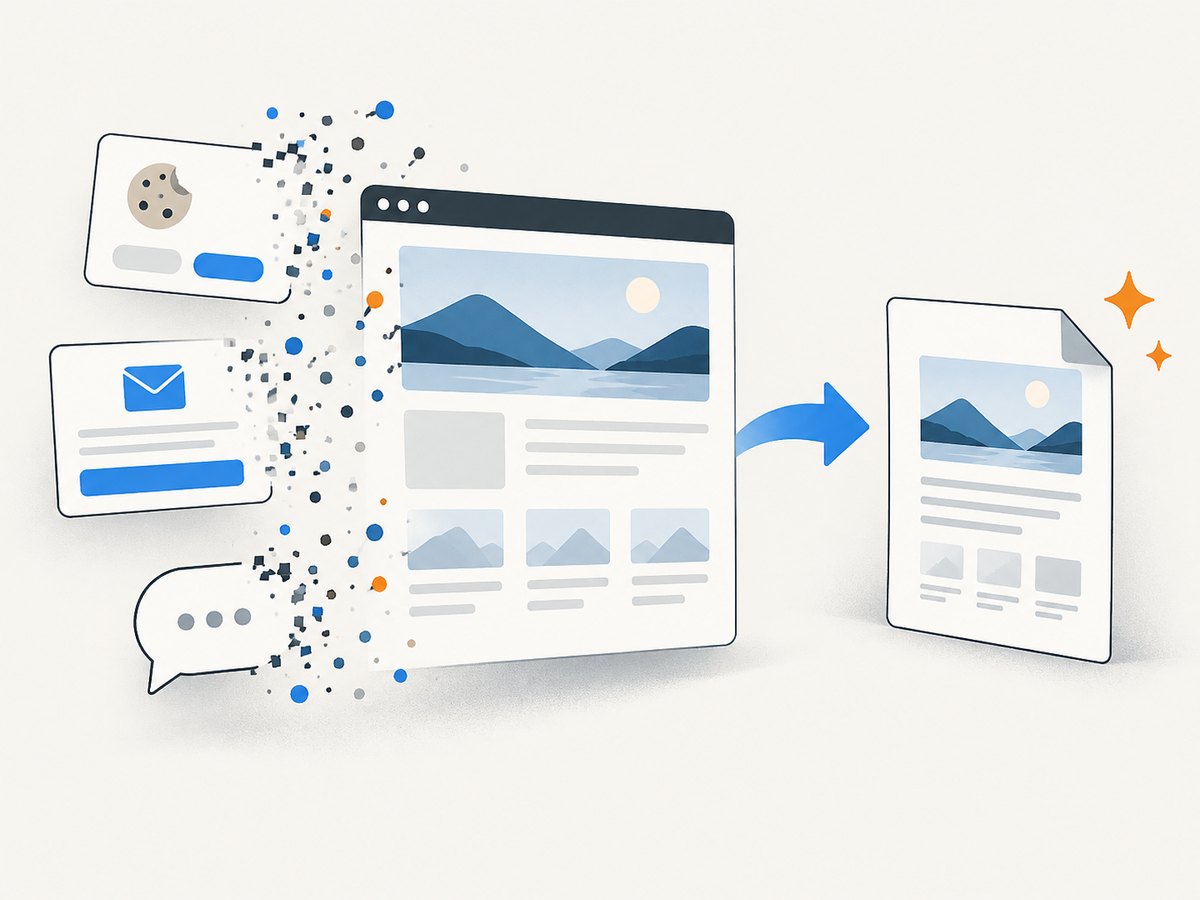
ScreenshotNeo accepts cookie and consent banners before capture and removes more than 60 known consent platforms, newsletter popups, and chat widgets; each step can be turned off. Bot checks or CAPTCHAs, blank pages, timeouts, failed loads, and cache hits cost nothing, and the response reports the page verdict and billing status in X-Page-Verdict and X-Billed headers. Its MCP server provides take_screenshot, get_page_info, and capture_pdf tools for Claude, Cursor, and other MCP clients.
There is a free allowance of 1,000 shots per month with no card. Paid plans start at $5 for 3,000 shots; yearly billing provides two months free, and every feature is available on every plan. Create a free ScreenshotNeo account to start.
7. Troubleshooting HTML-to-PDF output
| Symptom | Likely cause | Fix |
|---|---|---|
| PDF is blank | Page was captured before client rendering completed, or navigation failed. | Check the response and console logs; wait for a content selector or application-ready signal. |
| Styles are missing | CSS request failed, relative URLs are wrong, or authentication is absent. | Use absolute asset URLs where appropriate, inspect network failures, and provide cookies or headers. |
| Background colors disappear | Print backgrounds are disabled by default. | Set printBackground: true or the equivalent option and verify print color adjustment. |
| Layout differs from the screen | PDF rendering uses print media CSS. | Inspect @media print, use page.emulateMedia({media:'screen'}) only when that behavior is intentional, and test pagination. |
| Text wraps differently | Font not loaded or a different font is installed. | Wait for document.fonts.ready, package required fonts, and pin the browser environment. |
| Content is covered | Cookie banners, chat widgets, or fixed controls remain visible. | Dismiss them, hide their selectors in print CSS, or use a capture option that removes them. |
| Images are absent | Lazy loading has not been triggered or an image request failed. | Scroll or explicitly wait for images; inspect URLs, permissions, and response status. |
| Pages are cut off | Paper size, margins, scale, or a non-breaking element is too large. | Adjust geometry, remove rigid widths, and use break-inside rules selectively. |
| Automation times out | Never-ending requests, bot checks, or an unavailable origin. | Set a bounded timeout, identify the blocking request, and handle the page verdict before retrying. |
8. Performance, reliability, and cost
Browser automation
Launching a browser for every document adds startup overhead. Reuse a browser process while isolating pages or contexts, limit concurrency to what the host can support, and close pages after each job. Cache immutable assets and avoid waiting for a global network-idle event when analytics or long polling never stops; wait for a specific application-ready selector instead. Record the browser version, URL, options, duration, and output size so failures are diagnosable.
Retries should be bounded and used for transient navigation or network failures. Retrying an authentication error, CAPTCHA, missing selector, or deterministic layout bug only increases load. Store generated PDFs with a content identifier when you need idempotency, and validate that the output begins with a PDF signature before publishing it.
Hosted capture
With ScreenshotNeo, choose a wait condition that matches the page, use caching with a TTL when the source is stable, and use asynchronous jobs and signed webhooks for work that should not hold an HTTP request open. Bulk capture can send up to 100 URLs per call. Inspect X-Page-Verdict and X-Billed to distinguish a clean capture from a failed or non-billable result.
Cost depends on the workflow. Manual browser printing has no API request charge but consumes operator time. Self-hosted Playwright or Puppeteer costs the compute and maintenance of browser workers. ScreenshotNeo offers 1,000 free shots monthly without a card, then plans of $5 for 3,000, $15 for 15,000, $39 for 60,000, $99 for 250,000, and $249 for 1,000,000; annual billing gives two months free.
9. A practical checklist
- Confirm the page is fully rendered and authenticated.
- Choose paper size, orientation, margins, and scale.
- Review print CSS, page breaks, colors, and backgrounds.
- Wait for fonts, images, charts, and application data.
- Remove overlays and controls that do not belong in the document.
- Generate the PDF and inspect first, middle, and final pages.
- Check links, headings, reading order, and tags when accessibility matters.
- Log failures and keep retries bounded.
- For recurring jobs, pin browser versions or use a documented hosted API.
10. FAQ
Does printing HTML to PDF preserve JavaScript output?
It preserves the DOM state that exists when rendering finishes. Wait for the application to render its data before calling the print or PDF API.
Why does the PDF look different from the browser window?
Playwright and Puppeteer use print CSS media by default. Print rules, paper geometry, fonts, and background settings can all change the result.
Can I create only selected pages?
Playwright and ScreenshotNeo expose page-range controls. Use them when the document has stable pagination, then verify that headers and page numbers remain correct.
Does a tagged PDF guarantee accessibility?
No. Tags can preserve useful structure, but accessibility also depends on headings, reading order, link names, contrast, tables, form fields, and testing with assistive technology.
Should I use Playwright, Puppeteer, or a hosted API?
Use browser automation when you need code-level control and can operate browser workers. Use a hosted API when you want a repeatable capture endpoint without managing browser installation, waiting, retries, and cleanup.