How to Use Puppeteer Screenshots with MCP
Connect Puppeteer-style browser automation to MCP, capture viewport, element, and full-page images, and build reliable visual workflows for AI agents.
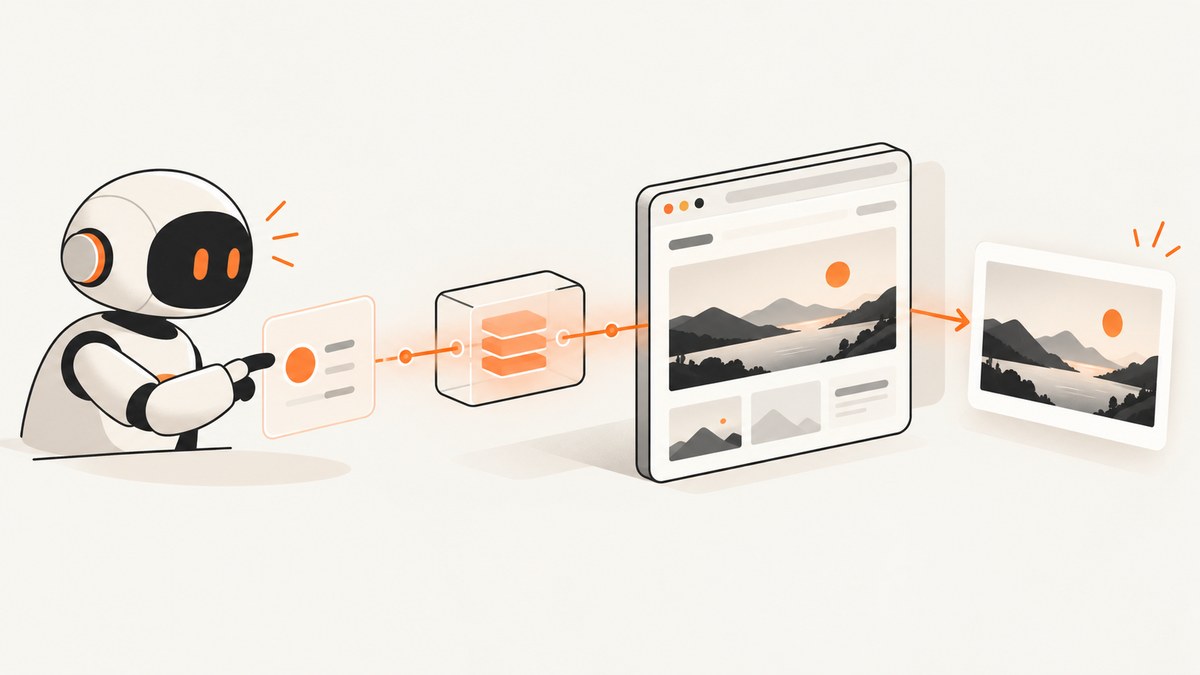
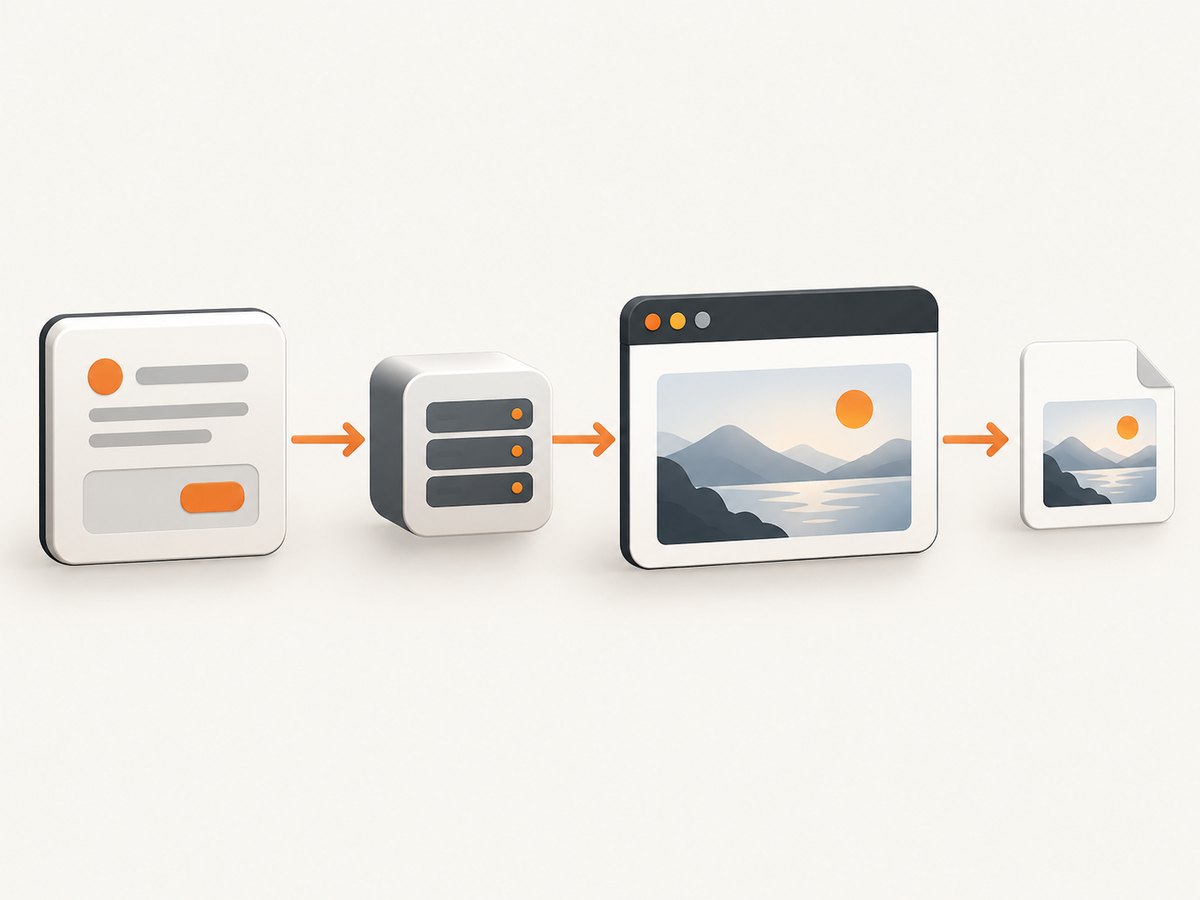
Direct answer: use an MCP server as the tool boundary around a Puppeteer-controlled browser. Create an isolated browser context, set its viewport and other environment values, navigate to the URL, wait for the application-ready state, then invoke the server’s screenshot action. Capture the current viewport for what a user sees, an element for a focused component, or the full scrollable page for visual regression and documentation. Keep accessibility snapshots for finding controls and stable references; use screenshots to verify visual appearance.
Puppeteer is a JavaScript library that automates Chrome and Firefox through the Chrome DevTools Protocol and WebDriver BiDi. Its documented uses include screenshots, PDFs, navigation, UI testing, and performance analysis (Chrome for Developers). MCP supplies the tool surface an AI client calls. The MCP server owns browser sessions and contexts; the client sends actions such as navigation, clicking, typing, waiting, evaluation, and screenshot capture.
Understand the three layers
| Layer | Responsibility | Typical failure |
|---|---|---|
| Puppeteer | Controls Chromium or Firefox, pages, selectors, and screenshots. | Page has not finished rendering or a selector is missing. |
| MCP server | Exposes browser tools, creates contexts, manages sessions, and returns files or image data. | Tool name or argument schema differs between servers. |
| Screenshot artifact | PNG, JPEG, or WebP image used for visual inspection, documentation, or comparison. | Wrong scope, scale, dimensions, or unstable page state. |
Do not assume that a Puppeteer MCP package uses the same commands as Playwright MCP. MCP implementations vary in tool names, payloads, browser versions, and file-return behavior. Read the reference for the server you installed before copying an example.
Install and connect an MCP browser server
The official Playwright MCP setup is a useful current example of MCP configuration. It requires Node.js 20 or newer and launches the server with npx (Playwright MCP documentation):
{
  "mcpServers": {
    "playwright": {
      "command": "npx",
      "args": ["@playwright/mcp@latest"]
    }
  }
}
This is a Playwright example, not proof that a Puppeteer-specific server has the same package or flags. For a Puppeteer server, install the package named by its own documentation and add its command under mcpServers. In Claude, Cursor, or another MCP client, reload the configuration and confirm that browser tools appear.
Create a reproducible browser context
A fresh context prevents cookies, local storage, extensions, and prior sessions from changing the image. If your server exposes a create-browser-context tool, set the values that affect rendering:
- Viewport: explicit width and height. A viewport screenshot has exactly these dimensions.
- Device scale: use CSS scale for normal dimensions or device scale for a higher-resolution image.
- Locale and timezone: prevent date, number, and translated text changes.
- User agent: choose a stable desktop or mobile profile when responsive markup differs.
- Permissions and geolocation: provide only the values the page needs.
- Isolation: use a new context per test or tenant, then close it when complete.
Record the viewport, browser version, fonts, locale, timezone, and target URL alongside a baseline. These inputs are part of the visual test and explain many apparent regressions.
Navigate and wait for the page to be ready
- Navigate to the final URL, including any required path or query parameters.
- Wait for a meaningful readiness signal: a selector that appears after rendering, network idle, or an application-specific “ready” marker.
- Wait for fonts and images when they affect the comparison. Lazy sections may require scrolling before capture.
- Disable animation or use a short, deterministic delay only when the page offers no better signal.
A fixed timeout alone is fragile: a fast run wastes time and a slow run still captures a partial page. Prefer a selector, network state, or application signal. Exact wait controls depend on the MCP server.
Capture viewport, element, or full page
A community Puppeteer MCP reference models capture as an execute-browser-action call:
{
  "tool": "execute-browser-action",
  "arguments": {
    "contextId": "context-123",
    "action": "screenshot",
    "params": {
      "fullPage": true,
      "path": "baseline.png"
    }
  }
}
Use fullPage: false (or omit it) for the current viewport. Use the element or selector form supported by your server when you need one component. Full-page capture cannot be combined with an element target in the documented screenshot interface.
Servers exposing a Playwright-style screenshot tool use a payload like this:
{
  "target": "e12",
  "type": "png",
  "filename": "login-form.png",
  "fullPage": false,
  "scale": "css"
}
target is an accessibility reference for an element; omit it for the viewport. Set fullPage to true for the complete scrollable page. Choose device scale when small text must remain readable at high resolution. Output types commonly include PNG, JPEG, and WebP; confirm which formats your server writes or returns.
Use snapshots for actions and screenshots for visual checks
Take an accessibility snapshot before interacting with a complex page. It exposes semantic roles, names, and stable references that an agent can use for clicking and typing. Then capture a screenshot to inspect layout, canvas content, charts, spacing, and visual defects. Playwright’s documentation summarizes the distinction as: screenshots are for looking at, while snapshots provide references for interaction.
Do not make image coordinates your default interaction mechanism. Coordinates change with viewport, zoom, fonts, and responsive breakpoints. Refresh the snapshot after navigation or major DOM updates because references can become stale.
Complete Puppeteer-style MCP workflow
The following sequence is intentionally tool-neutral. Map each step to the names in your server’s reference:
- Create a clean context with a 1440×900 viewport, fixed locale, timezone, and user agent.
- Navigate to
https://example.com/dashboard. - Wait for
[data-test="dashboard-ready"]and then for network idle if available. - Use an accessibility snapshot to locate the chart or table.
- Capture the viewport for the initial visual check.
- Capture the chart element for a focused artifact.
- Capture a full-page baseline after scrolling or triggering lazy loading.
- Close the context and store metadata with each image.
// Representative JavaScript in an MCP client; tool names vary by server.
const context = await mcp.callTool("create-browser-context", {
  viewport: { width: 1440, height: 900 },
  locale: "en-US",
  timezoneId: "UTC",
  userAgent: "visual-regression-bot/1.0"
});

await mcp.callTool("execute-browser-action", {
  contextId: context.id,
  action: "navigate",
  params: { url: "https://example.com/dashboard" }
});
await mcp.callTool("execute-browser-action", {
  contextId: context.id,
  action: "wait",
  params: { selector: "[data-test=dashboard-ready]" }
});
await mcp.callTool("execute-browser-action", {
  contextId: context.id,
  action: "screenshot",
  params: { fullPage: true, path: "dashboard-baseline.png", type: "png" }
});
Visual regression with baseline and current images
Capture a baseline and a current image under the same conditions, then send both to the comparison system used by your team. A visual-testing workflow shown by the Puppeteer MCP reference saves a full-page baseline and posts baseline/current images with a threshold. The threshold is implementation-specific; define it in your own tool and record why it is acceptable.
- Fix viewport, browser version, fonts, locale, timezone, and data fixtures.
- Freeze time and random values where possible.
- Disable transitions, carousels, blinking cursors, and live updates.
- Compare identical image dimensions and color settings.
- Review diffs caused by content changes separately from layout changes.
Common errors and fixes
| Symptom | Cause | Fix |
|---|---|---|
| Blank or partial image | Capture ran before the app or lazy assets were ready. | Wait for an application-ready selector, network idle, fonts, and images; scroll to load lazy content. |
| Wrong dimensions | Viewport screenshot was mistaken for full page, or no viewport was set. | Set context dimensions explicitly and choose fullPage deliberately. |
| Element target fails | Accessibility reference became stale after navigation or DOM updates. | Take a new snapshot, or use the selector syntax supported by the server. |
| Unreadable text | Low-resolution CSS-scale image or fonts were not loaded. | Use device scale, a larger viewport, and an explicit font-ready wait. |
| Flaky diffs | Animations, changing data, time, or browser differences. | Freeze state, use a clean context, fix browser and viewport, and disable animation. |
| Unknown tool or argument | MCP server schemas differ. | Inspect the server’s tool list and documentation; do not mix Puppeteer and Playwright payloads. |
| Navigation hangs | Third-party requests or a page that never reaches network idle. | Wait for a selector instead, set a bounded timeout, and block nonessential resources if your server supports it. |
| Security exposure | Arbitrary evaluation or unrestricted URL access. | Allow trusted MCP clients and approved URLs only. Playwright warns that unsafe code execution is RCE-equivalent. |

Performance, reliability, and cost decisions
- Reuse carefully: reusing a browser process can reduce startup work, but isolate contexts to prevent state leaks.
- Limit capture scope: element images are smaller and faster than full pages; use full page when the complete document matters.
- Control resources: blocking ads, trackers, video, or unnecessary fonts can improve determinism when your server supports request interception.
- Use bounded waits: combine a readiness selector with a maximum timeout and record timeout failures.
- Parallelism: run only as many contexts as the host can support; excessive concurrency causes memory pressure and flaky rendering.
- Artifact storage: save images with URL, commit, browser, viewport, and capture timestamp metadata.
- Cost: self-hosted Puppeteer MCP cost is your browser and compute usage. Hosted APIs charge according to their plan and billing rules; check whether failed captures are billable.
Or skip the browser setup
ScreenshotNeo provides a one-call screenshot API and an MCP server. Cookie and consent banners are accepted or removed before capture, along with more than 60 known consent platforms, newsletter popups, and chat widgets; each cleanup step can be disabled. Bot checks, CAPTCHAs, blank pages, timeouts, failed loads, and cache hits are not billed, and response headers identify the page verdict and billing result.
Use the API directly (see the ScreenshotNeo API documentation):
curl -G "https://api.screenshotneo.com/v1/shot" -d access_key=YOUR_API_KEY --data-urlencode url=https://stripe.com -o shot.webpimport requests
r = requests.get("https://api.screenshotneo.com/v1/shot", params={"access_key": "YOUR_API_KEY", "url": "https://stripe.com"}, timeout=90)
open("shot.webp", "wb").write(r.content)const q = new URLSearchParams({ access_key: 'YOUR_API_KEY', url: 'https://stripe.com' });
const res = await fetch(`https://api.screenshotneo.com/v1/shot?${q}`);The API supports full-page and element captures, dark mode, device presets or custom viewports, retina scale, PDF output, custom CSS and JavaScript, clicks and waits, request blocking, headers, cookies, user agents, authorization, timezone and geolocation, transparent backgrounds, resizing, chosen cache TTLs, signed links, asynchronous jobs with signed webhooks, bulk capture for up to 100 URLs per call, a usage API, and an OpenAPI specification. Its MCP tools include take_screenshot, get_page_info, and capture_pdf, so Claude, Cursor, and other MCP clients can request captures without you maintaining a browser server.
There is a free tier of 1,000 screenshots per month with no card. Paid plans start at $5 for 3,000 shots; every feature is available on every plan, and yearly billing gives two months free. Create a free ScreenshotNeo account.
FAQ
Can MCP capture only one DOM element?
Yes, when the server exposes an element target or selector. Refresh references after DOM changes, and do not combine an element target with full-page mode in interfaces that forbid that combination.
Should I use PNG, JPEG, or WebP?
PNG is safest for text and pixel diffs. JPEG is useful for photographic pages and smaller files. WebP often gives a compact artifact; verify that your comparison or downstream tool supports it.
Why does a screenshot differ between runs?
Check viewport, browser version, fonts, locale, timezone, data, animation, lazy loading, and authentication state. A clean context and explicit readiness signal remove most accidental variation.
Can an accessibility snapshot replace a screenshot?
No. A snapshot is better for structure and interaction references. A screenshot shows visual layout, rendered graphics, and styling.
What should I secure first?
Restrict MCP clients and destination URLs, avoid unrestricted evaluation, isolate credentials, and treat arbitrary browser code as highly privileged.


