Screenshot as an API Service: A Developer’s Guide
Learn how screenshot APIs turn URLs into images or PDFs, which rendering and delivery options matter, and how to build a reliable capture workflow.

A screenshot as an API service is a browser renderer you call over HTTP: send a URL (or, with some services, HTML) and rendering options, then receive an image or document. It is useful when your application needs previews, reports, visual checks, or shareable page captures without running and maintaining a browser for every request.
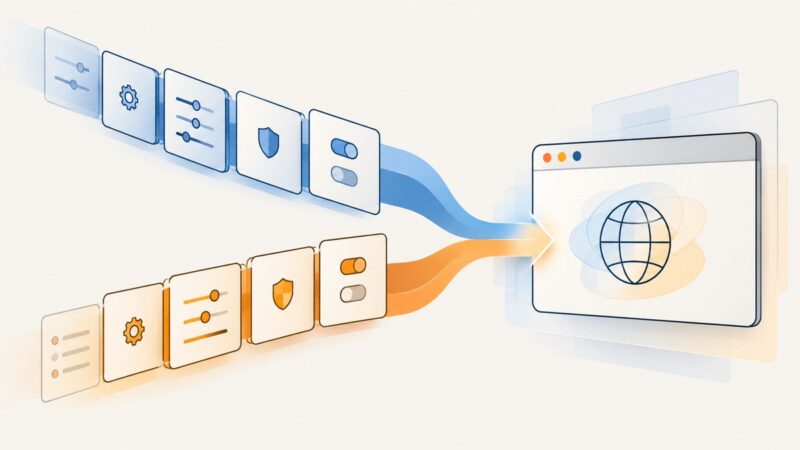
Before choosing a provider, define the output, viewport, page extent, readiness condition, authentication context, delivery format, and expected volume. Those requirements determine whether a simple request is enough or whether you need batching, private-page support, interaction, or a browser you control directly.
1. What happens in a screenshot API request?
Your client sends a request to a service. The service starts a browser, opens the target page, waits according to the configured condition, renders HTML, CSS, images, and JavaScript, captures the requested region, and returns the result. Depending on the service, the request may provide a URL or HTML, and the response may contain image bytes, a document, or a hosted result reference.

This differs from taking a screenshot in a local script in one important operational way: the browser and its rendering environment are managed elsewhere. That saves you from maintaining browser binaries and execution infrastructure, while making the provider’s limits, supported options, response behavior, and error reporting part of your application design.
2. Decide what the result must contain
Write down these requirements before comparing services. Provider capabilities differ; a feature listed by one provider should not be assumed to exist in another.
| Requirement | Questions to answer |
|---|---|
| Input | Is the page public by URL, private behind authentication, or generated HTML that you supply? |
| Output | Do you need PNG, JPEG, WebP, PDF, or another format? Do you need raw bytes or a hosted URL? |
| Page extent | Is a fixed viewport sufficient, or must the capture include the full document or a specific element? |
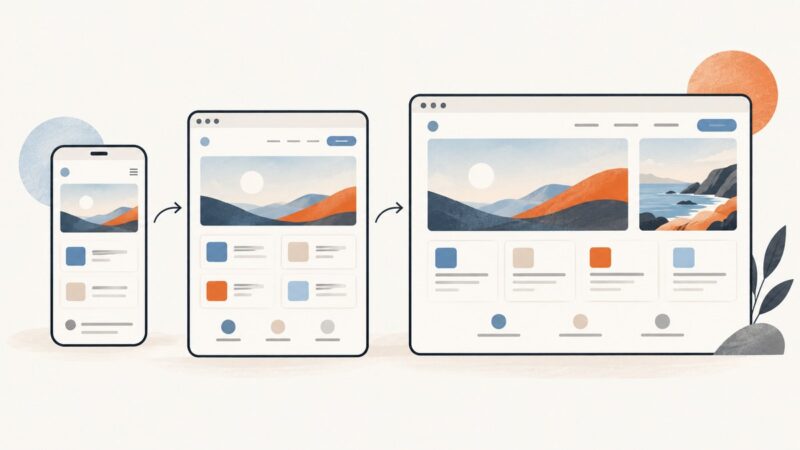
| Rendering | What viewport dimensions, device scale, locale, or other emulation settings produce the intended result? |
| Readiness | Does the page need a delay, a selector to appear, or a network-idle condition before capture? |
| Private targets | Which cookies, headers, or credentials are required, and how will you keep them out of logs? |
| Operations | How many pages will you capture, how will you handle failures, and does batching or caching matter? |
A viewport screenshot shows the visible browser area. A full-page screenshot attempts to capture content beyond that viewport. Long or dynamically expanding pages may need special handling and can create large images, so check service limits and confirm how the page behaves before making full-page capture your default.
3. Try a managed HTTP screenshot service
For a first integration, request one public URL and save the response as a file. Keep the API key on your server; avoid putting it in frontend JavaScript, public image URLs, or logs. Check the provider’s documentation for its current endpoint, authentication method, parameter names, response type, and limits.
For example, Screenshot API documents REST requests authenticated with an API key, image and PDF formats, full-page capture, viewport settings, caching, CSS and JavaScript injection, and batch requests. These are that provider’s documented capabilities, not universal screenshot API features. Screenshot API documentation
Cloudflare Browser Run documents a screenshot endpoint that accepts a URL or HTML and renders its HTML and JavaScript. It describes REST access with an API token and Workers Bindings, along with options and examples for viewport sizing, selector capture, CSS or JavaScript injection, waiting, and authenticated pages. Cloudflare Browser Run screenshot documentation
Here is a minimal managed-service request using ScreenshotNeo. The API returns the captured file for saving; keep the access key private. See the ScreenshotNeo API documentation for request options.
curl -G "https://api.screenshotneo.com/v1/shot" \
  -d access_key=YOUR_API_KEY \
  --data-urlencode url=https://stripe.com \
  -o shot.webp
The same request in Python:
import requests

r = requests.get(
    "https://api.screenshotneo.com/v1/shot",
    params={"access_key": "YOUR_API_KEY", "url": "https://stripe.com"},
    timeout=90,
)
r.raise_for_status()
with open("shot.webp", "wb") as image:
    image.write(r.content)
And in Node.js (Node 18 or later provides global fetch):
const q = new URLSearchParams({
  access_key: 'YOUR_API_KEY',
  url: 'https://stripe.com',
});
const res = await fetch(`https://api.screenshotneo.com/v1/shot?${q}`);
if (!res.ok) {
  throw new Error(`Screenshot request failed: ${res.status} ${await res.text()}`);
}
const bytes = Buffer.from(await res.arrayBuffer());
await import('node:fs/promises').then(fs => fs.writeFile('shot.webp', bytes));
4. Build the do-it-yourself browser method
If you need control over browser behavior or want to run captures in your own infrastructure, use a browser automation library such as Playwright. Install it and its browser runtime using the installation instructions for your operating system, then save this as capture.mjs. This example is runnable after installing Playwright and Chromium with npm install playwright and npx playwright install chromium.
import { chromium } from 'playwright';

const browser = await chromium.launch({ headless: true });
try {
  const page = await browser.newPage({
    viewport: { width: 1440, height: 900 },
    deviceScaleFactor: 1,
  });
  await page.goto('https://stripe.com', {
    waitUntil: 'domcontentloaded',
    timeout: 45_000,
  });
  // Prefer a page-specific readiness signal where possible.
  await page.locator('body').waitFor({ state: 'visible', timeout: 15_000 });
  await page.screenshot({ path: 'shot.png', fullPage: true });
} finally {
  await browser.close();
}
Start with domcontentloaded and a meaningful selector for your target. A generic body selector only confirms that basic document content exists; it does not prove a client-rendered chart or application widget is ready. Use the selector for the actual content when possible. Cloudflare’s guidance calls out that JavaScript-heavy pages and single-page applications can appear loaded before their scripts finish rendering, and documents network-idle waiting or a known selector as approaches to consider. Validate the condition on the target page; no wait setting guarantees a correct capture. Cloudflare’s screenshot endpoint guide
5. Choose capture options deliberately
Viewport, full page, and element capture
Set viewport width and height to match the output you need. A desktop viewport and a narrow mobile viewport can produce entirely different layouts. Full-page capture is useful for documents and archives, while a viewport capture is often better for thumbnails and above-the-fold previews. If only one component matters, look for selector or clipping support and capture that region instead of an unnecessarily tall page.
Format and quality
PNG is a sensible choice when sharp text, transparency, or lossless output matters. JPEG can reduce file size for photographic content but uses lossy compression. WebP can provide compact output where your downstream tools accept it. PDF is a document output rather than an image format; confirm paper size, margins, orientation, and pagination controls with the provider. Do not assume every provider supports every format or quality setting.
Wait conditions and page state
A fixed delay is easy to configure, but it may waste time on quick pages and still be too short on slow ones. Waiting for a selector that represents the content you need is usually more specific. Network idle can help with pages that settle after requests finish, but analytics, polling, or long-lived connections can prevent a page from becoming idle. Test the page’s real behavior and use a bounded timeout.
Authentication and rendering context
For private pages, verify the exact support for cookies, HTTP authentication, headers, or other credentials. Cloudflare documents cookie and HTTP Basic Authentication examples; other services may expose different mechanisms. Supply only the credentials needed for capture, protect them as secrets, and avoid returning them to a browser or including them in diagnostic output.
Batching, caching, and delivery
Batch endpoints reduce the number of client requests when capturing many URLs, but confirm whether results are returned immediately or through a job identifier. Caching can save repeated work when an unchanged URL is requested, but it can make captures stale; choose a TTL based on how quickly the source changes. Determine whether the response is a file, JSON containing a URL, or a redirect, and make your downloader match that behavior.
6. Reliability, performance, and cost
Each capture requires navigation and rendering, so page complexity, images, scripts, network conditions, and wait strategy all affect completion time. Limit concurrency to a level your provider and application can handle. For a queue, record the target URL and capture options, apply bounded retries to transient failures, and avoid retrying permanent failures indefinitely. Retries can create duplicate work unless your workflow tracks request identity or safely overwrites the same output.
Use explicit timeouts at the client and capture levels. A timeout should produce a visible job failure that can be retried or inspected, not a silently accepted empty file. Validate the response status and content type, and consider checking that the resulting file is nonempty before storing or publishing it.
Cost comparisons require the workload and current plan details. The research reviewed here did not establish an independent, like-for-like price, uptime, or service-level ranking across providers. Check current quotas, rate limits, overage rules, billing units, and cache behavior directly before estimating monthly spend. A free-plan allowance is provider-specific: the Screenshot API documentation states a limit of 60 requests per minute and 500 screenshots per month for its free plan; verify its current terms before relying on that figure. Screenshot API documentation
For self-hosting, include browser runtime, compute, storage, concurrency, maintenance, and failure investigation in the cost. A managed API shifts much of that operational work to the provider, but makes the application dependent on that service’s availability, limits, and supported rendering behavior. For either approach, capture a representative sample of target pages before committing to a design.
7. Troubleshooting common capture problems
| Symptom | Likely cause | Fix |
|---|---|---|
| Blank or mostly empty image | Capture happened before client-rendered content appeared, or navigation failed. | Wait for a page-specific selector, check the page response and logs, and inspect whether the URL redirects or requires authentication. |
| Missing chart, image, or widget | The asset loads after the chosen readiness condition, or the page depends on an interaction. | Wait for the actual element or a known application-ready state. If necessary, use a browser workflow that can perform the required interaction. |
| Mobile layout looks like desktop | The capture viewport is still configured for desktop dimensions. | Set the intended viewport explicitly; check whether the service also requires device emulation or a device scale setting. |
| Full-page capture cuts off content | The page grows while scrolling, uses nested scroll containers, or the provider imposes a capture limit. | Check documented full-page behavior and limits. Wait for lazy content or capture sections separately when appropriate. |
| Private page redirects to login | Cookies or authentication were missing, expired, or sent through an unsupported mechanism. | Confirm the provider supports the needed authentication method and provide fresh, least-privilege credentials securely. |
| Request times out | The site is slow, a wait condition never becomes true, or a network-idle condition is held open. | Use a bounded, page-specific readiness signal; increase the timeout only when the workload justifies it; inspect whether the target is reachable. |
| File is corrupt or contains an error response | The client saved an error body as an image, or expected binary data but received JSON or a redirect. | Check status, headers, and documented response mode before writing bytes to the output file. |
| Too many requests or quota errors | Concurrency exceeded a limit or the plan’s quota was reached. | Throttle jobs, use batching if supported, inspect current quota and reset timing, and surface a retryable status to the queue. |
8. Or skip the browser setup
ScreenshotNeo is a website screenshot API and MCP server for developers. Its one-call endpoint returns PNG, JPEG, WebP, or PDF. For example:
curl -G "https://api.screenshotneo.com/v1/shot" \
  -d access_key=YOUR_API_KEY \
  --data-urlencode url=https://stripe.com \
  -o shot.webp
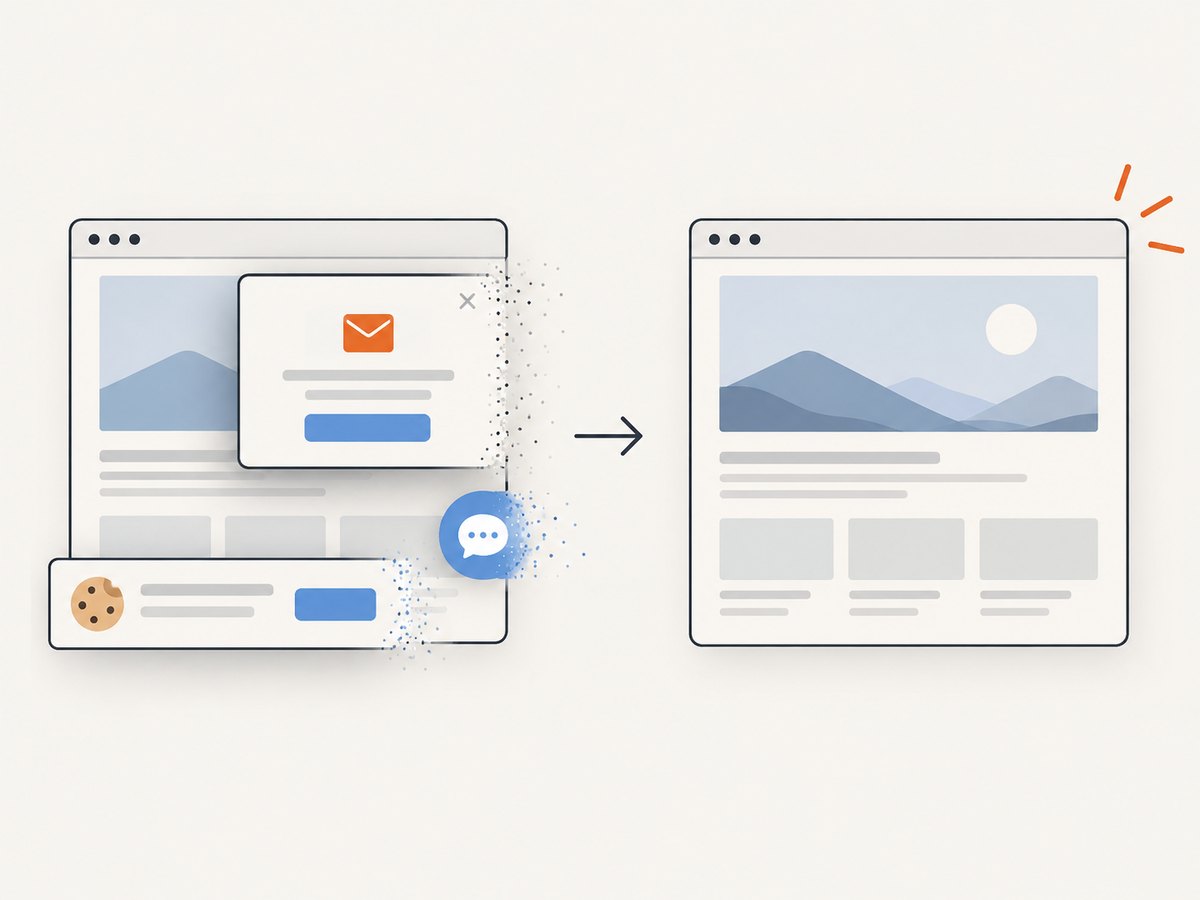
ScreenshotNeo accepts cookie and consent banners before capture and removes more than 60 known consent platforms, newsletter popups, and chat widgets; each step can be turned off. Bot checks and CAPTCHAs, blank pages, timeouts, failed loads, and cache hits are not billed. Responses say which outcome occurred using X-Page-Verdict and X-Billed headers. Its MCP server provides take_screenshot, get_page_info, and capture_pdf tools for Claude, Cursor, and other MCP clients.
There are 1,000 screenshots a month on the free plan with no card; paid plans start at $5 for 3,000. Every feature is available on every plan. ScreenshotNeo also supports full-page capture with lazy images loaded, element capture, dark mode, device presets and custom viewports, PDF options, HTML/CSS input, custom CSS and JavaScript, click and hide selectors, wait conditions, request blocking, headers, cookies, user agent and Authorization, timezone and geolocation, transparent backgrounds, resizing, configurable cache TTL, signed image links, async jobs with signed webhooks, bulk capture up to 100 URLs per call, usage API, and an OpenAPI spec. Its parameter names also work with those used by other screenshot APIs to make switching easier. See the ScreenshotNeo documentation for the API details.
Sign up for ScreenshotNeo’s free plan to make 1,000 screenshots a month with no card.
9. Frequently asked questions
Is a screenshot API the same as a browser automation API?
Not necessarily. A screenshot endpoint handles a defined capture request. A browser automation API may expose navigation, clicks, and other multi-step interactions. Choose based on whether the page can be captured from its initial state.
Can I capture a page behind a login?
Sometimes. The provider must support an authentication mechanism that matches the target. Verify the documented method and handle credentials as secrets.
Should I use full-page screenshots for every URL?
No. Use the smallest capture area that meets the purpose. Full-page output can be much taller, slower to process, and subject to service-specific limits.
Will waiting for network idle always capture a complete page?
No. Pages differ: some continue background requests while others render important content after the network quiets. Test the target and wait for a condition tied to the content you need.
How do I choose between a hosted API and running Playwright myself?
Use a hosted API when its documented options fit and you prefer not to operate browser infrastructure. Run Playwright when you need control over browser steps or a rendering setup that the service does not expose. Include maintenance and reliability work in the self-hosting decision.