How to Generate One Selenium Java PDF Report Across Multiple Browsers
Generate consistent Selenium Java PDF reports in Chrome and Firefox, validate differences, and combine browser outputs when one document is required.
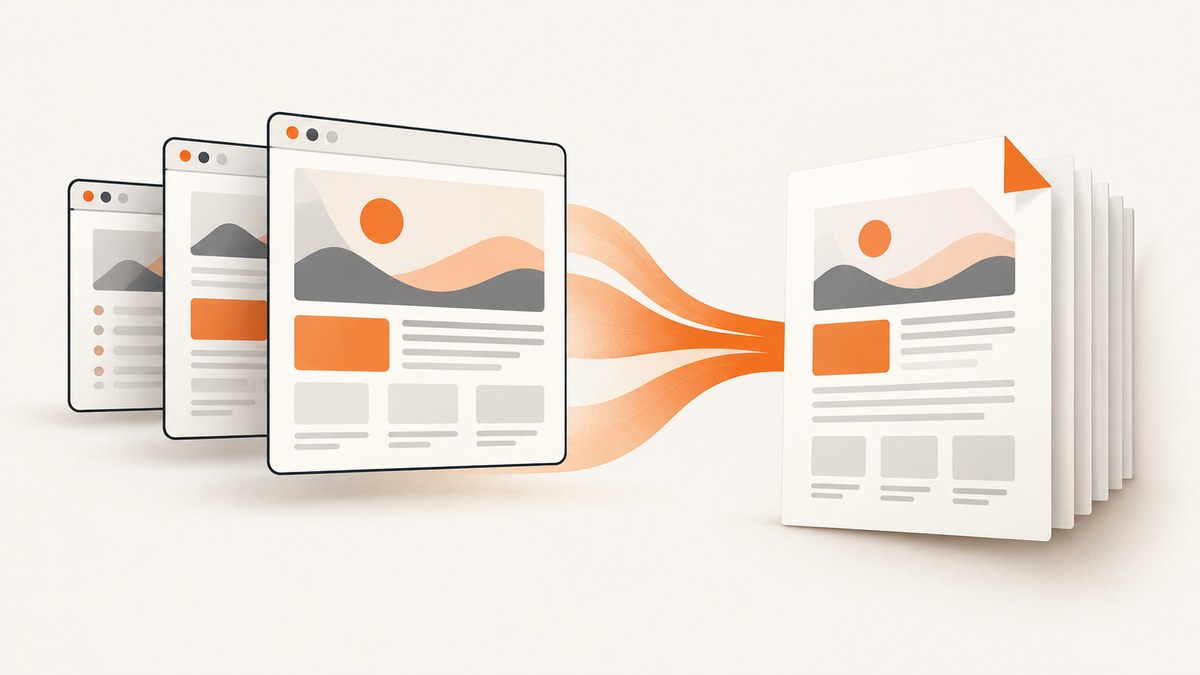
Direct answer: use Selenium 4’s page-printing API inside the same Java report workflow for every browser configuration. Navigate each driver to the report, wait for its content to be ready, create one shared PrintOptions profile, call the browser’s print interface, decode the returned Base64 content, and save a PDF named with the browser and version. If “one report” means one physical PDF file, merge those browser-specific PDFs in a separate step; Selenium’s print call produces PDF content for one browser session and does not merge documents for you.
This approach avoids browser print dialogs and works well in CI or a remote Selenium Grid. Selenium documents both the Java PrintsPage interface and a BiDi BrowsingContext print flow. The exact interface available depends on your Selenium version and driver support, so check the official print-page documentation before pinning production versions.
1. Decide what “one report” means
Teams use this phrase for two different deliverables:

| Requirement | Recommended output | Why |
|---|---|---|
| Audit how the page prints in each browser | One PDF per browser, stored in one report package | You retain browser-specific rendering evidence. |
| Send stakeholders one attachment | One PDF per browser, then merge them in a documented order | Printing and PDF assembly remain independently testable. |
| Compare browsers visually | Separate PDFs plus page-count and text checks | PDF bytes from different engines are not guaranteed to look identical. |
Do not assume Chrome and Firefox will produce identical pagination, font metrics, background handling, or page breaks. Render representative pages in every target browser and inspect the result.
2. Add Selenium Java and choose browser versions
Add Selenium Java to your build. The versions below are illustrative pins used by a secondary tutorial, not a statement of the latest release:
<dependency>
  <groupId>org.seleniumhq.selenium</groupId>
  <artifactId>selenium-java</artifactId>
  <version>4.23.1</version>
</dependency>
<dependency>
  <groupId>io.github.bonigarcia</groupId>
  <artifactId>webdrivermanager</artifactId>
  <version>5.8.0</version>
</dependency>
Use a Java runtime compatible with the Selenium version you select. In CI, pin browser images and drivers where possible. Chrome and ChromeDriver must match on the major version; Chrome for Testing release guidance is described in the ChromeDriver documentation. Selenium’s supported-browser documentation lists browser-specific capabilities, but support for a browser does not make every print option identical.
3. A complete Java implementation
The following class runs the same report flow for Chrome and Firefox. It waits for a report-specific selector, waits for fonts, applies one print profile, decodes the PDF, and closes every driver in a finally block.
import io.github.bonigarcia.wdm.WebDriverManager;
import java.nio.file.Files;
import java.nio.file.Path;
import java.time.Duration;
import java.util.Base64;
import java.util.List;
import org.openqa.selenium.By;
import org.openqa.selenium.JavascriptExecutor;
import org.openqa.selenium.WebDriver;
import org.openqa.selenium.chrome.ChromeDriver;
import org.openqa.selenium.chrome.ChromeOptions;
import org.openqa.selenium.firefox.FirefoxDriver;
import org.openqa.selenium.firefox.FirefoxOptions;
import org.openqa.selenium.print.Pdf;
import org.openqa.selenium.print.PrintOptions;
import org.openqa.selenium.print.PrintOptions.Orientation;
import org.openqa.selenium.support.ui.ExpectedConditions;
import org.openqa.selenium.support.ui.WebDriverWait;
import org.openqa.selenium.print.PrintsPage;

public class CrossBrowserPdfReport {
  private static final String REPORT_URL = "https://example.test/report";
  private static final Path OUTPUT = Path.of("target/reports");

  public static void main(String[] args) throws Exception {
    Files.createDirectories(OUTPUT);
    run("chrome", createChrome());
    run("firefox", createFirefox());
  }

  private static WebDriver createChrome() {
    WebDriverManager.chromedriver().setup();
    ChromeOptions options = new ChromeOptions();
    options.addArguments("--headless=new", "--window-size=1440,1200");
    return new ChromeDriver(options);
  }

  private static WebDriver createFirefox() {
    WebDriverManager.firefoxdriver().setup();
    FirefoxOptions options = new FirefoxOptions();
    options.addArguments("-headless");
    return new FirefoxDriver(options);
  }

  private static void run(String browser, WebDriver driver) throws Exception {
    try {
      driver.manage().timeouts().pageLoadTimeout(Duration.ofSeconds(60));
      driver.get(REPORT_URL);
      WebDriverWait wait = new WebDriverWait(driver, Duration.ofSeconds(45));
      wait.until(ExpectedConditions.visibilityOfElementLocated(By.cssSelector("[data-report-ready]")));
      wait.until(d -> Boolean.TRUE.equals(((JavascriptExecutor) d).executeScript(
          "return document.fonts ? document.fonts.status === 'loaded' : true;")));

      PrintOptions options = new PrintOptions();
      options.setOrientation(Orientation.PORTRAIT);
      options.setPageRanges("1-");
      options.setScale(1.0);
      options.setBackground(true);
      options.setMarginTop(0.35);
      options.setMarginBottom(0.35);
      options.setMarginLeft(0.35);
      options.setMarginRight(0.35);

      Pdf pdf = ((PrintsPage) driver).print(options);
      byte[] bytes = Base64.getDecoder().decode(pdf.getContent());
      Path output = OUTPUT.resolve(browser + "-report.pdf");
      Files.write(output, bytes);
      System.out.println("Wrote " + output + " (" + bytes.length + " bytes)");
    } finally {
      driver.quit();
    }
  }
}
The data-report-ready marker is an application contract: add it only after data, charts, images, and print-specific content are ready. A generic sleep is less reliable because a fast run wastes time while a slow run still prints incomplete content.
4. Configure PrintOptions for a predictable layout
Keep one common profile when the goal is comparison. Adjust these values deliberately:

| Setting | Use | Cross-browser concern |
|---|---|---|
| Orientation | Portrait or landscape page geometry | Wide tables may wrap differently. |
| Page size | Letter, A4, or another supported size | Paper dimensions affect line and page breaks. |
| Scale | Shrink or enlarge printed content | Scaling can change pagination and readability. |
| Margins | Reserve space around content | Browser defaults differ if you leave them implicit. |
| Backgrounds | Include color and background images when supported | Verify the driver honors the setting. |
| Page ranges | Print selected pages instead of the complete document | Page numbering must be validated after layout. |
Use print CSS for intentional breaks:
@media print {
  .page-break { break-before: page; }
  .no-print { display: none !important; }
  thead { display: table-header-group; }
  tr { break-inside: avoid; }
}
Load fonts before printing, use absolute or stable asset URLs, and avoid animations. If the report depends on a chart canvas, wait until the chart library signals completion. For lazy-loaded images, scroll through the report or expose a readiness signal before calling print.
5. Selenium BiDi printing
Selenium’s official page also documents a BiDi form. Enable the WebDriver BiDi capability with webSocketUrl, create a BrowsingContext for the current window, and call its print method with PrintOptions. This is useful when your Selenium version and browser expose the newer interface, but APIs evolve. Confirm the Java package names and browser support in the version you deploy instead of copying an example unchanged.
The legacy-looking PrintsPage example above is often simpler for a cross-browser utility. Treat either route as an adapter behind a method such as printCurrentPage(), so changing Selenium interfaces does not affect report orchestration.
6. Organize, validate, and merge the outputs
- Capture browser metadata before printing: browser name, version, driver version, operating-system image, commit SHA, and report URL.
- Name files deterministically, for example
chrome-131-report.pdfandfirefox-133-report.pdf. - Check that the file is non-empty and begins with a valid PDF signature.
- Validate page count, required headings, totals, headers and footers, margins, and page-break locations.
- Compare representative pages visually. Differences in fonts, SVGs, date formatting, and CSS support are expected possibilities.
If the deliverable must be one merged file, add a PDF library or command-line merger after all browser jobs finish. Preserve the browser order in a manifest and record the source filenames. The Selenium examples establish PDF creation, not PDF merging, so document this as a separate pipeline stage.
7. Running in headless CI and remote grids
Headless mode is convenient, but it is still a browser rendering environment. Set a deterministic window size, install the same fonts used in production, and use a container image with pinned browser versions. Remote sessions may impose timeouts or restrict filesystem access; return the decoded bytes to the test runner or upload them to an artifact store instead of assuming the driver host is writable.
Run browsers independently when reducing wall-clock time. Limit concurrency to what the CI host can handle, because CPU and memory contention can delay font and image loading. Retry only transient session or network failures. A retry cannot fix a deterministic layout defect and can create duplicate artifacts unless filenames include an attempt number.
8. Troubleshooting common failures
| Symptom | Likely cause | Fix |
|---|---|---|
ClassCastException for PrintsPage |
The selected driver or Selenium version does not expose that interface. | Check the version’s print support and use its BiDi BrowsingContext route where available. |
| Empty or tiny PDF | Printing started before report data, fonts, or images finished. | Wait for a report-ready selector, document.fonts, chart completion, and required image loads. |
| Chrome session will not start | Chrome and ChromeDriver major versions differ, or the binary is missing. | Pin compatible releases and inspect the ChromeDriver release guidance. |
| Firefox output differs sharply | Different CSS, font metrics, default margins, or unsupported print behavior. | Install matching fonts, set every relevant print option, and maintain browser-specific visual baselines. |
| Background colors missing | Background printing is disabled or unsupported by the driver path. | Enable the background option, add print CSS, and verify the produced PDF rather than assuming the flag was honored. |
| Content is clipped | Fixed-height containers, overflow rules, or an overly large scale. | Remove print-time fixed heights, review overflow, reduce scale, or use landscape mode. |
| Driver processes remain after failure | quit() was not reached. |
Construct the driver inside a try/finally block and collect logs before cleanup. |
| Only the first page prints | A page range or print CSS rule limits output. | Use an unrestricted range such as 1- and inspect break-before rules. |
9. Performance, reliability, and cost
Browser startup is usually a larger cost than the print call itself. Reuse a driver for several pages from the same origin when isolation permits, but create separate sessions when browser-version evidence or clean state matters. Cache static assets inside your CI environment, while keeping report data and authentication fresh.
Reliability improves when readiness is explicit, versions are pinned, and artifacts include logs and metadata. Track duration by phase—startup, navigation, readiness wait, and print—to locate regressions. Do not treat a successful HTTP response from the report page as proof that client-side rendering is complete.
Your direct costs are CI minutes, browser infrastructure, artifact storage, and any PDF-merging library or service. Selenium itself does not charge per PDF. If you run a large browser matrix, calculate the cost of parallel workers and retained artifacts before expanding coverage.
10. Or skip the browser setup
ScreenshotNeo provides a website screenshot API and MCP server when you need a rendered capture without managing Selenium sessions. The API accepts one GET request and returns PNG, JPEG, WebP, or PDF. See the ScreenshotNeo documentation for all options.
curl -G "https://api.screenshotneo.com/v1/shot" -d access_key=YOUR_API_KEY --data-urlencode url=https://stripe.com -o shot.webpimport requests
r = requests.get("https://api.screenshotneo.com/v1/shot", params={"access_key": "YOUR_API_KEY", "url": "https://stripe.com"}, timeout=90)
open("shot.webp", "wb").write(r.content)const q = new URLSearchParams({ access_key: 'YOUR_API_KEY', url: 'https://stripe.com' });
const res = await fetch(`https://api.screenshotneo.com/v1/shot?${q}`);Cookie banners, newsletter popups, and chat widgets are removed before the shot. Bot checks, blank pages, failed loads, timeouts, and cache hits are never billed; response headers identify the page verdict and whether it was billed. An MCP server provides take_screenshot, get_page_info, and capture_pdf tools for Claude, Cursor, and other MCP clients. The free plan includes 1,000 screenshots a month with no card; paid plans start at $5 for 3,000 shots. Create a free ScreenshotNeo account.
11. FAQ
Can Selenium create a PDF without opening a print dialog?
Yes. Selenium’s page-printing API returns PDF content directly from the browser session, so no UI dialog is required.
Are Chrome and Firefox PDFs byte-for-byte comparable?
No. Compare required content and visual characteristics instead. Different engines can calculate fonts, pagination, and CSS differently.
Should I merge PDFs inside the Selenium test?
Usually no. Save and validate each browser artifact first, then merge in a separate, repeatable pipeline stage when a single attachment is required.
Can I use Safari or Edge?
Selenium supports browser-specific capabilities, but print-interface and option support vary. Verify the selected Selenium version and browser combination before adding it to the matrix.
What is the best readiness signal?
A page-owned marker such as data-report-ready set after data, fonts, images, and charts are complete is more reliable than a fixed sleep.


